Example
Azure Files example
What you'll build
Build a WSO2 Integrator automation that connects to an Azure file share, uploads a local report with the uploadFromFile operation, and confirms the upload with the hasFile operation. The workflow uses configurable variables to manage the Azure credentials securely.
Operations used:
- uploadFromFile : Uploads a local file to a path on the share.
- hasFile : Checks whether a file exists at a share path.
Architecture
Prerequisites
- An Azure storage account with a file share (see the Setup Guide)
- The storage account name and an access key
Setting up the integration
New to WSO2 Integrator? Follow the Create a New Integration guide to set up your integration first, then return here to add the connector.
Step 1: Add an Automation entry point
A new integration starts with no artifacts, so the sidebar stays empty and connections cannot be added yet. Create the entry point first:
- Select + Add Artifact on the canvas toolbar.
- Under Automation, select the Automation tile.
- Select Create Integration. No additional configuration is needed.
An Automation entry point appears in the sidebar under Entry Points, and the design view shows the automation node. Selecting the node opens the automation flow editor with a Start node.
Creating the configurable variables
The connection form references configurable variables for the share name and credentials, so create the variables first.
Step 2: Create configurable variables
- In the sidebar, select Configurations to open the Configurable Variables view.
- Select + Add Config, enter the Variable Name, keep the Variable Type as
string, leave Default Value empty, and select Save. Repeat for each variable listed below.
- accountName (string) : The Azure storage account name
- accountKey (string) : An access key of the storage account
- shareName (string) : The name of the file share to bind the client to

Adding the Azure Files connector
Select Add Connection in the WSO2 Integrator sidebar to open the connector palette.
Step 3: Open the connector palette and select the Files connector
- In the WSO2 Integrator sidebar, expand Connections and select the + button next to it.
- In the connector palette search box, enter
azure.storage.files. - The palette lists three cards under
ballerinax / azure.storage.files: Files (the share client this example uses), Files Admin (the account-levelAdminClient), and Files Caller (passed to trigger handlers, not used as a connection). Select the Files card.

Configuring the Azure Files connection
Step 4: Bind connection parameters to the configurable variables
Selecting the Files card opens the Configure Files form. Switch Share Name to Expression and enter shareName, switch Auth to Expression and enter {accountName, accountKey}, and set Connection Name to azFilesClient.
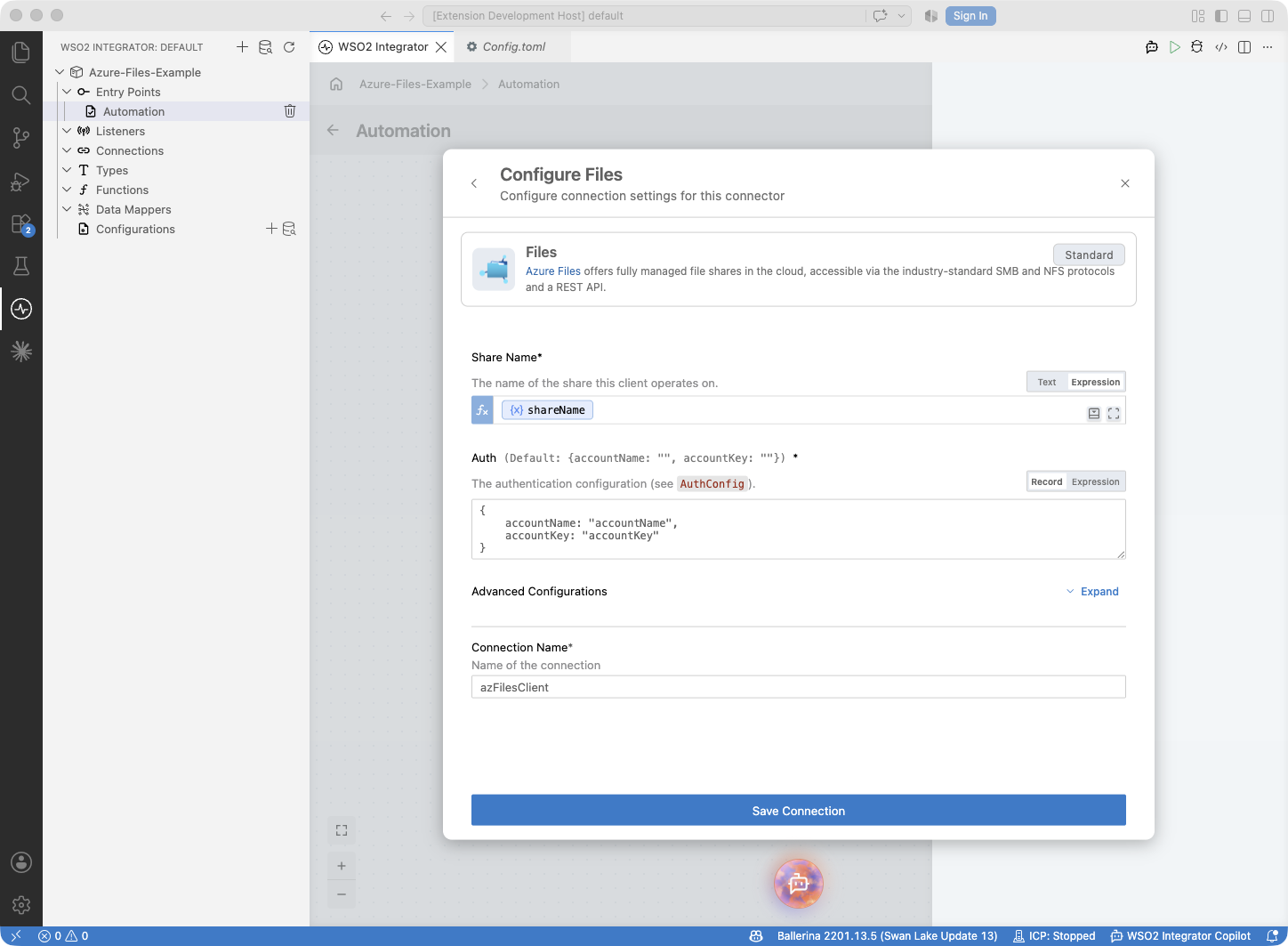
Step 5: Save the connection
Select Save Connection to persist the connection. The form closes and azFilesClient appears in the sidebar under Connections.
Step 6: Set actual values for your configurables
- In the left panel, select Configurations.
- Set a value for each configurable listed below.
- accountName (string) : Your storage account name, from the Setup Guide
- accountKey (string) : An access key of the storage account
- shareName (string) : The file share to work with (for example,
reports)
Configuring the uploadFromFile operation
Step 7: Select the uploadFromFile operation and configure its parameters
- In the sidebar under Entry Points, select Automation to open its flow editor (selecting the automation node in the design view works too).
- Select the + button on the canvas between Start and Error Handler.
- In the right-side node panel, expand Connections → azFilesClient.

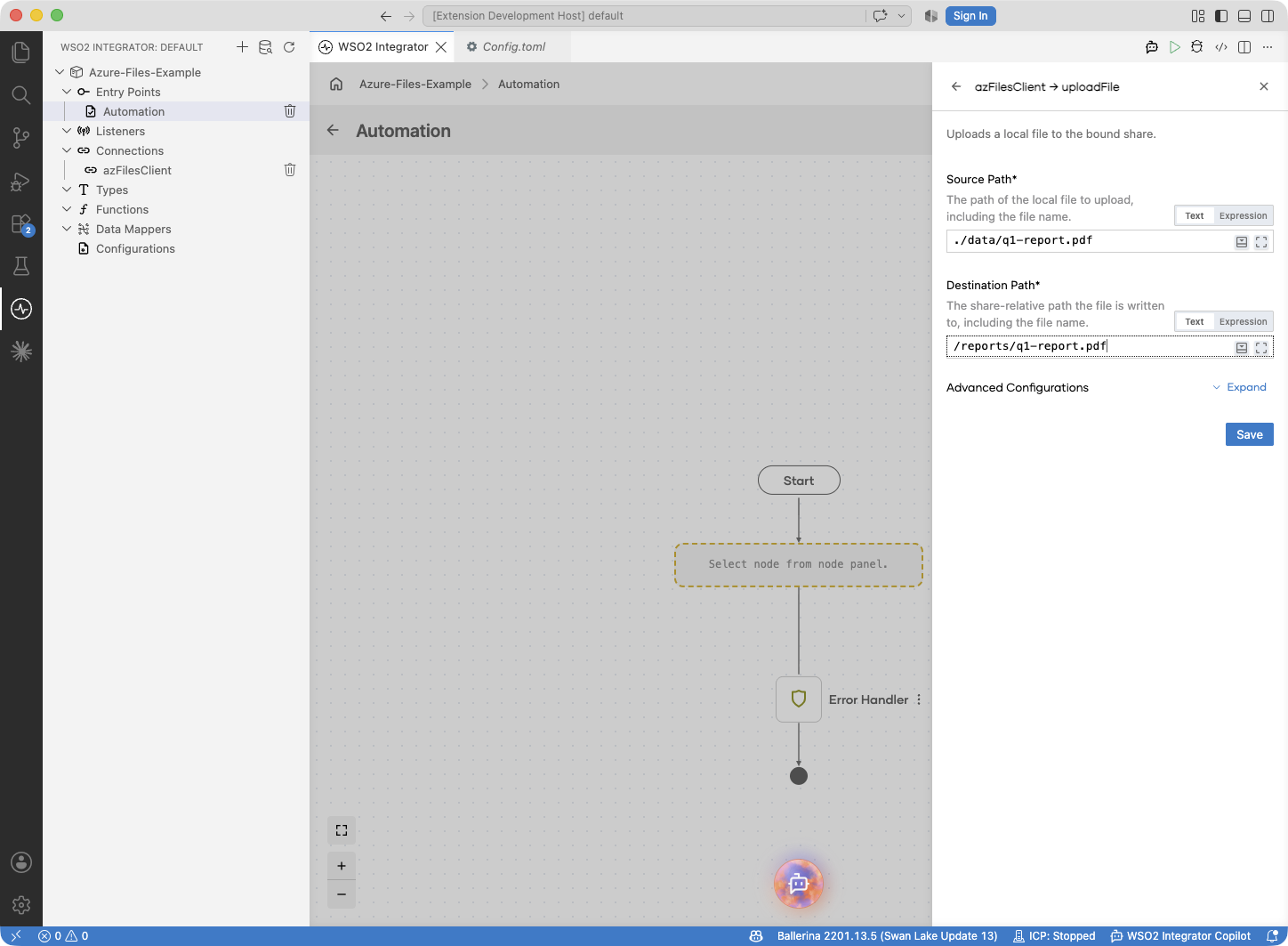
- Select Upload From File and fill in the operation form:
- Source Path : The local file to upload (for example,
./data/q1-report.pdf) - Destination Path : The full share path to upload to, including the file name (for example,
/reports/q1-report.pdf)
- Select Save.
Step 8: Confirm the upload and log the result
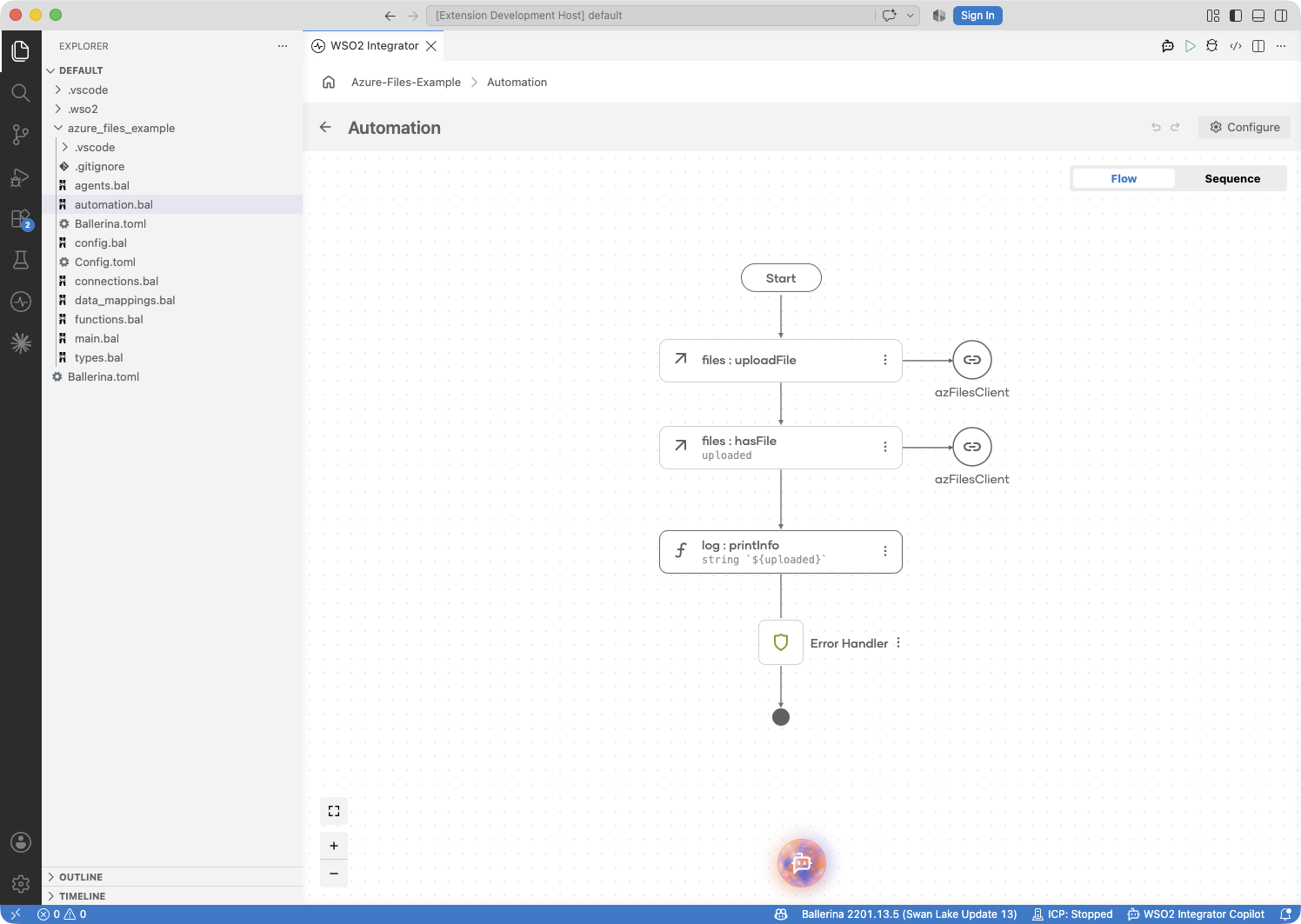
- Select the + below the Upload From File node and add the Has File operation from Connections → azFilesClient. Set Path to the destination path from Step 7 (
/reports/q1-report.pdf) and name the result variableuploaded(its type is fixed toboolean). - Add a Log Info statement below it with the expression
string `${uploaded}`(the message must be a string, so the boolean is interpolated).
hasFile returns true once the file is present on the share, so the log output confirms the upload.
Try it yourself
Try this sample in WSO2 Integration Platform.

Azure Files trigger example
What you'll build
This integration watches a drop folder on an Azure file share and processes each JSON file dropped into it. When a .json file arrives on the watched path, the onFileJson handler fires with the parsed content and logs it, and the listener deletes the file after successful processing; a file that fails to parse moves to a /failed directory instead.
Architecture
Prerequisites
- An Azure storage account with a file share containing an
/incomingdirectory (see the Setup Guide) - The storage account name and an access key
Setting up the integration
New to WSO2 Integrator? Follow the Create a New Integration guide to set up your integration first, then return here to add the trigger.
Configuring the Azure Files listener
Step 1: Create configurable variables
In the left panel, select Configurations. In the Configurable Variables panel, select + Add Config and create each configuration listed below. If you completed the client example in the same project, these variables already exist; reuse them and skip this step.
- accountName (string) : The Azure storage account name
- accountKey (string) : An access key of the storage account
- shareName (string) : The file share to watch
Adding the Azure Files trigger
Step 2: Select the Azure Files integration type
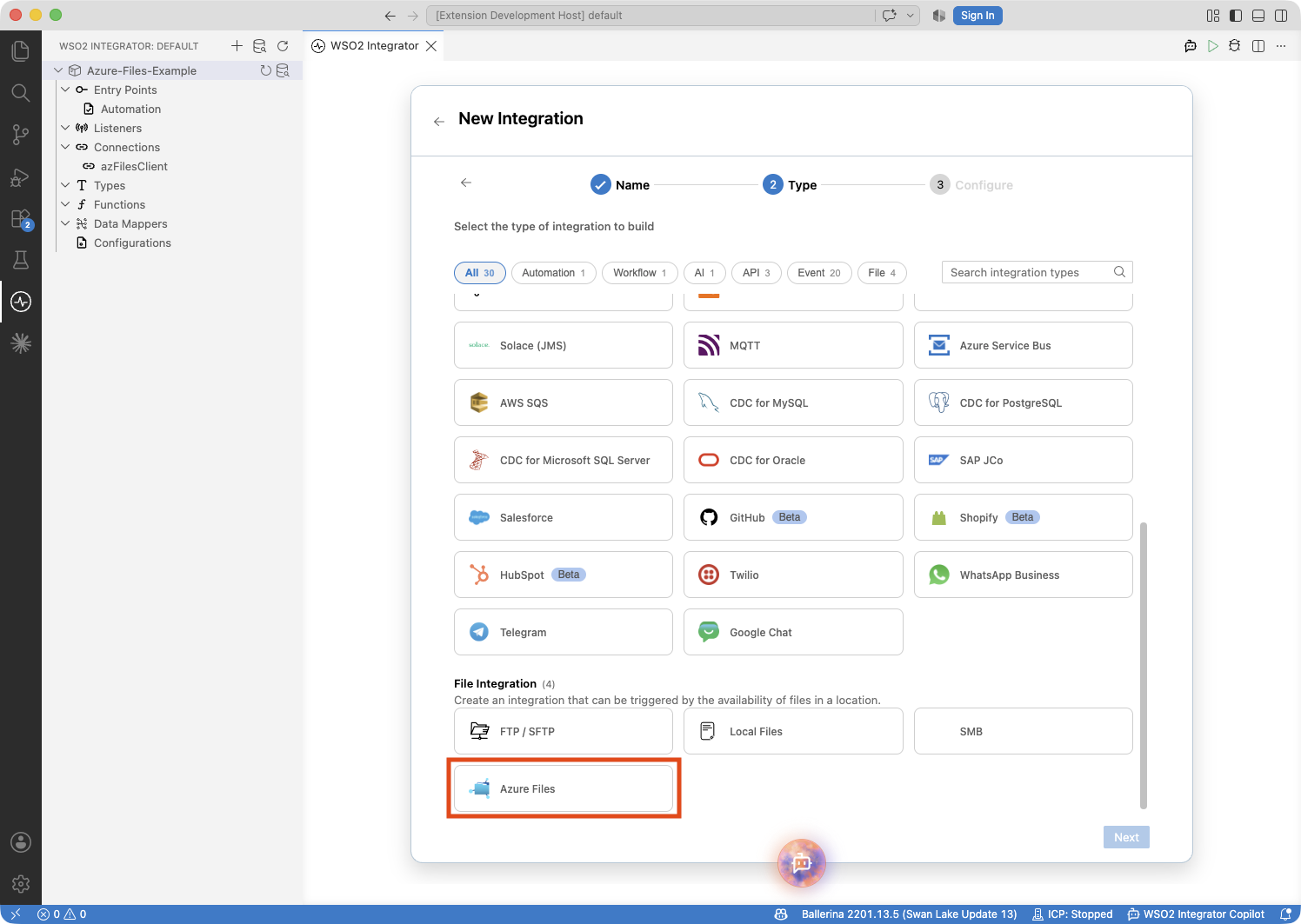
- Select the + button in the WSO2 Integrator side panel header to open the New Integration wizard (on an empty project, the + Add Integration or Library button in the project view opens the same wizard), and continue to the Type step.
- Scroll to the File Integration category, select the Azure Files card, and select Next.
Step 3: Configure the listener
The Azure Files Integration page opens with the Listener Configurations form (the trigger polls through a listener). Fill it referencing the configurables:
- Listener Name :
azFilesListener - Share Name : Switch to Expression and enter
shareName - Select the authentication method : Shared Key
- Account Name : Switch to Expression and enter
accountName - Account Key : Switch to Expression and enter
accountKey - Monitoring Path :
/incoming. This is the watched path the service attaches to;/watches the share root.

Step 4: Create the trigger
Select Create to generate the listener and the service. A files:Service entry appears in the sidebar under Entry Points.
The listener polls every 60 seconds by default. To make the example respond faster, select azFilesListener under Listeners and set Polling Interval to a smaller value, for example 5.
Setting configuration values
Step 5: Set actual values for your configurations
In the left panel, select Configurations again, and set a value for each configuration created above:
- accountName (string) : Your storage account name
- accountKey (string) : An access key of the storage account
- shareName (string) : The file share to watch
Handling file events
Step 6: Add a file handler
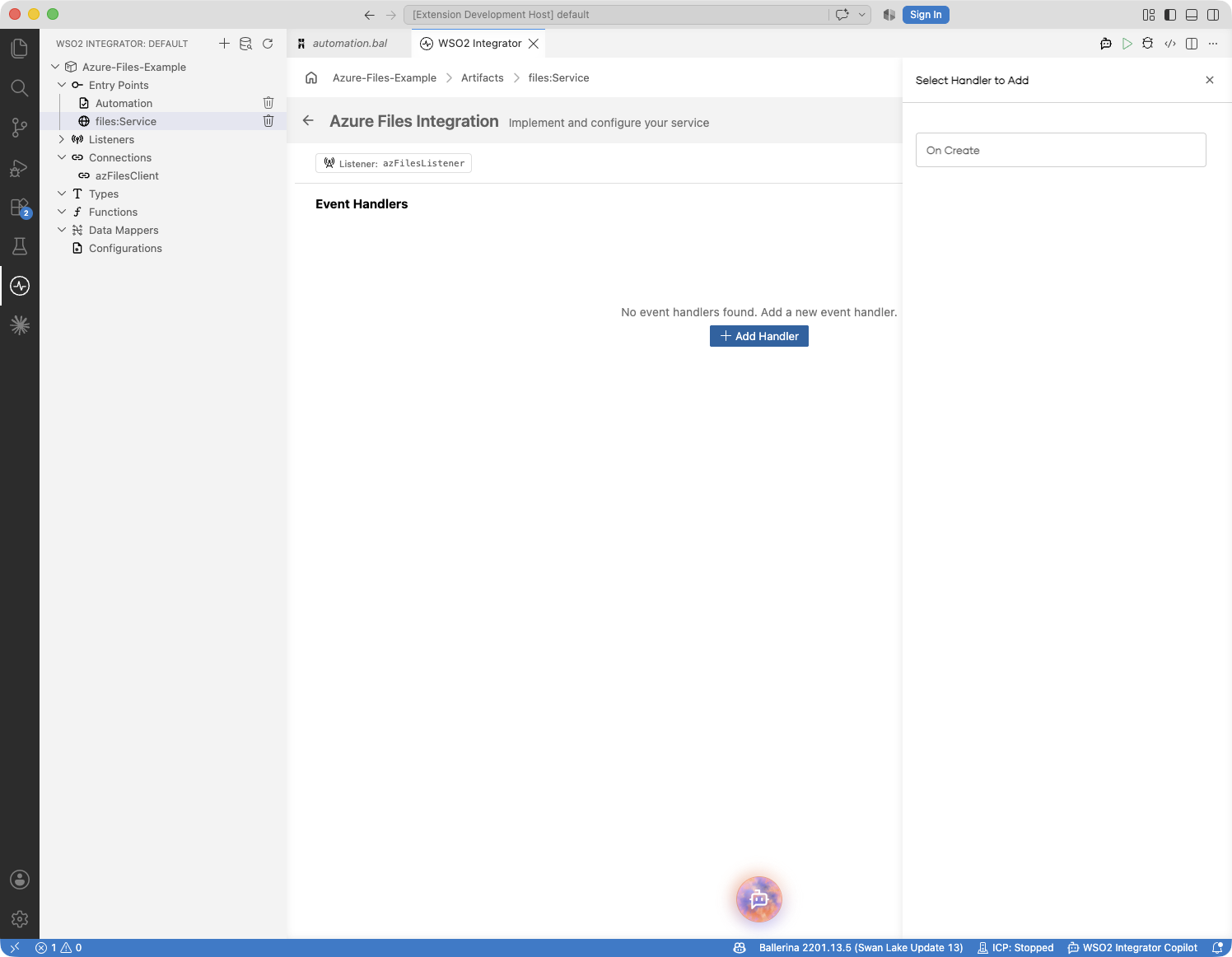
Return to the integration service view (select files:Service under Entry Points) and select + Add Handler. The handler picker offers On Create, which fires for files appearing on the monitoring path; select it. The handler's Format setting then selects how the content is delivered: JSON, XML, CSV, Text, or Raw Bytes, generating the onFileJson, onFileXml, onFileCsv, onFileText, or onFile callback respectively. An onError handler for poll, read, and content-binding failures can be added in code; see the Trigger Reference. Note that declaring one moves the disposal of content-binding failures onto onError's own @files:FunctionConfig, so the On Error action configured here would no longer apply to them.
Step 7: Configure the JSON handler
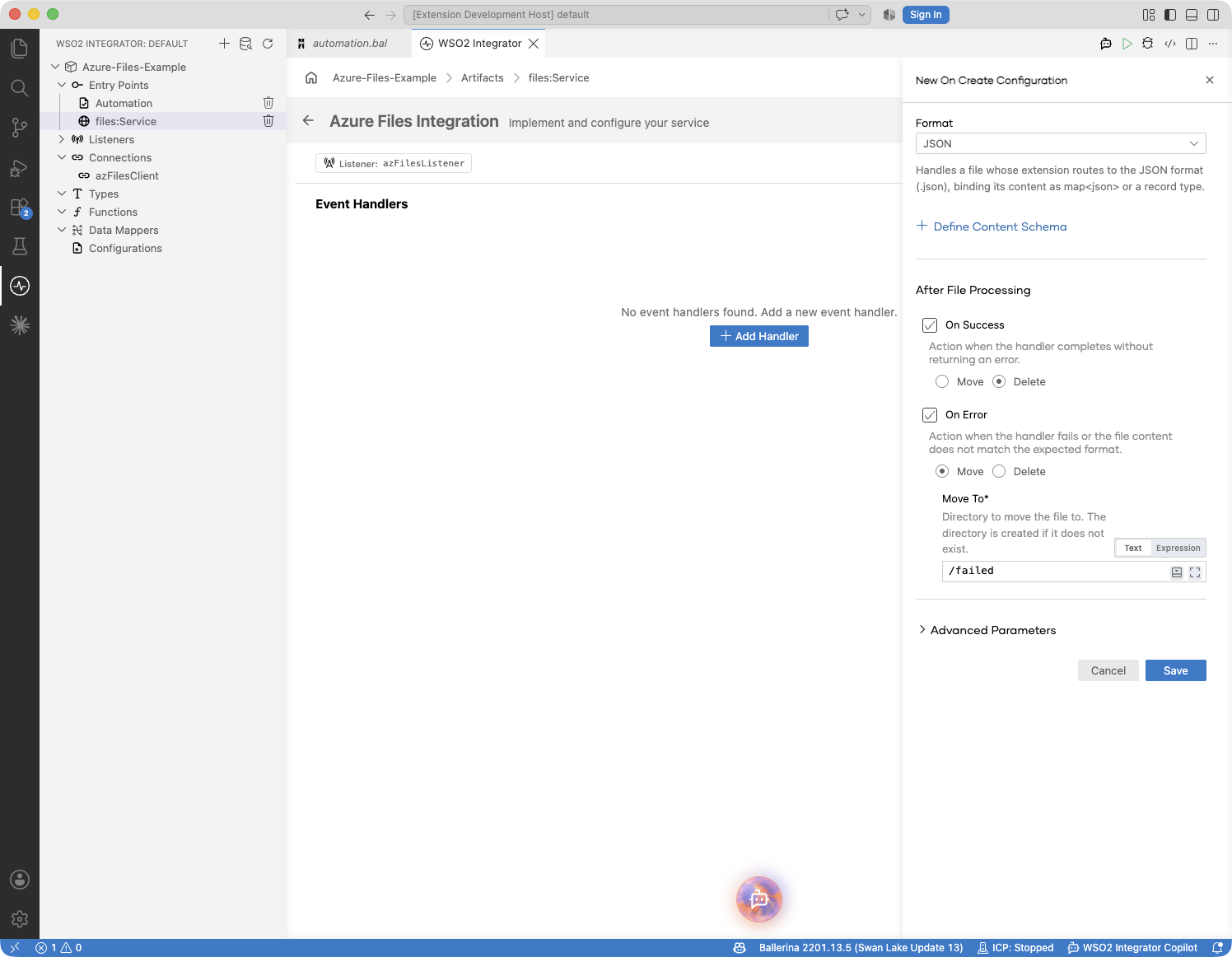
In the New On Create Configuration panel, set:
- Format : JSON, so the handler receives the parsed content
- After File Processing → On Success : Delete, so a processed file is removed from the drop folder
- After File Processing → On Error : Move with Move To
/failed, so a file that cannot be parsed leaves the watched path instead of firing again on every poll. (This service declares noonErrorhandler, so the binding failure is disposed of by this action.)
These options generate the onFileJson handler carrying the @files:FunctionConfig annotation's afterProcess and afterError actions. See the Trigger Reference for the full annotation surface.
Select Save to register the onFileJson handler on the service.
Step 8: Add a log statement to the handler
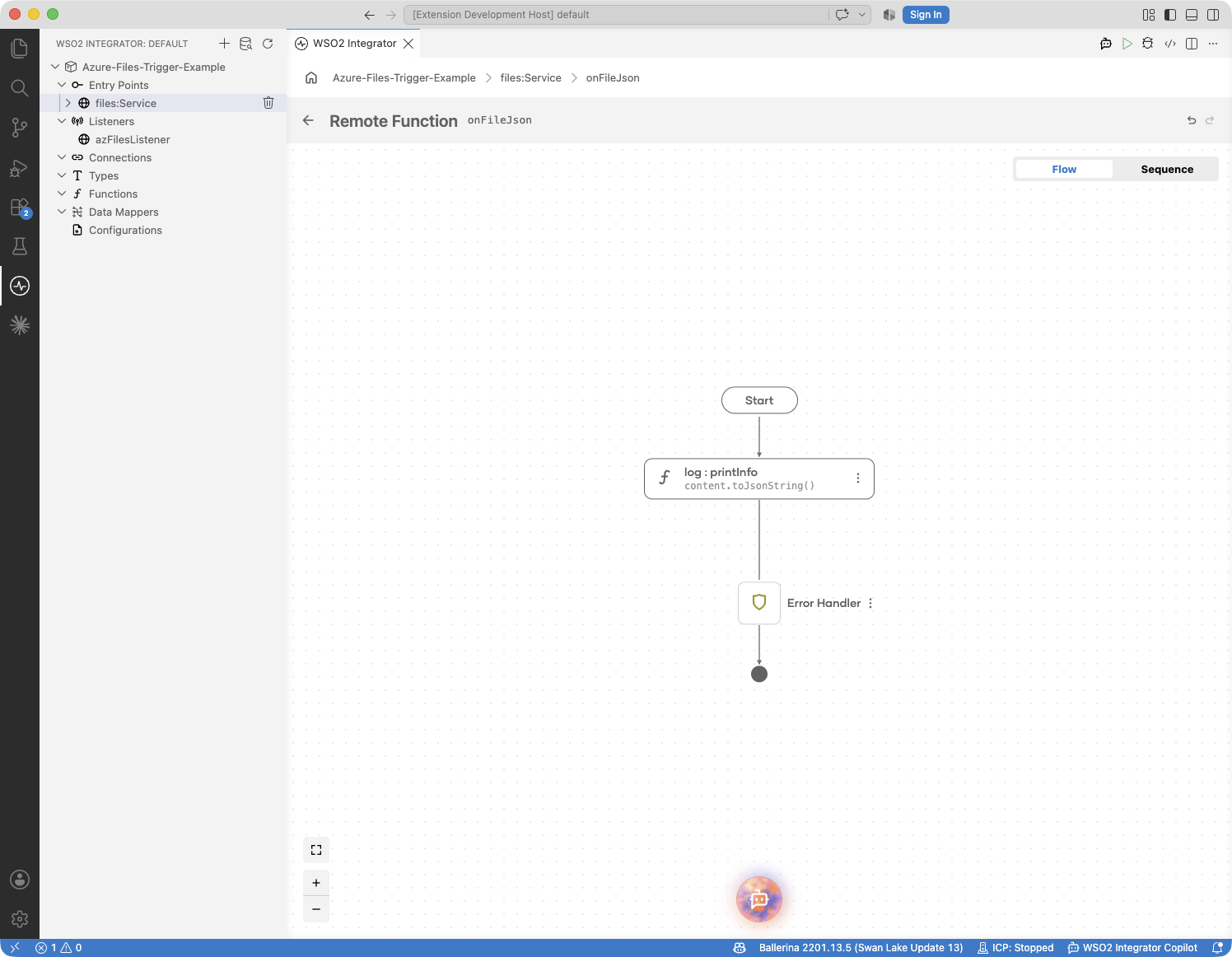
After the handler is saved, WSO2 Integrator opens the handler's flow canvas. The handler receives the parsed file content as an input named content of type json.
- Select the + inside the handler flow and choose Log Info from the Logging section in the side panel.
- In the expression editor, select
contentfrom the Inputs list, then append.toJsonString().
Step 9: Verify the final service view
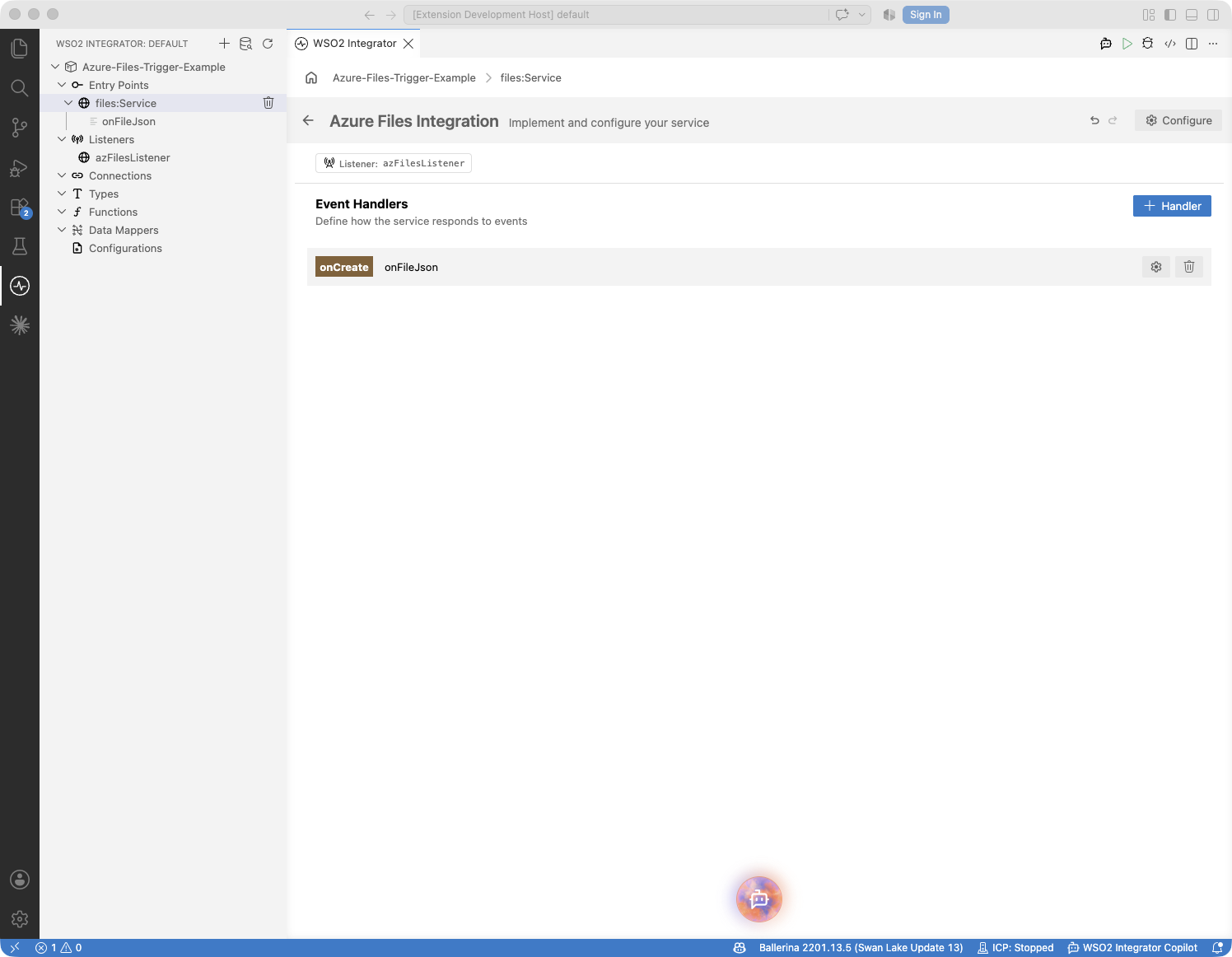
Navigate back to the integration service view. The handler section now displays the registered onFileJson handler.
Running the integration
Select Run Integration in the WSO2 Integrator toolbar to start the integration. To fire a test event, drop a .json file into the watched directory:
- In the Azure portal, open your storage account and navigate to Data storage > File shares.
- Open the share, browse into the
incomingdirectory, and select Upload to add a small.jsonfile.
On the next poll (every 60 seconds by default, or the interval you set on the listener), the onFileJson handler fires and logs the parsed content to the console, and the listener deletes the file from the drop folder. A malformed .json file moves to /failed instead, because this service declares no onError handler.
Try it yourself
Try this sample in WSO2 Integration Platform.
More code examples
The Azure Files connector provides practical examples illustrating usage in various scenarios. Explore these examples, covering file backup, SAS handouts, and share-driven file processing.
- File backup - Continuously back up a local folder: a directory listener watches it and uploads every new file to a file share.
- Share handout - Upload a report and generate a time-limited, read-only SAS URL to share with a third party.
- Drop folder processor - Watch a folder on a share with the listener and process each dropped file.
- Change tracker - A schedulable program that diffs a share against the snapshot saved by its previous run and logs created, modified, and deleted events.