Example
What you'll build
This example builds an automation that connects to an SMB file share and lists everything in a directory on it. The connection binds its host, share, and credentials to configurable variables, so you can point the same integration at any server without editing the flow. The automation then logs how many entries it found.
Operations used:
- List : Lists files and directories in a folder on an SMB share.
Architecture
Prerequisites
- An SMB file server — a Windows server, NAS appliance, or Samba host — reachable over TCP port 445
- A share on that server, and an account with permission to read it
- The username, password, and domain for that account. Standalone servers usually use
WORKGROUPas the domain
Setting up the SMB integration
New to WSO2 Integrator? Follow the Create a New Integration guide to set up your integration first, then return here to add the connector.
Adding the SMB connector
Step 1: Open the connector palette
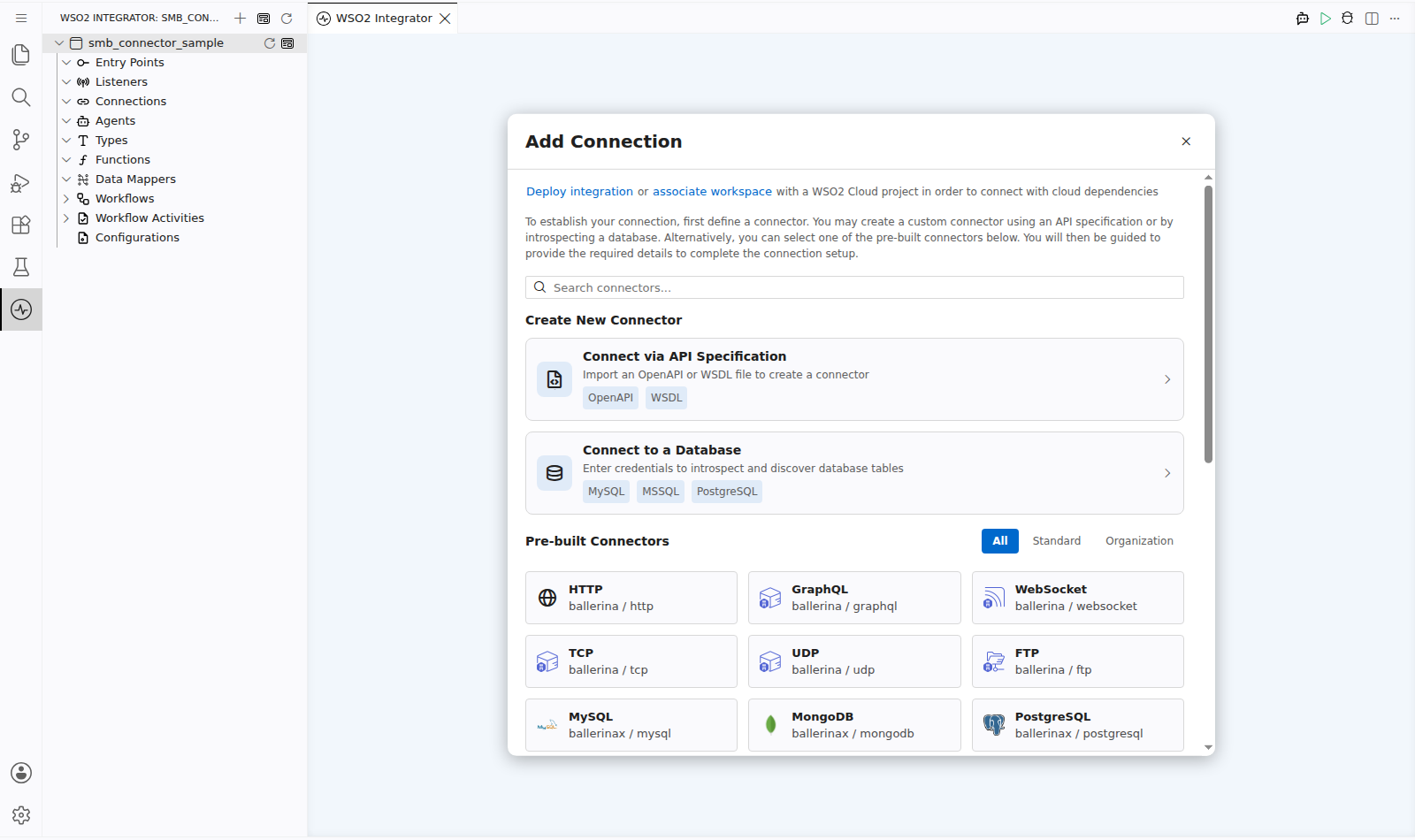
Select Add Connection in the Connections section.
Step 2: Select the SMB connector
- Enter
smbin the search field. - Select the SMB connector card.
Note: The search also returns SMB Caller, which is used inside a listener service. Select SMB to create a client connection.
Configuring the SMB connection
Step 3: Bind the connection parameters to configurable variables
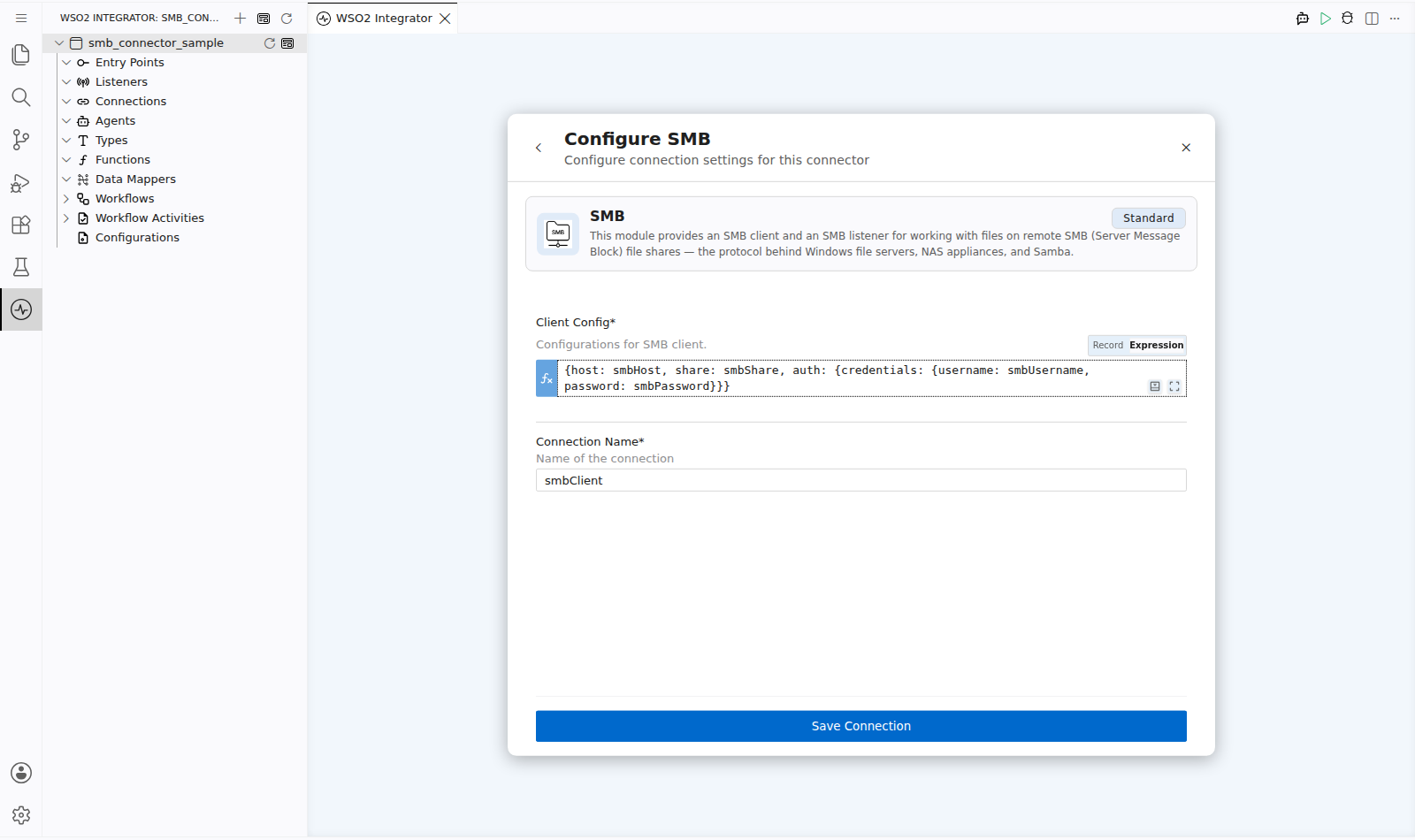
Set Client Config to Expression mode and build a record that binds each value to a configurable variable rather than a literal. Keep credentials out of the flow so they never reach source control.
- Client Config : The host, share, and authentication settings the client uses to reach the server.
- Connection Name : The name the connection is referenced by elsewhere in the integration.
Step 4: Save the connection
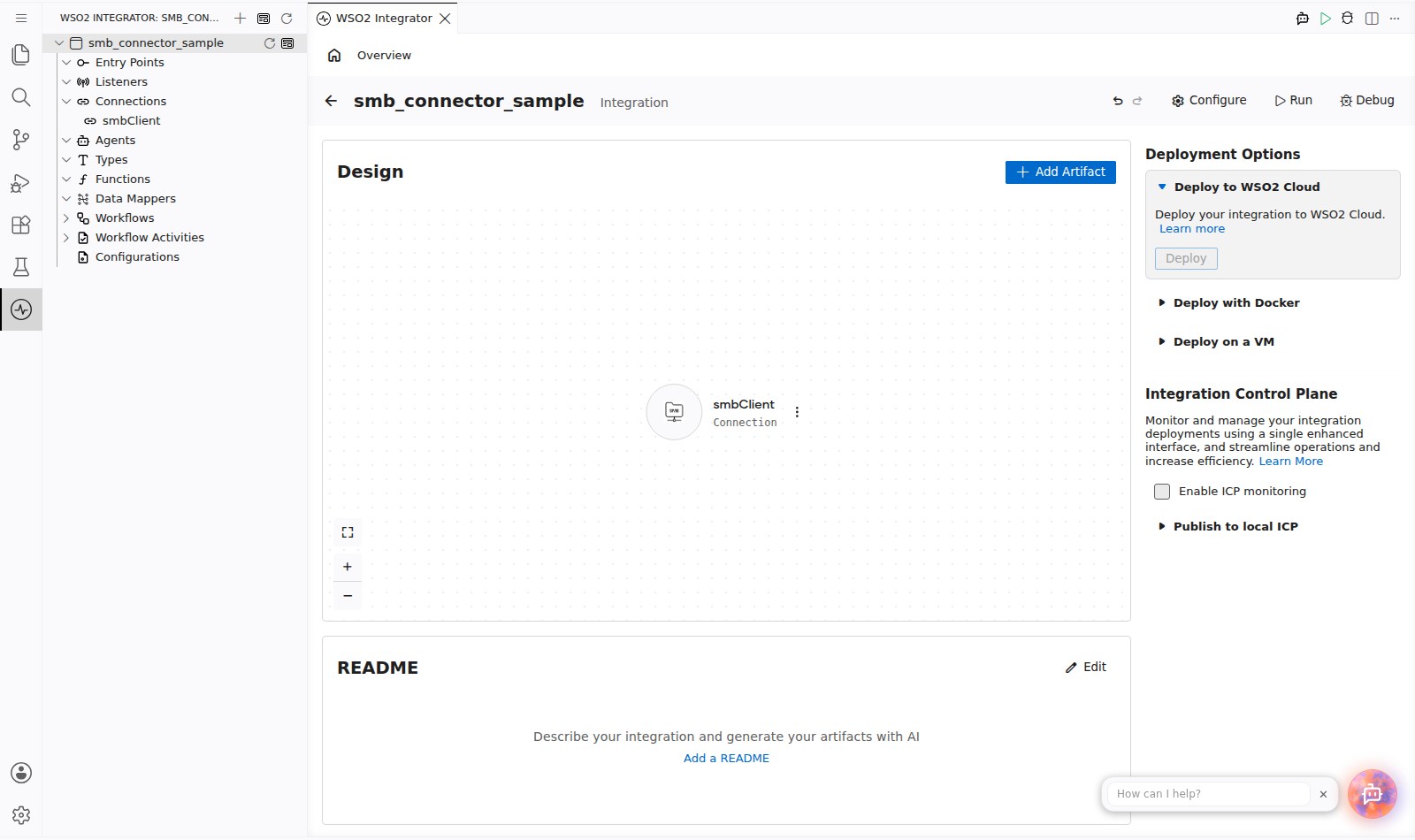
Select Save and verify that the connection appears in the Connections section.
Step 5: Set actual values for your configurables
- Select Configurations at the bottom of the project tree under Data Mappers.
- Enter a value for each configurable listed below before you run the integration.
- smbHost (
string) : Hostname or IP address of the SMB server. - smbShare (
string) : Name of the share to connect to. - smbUsername (
string) : Username of the account that has access to the share. - smbPassword (
string) : Password for that account.
Configuring the SMB List operation
Step 6: Add an automation entry point
- Select Add Entry Point next to Entry Points.
- Select Automation.
- Select Create to accept the settings.
Step 7: Expand the connection and configure the List operation
- Select Add Step in the automation flow.
- Expand smbClient to display its operations.
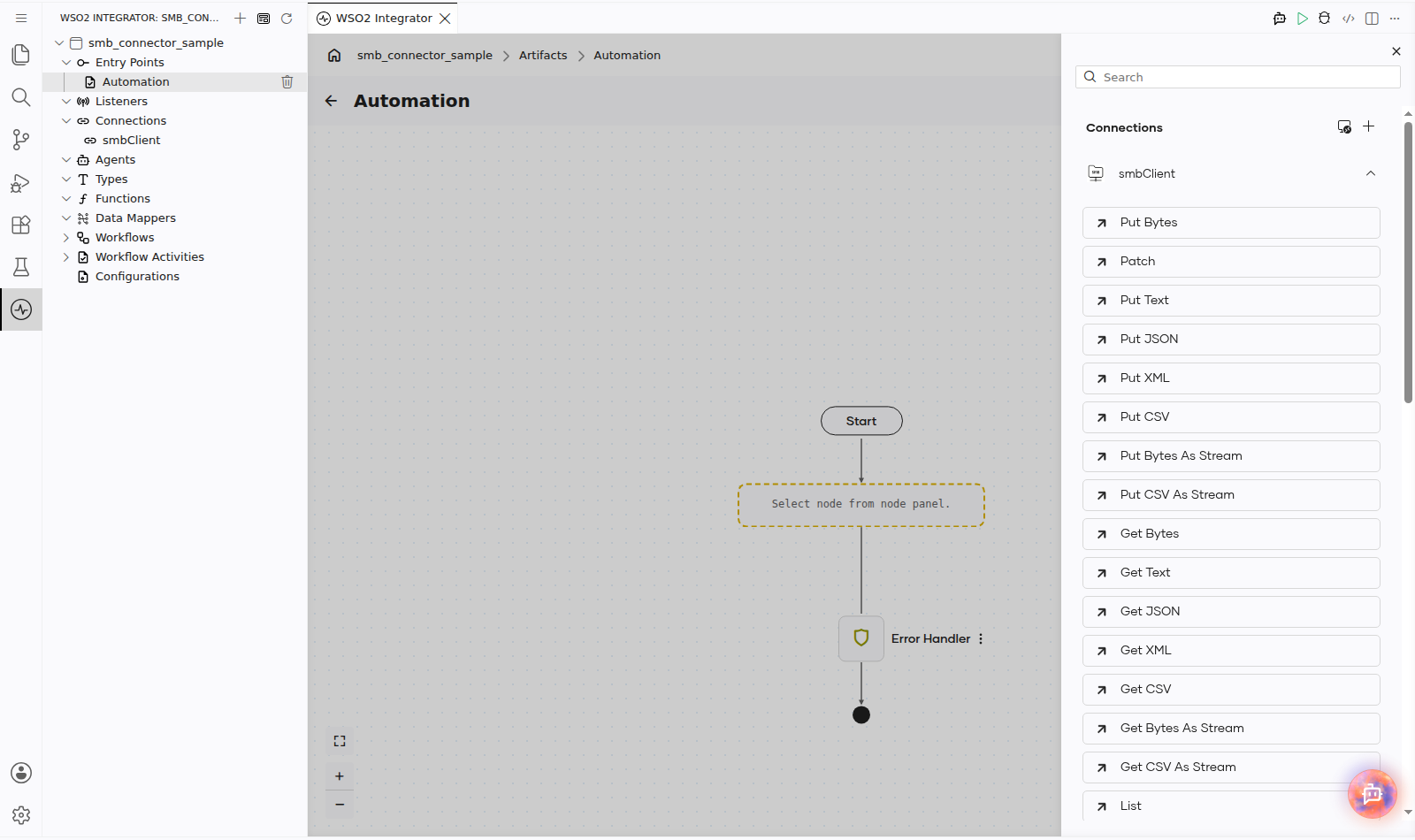
- Select List and enter its required values.
- Path : The directory to list, relative to the share root.
- Result : The name of the variable that receives the returned file information.
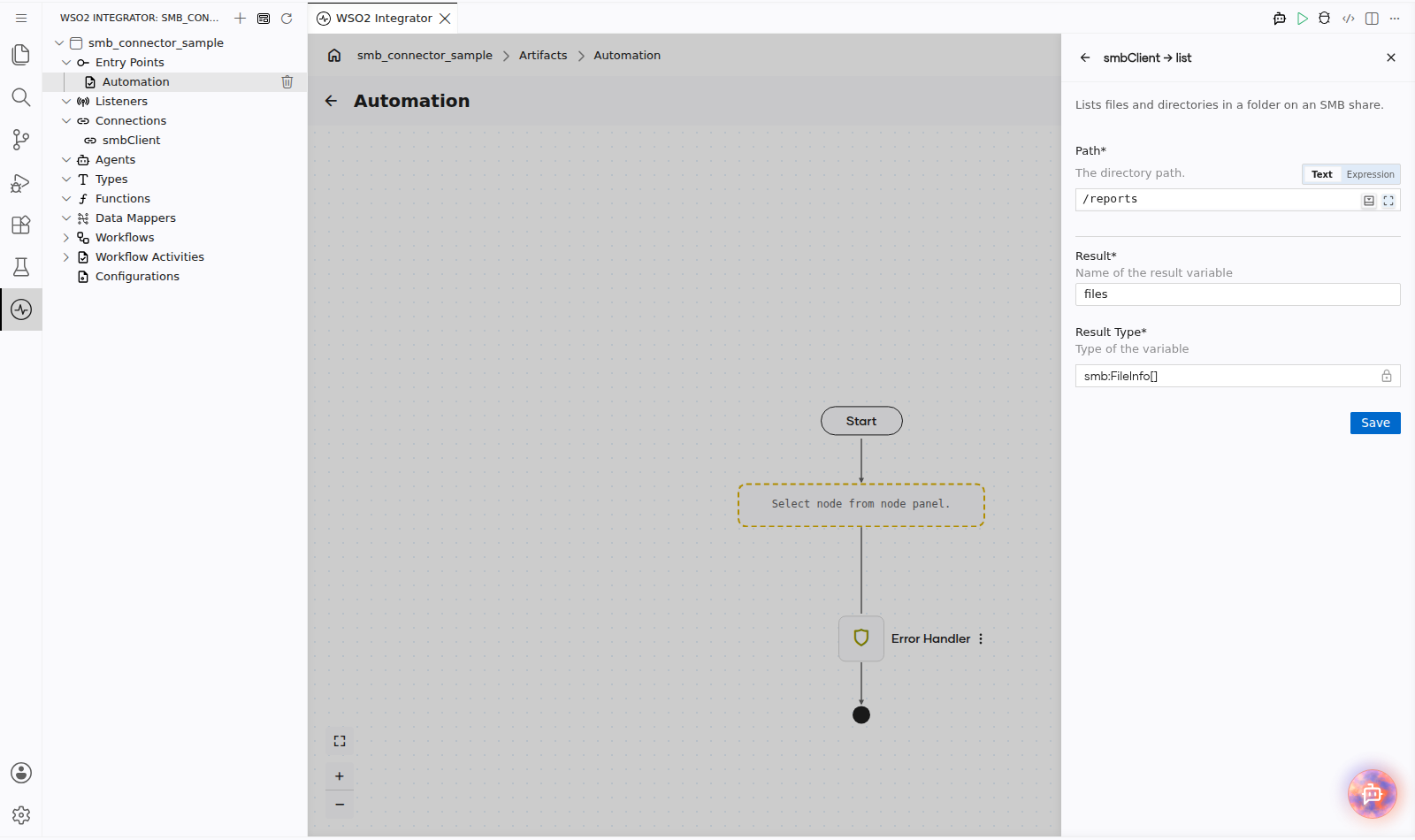
- Select Save.
Step 8: Log the List result
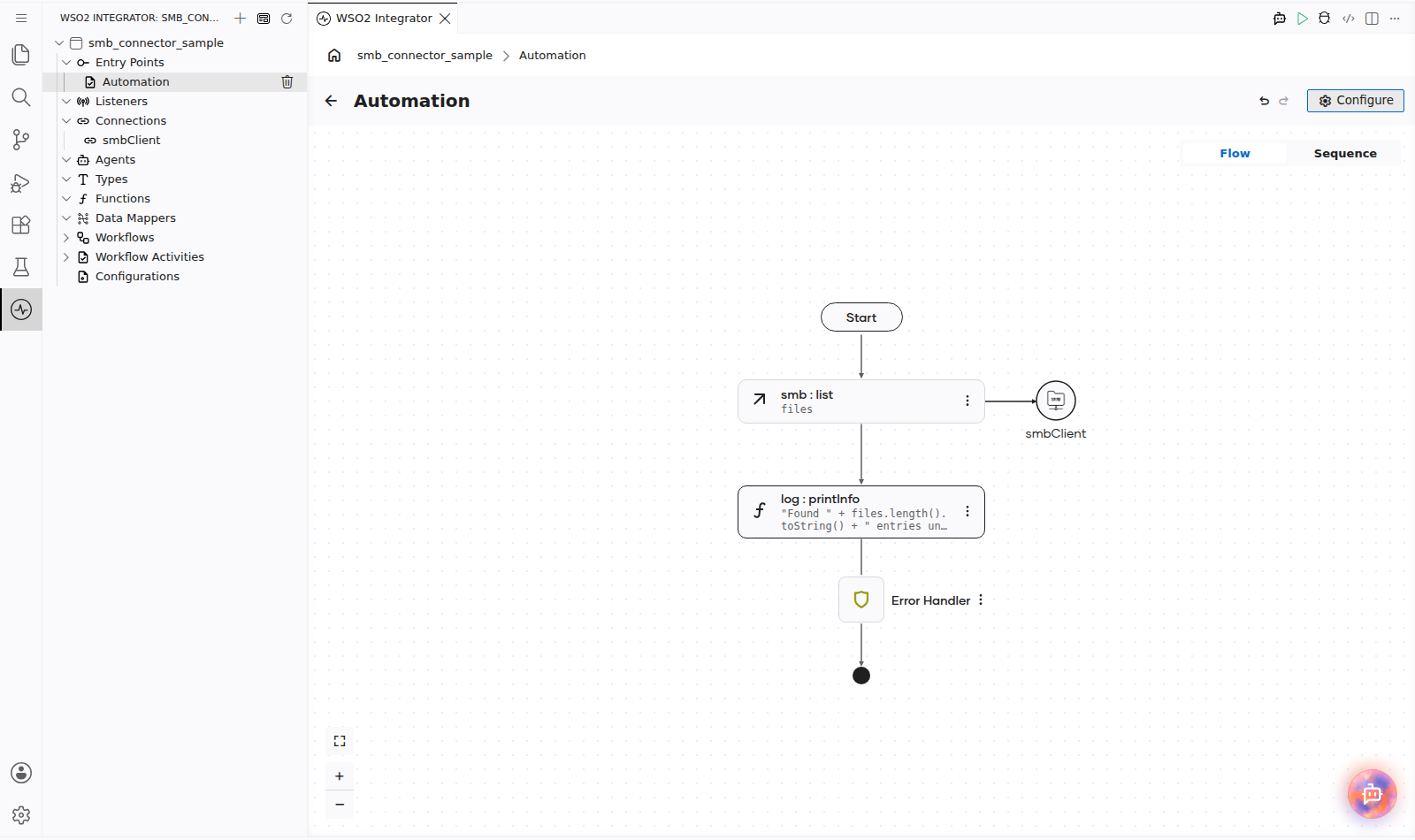
Add a log action for the returned value, then return to the visual flow. The completed flow runs the operation, logs the number of entries it found, and routes any failure to the Error Handler.
Try it yourself
Try this sample in WSO2 Integration Platform.

More code examples
The smb module provides practical examples illustrating usage in various scenarios.
-
Basic file operations – Connects to a Kerberos-enabled SMB share, lists the root directory, writes a test file, verifies it exists, and reads it back.
-
Manage sales reports – Listens for JSON sales reports on an SMB share, flattens nested data into row records, appends them to a CSV data file, and moves the processed file to a designated folder.
-
Manage timesheets – Validates contractor timesheet CSVs from an SMB share, moves valid files to a processed location and writes cleaned copies, or quarantines invalid files with detailed error logs.