Build an AI Agent
Time: Under 10 minutes | What you'll build: An AI agent that connects to an LLM, uses tools, and responds to user queries in chat.
An AI agent uses an LLM to reason about user queries and call tools to retrieve information or perform actions. This quick start shows the full cycle: create a project, add an AI Chat Agent artifact, configure its instructions, and test it in the built-in chat panel.
A working WSO2 Integrator environment. Choose the path that fits how you want to work:
- Cloud setup — launch WSO2 Integrator in a browser-based cloud editor.
- Local setup — install and launch the WSO2 Integrator IDE on your machine.
Architecture
- Visual Designer
- Ballerina Code
Step 1: Create the integration
In the cloud editor, you're already inside a project. Skip to Step 2.
- Open WSO2 Integrator.
- Select Create in the Create New Integration card.
- Set Integration Name to
AIAgent. - Set Project Name to
QuickStart. - Select Create Integration.
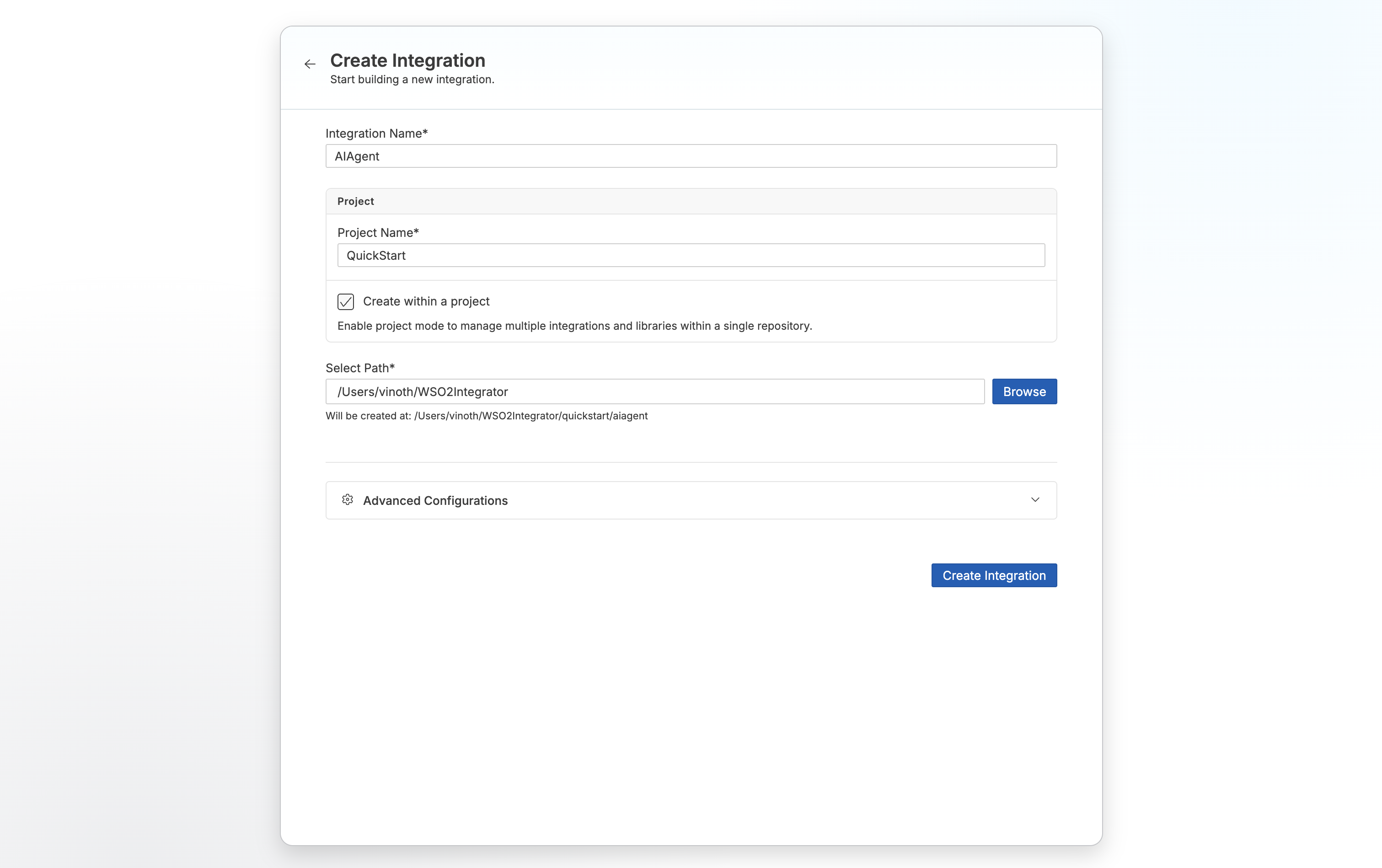
Step 2: Add an AI chat agent
- Select your integration from the project overview canvas.
- Select + Add Artifact in the design canvas.
- Select AI Chat Agent under AI Integration.
- Set Name to
Wso2IntegratorAssistant. - Select Create.
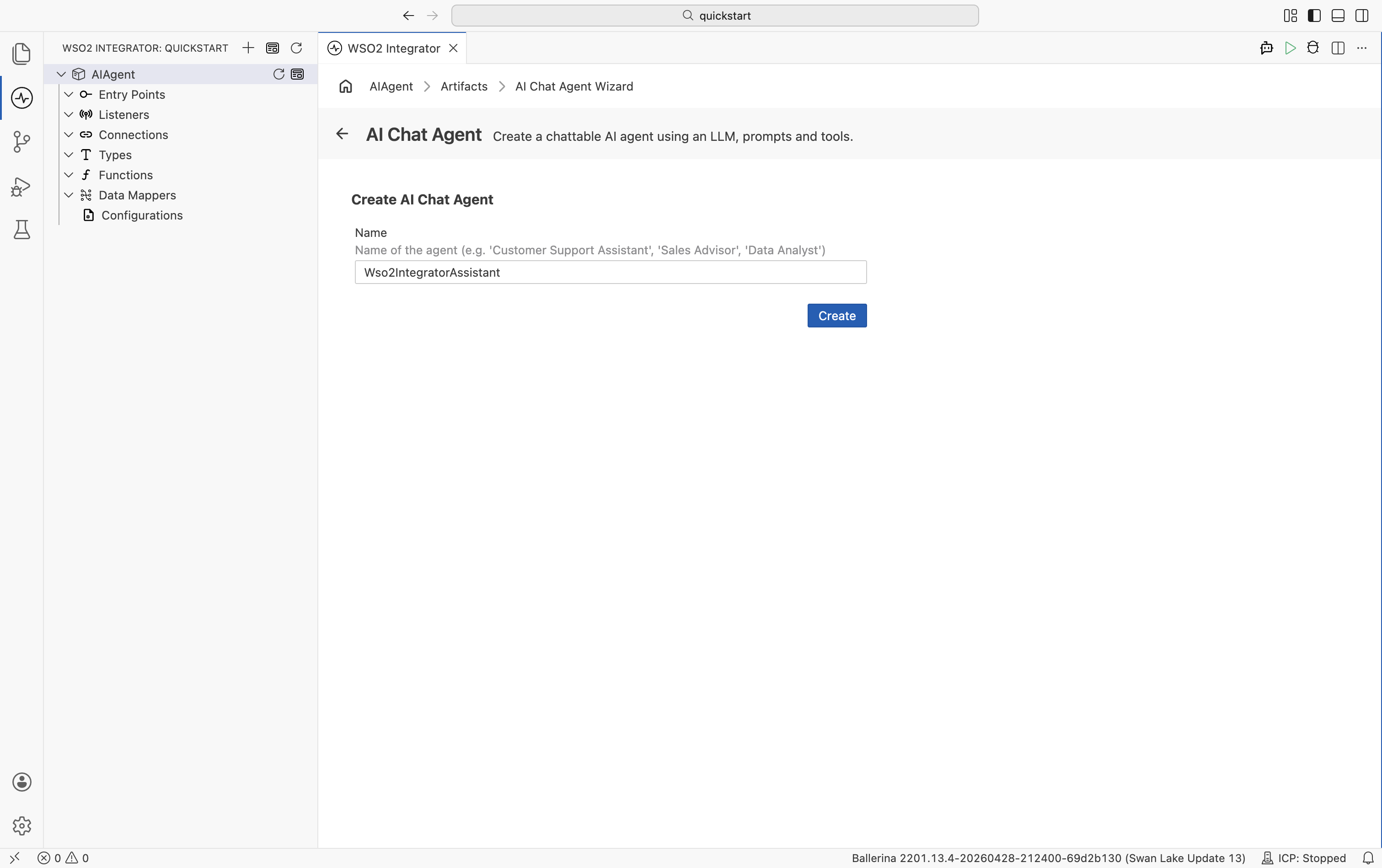
Step 3: Configure the AI agent
- Select the Wso2IntegratorAssistant node on the canvas.
- Set Instructions to
You are a highly skilled WSO2 Integration Architect. Your goal is to assist developers in building, debugging, and optimizing integration flows.. - Select Save.
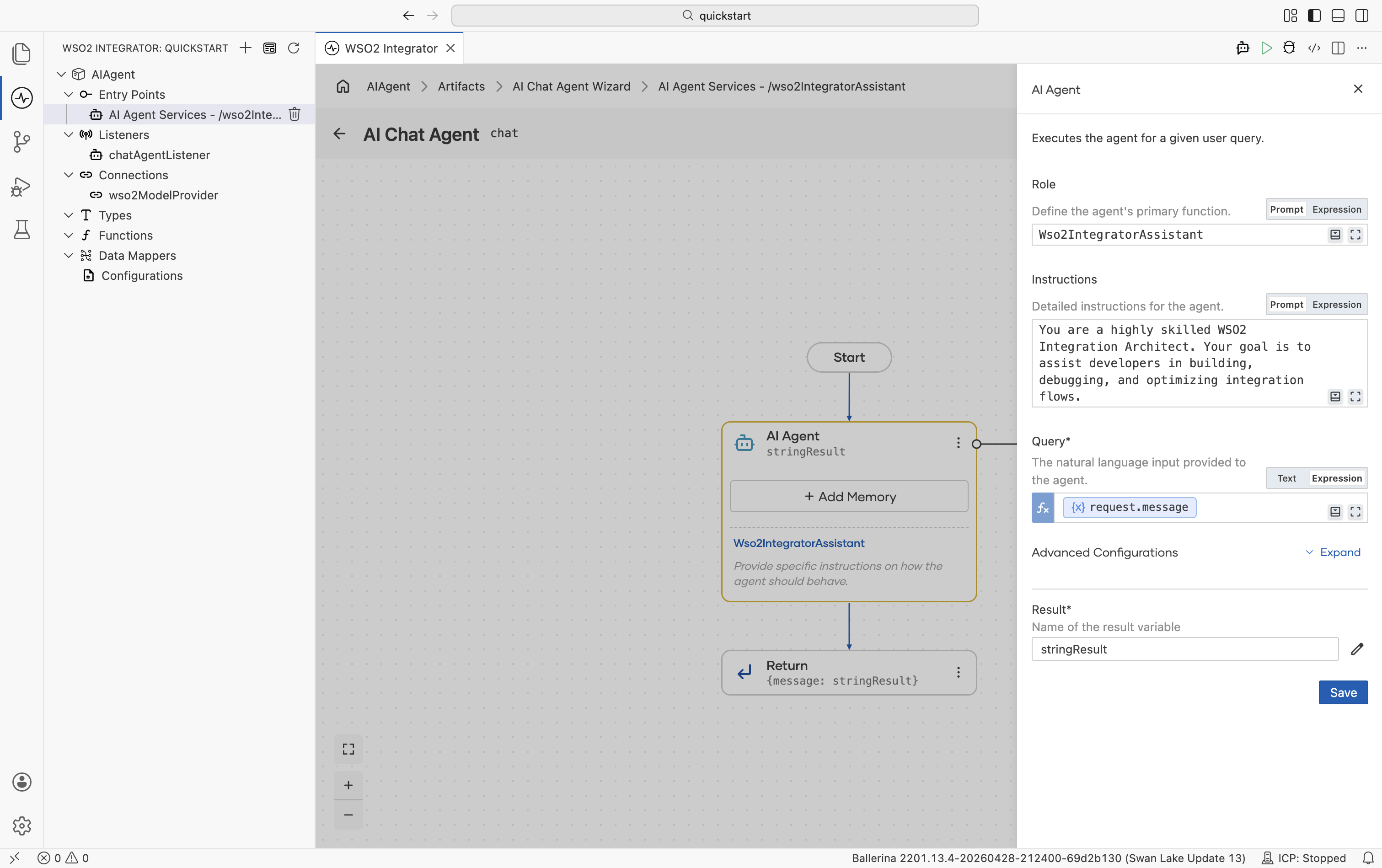
By default, the agent is configured to use the WSO2 model provider. If you want to use a different LLM, see Model providers for the full list of supported providers (OpenAI, Azure OpenAI, Anthropic, and others).
If you are using the WSO2 model provider, the access token is obtained through WSO2 Integrator Copilot. If you have not already signed in, you will be prompted to do so.
Step 4: Run and test
- Select Run.
- Select Chat from the AI Chat Agent title bar or select Test from the pop-up.
- Type
Helloto check if it works.
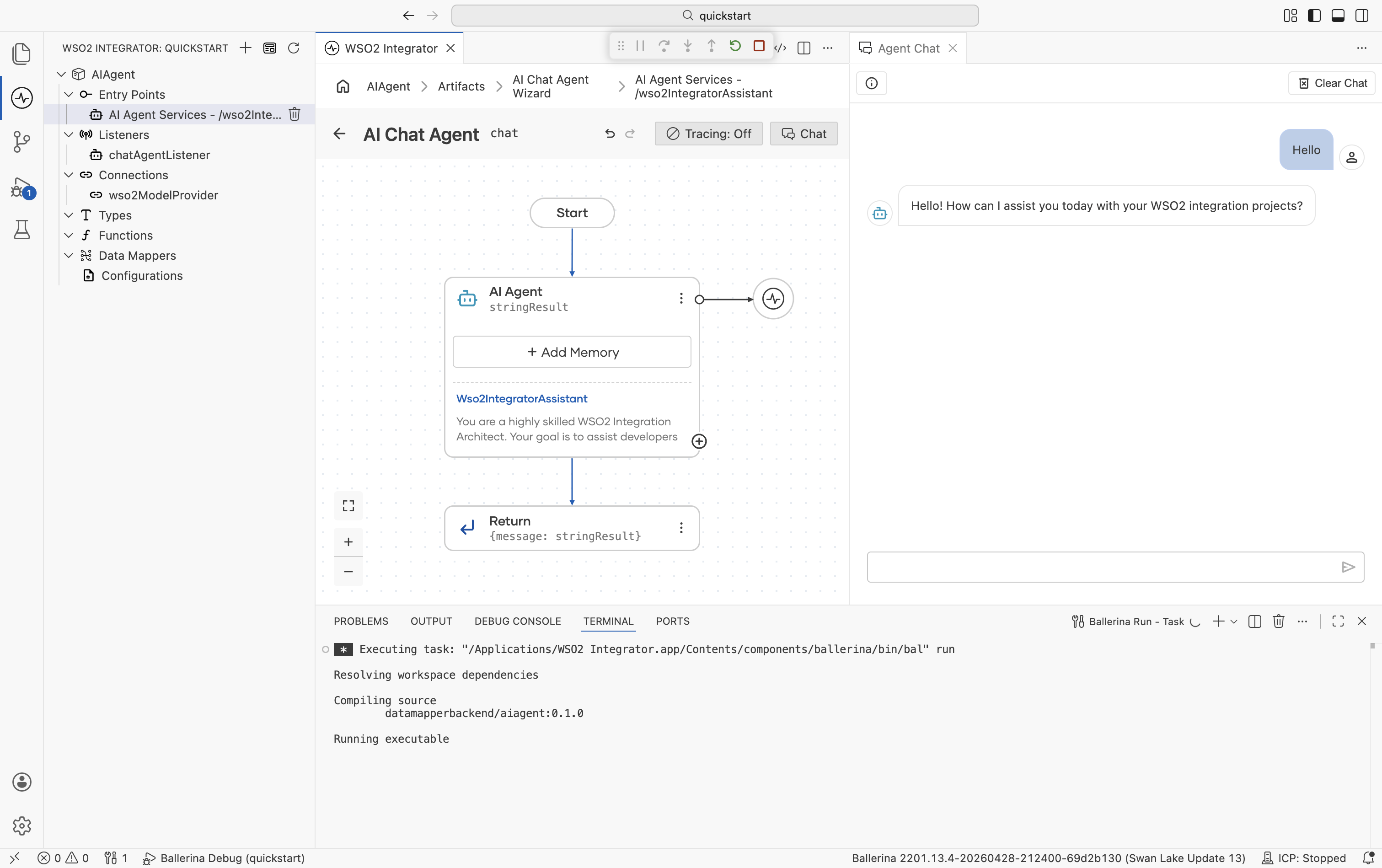
The following complete, runnable Ballerina program produces the same AI chat agent shown in the visual designer steps. The wizard generates two files: agents.bal for the agent definition and main.bal for the listener and service.
agents.bal
import ballerina/ai;

final ai:Agent wso2IntegratorAssistantAgent = check new (
    systemPrompt = {
        role: string `Wso2IntegratorAssistant`,
        instructions: string `You are a highly skilled WSO2 Integration Architect. Your goal is to assist developers in building, debugging, and optimizing integration flows.`
    },
    model = wso2ModelProvider,
    tools = []
);
main.bal
import ballerina/ai;
import ballerina/http;

listener ai:Listener chatAgentListener = new (listenOn = check http:getDefaultListener());

service /wso2IntegratorAssistant on chatAgentListener {
    resource function post chat(@http:Payload ai:ChatReqMessage request) returns ai:ChatRespMessage|error {
        string stringResult = check wso2IntegratorAssistantAgent.run(request.message, request.sessionId);
        return {message: stringResult};
    }
}
Click the Run button in the top toolbar.
Select Chat from the AI Chat Agent title bar or select Test from the pop-up.
Type Hello to check if it works.
Step 5: Deploy to WSO2 Cloud
Deploy your integration to WSO2 Cloud - Integration Platform in any of the following ways:
-
If you're using the cloud editor, see Save and deploy.
-
If you're using the WSO2 Integrator IDE, see Deploy from the IDE.
-
If you'd rather skip the build and try a ready-made sample, one-click deploy it:

What's next
- Build an automation — Build a scheduled job
- Build an Integration as API — Build an HTTP service
- Build an event-driven integration — React to messages from brokers
- Build a file-driven integration — Process files from FTP or local directories
- AI agents — Learn how to build production-grade AI agents with tools, memory, and evaluations