Sign up for WSO2 Cloud
WSO2 Cloud is the identity and access layer for WSO2 Integration Platform. You need a WSO2 Cloud account to run integrations on WSO2 Cloud, manage environments, and access observability features.
When you sign up, you create an organization and become its admin. An organization is a logical grouping of users and their associated resources. Users and resources in one organization are isolated from all others. Access across organizations is only possible when an admin explicitly invites a user as a member.
A WSO2 Cloud account gives you access to:
- WSO2 Integration Platform: Deploy and run integrations in a managed cloud environment with built-in CI/CD, environment promotion, observability, and access control.
- Copilot features: Use AI-assisted development in WSO2 Integrator to generate integrations, mappings, and configurations.
Step 1: Go to the sign-up page
How you get to the sign-up page depends on where you are starting from:
-
From a browser: Go to WSO2 Cloud directly.
-
From WSO2 Integrator: Click Sign in with WSO2 account on the WSO2 Integrator home page.
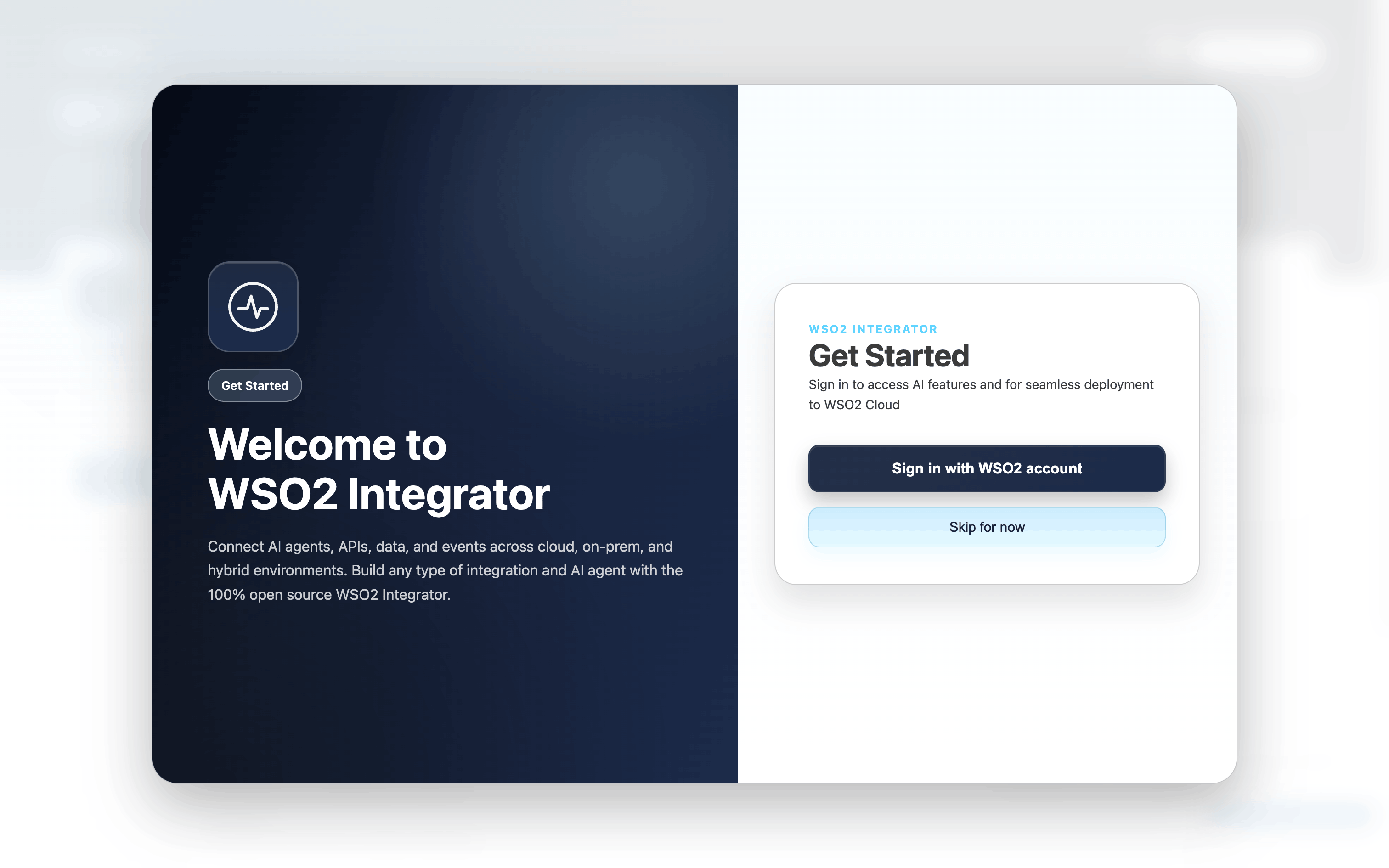
Step 2: Choose a sign-up option
On the sign-up page, choose your preferred sign-up option.
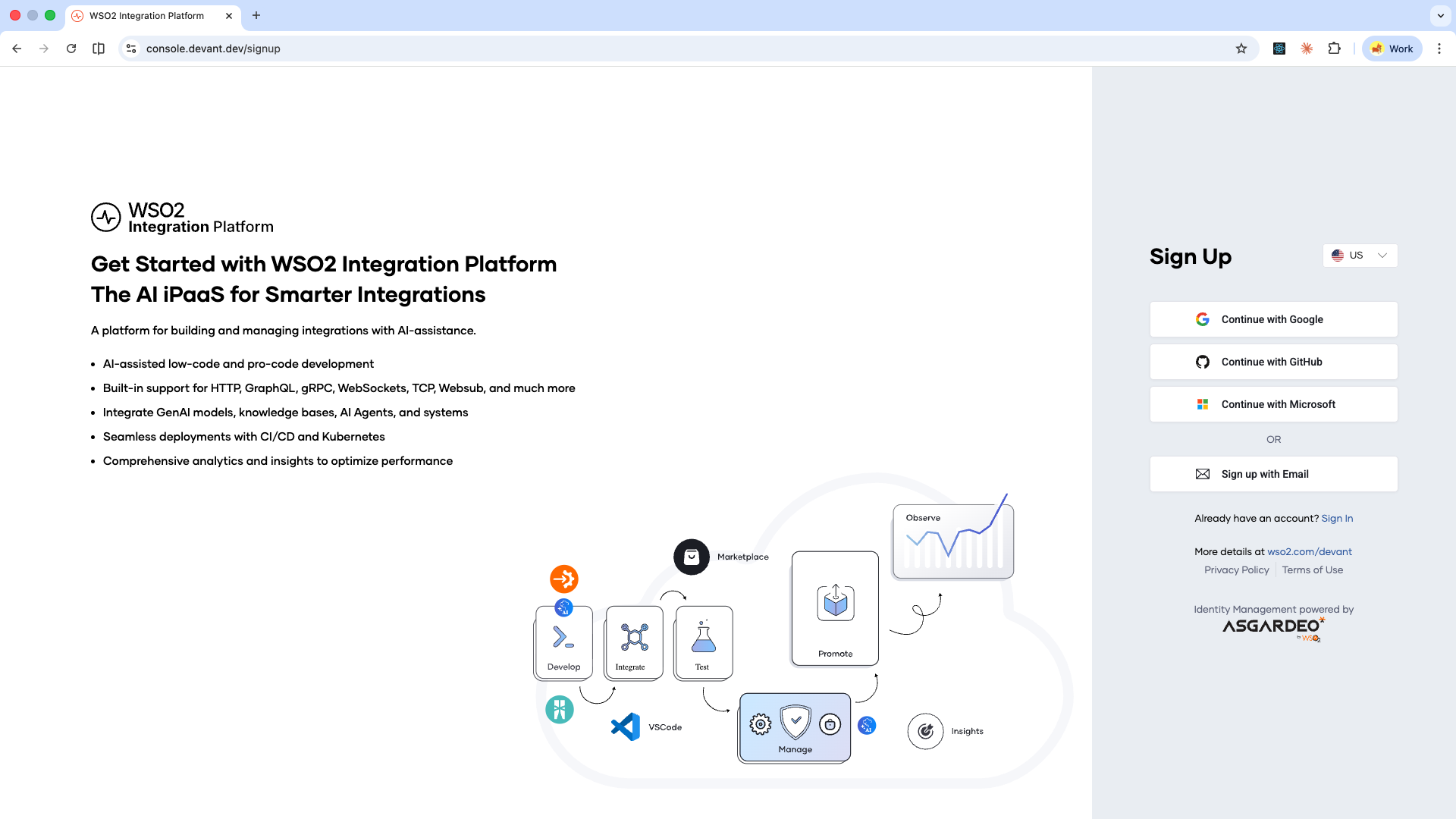
Step 3: Create an organization
Enter a unique name for your organization.
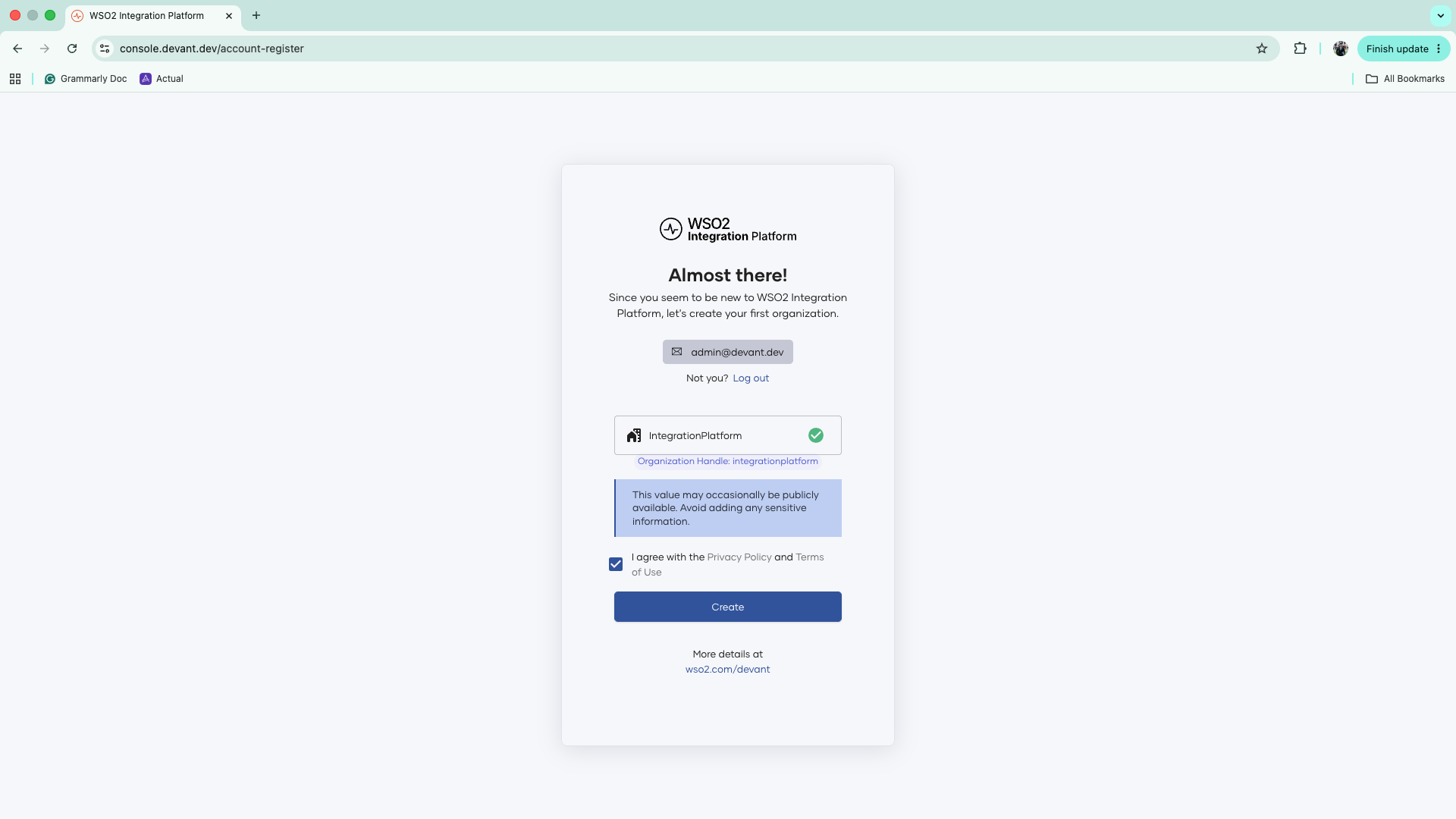
The name must:
- Be between 4 and 30 characters
- Begin with a letter
- Contain only uppercase letters, lowercase letters, hyphens, spaces, or underscores
Step 4: Accept the terms
Read and accept the Privacy Policy and Terms of Use, then click Create.
Step 5: Select your persona
Choose the persona that matches your role, then click Next:
- Developer/Architect/Product Manager: Focus on building, testing, and deploying applications.
- Platform Engineer/SRE: Focus on infrastructure, governance, service mesh, and monitoring.
Your selection personalizes the views and workflows shown in the platform. You can always switch between personas anytime.
Step 6: Select a region
Select the cloud region where you want to deploy your integrations and click Confirm.
You land on the Overview page of the default project in your new organization.
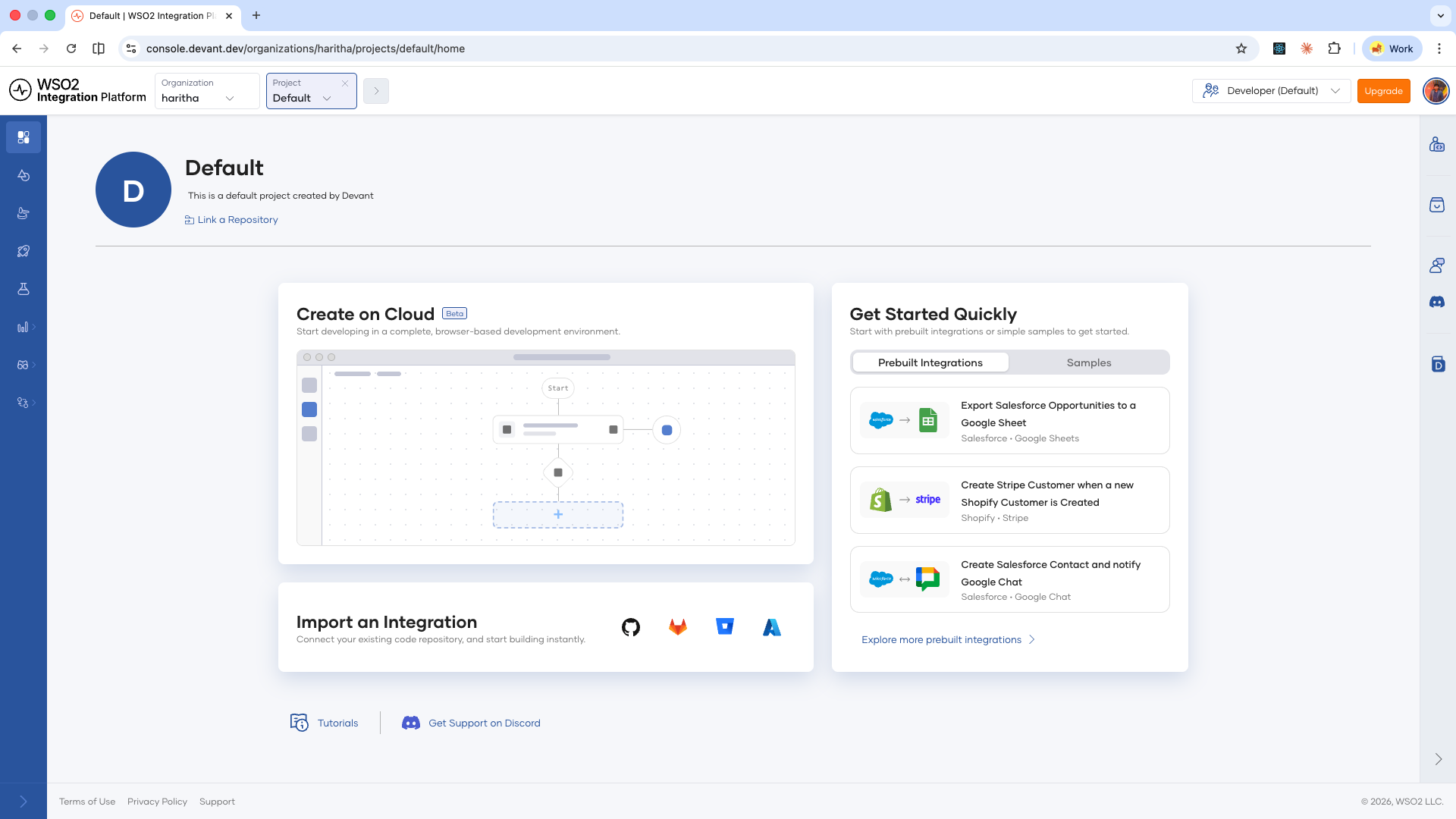
To give teammates access, an organization admin can invite them from the organization settings. Invited users can only see resources within that organization. See Users and access control for more information.
What's next
- Cloud setup — Provision your WSO2 Integration Platform environment
- Deploy to WSO2 Cloud — Deploy your integrations to WSO2 Cloud
- Key concepts — Learn the building blocks of WSO2 Integration Platform