Coming from TIBCO BusinessWorks
A tutorial for developers migrating integrations from TIBCO BusinessWorks to WSO2 Integrator. This tutorial walks you through migrating a real TIBCO BusinessWorks project to WSO2 Integrator using the automated migration tool. No prior knowledge of Ballerina or WSO2 Integrator is required.
What you'll learn:
- How to run the automated migration tool (UI wizard or CLI) to convert a TIBCO BusinessWorks projects to Ballerina code
- How to read the migration report and handle items the tool couldn't convert automatically
- How TIBCO concepts (process definitions, activities, shared resources) translate to their WSO2 Integrator equivalents
- How to configure credentials, test, and run your migrated integration
Time: ~30–45 minutes
Prerequisites:
- WSO2 Integrator installed (UI wizard path), or Ballerina installed with
balon your PATH (CLI path) - Git installed (to clone the sample project; not required if using your own project)
What You'll Build
You'll migrate the TIBCO BusinessWorks Credit Application sample to WSO2 Integrator. It's a multi-project TIBCO BW 6.x application that models a credit application workflow:
- CreditAppService: the orchestration service. Receives HTTP requests for credit applications, calls the backend and external bureau services, and returns a credit decision
- CreditCheckBackendService: implements the credit decision logic using JDBC queries against a database
- ExperianDemoService: a mock external credit bureau REST service
- LoggingService: centralized logging across all services
Sample project: TN2018/Apps
The migration tool converts the TIBCO process definitions to Ballerina services, maps the JDBC and HTTP connections, and generates a migration report. You'll review the report, fix up any remaining items, configure credentials in Config.toml, and run the result.
Using your own project? You can follow every step below using any TIBCO BusinessWorks project(s) instead of the sample.
Step 1: Get the sample project
Clone the sample TIBCO BusinessWorks project:
git clone https://github.com/TIBCOSoftware/bw-samples.git
cd bw-samples/TN2018/Apps
Take a moment to look at the project structure. The Apps directory contains four cooperating TIBCO BW projects:
TN2018/Apps/
├── CreditAppService/          # Orchestration service (HTTP Listener, calls backend + bureau)
│   ├── CreditApp.parent/      # Maven parent POM
│   ├── CreditApp.module/      # BW module containing process files (.bwp)
│   └── CreditApp/             # Application EAR and configuration
├── CreditCheckBackendService/ # Credit decision logic (JDBC queries)
├── ExperianDemoService/       # Mock external credit bureau (REST service)
└── LoggingService/            # Centralized logging service
Each project follows the standard TIBCO BW 6.x Maven multi-module layout: a parent POM, a module directory with .bwp process files, and an application EAR directory with connection and Global Variable settings.
Using your own project? Skip this step and substitute your project's directory path wherever the sample path appears below.
Step 2: Run the migration tool
WSO2 Integrator provides an automated migration tool that converts TIBCO BusinessWorks process definitions to Ballerina code. The tool handles process flows, activities, transitions, shared resources, error handling, and more.
- WSO2 Integrator
- CLI
The migration wizard guides you through a 5-step process to convert your TIBCO project(s) into a WSO2 Integrator project.
Prerequisite
- Ensure WSO2 Integrator is installed and available on your system.
Step 1: Configure source
-
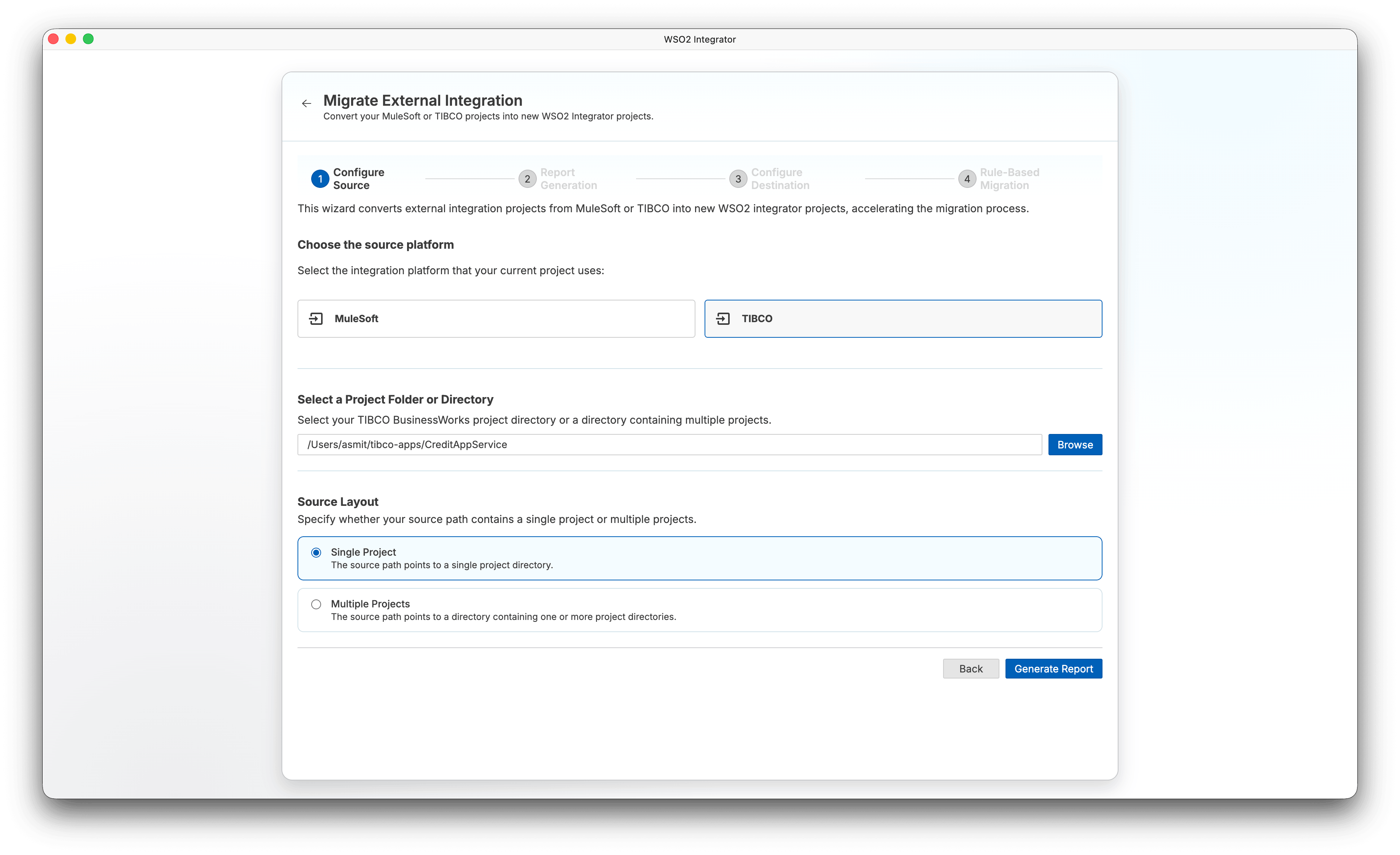
Open WSO2 Integrator, click More Actions, and select Migrate Integrations from Other Vendors.
-
Select TIBCO as the source platform.
-
Under Select a Project Folder or Directory, click Browse and select the
TN2018/Appsdirectory you cloned in Step 1 (or your own project directory). -
Under Source Layout, select Multiple Projects (the
Appsdirectory contains four separate BW projects). If you have a single project, select Single Project instead.Note: The Source Layout section appears only after you select a directory.
-
Click Generate Report.
Step 2: Report generation
The wizard performs a dry run against your source project(s) to generate a coverage report before the actual migration begins.
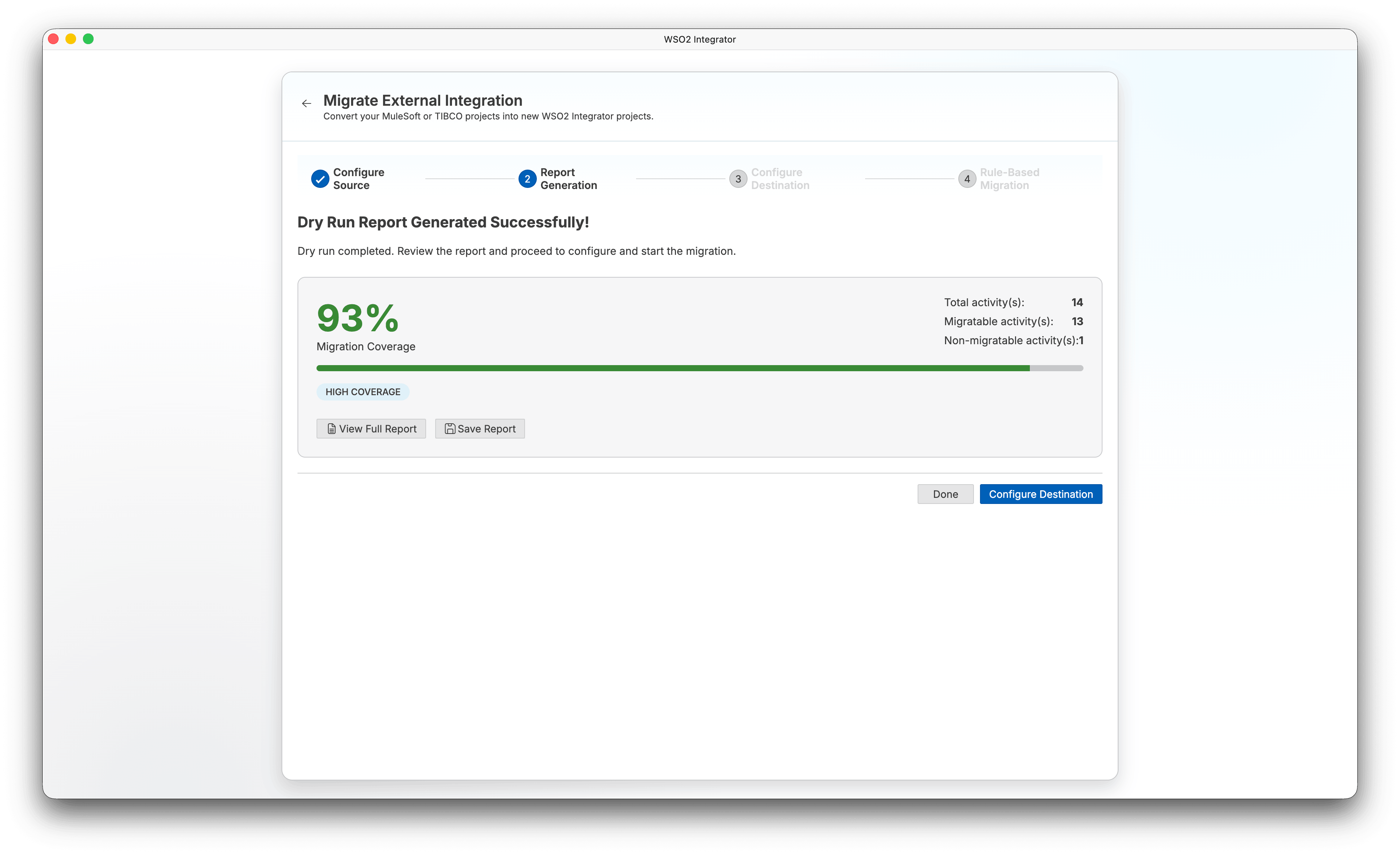
When the dry run completes, the wizard displays a summary of the migration coverage:
-
Migration Coverage: Percentage of code lines that were automatically migrated.
-
Total code lines: Total number of source code lines analyzed.
-
Migratable code lines: Lines successfully converted to Ballerina.
-
Non-migratable code lines: Lines that require manual attention.
Note: The exact coverage percentages shown in the screenshots may differ from what you see. They reflect the tool's capabilities and the reference project at the time the screenshots were taken, and both evolve over time.
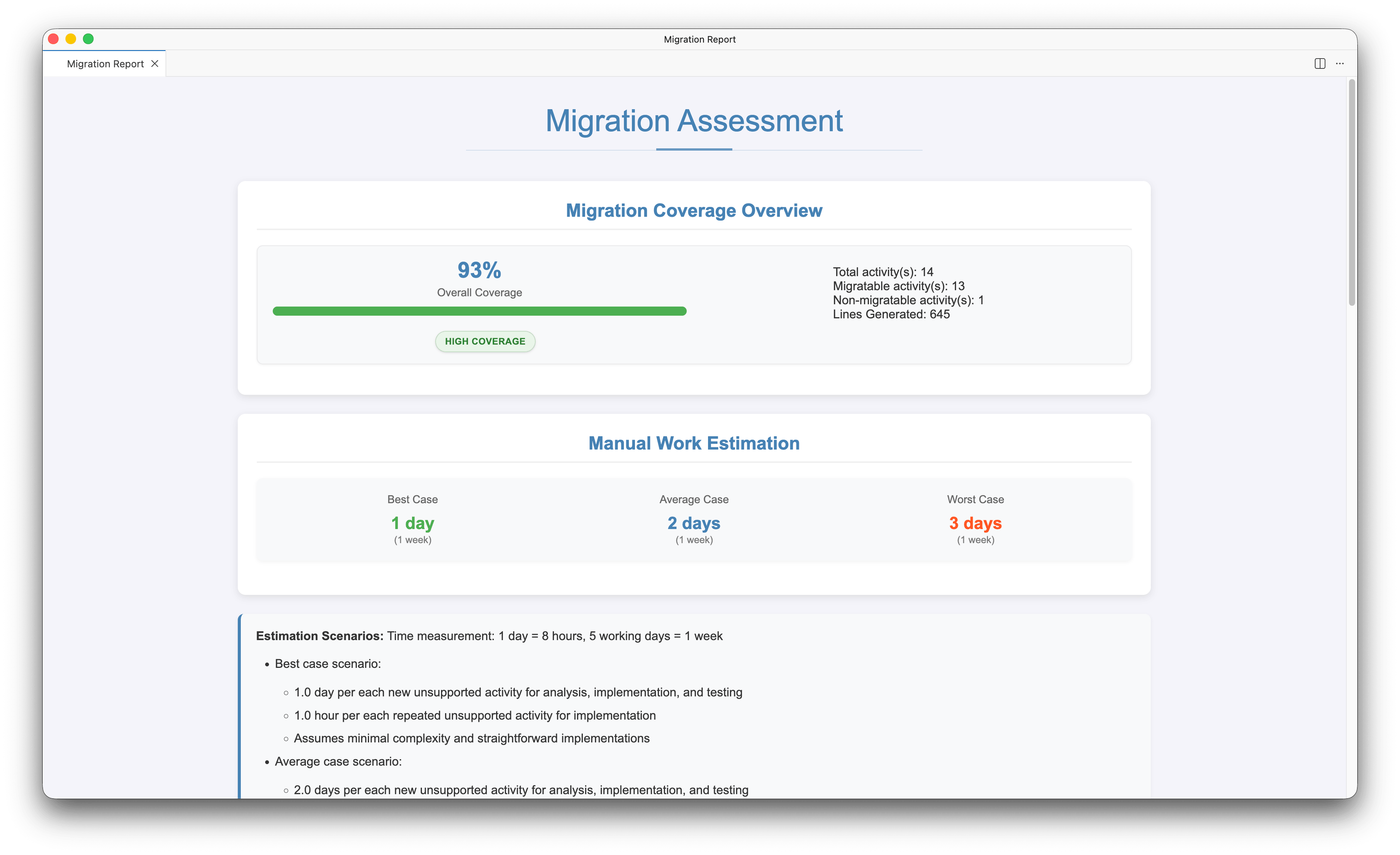
Click View Full Report to open the full HTML report. The report includes:
-
Migration Coverage Overview: Overall coverage percentage with a breakdown of total, migratable, and non-migratable code lines.
-
Breakdown Components: Separate coverage for TIBCO activities and process elements.
-
Manual Work Estimation: Estimated effort (best, average, and worst case) for completing non-migratable items.
-
Currently Unsupported Elements: List of elements that could not be automatically migrated.
-
Element Blocks that Require Manual Conversion: Specific code blocks that need manual implementation.
Click Save Report to download the report for future reference.
Click Configure Destination to proceed, or Done to exit the wizard.
Step 3: Configure destination
-
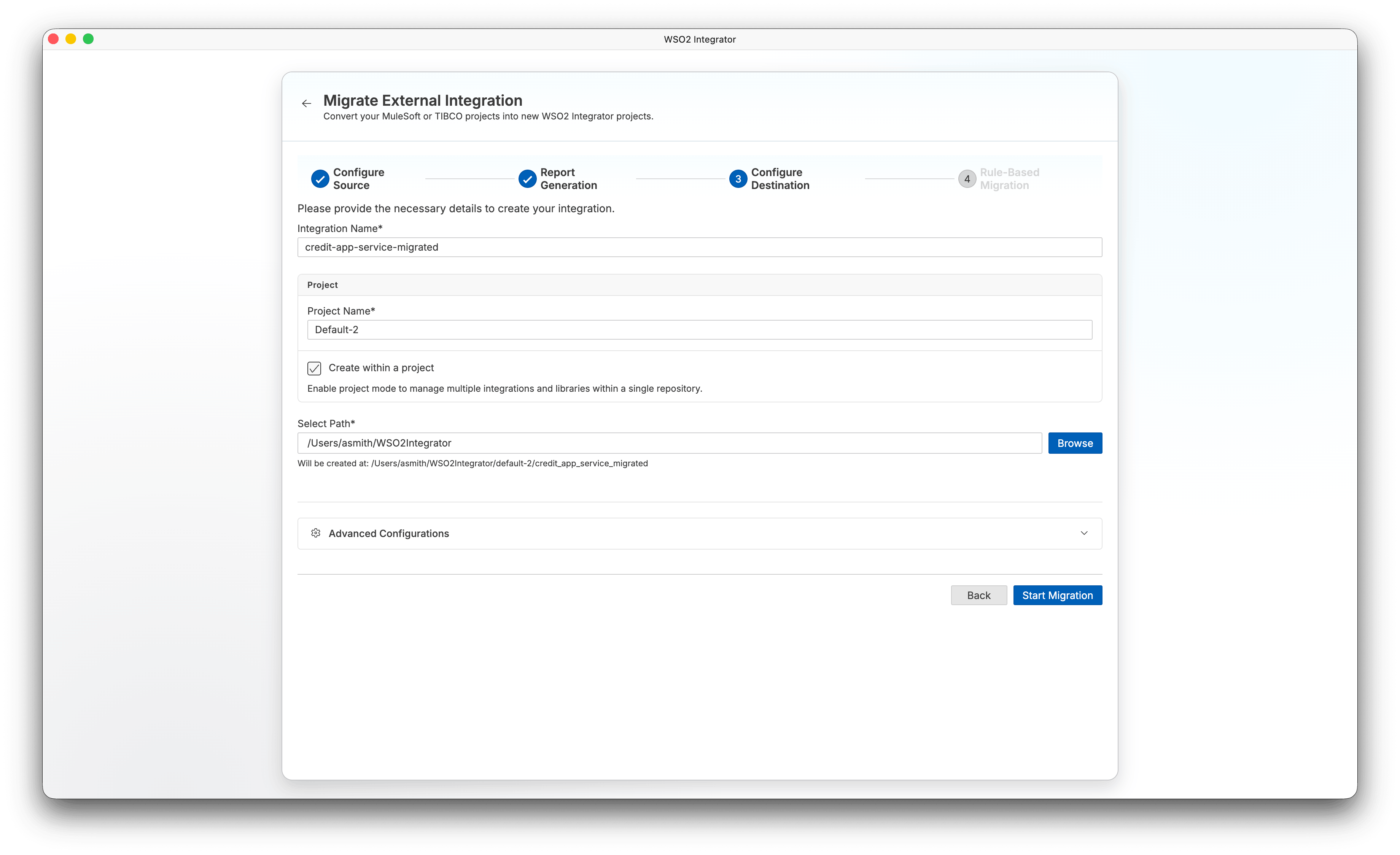
Enter an Integration Name for your migrated project.
-
Configure the project settings:
- Project Name: Name of the project (defaults to
Default). - Create within a project: Enable project mode to manage multiple integrations and libraries within a single repository.
- Select Path: Choose where to create the migrated project.
- Project Name: Name of the project (defaults to
-
Click Start Migration.
Step 4: Rule-based migration
The wizard runs the automated rule-based migration and displays progress in the migration log.
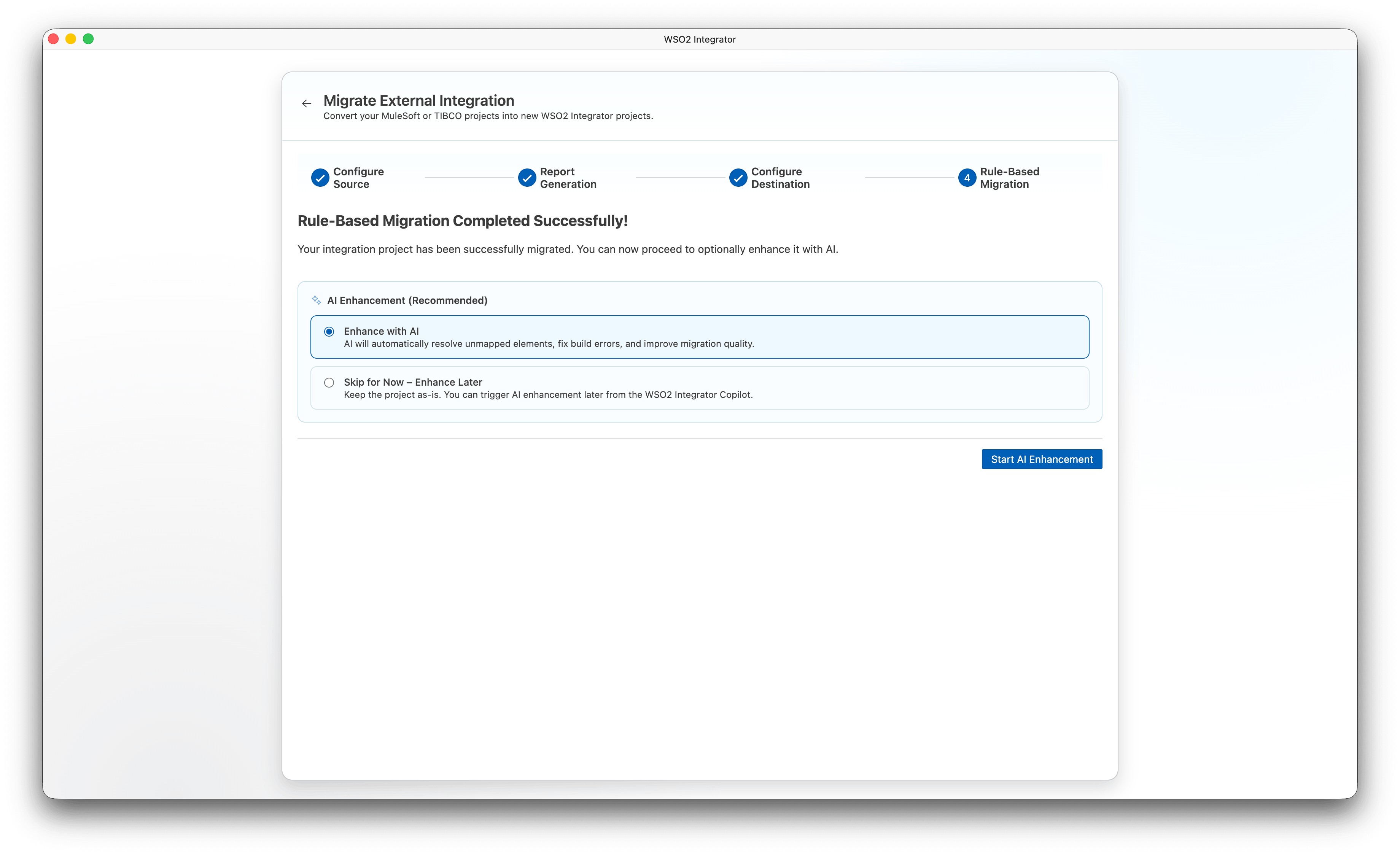
After the migration completes successfully, the AI Enhancement (Recommended) section appears. You can select one of the following:
- Enhance with AI (AI automatically resolves unmapped elements, fixes build errors, and improves migration quality)
- Skip for Now – Enhance Later (Keep the project as-is. You can trigger AI enhancement later from WSO2 Integrator Copilot)
Click Start AI Enhancement to proceed to Step 5. If you chose to skip, click Open Project to open the migrated project or Done to exit.
Step 5: AI enhancement
This step runs only if you selected Enhance with AI in Step 4.
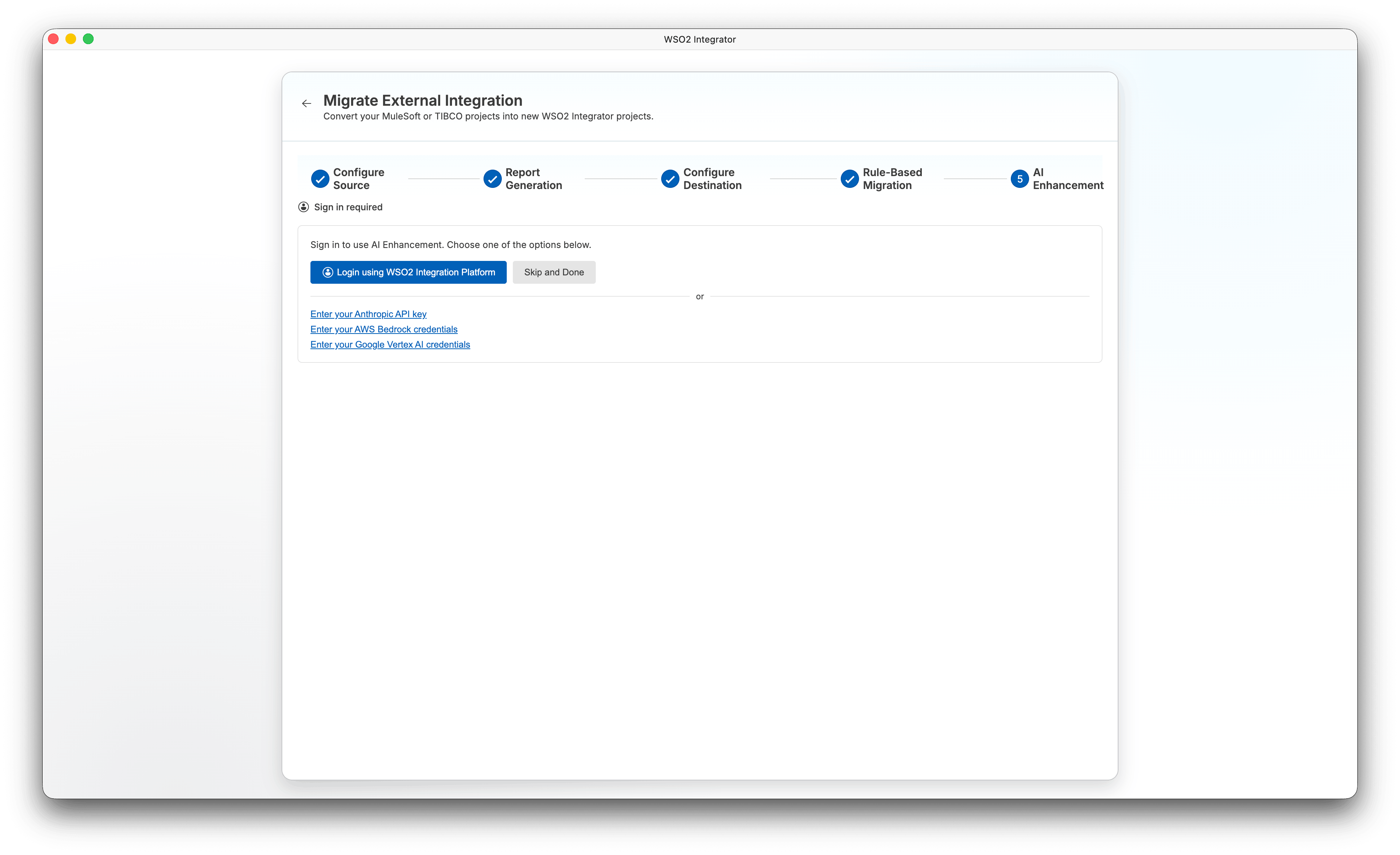
The wizard first checks whether you are signed in. If not, a sign-in panel appears:
-
Click Login using WSO2 Integration Platform to sign in using SSO, or use one of the alternative options:
- Enter your Anthropic API key
- Enter your AWS Bedrock credentials
- Enter your Google Vertex AI credentials
-
To skip AI enhancement and exit, click Skip and Done.
After signing in, the AI agent runs automatically and streams its progress. The agent resolves unmapped elements, fixes build errors, and improves the overall quality of the migrated code.
While the agent is running:
-
Click Pause to pause the AI enhancement. Click Resume to continue.
-
Click Done to exit the wizard, or Open Project to open the project without waiting for the agent to finish.
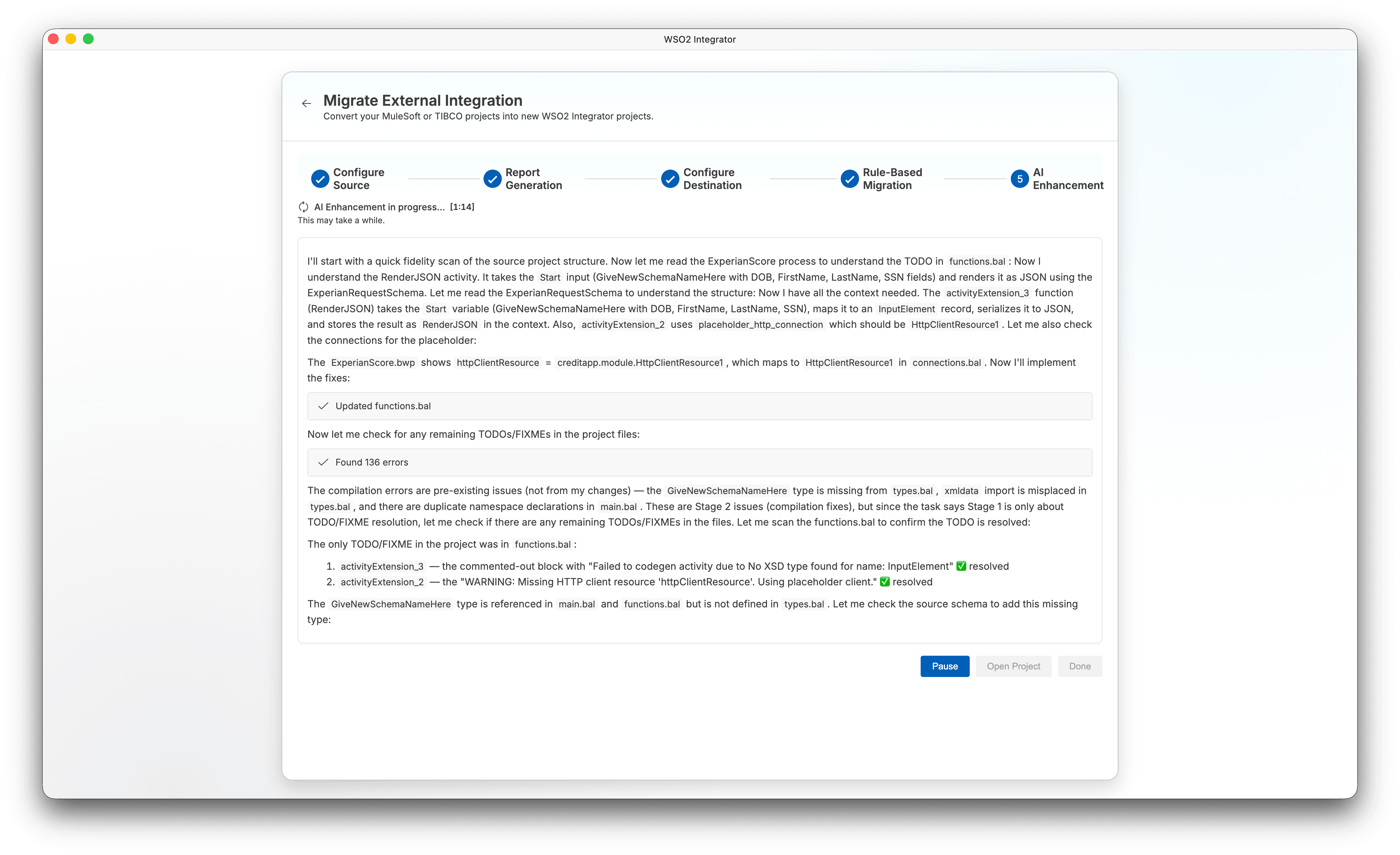
When the AI enhancement completes, the status shows AI Enhancement completed. Click Open Project to open the migrated project or Done to exit.
Prerequisites
- Ballerina installed and the
balcommand available in your environment.
Steps
- Install the migration tool:
bal tool pull migrate-tibco - Run the migration:
bal migrate-tibco <source-project-directory-or-file> [-o <output-directory>] [-k] [-v] [-d] [-m] [-g <org-name>] [-p <project-name>]
Key flags:
| Flag | Description |
|---|---|
<source> | Path to the TIBCO BusinessWorks project directory or a standalone process file |
-o, --out | Output directory for the generated Ballerina project |
-k, --keep-structure | Preserve the original process directory structure |
-v, --verbose | Enable verbose output |
-d, --dry-run | Analyze and generate a report without creating code |
-m, --multi-root | Treat each child directory as a separate project |
-g, --org-name | Organization name for the generated Ballerina package |
-p, --project-name | Project name for the generated Ballerina package |
Examples:
# Migrate all projects in the sample TN2018/Apps directory (multi-root mode)
bal migrate-tibco ./bw-samples/TN2018/Apps -o ./migrated-credit-app -m

# Migrate a single project
bal migrate-tibco ./bw-samples/TN2018/Apps/CreditAppService -o ./migrated-credit-app-service

# Dry run: generate a report without creating code
bal migrate-tibco ./bw-samples/TN2018/Apps -o ./migrated-credit-app -m -d
Note: AI enhancement is available only in the WSO2 Integrator wizard, not in the CLI.
Step 3: Fix up the generated code
The migration tool converts everything it can automatically. This step walks through reviewing the output and resolving any items that still need attention.
Handle items requiring manual attention
Navigate to the output directory created by the migration tool. You'll find:
migration_report.html: the rule-based migration report listing every TIBCO activity, its conversion status, and any items that need manual attention.ENHANCEMENT_SUMMARY.md: present only if you opted in to AI enhancement. It summarises the AI-assisted improvements applied on top of the rule-based migration.
Open migration_report.html and work through any non-migratable items. If you opted in to AI enhancement, check ENHANCEMENT_SUMMARY.md first, as many of these items may already have been resolved automatically. Only address what remains:
- Unsupported activities: Implement the equivalent Ballerina logic manually. Refer to the concept mapping table below.
- Custom XSLT/XPath transformations: Replace with Ballerina query expressions or use the Visual Data Mapper.
- Complex Mapper Activity expressions: Open the Visual Data Mapper in WSO2 Integrator IDE and redraw the mappings.
Configure credentials
The migration tool extracts TIBCO Global Variables and connection settings into a Config.toml in the output directory, so you don't need to create it manually. However, the file will contain placeholder values; you need to replace them with the correct values for your environment before running the migrated project:
# Config.toml - already created by the tool; update values before running
dbHost = "localhost"
dbUser = "myuser"
dbPassword = "mypassword"
httpEndpoint = "https://api.example.com"
Step 4: Test it
If your TIBCO project had tests, the migration tool will have converted them to Ballerina. Run them with:
bal test
You can also use the Try-It tool built into WSO2 Integrator to send requests to your HTTP service interactively without leaving the IDE. Open the service file, click Try it, and test each endpoint.
Compare the responses with those returned by your original TIBCO application.
Step 5: Deploy
Once tests pass, run the integration locally:
bal run
To build a deployable artifact:
bal build
See Deploy for Docker, Kubernetes, and cloud deployment options.
Concept mapping
| In TIBCO BusinessWorks | In WSO2 Integrator | Notes |
|---|---|---|
| Process Definition | Service / Automation | HTTP-triggered processes become services; timer-triggered processes become automations |
| Activity | Node in flow designer | Visual flow nodes map to activities |
| Sub-Process | Function | Reusable process fragments become Ballerina functions |
| Palette | Connector catalog | Pre-built integrations available on Ballerina Central |
| Process Variable | Ballerina variable | Typed variables; no implicit context object |
| Shared Variable | Configurable variable | configurable keyword in Ballerina; values from Config.toml |
| Global Variables | Config.toml | Externalized configuration with environment override support |
| JDBC Connection | Database connector | ballerinax/mysql, ballerinax/postgresql, etc. |
| HTTP Connection | HTTP client | ballerina/http:Client |
| JMS Connection | Messaging connector | ballerinax/kafka, ballerinax/rabbitmq |
| WSDL/SOAP Palette | WSDL tool | bal wsdl generates type-safe Ballerina clients |
| Mapper Activity | Visual Data Mapper | Drag-and-drop field mapping with expression support |
| Group (Transaction) | transaction block | Ballerina has first-class transaction support |
| Catch / Fault Handler | do/on fail | Typed error handling; each error type handled separately |
| Checkpoint | transaction block | Use Ballerina transactions for rollback boundaries |
| Timer | Automation with schedule | task:Listener with cron or interval configuration |
| Log Activity | log:printInfo / log:printError | Structured logging |
| Engine | Ballerina runtime | JVM-based runtime; distributable as a standalone JAR |
| Administrator | WSO2 Integrator IDE + ICP | Development IDE + Integration Control Plane for monitoring |
Key differences
Development model
TIBCO BusinessWorks uses Eclipse-based Business Studio with XML process definition files. WSO2 Integrator uses VS Code with a visual designer that is bidirectionally synced with Ballerina code. You can switch between the visual canvas and the code editor at any time; changes in one are instantly reflected in the other, with no separate export or import step.
| Aspect | TIBCO BusinessWorks | WSO2 Integrator |
|---|---|---|
| IDE | TIBCO Business Studio (Eclipse) | VS Code with WSO2 Integrator extension |
| Process definition | XML files | Ballerina code (visual designer synced) |
| Deployment | TIBCO Admin + AppNode | JAR, Docker, Kubernetes |
| Configuration | Global variables + properties | Config.toml + environment variables |
| Testing | TIBCO Test Suite | Built-in Ballerina test framework (bal test) |
| Version control | Limited XML diff | Standard Git workflows on .bal files |
Process definitions vs. Ballerina services
In TIBCO, a Process Definition is an XML file describing a sequence of activities. In WSO2 Integrator, the equivalent is a Ballerina service (for HTTP-triggered processes) or an automation (for timer-triggered processes). The logic is expressed in Ballerina code, not XML.
TIBCO (process overview):
HTTP Receiver → JDBC Query → Mapper Activity → Send HTTP Response
WSO2 Integrator (Ballerina):
import ballerina/http;
import ballerinax/mysql;

configurable string dbHost = ?;
configurable string dbUser = ?;
configurable string dbPassword = ?;

final mysql:Client db = check new (host = dbHost, user = dbUser, password = dbPassword, database = "orders");

service /api on new http:Listener(8090) {
    resource function get orders/[string id]() returns json|error {
        record {|string orderId; string customer; decimal total;|} result =
            check db->queryRow(`SELECT order_id, customer, total FROM orders WHERE order_id = ${id}`);
        return result.toJson();
    }
}
Mapper Activity vs. Visual Data Mapper
TIBCO's Mapper Activity uses an XML-based mapping editor to transform data between activities. WSO2 Integrator has the Visual Data Mapper, a drag-and-drop tool where you define typed source and target record types and draw field connections. Expressions and function calls can be added inline. For complex transformations, write Ballerina query expressions directly in the code editor.
Error handling
TIBCO uses Catch Activities and Fault Handlers at the process level. WSO2 Integrator uses do/on fail blocks inline in the code. Ballerina errors are typed: each error type is handled separately, similar to how TIBCO lets you match specific fault types.
TIBCO (Fault Handler concept):
Catch (FaultType = DB_FAULT) → Log → SetOutput("Database unavailable")
Catch (FaultType = *) → Log → SetOutput("Unexpected error")
WSO2 Integrator:
do {
    record {|string orderId; string customer;|} result =
        check db->queryRow(`SELECT order_id, customer FROM orders WHERE order_id = ${id}`);
    return result.toJson();
} on fail mysql:DatabaseError dbErr {
    // Equivalent to catching DB_FAULT
    log:printError("Database error", dbErr);
    return <http:ServiceUnavailable>{body: {message: "Database unavailable"}};
} on fail error err {
    // Equivalent to catching all other faults
    log:printError("Unexpected error", err);
    return <http:InternalServerError>{body: {message: "Unexpected error"}};
}
The key advantage is that Ballerina errors are typed. You handle mysql:DatabaseError specifically rather than matching on a string fault type like DB_FAULT.
Understanding the migration in depth
The migration tool handles the conversion automatically. This section explains what the tool does under the hood. This is useful if you want to understand the decisions it makes, manually convert a component it couldn't handle, or build a deeper understanding of Ballerina alongside the migration.
1. Inventory your TIBCO processes
Categorize each TIBCO process definition:
- HTTP Receiver processes → WSO2 Integrator services
- Timer-triggered processes → automations
- JMS/Kafka listener processes → event handlers
- Sub-processes → Ballerina functions
2. Convert Mapper Activity mappings
For each Mapper Activity:
- For simple field mappings, use the Visual Data Mapper (drag and drop).
- For complex XPath/XSLT expressions, write Ballerina query expressions or inline Ballerina expressions.
- For format conversions (XML to JSON, CSV, etc.), use
ballerina/data.xmldata,ballerina/data.csv, etc.
3. Map connections
For each TIBCO connection resource:
- JDBC Connection: Use
ballerinax/mysql,ballerinax/postgresql, etc. - HTTP Connection: Use the
ballerina/httpclient - JMS Connection: Use
ballerinax/kafkaorballerinax/rabbitmq - WSDL/SOAP service: Run
bal wsdlto generate a type-safe Ballerina client - File Connection: Use
ballerina/file,ballerina/io, orballerina/ftp - Check the Connectors page for the full list.
4. Activity constructs
The tool maps TIBCO's built-in activities to their Ballerina equivalents:
- HTTP Receiver →
serviceresource function - HTTP Client →
http:Clientcall - JDBC Query / JDBC Update → database client
query/execute - JMS Send / JMS Receive → Kafka/RabbitMQ producer/consumer
- Mapper Activity → Visual Data Mapper or query expression
- Assign Activity → local variable assignment
- Log Activity →
log:printInfo/log:printError - Group (Transaction) →
transactionblock - Catch / Fault Handler →
do/on fail - Sub-Process Call → direct function call
- Receive Timer →
task:Listenerautomation - Checkpoint →
transactionblock boundary
Common gotchas
- No XML process files: The migration output is Ballerina code, not XML. If your CI/CD pipeline references TIBCO XML files, update it to use
bal buildandbal run. - Shared Variables scope: TIBCO Shared Variables are global and mutable. In Ballerina, use
configurablevariables (read fromConfig.toml) for static config, or a database/cache for runtime-mutable shared state. - Checkpoint vs. transaction: TIBCO Checkpoints define recovery points in a process. In Ballerina, use
transactionblocks for rollback boundaries. True process-level checkpointing requires external state storage. - Mapper Activity output format: The TIBCO Mapper Activity works on XML data. The migration tool converts these to Ballerina record types, but review complex mappings (especially those with namespace-qualified XML) as they may need adjustments.
- Palette connectors: Not all TIBCO Palette connectors have direct equivalents on Ballerina Central. Check the Connectors page; for connectors without a match, use the generic
http:Clientor implement a custom Ballerina client. - Sub-process calling conventions: TIBCO sub-processes can be called synchronously or asynchronously. In Ballerina, use a regular function call for synchronous and
startfor fire-and-forget.
Before/After examples
These are additional reference examples showing how common TIBCO BusinessWorks patterns map to WSO2 Integrator. They are not from the sample project used in this tutorial.
HTTP service with database query
TIBCO (Process Definition):
HTTP Receiver → JDBC Query → Mapper Activity → Send HTTP Response
WSO2 Integrator (Ballerina):
import ballerina/http;
import ballerinax/mysql;

configurable string dbHost = ?;
configurable string dbUser = ?;
configurable string dbPassword = ?;

final mysql:Client db = check new (host = dbHost, user = dbUser, password = dbPassword, database = "orders");

service /api on new http:Listener(8090) {
    resource function get orders/[string id]() returns json|error {
        record {|string orderId; string customer; decimal total;|} result =
            check db->queryRow(`SELECT order_id, customer, total FROM orders WHERE order_id = ${id}`);
        return result.toJson();
    }
}
Scheduled automation
TIBCO (Timer-triggered process):
Timer (every 5 min) → JDBC Query → JMS Send
WSO2 Integrator (Ballerina):
import ballerina/task;
import ballerinax/mysql;
import ballerinax/kafka;

configurable string dbHost = ?;
configurable string dbUser = ?;
configurable string dbPassword = ?;
configurable string kafkaBootstrap = ?;

final mysql:Client db = check new (host = dbHost, user = dbUser, password = dbPassword, database = "events");
final kafka:Producer kafkaProducer = check new ({bootstrapServers: kafkaBootstrap});

service "eventPoller" on new task:Listener({intervalInMillis: 300000}) {
    remote function onTrigger() returns error? {
        stream<record {|string eventId; string payload;|}, error?> events =
            db->query(`SELECT event_id, payload FROM events WHERE processed = FALSE`);
        check from var event in events
            do {
                check kafkaProducer->send({topic: "events", value: event.payload.toBytes()});
            };
    }
}
Summary
You've migrated the TIBCO BusinessWorks Credit Application sample to WSO2 Integrator. The tool converted the four TIBCO process definitions to Ballerina services, mapped JDBC and HTTP connections, and generated a migration report. You reviewed the concept differences (XML processes vs. typed Ballerina services, Mapper Activities vs. the Visual Data Mapper, TIBCO Fault Handlers vs. do/on fail), handled unsupported activities, replaced Global Variables with Config.toml, and tested the result. The same workflow applies to any TIBCO BusinessWorks project.