MCP Integration
The Model Context Protocol (MCP) is an open standard that lets AI assistants discover and call tools exposed by external servers. See the MCP specification for the protocol details.
With WSO2 Agent Builder, you can build both sides of MCP: an MCP server (an MCP service that exposes your tools to AI assistants) and an MCP client (an agent that uses tools from other MCP servers).
Features at a glance
| Feature | What it is | Where you find it |
|---|---|---|
| Exposing a service as MCP | Build an MCP service in WSO2 Agent Builder. Set its port and base path, add tools, and configure each tool's name, description, and parameters. | Project home page > Add MCP Server. |
| Consuming MCP from an agent | Add an MCP server as a tool source for an AI agent, optionally limited to specific tools. | Agent canvas > Add Tool > Use MCP Server > Connect Manually. |
When to use MCP
| Use MCP when... | Look elsewhere when... |
|---|---|
| You want your tools reusable by Claude Desktop, GitHub Copilot, or any other MCP client. | Only your own agents will consume the tools. Local function tools work fine. |
| You want to consume tools published by community or vendor MCP servers. | The tools live behind a normal HTTP API and a connector already covers them. |
| You want one standard entry point between AI clients and your tools, where you can apply authentication and logging. | The tools are internal and short-lived. |
How the two sides fit together
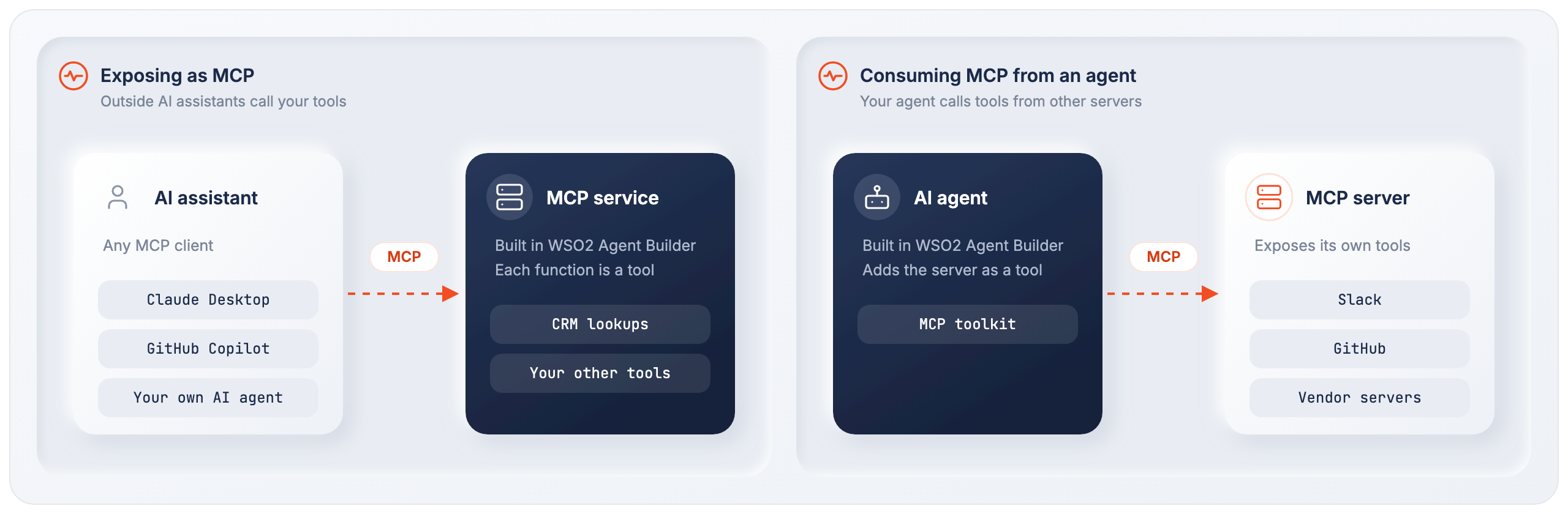
You can do both in the same project. A single project might expose a few tools (your CRM lookups) over MCP for outside assistants while its agents use Slack and GitHub MCP servers.
Where to find MCP in WSO2 Agent Builder
MCP features appear in three places: the project home page, the MCP Service editor, and the agent canvas.
| Surface | What it does | Created where |
|---|---|---|
| MCP Service | An entry point that publishes tools over MCP. Listed under Entry Points in the project sidebar. | Project home page > Add MCP Server |
mcp:StreamableHttpListener | The listener an MCP service runs on. Created when you add the first MCP service, and reusable across services. | MCP Service editor > Configure > Attached Listeners > mcpListener |
mcp:StreamableHttpService and mcp:StreamableHttpAdvancedService | The service body. mcp:StreamableHttpService derives tools from remote functions and is what the MCP Service editor creates. mcp:StreamableHttpAdvancedService lets you implement onListTools and onCallTool for dynamic tool sets, and is written in code. | Inside the MCP Service editor |
| Add Tool - Use MCP Server panel | Connects an agent to a remote MCP server. Generates a toolkit class that implements ai:McpBaseToolKit and pulls tools from the server. | Agent canvas > Add Tool > Use MCP Server |
| New Tool Configuration panel | Per-tool editor inside an MCP service. Sets name, description, parameters, and return type. | MCP Service editor > + Add Tool |
Transport
MCP services in WSO2 Agent Builder use the Streamable HTTP transport. The listener exposes a single endpoint (for example, http://localhost:8080/mcp), and clients send every request to it, including tool listings and tool calls.
Because the transport is HTTP, the listener accepts any http:ListenerConfiguration option, including TLS, request limits, and timeouts. See Listener configuration.
Common pitfalls
| Symptom | Likely cause | Fix |
|---|---|---|
| MCP client connects but sees no tools. | The mcp:StreamableHttpService has no remote functions yet, or no tools were added through the editor. | Select + Add Tool in the MCP Service editor. |
| Client gets HTTP 404. | Wrong URL. Base path or listener port mismatch. | Check the listener port (Configure > Attached Listeners > mcpListener in the MCP Service editor) and the service base path (/mcp by default). |
Tool call returns Invalid parameters: .... | The arguments sent by the client do not match the tool's parameter types, so the framework rejects the call before invoking the tool. | Loosen the parameter type if it is too strict, or sharpen the parameter description so the model sends the right shape. |
| Agent picks the wrong MCP tool. | Tool descriptions are too generic or overlap. | Tighten each tool's first sentence. State what and when. See Writing a good tool description. |
| Agent prompt becomes large after adding an MCP server. | The server advertises many tools and Tools to Include is set to All. | Filter Tools to Include to just the names you need. See Filtering tools. |
| An agent's calls to an MCP server time out. | The toolkit's default 30-second timeout is too short for slow tools. | In the agent's Edit MCP Server panel, increase Timeout under Advanced Configurations. |
What's next
- Exposing a service as MCP — expose your tools as an MCP server.
- Consuming MCP from an agent — let your agent use tools from any MCP server.
- MCP specification — the protocol spec.