Voice Agent
A Voice Chat trigger exposes an AI agent over a voice channel. WSO2 Agent Builder hosts the voice connection for you. Your agent receives the caller's speech as transcribed text and returns a text reply. WSO2 Cloud converts that reply to speech and plays it back to the caller, so you never handle audio yourself.
In WSO2 Agent Builder, voice is a trigger on an agent, just like a chat channel.
How it differs from an Agent Chat trigger
| Agent Chat trigger | Voice Chat trigger | |
|---|---|---|
| Transport | HTTP (REST) | WebSocket |
| Listener | ai:Listener | integration:CloudVoiceListener |
| Service type | ai:ChatService | integration:VoiceService |
| Handler | resource function post chat | remote function onChatMessage |
| Input | ai:ChatReqMessage (the user's message, with a session ID) | integration:ChatMessage (the transcribed speech, with a session ID) |
| Output | ai:ChatRespMessage | string, spoken back to the caller through text-to-speech |
Both call the same ai:Agent. They differ only in the transport and message format.
Before you start
Create the agent you want to expose over voice. See Creating an Agent for configuring the system prompt, tools, and memory. You can add the Voice Chat trigger to an agent that already has an Agent Chat trigger, so the same agent answers both chat and voice.
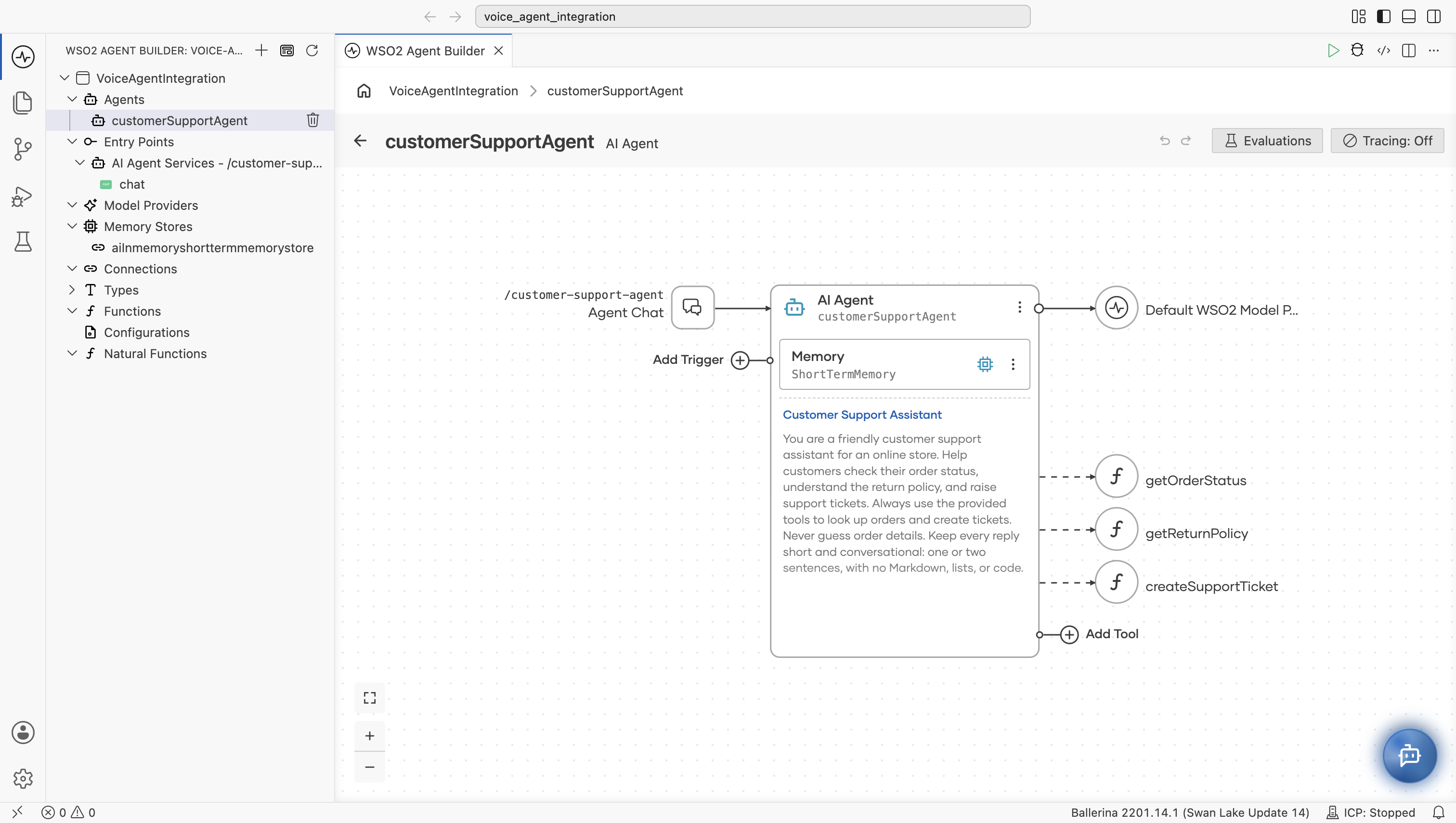
This example uses customerSupportAgent, a customer support agent that checks order status, explains the return policy, and creates support tickets. It already has an Agent Chat trigger at /customer-support-agent.
- Visual Designer
- Ballerina Code
Add a Voice Chat trigger
- Under Agents, select the agent to open its canvas. Select Add Trigger on the left of the AI Agent node.
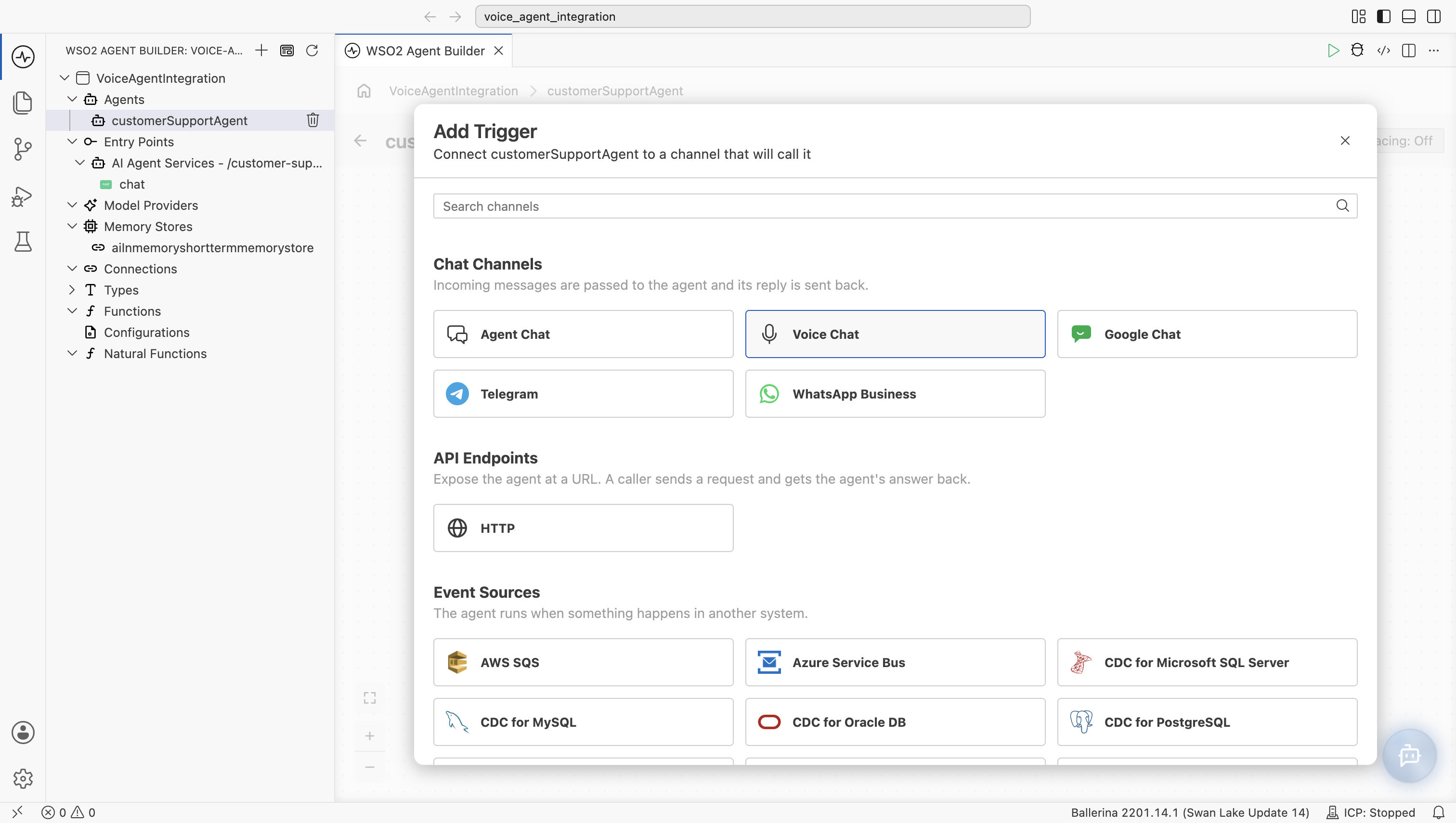
- In the Add Trigger dialog, select Voice Chat under Chat Channels.
- In the Voice Chat form, attach the trigger to a new or existing cloud voice listener.
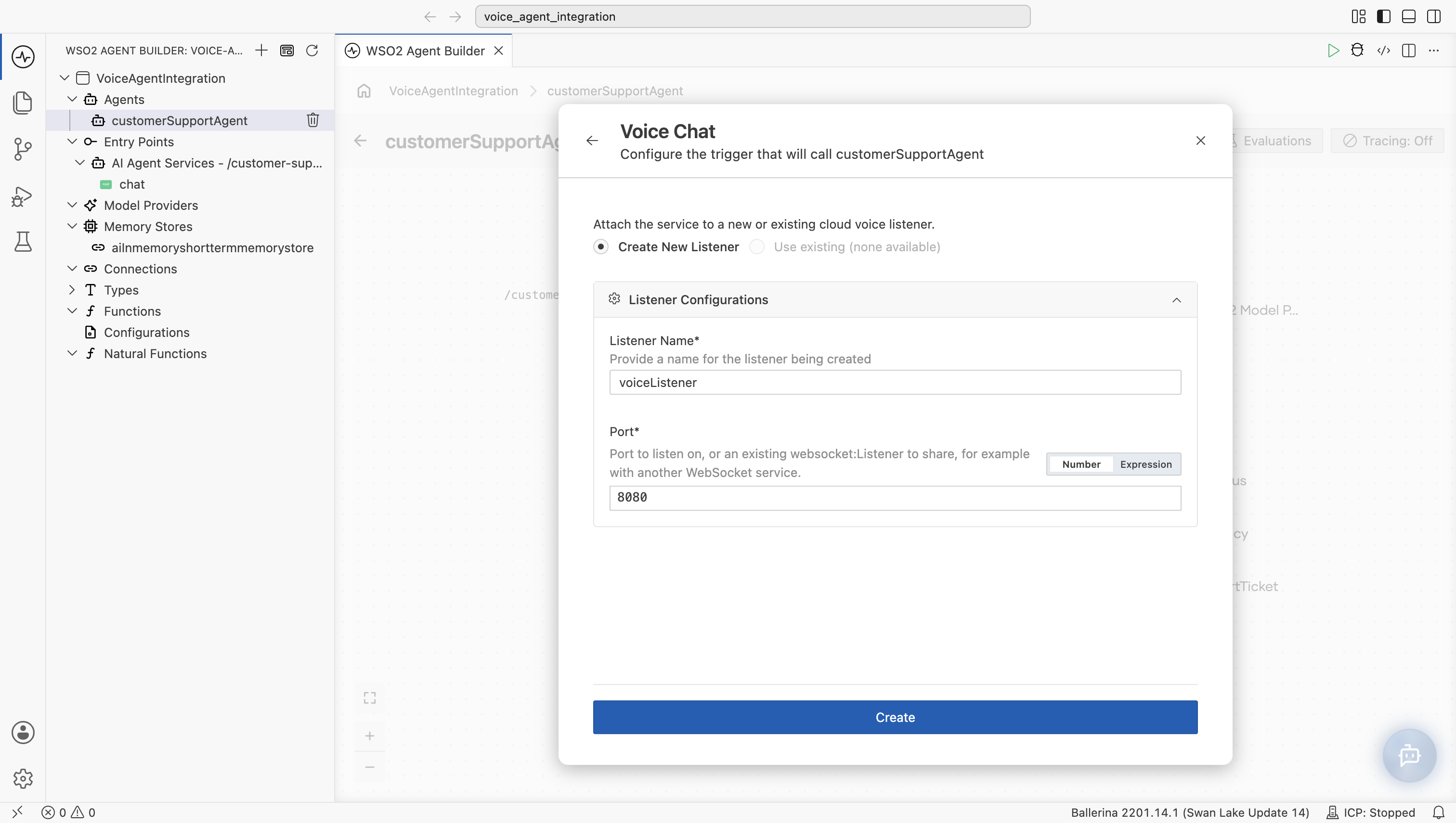
| Field | Required | Description |
|---|---|---|
| Listener Name | Yes | Identifier for the voice listener, for example voiceListener. Select Use existing instead if you already have one. |
| Port | Yes | The port the listener runs on, as a number or an expression that shares a port with another WebSocket service. |
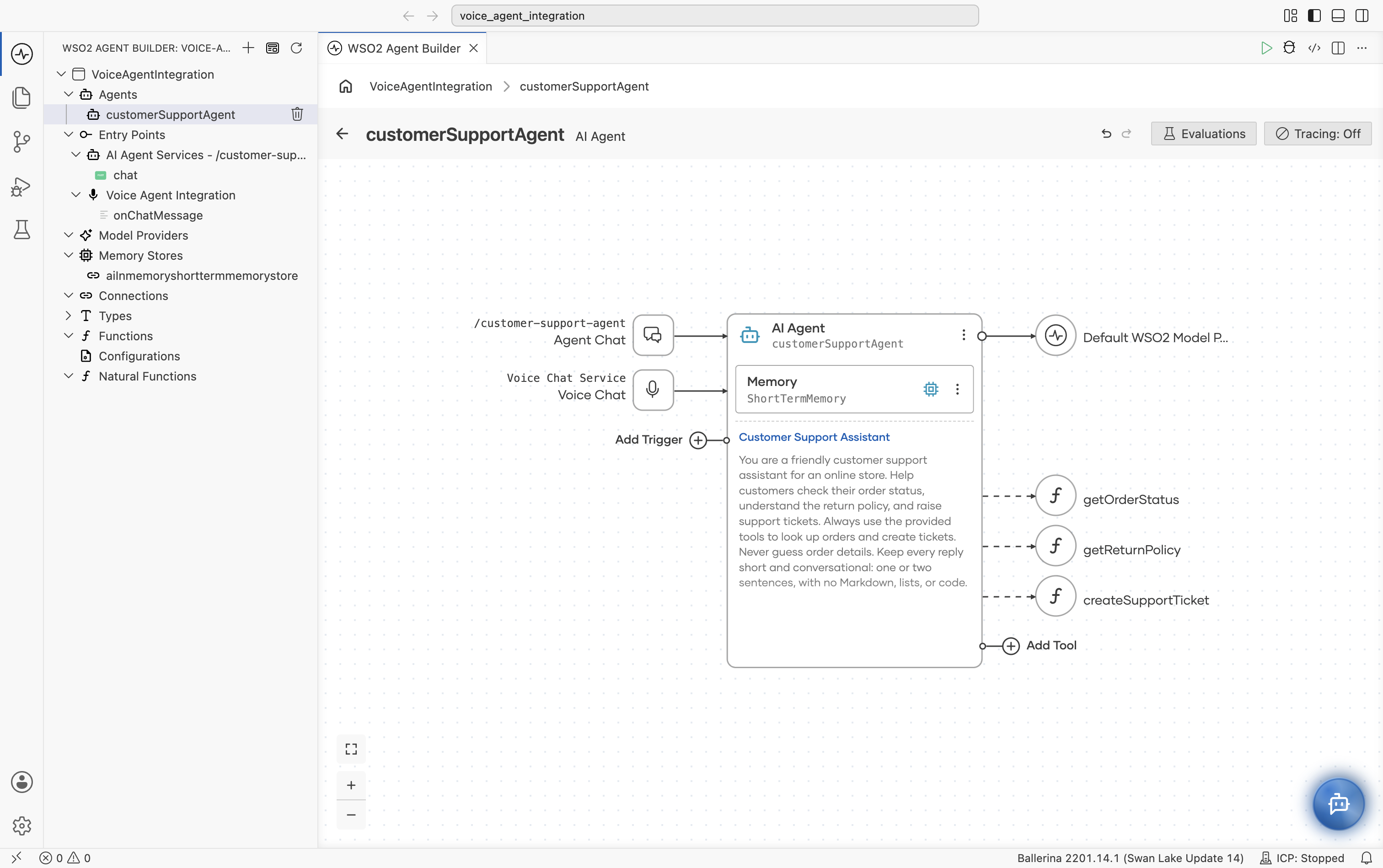
- Select Create. The canvas now shows both triggers, Agent Chat and Voice Chat (labeled Voice Chat Service), connected to the same agent. The project explorer lists a Voice Agent Integration entry point with an
onChatMessageevent handler.
Review the onChatMessage handler
onChatMessage receives an integration:ChatMessage (the transcribed speech, with a session ID for the call) and returns the text to speak back to the caller. WSO2 Agent Builder wires the agent into it for you, so there's no placeholder to replace.
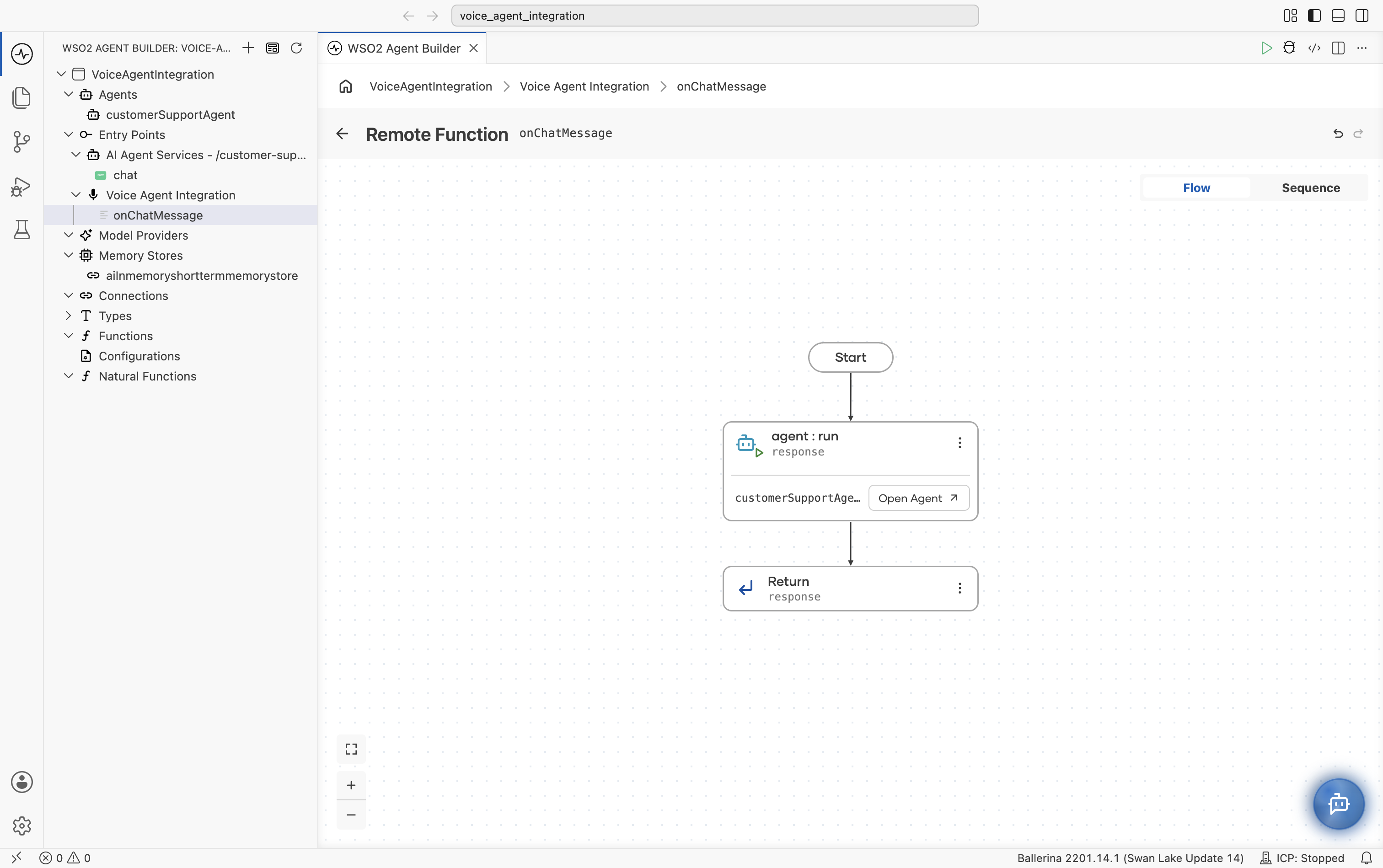
Under Entry Points, expand Voice Agent Integration and select onChatMessage. The flow is Start, an agent : run node that calls customerSupportAgent, and a Return node that returns response.
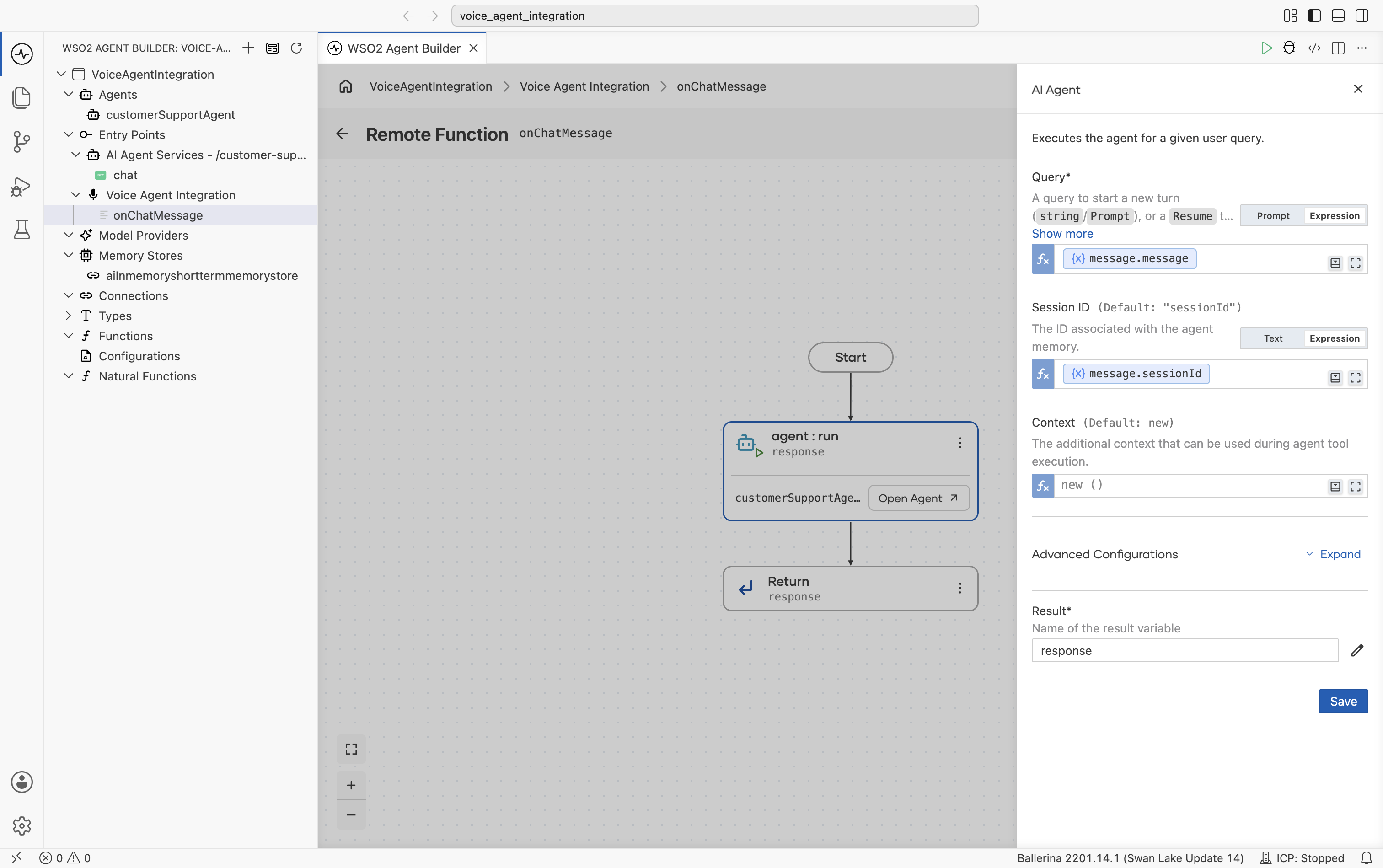
Select the agent : run node to see how it's configured: Query is bound to the incoming message.message, Session ID to the call's message.sessionId, and Result is named response.
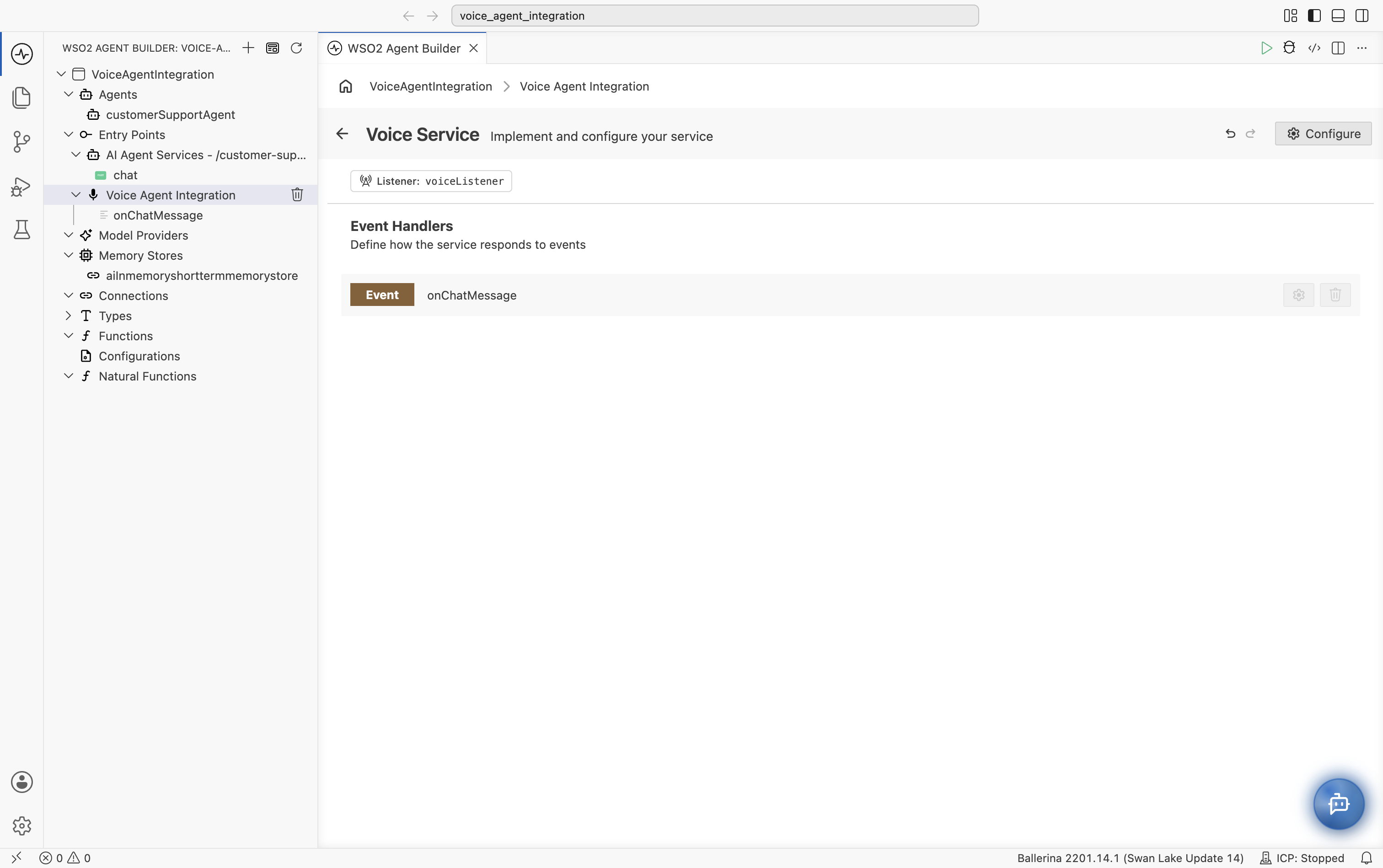
Selecting Voice Agent Integration itself opens the Voice Service view, which shows the voiceListener listener and the onChatMessage event handler.
The session ID is passed as the session key so the agent's memory tracks each call separately. Without it, every caller shares the same conversation history.
Adding a Voice Chat trigger adds a CloudVoiceListener and a VoiceService to main.bal, next to the existing Agent Chat service:
import ballerina/ai;
import ballerina/http;
import ballerinax/ai.wso2.integration;

listener ai:Listener agentChatListener = new (listenOn = check http:getDefaultListener());

service /customer\-support\-agent on agentChatListener {
    resource function post chat(@http:Payload ai:ChatReqMessage request)
            returns ai:ChatRespMessage|error {
        string stringResult = check customerSupportAgent.run(request.message, sessionId = request.sessionId);
        return {message: stringResult};
    }
}

listener integration:CloudVoiceListener voiceListener = new (8080);

isolated service integration:VoiceService on voiceListener {
    isolated remote function onChatMessage(integration:ChatMessage message) returns string|error {
        string response = check customerSupportAgent.run(message.message, sessionId = message.sessionId);
        return response;
    }
}
onChatMessage receives an integration:ChatMessage (the transcribed speech, with a session ID for the call) and returns the text to speak back to the caller. WSO2 Agent Builder wires the agent into it for you, so there's no placeholder to replace.
The session ID is passed as the session key so the agent's memory tracks each call separately. Without it, every caller shares the same conversation history.
Deploy to WSO2 Cloud
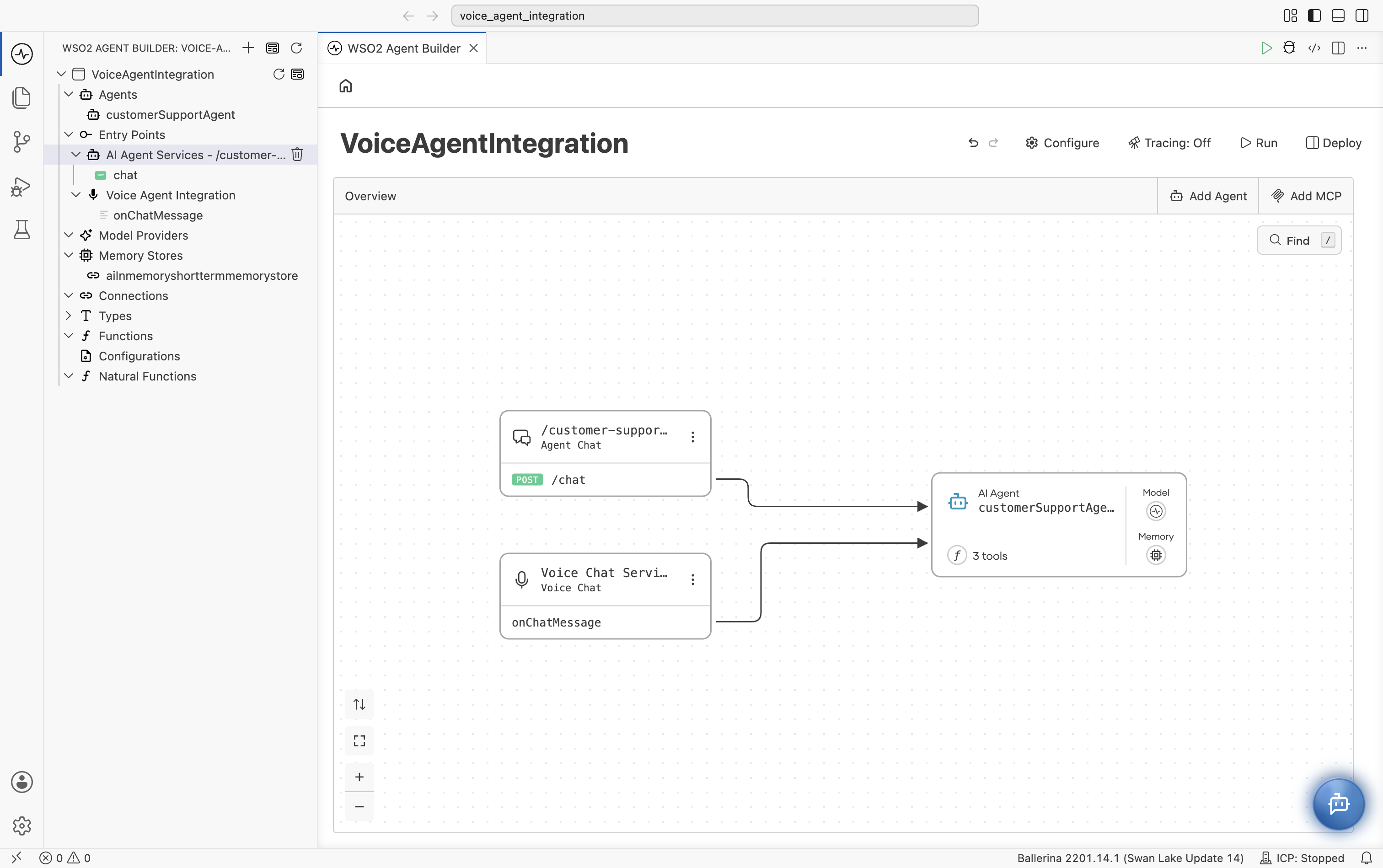
The voice listener only accepts calls once it's deployed. Select the VoiceAgentIntegration integration in the project explorer to open its Overview. The canvas shows both triggers, the Agent Chat (POST /chat) and the Voice Chat (onChatMessage), connected to customerSupportAgent with its model, memory, and three tools.
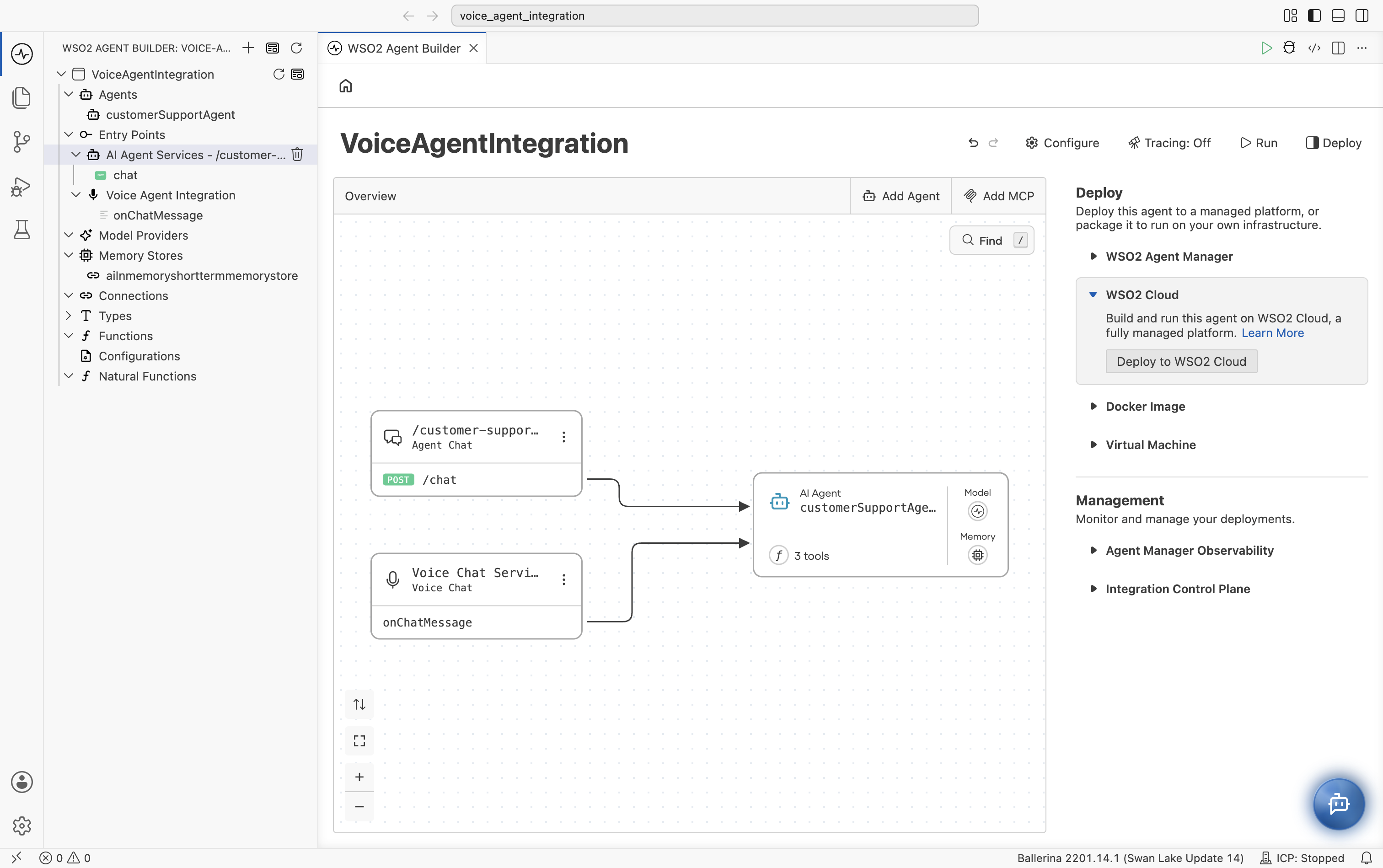
Select Deploy at the top right. The Deploy panel lists the deployment targets (WSO2 Agent Manager, WSO2 Cloud, Docker Image, and Virtual Machine) and the Management options (Agent Manager Observability and Integration Control Plane).
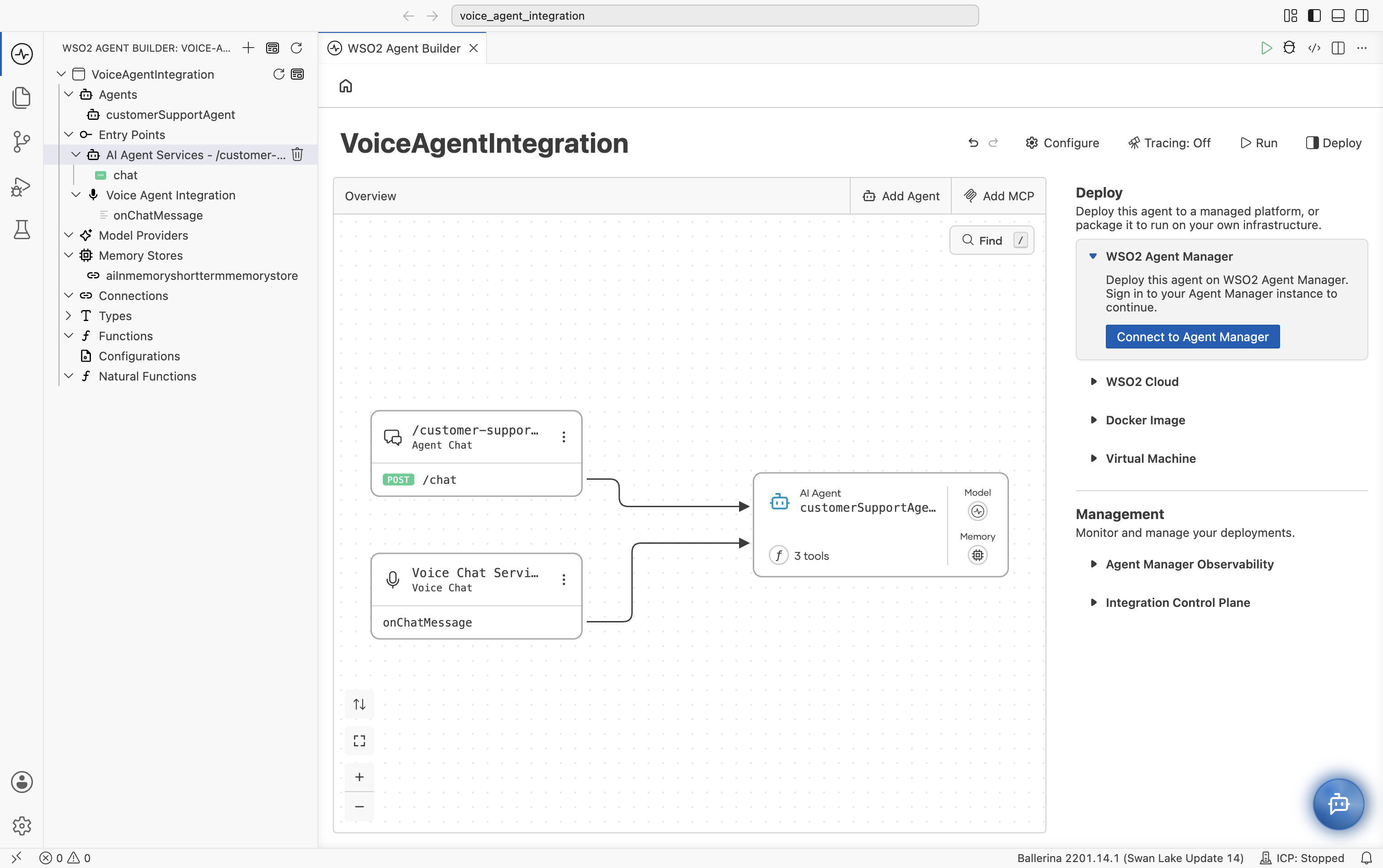
Expand WSO2 Cloud and select Deploy to WSO2 Cloud. Pick the organization and project, and connect a Git remote if the project doesn't have one yet. See Deploy to WSO2 Cloud from WSO2 Integrator for the full walkthrough.
Once deployed, enable voice for the integration in WSO2 Cloud. WSO2 Cloud runs the voice pipeline for you: callers connect over WebRTC, their speech is transcribed and sent to onChatMessage, and the reply is converted back to speech. You choose the speech-to-text and text-to-speech providers when you set it up. See Voice Agents in the WSO2 Cloud documentation to configure and test the voice pipeline.
The voice pipeline is available only on WSO2 Cloud. Deploying as a Docker image or on a virtual machine runs the service, but callers can't reach it by voice.
Common pitfalls
| Symptom | Likely cause | Fix |
|---|---|---|
| Caller hears long or garbled replies. | The agent's instructions allow Markdown, lists, or long answers. | Ask for short, plain-text replies (one or two sentences, no Markdown) in the agent's Instructions. |
| Agent forgets earlier turns in the same call. | No memory is attached to the agent, or the session ID isn't passed to agent.run(). | Attach a memory store and keep Session ID bound to message.sessionId. |
| Callers can't connect to the agent. | The integration isn't deployed to WSO2 Cloud, or voice isn't enabled for it. | Deploy to WSO2 Cloud and enable voice for the integration. |
What's next
- Voice Agents on WSO2 Cloud — Configure the voice pipeline and test the agent with your voice.
- Creating an Agent — System prompt, tools, and memory shared by every agent type.
- Build a Hotel Finder Agent — Build an agent with custom tools, step by step.
- Build a Customer Care Agent with MCP — Build an agent that uses an MCP server as a tool.
- Tools — Add functions, connectors, and integrations to the agent.
- Memory — Configure conversational and persistent memory.
- Observability — Monitor traces, logs, and execution details.