Example
What you'll build
Build a scheduled automation that connects to an Azure AI Search service, retrieves service-level statistics, and logs the result. The integration uses the ballerinax/azure.ai.search connector to call the management API and return storage, document counts, and quota usage.
Operations used:
- Get Service Statistics : Retrieves service-level statistics including document counts, index usage, and storage quota from Azure AI Search.
Architecture
Prerequisites
- An active Azure subscription with an Azure AI Search resource provisioned.
- An Azure Search service URL in the format
https://<your-service-name>.search.windows.net. - An Azure Search Admin API key, available in the Azure portal under Keys.
Setting up the Azure AI Search integration
New to WSO2 Integrator? Follow the Create a New Integration guide to set up your integration first, then return here to add the connector.
Adding the Azure AI Search connector
Step 1: Open the connector palette
Select Add Connection (or the + icon in the Connections panel) from the integration overview. A connector palette appears showing pre-built connectors.
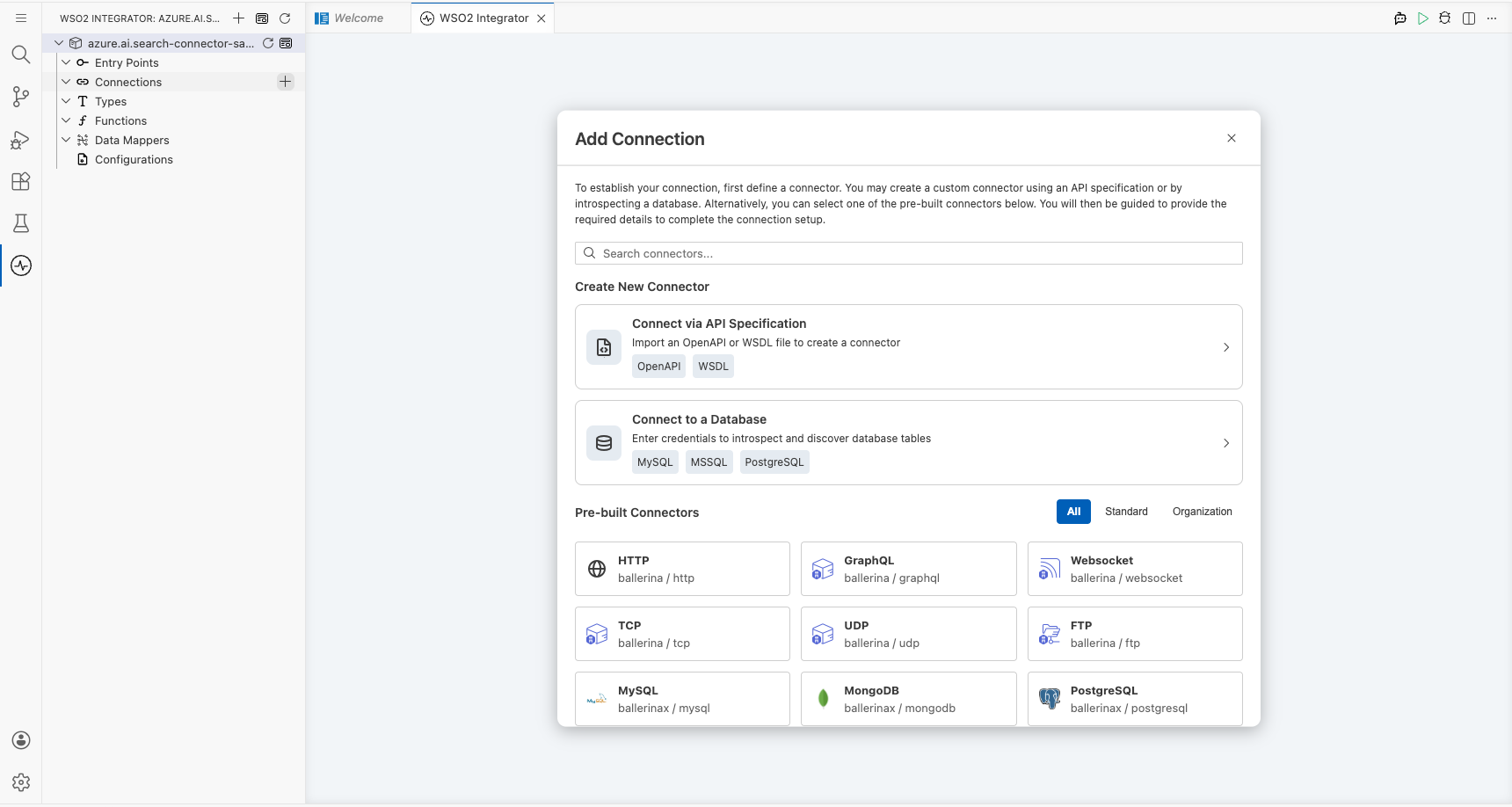
Step 2: Select the Azure AI Search connector
Enter search in the search field. Two Azure AI Search packages appear. Select ballerinax/azure.ai.search (the management API for indexes, indexers, and statistics).
Configuring the Azure AI Search connection
Step 3: Fill in the connection parameters
In the Configure Search panel, bind each field to a configurable variable:
- serviceUrl : The Azure AI Search service URL, bound to the
azureSearchServiceUrlconfigurable variable. - apiKey : The Azure Search Admin API key, bound to the
azureSearchApiKeyconfigurable variable. - connectionName : Keep the default value
searchClient.
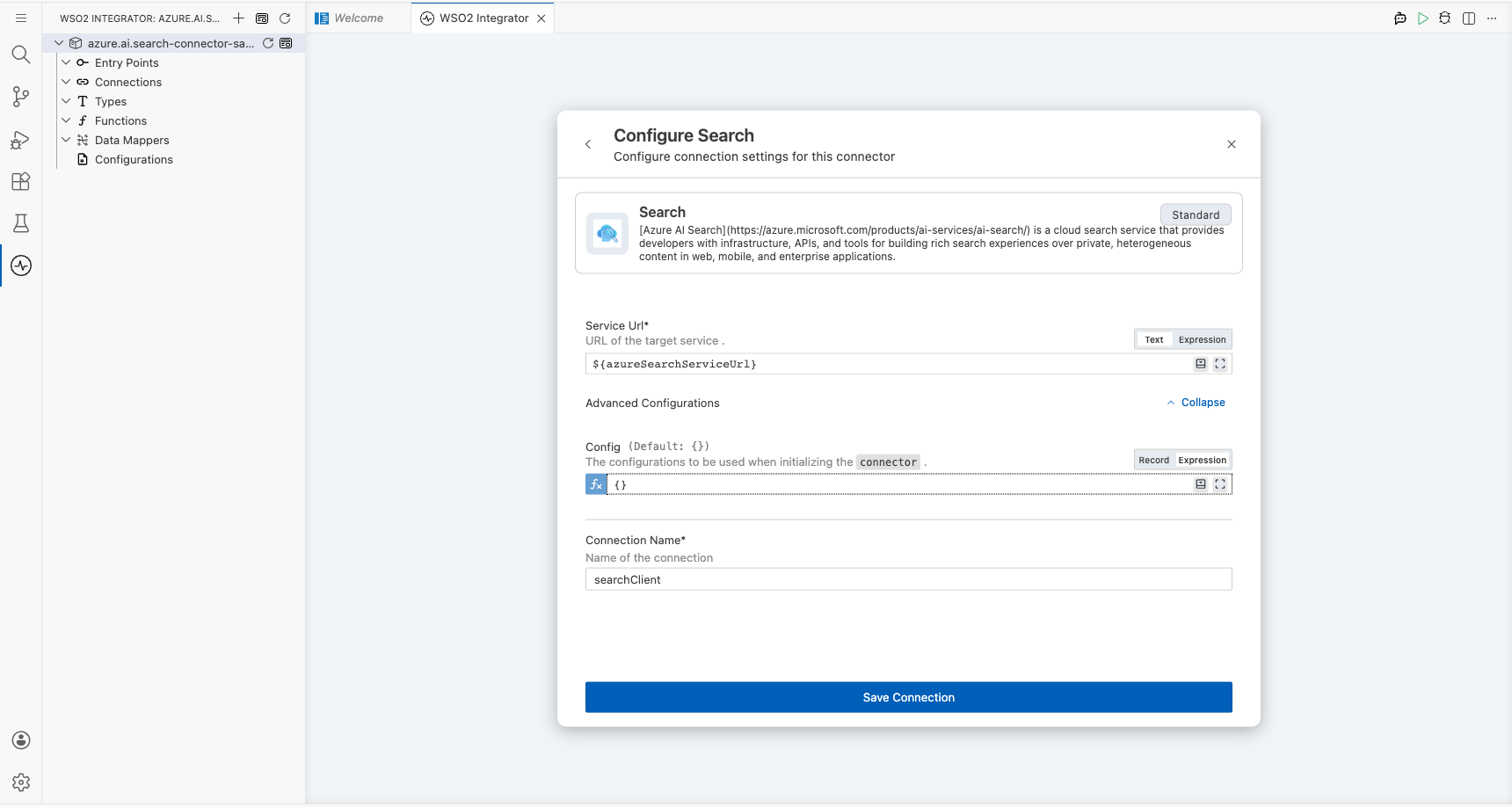
Step 4: Save the connection
Select Save Connection to persist the connection. The integration canvas updates to show the searchClient connection node under Connections.
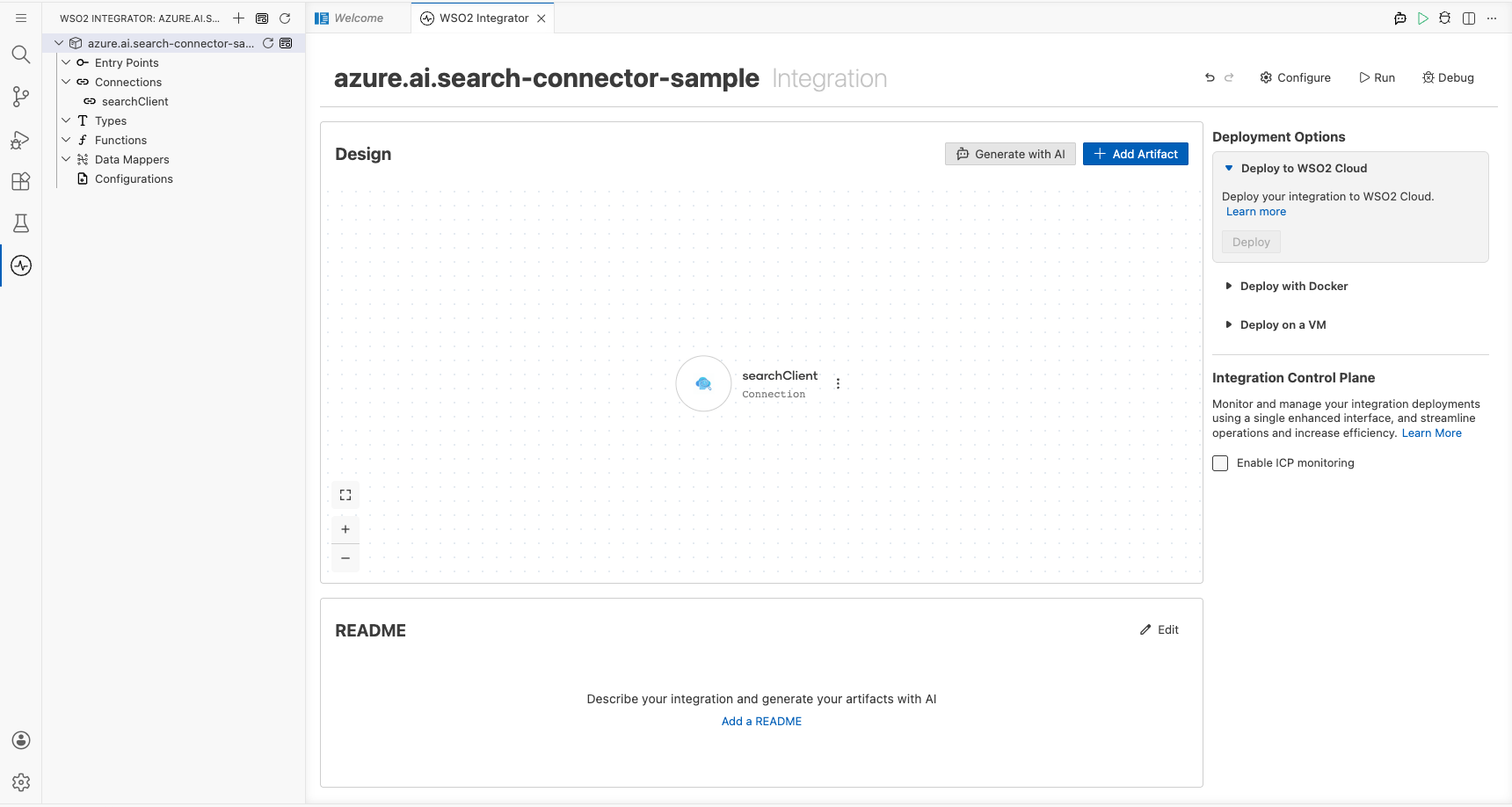
Step 5: Set actual values for your configurables
- In the left panel, select Configurations.
- Set a value for each configurable listed below.
- azureSearchServiceUrl (string) : The full Azure AI Search service URL, for example
https://my-service.search.windows.net. - azureSearchApiKey (string) : The Admin API key from the Azure portal under Keys.
Configuring the Azure AI Search Get Service Statistics operation
Step 6: Add an Automation entry point
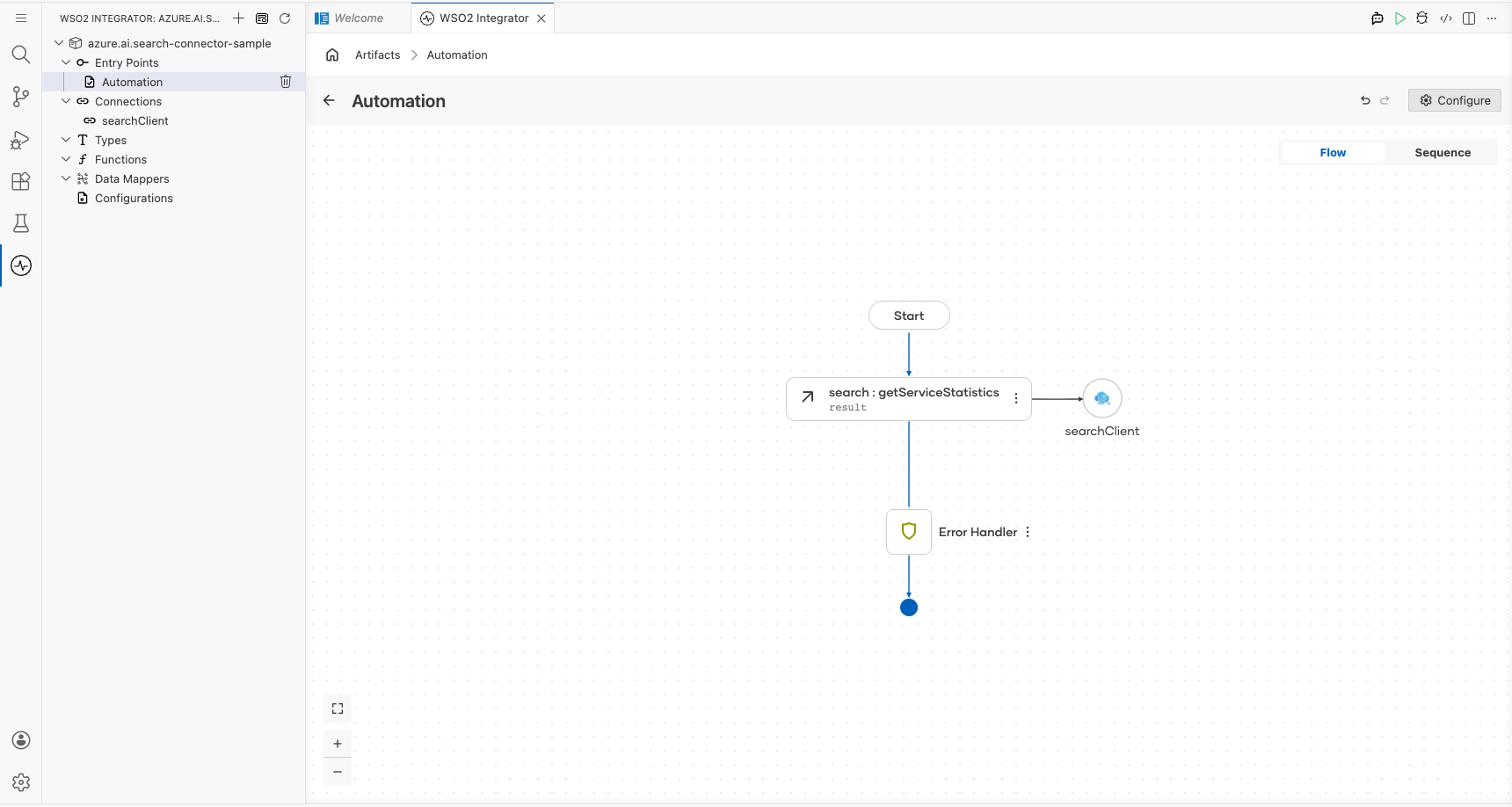
Select + Add Artifact in the Design panel. From the artifact picker, select Automation and select Create. The canvas switches to the Automation flow editor, showing a Start node connected to an Error Handler.
Step 7: Select and configure the Get Service Statistics operation
Select the + node between Start and Error Handler. Expand Connections → searchClient to view all available operations.
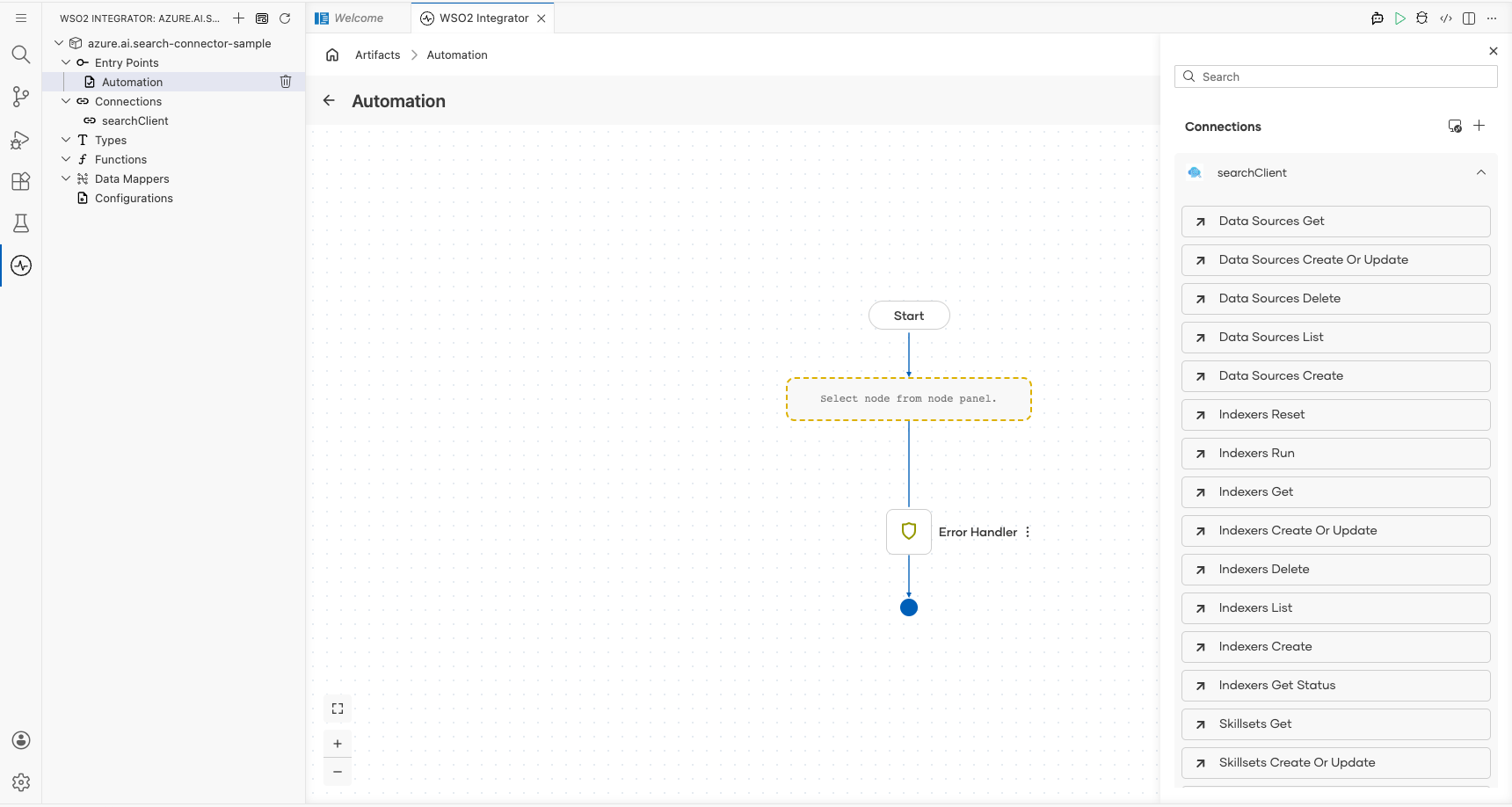
Select Get Service Statistics and fill in the operation fields:
- Api-version : The Azure REST API version string, for example
2023-11-01. - Result : The variable name to store the returned
search:ServiceStatisticsrecord, set toresult.
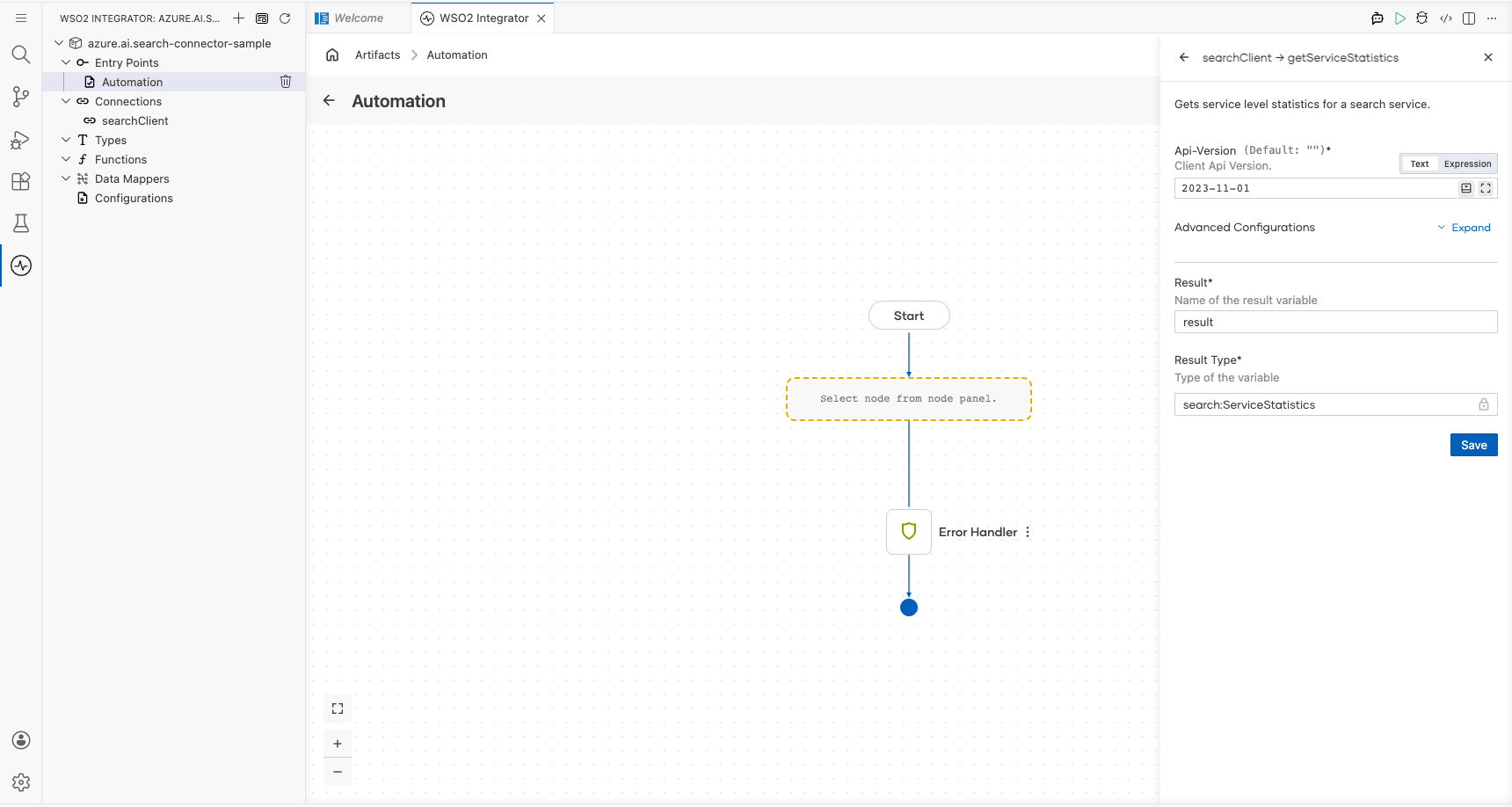
Select Save. The completed automation flow now shows the full Start → Get Service Statistics → Error Handler sequence on the canvas.
Try it yourself
Try this sample in WSO2 Integration Platform.

More code examples
The Azure AI Search connector provides practical examples illustrating usage in various scenarios. Explore these examples, covering the following use cases:
- RAG ingestion - A comprehensive example demonstrating the complete Azure AI Search workflow including data source creation, index creation, indexer setup, and execution.