Create a New Integration
WSO2 Integrator provides a creation wizard to set up new integration projects. Launch it from the home screen and configure the project details to generate a ready-to-use Ballerina project.
Open the creation wizard
When you open WSO2 Integrator, the home screen offers three ways to get started:
- Create New Integration — Start building a new integration from scratch.
- Open Integration — Continue working on an existing integration on your machine.
- Explore Pre-built Integrations and Samples — Browse ready-to-use samples to accelerate your development.
A Recent Integrations and Projects list at the bottom links to projects you've opened recently.
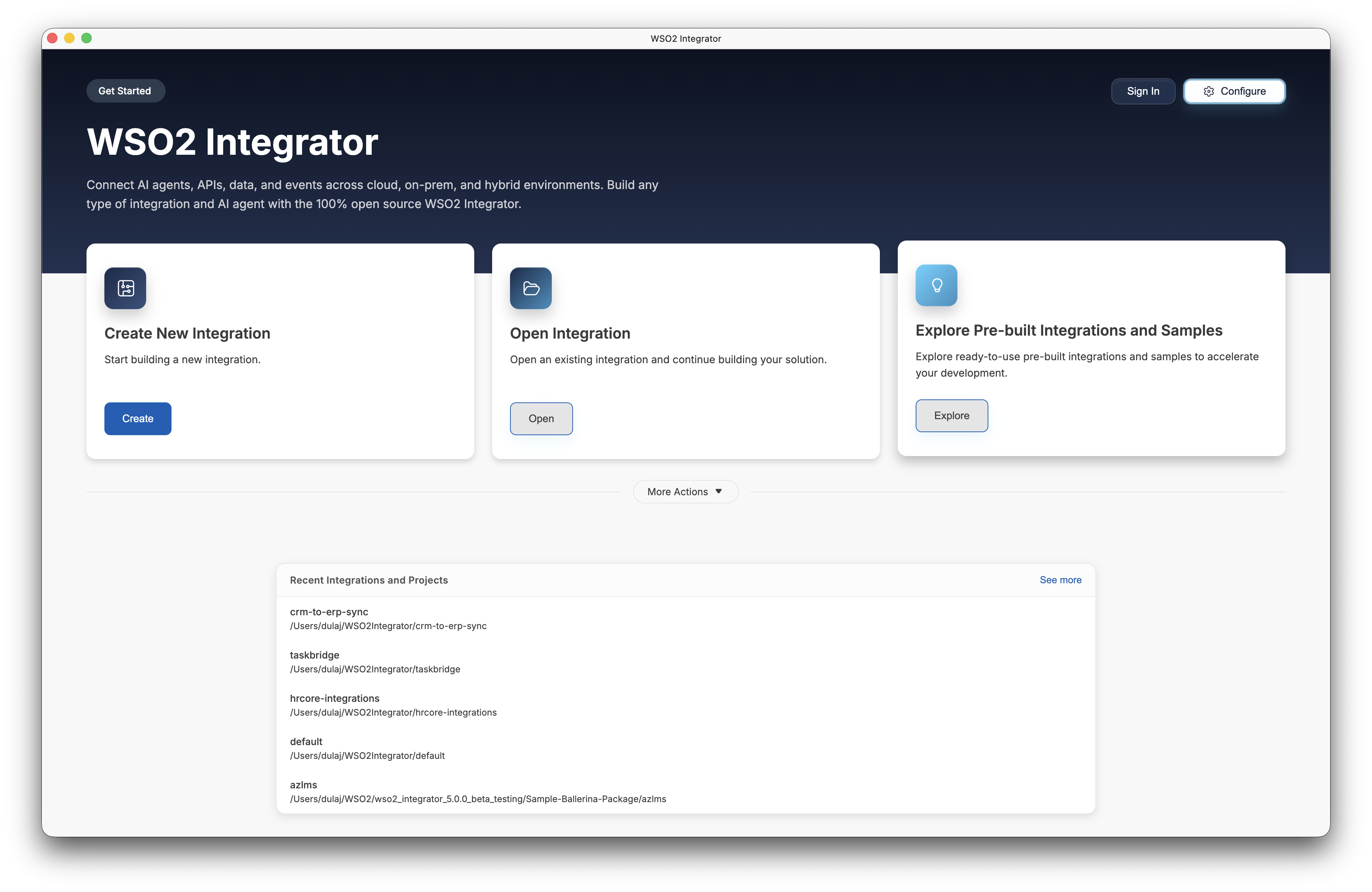
Click Create on the Create New Integration card to open the creation wizard.
Configure the integration
The creation wizard prompts you to provide the basic details for your integration.
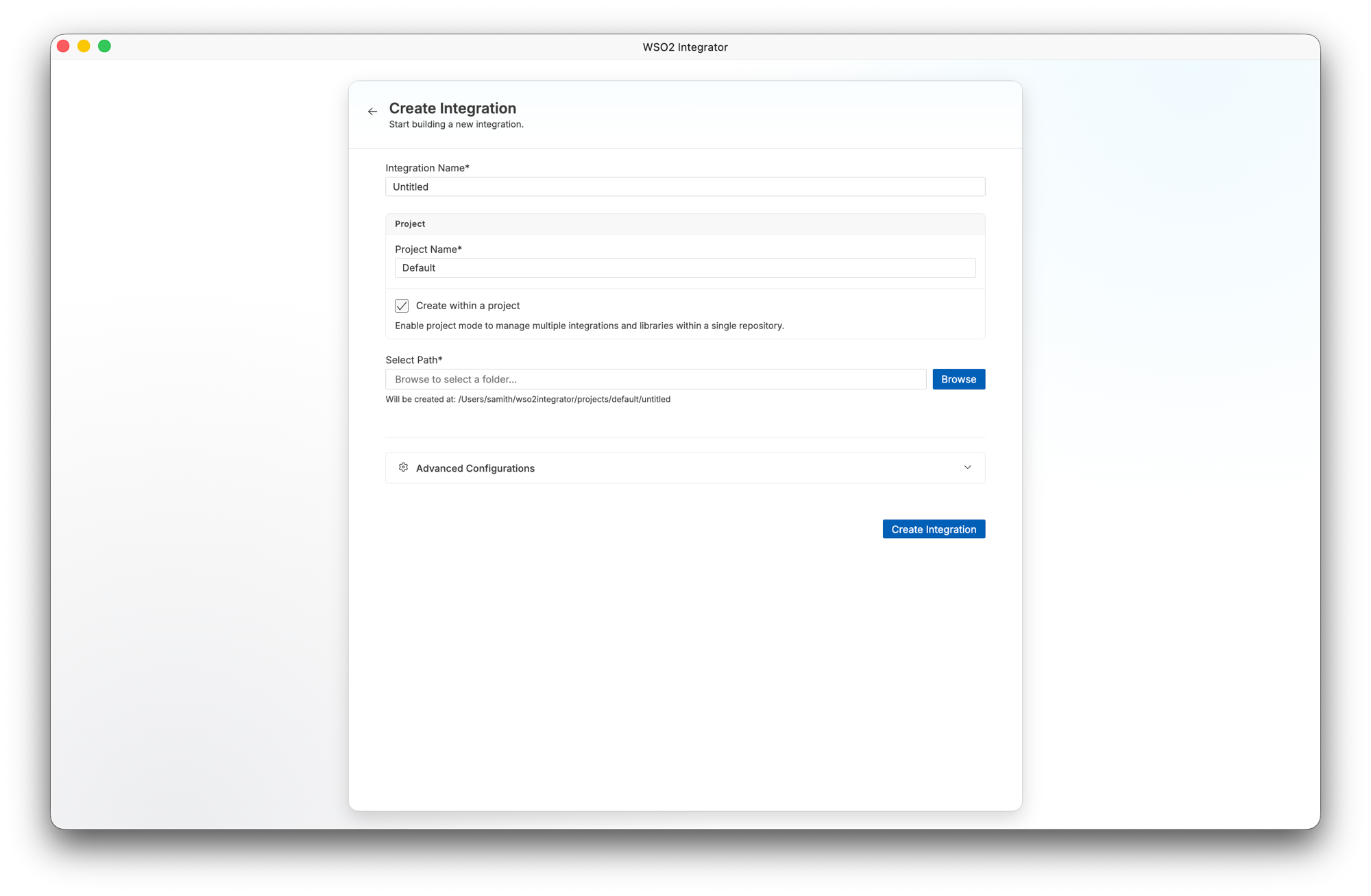
| Field | Description |
|---|---|
| Integration Name | A descriptive name for your integration (for example, order-sync-service). Defaults to Untitled. |
| Project Name | The name of the project that contains this integration. Defaults to Default. |
| Create within a project | Enabled by default. Enables project mode so the workspace can hold multiple integrations and libraries in a single repository. Clear this checkbox to create a standalone integration. |
| Select Path | The directory where the integration files are created. Click Browse to choose a folder. The full path preview appears below the field as Will be created at: <path>. |
Create within a project
By default, the Create within a project checkbox is enabled. In this mode, WSO2 Integrator creates a project workspace that can contain multiple integrations and libraries with shared dependencies.
- Enter the Integration Name.
- Enter the Project Name.
- Select the directory using Browse.
- Click Create Integration.
WSO2 Integrator generates the project structure and opens the project view. The file structure for a project contains a root Ballerina.toml and a subdirectory for each integration package:
project-name/
├── .vscode/
├── integration-name/
│   ├── .vscode/
│   ├── .gitignore
│   ├── agents.bal
│   ├── automation.bal
│   ├── Ballerina.toml
│   ├── config.bal
│   ├── connections.bal
│   ├── data_mappings.bal
│   ├── functions.bal
│   ├── main.bal
│   └── types.bal
└── Ballerina.toml
You can add more integrations and libraries to the project from the project view.
Create a standalone integration
Uncheck the Create within a project checkbox to create a single integration package without a project wrapper.
- Enter the Integration Name.
- Uncheck Create within a project.
- Select the directory using Browse.
- Click Create Integration.
WSO2 Integrator generates the integration files and opens the integration view. The file structure for a standalone integration contains the Ballerina source files directly:
integration-name/
├── .vscode/
├── .gitignore
├── agents.bal
├── automation.bal
├── Ballerina.toml
├── config.bal
├── connections.bal
├── data_mappings.bal
├── functions.bal
├── main.bal
└── types.bal
The integration view sidebar organizes these files into logical categories: Entry Points, Listeners, Connections, Types, Functions, Data Mappers, and Configurations.
You can convert a standalone integration into a project at any time by clicking the + button in the WSO2 Integrator sidebar. This adds a new integration package and wraps both in a project structure.
Advanced configurations
Expand Advanced Configurations to customize the project ownership and the generated Ballerina package metadata.
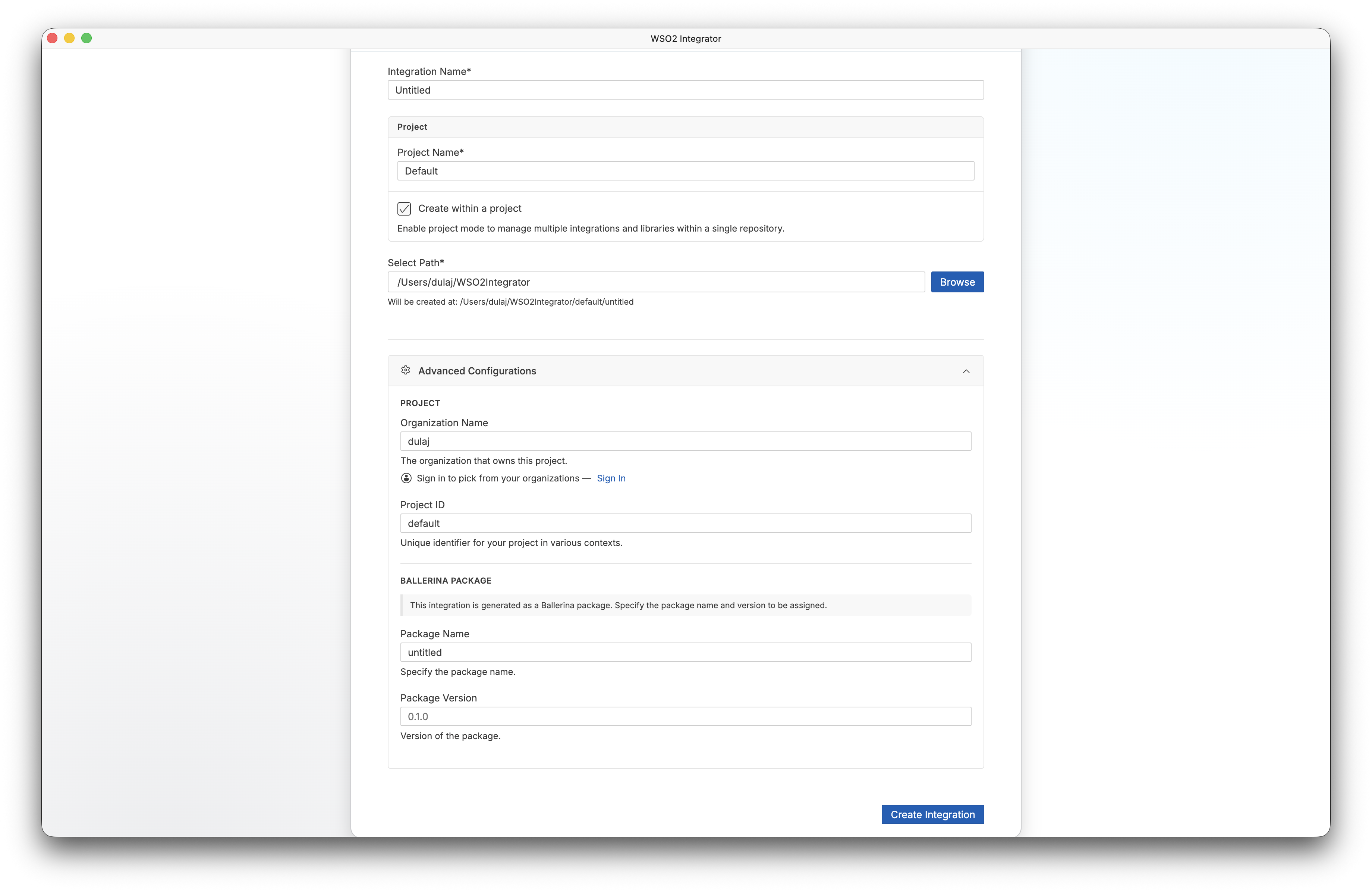
Project
| Field | Description |
|---|---|
| Organization Name | The organization that owns this project. Click Sign In to pick from your registered Ballerina Central organizations. |
| Project ID | A unique identifier for your project used in various contexts. Defaults to default. |
Ballerina package
The integration is generated as a Ballerina package. Use these fields to specify the package name and version to be assigned.
| Field | Description |
|---|---|
| Package Name | The Ballerina package name. Defaults to the integration name (for example, untitled). |
| Package Version | The initial version of the package. Defaults to 0.1.0. |
What's next
- Open an existing integration — Work with projects already on disk
- Explore sample integrations — Browse and learn from built-in examples
- Project view — Manage multi-package workspaces
- Integration artifacts — Understand the artifact types you can create