Example
What you'll build
Build a Mistral AI chat completion integration using the ballerinax/mistral connector that invokes Mistral's chat completion API to answer a user question and logs the response. The integration uses an Automation entry point to trigger the operation manually or on a schedule.
Operations used:
- Chat Completion : Sends a user message to the Mistral API and retrieves a generated response
Architecture
Prerequisites
- A valid Mistral API key from console.mistral.ai
Setting up the Mistral integration
New to WSO2 Integrator? Follow the Create a New Integration guide to set up your integration first, then return here to add the connector.
Adding the Mistral connector
Open the Connections panel and select + Add Connection.
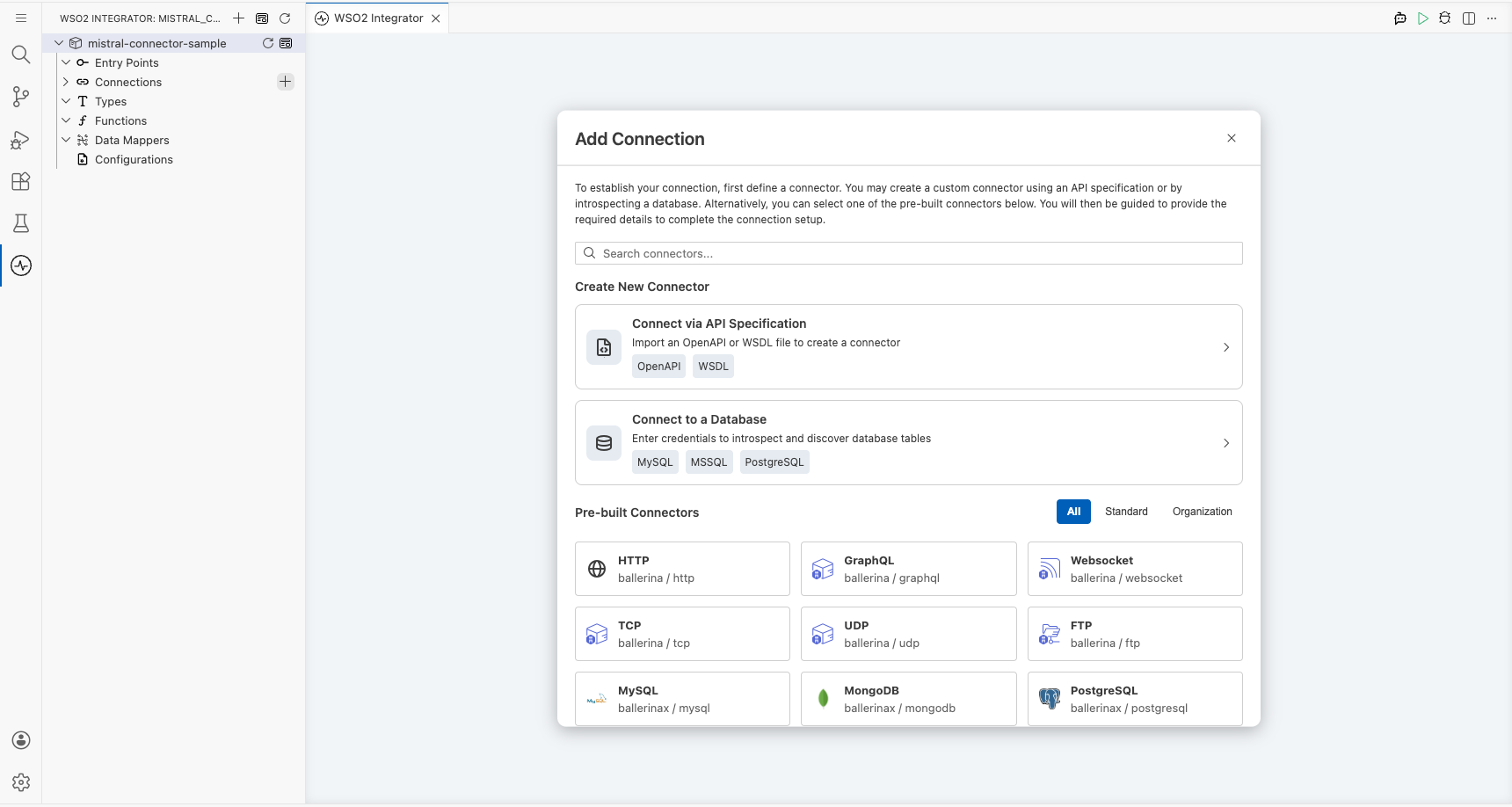
Step 1: Search for and select the Mistral connector
- In the search field, enter
mistral. - Select Mistral from the search results.
Configuring the Mistral connection
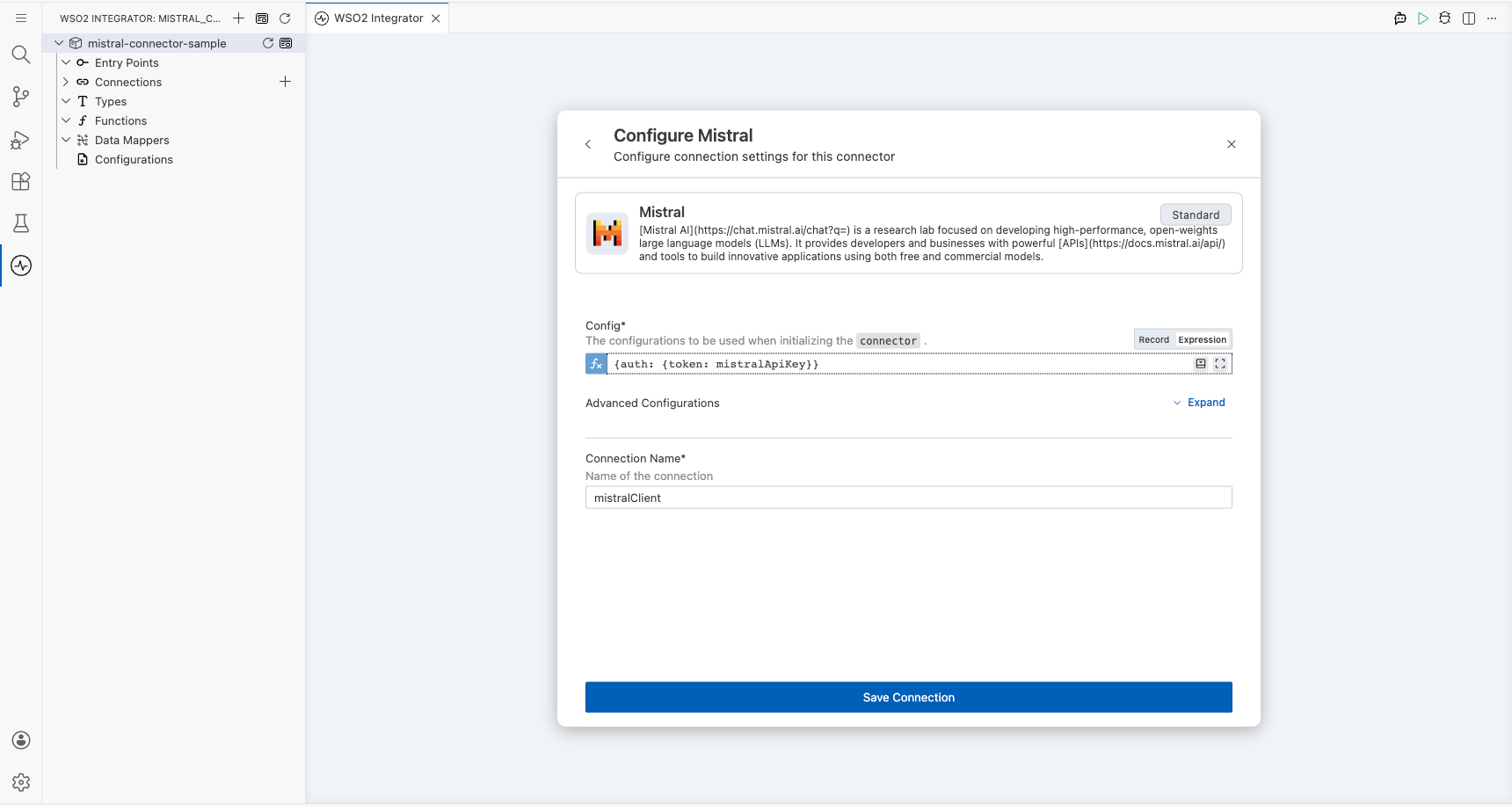
Step 2: Fill in the Mistral connection parameters
After selecting the Mistral connector, the Configure Mistral form opens. Bind the connection parameters to configurable variables:
- Config : Authentication configuration using a bearer token referencing the
mistralApiKeyconfigurable variable - Connection Name : The name used to reference this connection in the flow
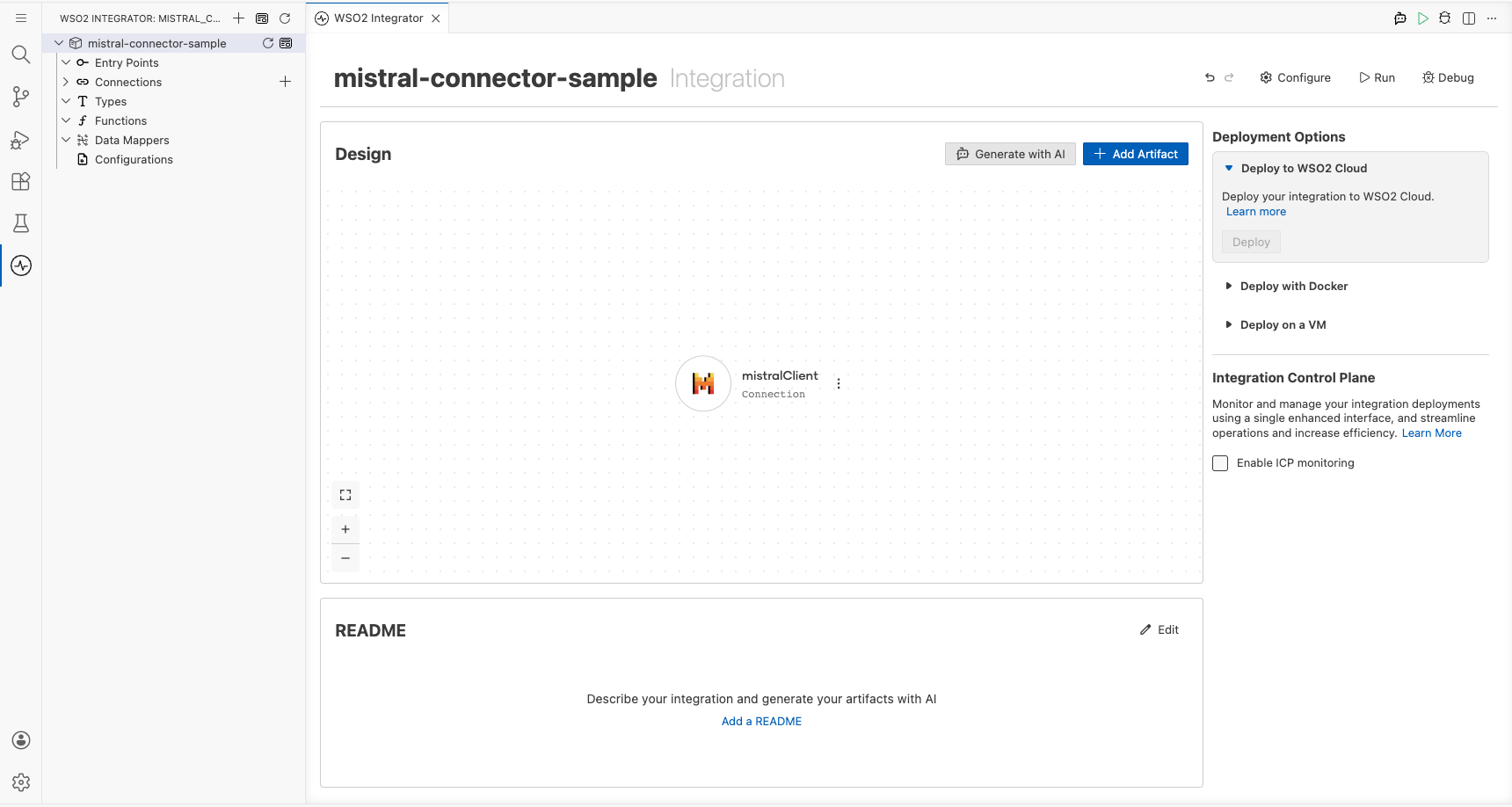
Step 3: Save the connection
Select Save Connection to persist the connection. The design canvas returns and shows the mistralClient connection card.
Step 4: Set actual values for your configurables
- In the left panel, select Configurations.
- Set a value for each configurable listed below.
- mistralApiKey (string) : Your Mistral API key from console.mistral.ai
Configuring the Mistral Chat Completion operation
Step 5: Add an Automation entry point
- Select + Add Artifact on the design canvas.
- Select Automation from the artifacts panel.
- Select Create.
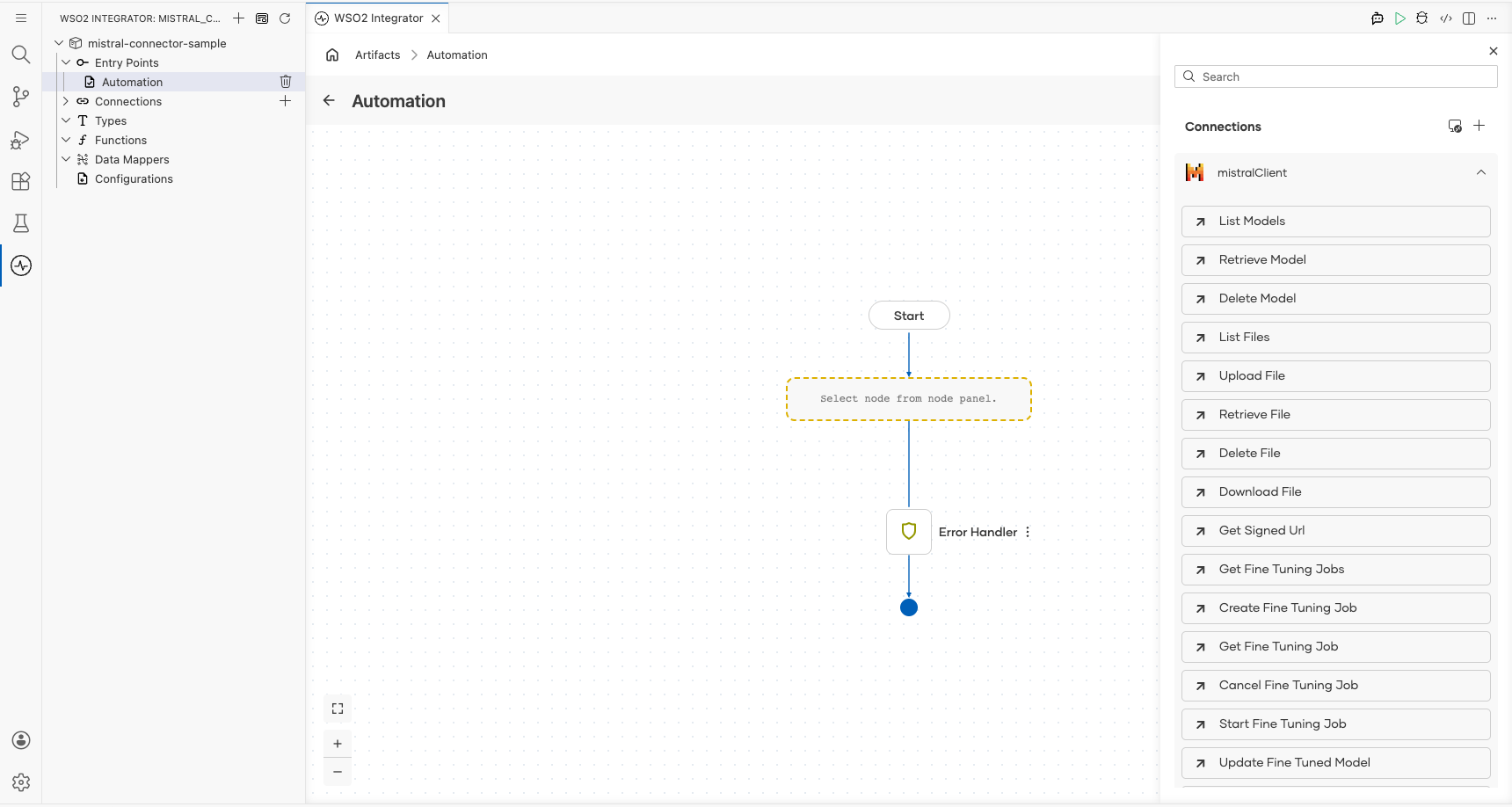
The canvas switches to the Automation flow view showing Start and Error Handler nodes.
Step 6: Select the Chat Completion operation and configure its parameters
Select the + button on the flow canvas to open the Node Panel. Expand the mistralClient connection to view available operations, then select Chat Completion. Configure the operation parameters:
- Payload : The request payload containing the messages array and model name, referencing a user message expression
- Result : The variable name that stores the chat completion response
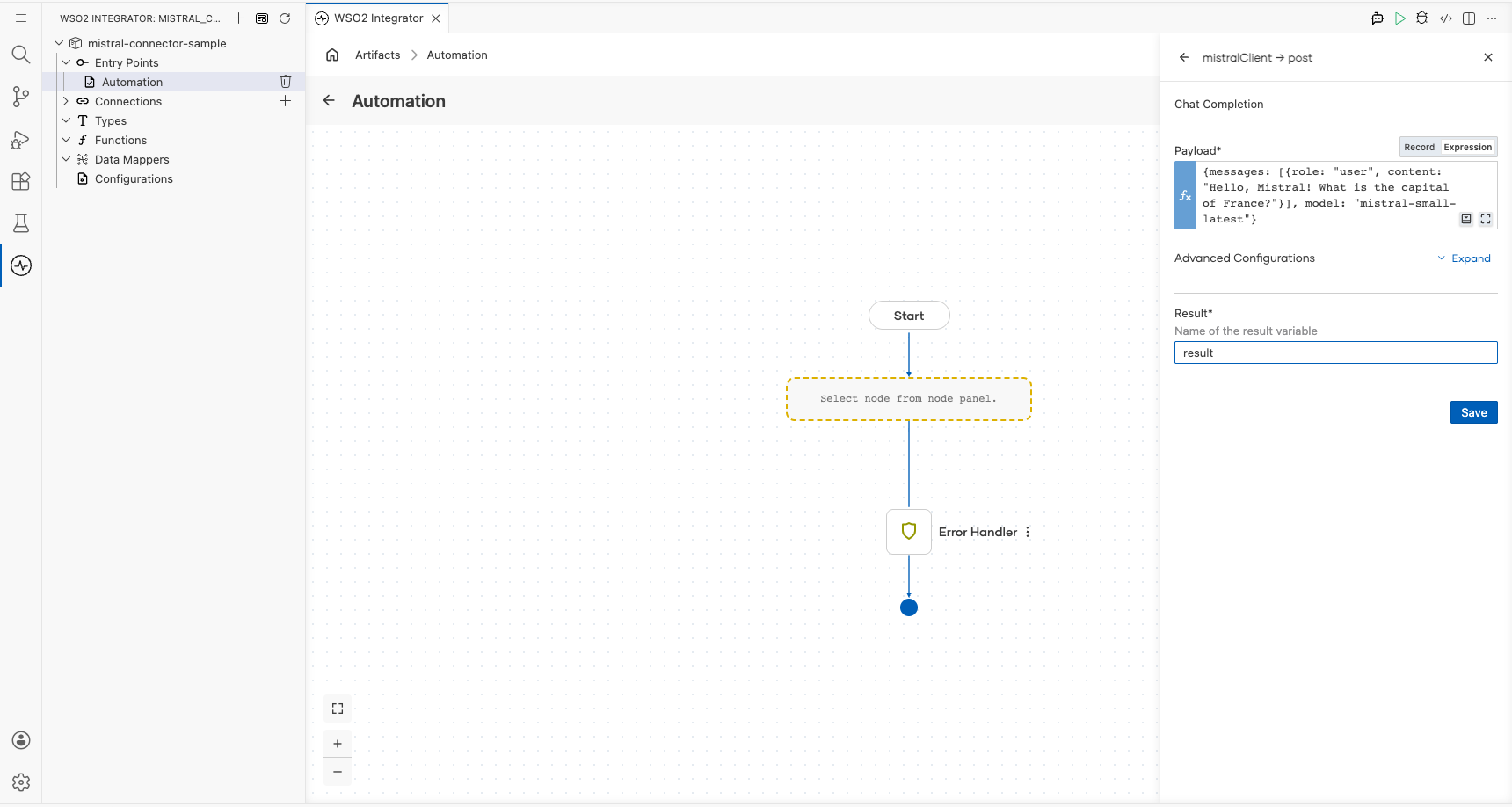
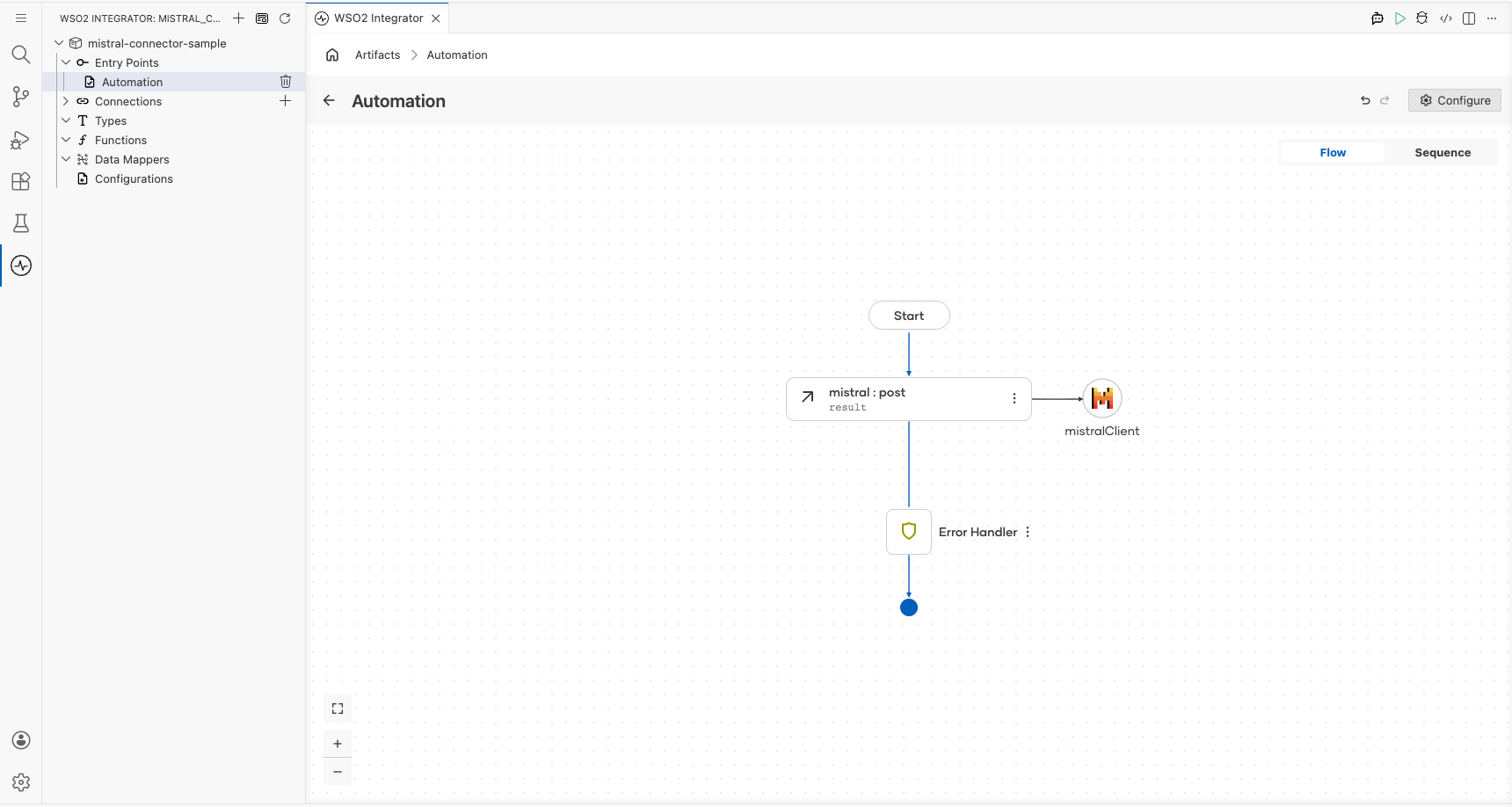
Select Save to apply the configuration. The canvas updates to show the Chat Completion node connected to mistralClient.
Try it yourself
Try this sample in WSO2 Integration Platform.
