Example
What you'll build
Build a WSO2 Integrator automation that connects to the OpenAI API and calls the createChatCompletion operation to generate a chat response. The integration sends a user message to the OpenAI gpt-4o model and logs the API response to the console.
Operations used:
- createChatCompletion : Sends a chat message to an OpenAI model and returns a generated response.
Architecture
Prerequisites
- An OpenAI API key
Setting up the OpenAI integration
New to WSO2 Integrator? Follow the Create a New Integration guide to set up your integration first, then return here to add the connector.
Adding the OpenAI connector
Add the OpenAI connector to your integration from the Connections panel.
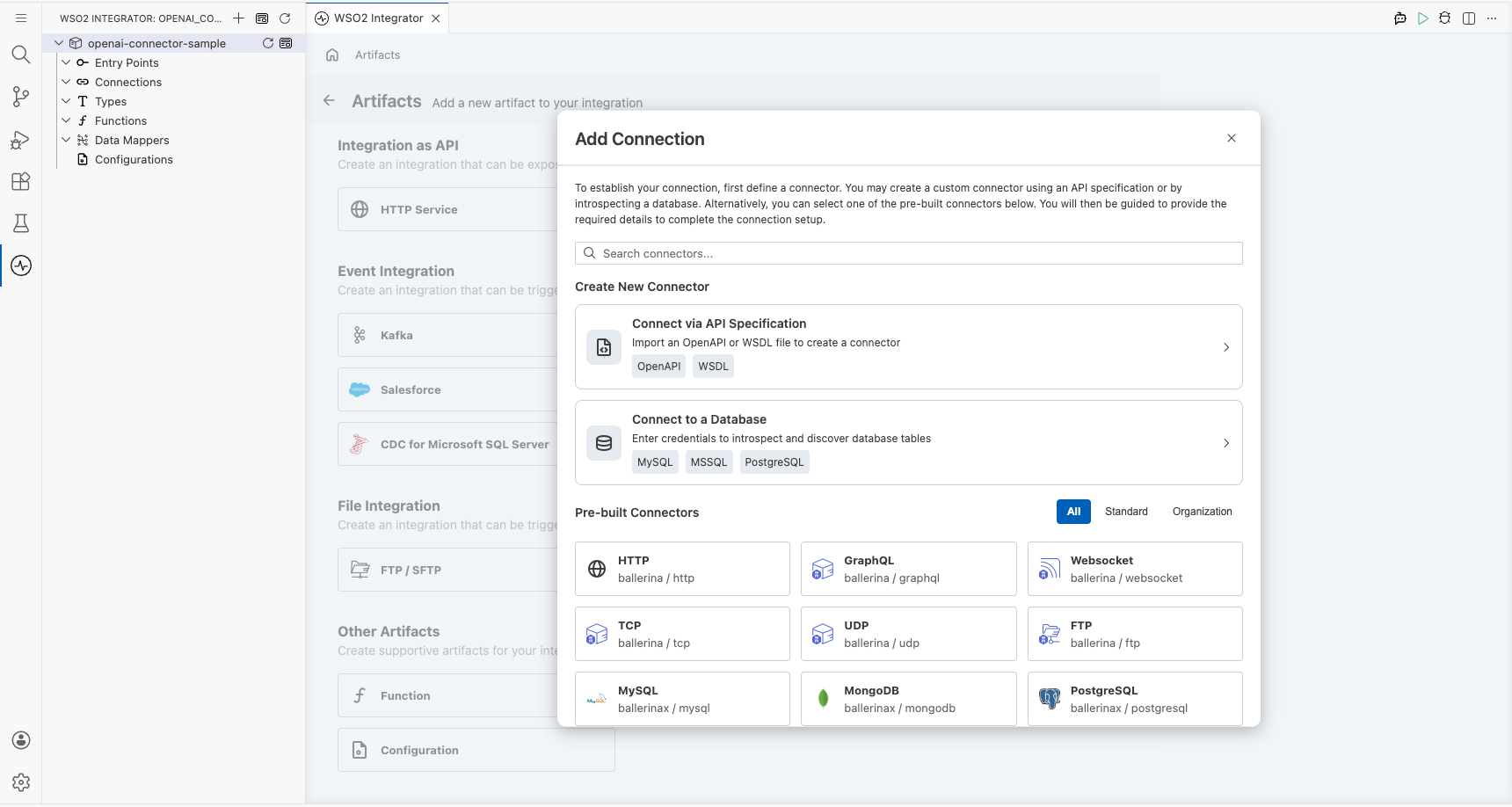
Step 1: Open the Add connection palette
- In the side-bar, expand the project tree and select + next to Connections.
- The Add Connection palette opens on the right.
Configuring the OpenAI connection
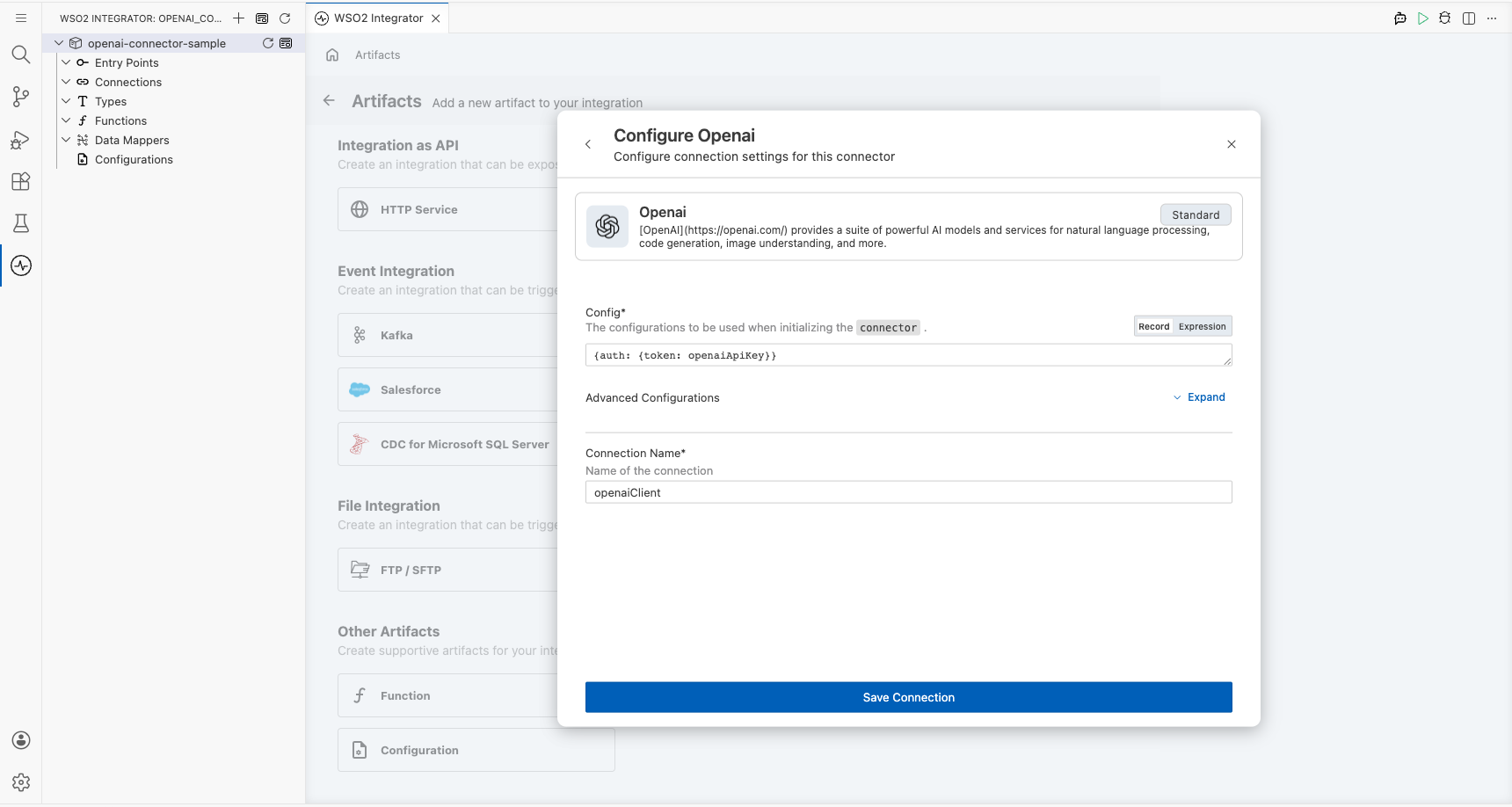
Configure the OpenAI connection by binding the API token to a configurable variable and saving the connection.
Step 2: Fill in the connection parameters
Enter the connection details by binding the API token to a configurable variable so the key is never hard-coded.
- Select the Config field; a Record Configuration modal opens.
- Locate the
auth>tokenfield and place the cursor inside thetokenvalue expression box. - Open the Configurables tab and select + New Configurable.
- Name it
openaiApiKeywith typestring, then select Save. - Confirm the expression updates to
{auth: {token: openaiApiKey}}, then select Save in the Record Configuration modal. - Enter
openaiClientin the Connection Name field.
- Config : The OpenAI connection configuration record; binds the
auth.tokensub-field to theopenaiApiKeyconfigurable variable - Connection Name : The name used to reference this connection on the canvas
Step 3: Save the connection
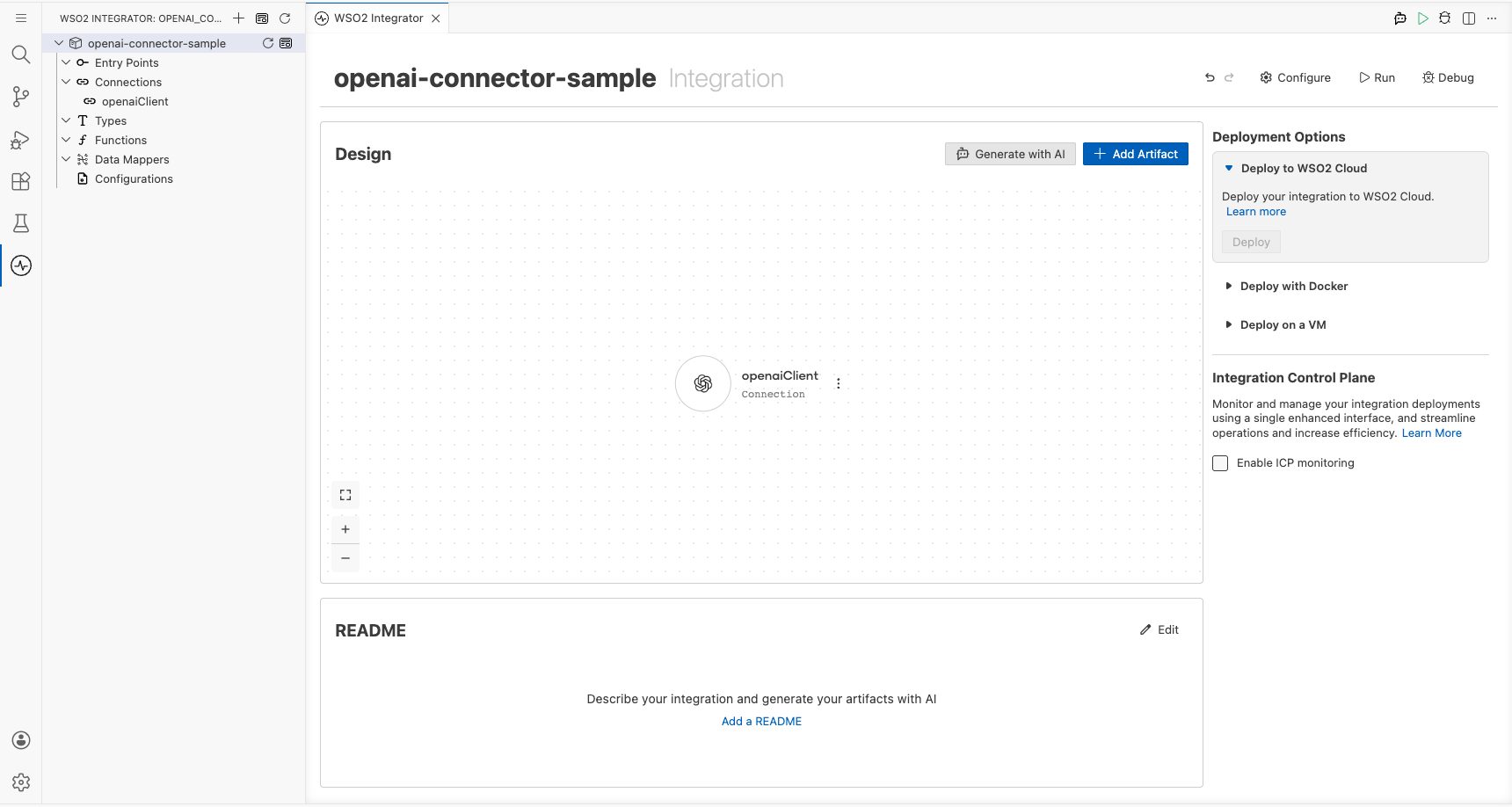
Select Save Connection to persist the connection. The canvas now shows the openaiClient connection node.
Step 4: Set actual values for your configurables
- In the left panel, select Configurations.
- Set a value for each configurable listed below.
- openaiApiKey (string) : Your OpenAI API key used to authenticate requests to the OpenAI API
Configuring the OpenAI createChatCompletion operation
Add an Automation entry point, then select and configure the createChatCompletion operation.
Step 5: Add an Automation entry point
- In the side-bar, select + next to Entry Points.
- Select Automation, then select Add. An Automation entry point appears in the tree and the flow canvas opens.
Step 6: Select and configure the createChatCompletion operation
Select the createChatCompletion operation from the openaiClient connection and configure its parameters.
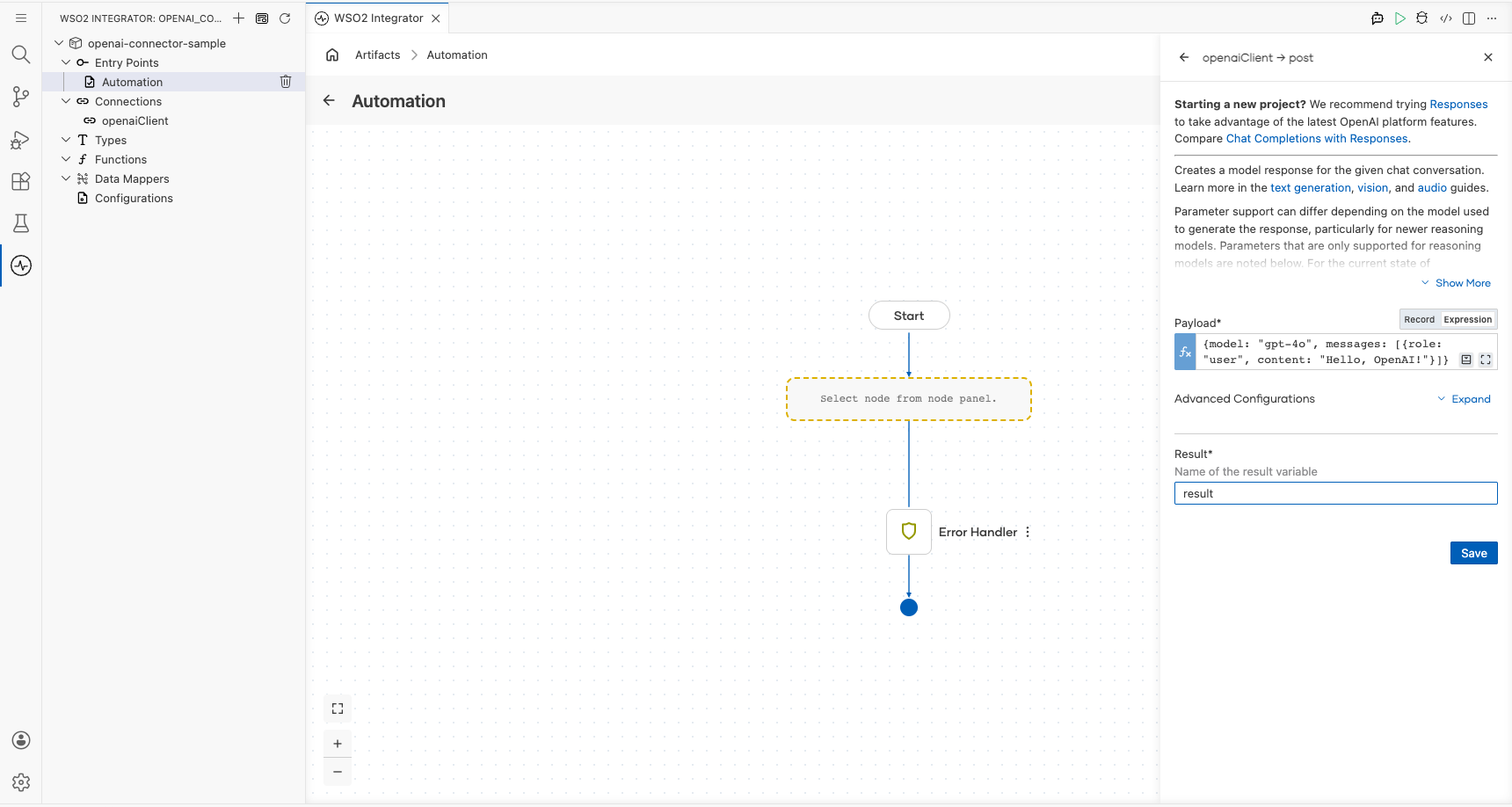
- Select the dashed placeholder on the canvas to open the node panel.
- Select openaiClient to expand its operations.
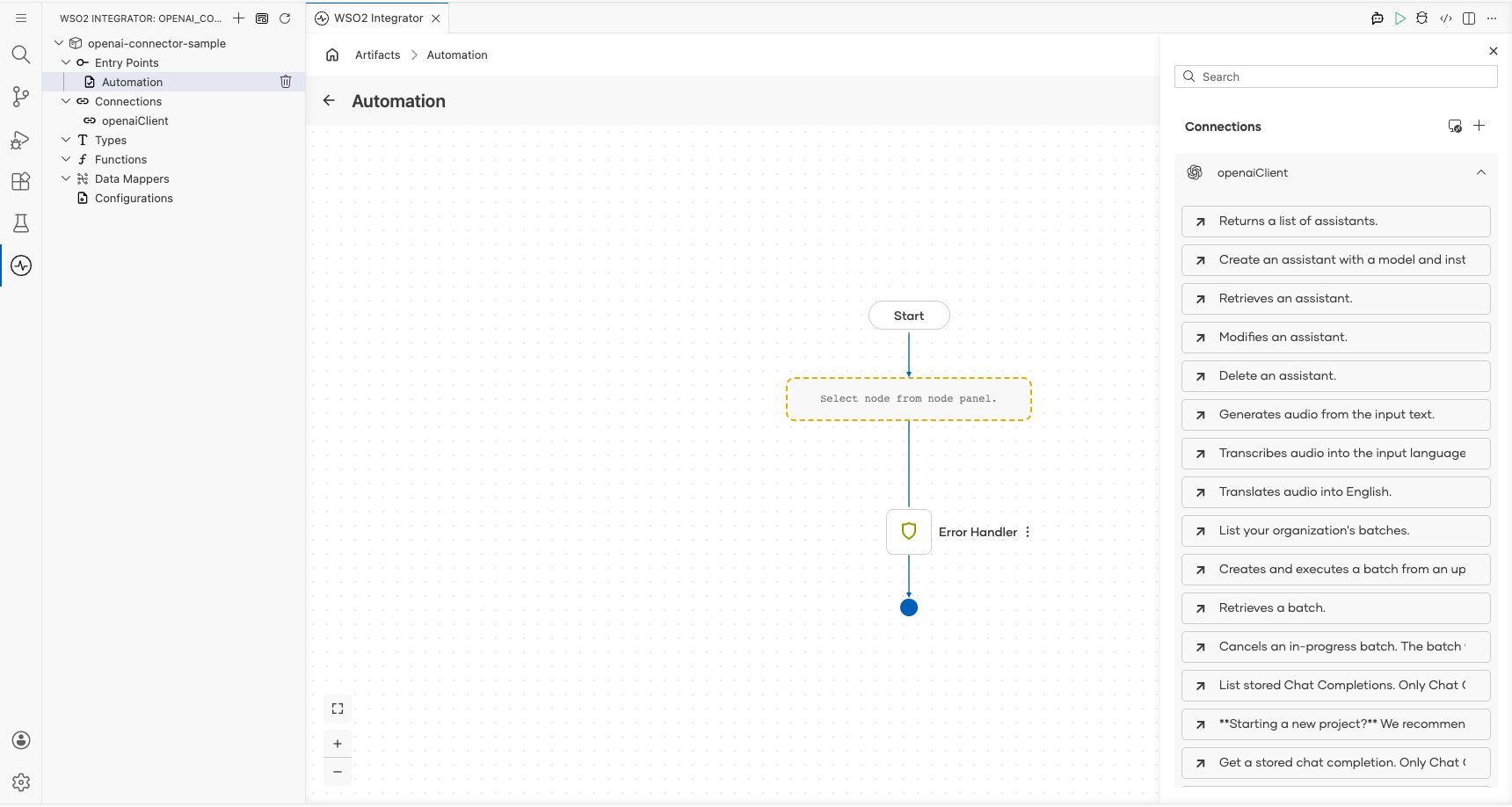
- Find createChatCompletion and select it.
- Select Expression mode for the Payload field and enter
{model: "gpt-4o", messages: [{role: "user", content: "Hello, OpenAI!"}]}. - Enter
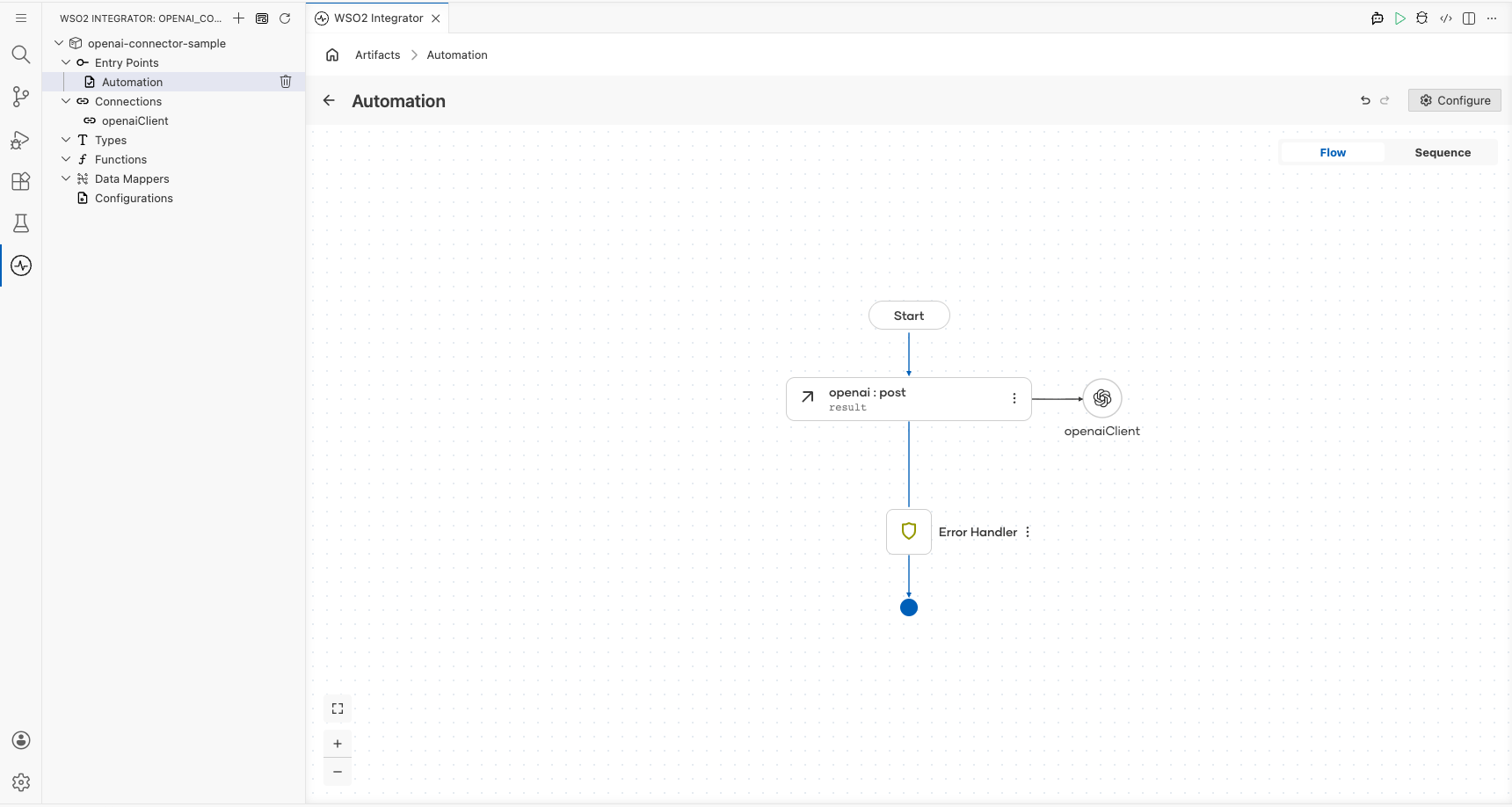
resultin the Result field, then select Save.
- Payload : The chat completion request body, including the model name and the list of messages to send
- Result : The variable name that stores the
CreateChatCompletionResponsereturned by the API
Try it yourself
Try this sample in WSO2 Integration Platform.

More code examples
The ballerinax/openai connector provides practical examples illustrating usage in various scenarios. Explore these examples, covering the following use cases:
- Financial Assistant - Build a Personal Finance Assistant that helps users manage their budget, track expenses, and get financial advice.
- Marketing Image Generator - Creates an assistant that takes a user's description from the console, makes a DALL·E image with it.