Example
What you'll build
Build an email automation integration that connects to an SMTP server and sends an email message using the Email SMTP connector in WSO2 Integrator. Configure an SMTP connection with configurable variables for secure credential management, then send a structured email message through the automation flow.
Operations used:
- Send Message : Sends a full
email:Messagerecord (to, subject, body, and optional fields such as cc, bcc, and attachments) through the configured SMTP connection
Architecture
Prerequisites
- An SMTP-enabled email account (e.g., Gmail with App Password, SendGrid, or similar)
Setting up the Email SMTP integration
New to WSO2 Integrator? Follow the Create a New Integration guide to set up your integration first, then return here to add the connector.
Adding the Email SMTP connector
Step 1: Open the connector palette
In the left sidebar, select the WSO2 Integrator tab. Under your project, hover over Connections in the tree and select the + (Add Connection) button that appears to open the connector palette.
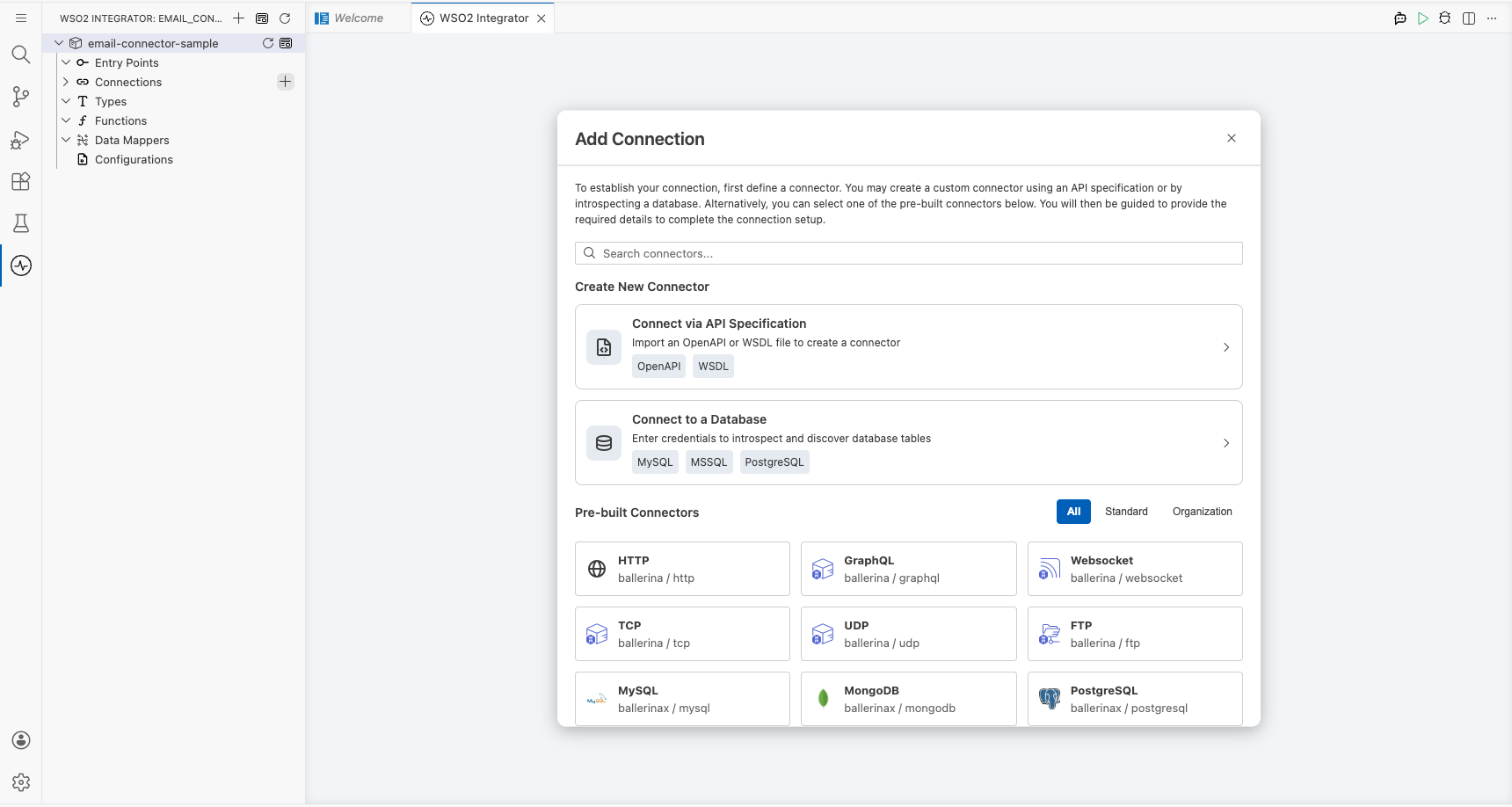
Step 2: Select the Email SMTP connector
Enter email in the search bar and select Email Smtp to open the connection configuration form.
Configuring the Email SMTP connection
Step 3: Fill in the connection parameters
Bind each field to a configurable variable using the helper panel. For each field, select the Open Helper Panel icon next to the field, select the Configurables tab, select + New Configurable, enter the variable name and type, then select Save.
- host : SMTP server hostname (bind to a
stringconfigurable variable) - username : Email account username (bind to a
stringconfigurable variable) - password : Email account password or App Password (bind to a
stringconfigurable variable) - port: SMTP port: switch to Expression mode first, then bind to an
intconfigurable variable - security : Set to
SSLfrom the dropdown
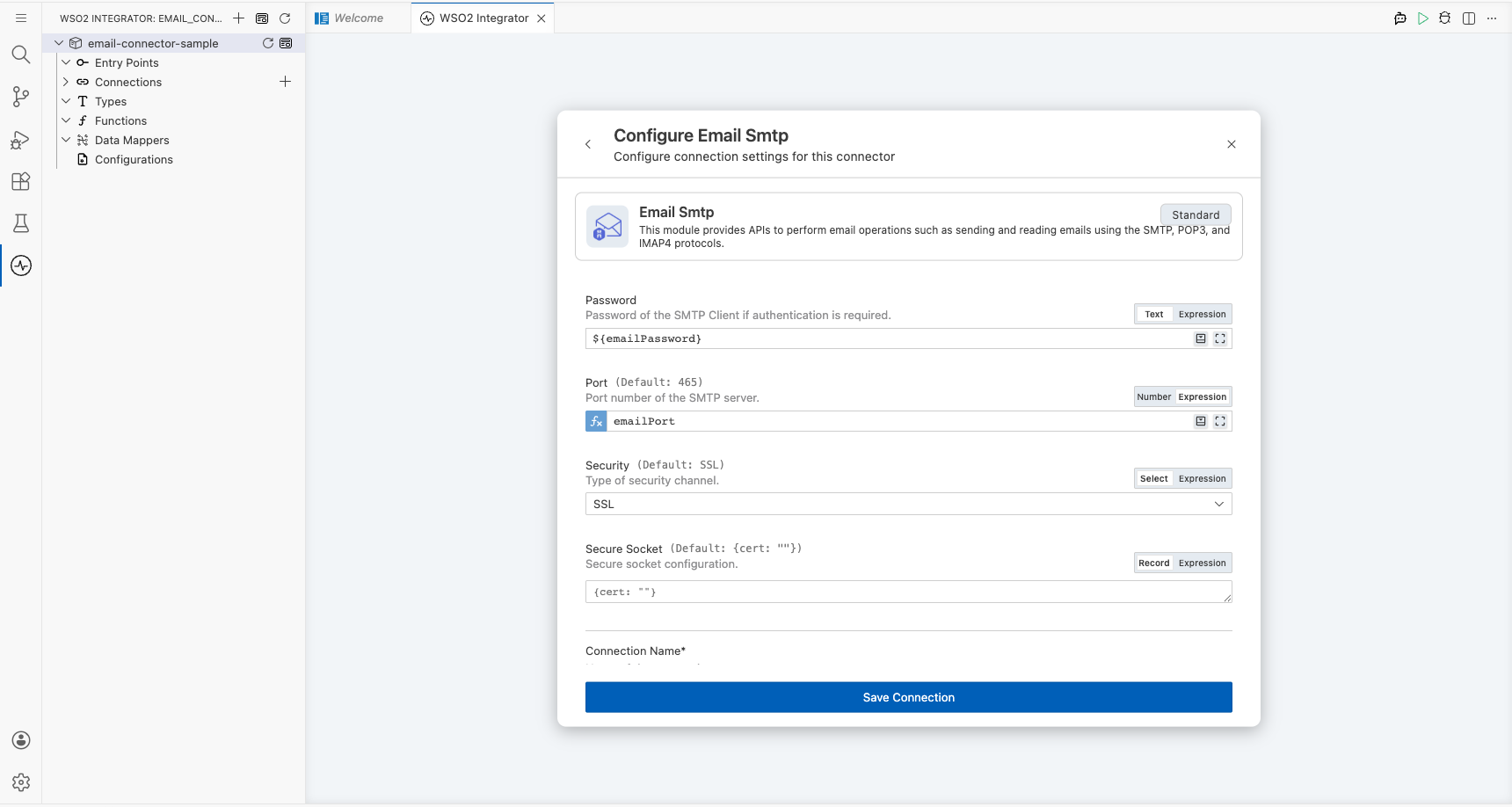
Step 4: Save the connection
Select Save Connection to persist the connection. The form closes and the canvas shows the emailSmtpclient connection node.
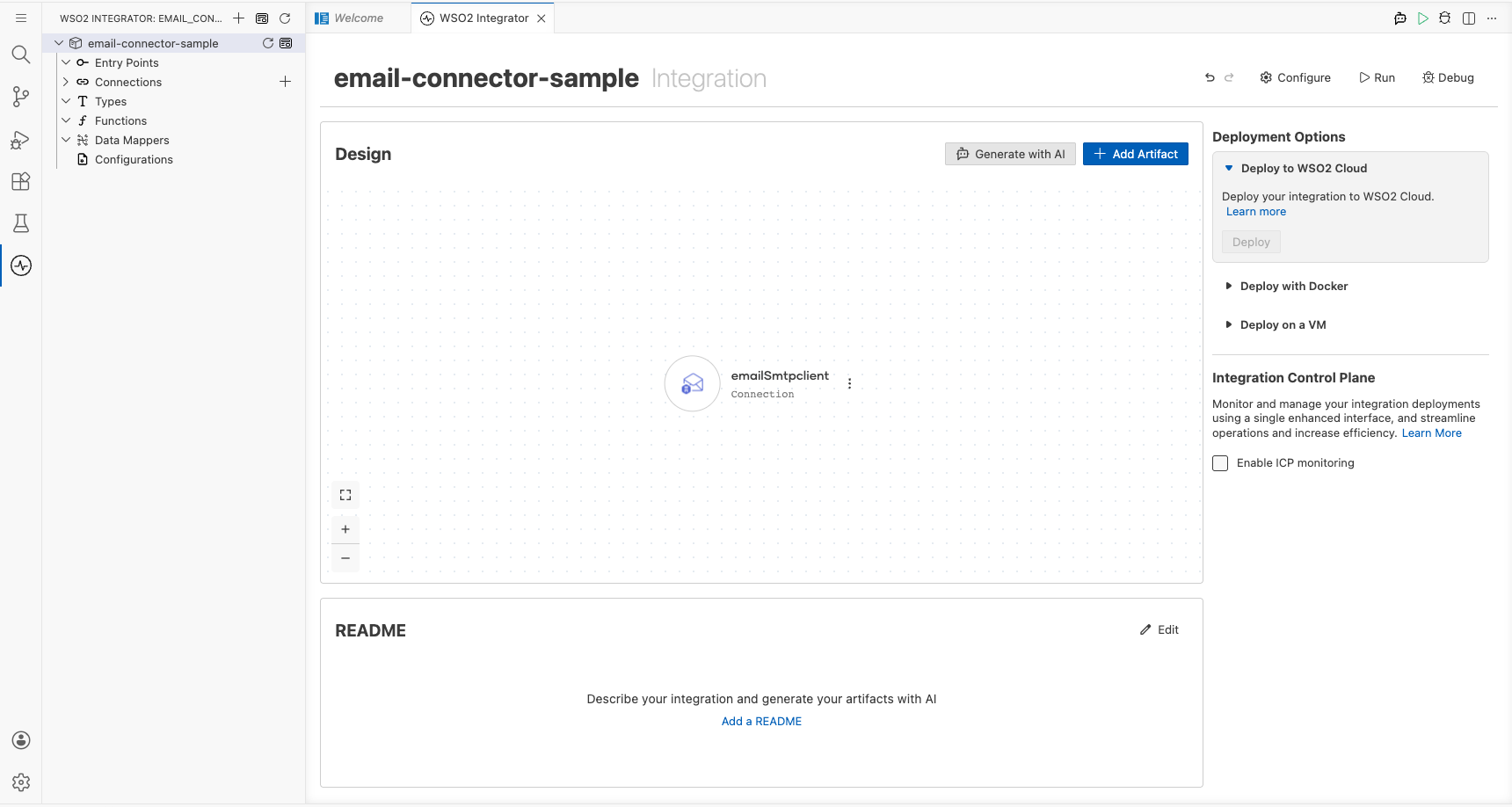
Step 5: Set actual values for your configurables
In the left panel, select Configurations. Set a value for each configurable listed below.
- emailHost (string) : The SMTP server hostname (e.g.,
smtp.gmail.com) - emailUsername (string) : Your email account username
- emailPassword (string) : Your email account password or App Password
- emailPort (int) : The SMTP port number (e.g.,
465for SSL)
Configuring the Email SMTP Send Message operation
Step 6: Add an Automation entry point
From the Design canvas, select + Add Artifact, then select Automation. In the Create New Automation panel, leave the defaults and select Create to open the automation flow canvas.
Step 7: Select and configure the Send Message operation
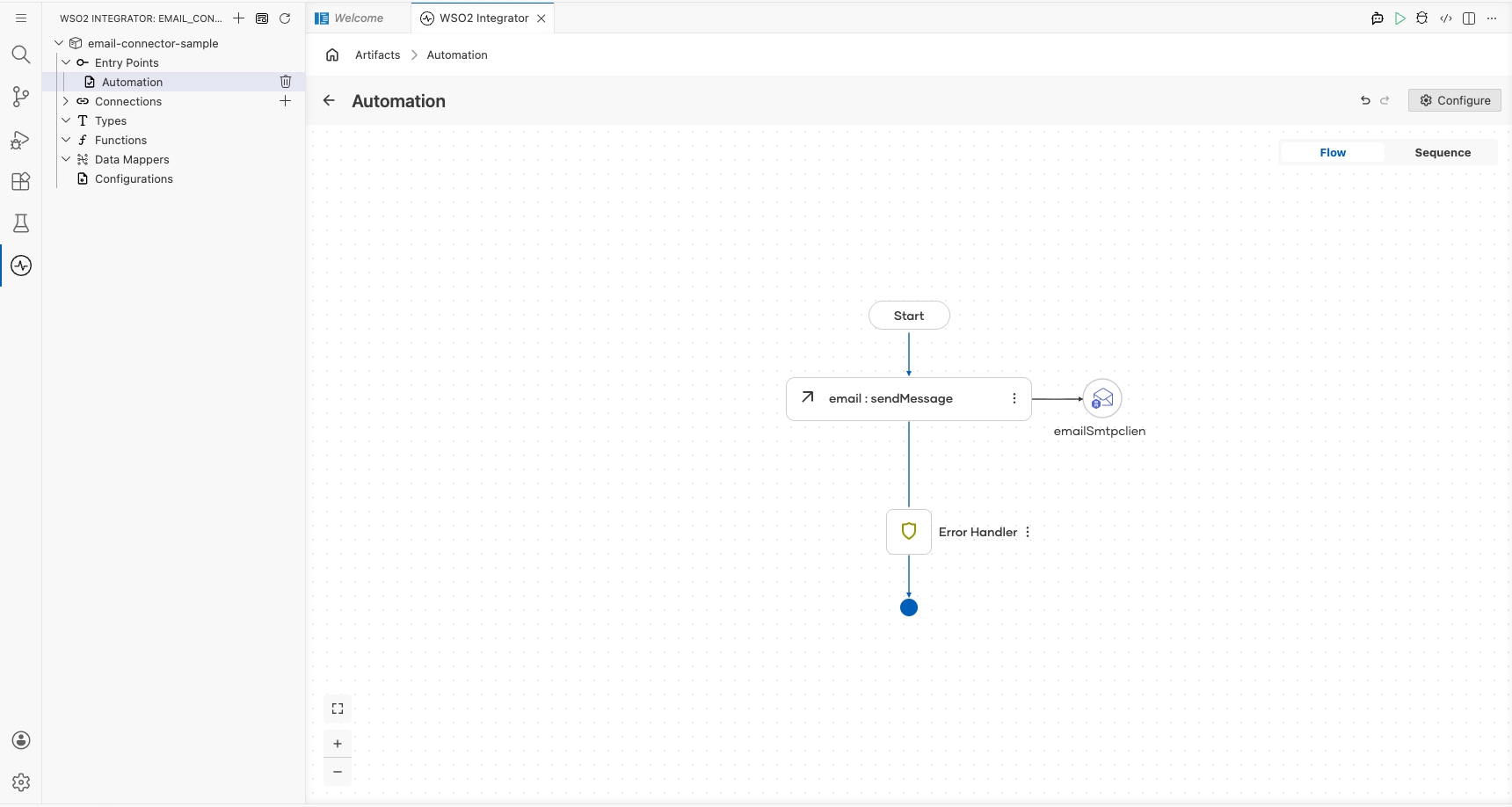
Select the + (add step) button between the Start node and the Error Handler to open the step panel. Under Connections, expand emailSmtpclient to reveal available operations.
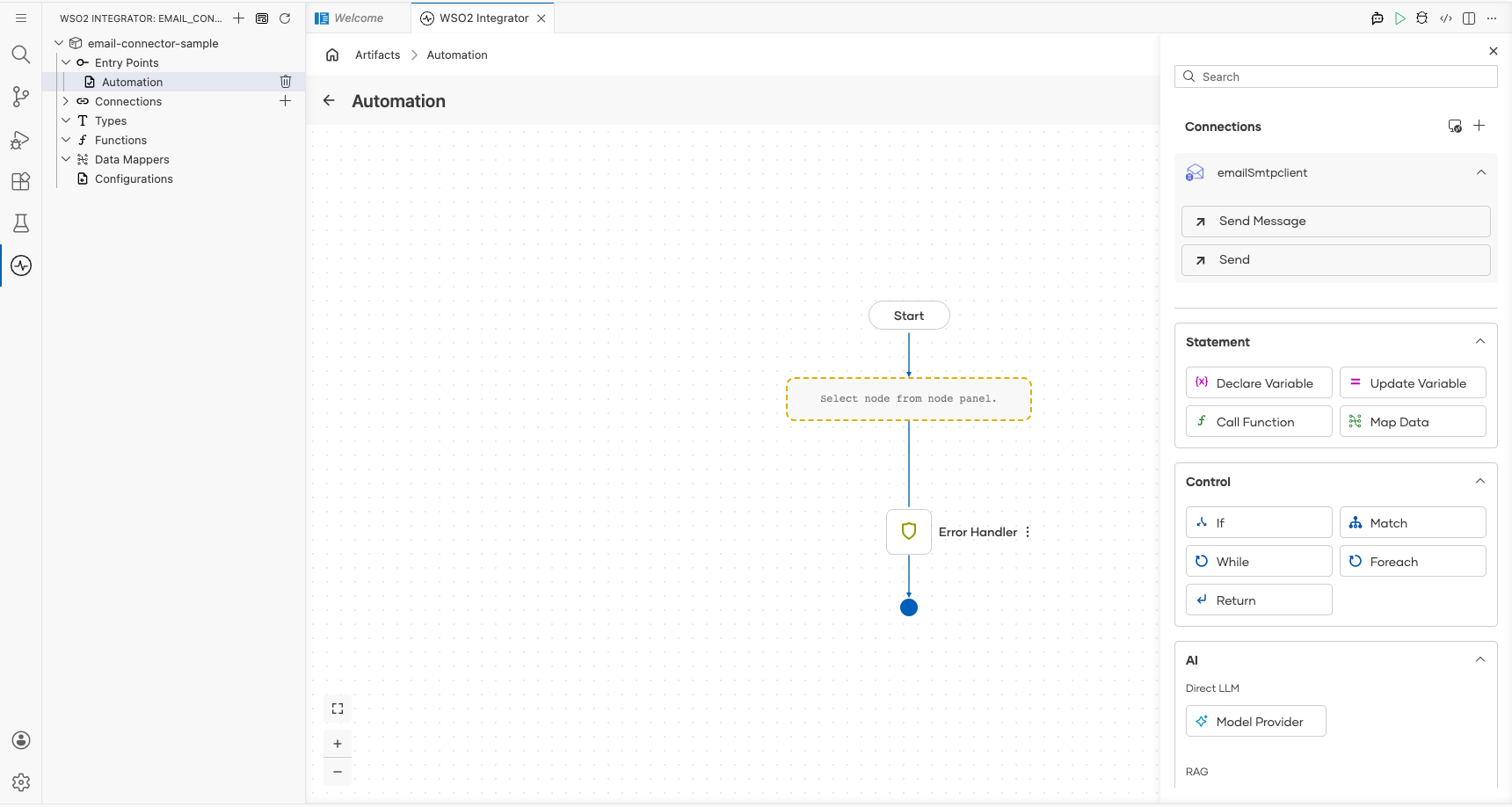
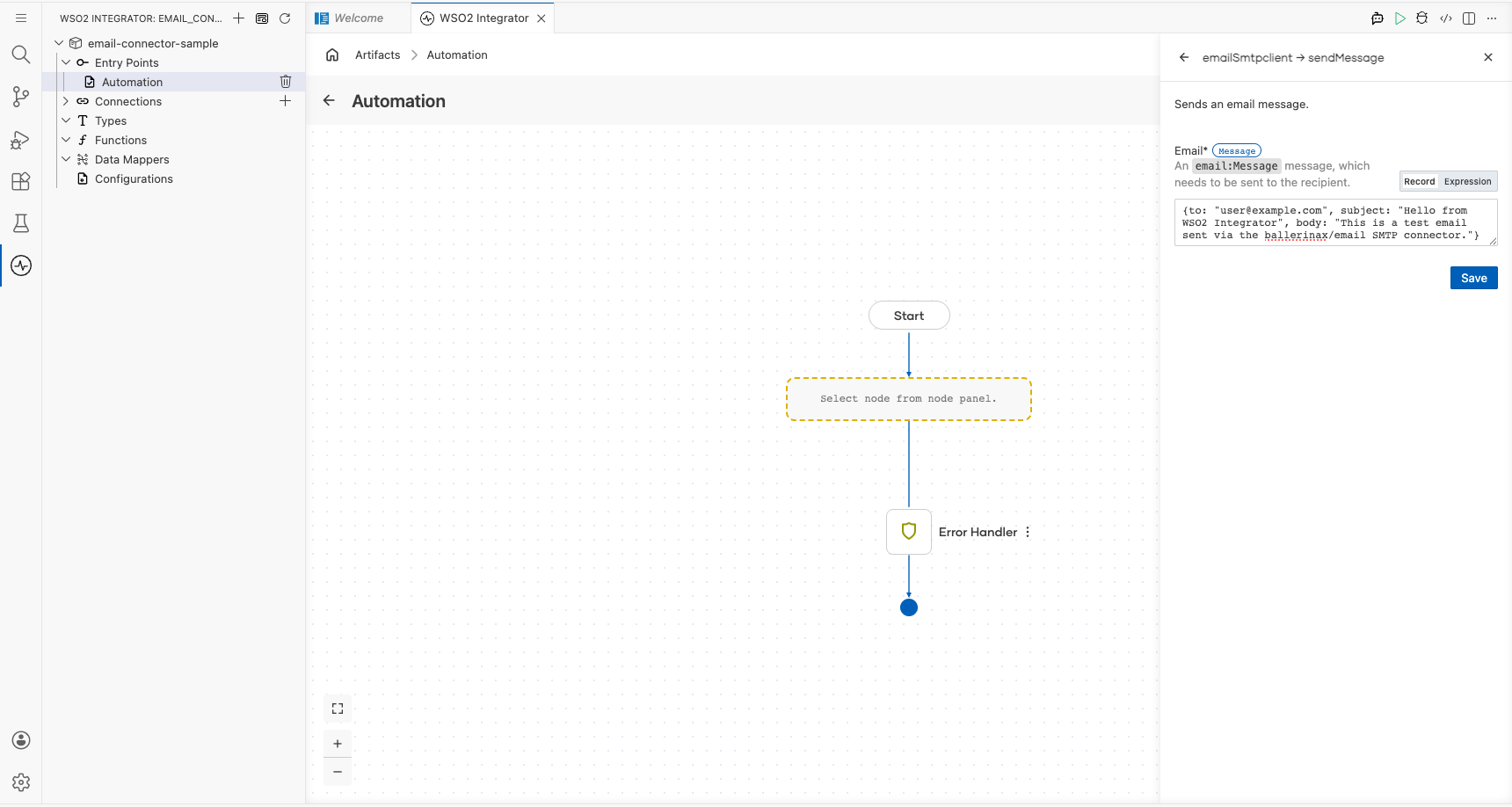
Select Send Message to open the operation configuration form. Switch the Email field to Expression mode and enter the email record with the following fields:
- to : The recipient email address
- subject : The email subject line
- body : The plain-text email body
Note: The
email:Messagerecord also supports optional fields such ashtmlBody,cc,bcc,replyTo,attachments, andcontentType.
Select Save to add the step to the automation flow.
Try it yourself
Try this sample in WSO2 Integration Platform.

More code examples
The Email connector provides practical examples illustrating usage in various scenarios. Explore these examples, covering SMTP email sending and message configuration use cases.
- Gmail SMTP client: Send email through Gmail SMTP using the Ballerina Email connector.