Example
Table of Contents
GraphQL Example
What you'll build
Build a WSO2 Integrator automation that connects to a GraphQL endpoint using the ballerinax/graphql connector. The integration sends a GraphQL query and receives a response from the configured GraphQL server.
Operations used:
- Execute : Sends a GraphQL document query to the configured endpoint and returns the response.
Architecture
Prerequisites
- A GraphQL endpoint URL to connect to.
Setting up the GraphQL integration
New to WSO2 Integrator? Follow the Create a New Integration guide to set up your integration first, then return here to add the connector.
Adding the GraphQL connector
Step 1: Open the Add Connection palette
Select + Add Connection on the WSO2 Integrator canvas to open the connection palette.
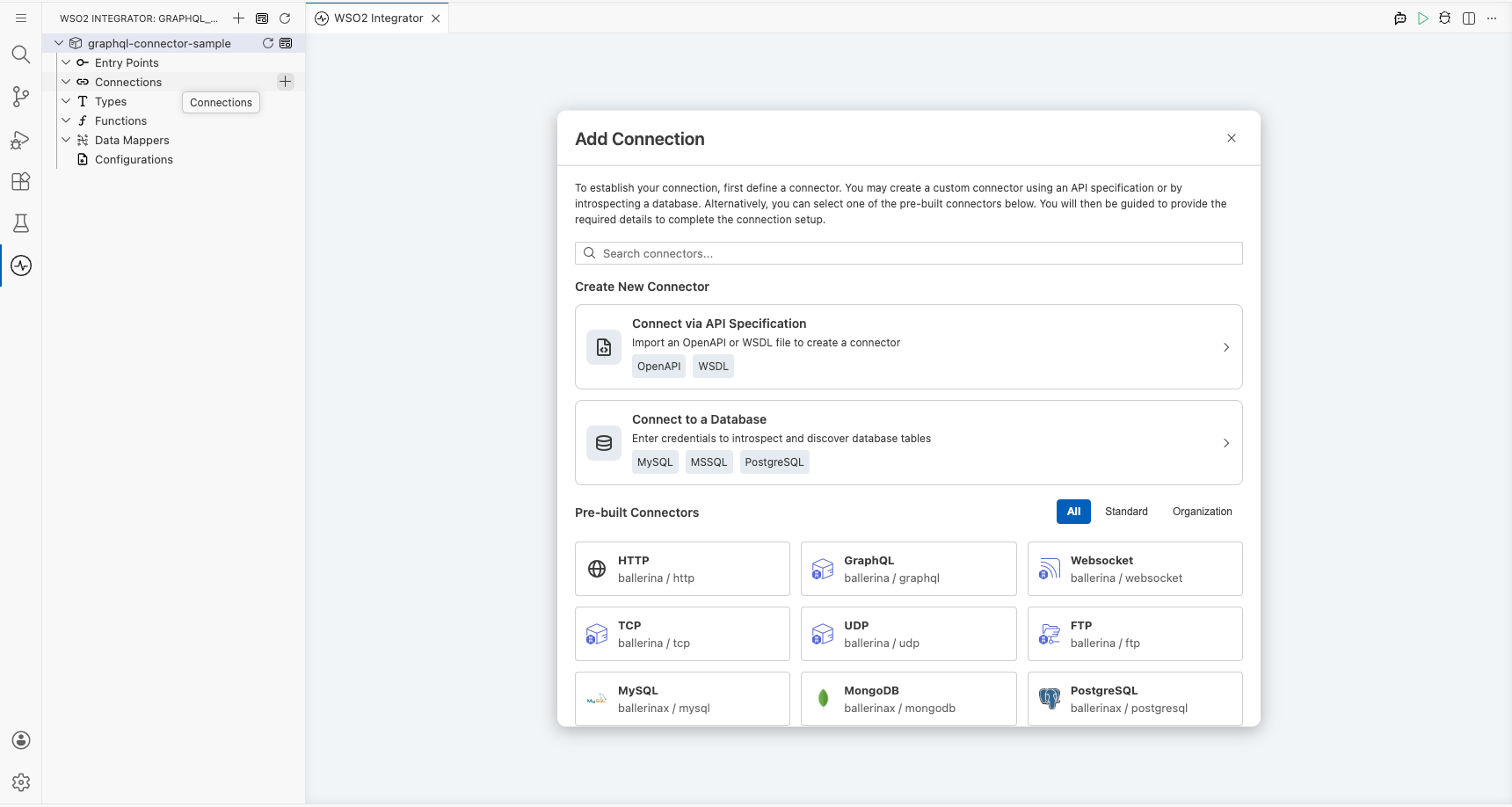
Step 2: Find and select the GraphQL connector
- Enter
graphqlin the search field. - Select ballerina/graphql from the results to open the Configure GraphQL form.
Configuring the GraphQL connection
Step 3: Bind connection parameters to configurable variables
Bind each field to a configurable variable using the helper panel.
- serviceUrl : The GraphQL server endpoint URL
- forwarded : Controls forwarded header behavior (default:
"disable")
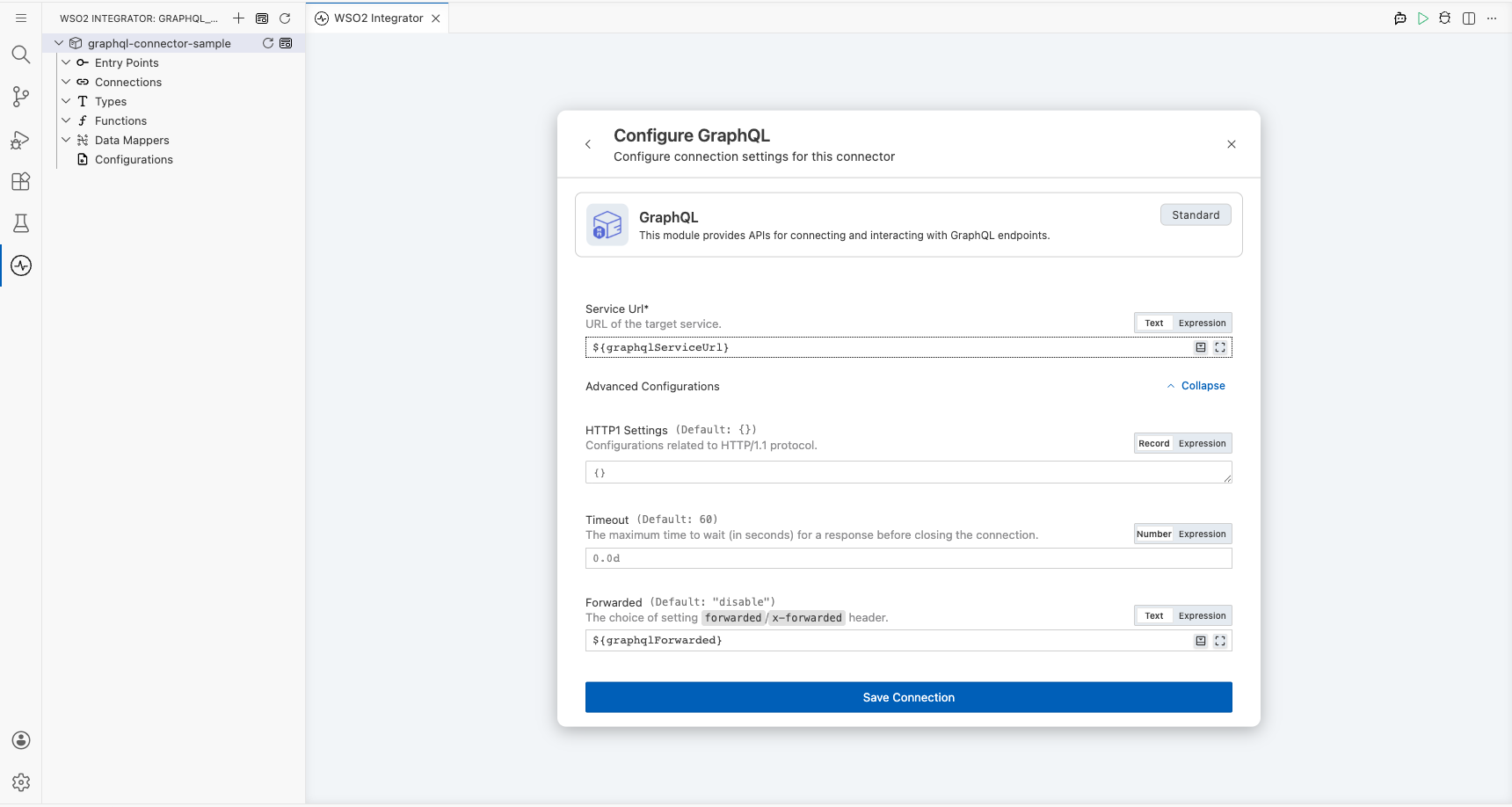
Step 4: Save the connection
Select Save Connection to persist the connection. The graphqlClient node appears on the canvas.
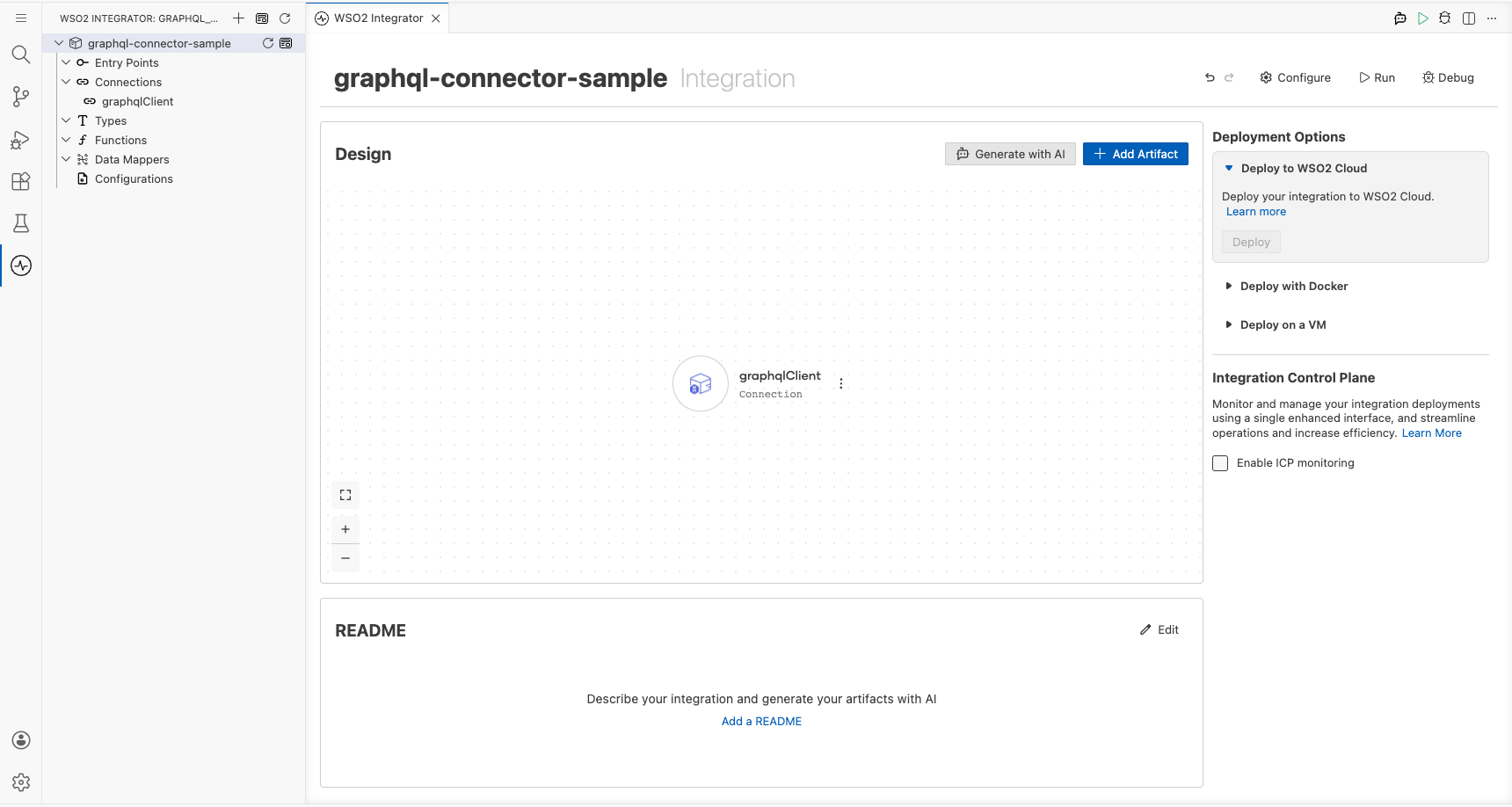
Step 5: Set actual values for your configurables
In the left panel, select Configurations and set a value for each configurable listed below.
- graphqlServiceUrl (string) : The full URL of the GraphQL endpoint (for example,
https://countries.trevorblades.com/) - graphqlForwarded (string) : The forwarded header value (for example,
"disable")
Configuring the GraphQL Execute operation
Step 6: Add an Automation entry point
- Select + Add Artifact on the canvas.
- Under Automation, select Automation.
- Select Create to scaffold the
mainentry point.
Step 7: Select and configure the Execute operation
- Select the + button between Start and Error Handler on the canvas to open the step-addition panel.
- Under Connections, expand graphqlClient to view available operations.
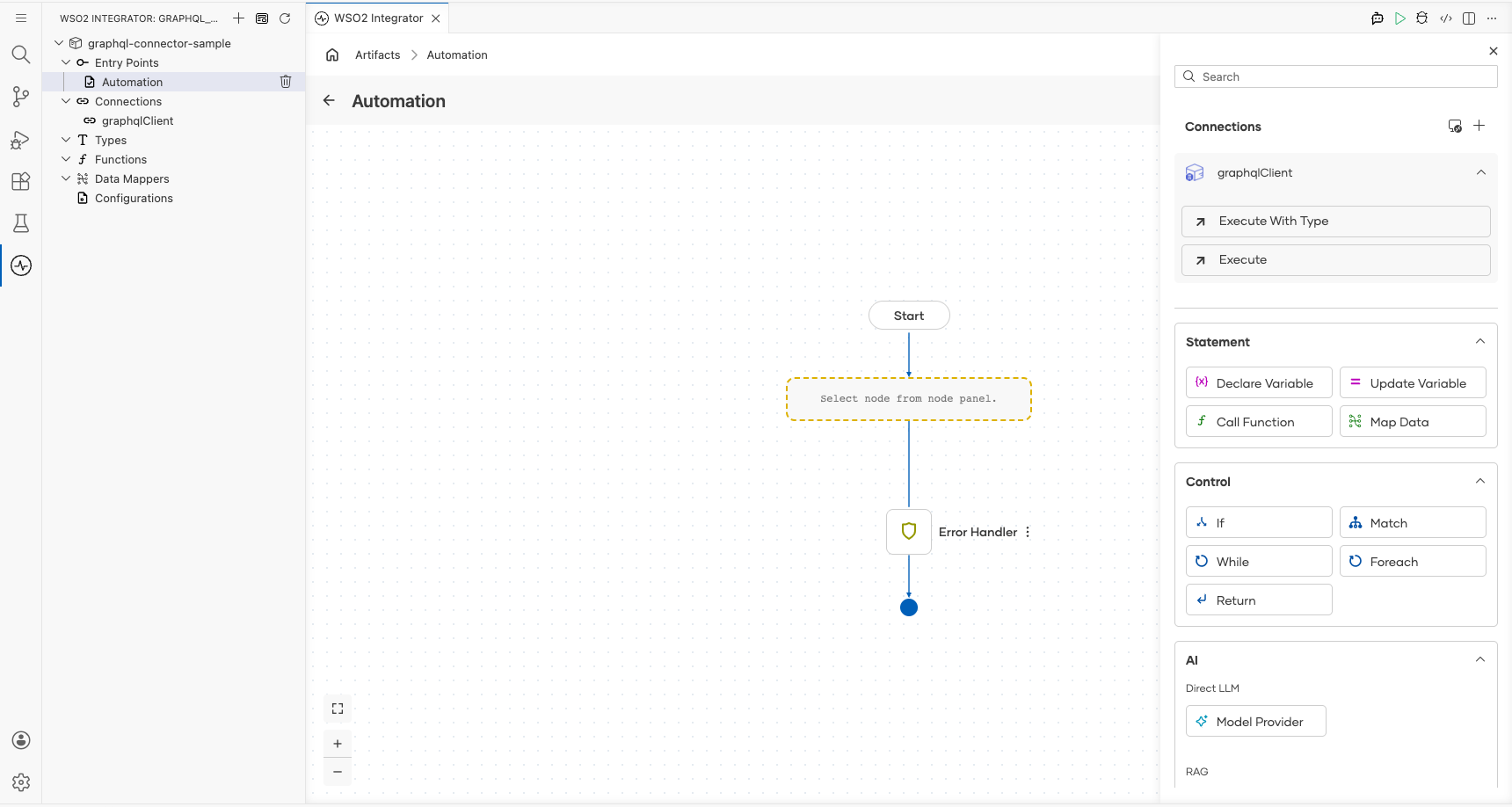
- Select Execute to open the operation configuration form and fill in the following fields:
- document : The GraphQL query string to send (for example,
"{ __typename }") - result : The variable name that stores the response
- targetType : The expected response type (for example,
graphql:GenericResponseWithErrors)
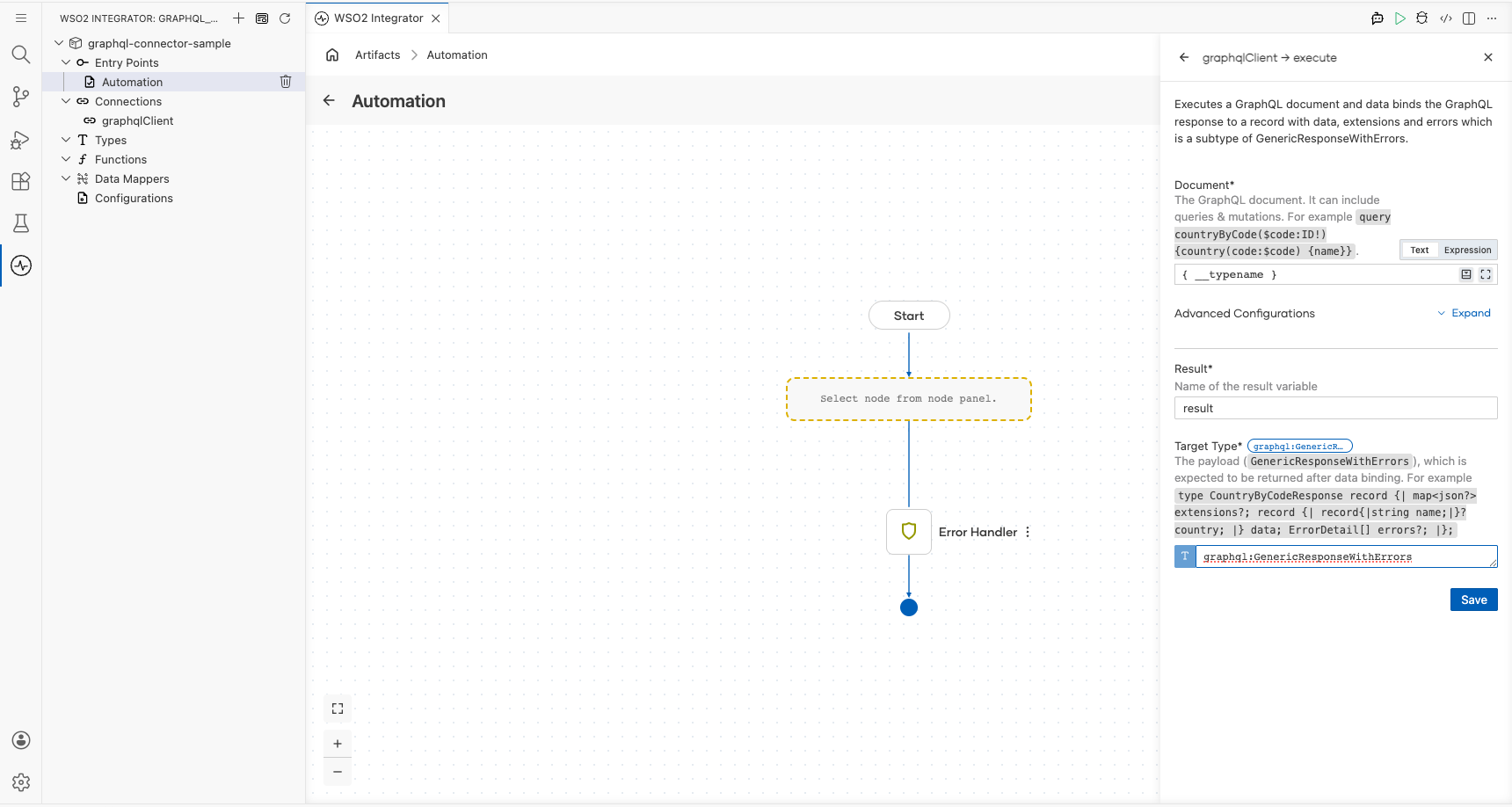
Select Save to add the execute step to the flow.
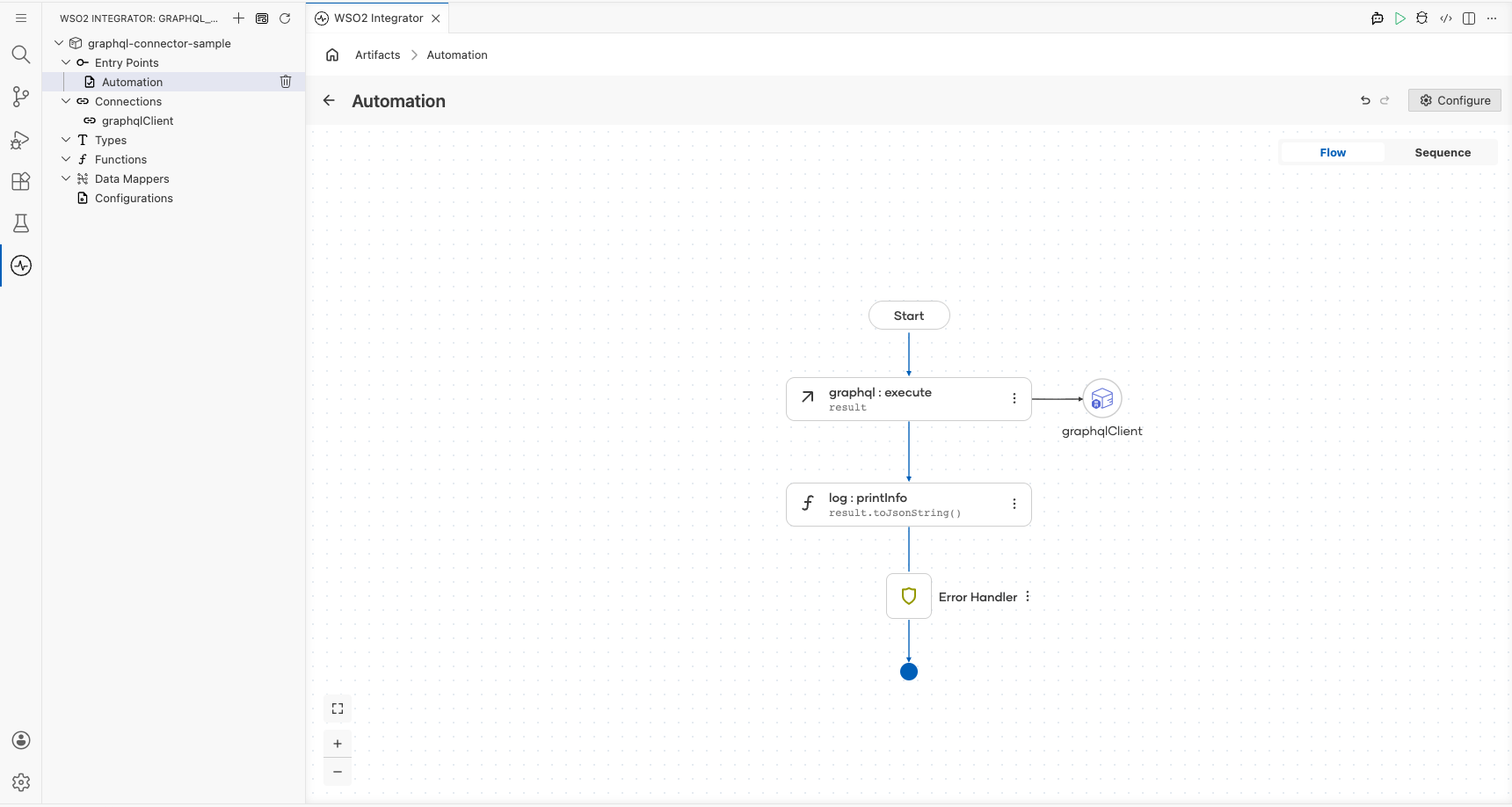
Try it yourself
Try this sample in WSO2 Integration Platform.

GraphQL Trigger Example
What you'll build
This integration exposes a typed GraphQL endpoint that listens for incoming Query requests from HTTP clients. When a query arrives, the getBookInfo resource handler processes it and logs the GraphQL context for observability. The overall flow runs from the HTTP client through the GraphQL listener to the handler, which calls log:printInfo on every request.
Architecture
Prerequisites
No external service accounts or API keys are required for this trigger type.
Setting up the GraphQL Service integration
New to WSO2 Integrator? Follow the Create a New Integration guide to set up your integration first, then return here to add the trigger.
Adding the GraphQL Service trigger
Step 1: Open the Artifacts palette
Select Add Artifact (the + icon next to the project name) in the WSO2 Integrator panel. The Artifacts palette opens: locate the Integration as API category and find the GraphQL Service (Beta) card.
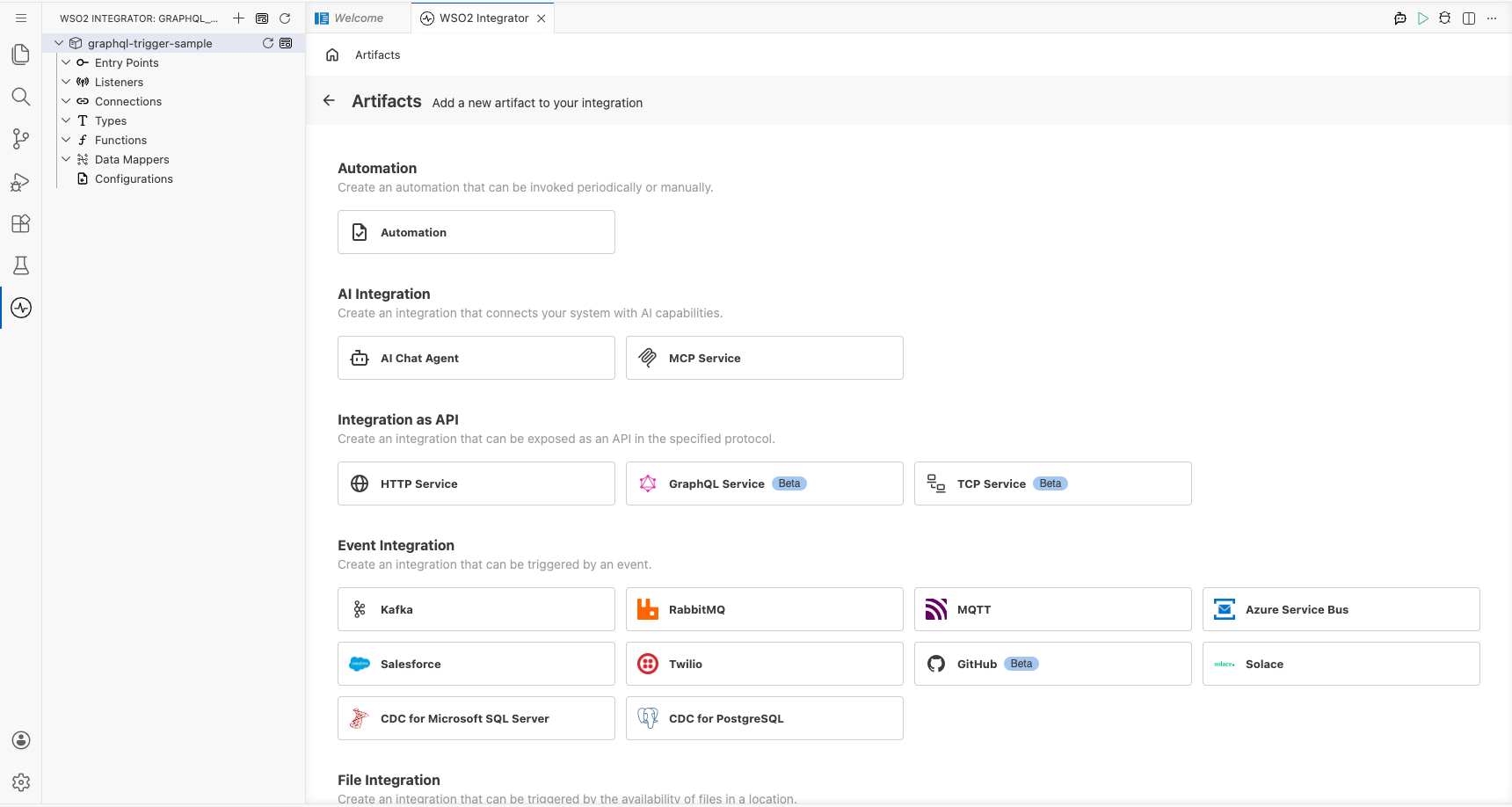
Configuring the GraphQL Service listener
Step 2: Bind listener parameters to configuration variables
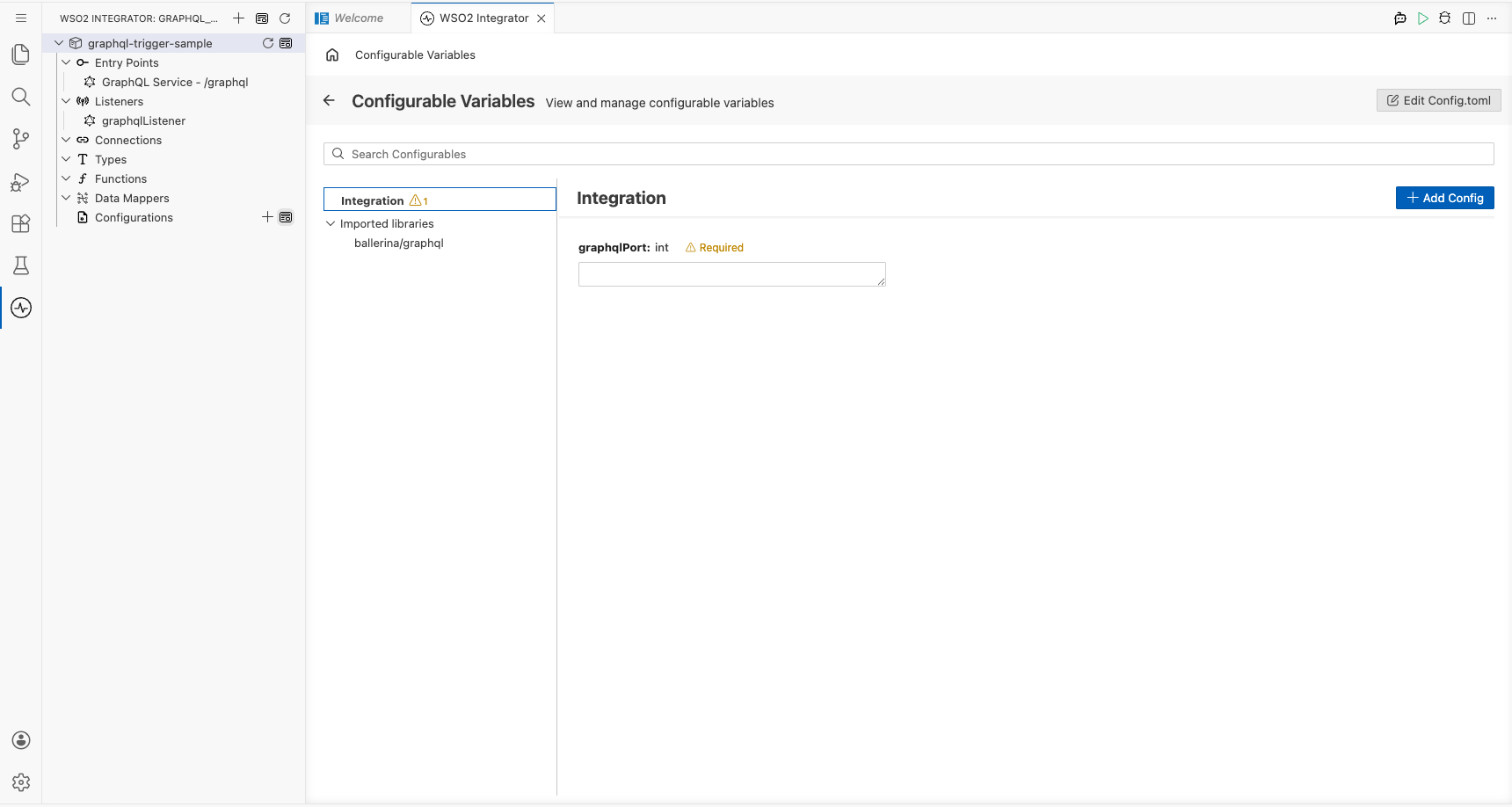
Fill in the Create GraphQL Service form by binding the port to a configurable variable:
- Enter
/graphqlin the Base Path field. - Select the Expression tab in the Port field to reveal the expression editor.
- Select Open Helper Panel (the fx icon).
- In the Helper Panel, go to the Configurables tab and select + New Configurable.
- Enter
graphqlPortas the variable name and selectintas the type. - Select Save. The variable
graphqlPortis automatically injected into the Port field. - Close the Helper Panel.
- basePath : the URL base path at which the GraphQL service is exposed
- port : the port the GraphQL listener binds to, driven by a
configurable intvariable
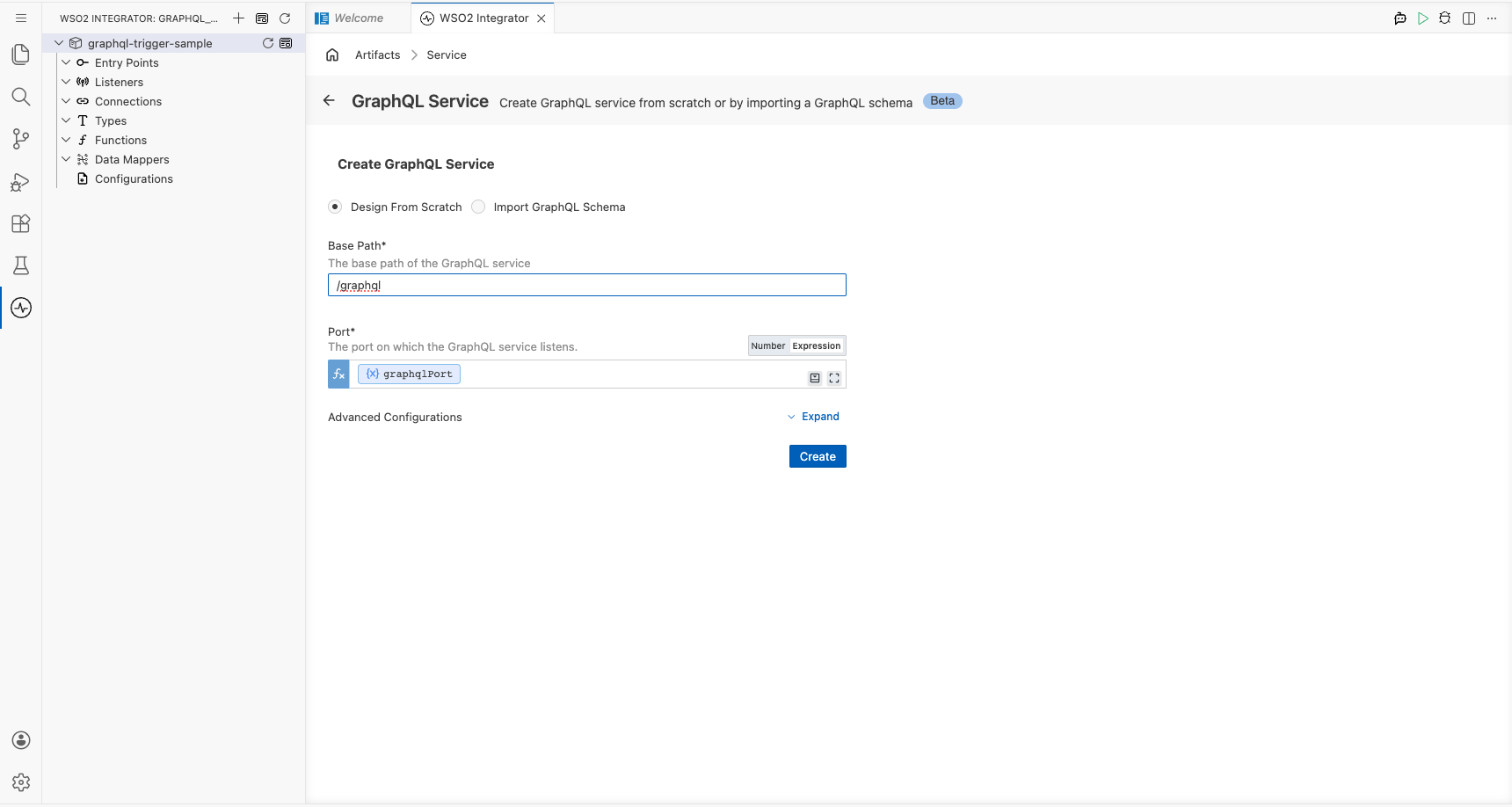
Step 3: Set actual values for your configurations
- In the left panel, select Configurations.
- Set a value for each configuration listed below:
- graphqlPort (int) : the port number the GraphQL service listens on (for example,
9090)
Step 4: Create the service
Select Create to generate the GraphQL service.
Handling GraphQL Service events
Step 5: Open the GraphQL Operations panel
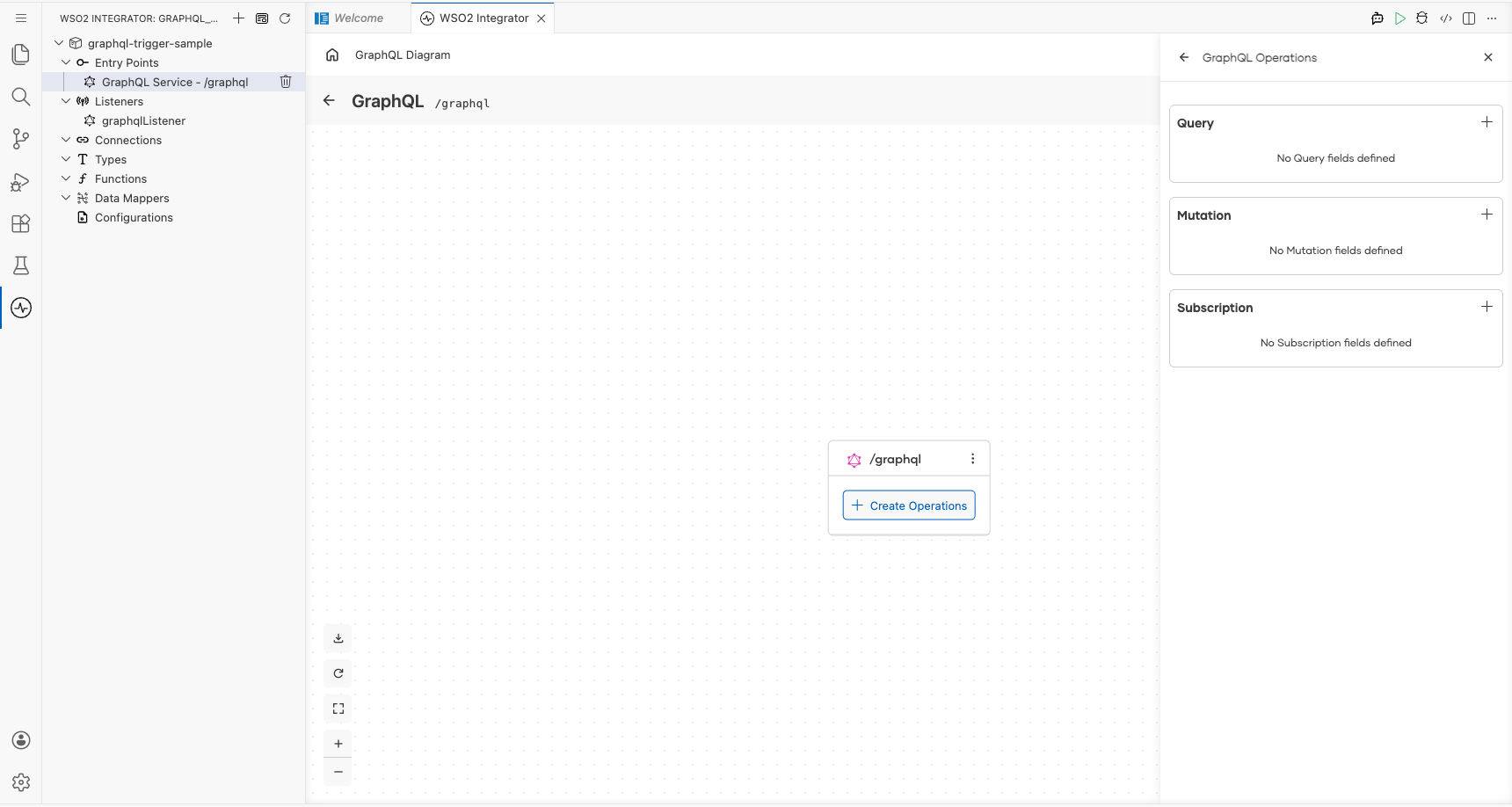
Select + Create Operations on the /graphql service node in the GraphQL diagram canvas. The GraphQL Operations side panel opens, listing three empty sections: Query, Mutation, and Subscription.
Step 6: Define the return type for the getBookInfo handler
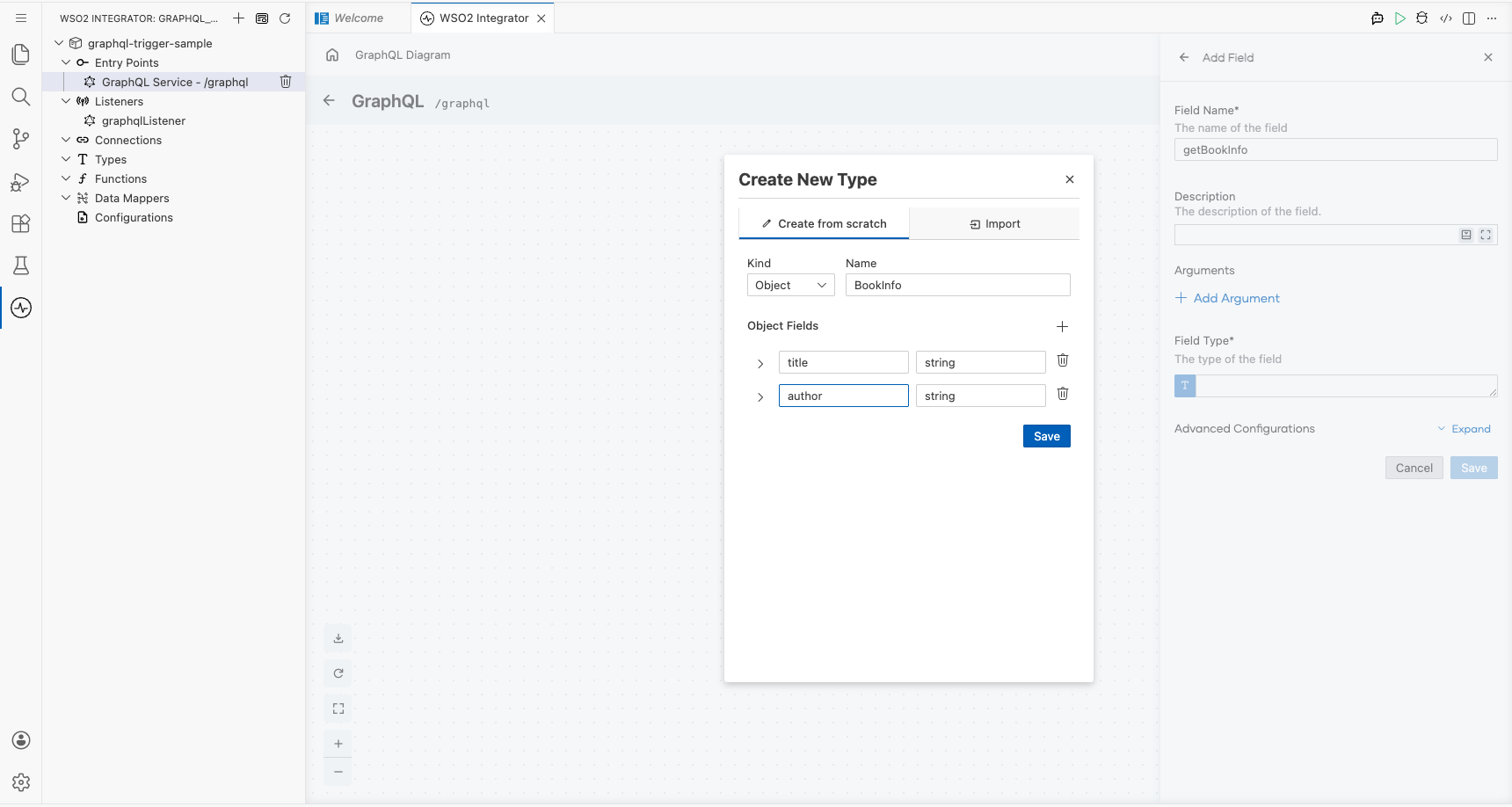
- Select + next to Query to add a new Query field. The Add Field form opens.
- Enter
getBookInfoin the Field Name field. - Select the Field Type input box and select Create New Type at the bottom of the dropdown.
- In the Create Type Schema tab, enter
BookInfoas the Name. - Select the + icon next to Fields to add the first field: enter
titlewith typestring. - Select + again to add a second field: enter
authorwith typestring. - Select Save to create the
BookInfotype. The modal closes andBookInfois auto-injected as the Field Type. - Select Save in the Add Field form to register the
getBookInfo → BookInfoQuery field.
Step 7: Add the log:printInfo step to the handler
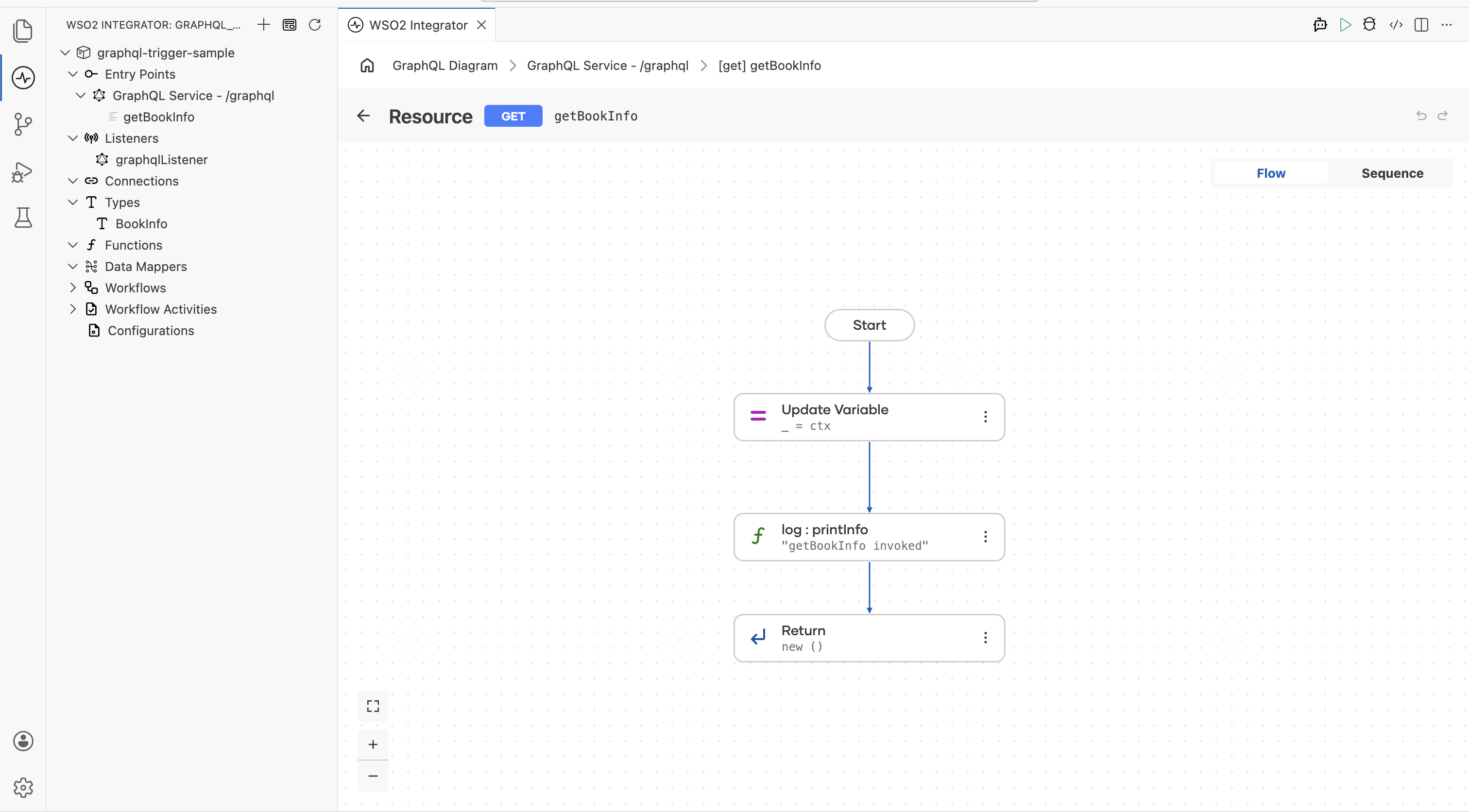
Open the getBookInfo resource in the flow canvas. Add graphql:Context ctx as a parameter and insert the log:printInfo(ctx.toJsonString()) call in the handler body. WSO2 Integrator detects the change and updates the flow diagram automatically.
Step 8: Confirm the registered handler in the Service view
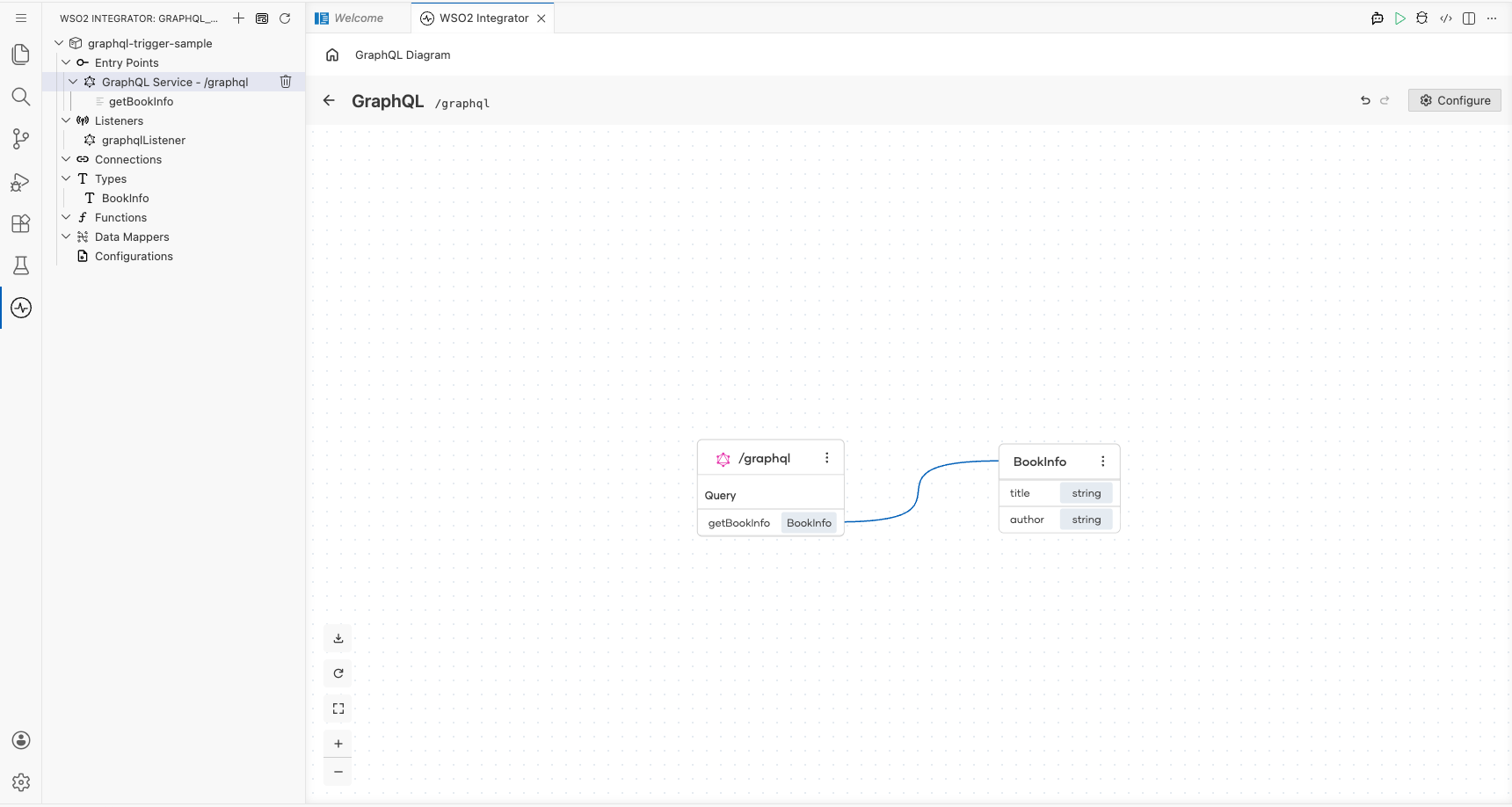
Navigate back to GraphQL Service - /graphql in the left tree. The GraphQL diagram shows the complete service with the Query: getBookInfo → BookInfo resource registered and the BookInfo type node with fields title: string and author: string.
Running the integration
Step 9: Run the integration and send a test query
-
Select Run Integration (▶) in the editor toolbar. The integration starts and logs appear in the output panel.
-
Send a GraphQL query to the running service using one of the following methods:
Option 1: WSO2 Integrator built-in HTTP client: Use the built-in HTTP client or Try It panel in WSO2 Integrator to POST a GraphQL query to
/graphql.Option 2: curl: Run the following command in a terminal, replacing the port with the value you set for
graphqlPort:curl -X POST http://<host>:<graphqlPort>/graphql \
-H "Content-Type: application/json" \
-d '{"query": "{ getBookInfo { title author } }"}'Option 3: GraphQL client (for example, Postman or Insomnia): Send a POST request to
http://<host>:<graphqlPort>/graphqlwith the body{ "query": "{ getBookInfo { title author } }" }. -
Observe the log output: the serialised GraphQL context (
ctx.toJsonString()) is printed for each request.
Try it yourself
Try this sample in WSO2 Integration Platform.
More code examples
The GraphQL connector provides practical examples illustrating usage in various scenarios. Explore these examples, covering GraphQL APIs, queries, mutations, subscriptions, and integration use cases.
-
Snowtooth: Implement the popular Snowtooth GraphQL API using Ballerina GraphQL services.
-
Star Wars: Build a GraphQL API based on the Star Wars domain model with queryable resources.
-
News Alerts: Create a news alert GraphQL API with real-time updates using GraphQL subscriptions.
-
GitHub Issue Tracker: Implement a custom GitHub issue tracker GraphQL API with integration scenarios and subscriptions.