Example
HTTP Example
What you'll build
Build an HTTP GET integration using the ballerina/http HTTP Client connector in WSO2 Integrator's visual designer. The integration sends an outbound GET request to a configurable URL and captures the HTTP response. The flow runs as an Automation entry point named main.
Operations used:
- get: Sends an HTTP GET request to a specified path and returns the HTTP response.
Architecture
Setting up the HTTP integration
New to WSO2 Integrator? Follow the Create a New Integration guide to set up your integration first, then return here to add the connector.
Adding the HTTP connector
Select + Add Connection in the Connections section of the WSO2 Integrator sidebar to open the connector palette.
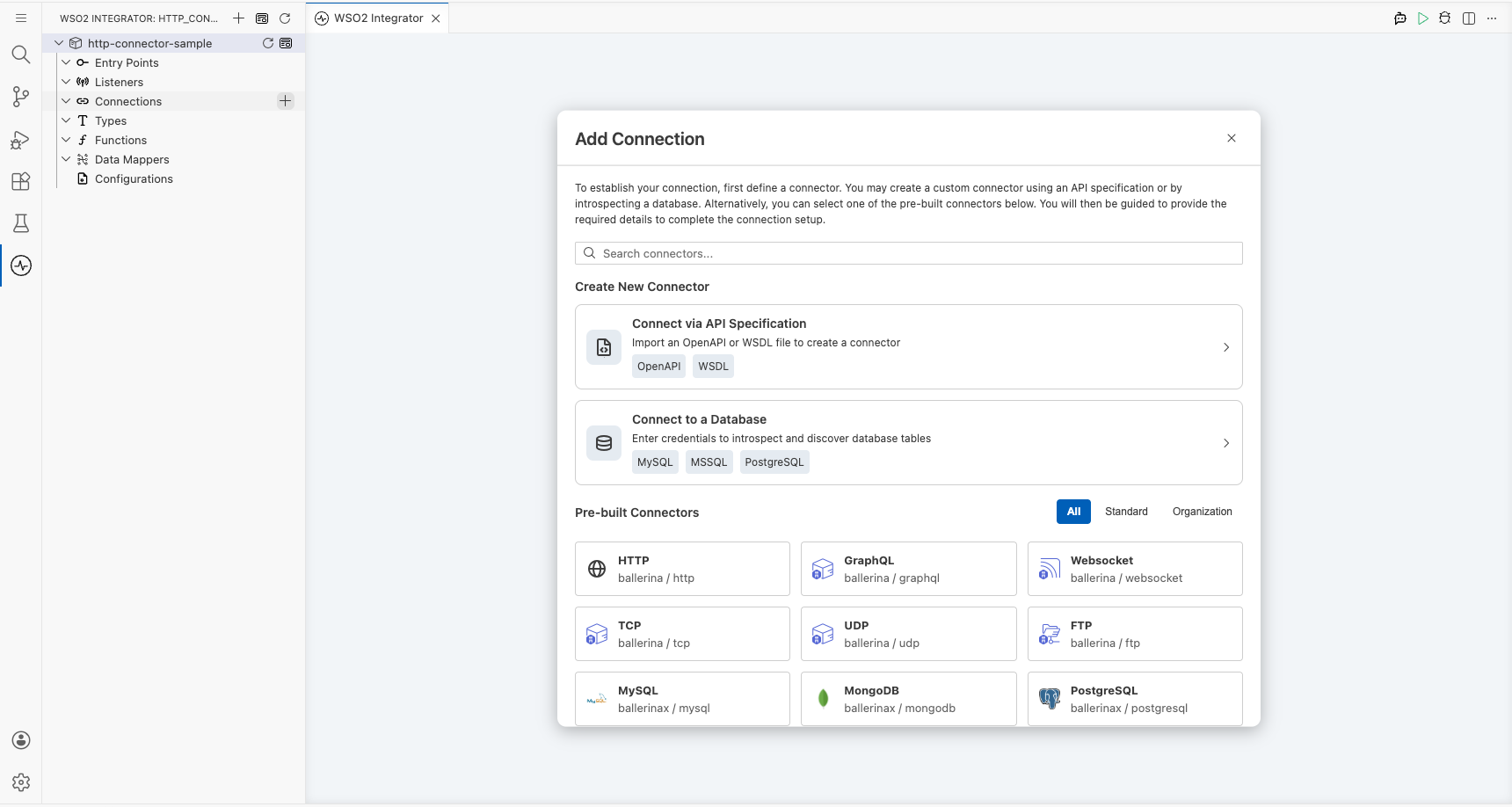
Configuring the HTTP connection
Step 1: Fill in connection parameters
In the New Connection form, bind the connection parameters to configurable variables:
- connectionName: Set to
httpClientas the name for this connection - url: Bind to a new configurable variable named
httpServiceUrl(type:string) using the variable binding icon
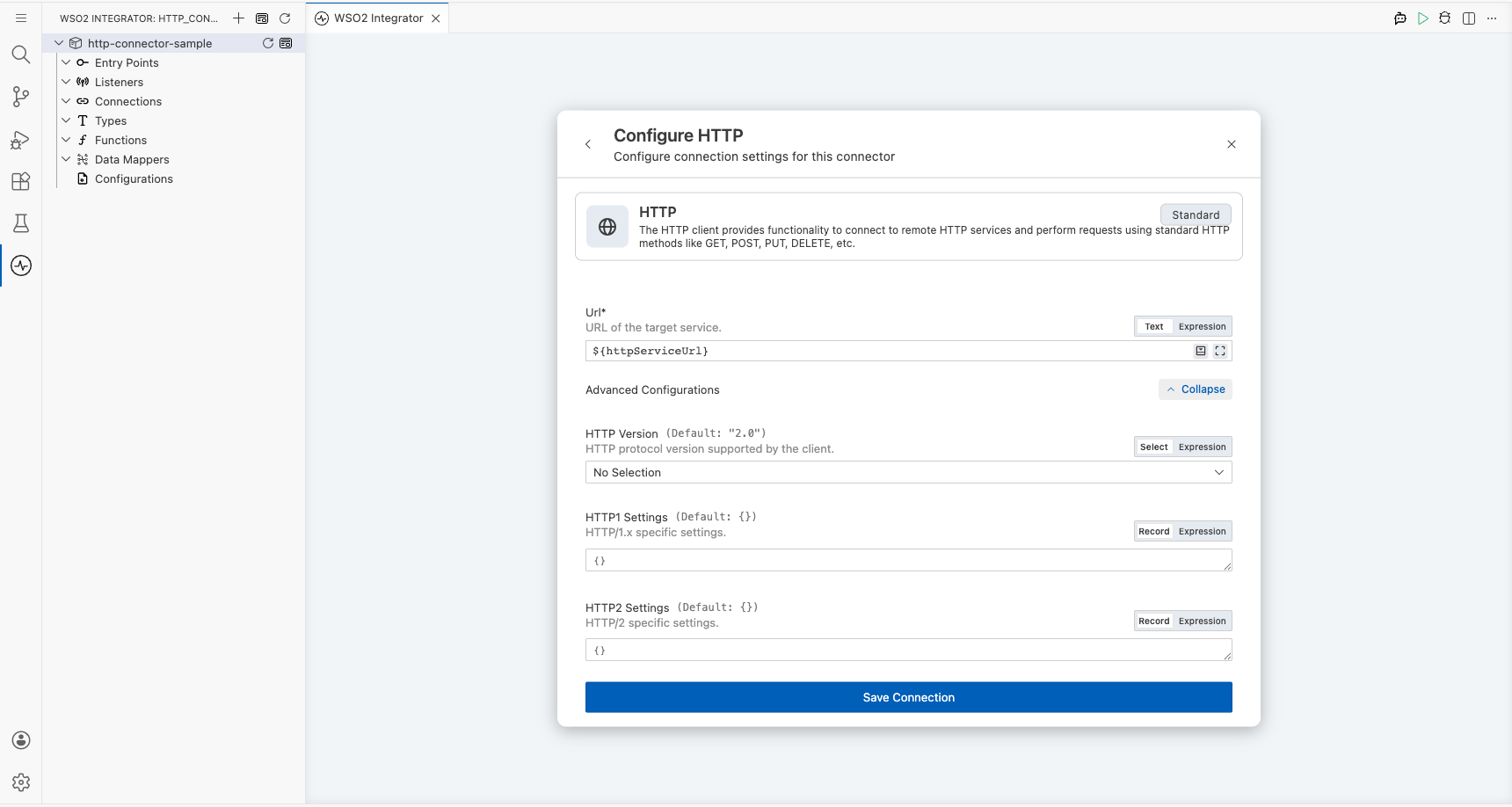
Step 2: Save the connection
Select Save to create the connection. The connection httpClient now appears under Connections in the WSO2 Integrator sidebar.
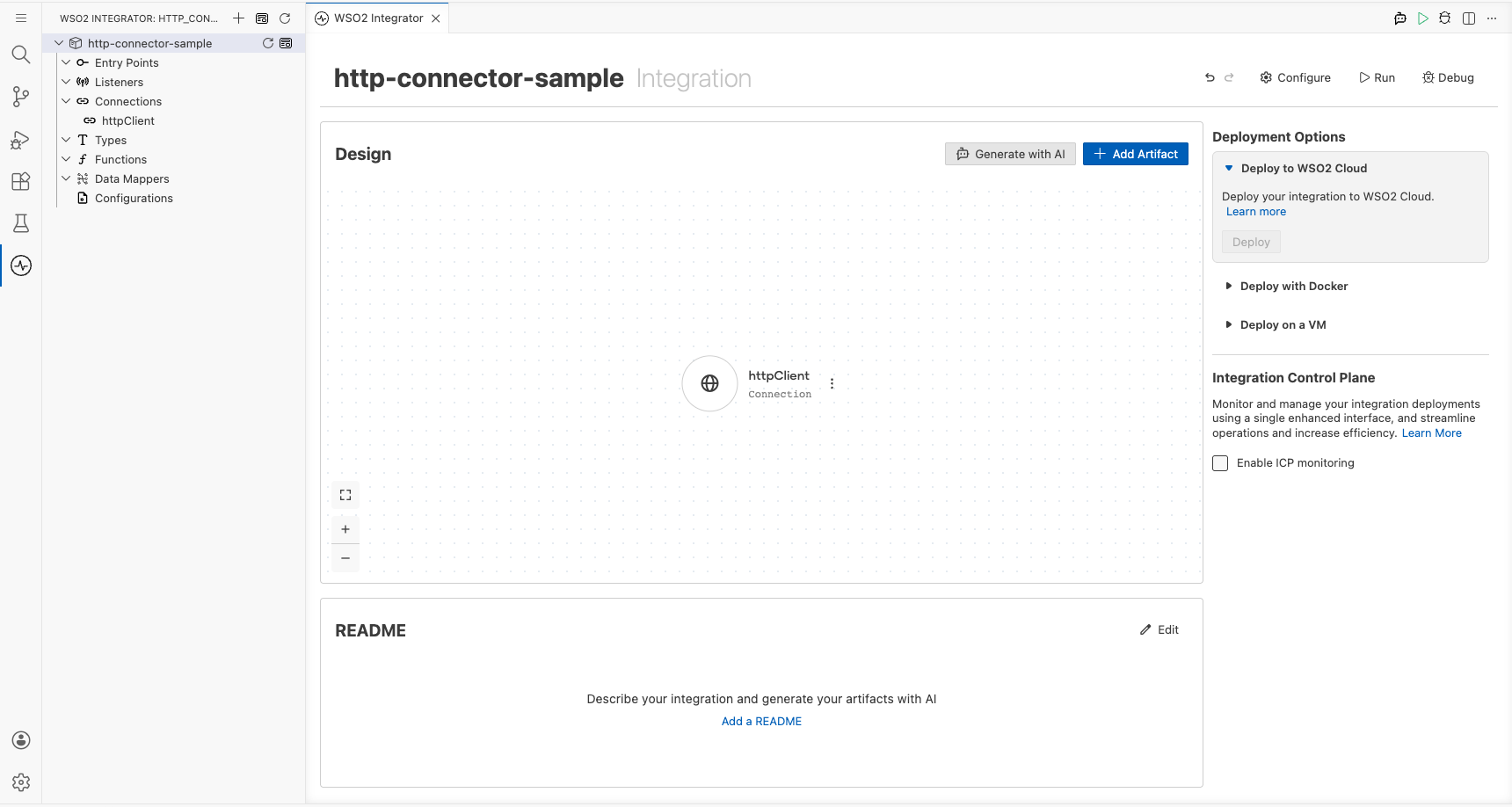
Step 3: Set actual values for your configurables
- In the left panel, select Configurations.
- Set a value for each configurable listed below.
- httpServiceUrl (string): The base URL of the HTTP service to send GET requests to (for example,
https://your-target-api.com)
Configuring the HTTP get operation
Step 4: Add an Automation entry point
- In the WSO2 Integrator sidebar, hover over Entry Points and select +.
- Select Automation from the entry point types.
An Automation entry point named main is created and the visual designer opens, showing Start → (empty node placeholder) → Error Handler.
Step 5: Select the get operation and configure its parameters
- Select the empty placeholder node on the canvas to open the node panel.
- Expand the httpClient connection and select get from the list of available operations.
- Fill in the operation parameters:
- path: Enter
/as the request path - result: Set the result variable name to
result - targetType: Enter
http:Responseas the expected response type
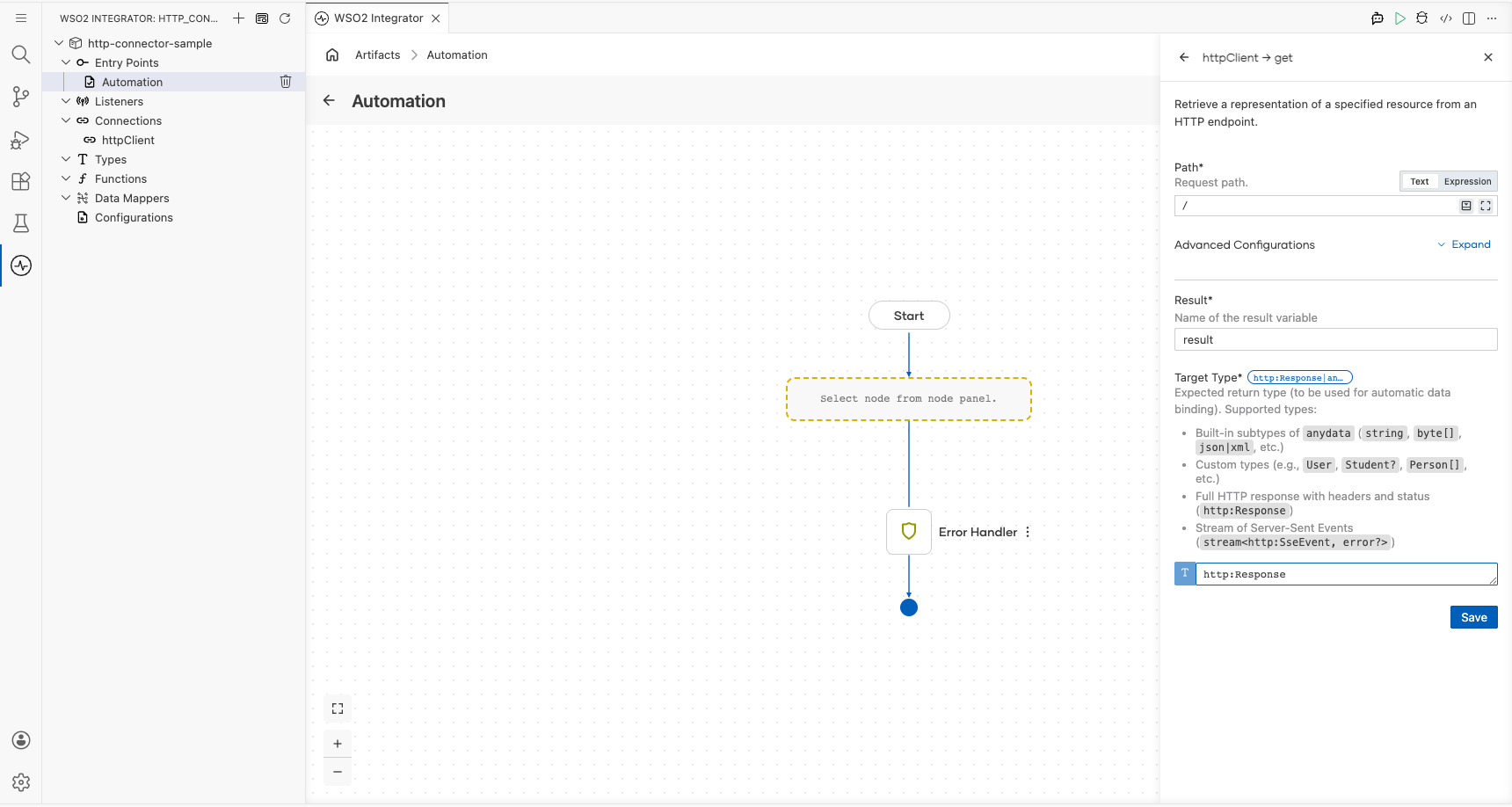
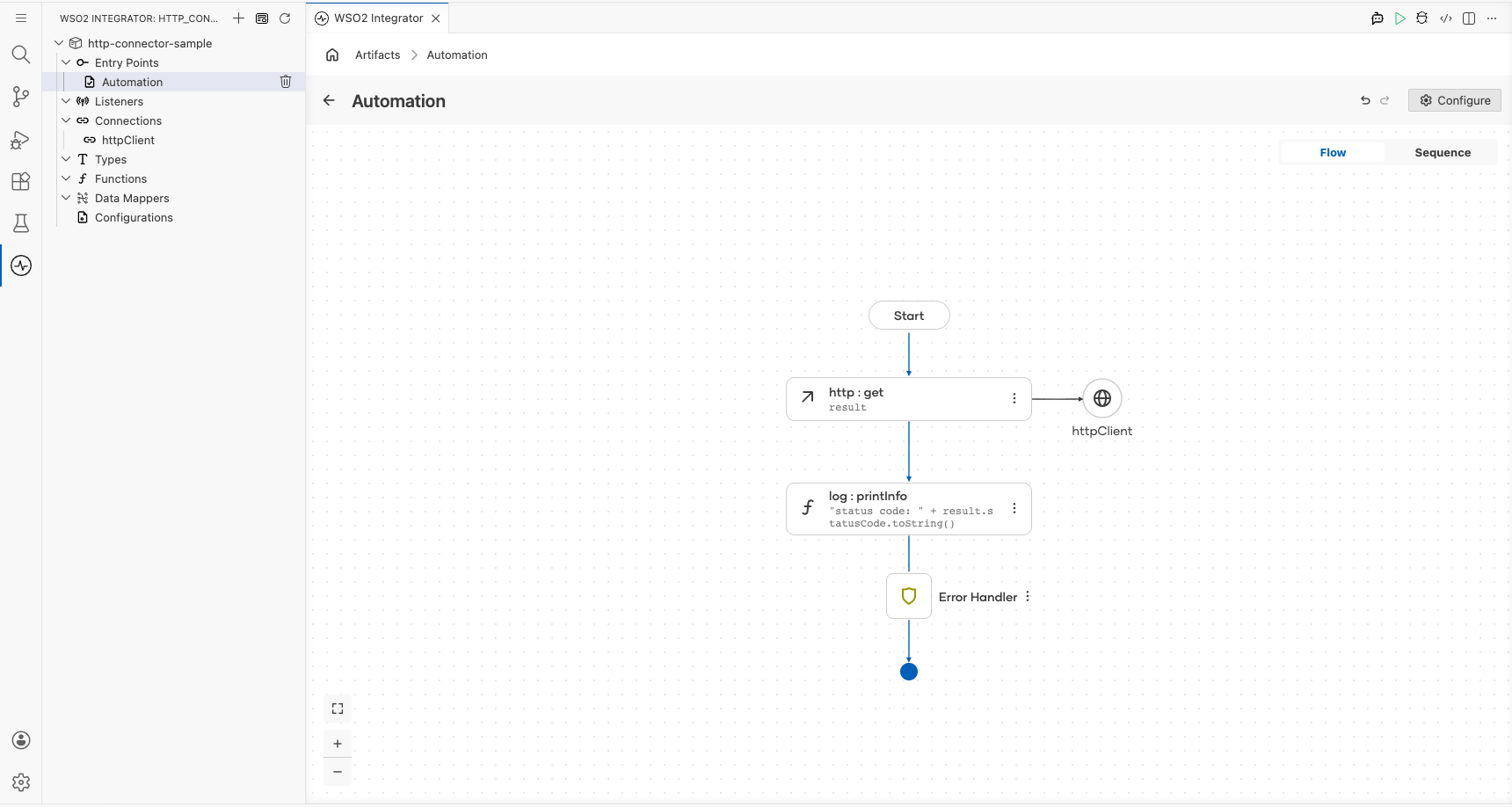
Try it yourself
Try this sample in WSO2 Integration Platform.

HTTP Trigger Example
What you'll build
An HTTP Service integration listens for incoming HTTP requests on a configurable port using the ballerina/http trigger from the Integration as API category. When an HTTP client sends a GET /messages request to the listener, the trigger routes it to the resource handler, which builds a JSON payload and logs it as a JSON string using log:printInfo. The complete flow: HTTP listener → resource handler → log:printInfo → response is assembled visually on the WSO2 Integrator visual designer.
Architecture
Prerequisites
- An HTTP client tool for sending test requests (for example,
curl, Postman, or a browser) capable of sending GET requests to the configured HTTP Service endpoint.
Setting up the HTTP Service integration
New to WSO2 Integrator? Follow the Create a New Integration guide to set up your integration first, then return here to add the trigger.
Adding the HTTP Service trigger
Step 1: Open the Artifacts palette and select the HTTP Service trigger
- Select + Add Artifact on the canvas to open the Artifacts palette.
- In the Integration as API category, locate and select the HTTP Service card.
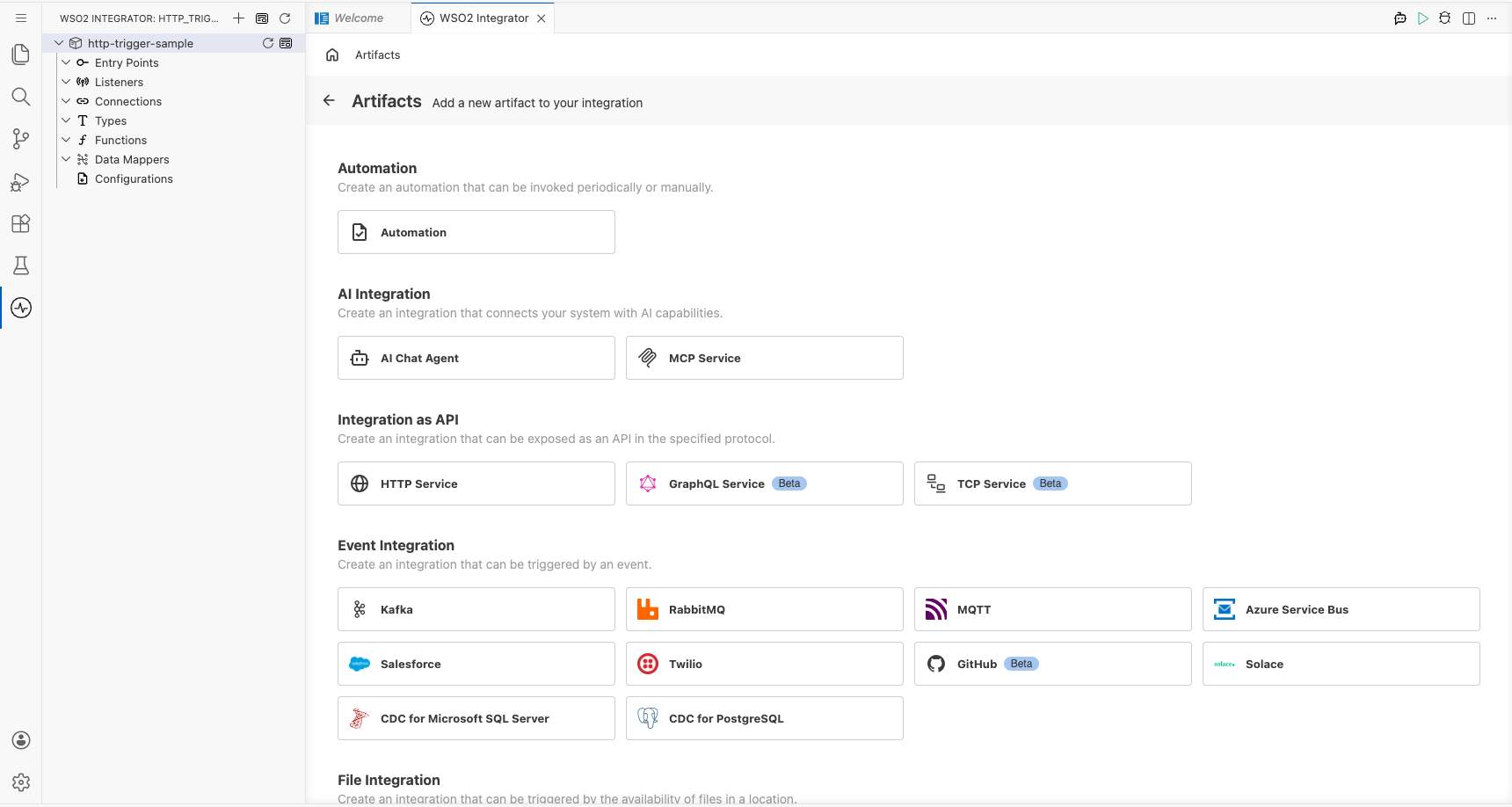
Configuring the HTTP Service listener
Step 2: Bind HTTP listener parameters to configuration variables
In the Create HTTP Service form, expand Advanced Configurations and select Custom Listener to expose the listener parameters. For the listener port, switch the field to Expression mode, open the Helper Panel, select the Configurables tab, select + New Configurable, enter a camelCase variable name and int as the type, leave the default value blank, and select Save. The variable is automatically injected into the port field. Enum/dropdown options such as the Service Contract radio group and boolean-style toggles are set directly from the UI and don't need configurable bindings.
- Port: The TCP port the HTTP listener binds to; bound to a
configurable intvariable so the port can be set at runtime without modifying the integration source. - Listener Name: The identifier used for the
http:Listenervariable in the generated source; kept ashttpListener.
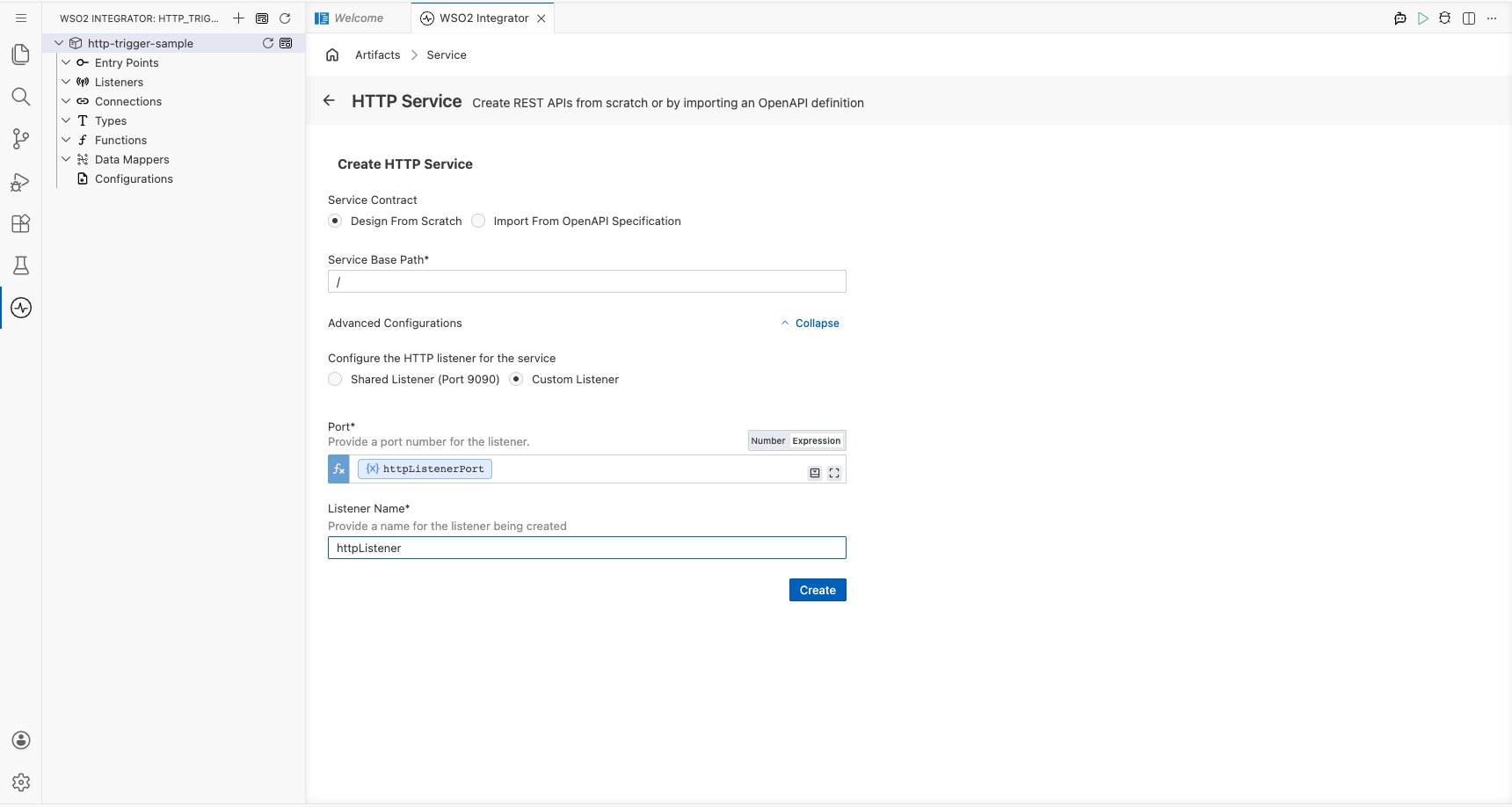
Step 3: Set actual values for your configurations
- In the left panel of WSO2 Integrator, select Configurations (at the bottom of the project tree, under Data Mappers).
- Set a value for each configuration listed below.
- httpListenerPort (int): The actual TCP port number the HTTP listener should bind to at runtime (for example,
8090).
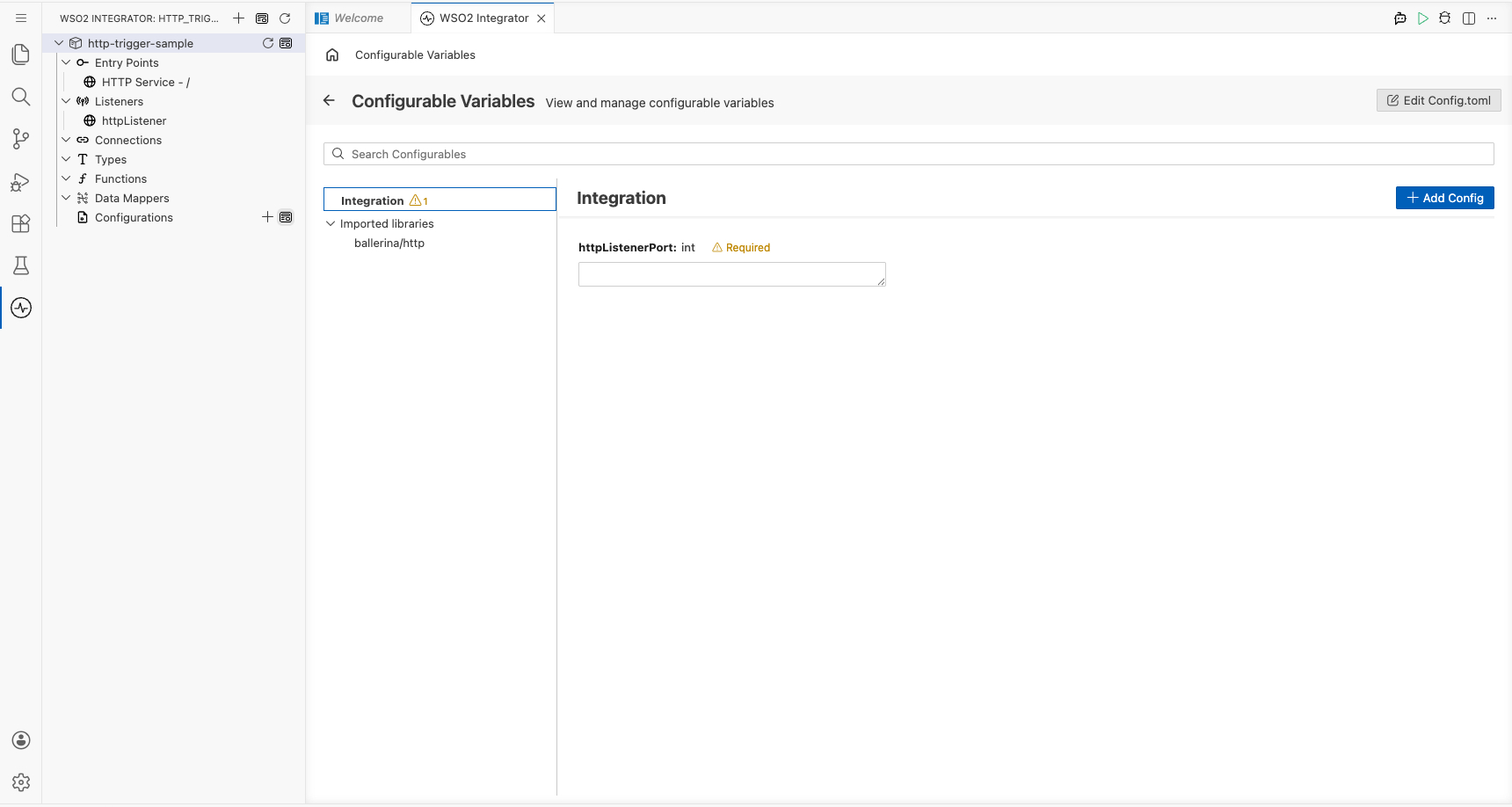
Step 4: Select Create to register the listener and open the Service view
Select Create at the bottom of the trigger configuration form. WSO2 Integrator registers the HTTP listener (httpListener) under Listeners and opens the HTTP Service view, where you can add resource function handlers.
Handling HTTP Service events
Step 5: Open the Add Handler side panel
- In the HTTP Service view, locate the Resources section.
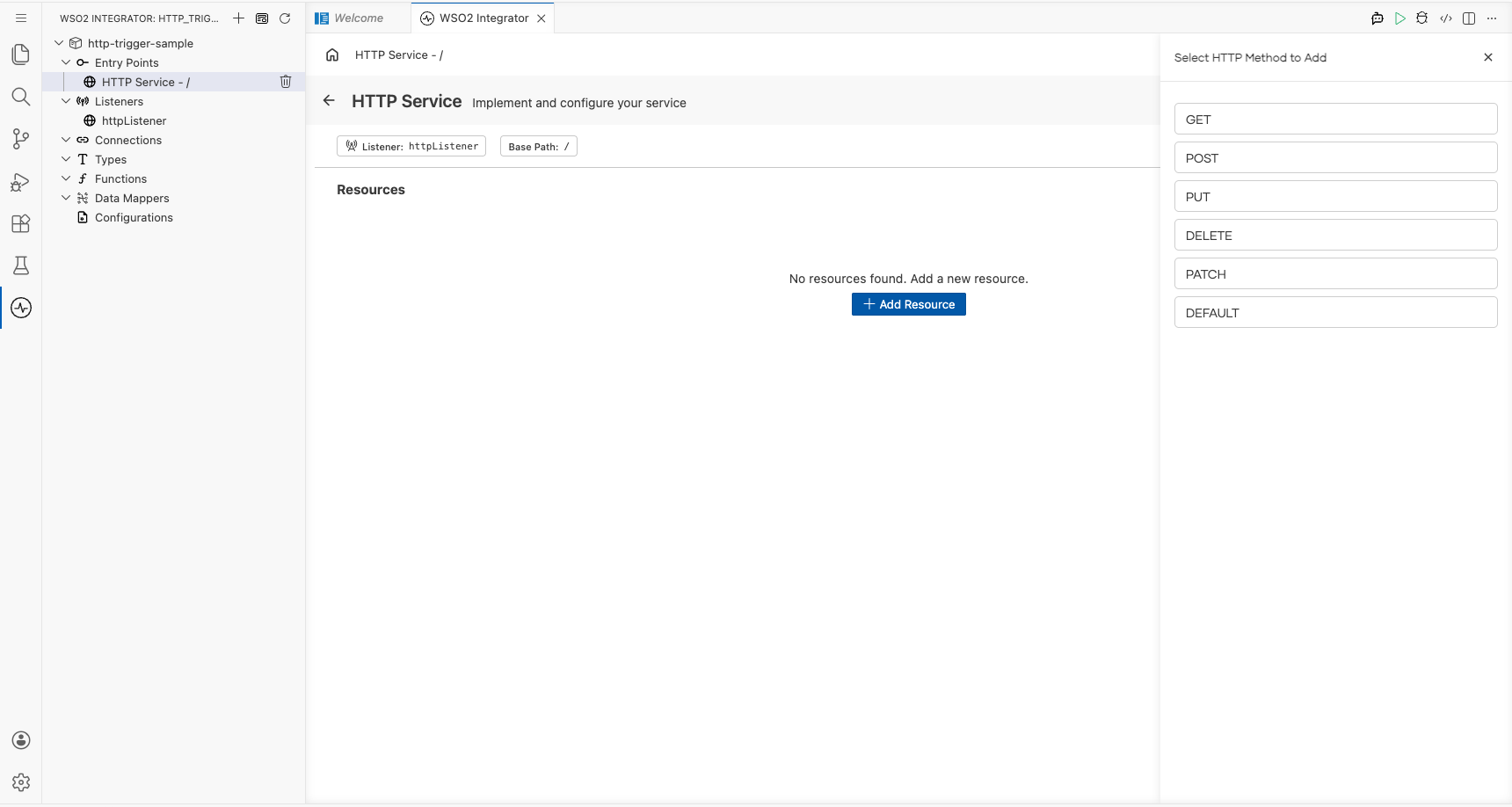
- Select + Add Resource on the right of the section header. The Select HTTP Method to Add side panel opens, listing the available HTTP methods (GET, POST, PUT, DELETE, PATCH, DEFAULT).
Step 6: Select the primary resource handler and define the message payload type
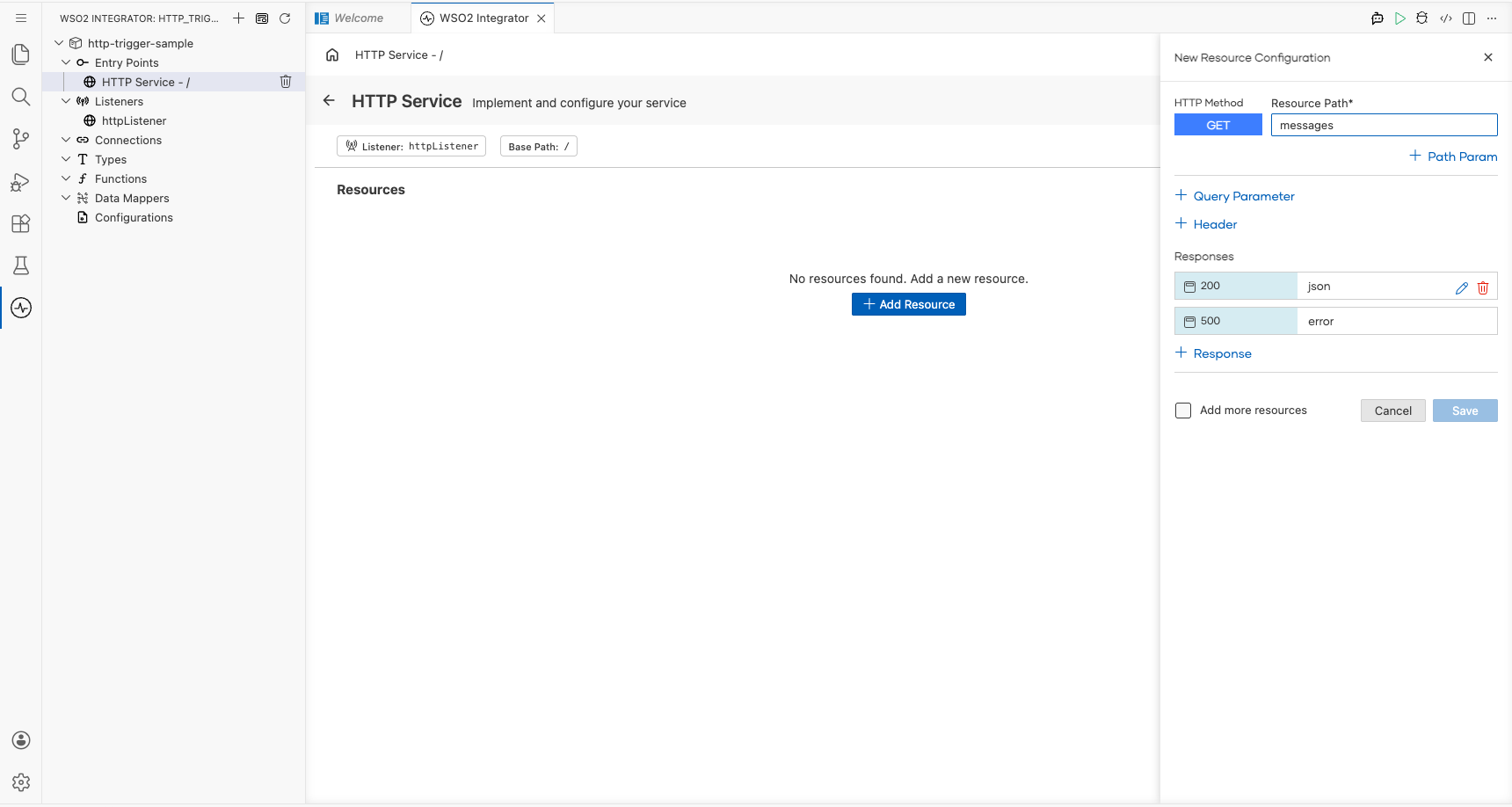
- In the Select HTTP Method to Add side panel, select GET. The New Resource Configuration panel replaces the method list.
- In the Resource Path field, enter
messagesto expose the handler atGET /messages. - Review the default Responses rows:
200returns ajsonbody and500returns anerror. Leave both as-is for this sample. - Optionally add path params, query parameters, or headers using the + Path Param, + Query Parameter, and + Header links if your handler needs them.
- Select Save to register the resource.
Step 7: Save the handler and add a log statement to the flow
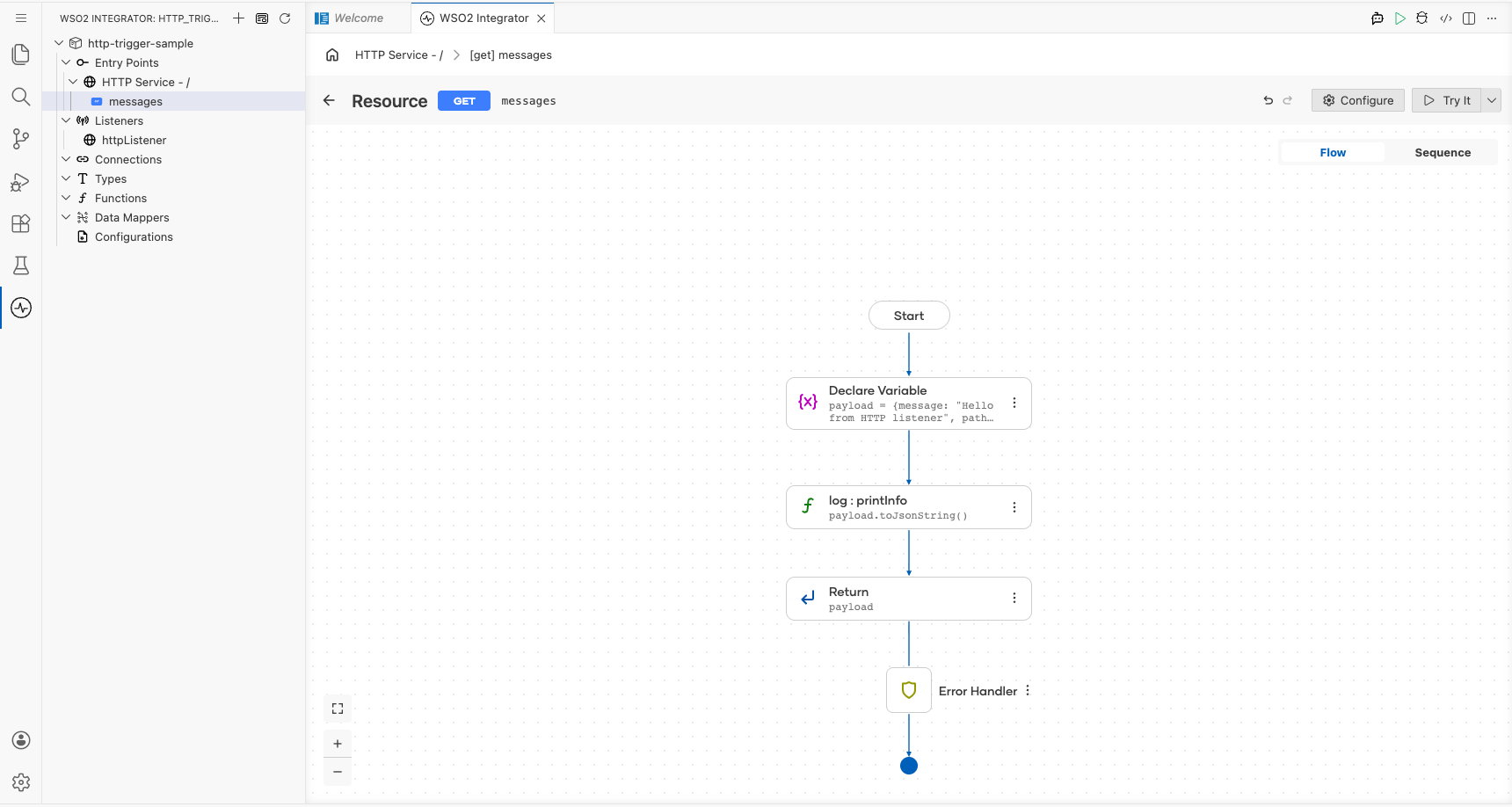
- After selecting Save on the New Resource Configuration panel, the flow canvas for the resource handler opens.
- Locate the primary resource function body (
resource function get messages()) in the flow. - Add a JSON payload declaration followed by
log:printInfo(payload.toJsonString());inside the handler body. - Confirm the canvas renders Start → Declare Variable (payload) → log:printInfo → Return → Error Handler → End, confirming the log step is wired into the flow.
Step 8: Confirm the handler is registered in the Service view
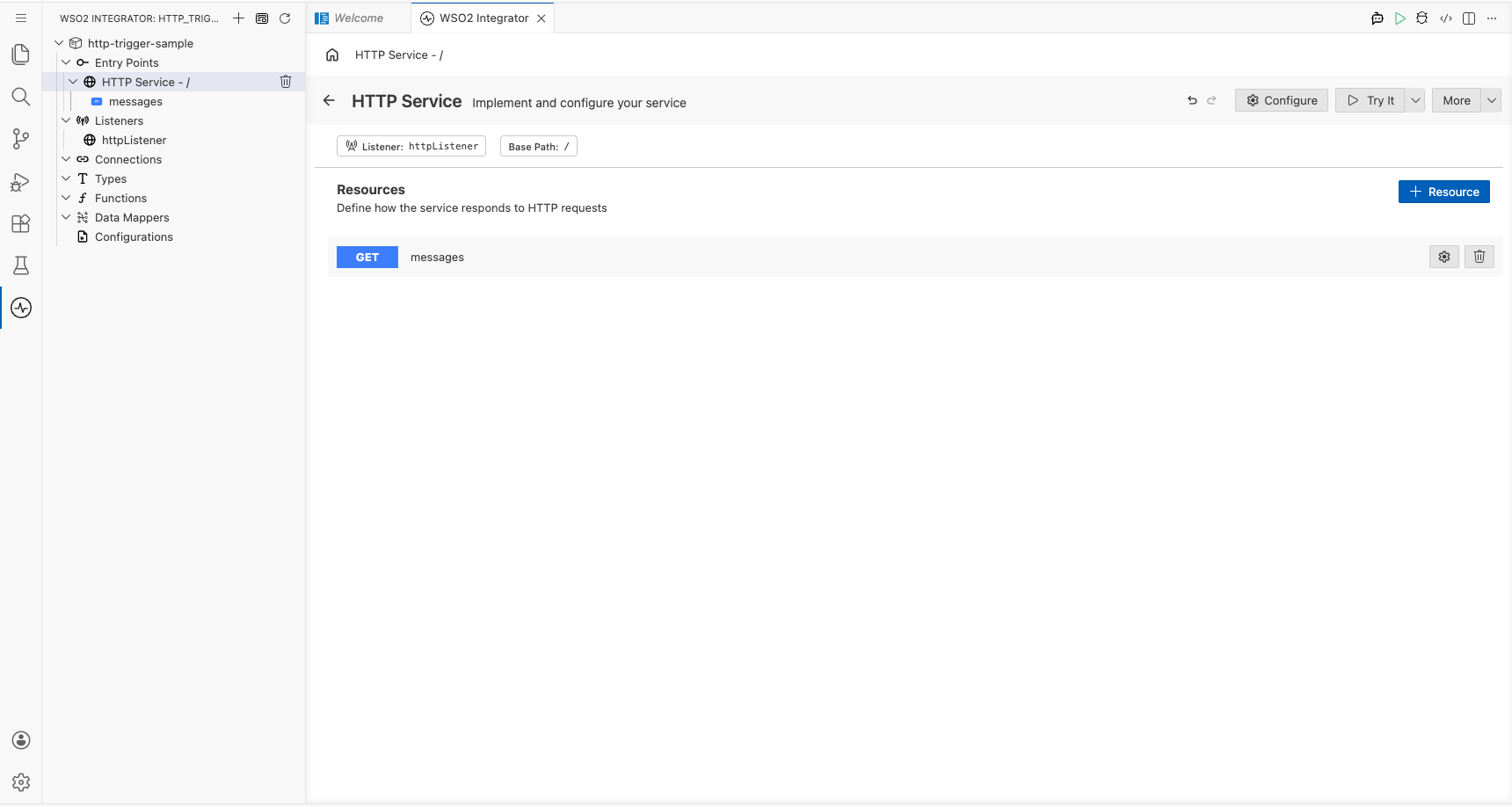
Select the back arrow in the canvas header (or re-select the HTTP Service entry in the left project tree) to return to the HTTP Service view. The Resources list now shows the registered GET /messages resource handler row.
Running the integration
Step 9: Run the integration and send a test HTTP request
- In the WSO2 Integrator panel, select Run to start the integration. Wait for the listener to bind to the configured port (watch the output for a "started HTTP/WS listener" message).
- Send a test HTTP request using one of the following options:
- A separate WSO2 Integrator HTTP Client integration assembled from the same visual designer (recommended, no external tooling required).
- The
curlcommand-line tool: send a GET request to the configured endpoint usingcurl -X GET http://<host>:<httpListenerPort>/messages, replacing<host>and<httpListenerPort>with the values you set in the Configurations panel. - A GUI HTTP client such as Postman or Insomnia: send a GET request to the configured endpoint.
- Observe the integration's log output. The payload JSON string (for example,
{"message":"Hello from HTTP listener","path":"/messages"}) should appear printed bylog:printInfo, confirming the handler received and processed the incoming HTTP request.
Try it yourself
Try this sample in WSO2 Integration Platform.
More code examples
The HTTP connector provides practical examples illustrating usage in various scenarios. Explore these examples, covering HTTP services, clients, security, REST API design, and streaming use cases.
-
Ballerina Secure Token Service (STS): Implement a secure token service that demonstrates HTTP service security and token-based access flows.
-
Pet Clinic REST API: Build a REST API for a pet clinic application using HTTP services, resources, and data persistence.
-
Server-sent events: Explore server-sent event examples for streaming updates from an HTTP service to clients.
-
Snowpeak REST API: Learn REST API design patterns using an HTTP service and client implementation.