Example
What you'll build
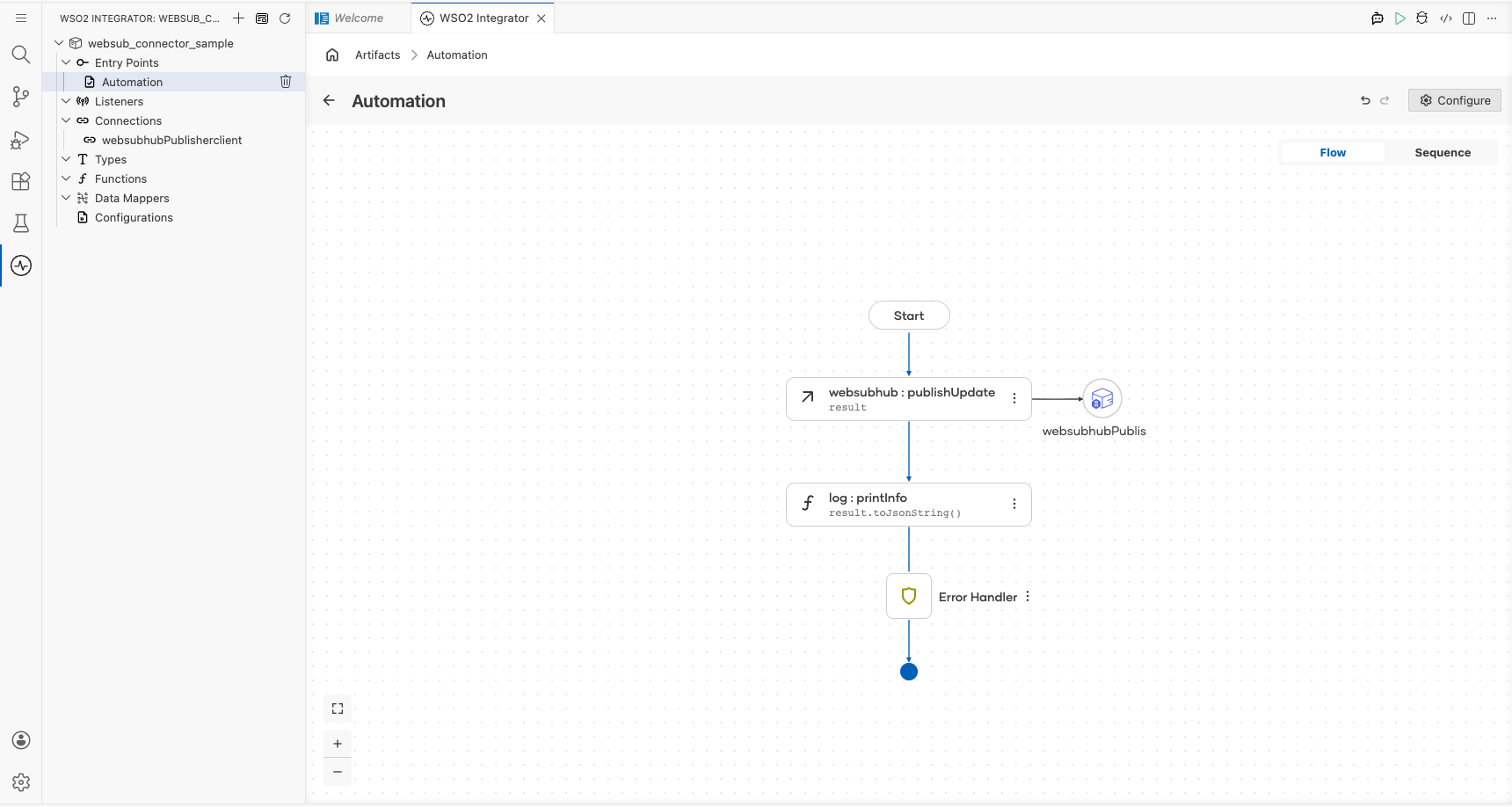
Build a WSO2 Integrator automation that publishes a topic update to a remote WebSub Hub using the ballerina/websubhub connector. The integration creates a connection to the hub, then calls the publishUpdate operation to deliver a JSON payload to a specified topic.
Operations used:
- publishUpdate : Publishes a content update for a given topic to the configured WebSub Hub
Architecture
Prerequisites
- A running WebSub Hub endpoint with a valid URL
- A registered topic on the hub to publish updates to
Setting up the Websubhub Publisher integration
New to WSO2 Integrator? Follow the Create a New Integration guide to set up your integration first, then return here to add the connector.
Adding the Websubhub Publisher connector
Add the Websubhub Publisher connection to your integration project.
Step 1: Open the connector palette and select the Websubhub Publisher connector
- In the WSO2 Integrator sidebar, select + Add Artifact.
- Search for websub in the artifact palette and select Websubhub Publisher (from
ballerina/websubhub).
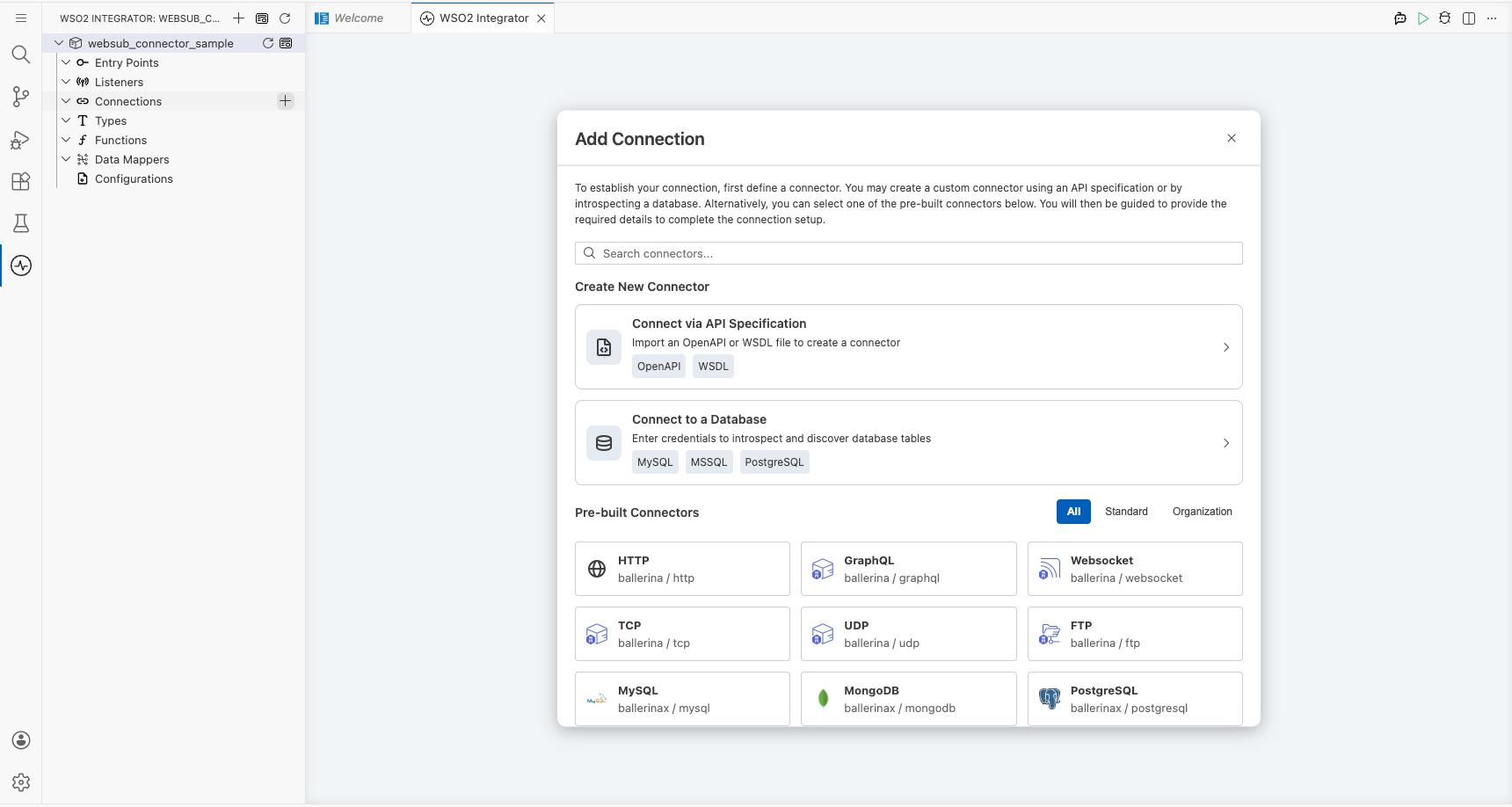
Configuring the Websubhub Publisher connection
Step 2: Fill in the connection parameters
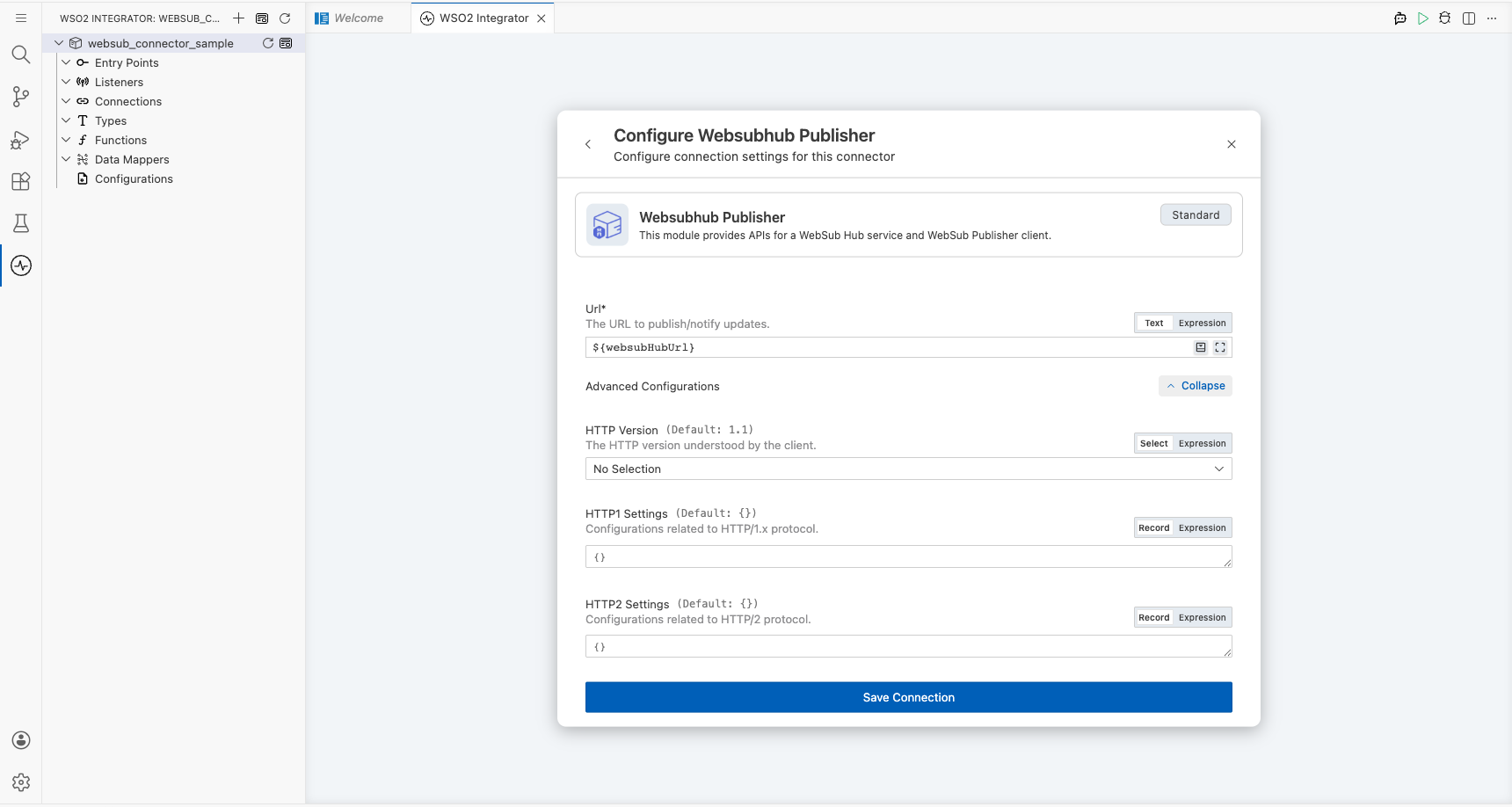
In the Add Connection form, bind each parameter to a configurable variable:
- Connection Name : A unique name for this connection instance
- Hub URL : The URL of the remote WebSub Hub, bound to the
websubHubUrlconfigurable variable
Step 3: Save the connection
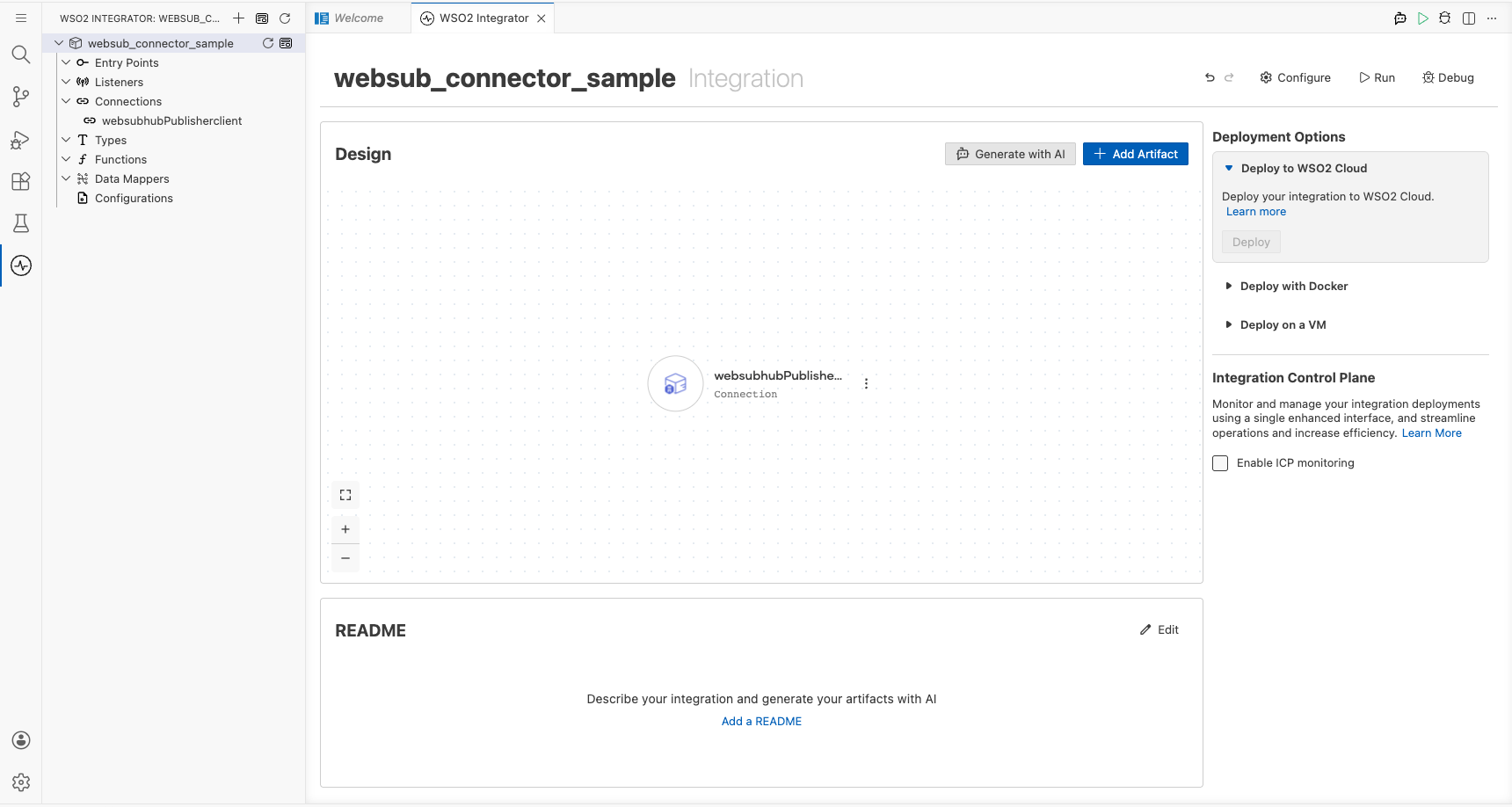
Select Save to create the connection. The new connection appears in the Connections panel.
Step 4: Set actual values for your configurables
- In the left panel, select Configurations.
- Set a value for each configurable listed below.
- websubHubUrl (string) : The full URL of the remote WebSub Hub endpoint
Configuring the Websubhub Publisher publishUpdate operation
Step 5: Add the Automation entry point
- In the WSO2 Integrator sidebar, select + Add Artifact.
- Select Automation as the artifact type.
- Set the function name to
main(default). - Select Create; the Automation flow canvas opens.
Step 6: Select the publishUpdate operation and configure its parameters
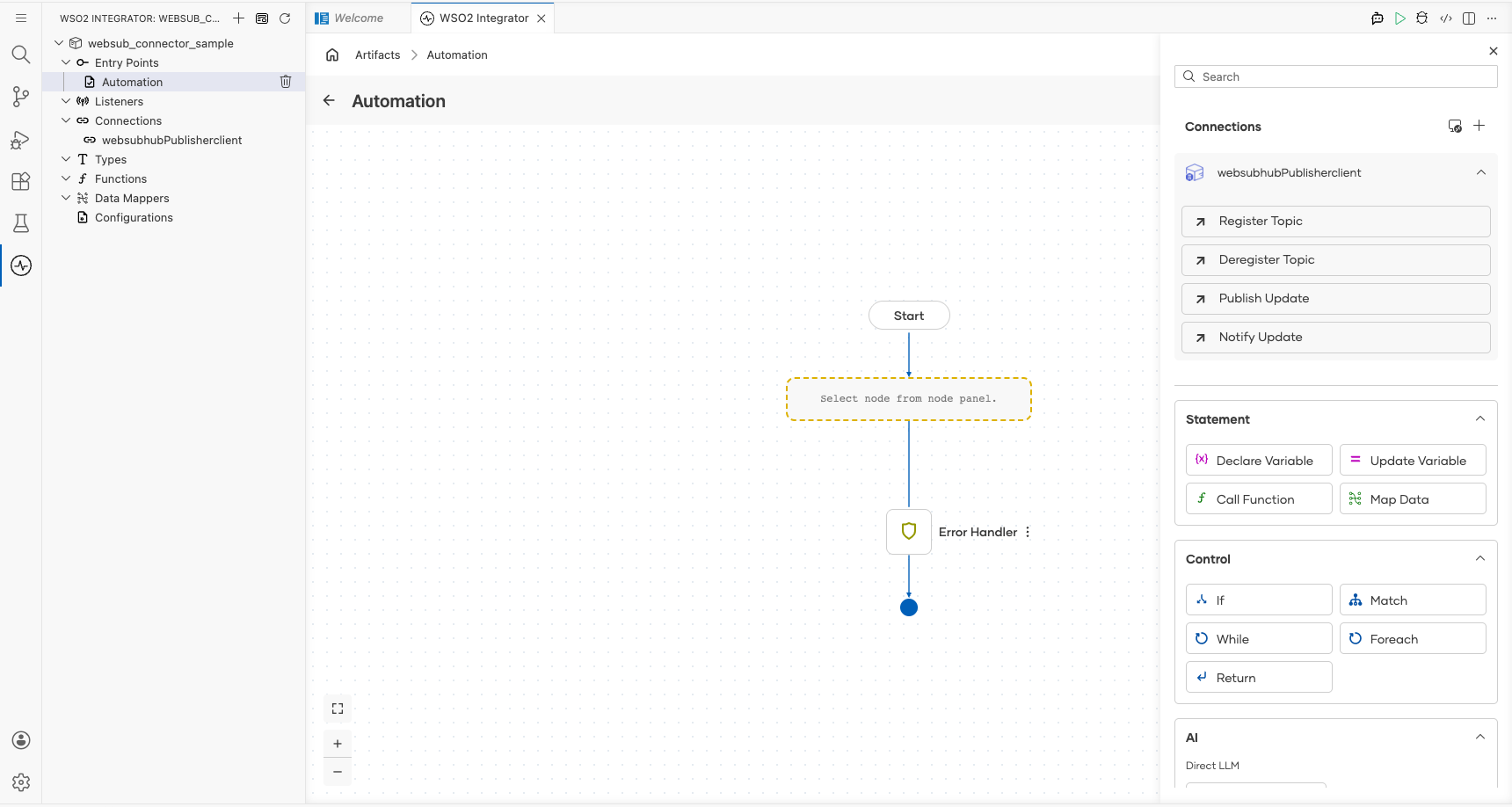
- In the Automation flow canvas, select the + drop zone between Start and Error Handler.
- Expand the websubhubPublisherclient section in the node panel.
- Select Publish Update to open the operation configuration panel.
Fill in the operation fields:
- Topic : The topic URL to publish the update to, bound to the
websubTopicconfigurable variable - Payload : The JSON content to deliver to subscribers
- Result : The variable name that receives the
websubhub:Acknowledgementresponse
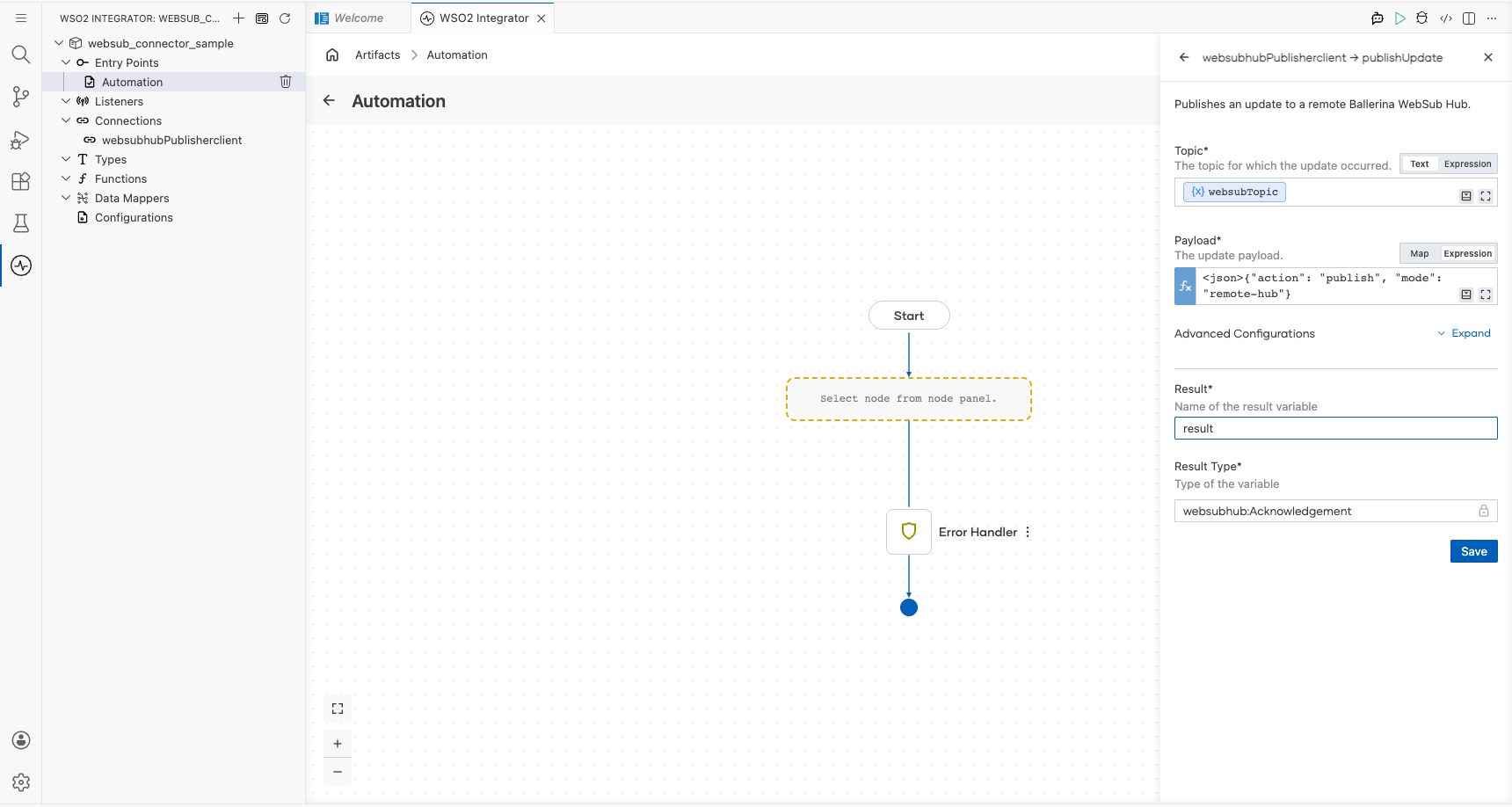
Select Save; the publishUpdate node appears on the flow canvas.
Try it yourself
Try this sample in WSO2 Integration Platform.

More code examples
The WebSub Hub connector provides practical examples illustrating usage in various scenarios. Explore these examples, covering WebSub hub implementations and publish-subscribe delivery patterns.
-
In-memory hub: Implement a WebSub hub that stores subscription state in memory.
-
JMS WebSub hub: Build a WebSub hub backed by JMS-based message delivery.
-
Kafka hub: Implement a WebSub hub backed by Kafka-based event distribution.