Setup Guide
This guide walks you through creating a Google Cloud Platform project and obtaining the OAuth 2.0 credentials required to use the Gmail connector.
Step 1: Create a Google Cloud Platform project
-
Open the Google Cloud Platform Console.
-
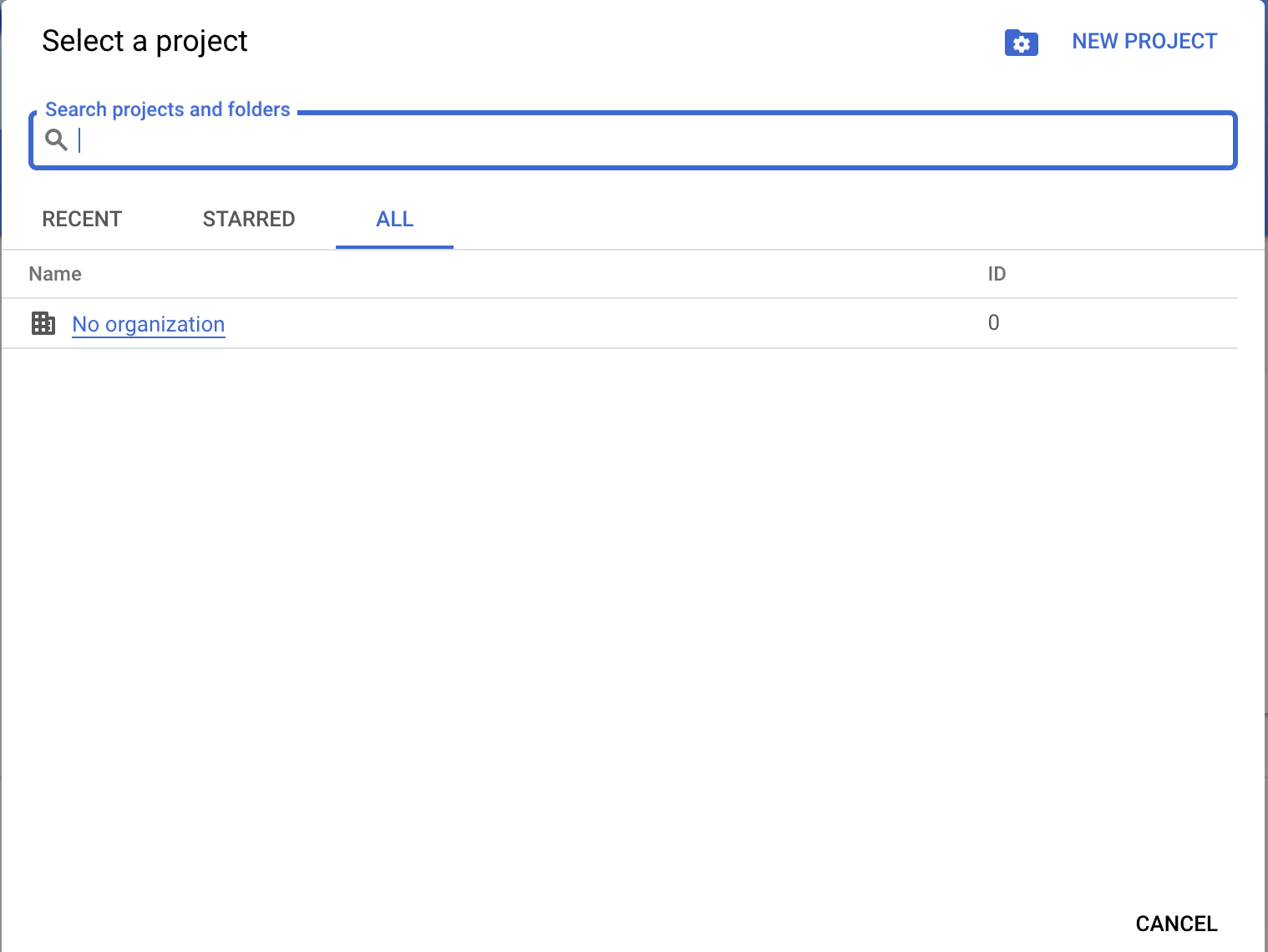
Select an existing project or create a new one from the project drop-down menu.
Step 2: Enable Gmail API
-
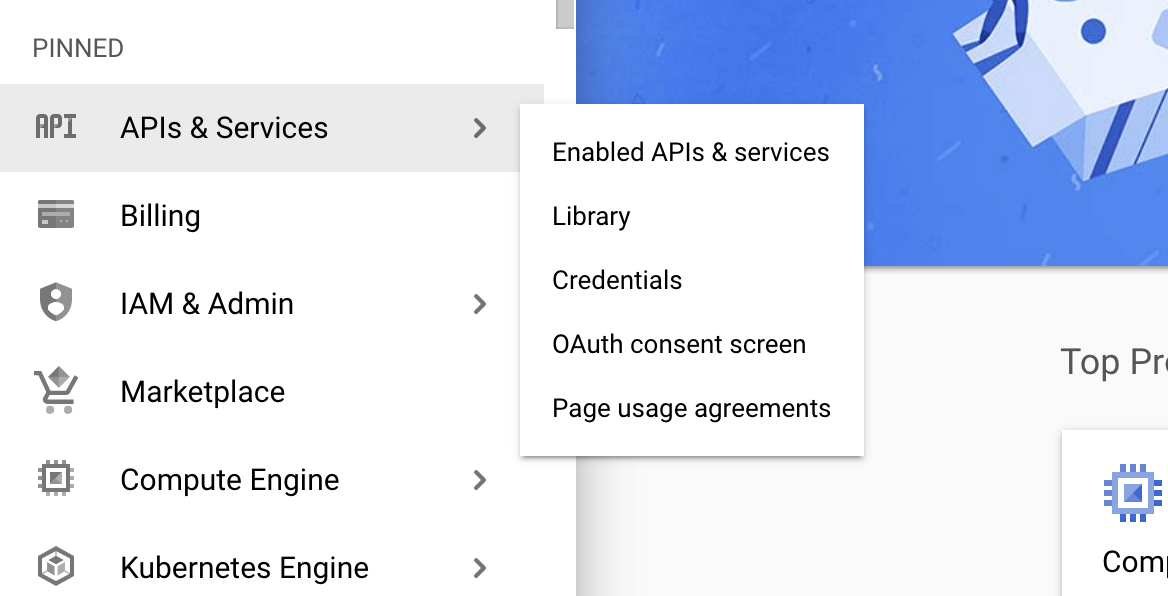
Navigate to the Library tab and enable the Gmail API.
Step 3: Configure OAuth consent
-
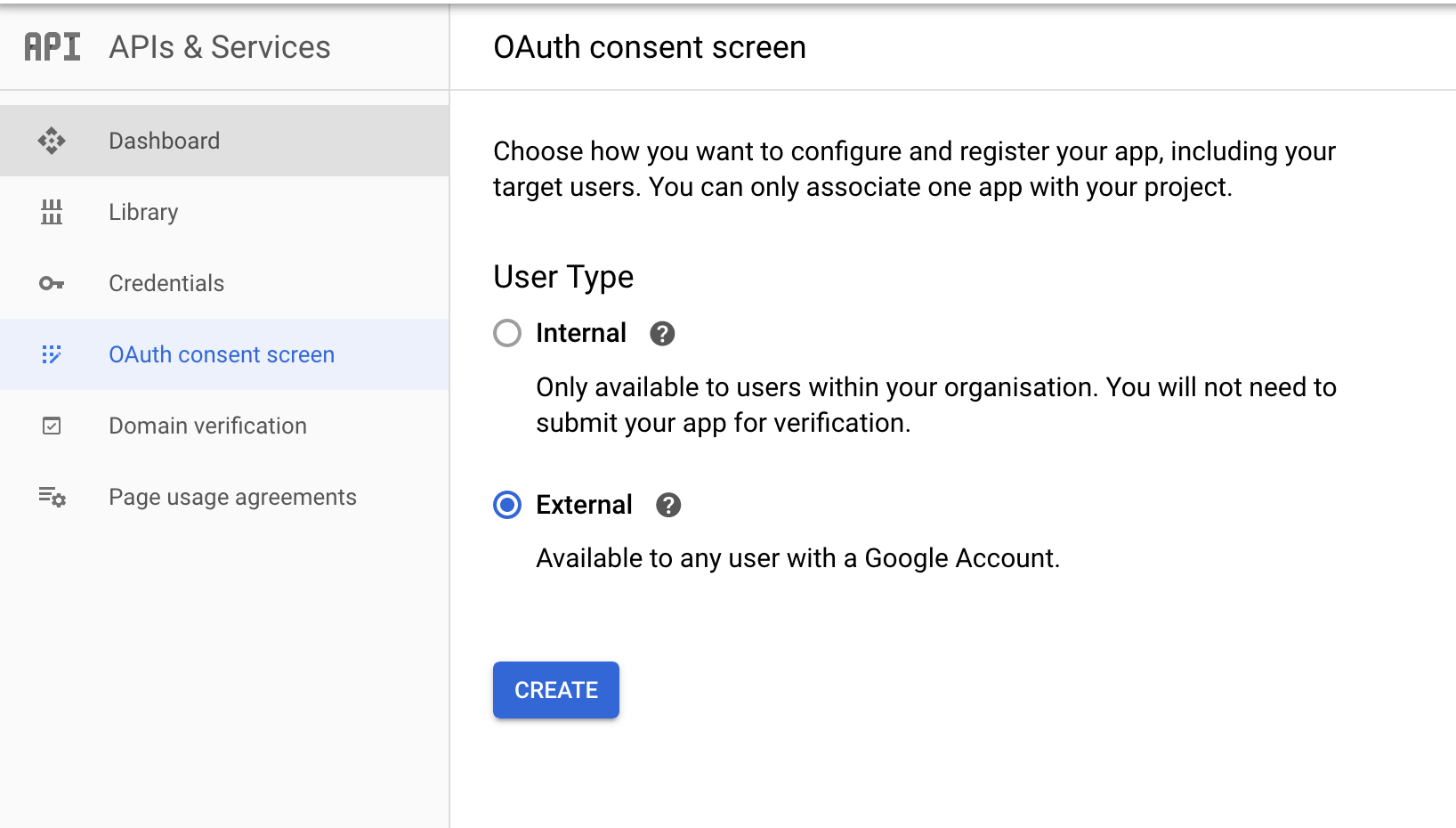
Select the OAuth consent screen tab in the Google Cloud Platform console.
-
Provide a name for the consent application and save your changes.
Step 4: Create an OAuth client
-
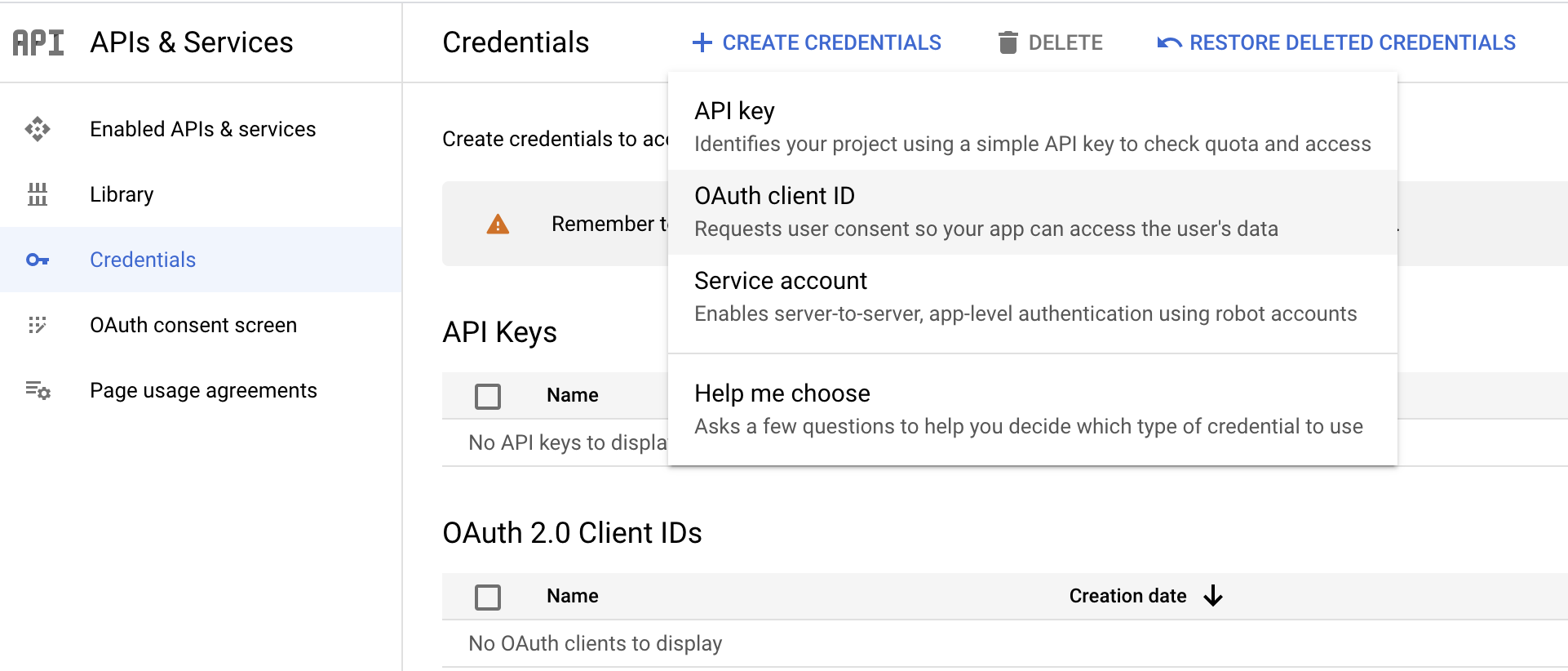
Navigate to the Credentials tab and select Create credentials → OAuth client ID.
-
Fill in the following fields and select Create:
Field Value Application type Web Application Name GmailConnector Authorized redirect URIs https://developers.google.com/oauthplayground -
Save the provided Client ID and Client secret.
Step 5: Get the access and refresh tokens
It is recommended to use the OAuth 2.0 playground to obtain the tokens.
-
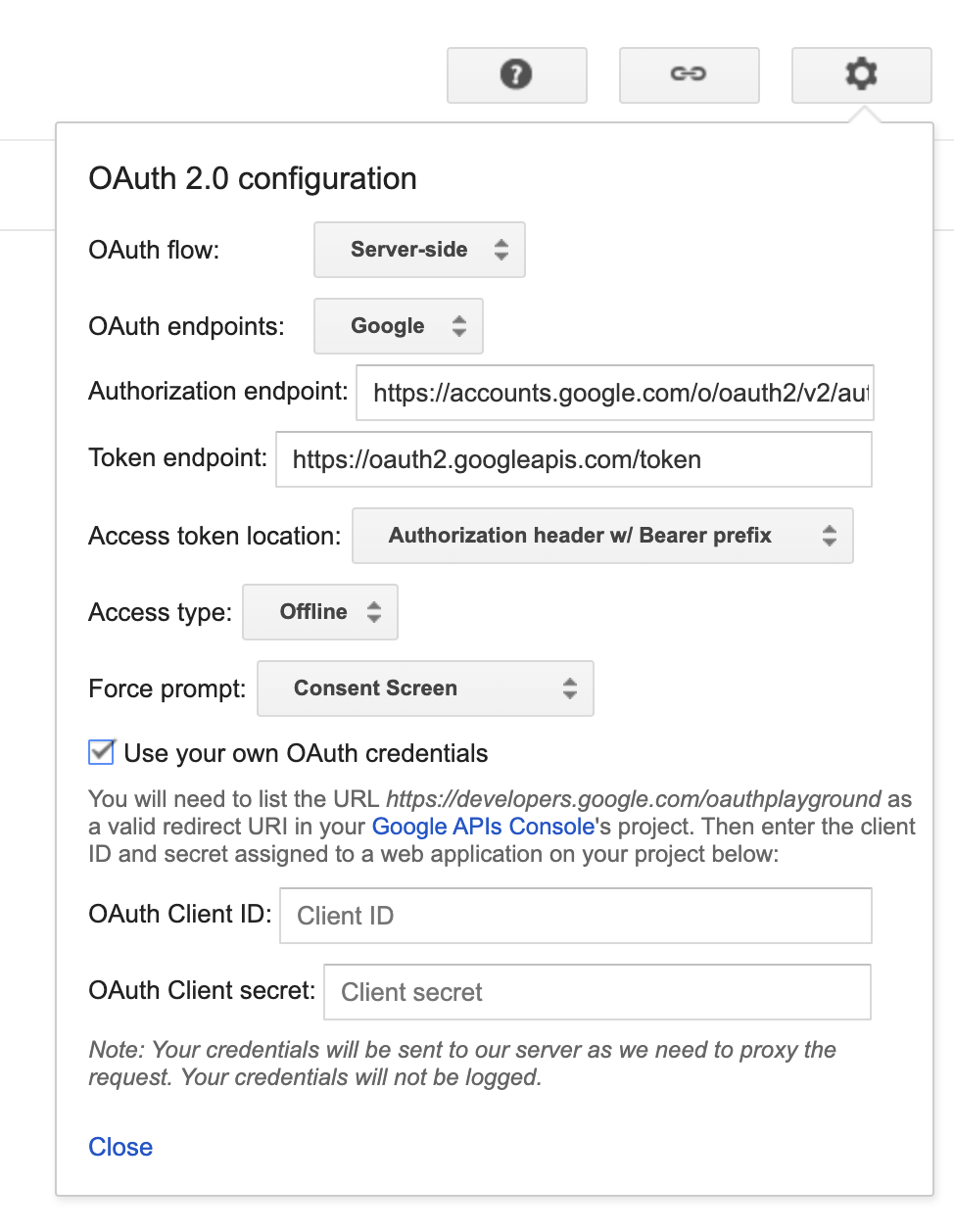
Configure the OAuth 2.0 playground with your client ID and client secret.
-
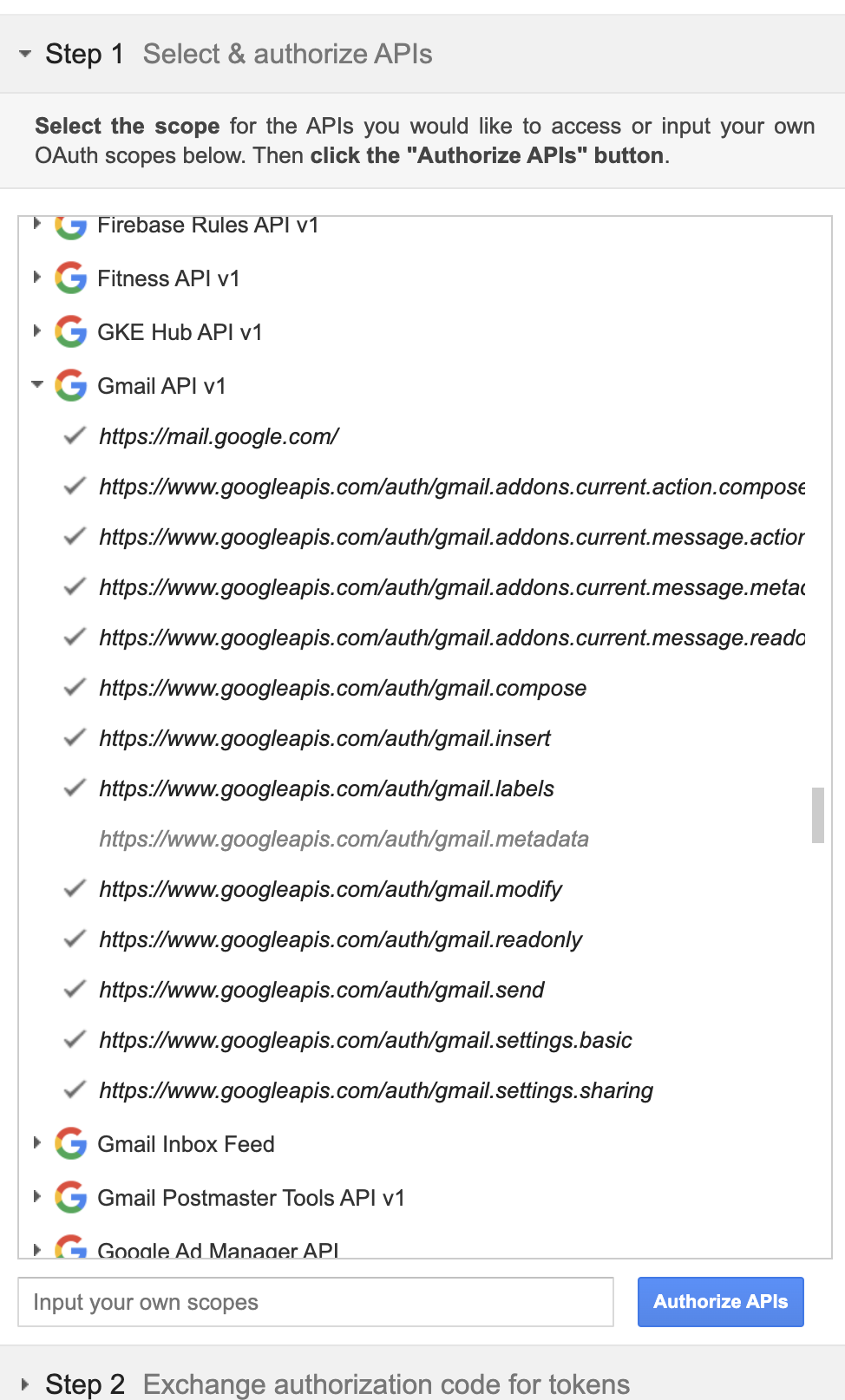
Authorize the Gmail APIs (select all scopes except the metadata scope).
-
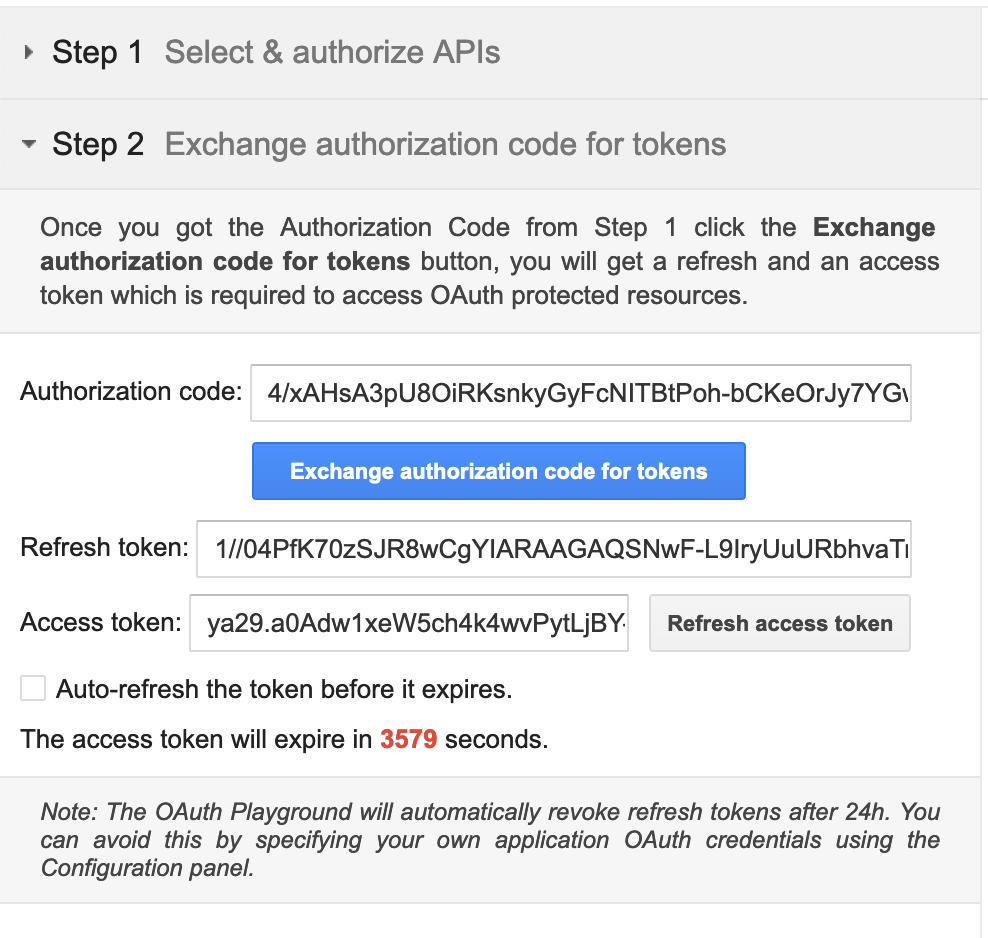
Exchange the authorization code for tokens.