Example
What you'll build
Build a low-code integration in WSO2 Integrator that sends an email using the ballerinax/googleapis.gmail connector. The integration creates a gmailClient connection whose OAuth2 credentials are stored as configurable variables, then calls the sendMessage operation to dispatch an email.
Operations used:
- sendMessage : Sends an email to the recipients specified in the
To,Cc, andBccheaders using the authenticated user's Gmail account.
Architecture
Prerequisites
- A Google Cloud project with the Gmail API enabled
- OAuth2 credentials (Client ID, Client Secret, Refresh Token, and Refresh URL) obtained from the Google OAuth2 playground
Setting up the Gmail integration
New to WSO2 Integrator? Follow the Create a New Integration guide to set up your integration first, then return here to add the connector.
Adding the Gmail connector
Select + Add Connection (or the + icon next to Connections in the sidebar) to open the connector palette.
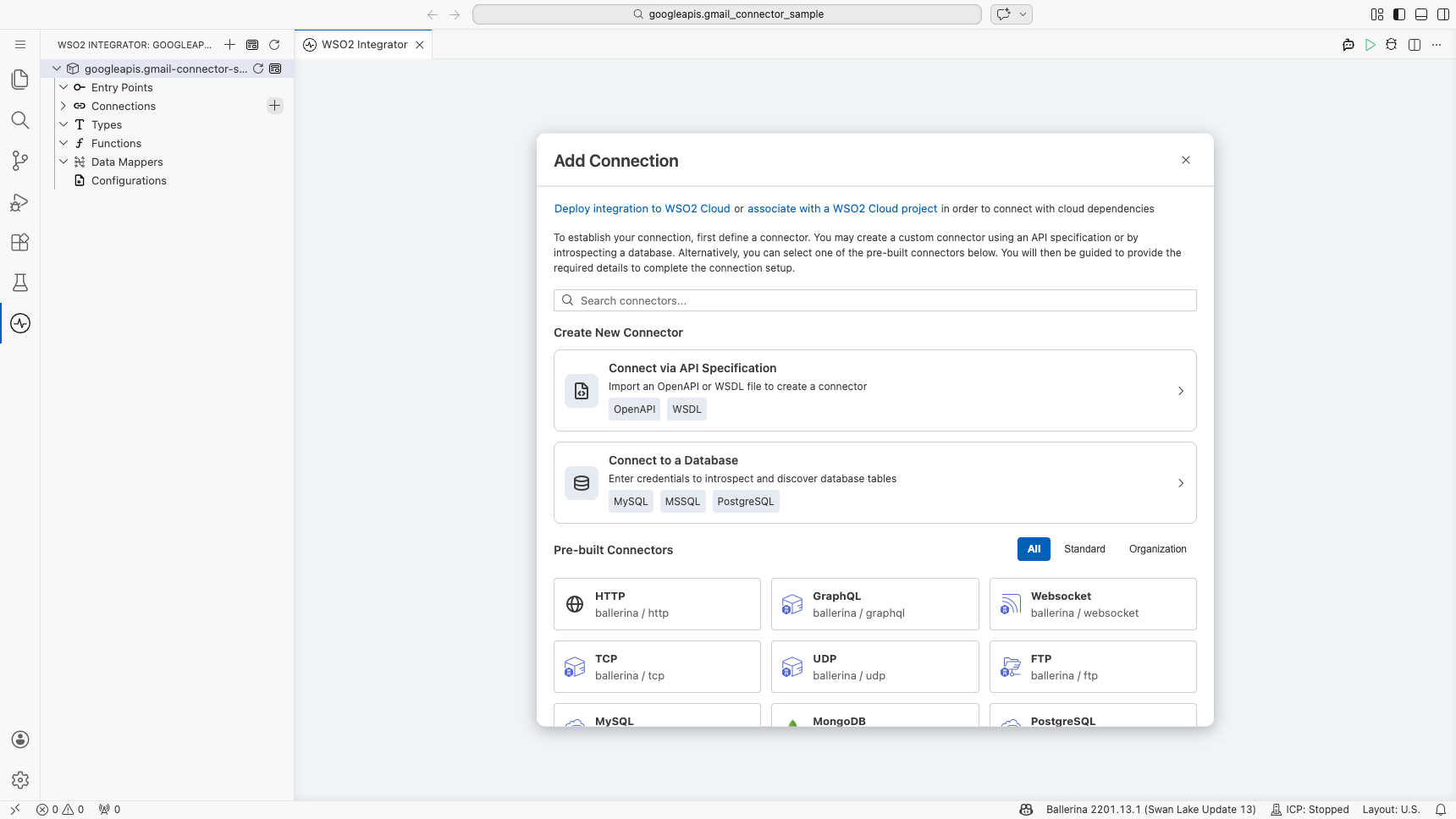
Step 1: Search for and select the Gmail connector
- Enter
gmailin the search box. - Select
ballerinax/googleapis.gmailfrom the search results.
Configuring the Gmail connection
Step 2: Fill in the connection parameters
After selecting the connector, a New Connection form appears. Select the Config expression field to open the Record Configuration panel. Under the auth sub-field, choose OAuth2RefreshTokenGrantConfig from the dropdown, then enable the optional refreshUrl checkbox so all four OAuth2 fields are included. Bind each field to a configurable variable as listed below:
- refreshUrl : The OAuth2 token refresh endpoint URL
- refreshToken : The OAuth2 refresh token for the Gmail account
- clientId : The OAuth2 client ID from your Google Cloud project
- clientSecret : The OAuth2 client secret from your Google Cloud project
- Connection Name : Set to
gmailClient
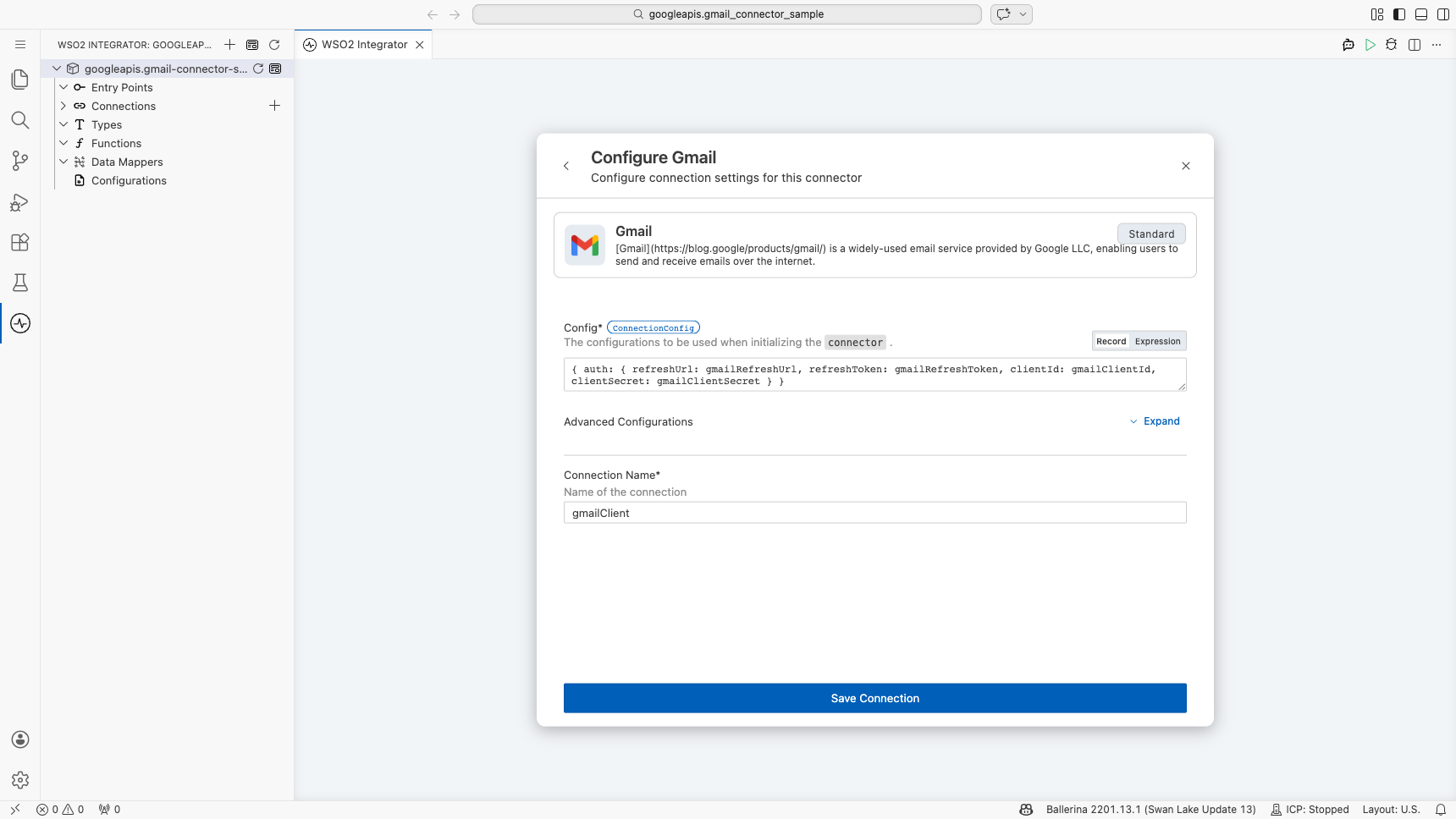
Step 3: Save the connection
Select Save to persist the connection. The Connections section in the sidebar now lists gmailClient.
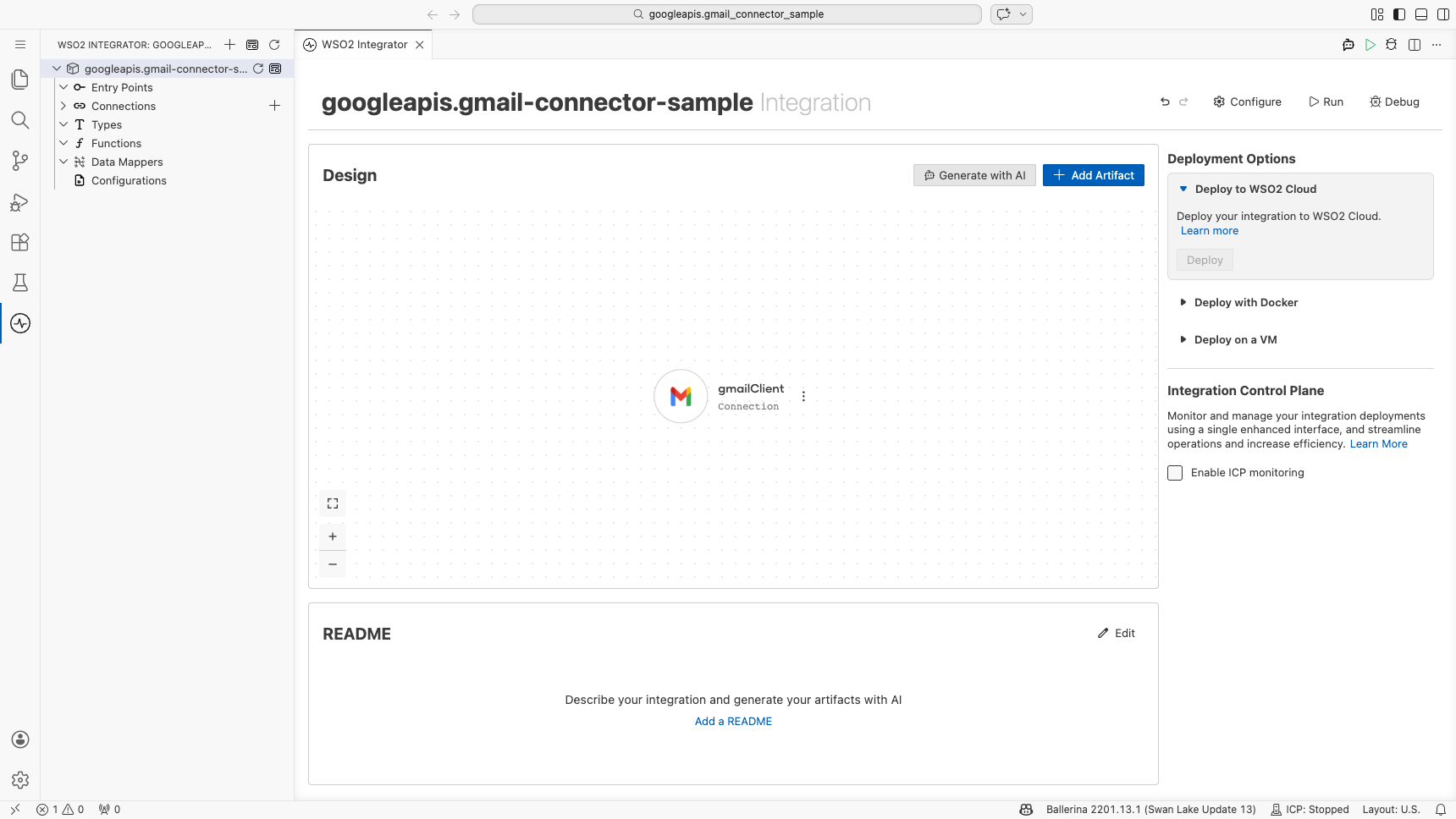
Note: The status bar may show "Errors: 1" at this stage. This is expected: the four configurable variables (
gmailClientId,gmailClientSecret,gmailRefreshToken,gmailRefreshUrl) are referenced but not yet declared. They're resolved after you add them in the next step.
Step 4: Set actual values for your configurables
- In the left panel, select Configurations.
- Set a value for each configurable listed below.
- gmailClientId (string) : Your Google Cloud OAuth2 client ID
- gmailClientSecret (string) : Your Google Cloud OAuth2 client secret
- gmailRefreshToken (string) : Your OAuth2 refresh token for the Gmail account
- gmailRefreshUrl (string) : The OAuth2 token refresh endpoint, for example
https://oauth2.googleapis.com/token
Configuring the Gmail sendMessage operation
Step 5: Add an automation entry point
- In the sidebar, hover over Entry Points and select Add Entry Point (+).
- Select Automation from the artifacts panel.
- Select Create.
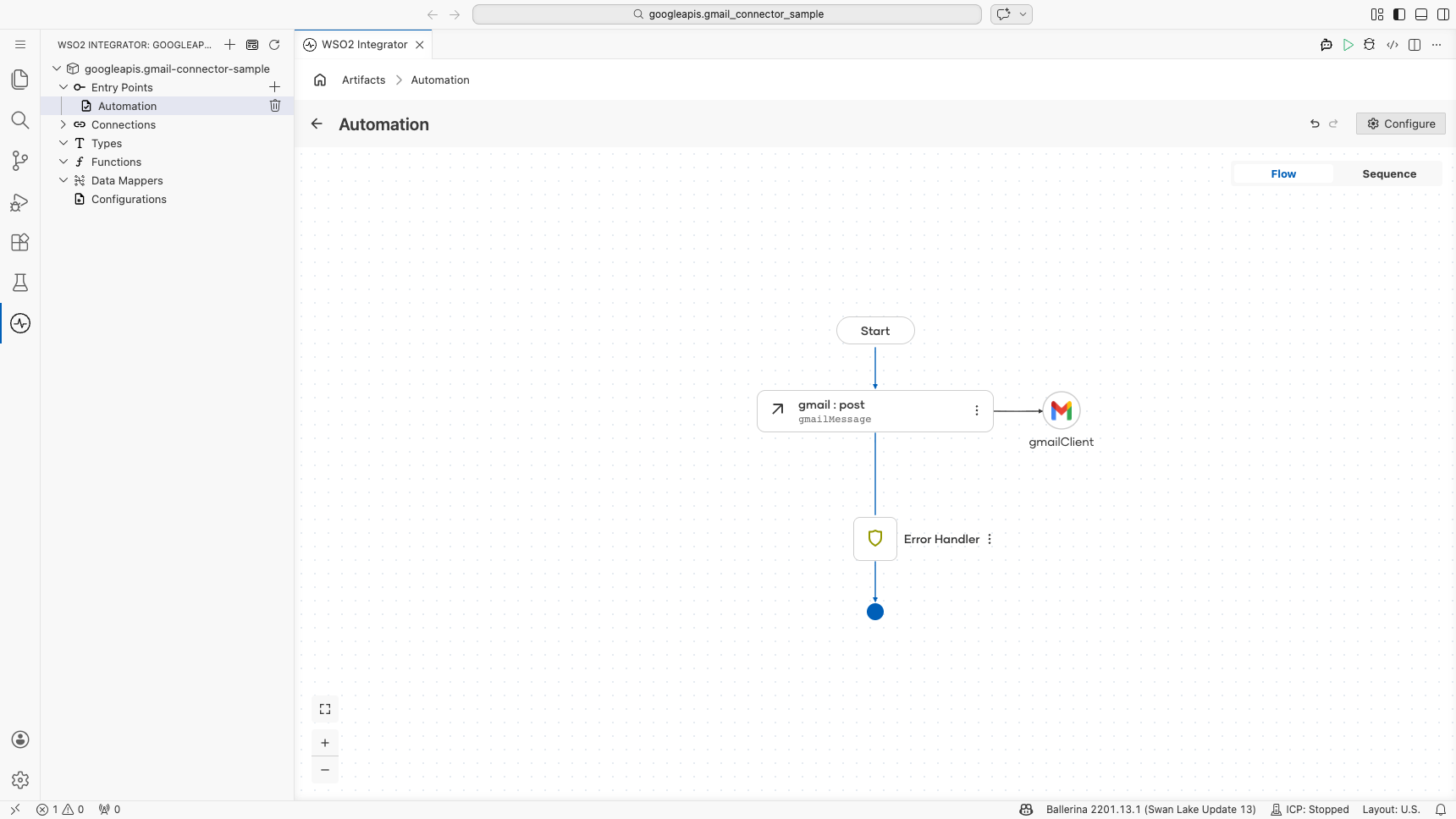
The sidebar now shows main (Automation) under Entry Points, and the flow editor opens showing a Start node followed by an Error Handler node.
Step 6: Select and configure the sendMessage operation
- In the automation flow canvas, select the + (Add Step) button between the Start and Error Handler nodes to open the step-addition panel.
- In the panel, locate the Connections section and select
gmailClientto expand it.
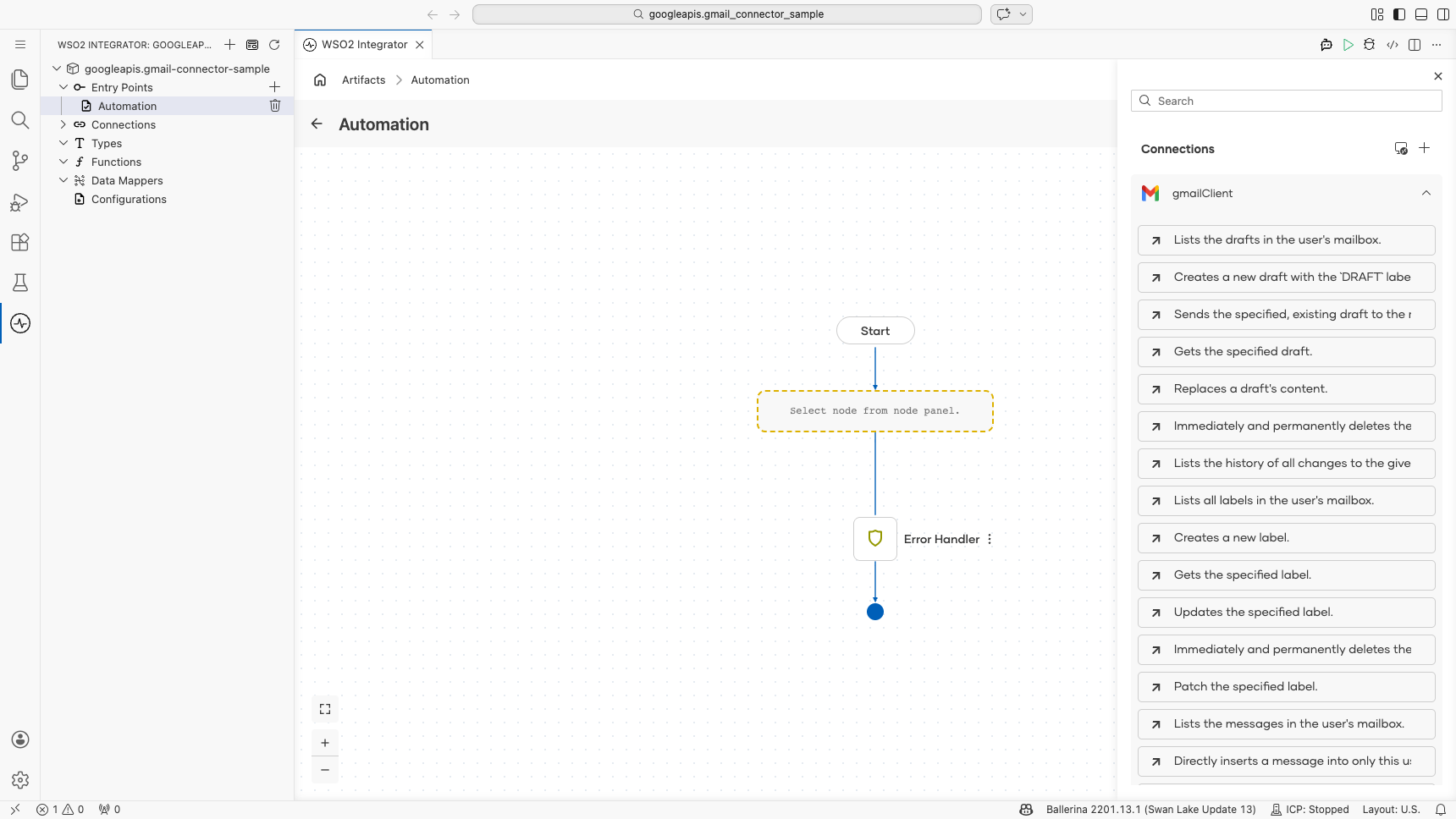
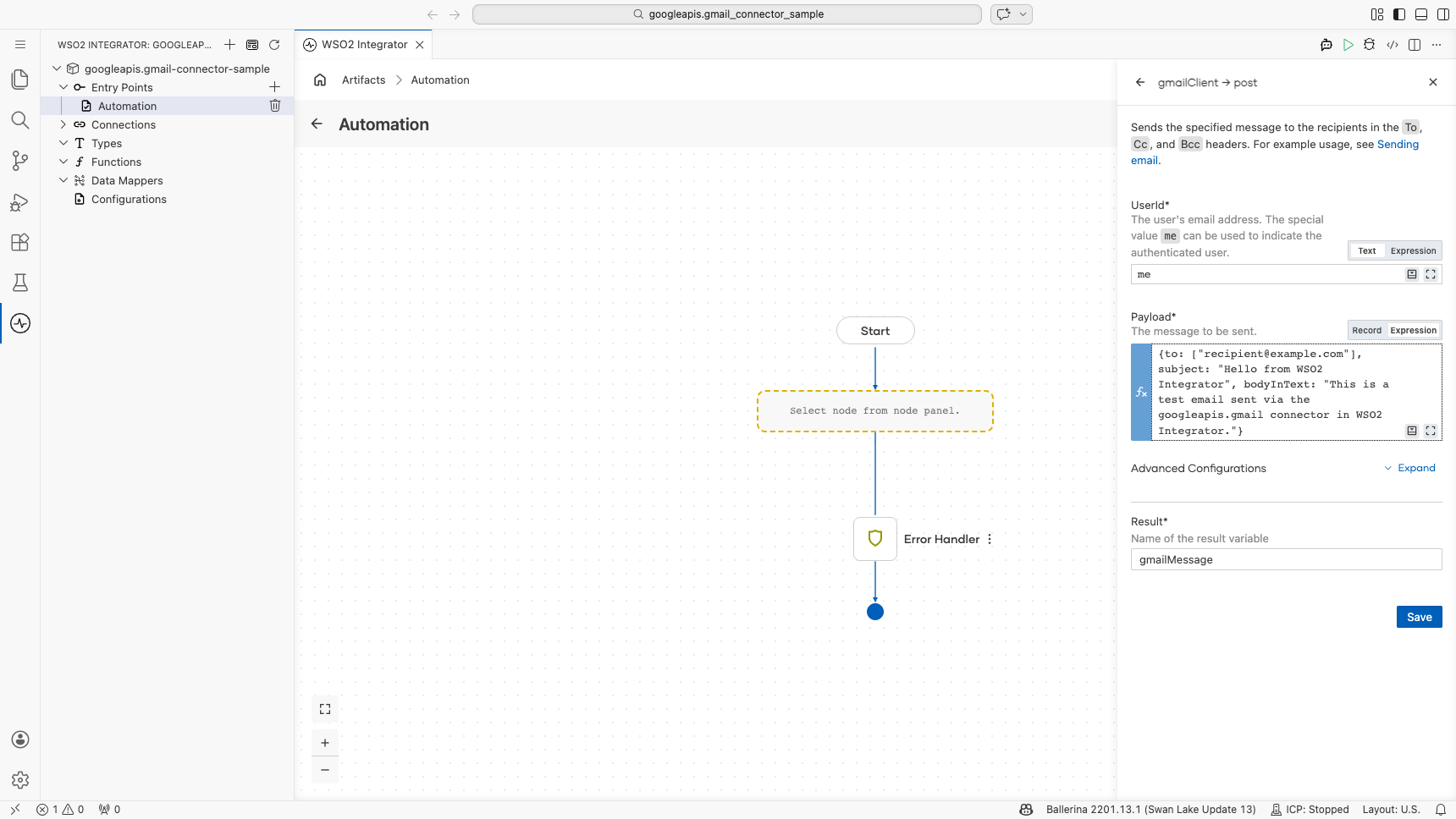
- Select the sendMessage operation-described as "Sends the specified message to the recipients in the
To,Cc, andBccheaders." - Fill in the operation fields as listed below:
- userId : Set to
meto use the authenticated user's Gmail account - Payload : A
gmail:MessageRequestrecord withto(array),subject, andbodyInTextfields specifying the recipient, subject line, and email body - Result : Auto-generated as
gmailMessage
- Select Save to add the step to the flow.
Try it yourself
Try this sample in WSO2 Integration Platform.

More code examples
The gmail connector provides practical examples illustrating usage in various scenarios. Explore these examples, covering use cases like sending emails, retrieving messages, and managing labels.
-
Process customer feedback emails: Manage customer feedback emails by processing unread emails in the inbox, extracting details, and marking them as read.
-
Send maintenance break emails: Send emails for scheduled maintenance breaks
-
Automated Email Responses: Retrieve unread emails from the Inbox and subsequently send personalized responses.
-
Email Thread Search Search for email threads based on a specified query.