Setup Guide
This guide walks you through creating a Zoom app on the Zoom Marketplace and obtaining the OAuth credentials required to use the Zoom Meetings connector.
Step 1: Create a new app
-
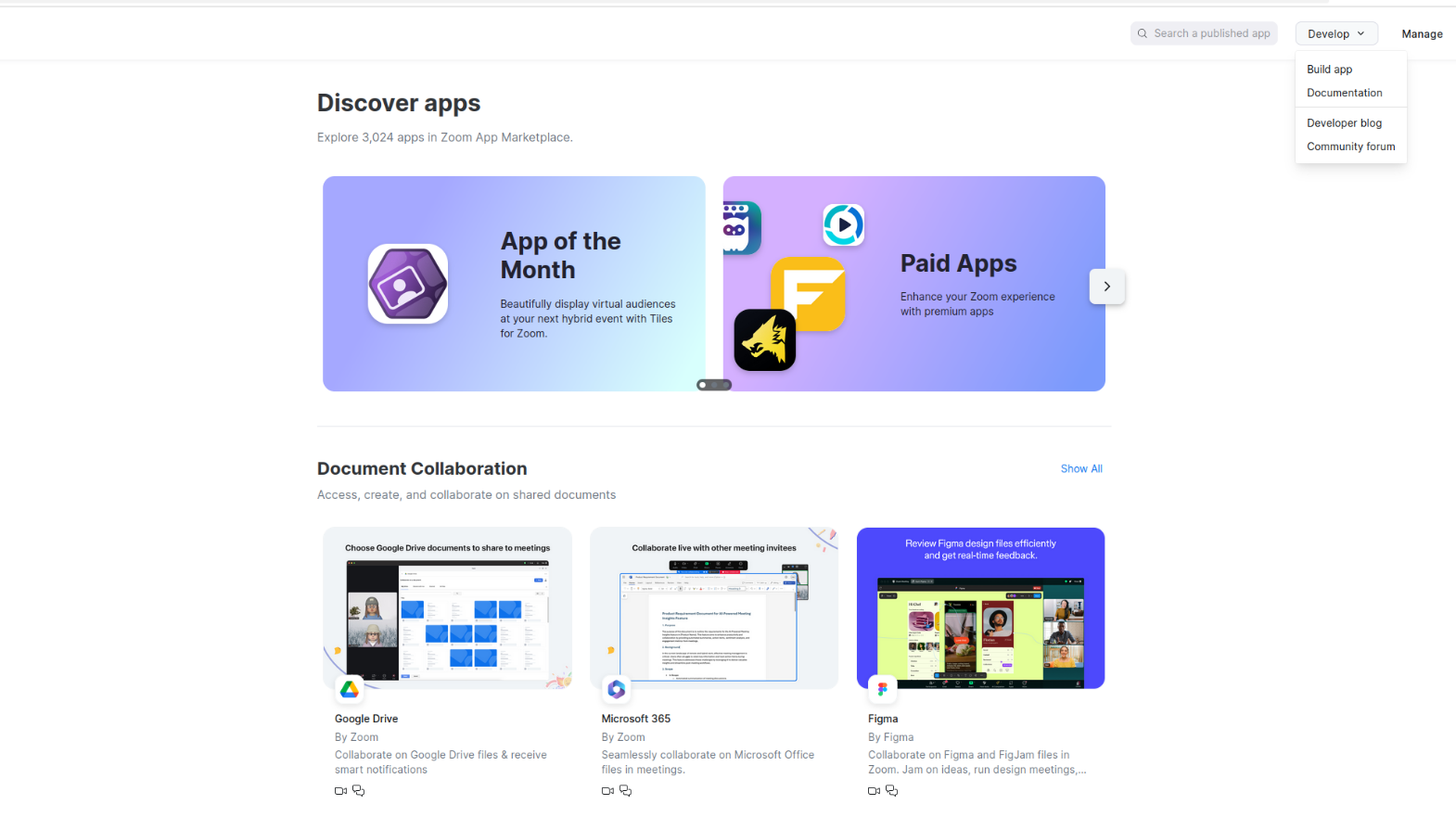
Open the Zoom Marketplace.
-
Select Develop → Build App.
-
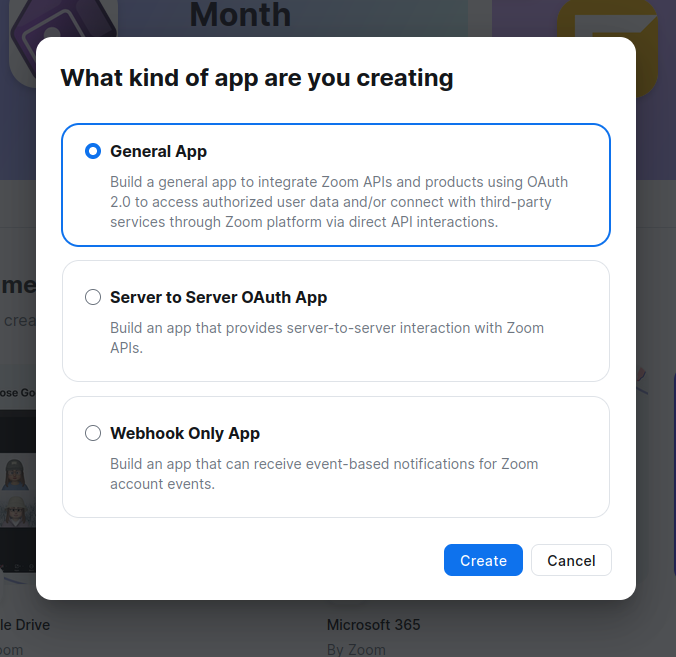
Choose General App as the app type (for user authorization with refresh tokens).
-
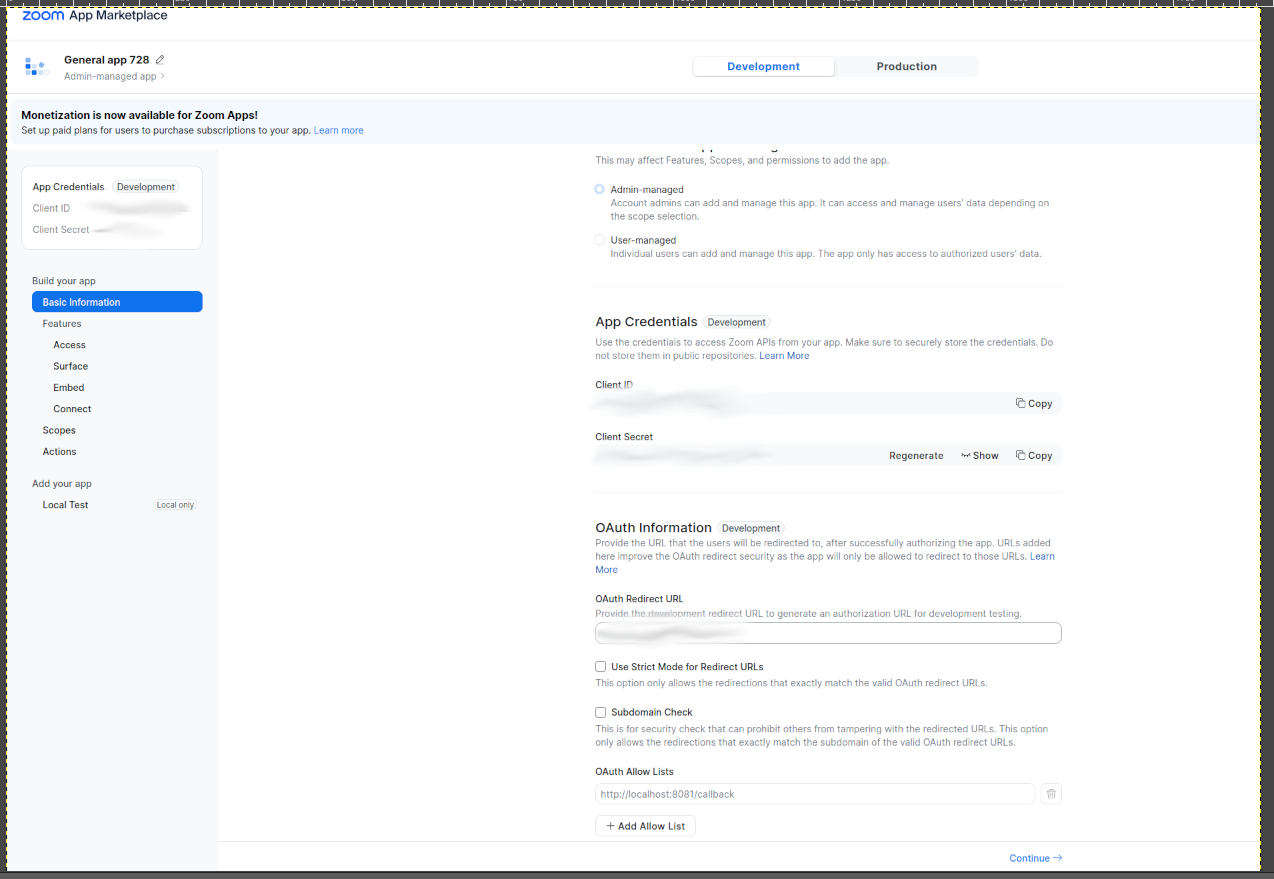
Fill in the basic information and choose the Admin-managed option.
Step 2: Configure OAuth settings
-
In your app's App Credentials tab, note down the Client ID and Client Secret.
-
Under Redirect URL for OAuth, add your application's redirect URI.
-
Navigate to the Scopes section and add the following scopes:
meetings:read,meetings:write, anduser:read.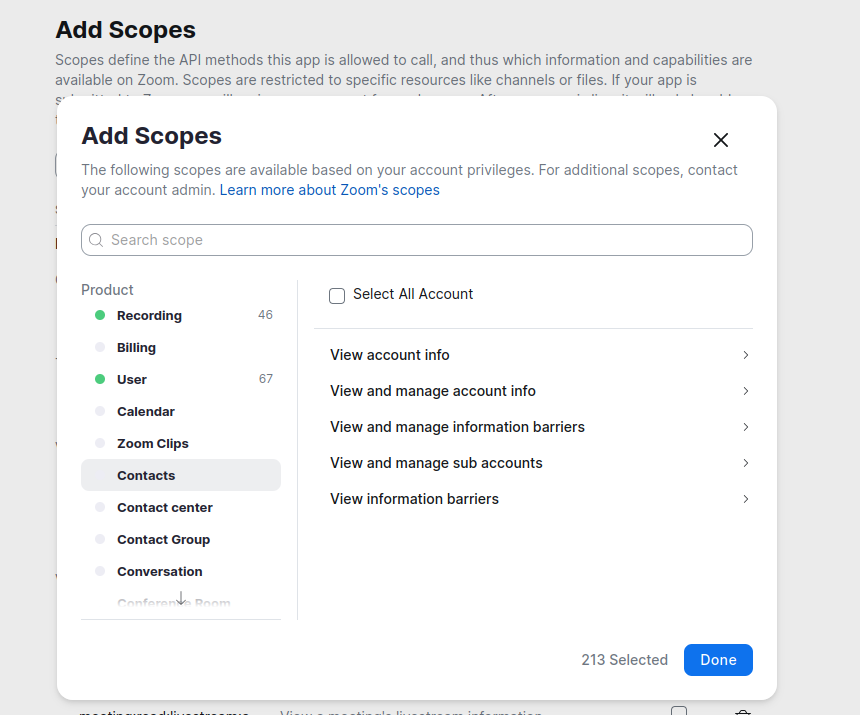
Step 3: Activate the app
Complete all required information fields. The app activates automatically once all fields are correctly filled.
Step 4: Get user authorization
-
Construct the authorization URL (replace
YOUR_CLIENT_IDandYOUR_REDIRECT_URI):https://zoom.us/oauth/authorize?response_type=code&client_id=YOUR_CLIENT_ID&redirect_uri=YOUR_REDIRECT_URI&scope=meetings:read meetings:write user:read -
Open the URL in a browser and authorize the app. Zoom redirects to your callback URL with an authorization code.
-
Exchange the authorization code for tokens:
curl -X POST https://zoom.us/oauth/token \
  -H "Authorization: Basic $(echo -n 'CLIENT_ID:CLIENT_SECRET' | base64)" \
  -d "grant_type=authorization_code&code=AUTHORIZATION_CODE&redirect_uri=YOUR_REDIRECT_URI"
The response includes both
access_tokenandrefresh_token.
Step 5: Verify your setup
curl -X GET "https://api.zoom.us/v2/users/me" \
  -H "Authorization: Bearer YOUR_ACCESS_TOKEN"
This returns the user ID needed for API calls.