Example
What you'll build
Build a WSO2 Integrator automation that authenticates with Zoom via OAuth2 and retrieves all booking schedules for the authenticated user. The integration uses the Zoom Scheduler connector to call the List schedules operation and stores the paginated response for further processing.
Operations used:
- List schedules : Retrieves all booking schedules for the authenticated Zoom user
Architecture
Prerequisites
- Zoom OAuth2 credentials:
clientId,clientSecret,refreshToken, andrefreshUrlfrom a Zoom OAuth app
Setting up the Zoom scheduler integration
New to WSO2 Integrator? Follow the Create a New Integration guide to set up your integration first, then return here to add the connector.
Adding the Zoom scheduler connector
Step 1: Open the add connection palette
In the project tree, expand your project and select the + icon next to Connections to open the Add Connection palette.
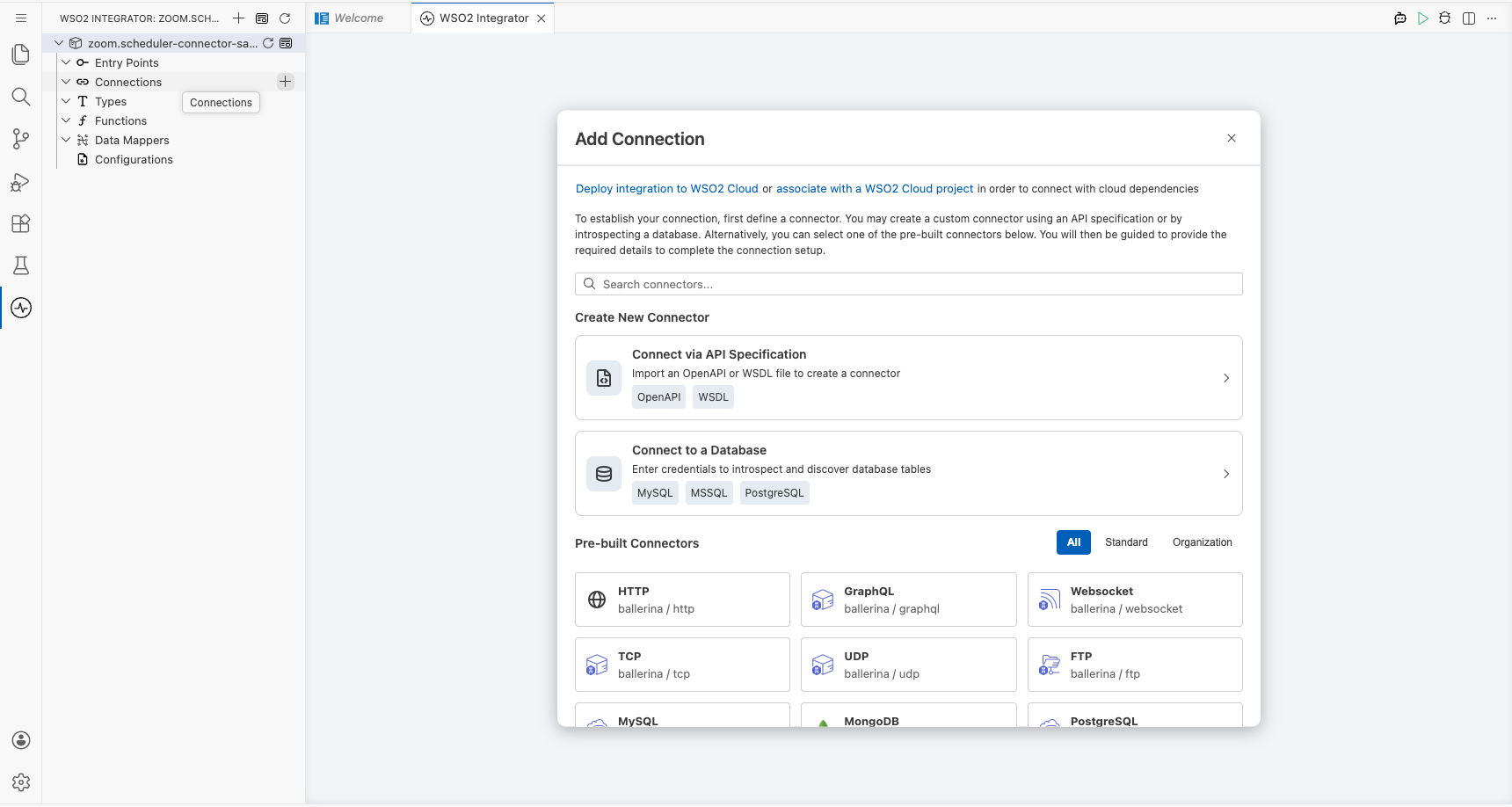
Configuring the Zoom scheduler connection
Step 2: Fill in the connection parameters
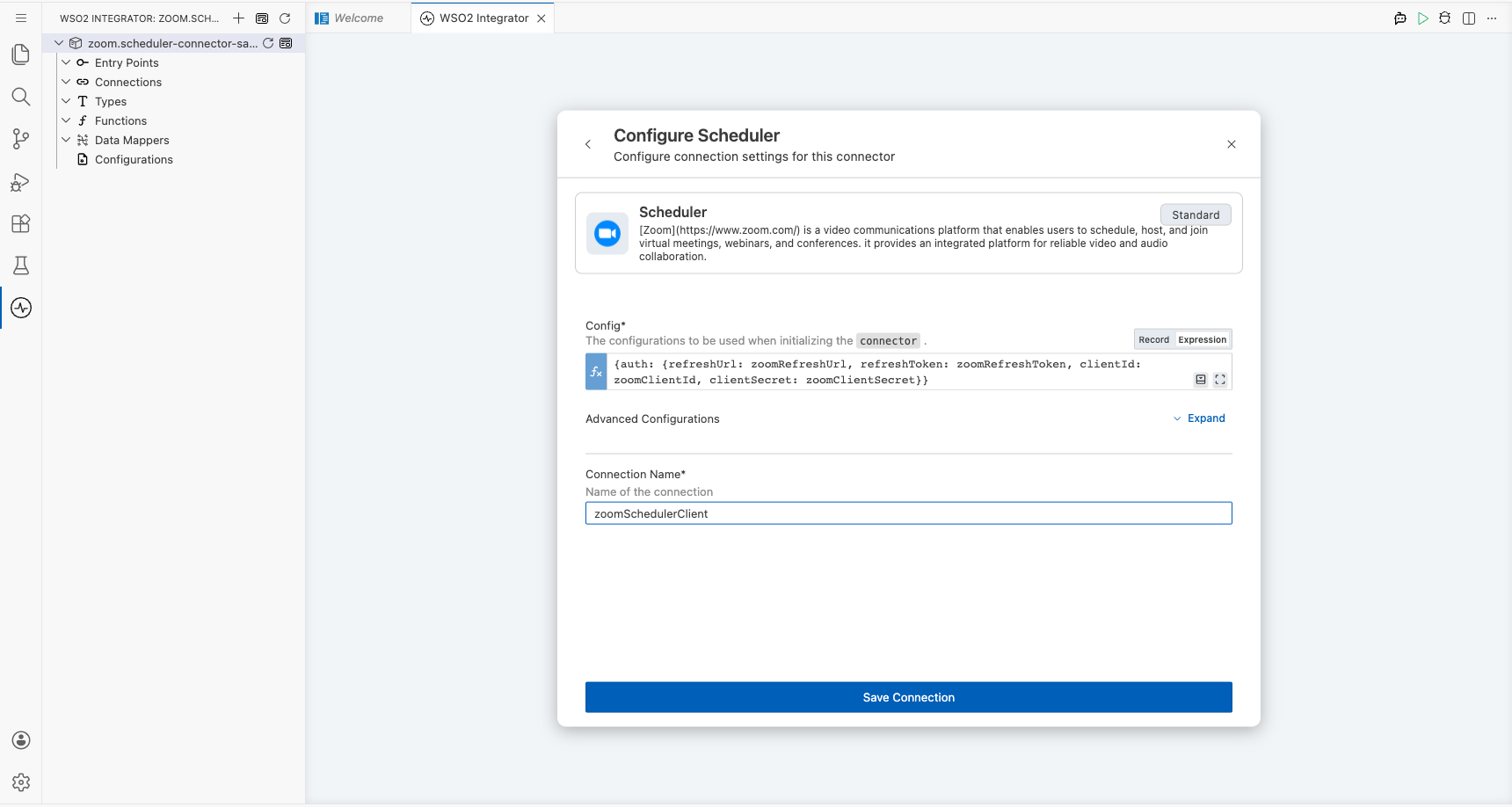
Search for zoom in the palette, then select Scheduler to open the Configure Scheduler form. Toggle the Config field to Expression mode and enter the OAuth2 record expression. Set the following parameters, each bound to a configurable variable:
- auth.refreshUrl : Zoom OAuth2 token refresh URL
- auth.refreshToken : OAuth2 refresh token for the Zoom account
- auth.clientId : OAuth2 client ID from the Zoom app
- auth.clientSecret : OAuth2 client secret from the Zoom app
- connectionName : Set to
zoomSchedulerClient
Note: The Config field must be in Expression mode-not Record mode-when entering the
{auth: {...}}record constructor. Record mode wraps the value in string quotes, causing a type mismatch error.
Step 3: Save the connection
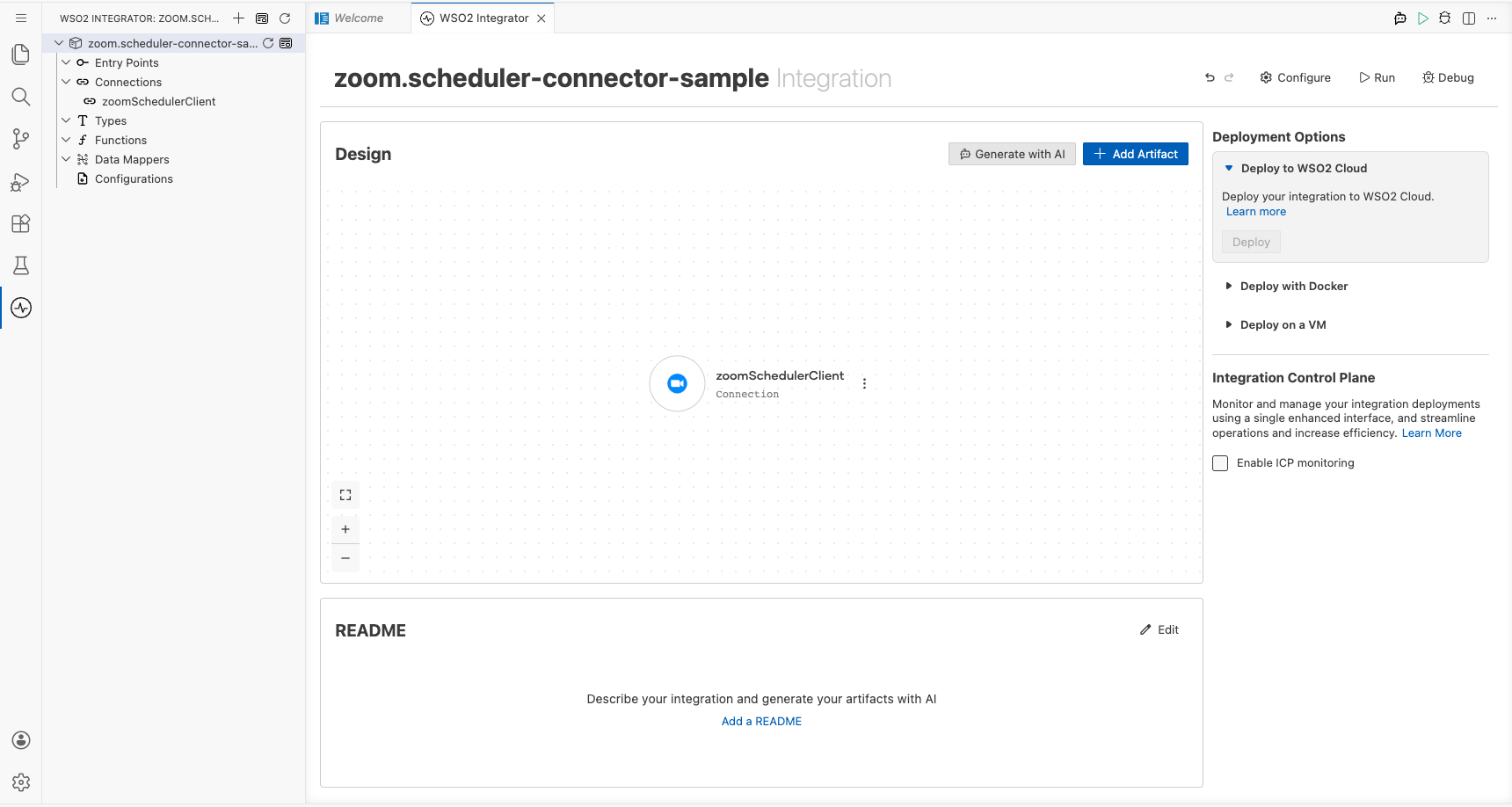
Select Save Connection to persist the configuration. The designer returns to the main canvas and displays the zoomSchedulerClient connection node. Confirm the entry appears under Connections in the project tree.
Step 4: Set actual values for your configurables
- In the left panel, select Configurations.
- Set a value for each configurable listed below.
- zoomRefreshUrl (string) : The Zoom OAuth2 token endpoint, e.g.,
https://zoom.us/oauth/token - zoomRefreshToken (string) : Your Zoom OAuth2 refresh token
- zoomClientId (string) : Your Zoom OAuth2 client ID
- zoomClientSecret (string) : Your Zoom OAuth2 client secret
Configuring the Zoom scheduler list schedules operation
Step 5: Add and configure the list schedules operation
- Under Entry Points, select main (or create a new Automation via Add Artifact → Automation).
- On the canvas, expand the Connections section in the node panel and select zoomSchedulerClient to reveal the available operations.
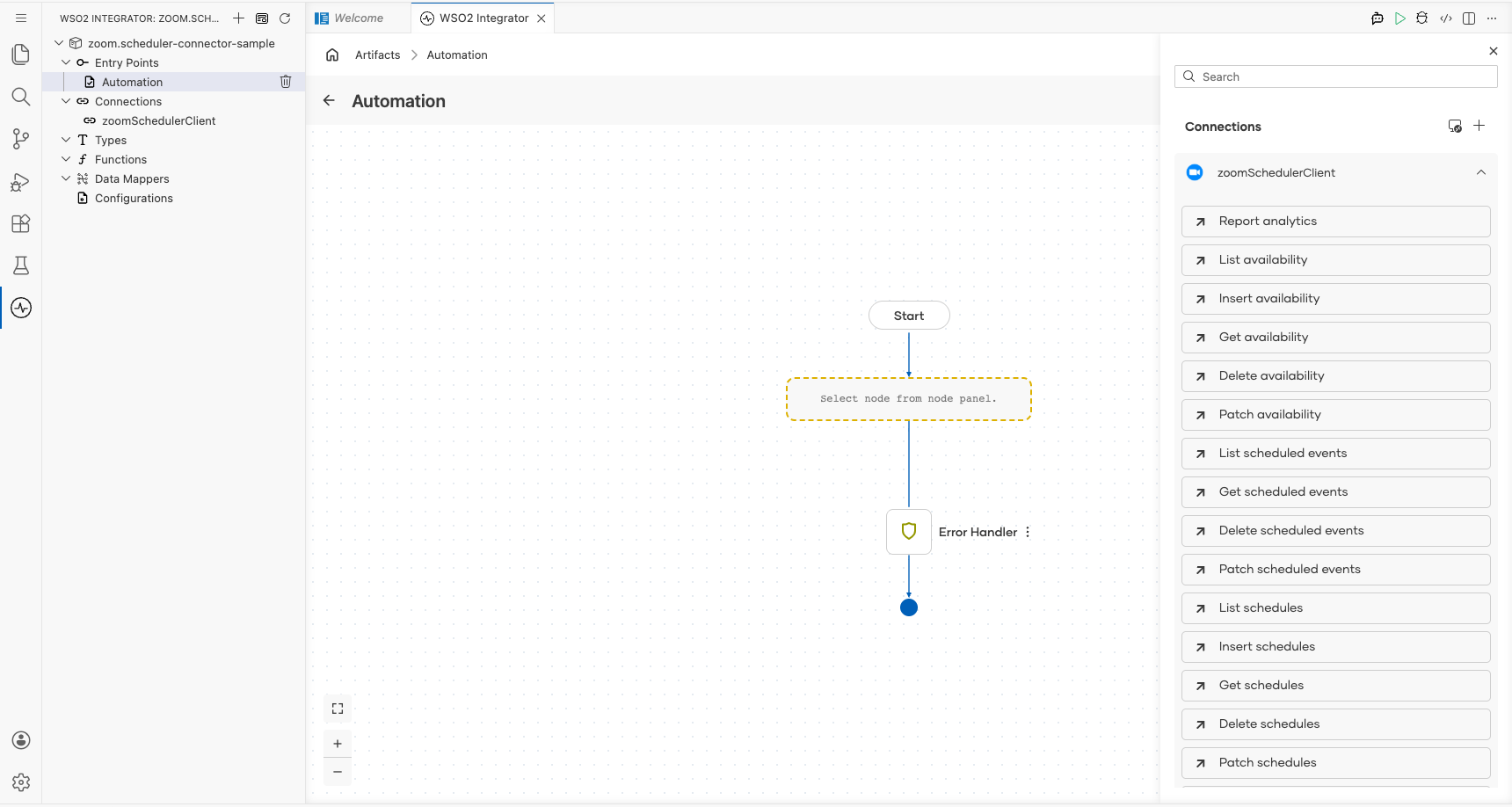
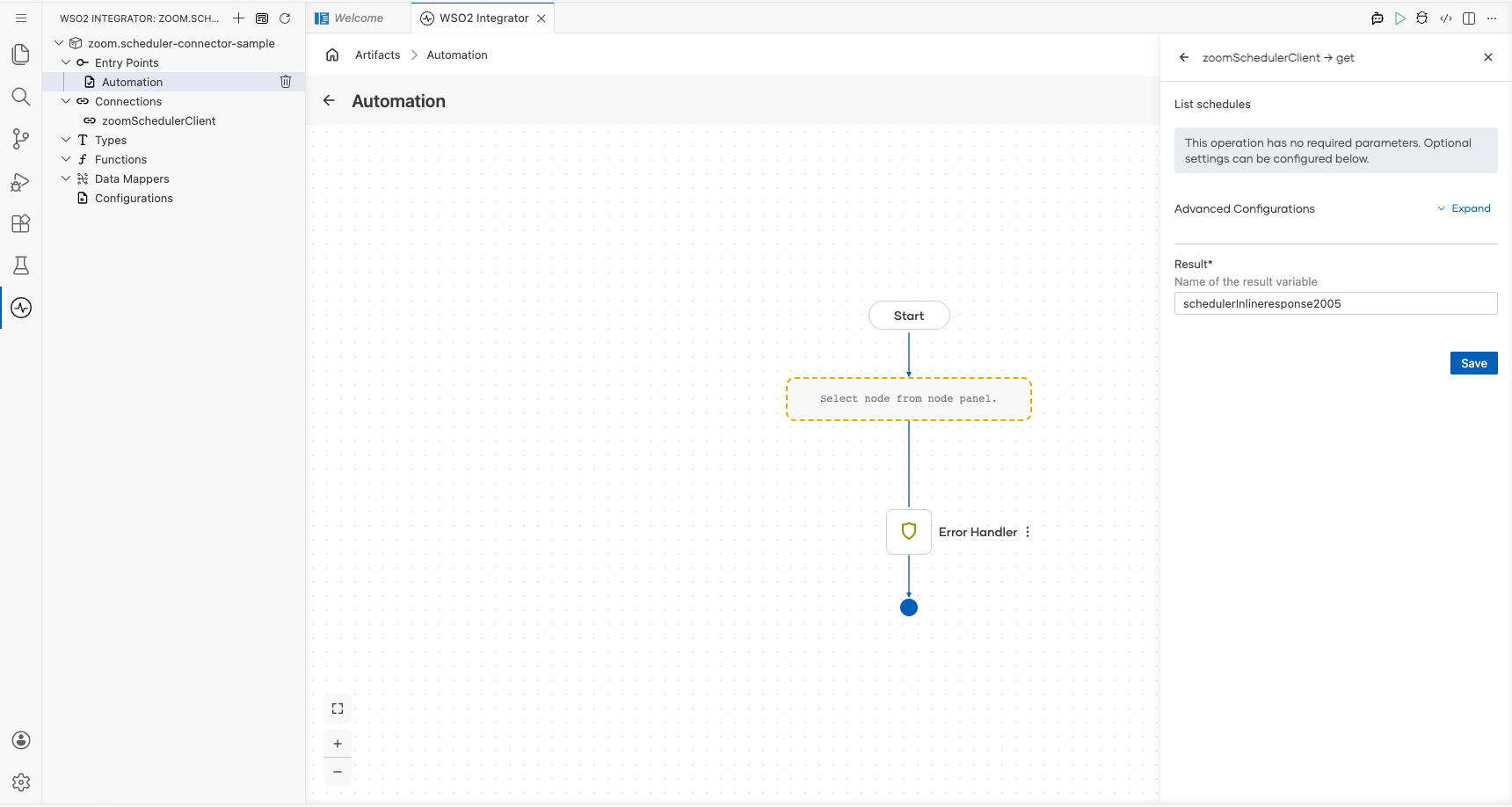
Select List schedules from the operations panel. The configuration form opens with no required parameters. The Result field is pre-filled with schedulerInlineresponse2005, which will hold the paginated list of Zoom booking schedules returned by the API. Select Save to insert the operation into the automation flow.
- result : Variable name that stores the list of booking schedules returned by the API
Try it yourself
Try this sample in WSO2 Integration Platform.

More code examples
The Zoom Scheduler connector provides practical examples illustrating usage in various scenarios. Explore these examples, covering the following use cases:
-
Meeting Scheduler - Create scheduled meetings, generate single-use scheduling links, and manage team meeting schedules with automated booking capabilities.
-
Availability Manager - Configure availability schedules, analyze scheduler analytics, and manage working hours for different time zones and business requirements.