Example
What you'll build
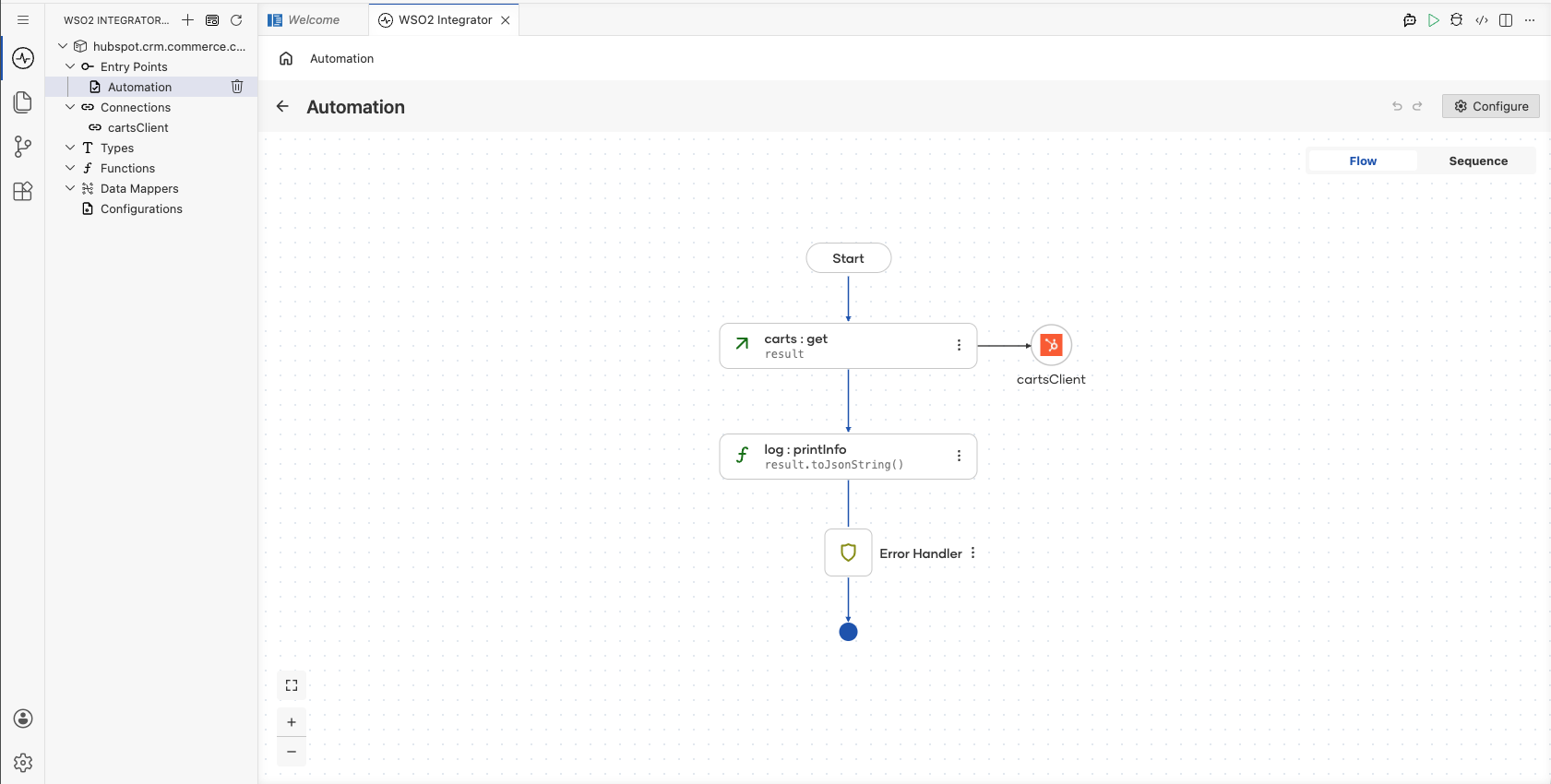
This integration demonstrates how to connect WSO2 Integrator to HubSpot's CRM Commerce Carts API using the ballerinax/hubspot.crm.commerce.carts connector. The workflow uses an Automation entry point to invoke the get operation on the HubSpot Carts API, retrieving cart records with a configurable limit. The complete flow runs as a automation on the WSO2 Integrator canvas, with the connector node, operation step all connected end-to-end.
Operations used:
- get : Lists all cart objects from the HubSpot CRM Commerce Carts API, returning a paginated collection of cart records with their associated properties.
Architecture
Prerequisites
- A HubSpot developer account with API access enabled and a valid private app token or OAuth credentials for the CRM Commerce Carts API.
- The HubSpot CRM Commerce Carts API base URL (typically
https://api.hubapi.com).
Setting up the HubSpot CRM Commerce Carts integration
New to WSO2 Integrator? Follow the Create a New Integration guide to set up your integration first, then return here to add the connector.
Adding the HubSpot CRM Commerce Carts connector
Step 1: Open the connector palette
Select the Add Connection button (or the + icon next to the Connections label on the canvas) to open the connector search palette.
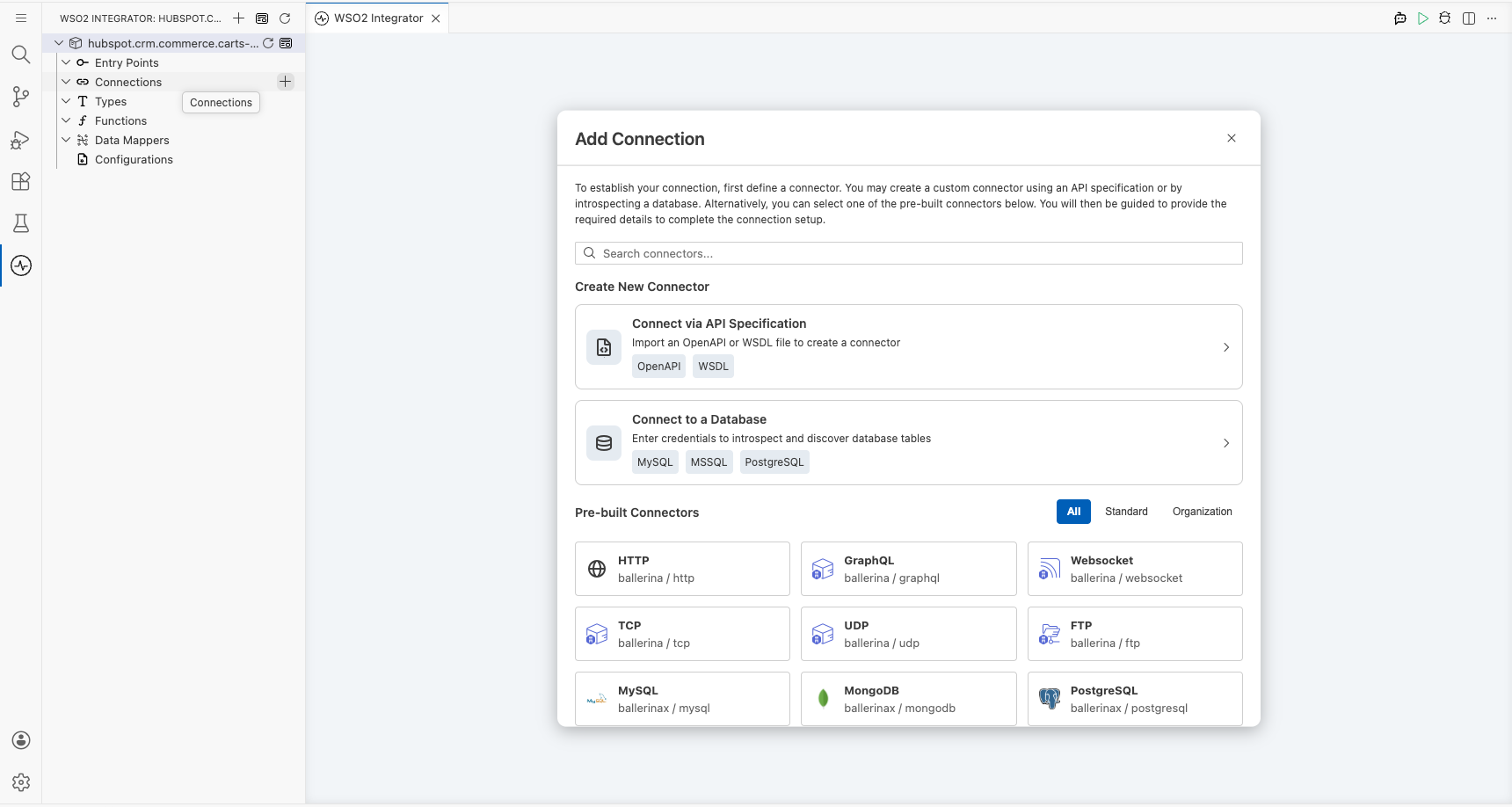
Step 2: Search for the HubSpot CRM Commerce Carts connector
Enter hubspot.crm.commerce.carts in the search box and select the ballerinax/hubspot.crm.commerce.carts connector card when it appears in the results.
Configuring the HubSpot CRM Commerce Carts connection
Step 3: Bind connection parameters to configurables
For each field shown in the Configure HubSpot CRM Commerce Carts form, navigate to the Configurables tab, create a new configurable with a descriptive camelCase name, and save to auto-inject it into the field.
- Config : The connection configuration record containing the authentication credentials, using a configurable variable for the HubSpot private app token.
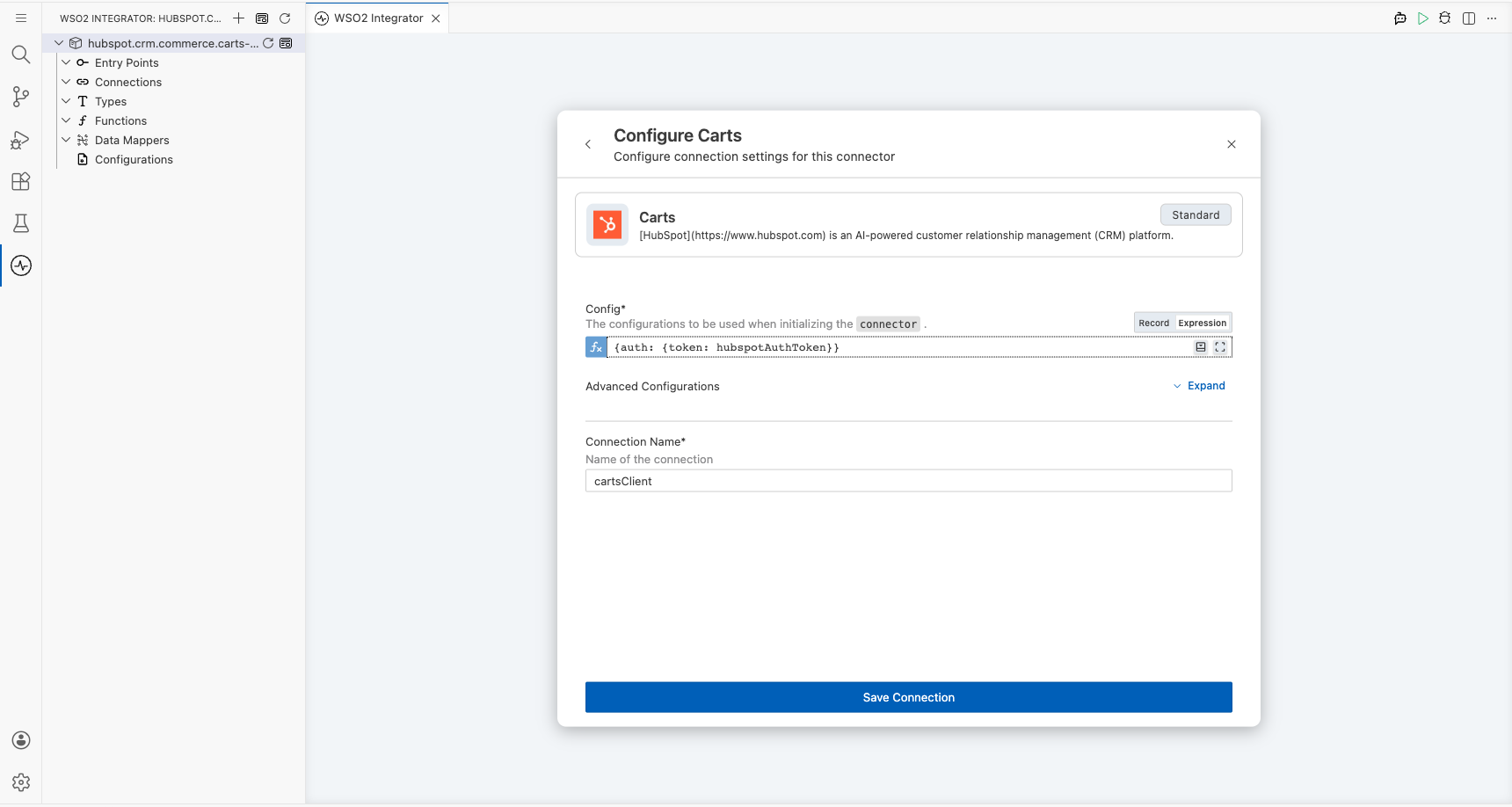
Step 4: Save the connection
Select Save to persist the HubSpot CRM Commerce Carts connection. The connector node named cartsClient appears on the integration design canvas under Connections.
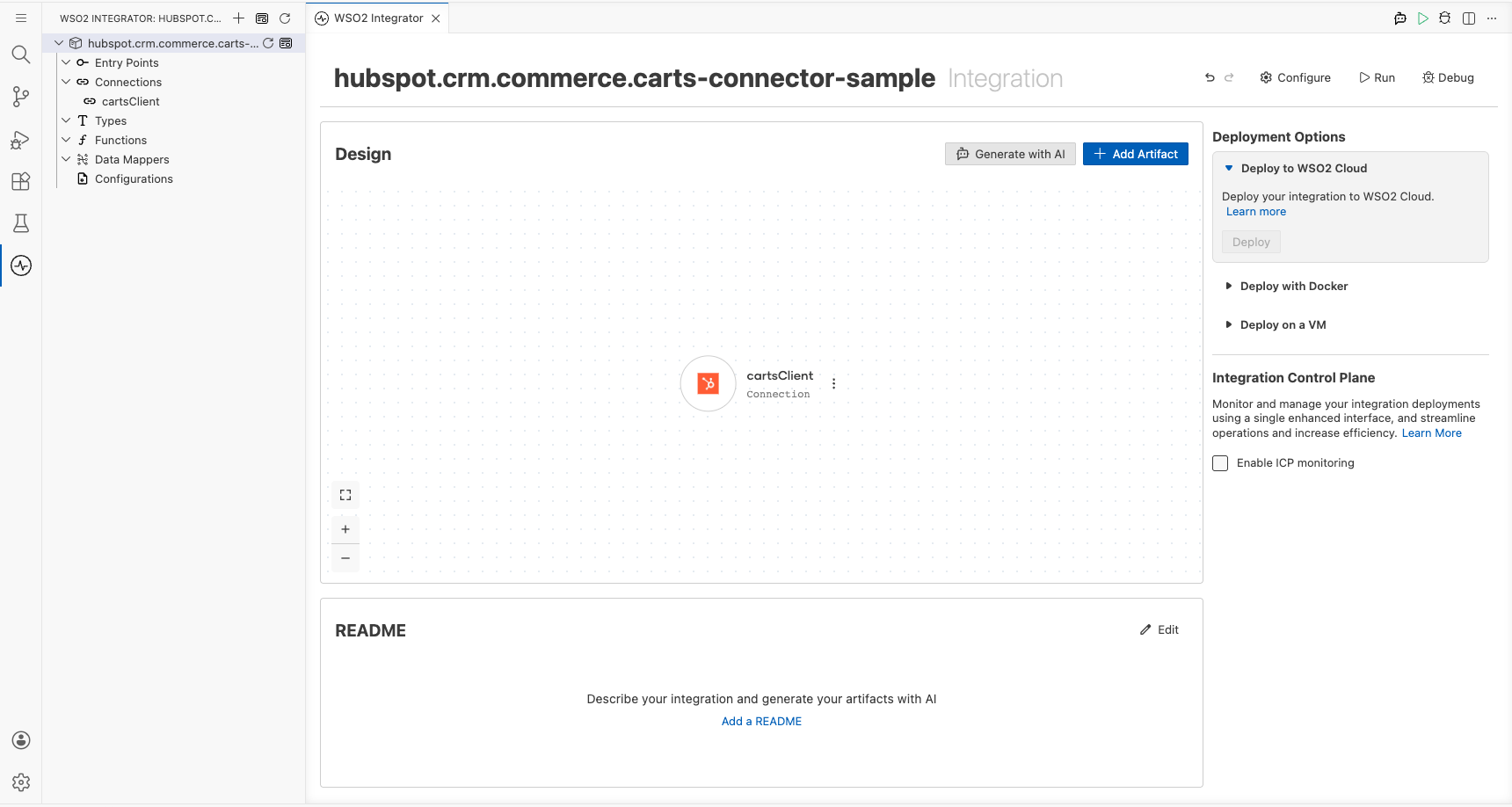
Step 5: Set actual values for your configurables
In the left panel of WSO2 Integrator, select Configurations (listed at the bottom of the project tree, under Data Mappers) to open the Configurations panel, then set a value for each configurable:
- hubspotAuthToken (string) : Your HubSpot private app token with CRM Commerce Carts API access permissions.
Configuring the HubSpot CRM Commerce Carts get operation
Step 6: Add an automation entry point
- In the left sidebar, hover over Entry Points and select Add Entry Point (or select + Add Automation on the canvas).
- Select Automation in the artifact selection panel.
- Accept the default trigger settings and select Create to add the automation to the canvas.
Step 7: Select and configure the get operation
- Inside the automation body, select the + (Add Step) button on the edge between the Start node and the Error Handler node.
- Under Connections in the node panel, select the HubSpot CRM Commerce Carts connection node (
cartsClient) to expand it and reveal all available operations.
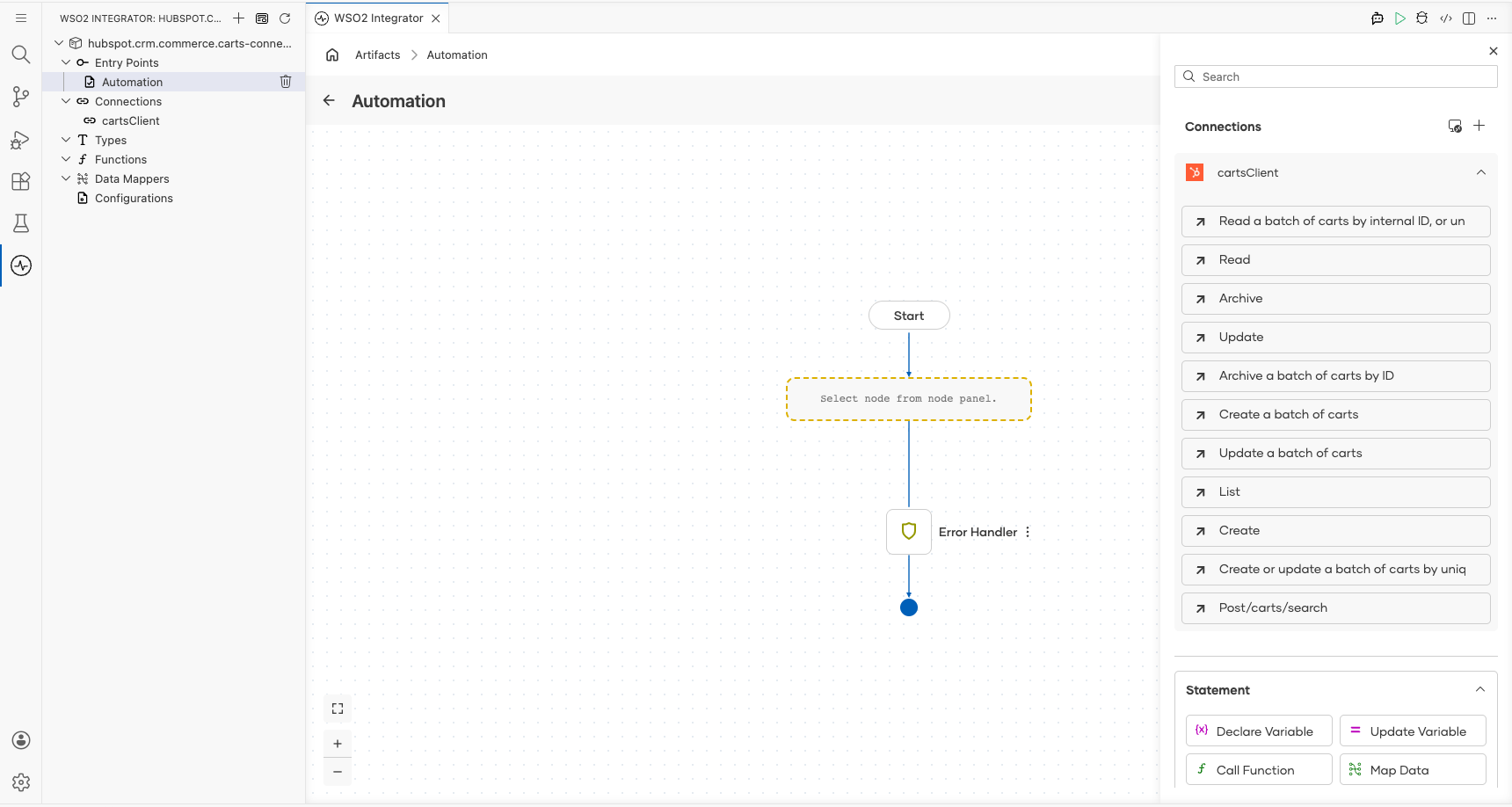
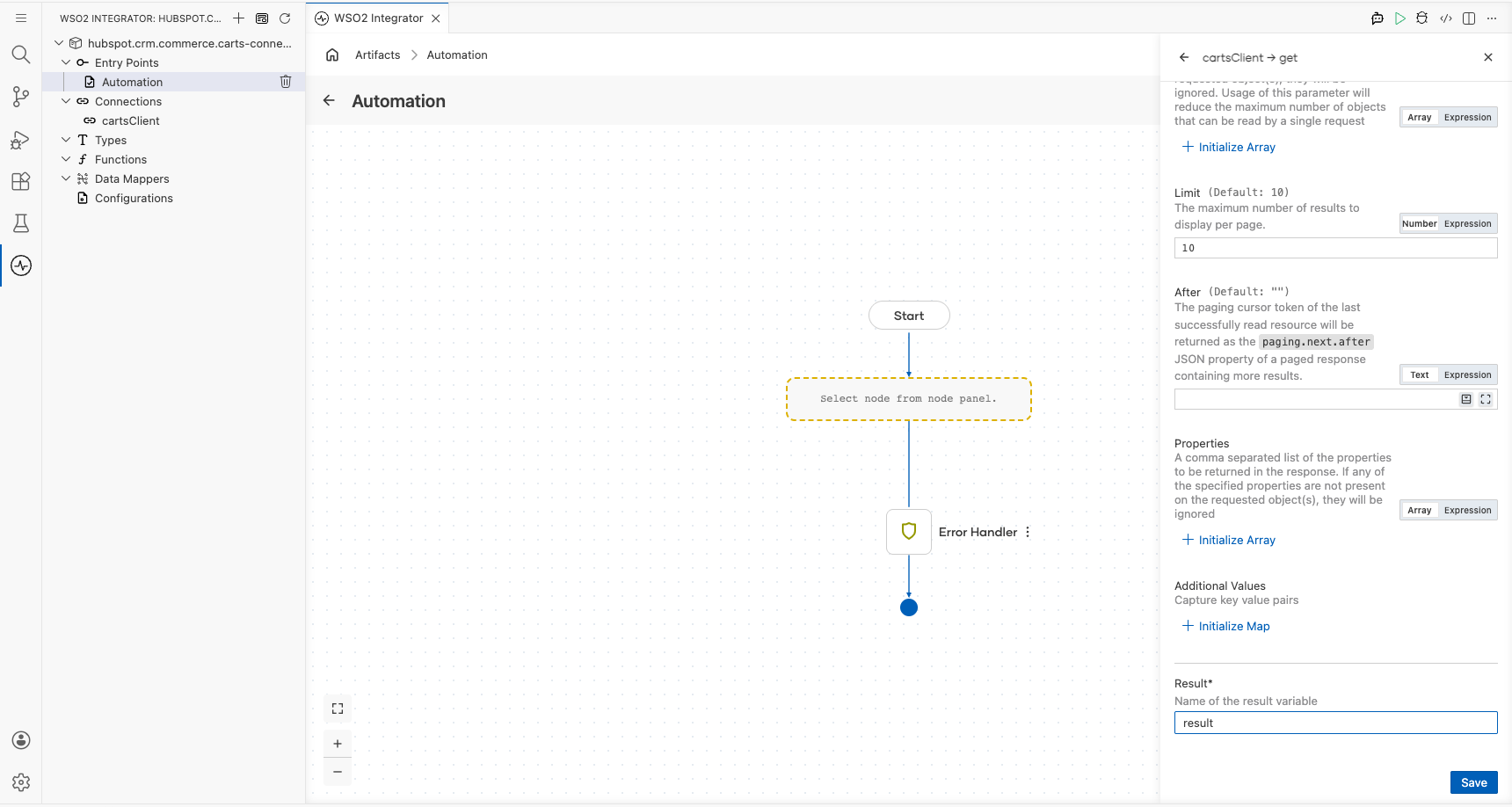
- Select get from the operations list, then fill in the operation fields:
- Limit : The maximum number of cart records to return per page.
- Result Variable : The variable name to store the API response.
- Select Save to add the operation step to the automation flow.
Step 8: Log the get result
- Hover the carts : get node on the canvas to reveal the + (Add Step) button on the connector edge below it, then select it.
- Expand Logging and select Log Info.
- Set the Msg field to
Carts listing completedin Text mode to log a confirmation message after the cart listing operation completes. - Select Save to add the Log step to the flow.
Try it yourself
Try this sample in WSO2 Integration Platform.

More code examples
The HubSpot CRM Commerce Carts connector provides practical examples illustrating usage in various scenarios. Explore these examples, covering the following use cases:
- Single Cart Management: Create, retrieve, update, search, and delete a single cart for a customer.
- Batch of Carts Management: Create, retrieve, update, and archive a batch of carts for customers.