Example
What you'll build
Build an integration that connects to the HubSpot CRM Engagements Email API to log a new email engagement record. The integration uses an Automation entry point to invoke the create operation, which posts an email engagement with properties such as subject, body, direction, and status, then logs the result.
Operations used:
- create : Creates a new email engagement record in HubSpot CRM and returns the created object including its HubSpot-assigned ID
Architecture
Prerequisites
- A HubSpot account with a Private App access token
Setting up the HubSpot CRM Engagements Email integration
New to WSO2 Integrator? Follow the Create a New Integration guide to set up your integration first, then return here to add the connector.
Adding the HubSpot CRM Engagements Email connector
Step 1: Open the Add Connection panel
Select Add Connection (the + next to the Connections section) in the WSO2 Integrator side panel to open the connector palette.
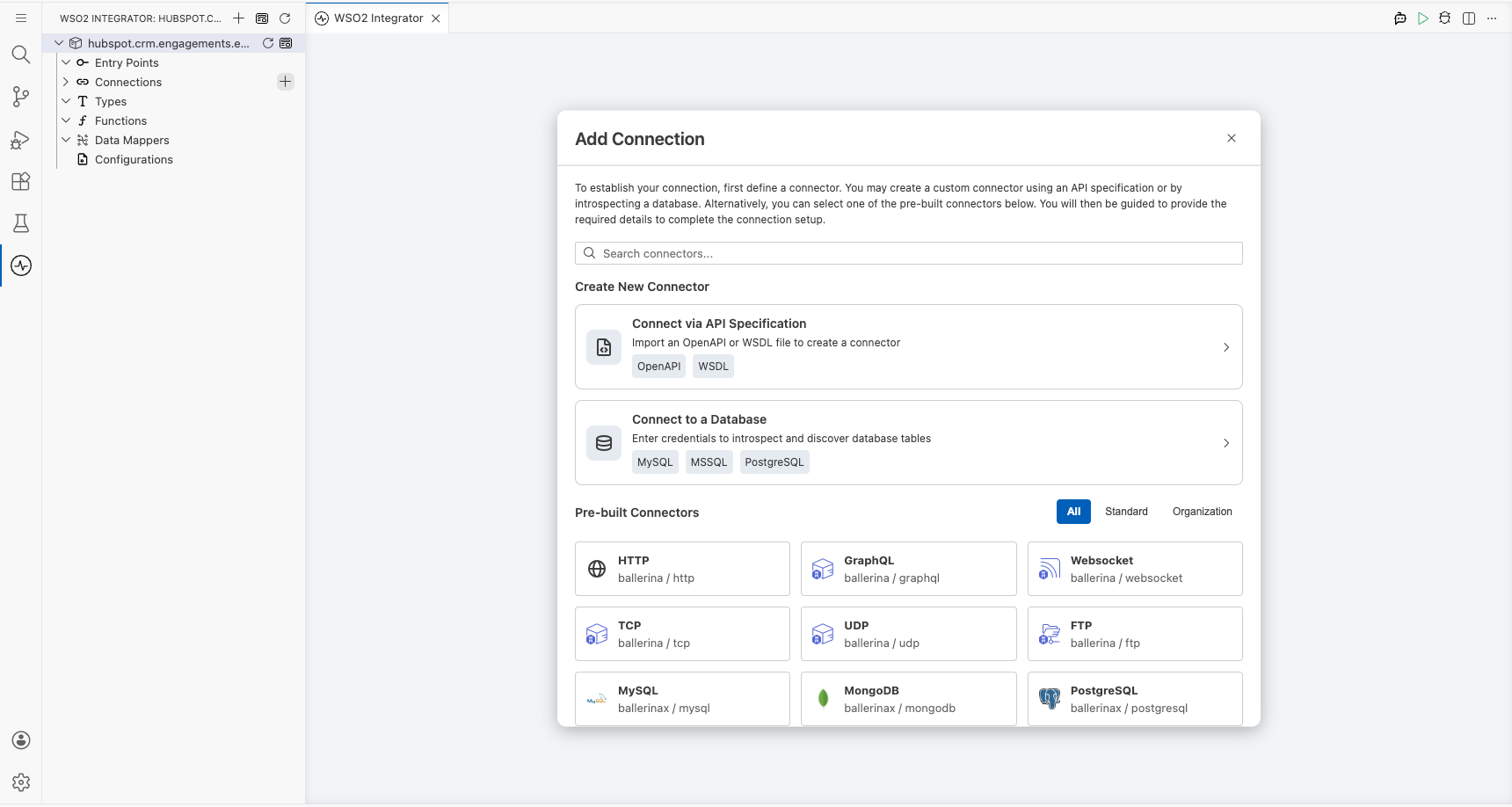
Configuring the HubSpot CRM Engagements Email connection
Step 2: Fill in the connection parameters
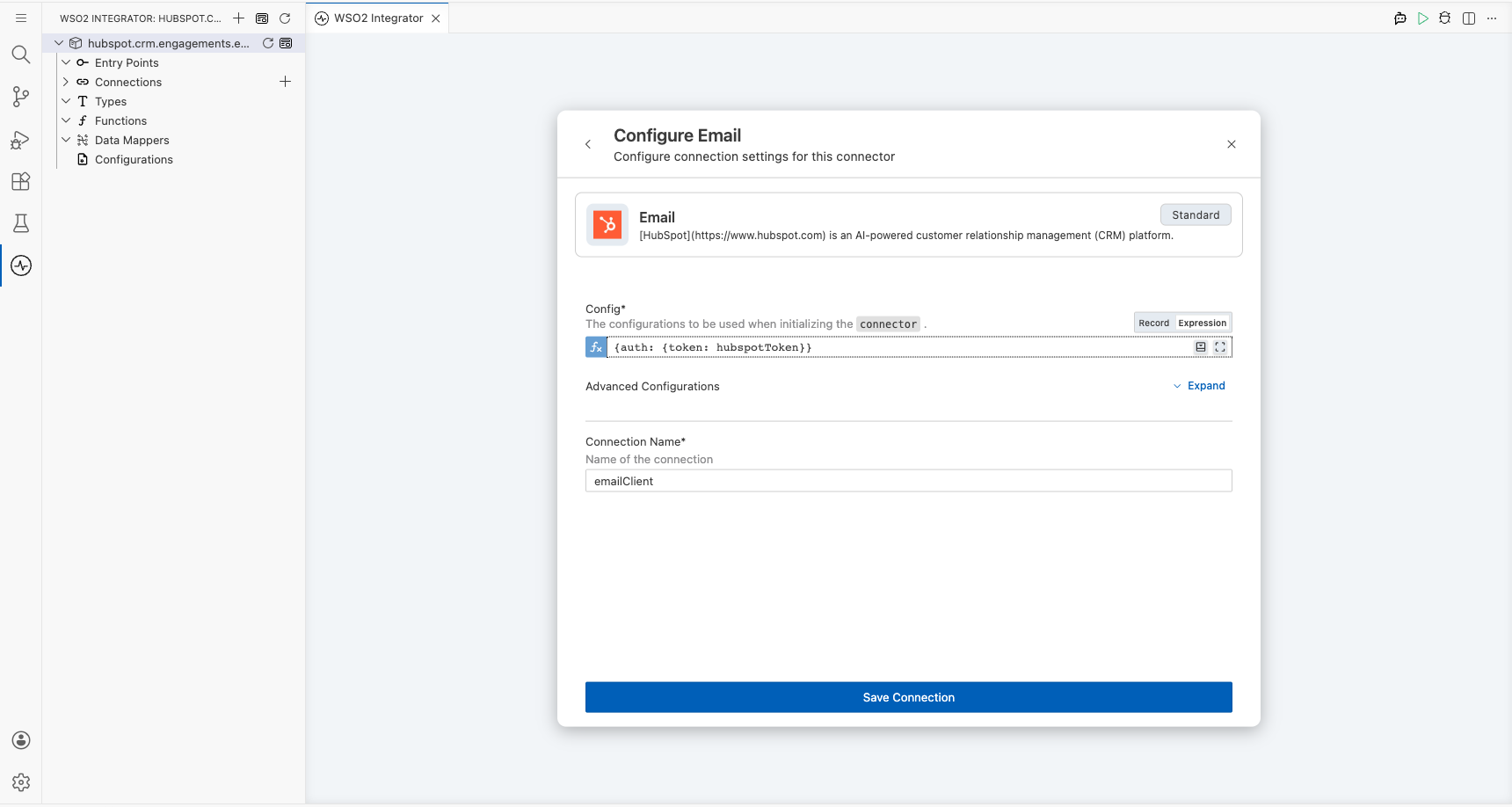
Enter the connection details in the Configure Email form, binding the Config field to a configurable variable so the Bearer token isn't hardcoded.
- Config : Set to the expression
{auth: {token: hubspotToken}}, referencing thehubspotTokenconfigurable variable - Connection Name : Defaults to
emailClient
Step 3: Save the connection
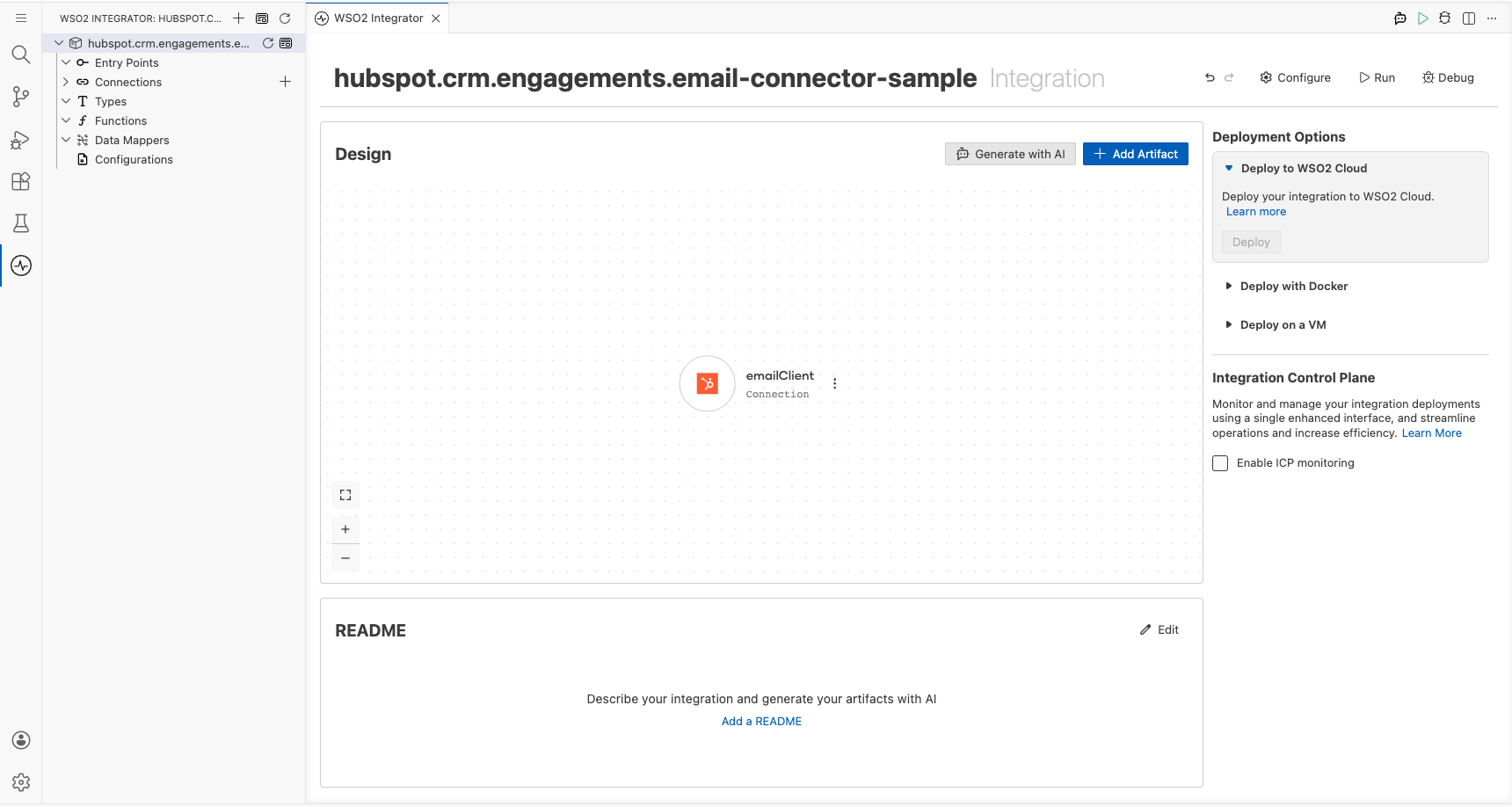
Select Save Connection to persist the connection. The emailClient node appears on the integration canvas.
Step 4: Set actual values for your configurables
In the left panel, select Configurations. Set a value for each configurable listed below.
- hubspotToken (string) : Your HubSpot Private App access token (for example,
pat-na1-xxxxxxxx-xxxx-xxxx-xxxx-xxxxxxxxxxxx)
Configuring the HubSpot CRM Engagements Email create operation
Step 5: Add an Automation entry point
Select + Add Artifact on the integration overview canvas, then select Automation in the Artifacts panel and select Create. An Automation entry point named main is created and the flow canvas opens.
Step 6: Select and configure the create operation
Expand the emailClient connection node in the flow canvas to reveal available operations, then select Create (the post operation) and fill in the payload fields.
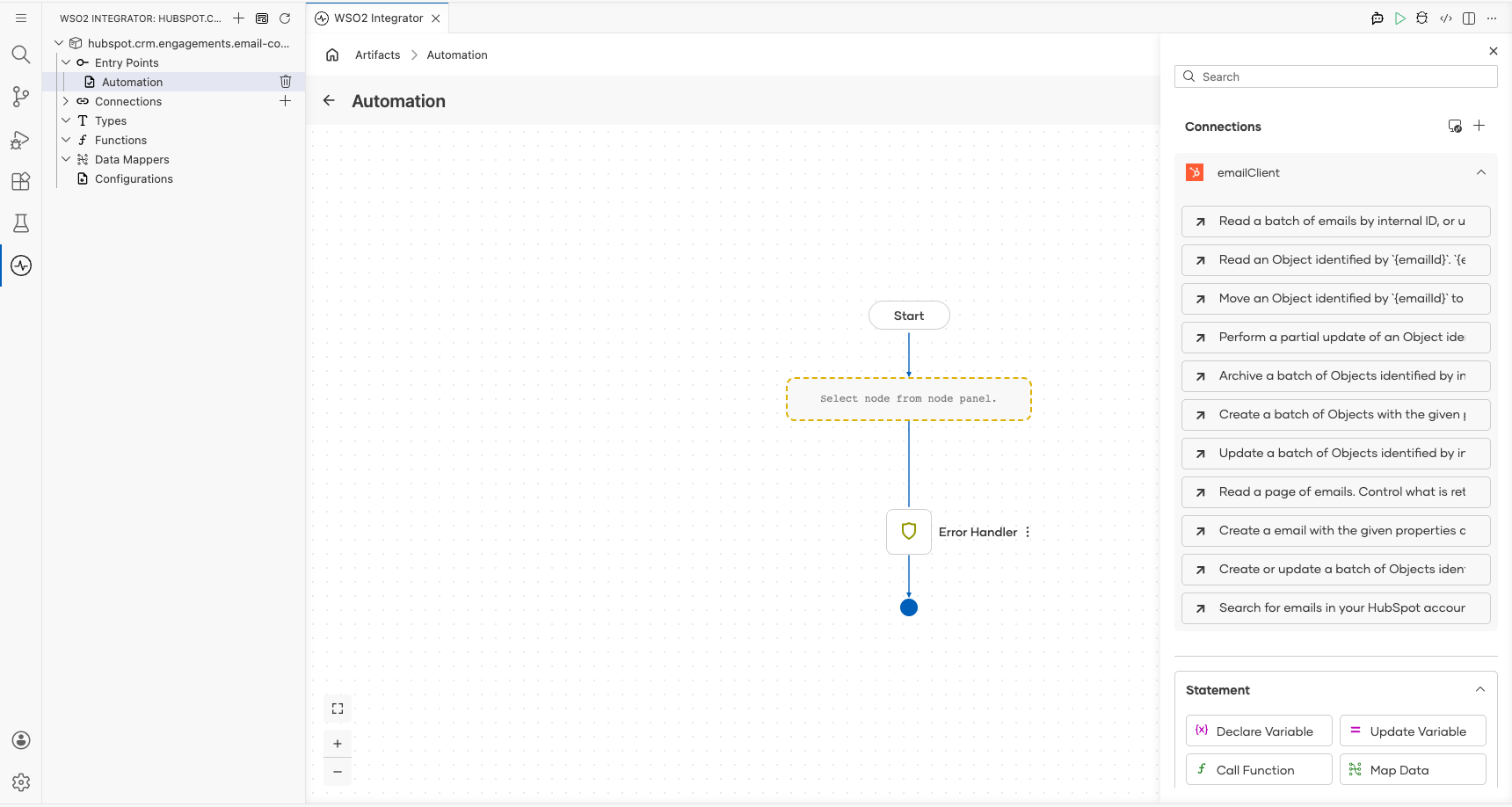
Configure the following parameters:
- Payload : An
email:SimplePublicObjectInputForCreatevalue containingassociations(empty array) andpropertieswith keyshs_timestamp,hubspot_owner_id,hs_email_direction,hs_email_status,hs_email_subject, andhs_email_text - Result variable : Automatically named
emailSimplepublicobject
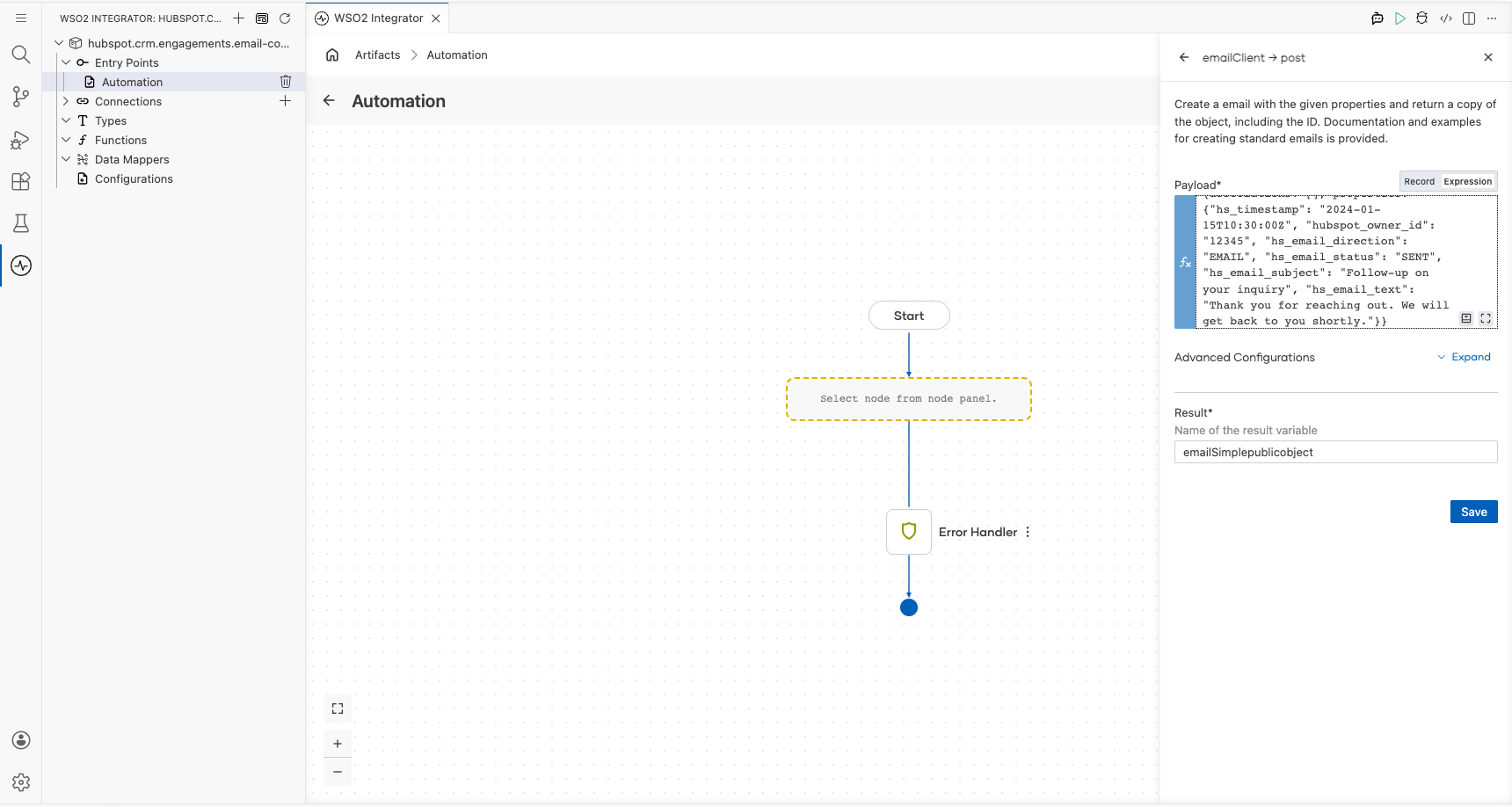
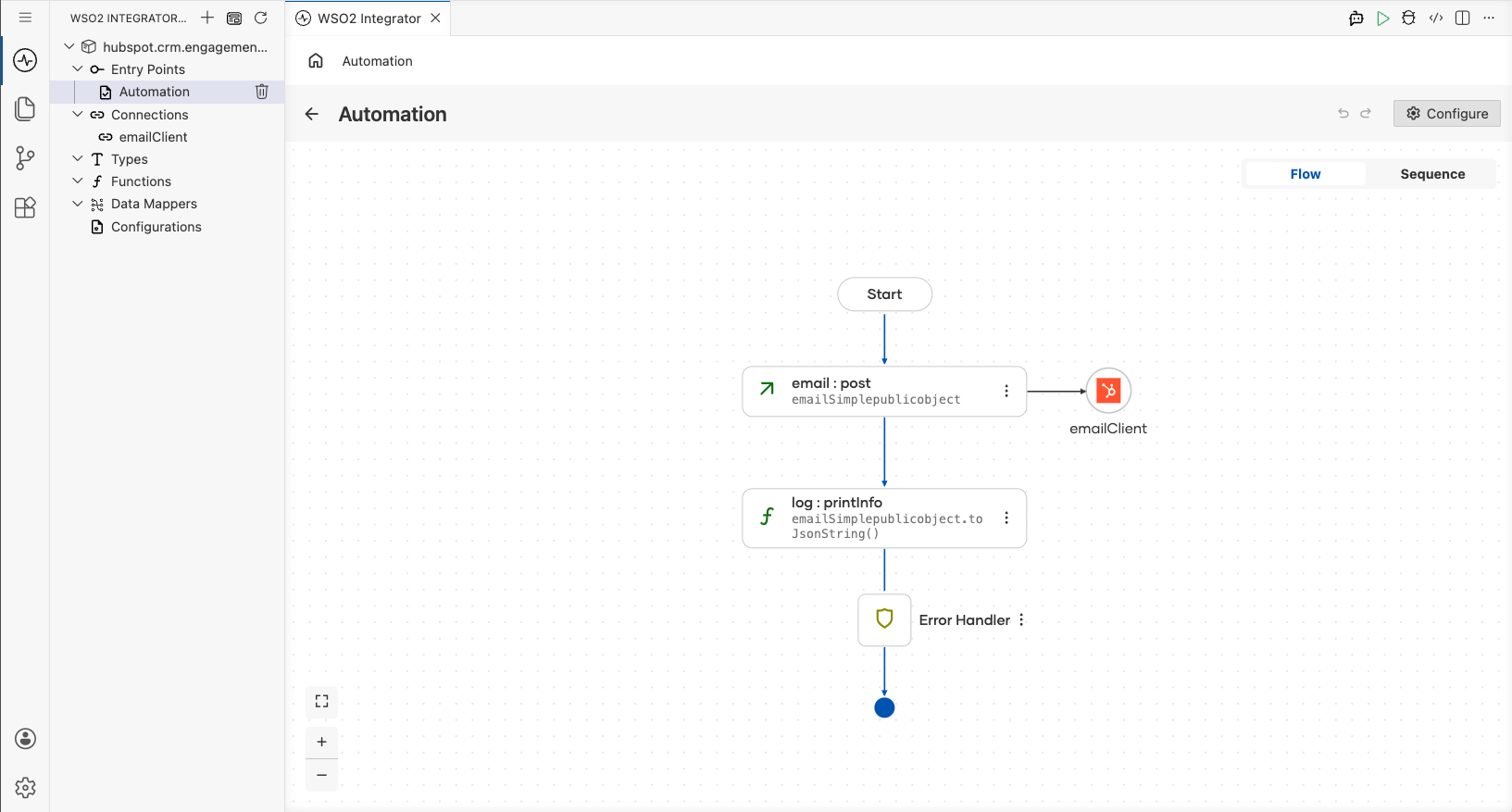
Select Save to add the operation to the flow. The completed automation flow shows: Start → email:post (create email engagement) → Error Handler.
Try it yourself
Try this sample in WSO2 Integration Platform.

More code examples
The HubSpot CRM Engagements Email connector provides practical examples illustrating usage in various scenarios. Explore these examples, covering the following use cases:
-
Bulk update sender information in scheduled emails - Automate the process of updating sender information for all scheduled emails, ensuring accuracy and consistency in email communication.
-
Detect and resend failed emails - Identify emails with a status of "FAILED" or "BOUNCED" and attempt to resend them, ensuring important messages reach their intended recipients.
-
Email analytics and reporting - Retrieve and analyze key email performance metrics such as sent, bounced, failed, and scheduled emails to monitor delivery status and optimize communication strategies.