Example
What you'll build
Build a WSO2 Integrator automation that creates a HubSpot CRM engagement task using the ballerinax/hubspot.crm.engagements.tasks connector. The workflow invokes the HubSpot Tasks API with a bearer token and logs the created task object.
Operations used:
- post : Creates a new engagement task in HubSpot CRM via the
POST /crm/v3/objects/tasksendpoint
Architecture
Prerequisites
- A HubSpot account with a Private App bearer token (API key)
Setting up the HubSpot CRM engagements tasks integration
New to WSO2 Integrator? Follow the Create a New Integration guide to set up your integration first, then return here to add the connector.
Adding the HubSpot CRM engagements tasks connector
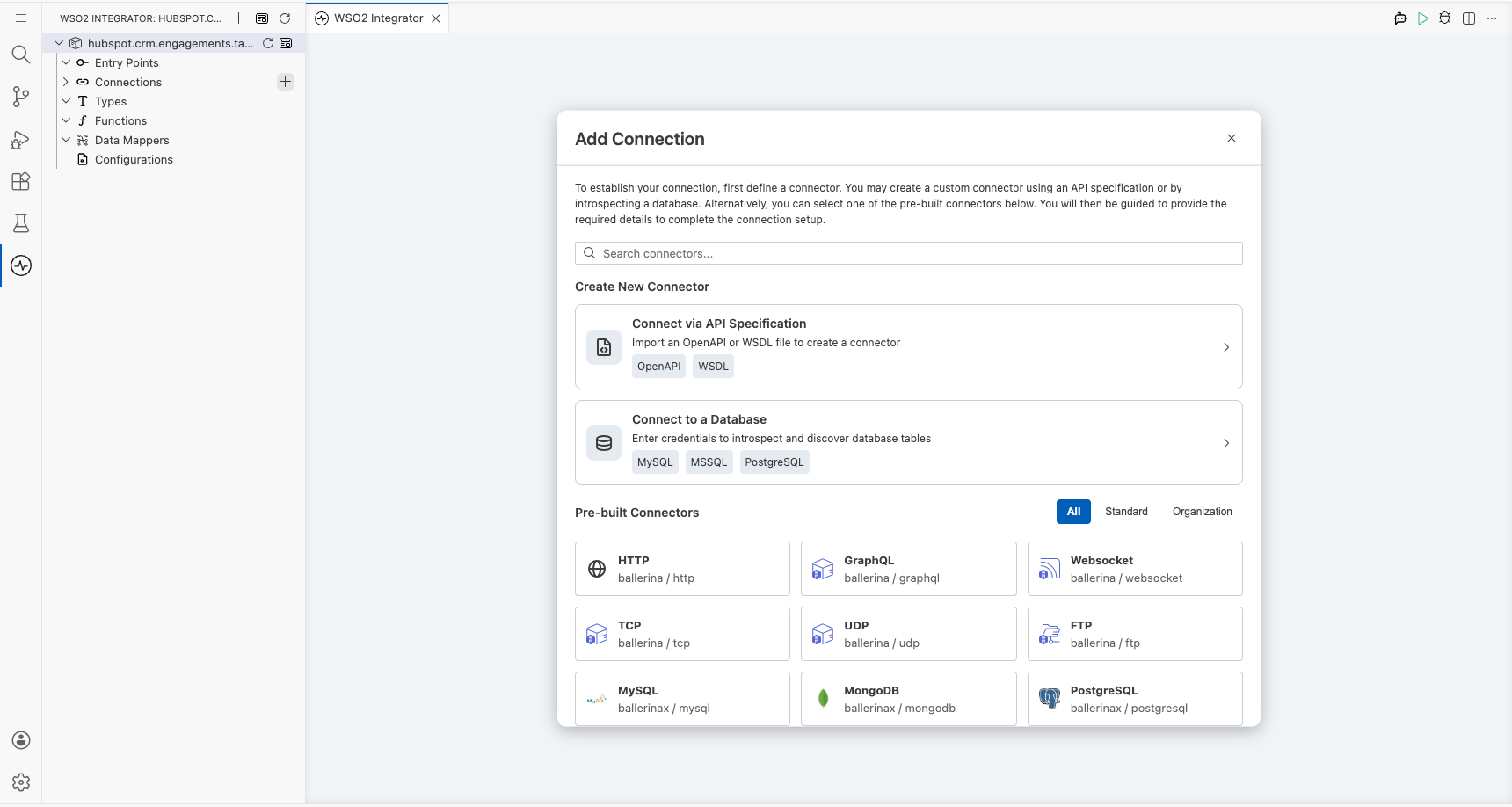
Step 1: Open the Add Connection panel
Select Connections → + Add Connection in the WSO2 Integrator project tree to open the connector palette.
Step 2: Select the HubSpot Tasks connector
Enter engagements.tasks in the search box, then select ballerinax / hubspot.crm.engagements.tasks (labelled "Tasks") from the results.
Configuring the HubSpot CRM engagements tasks connection
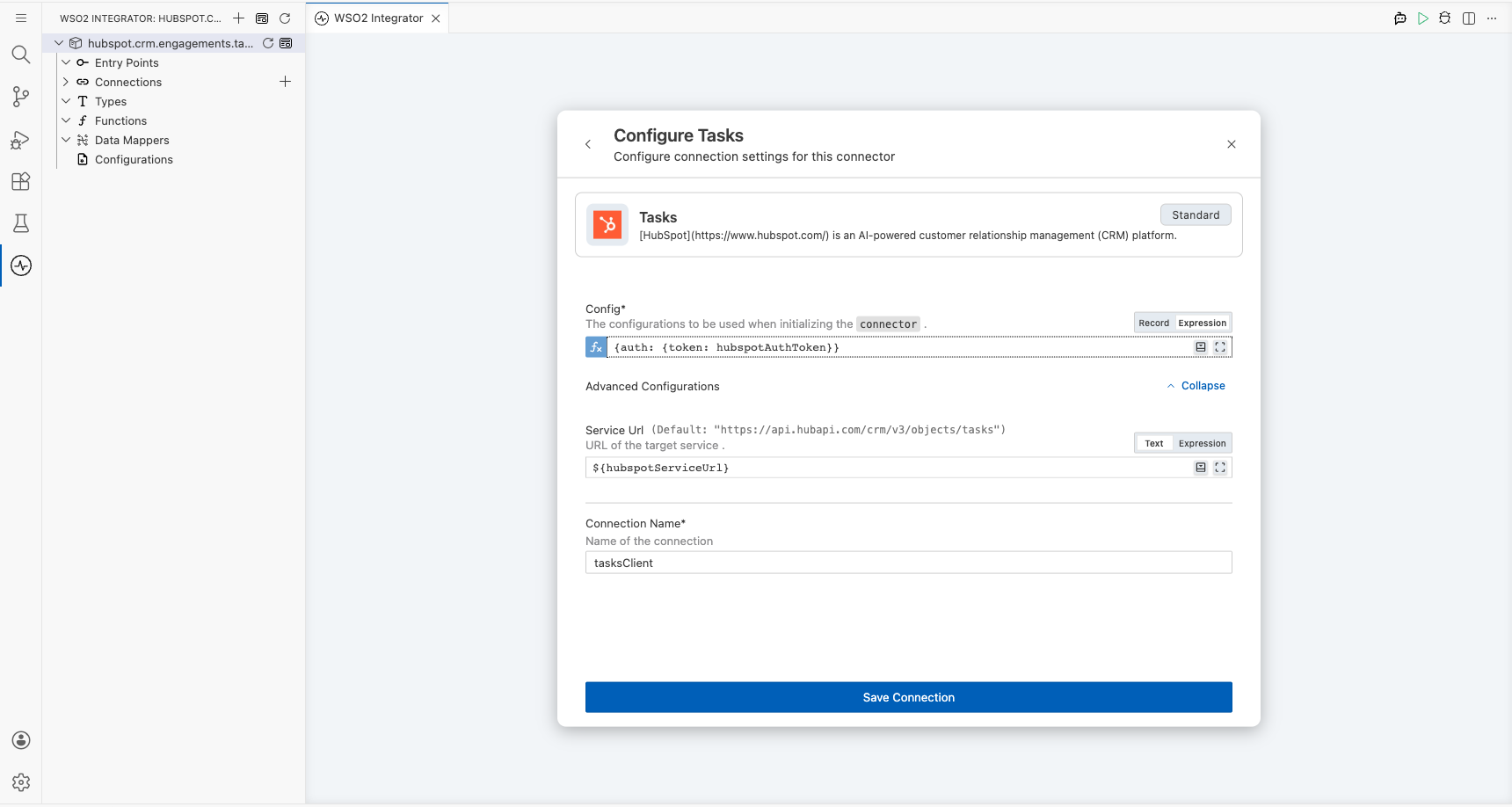
Step 3: Fill in the connection parameters
Configure the connection form by binding each field to a configurable variable:
- config: A
tasks:ConnectionConfigrecord containing the bearer token: set to expression{auth: {token: hubspotAuthToken}} - serviceUrl: The HubSpot Tasks API base URL: bind to configurable variable
hubspotServiceUrl
Step 4: Save the connection
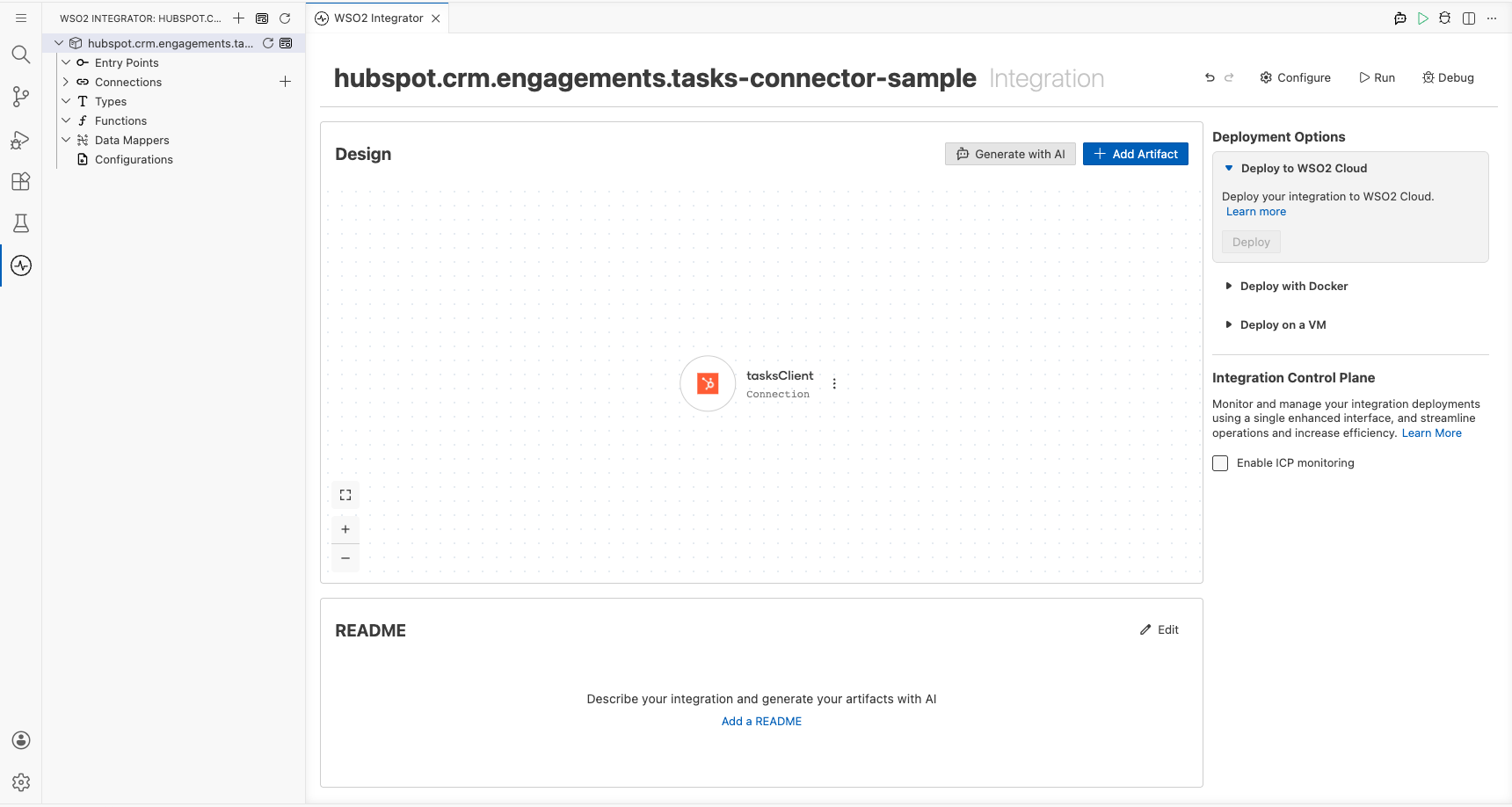
Select Save Connection to persist the connection. Confirm that the tasksClient node appears in the Connections panel.
Step 5: Set actual values for your configurables
- In the left panel, select Configurations.
- Set a value for each configurable listed below.
- hubspotAuthToken (string) : Your HubSpot Private App bearer token (e.g.,
pat-na1-xxxxxxxx-xxxx-xxxx-xxxx-xxxxxxxxxxxx) - hubspotServiceUrl (string) : HubSpot Tasks API base URL override: leave blank to use the default
Configuring the HubSpot CRM engagements tasks post operation
Step 6: Add an Automation entry point
- In the Design panel, select + Add Artifact.
- Under Automation, select Automation.
- Select Create to open the flow canvas with a Start node and an Error Handler node.
Step 7: Select and configure the post operation
- Select the + placeholder node in the flow canvas (between Start and Error Handler).
- Under Connections, expand tasksClient to reveal available operations.
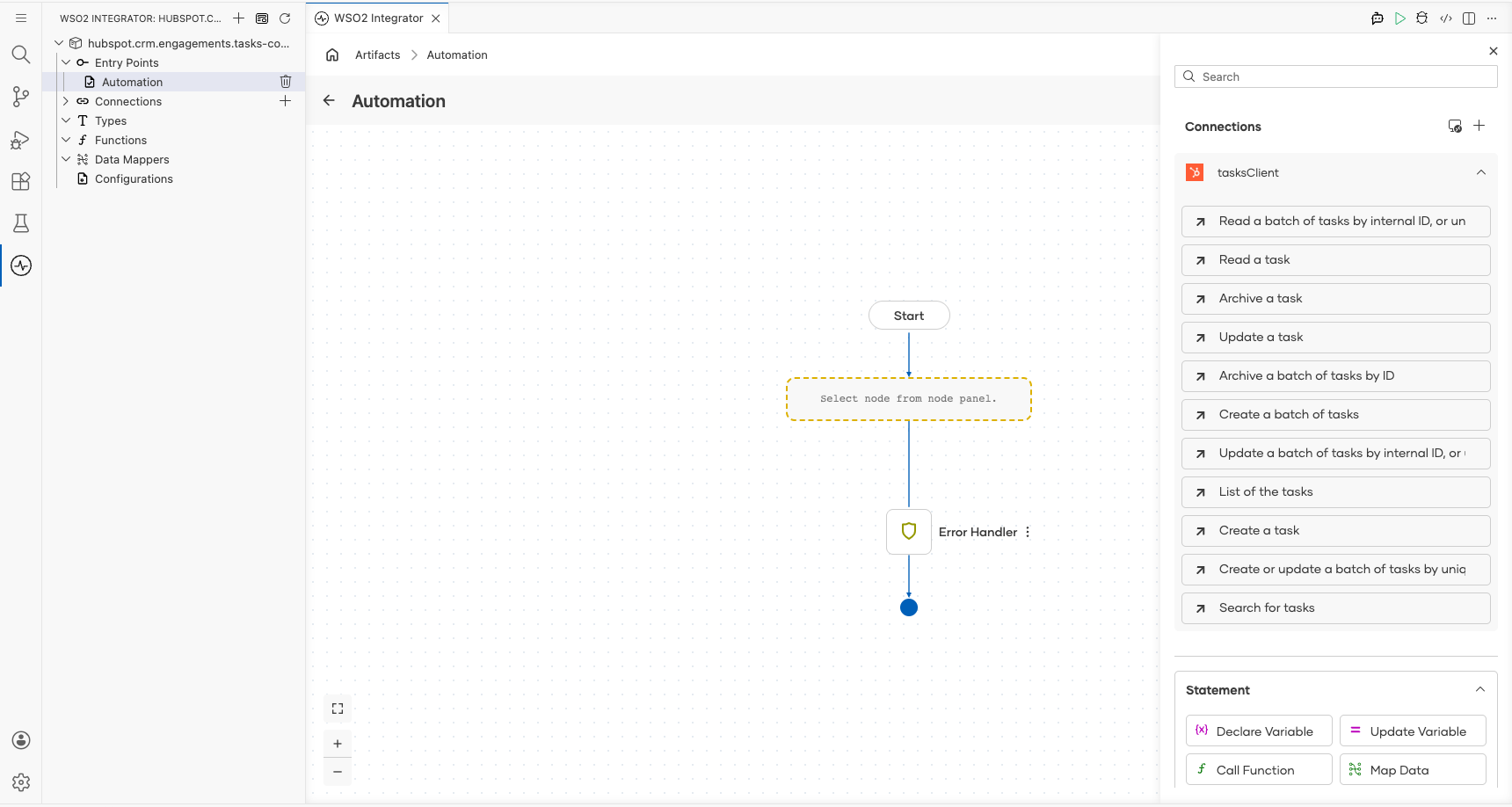
- Select Create a task to open the configuration form, then fill in the following parameters:
- payload: The task record containing
associationsandproperties: set to an expression withhs_task_subject,hs_task_body,hs_task_priority,hs_task_type, andhs_timestampfields - resultVariable : Set to
resultto store the returnedtasks:SimplePublicObject
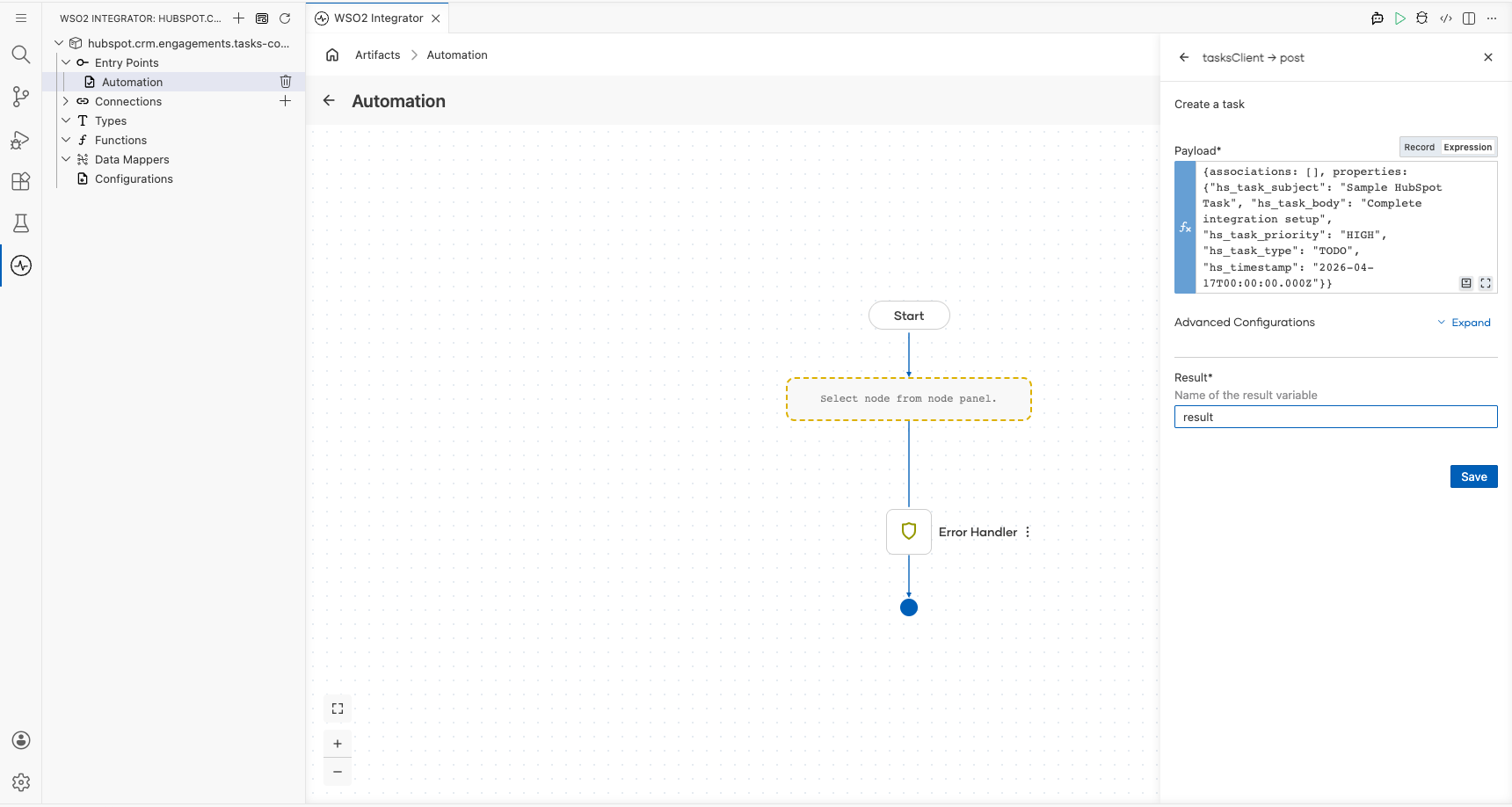
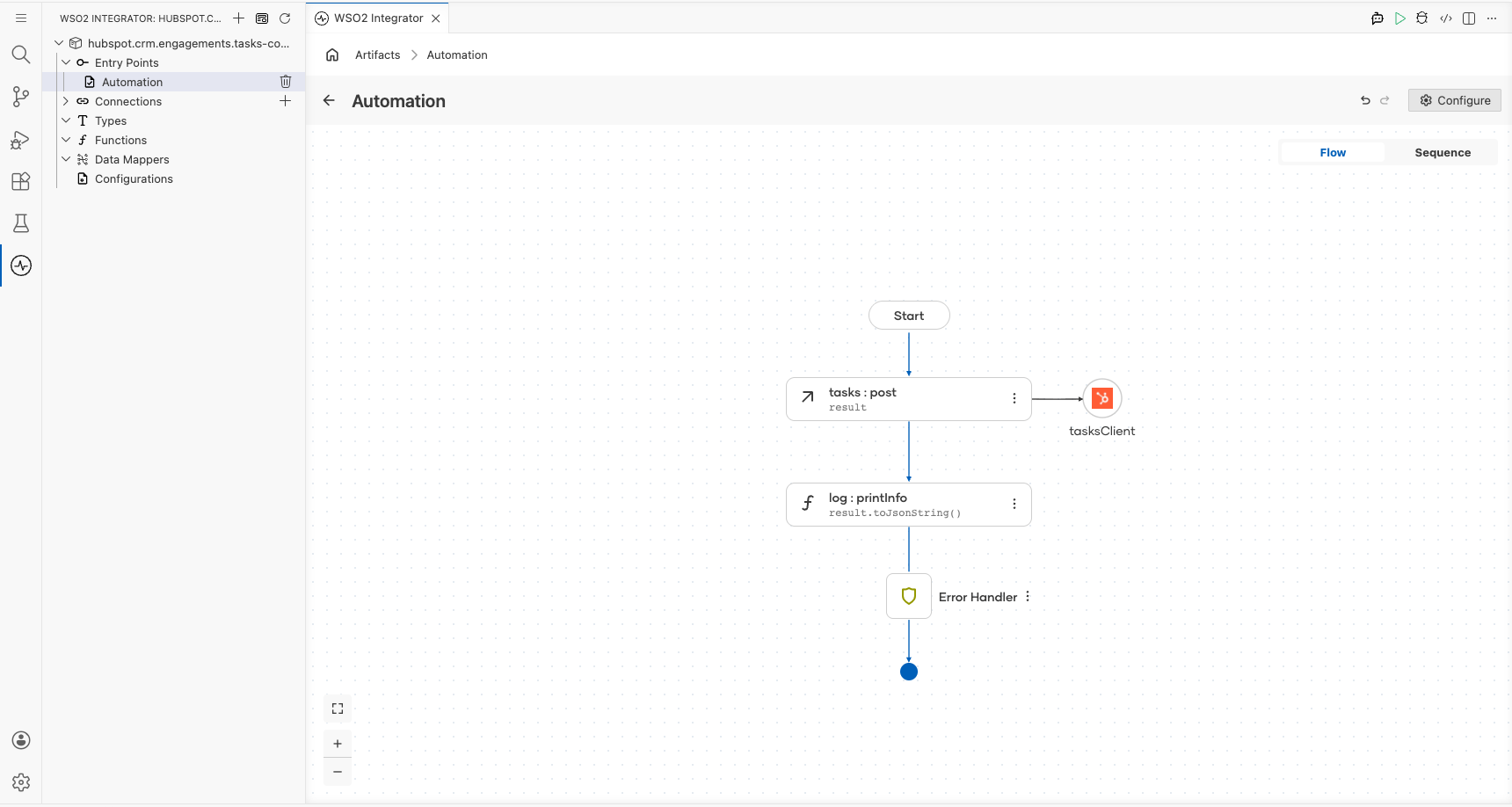
Select Save to add the operation to the flow.
Try it yourself
Try this sample in WSO2 Integration Platform.

More code examples
The HubSpot CRM Tasks connector provides practical examples illustrating usage in various scenarios. Explore these examples, covering the following use cases:
-
Task management in HubSpot CRM: This example searches for a task in HubSpot CRM by its subject, creating a new one if none exists or updating details like the due date and priority if found.
-
Task completion and status change in HubSpot CRM: This example checks a task's status in HubSpot CRM and updates it to "Completed" if necessary, ensuring efficient task management.