Setup Guide
This guide walks you through creating a HubSpot developer app and obtaining the OAuth 2.0 credentials required to use the HubSpot CRM Extensions Timelines connector.
Prerequisites
- A HubSpot developer account. If you do not have one, sign up for a free account.
Step 1: Log in to the HubSpot developer portal
Log in to your HubSpot developer account.
Step 2: Create a developer test account (optional)
Developer test accounts let you test apps and integrations without affecting real HubSpot data.
-
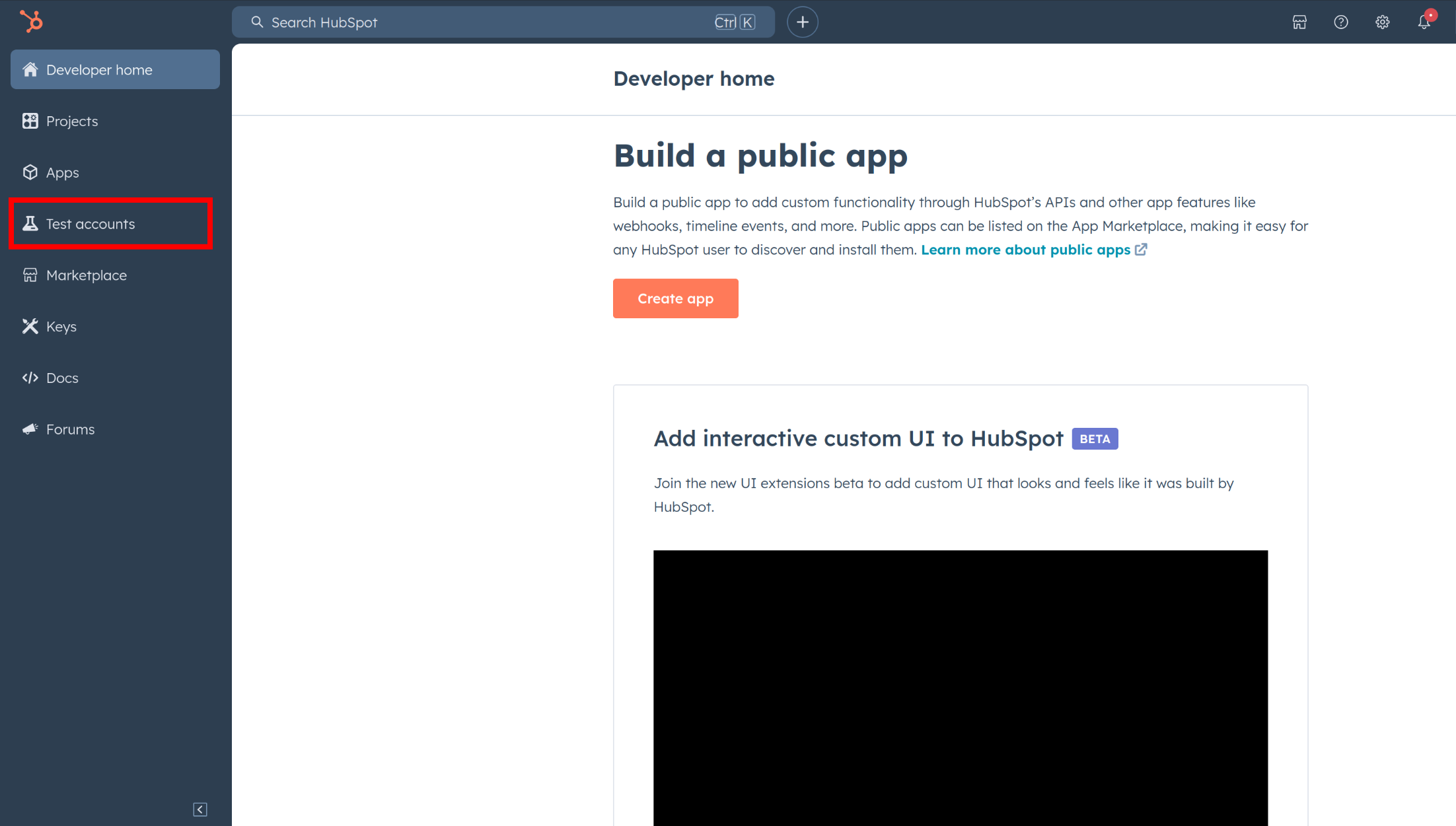
Select Test accounts in the left sidebar.
-
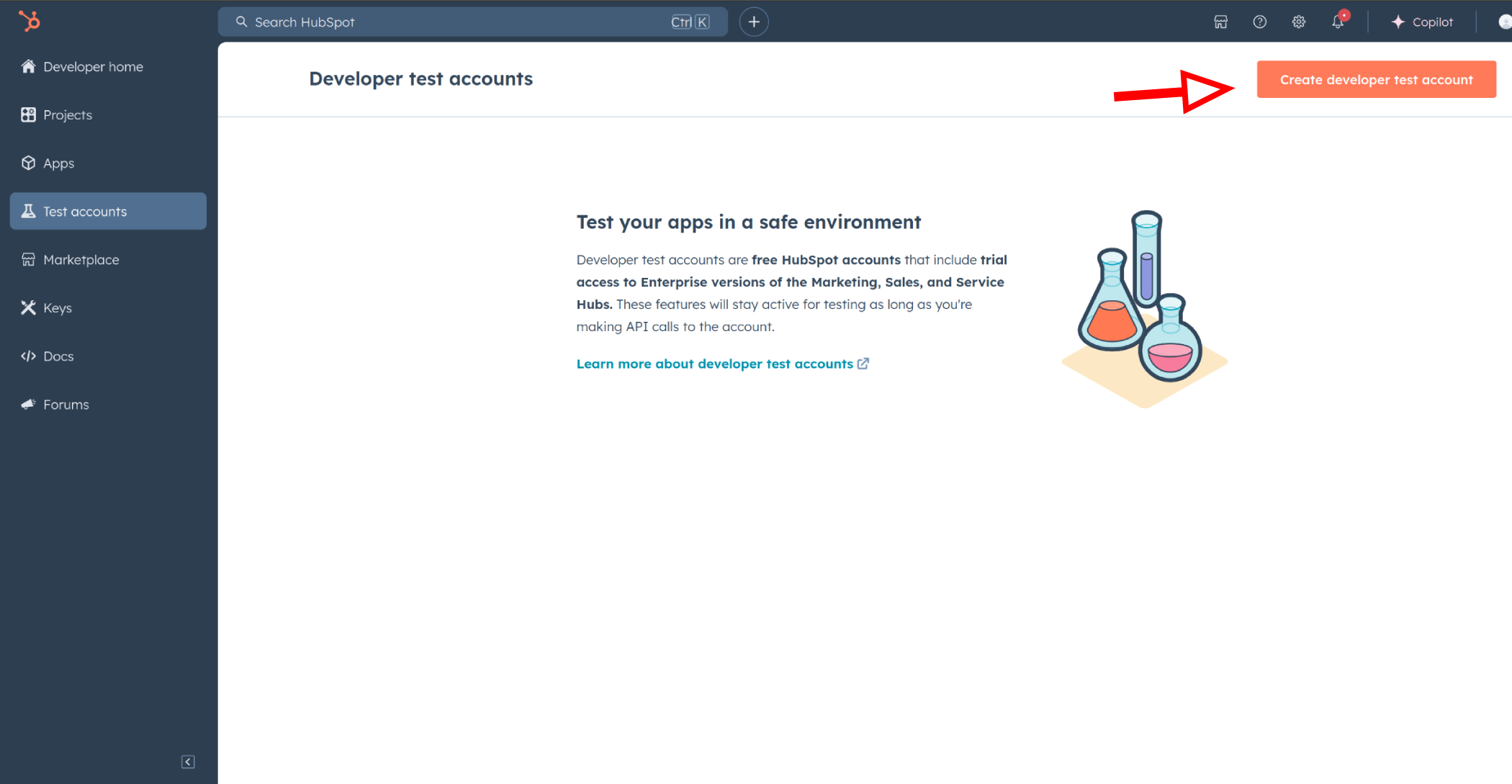
Select Create developer test account.
-
Provide a name and select Create.
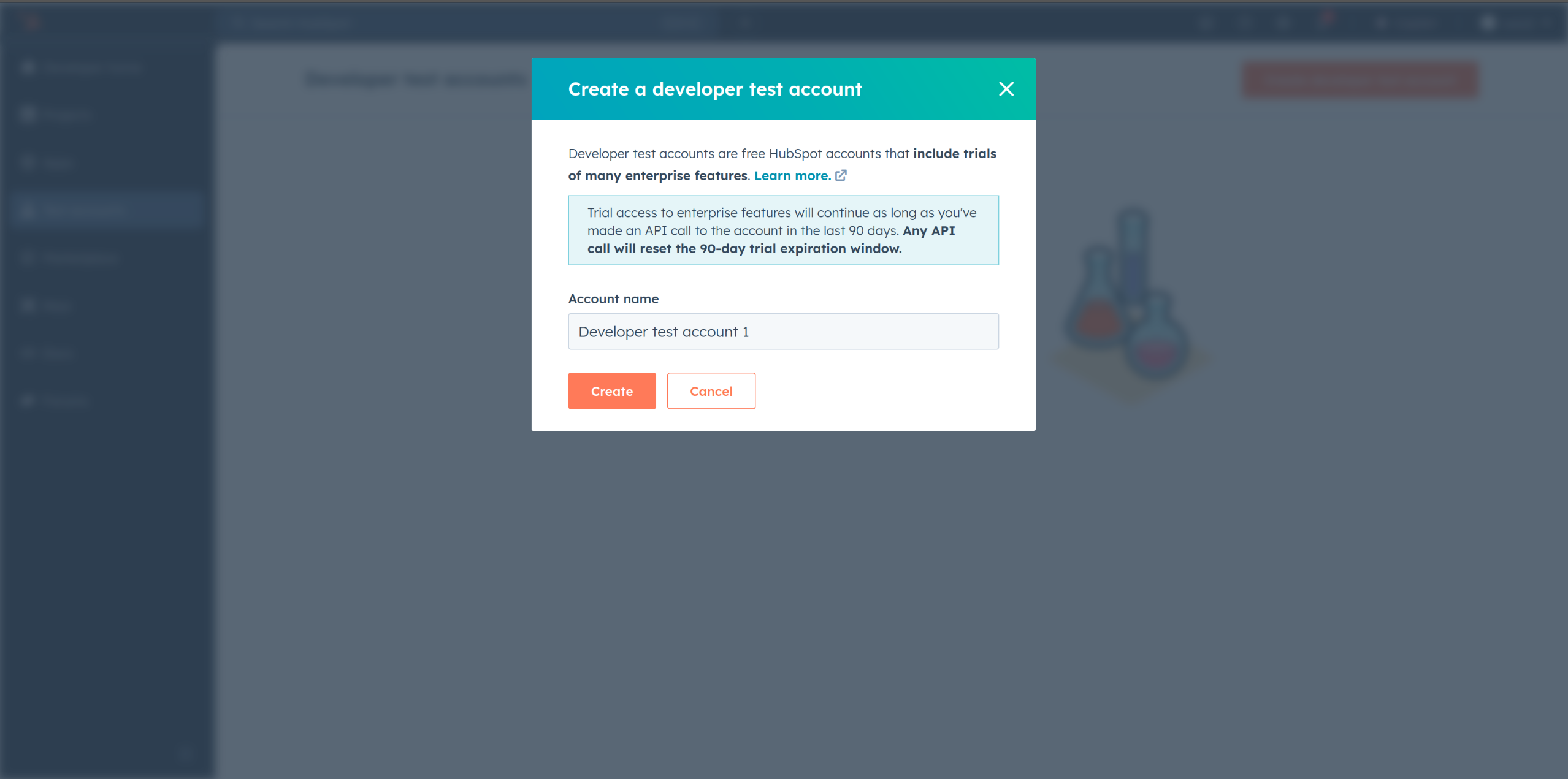
Developer test accounts are for development and testing only. Do not use them in production.
Step 3: Create a HubSpot app
-
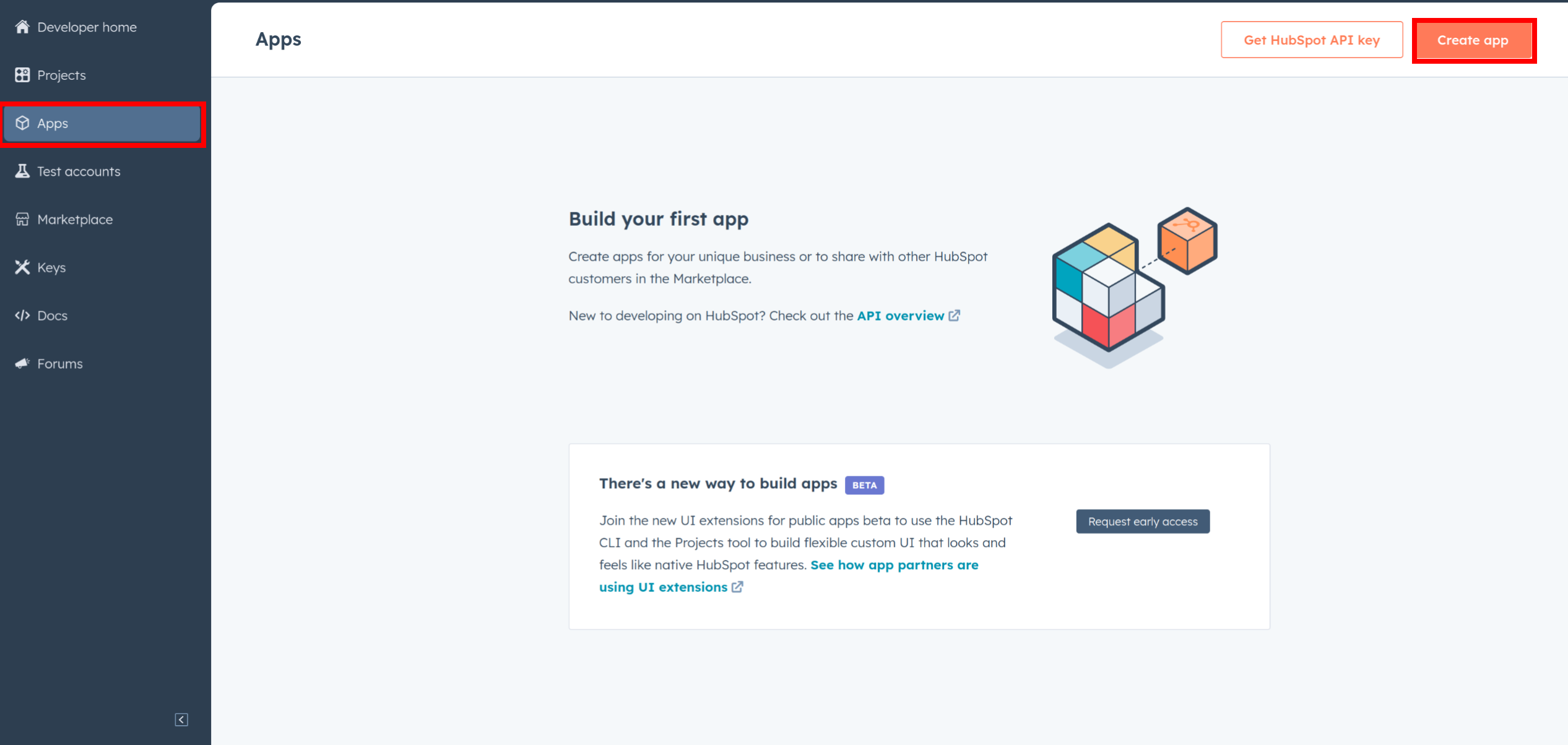
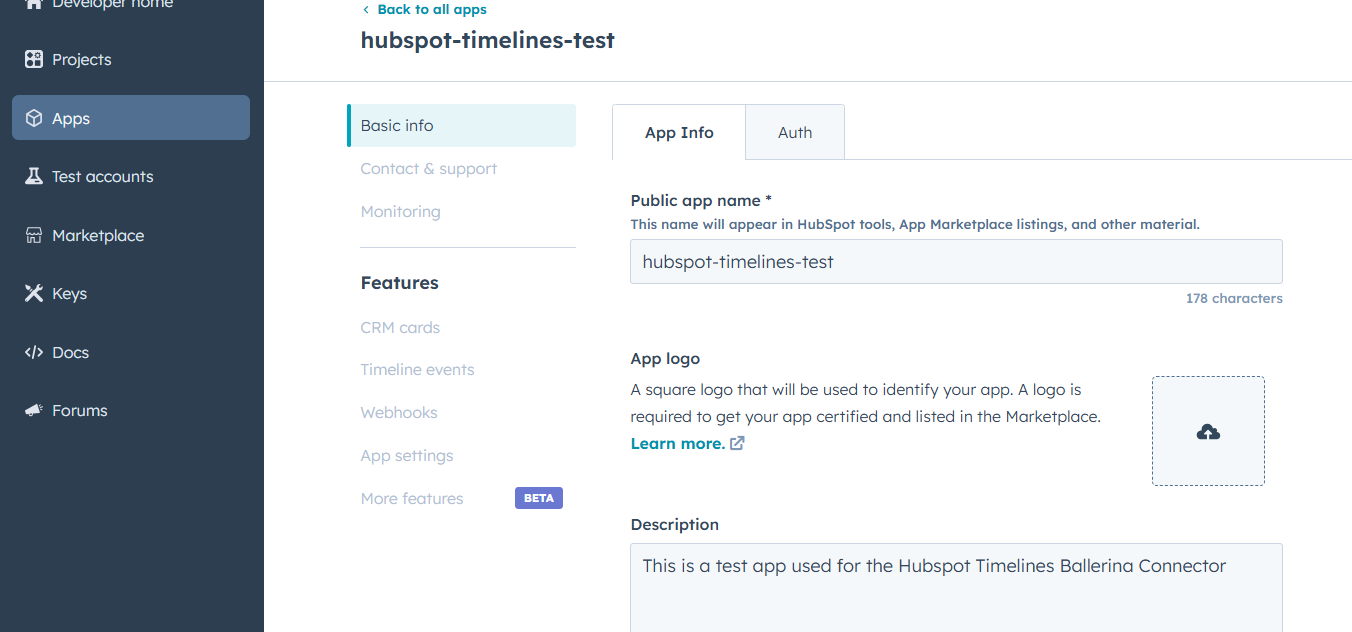
Navigate to Apps and select Create App.
-
Provide the app name and description.
Step 4: Configure authentication
-
Under Scopes, select Add new scope and add the required scopes (for example,
crm.objects.contacts.read,crm.objects.contacts.write,timeline).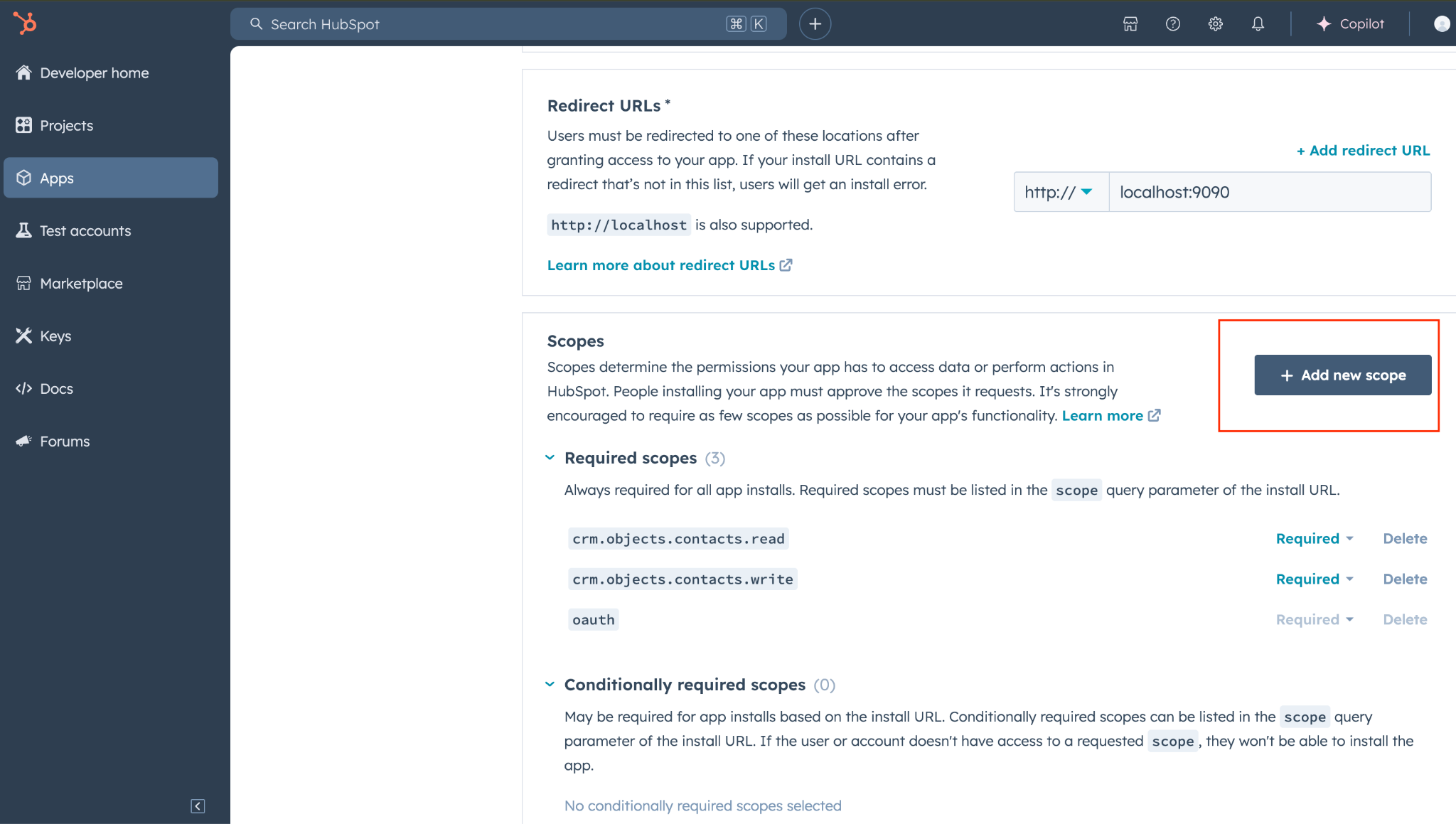
-
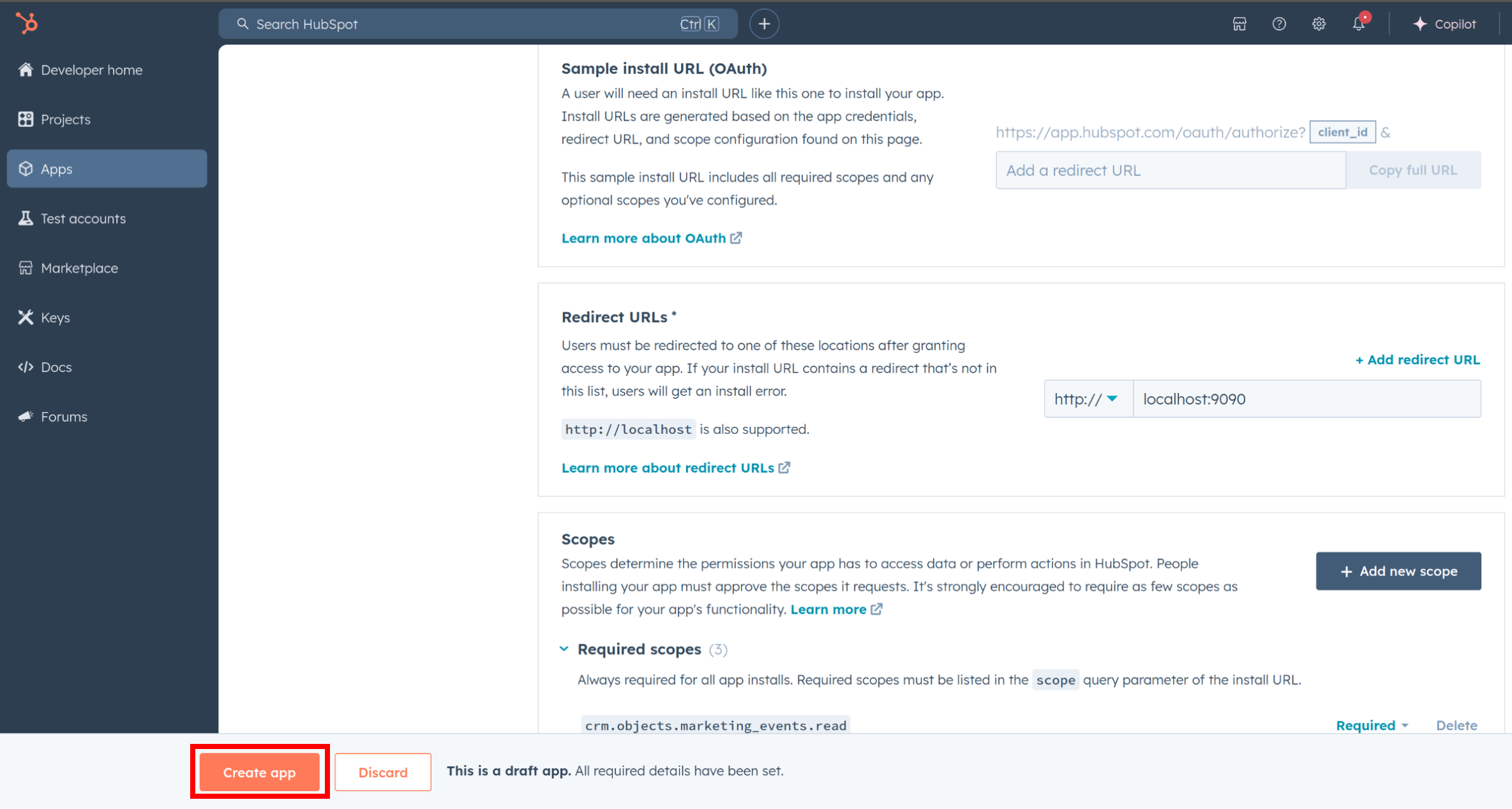
Add your redirect URI and select Create App.
Step 5: Get the client ID and client secret
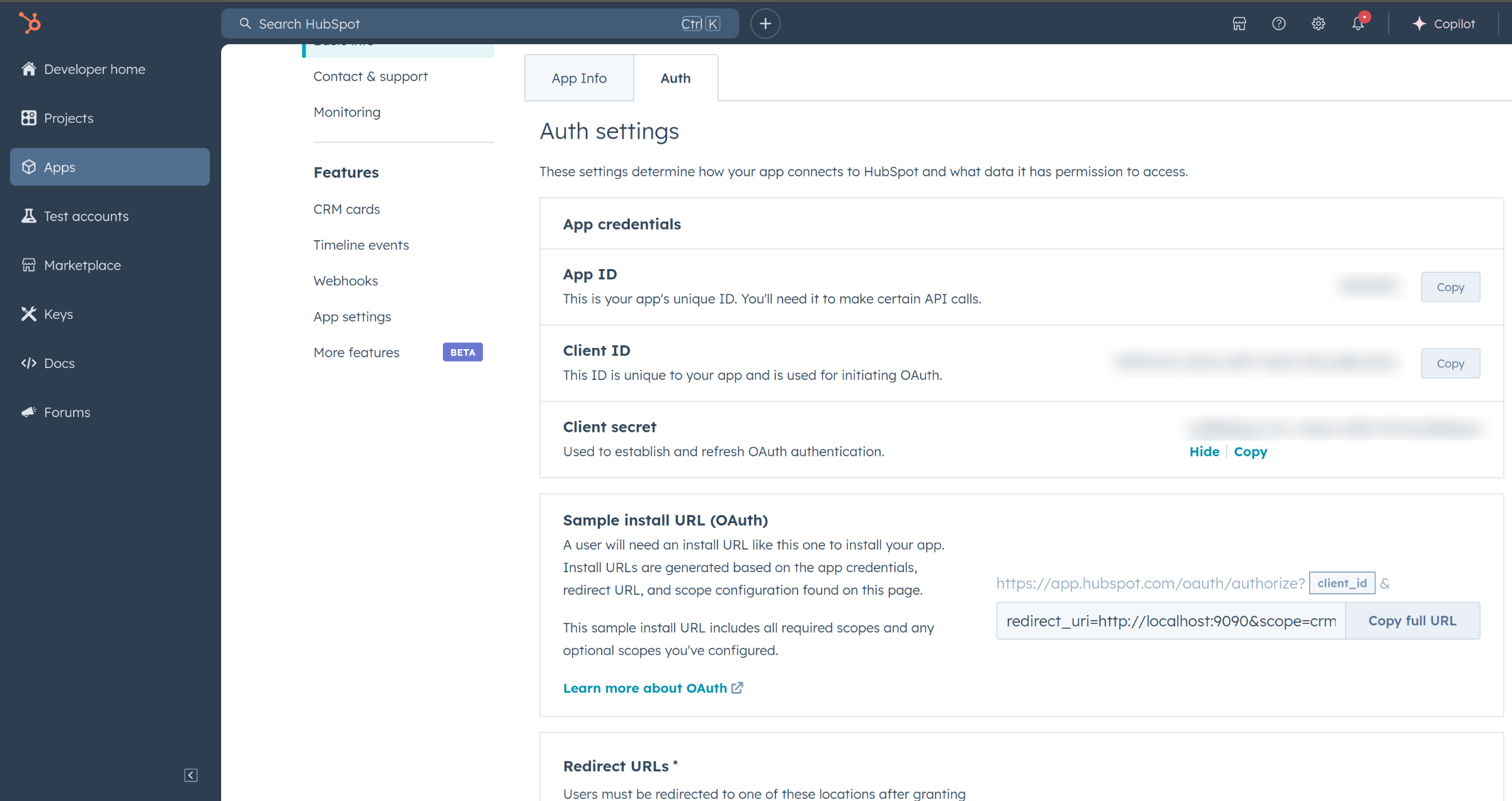
In the Auth section, copy the Client ID and Client Secret. Also note your App ID from the app settings page.
Step 6: Get the refresh token
-
Construct the authorization URL:
https://app.hubspot.com/oauth/authorize?client_id=<YOUR_CLIENT_ID>&scope=<YOUR_SCOPES>&redirect_uri=<YOUR_REDIRECT_URI> -
Open the URL in a browser and select your developer test account.
-
Copy the authorization code from the redirect URL.
-
Exchange the code for tokens:
curl --request POST \
  --url https://api.hubapi.com/oauth/v1/token \
  --header 'content-type: application/x-www-form-urlencoded' \
--data 'grant_type=authorization_code&code=<CODE>&redirect_uri=<YOUR_REDIRECT_URI>&client_id=<YOUR_CLIENT_ID>&client_secret=<YOUR_CLIENT_SECRET>' -
Copy the
refresh_tokenfrom the response.
Step 7: Get the developer API key (optional)
Some endpoints require a developer API key. Follow the HubSpot developer tools overview to obtain one.
Store the client ID, client secret, refresh token, and developer API key securely. Use Ballerina's configurable feature and a Config.toml file to supply them at runtime.