Setup Guide
This guide walks you through creating a HubSpot developer app and obtaining the App ID and developer API key required to use the HubSpot CRM Extensions Video Conferencing connector.
Prerequisites
- A HubSpot developer account. If you do not have one, sign up for a free account.
Step 1: Log in to the HubSpot developer portal
Log in to your HubSpot developer account.
Step 2: Create a developer test account (optional)
Developer test accounts let you test apps and integrations without affecting real HubSpot data.
-
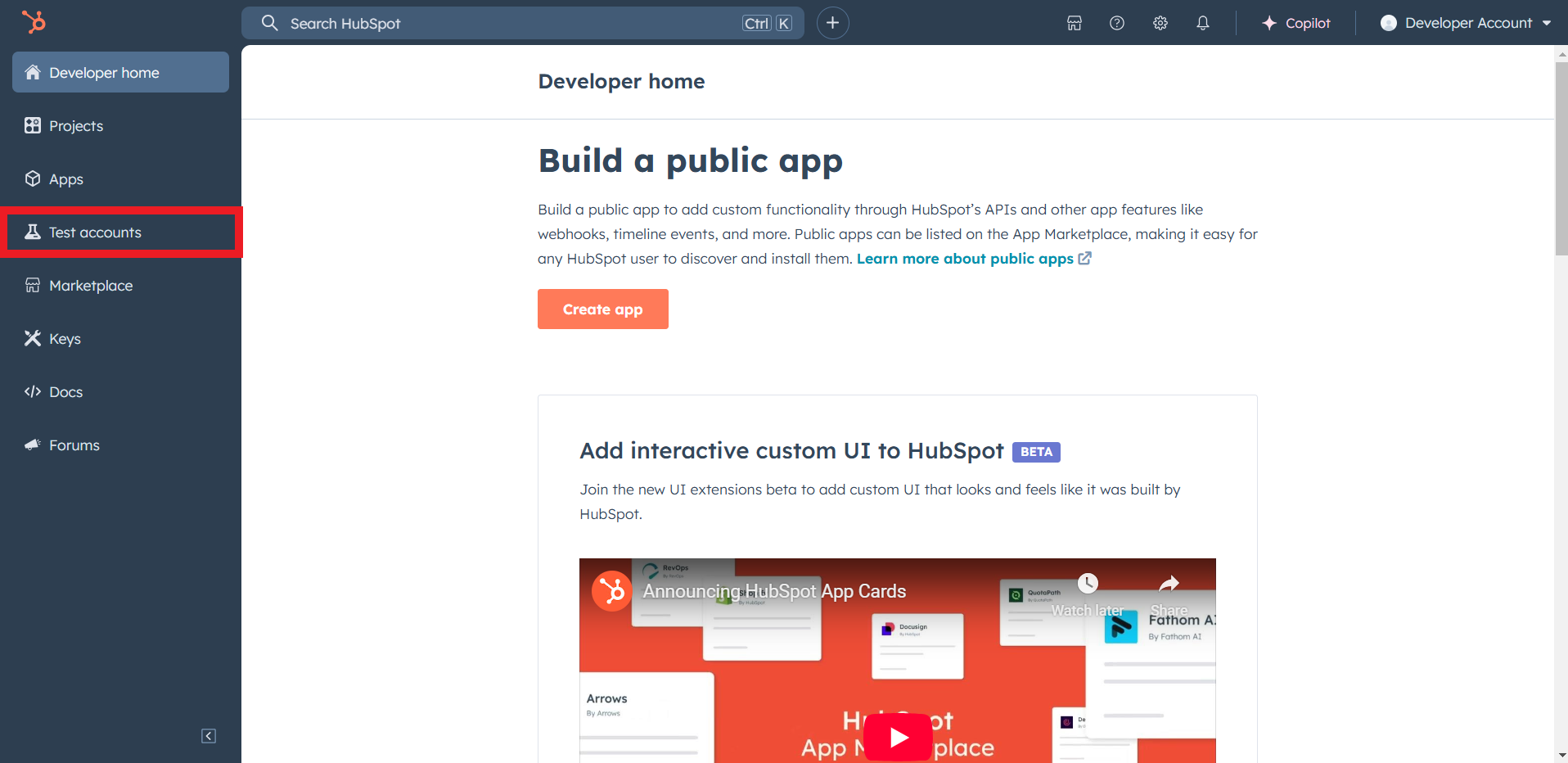
Select Test accounts in the left sidebar.
-
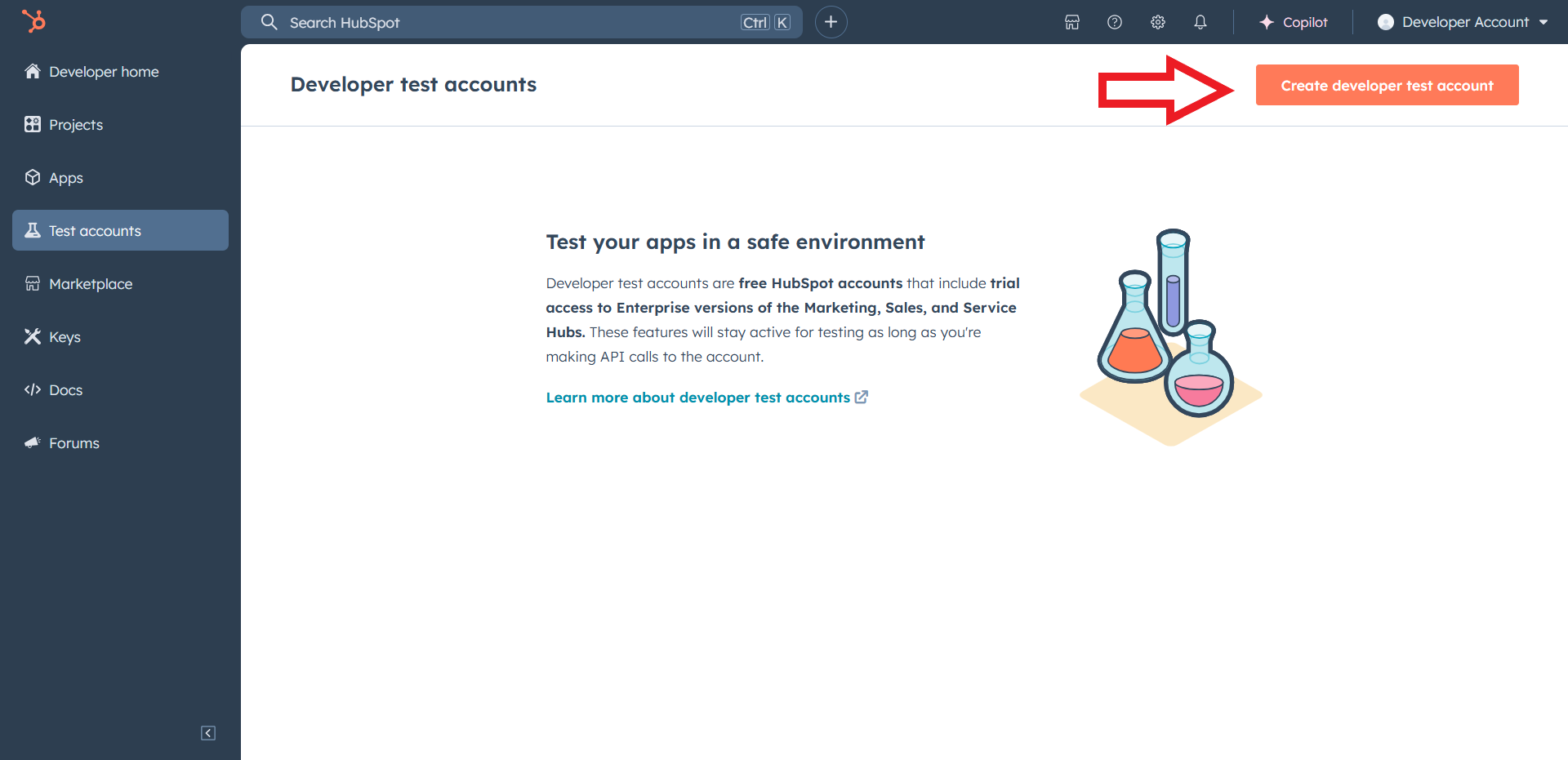
Select Create developer test account.
-
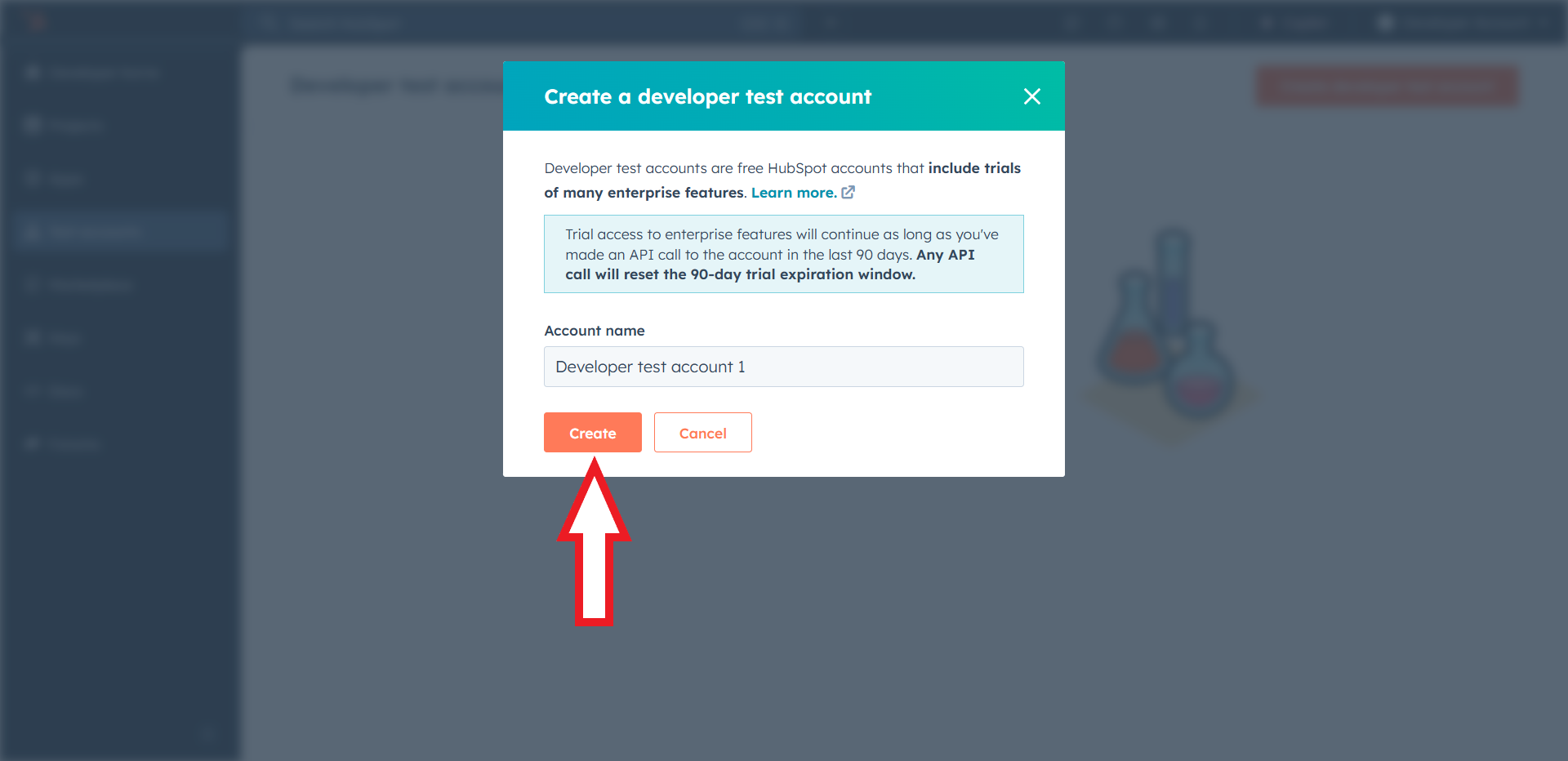
Provide a name and select Create.
Developer test accounts are for development and testing only. Do not use them in production.
Step 3: Create a HubSpot app
-
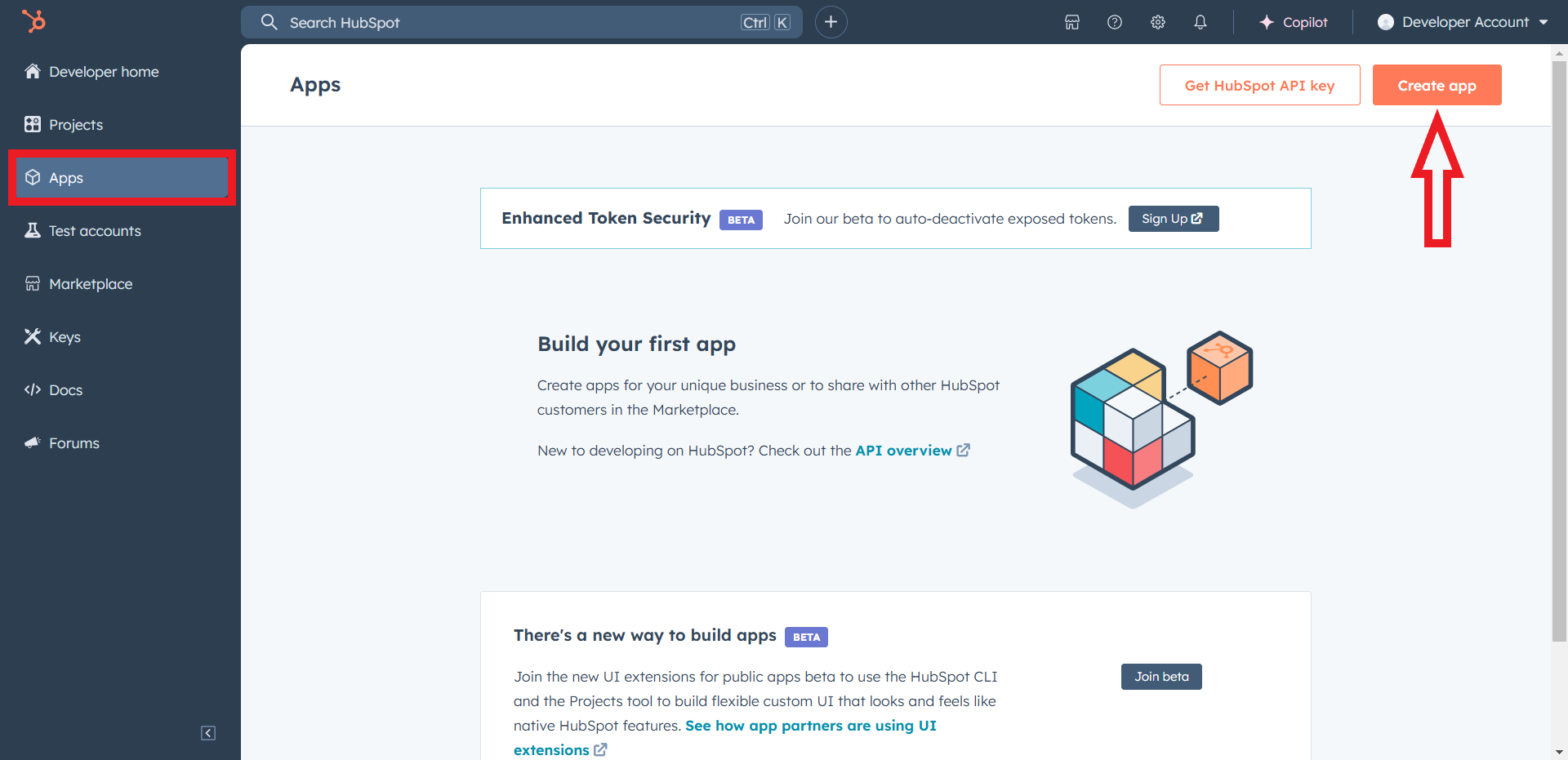
Navigate to Apps and select Create app.
-
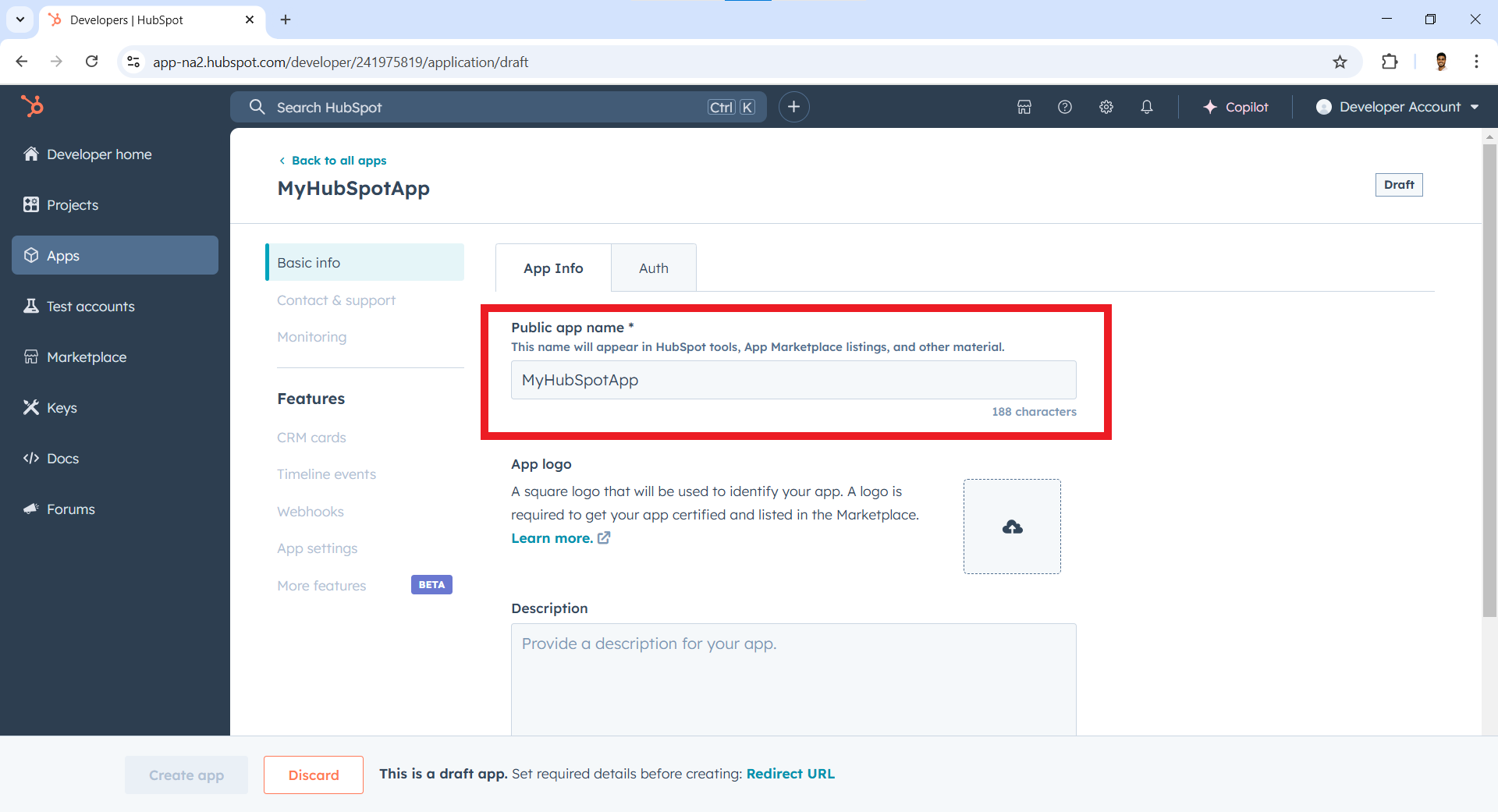
Enter the app name and an optional description.
Step 4: Set the redirect URI
-
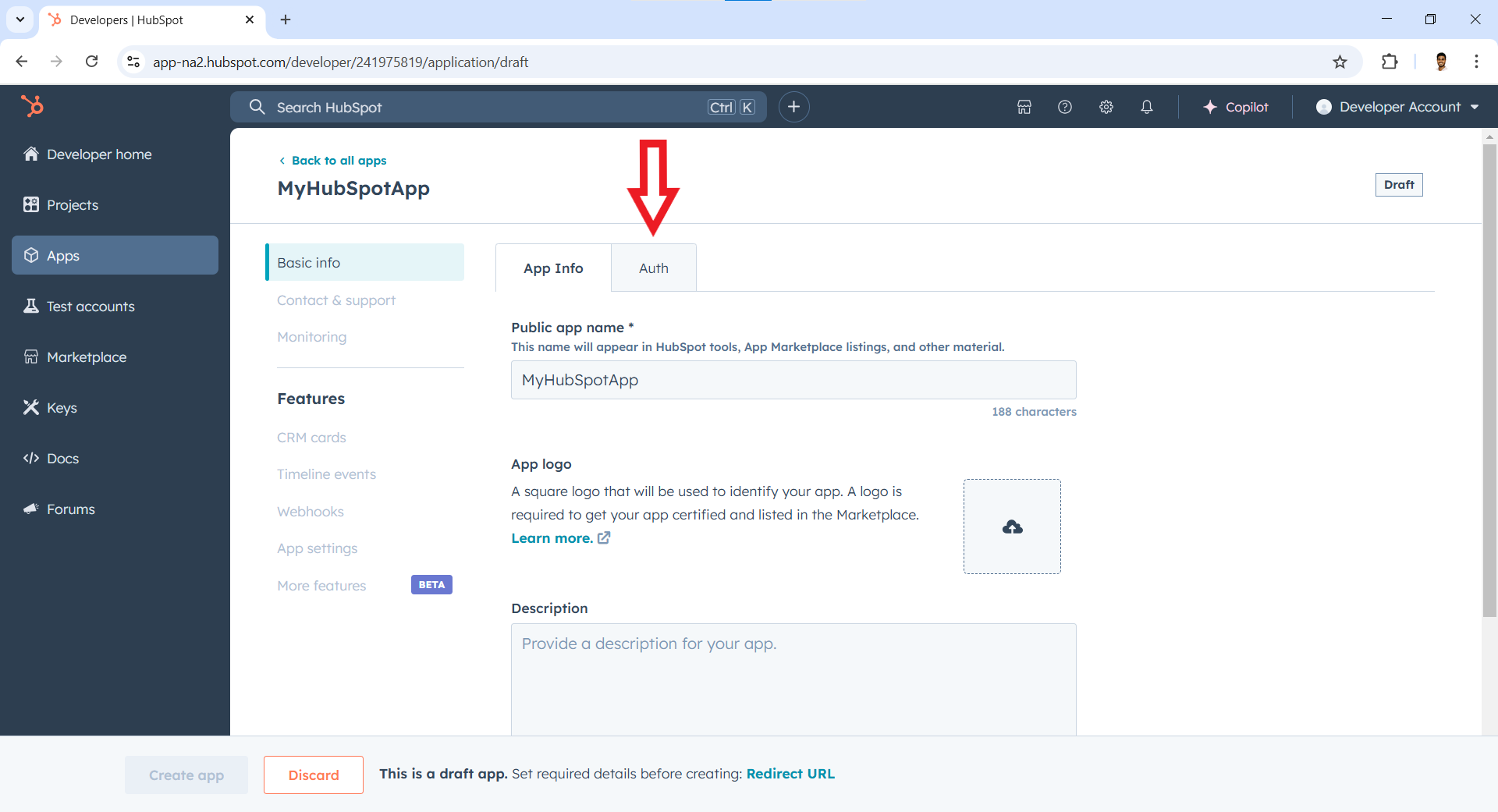
Go to the Auth tab.
-
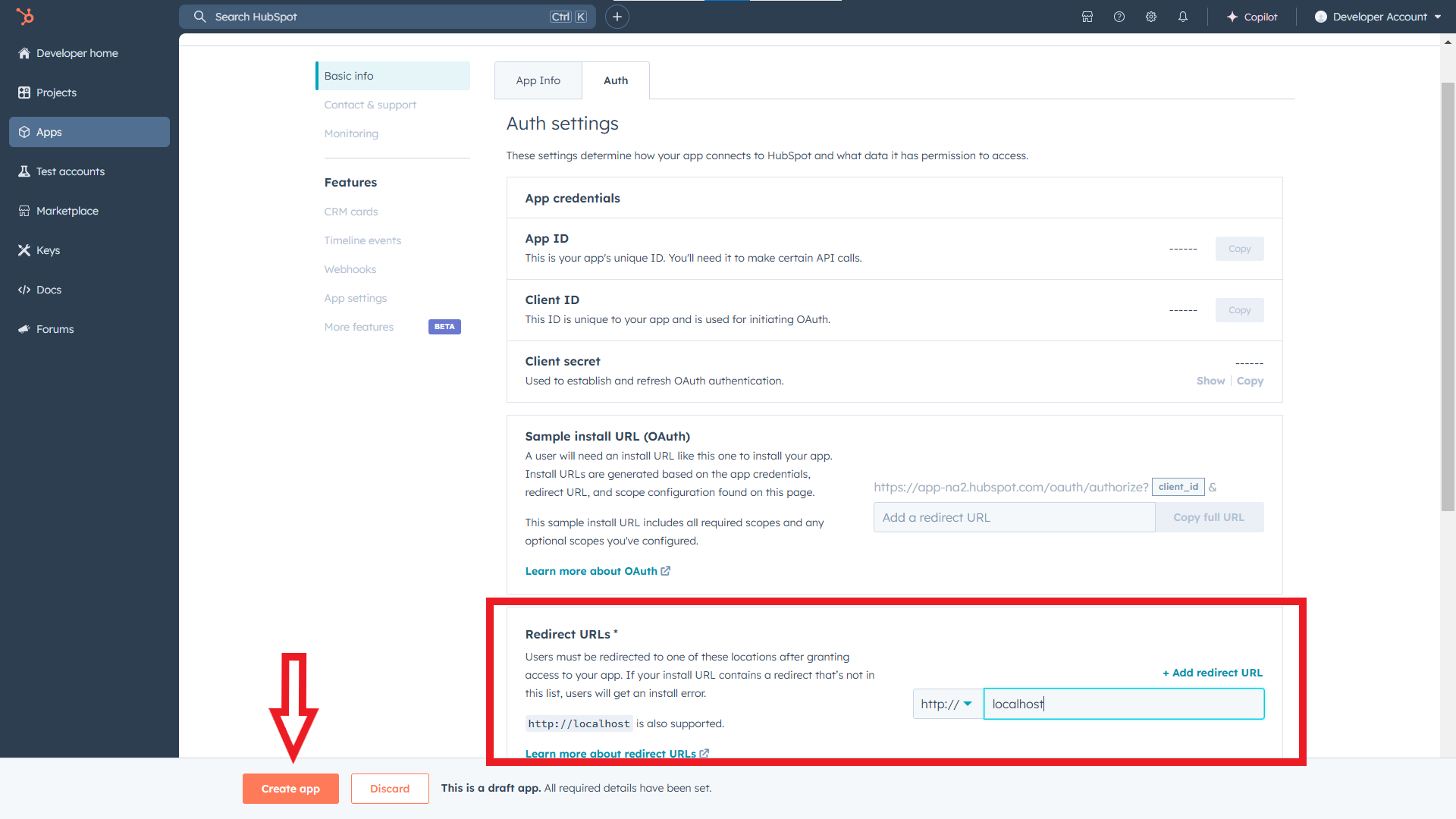
Under Redirect URL, add your redirect URL and select Create app.
Step 5: Get your App ID
-
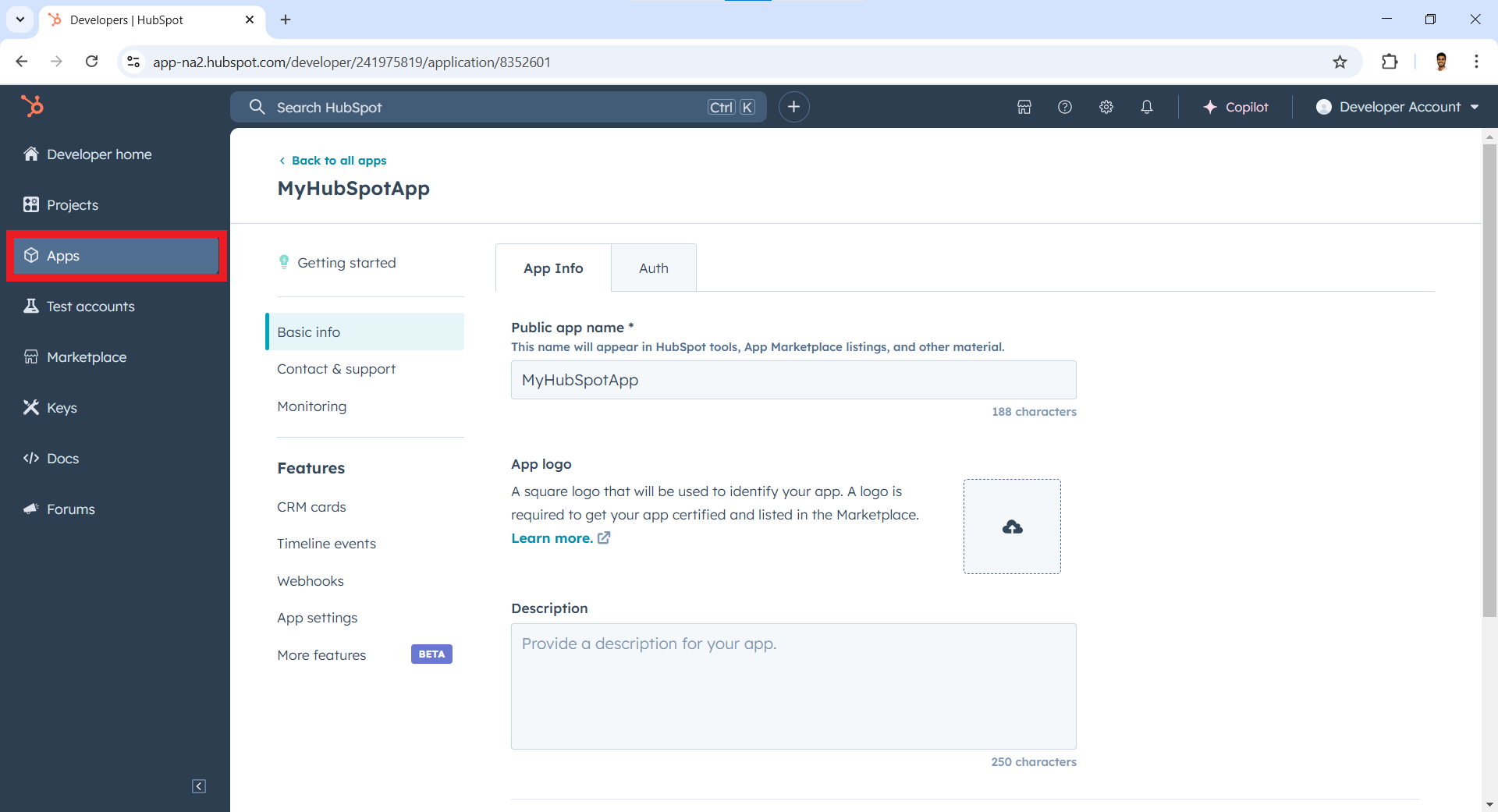
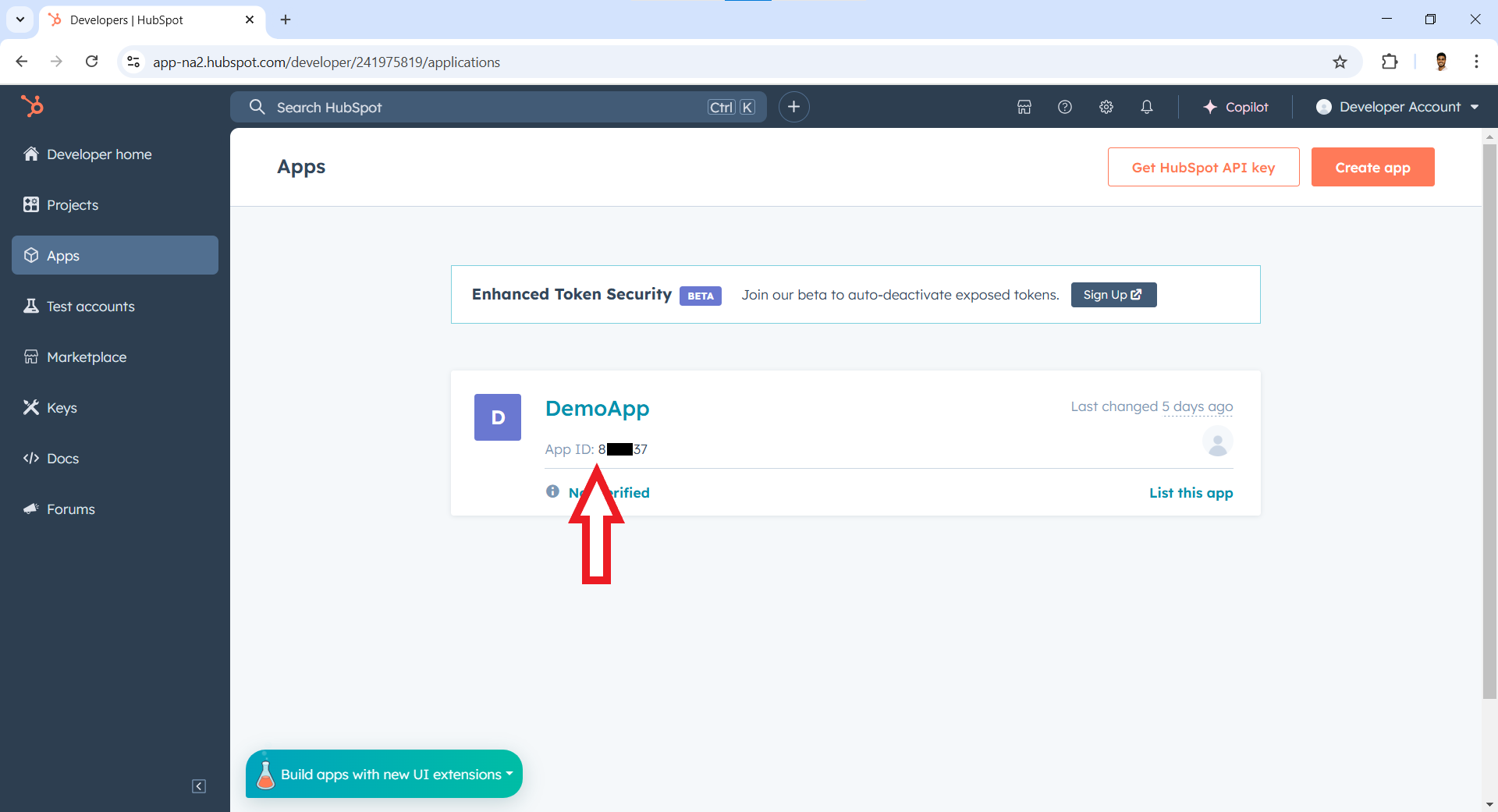
Navigate back to Apps.
-
Copy the App ID displayed next to your app name.
Step 6: Get your developer API key
-
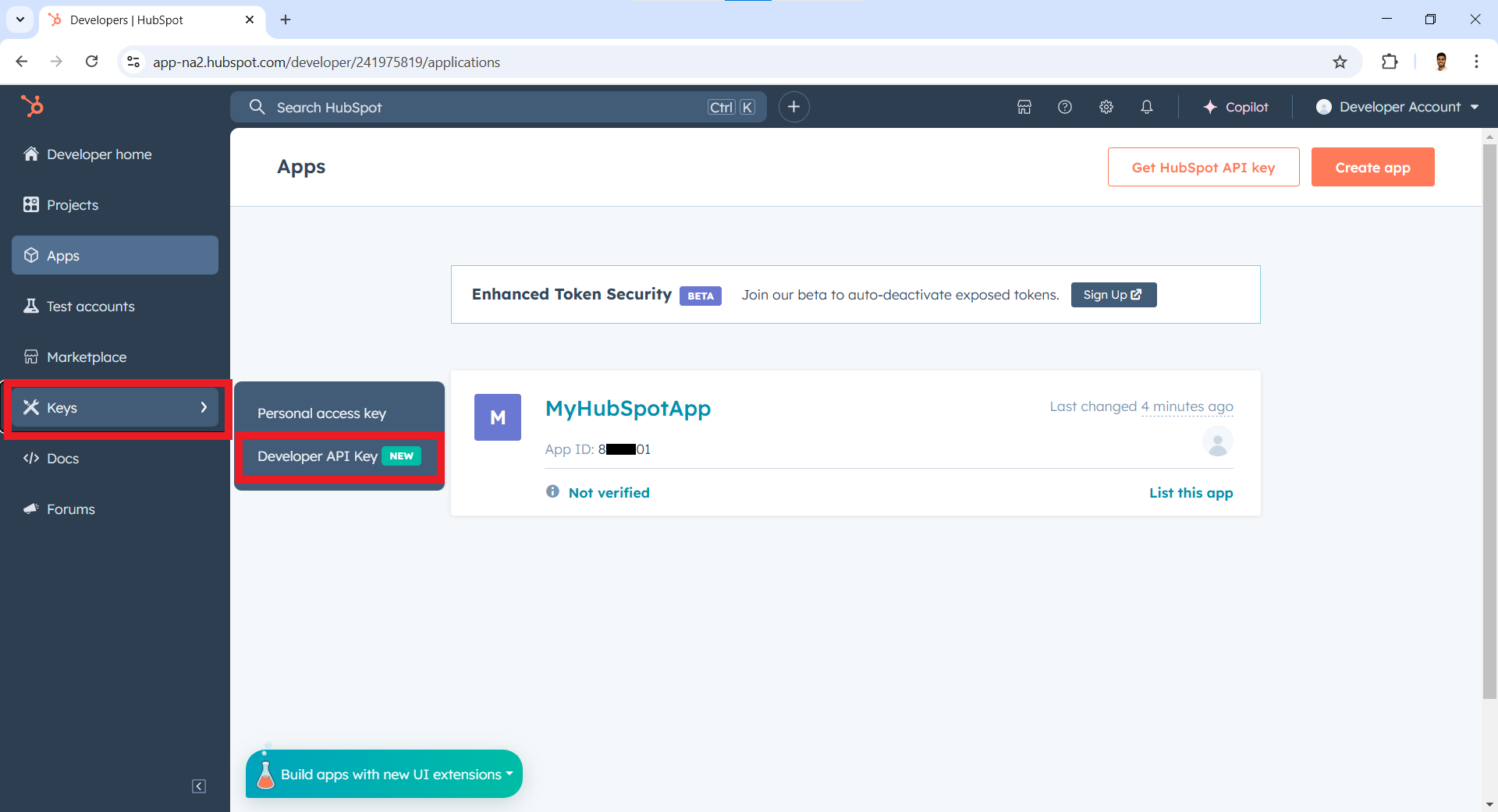
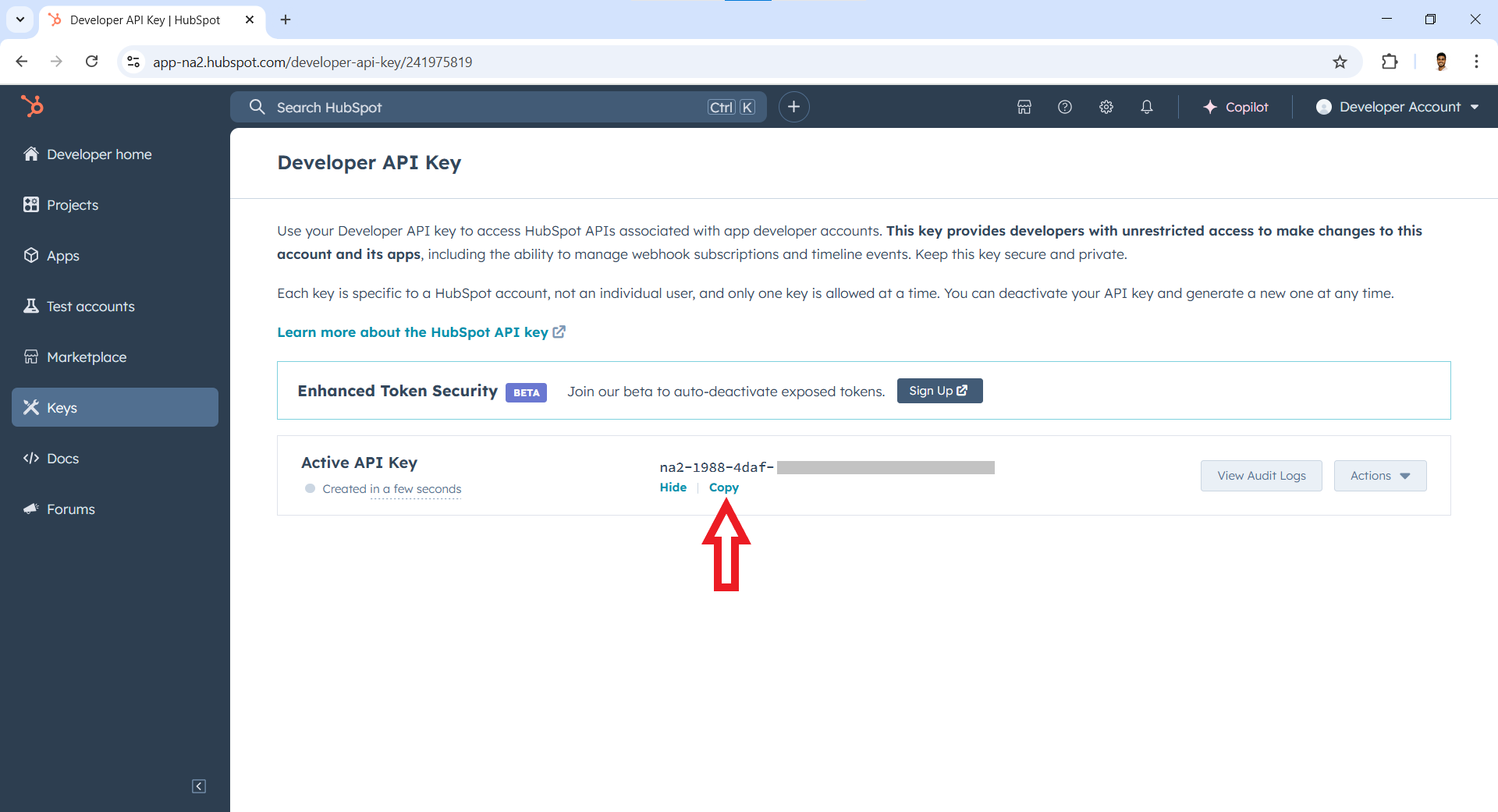
Select Keys in the left sidebar, then select Developer API Key.
-
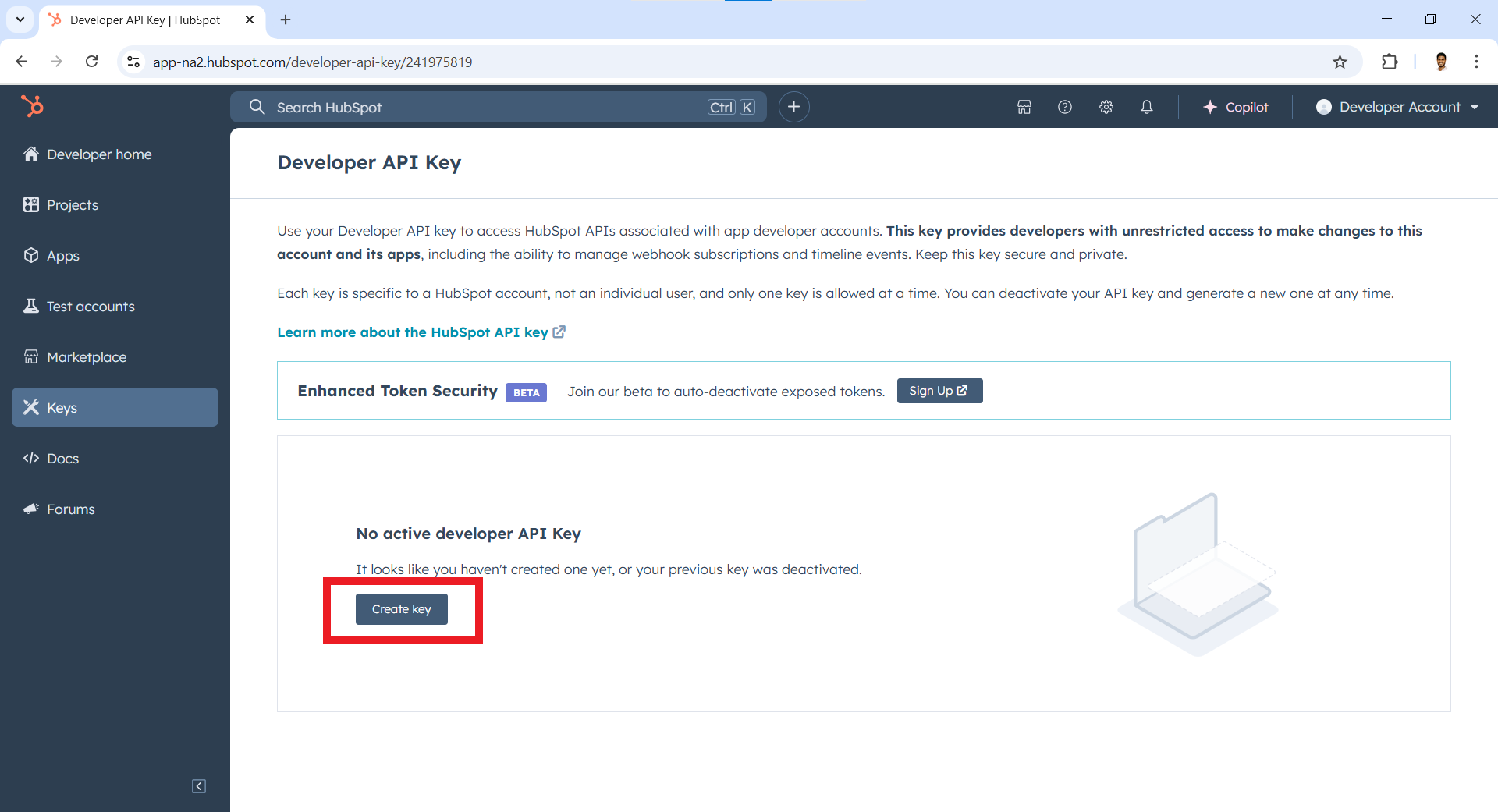
Select Create Key.
-
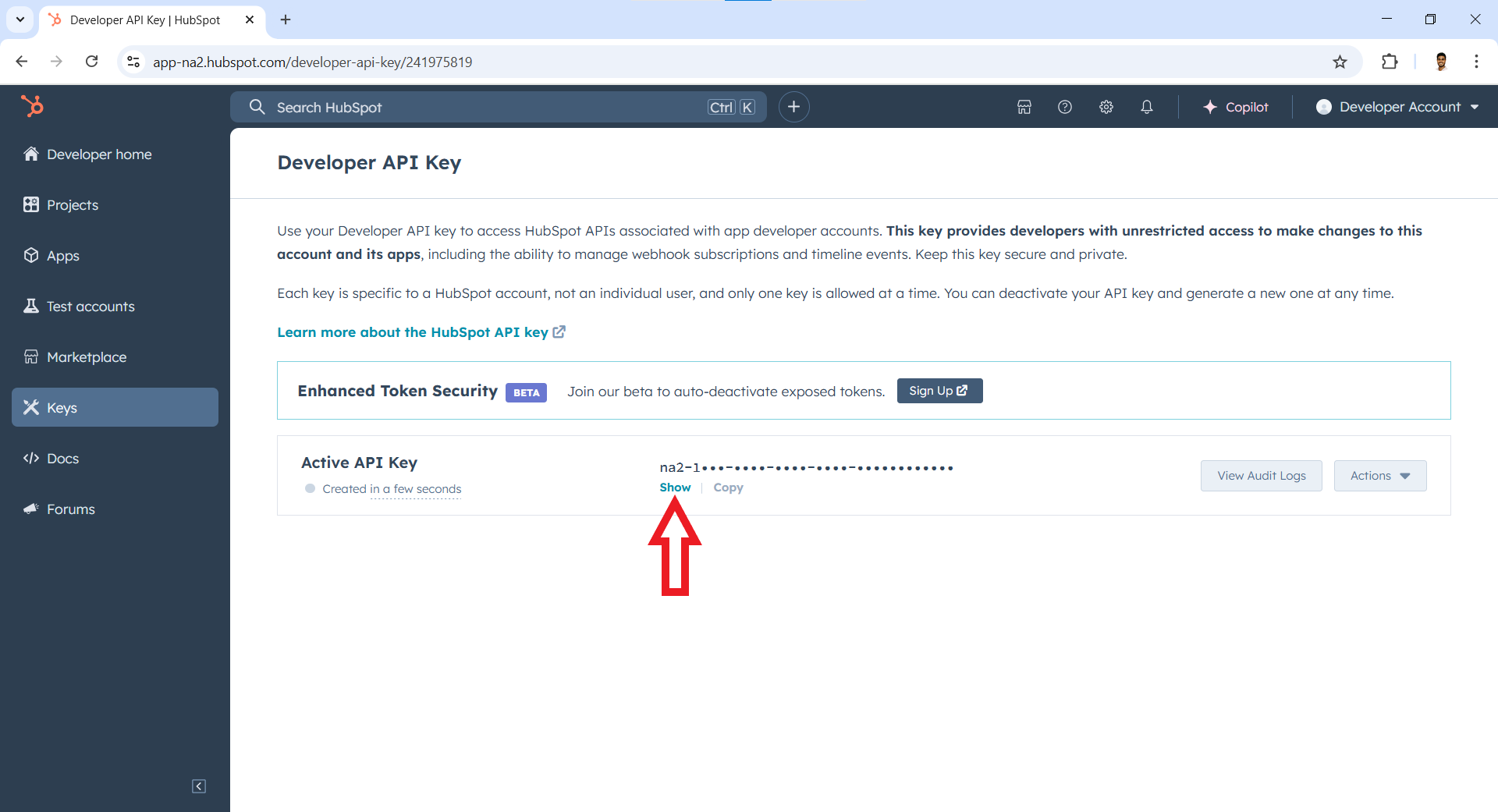
Select Show to reveal the key.
-
Select Copy to copy the developer API key.
Store the App ID and developer API key securely. Do not commit them to source control. Use Ballerina's configurable feature and a Config.toml file to supply them at runtime.