Example
What you'll build
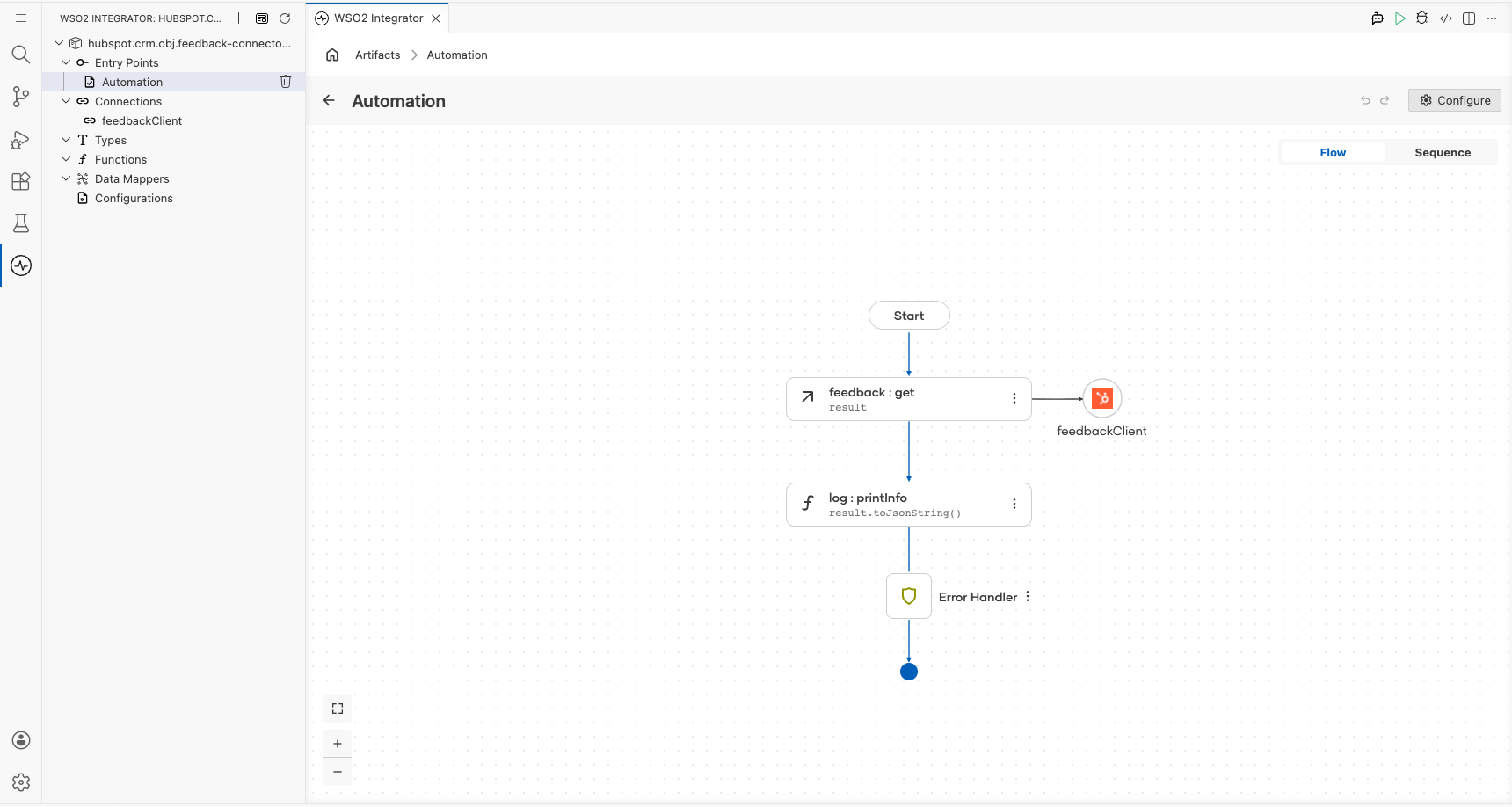
This integration retrieves HubSpot CRM Feedback Submission objects using a scheduled Automation entry point that periodically lists feedback submissions and logs them as JSON. The workflow connects to HubSpot's CRM API using a bearer token and outputs the full response for monitoring or downstream processing.
Operations used:
- List : Retrieves all feedback submissions from HubSpot CRM and assigns the result to a variable for logging
Architecture
Prerequisites
- A HubSpot account with API access enabled
- A HubSpot Bearer Token (Private App access token) with permission to read CRM objects
Setting up the HubSpot CRM Feedback Submissions integration
New to WSO2 Integrator? Follow the Create a New Integration guide to set up your integration first, then return here to add the connector.
Adding the HubSpot CRM Feedback Submissions connector
Step 1: Open the connector search palette
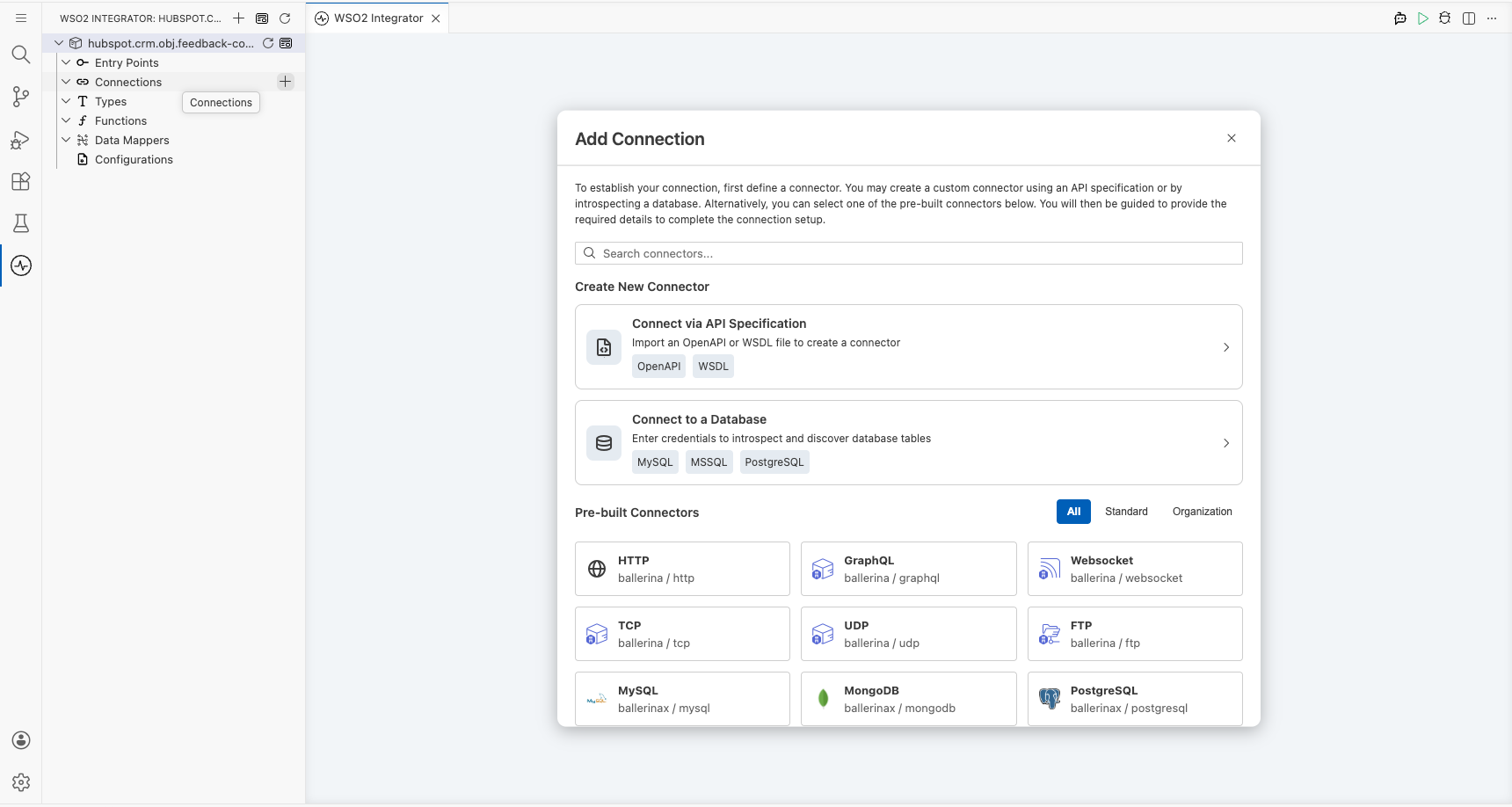
Select + Add Artifact → Connection on the integration overview canvas to open the connector search palette.
Step 2: Add an Automation entry point
Select + Add Artifact, then select Automation. In the Create New Automation form, select Create to accept the default settings. The canvas switches to the Automation flow editor showing Start and Error Handler nodes.
Configuring the HubSpot CRM Feedback Submissions connection
Step 3: Fill in the connection parameters
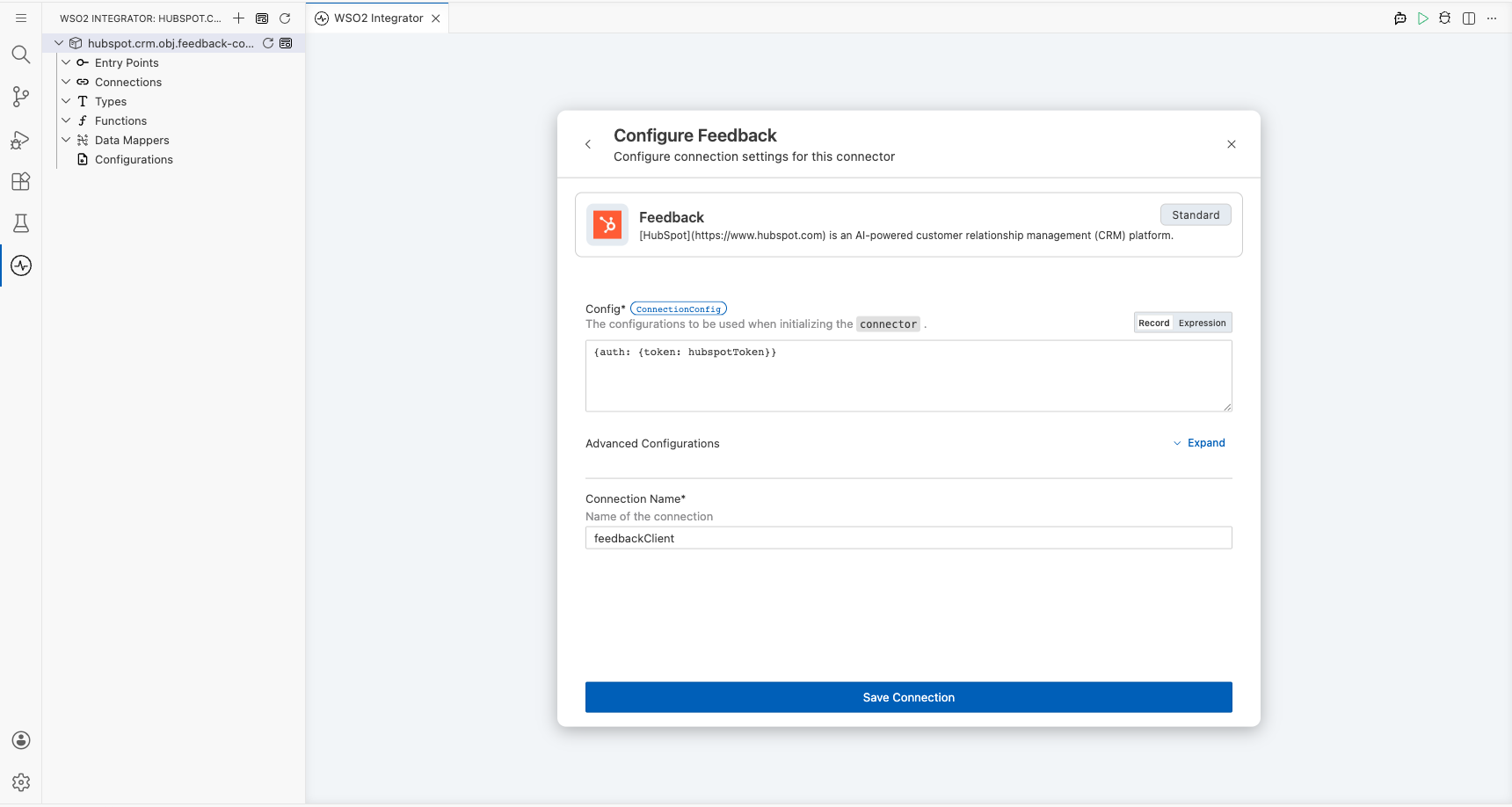
Search for hubspot in the palette and select the ballerinax/hubspot.crm.obj.feedback connector card to open the Configure Feedback form. Bind each field to a configurable variable:
- Config : Authentication configuration using
{auth: {token: hubspotToken}}, wherehubspotTokenis a configurable string variable - Connection Name : A unique name for this connection instance
Step 4: Save the connection
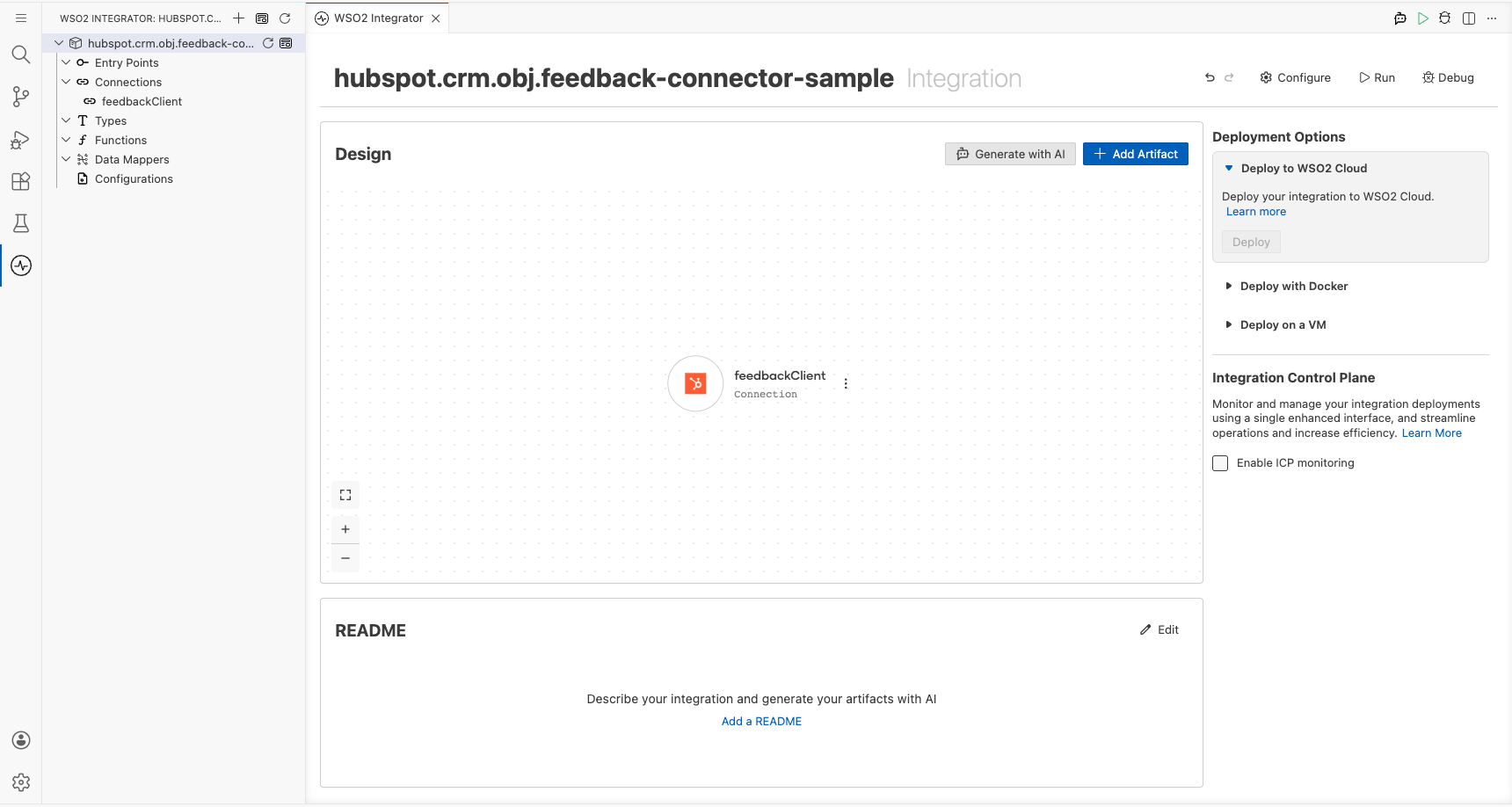
Select Save Connection to persist the connection. The canvas displays the feedbackClient connection node confirming the connection was created successfully.
Step 5: Set actual values for your configurables
- In the left panel, select Configurations.
- Set a value for each configurable listed below.
- hubspotToken (string) : Your HubSpot Private App bearer token (for example,
pat-na1-xxxxxxxx-xxxx-xxxx-xxxx-xxxxxxxxxxxx)
Configuring the HubSpot CRM Feedback Submissions List operation
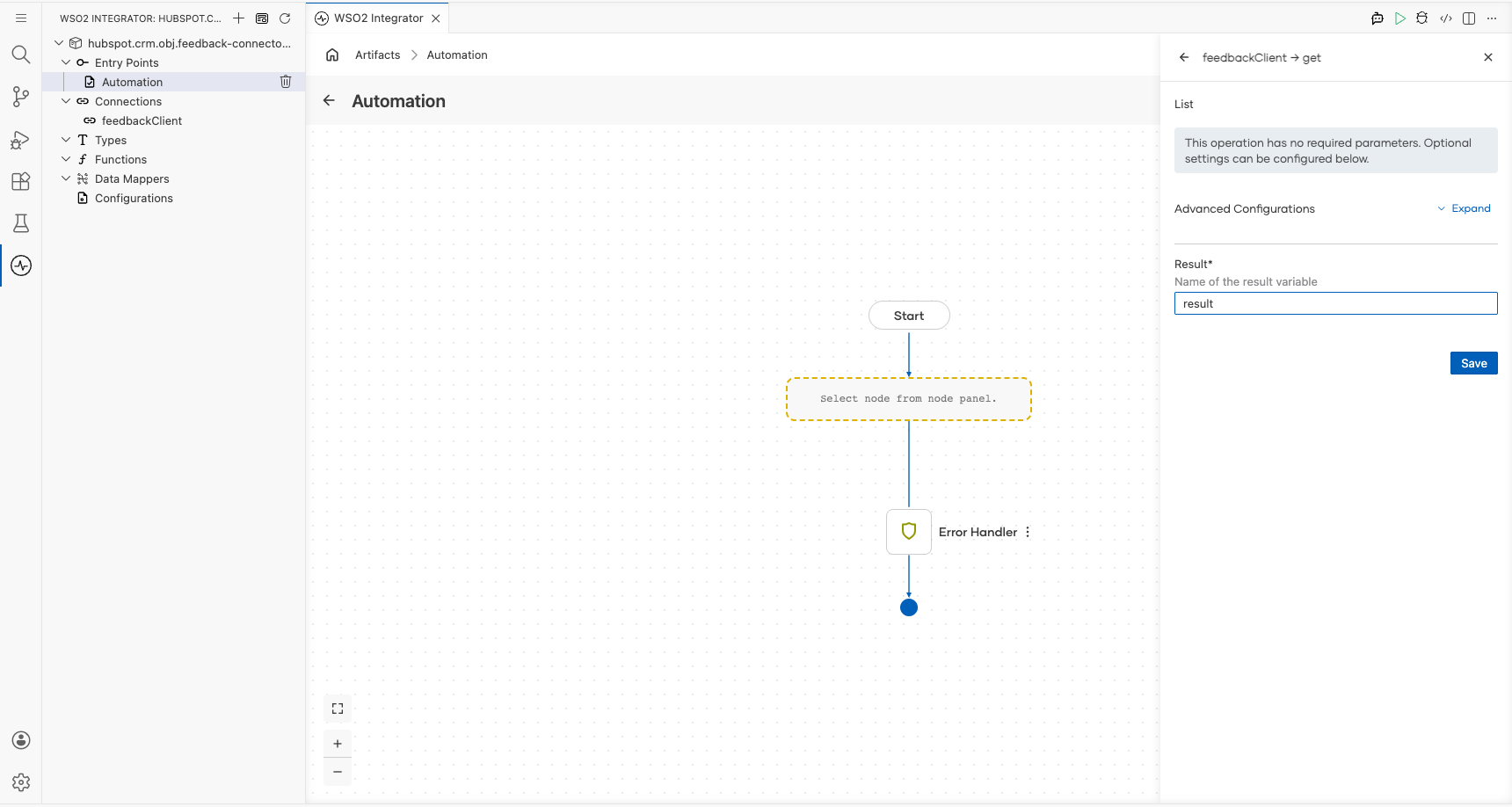
Step 6: Select and configure the List operation
- Select the + button between the Start and Error Handler nodes.
- In the right-hand step panel, expand feedbackClient under Connections.
- Select List to open the operation form.
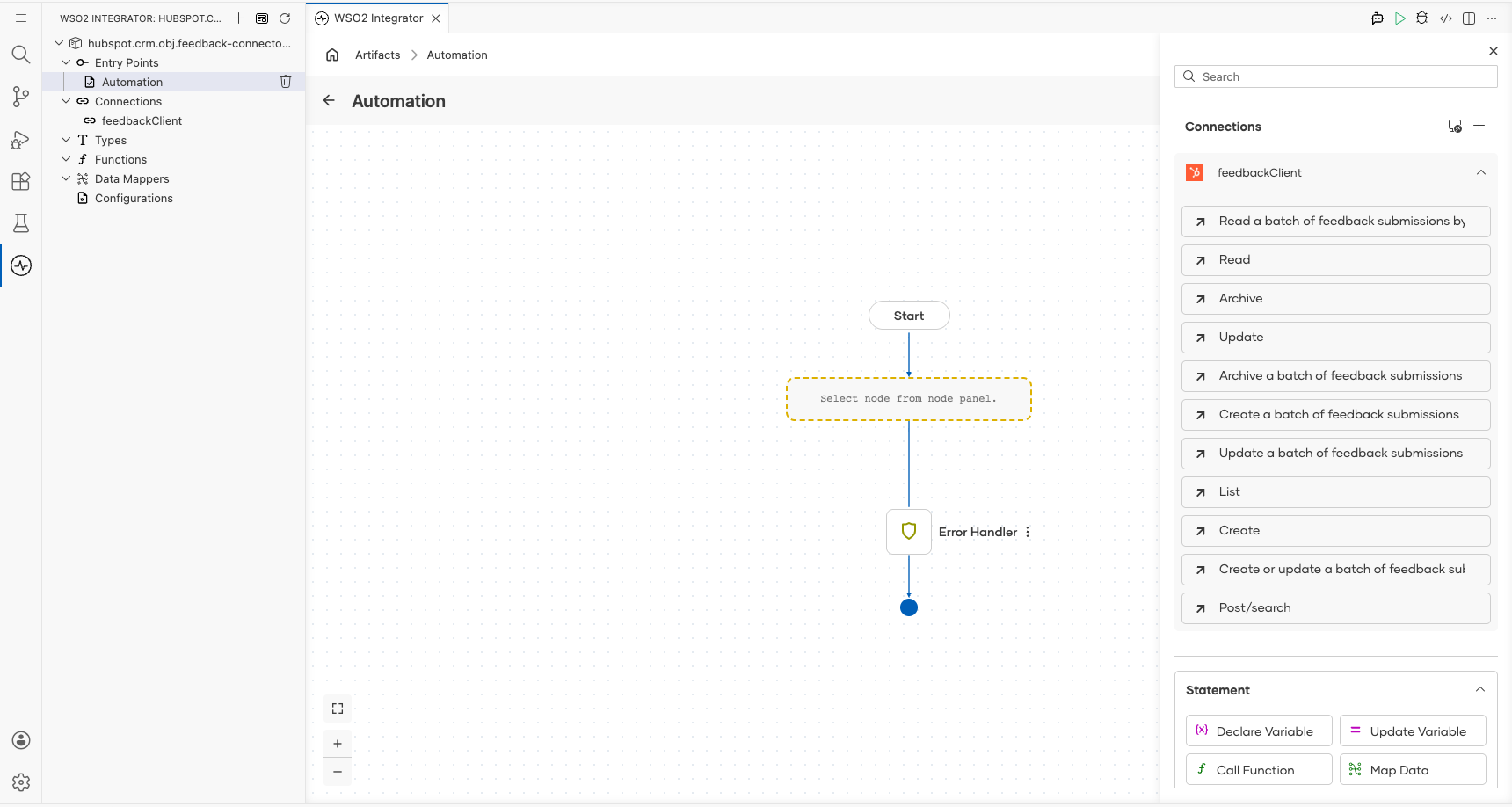
Configure the operation with the following value:
- Result : The variable name to store the returned feedback submissions collection
Try it yourself
Try this sample in WSO2 Integration Platform.

More code examples
The HubSpot CRM Feedback connector provides practical examples illustrating usage in various scenarios.
- Feedback Reviewing - This example demonstrates the usage of the HubSpot CRM Feedback connector to read a page of feedback submissions, read an object identified by
{feedbackSubmissionId}, read a batch of feedback submissions by internal ID, or unique property values, and search feedback submissions.
Note: The feedback submissions endpoints are currently read-only. Feedback submissions cannot be submitted or edited through the API. You can only create properties in the feedback surveys tool within HubSpot, and the properties cannot be edited after creation.