Example
This page contains two end-to-end examples that use the PostgreSQL connector in WSO2 Integrator:
- PostgreSQL connector example: Build an automation that inserts a record into a PostgreSQL table.
- PostgreSQL CDC trigger example: Build a service that reacts to row-insert events on a PostgreSQL table in real time.
PostgreSQL connector example
Build a WSO2 Integrator automation that connects to a PostgreSQL database using configurable connection parameters and executes an INSERT SQL statement. The integration uses the PostgreSQL connector to insert a record into a database table safely, without hardcoding credentials in source code.
Operations used:
- Execute: Runs a parameterized SQL INSERT statement against the connected PostgreSQL database and returns an execution result.
Architecture
- A running PostgreSQL database instance with a table to insert records into.
- PostgreSQL database credentials (host, username, password, database name, and port).
Set up the PostgreSQL integration
Follow the Create a new integration guide to set up your integration first, then return here to add the connector.
Add the PostgreSQL connector
Open the connector palette and select the PostgreSQL connector
- On the canvas, select + Add Connection to open the connector palette.
- In the palette search box, enter PostgreSQL.
- Select the PostgreSQL card to open the Configure PostgreSQL form.
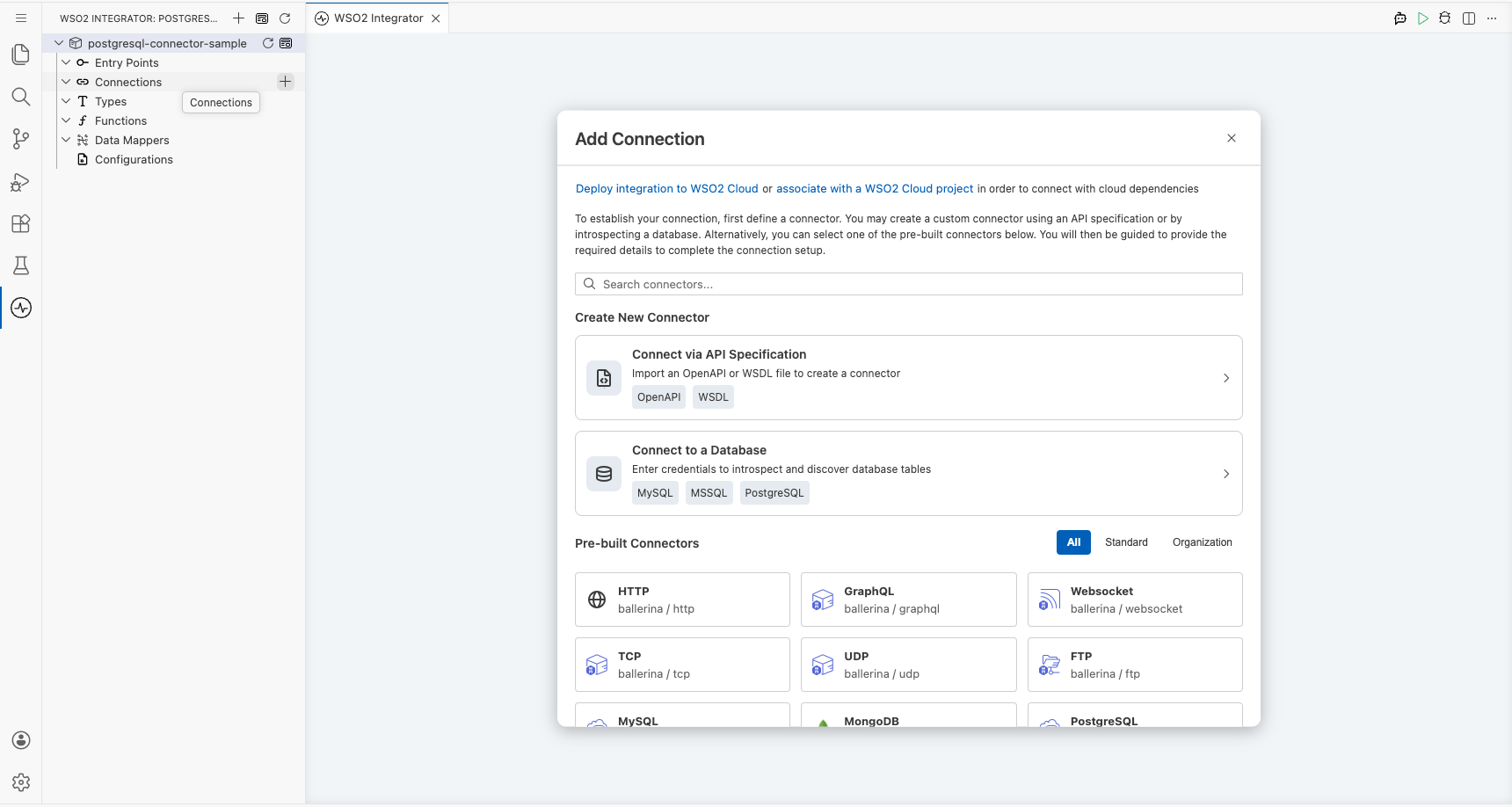
Configure the PostgreSQL connection
Fill in the PostgreSQL connection parameters
In the Configure PostgreSQL form, expand Advanced Configurations to reveal all connection fields. Use the Configurables tab in the helper panel to bind each field to a configurable variable, keeping credentials out of source code. For each parameter listed below:
- Open the helper panel beside the field and go to the Configurables tab.
- Select an existing configurable, or select + New Configurable.
- Supply a camelCase name and the appropriate type, then select Save. The configurable is injected into the field.
- host: PostgreSQL server hostname, bound to a
stringconfigurable namedpostgresHost. - username: Database username, bound to a
string?configurable namedpostgresUser. - password: Database user password, bound to a
string?configurable namedpostgresPassword. - database: Database name to connect to, bound to a
string?configurable namedpostgresDatabase. - port: PostgreSQL server port, bound to an
intconfigurable namedpostgresPort.
After creating all five configurables, set Connection Name to postgresqlClient.
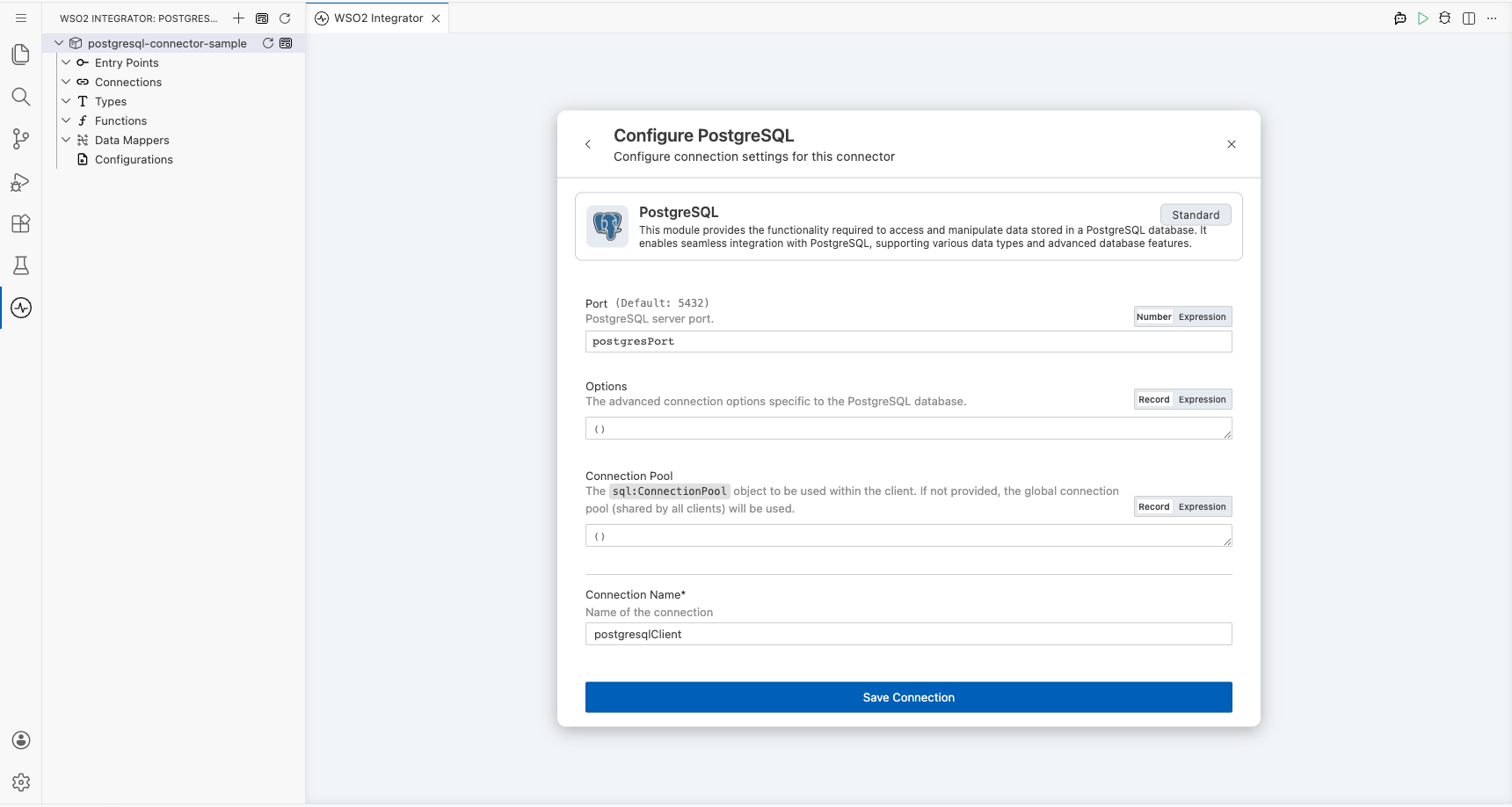
Save the PostgreSQL connection
Select Save Connection to save the connector. The canvas returns to the integration overview, and postgresqlClient is now visible under Connections in the left project tree.
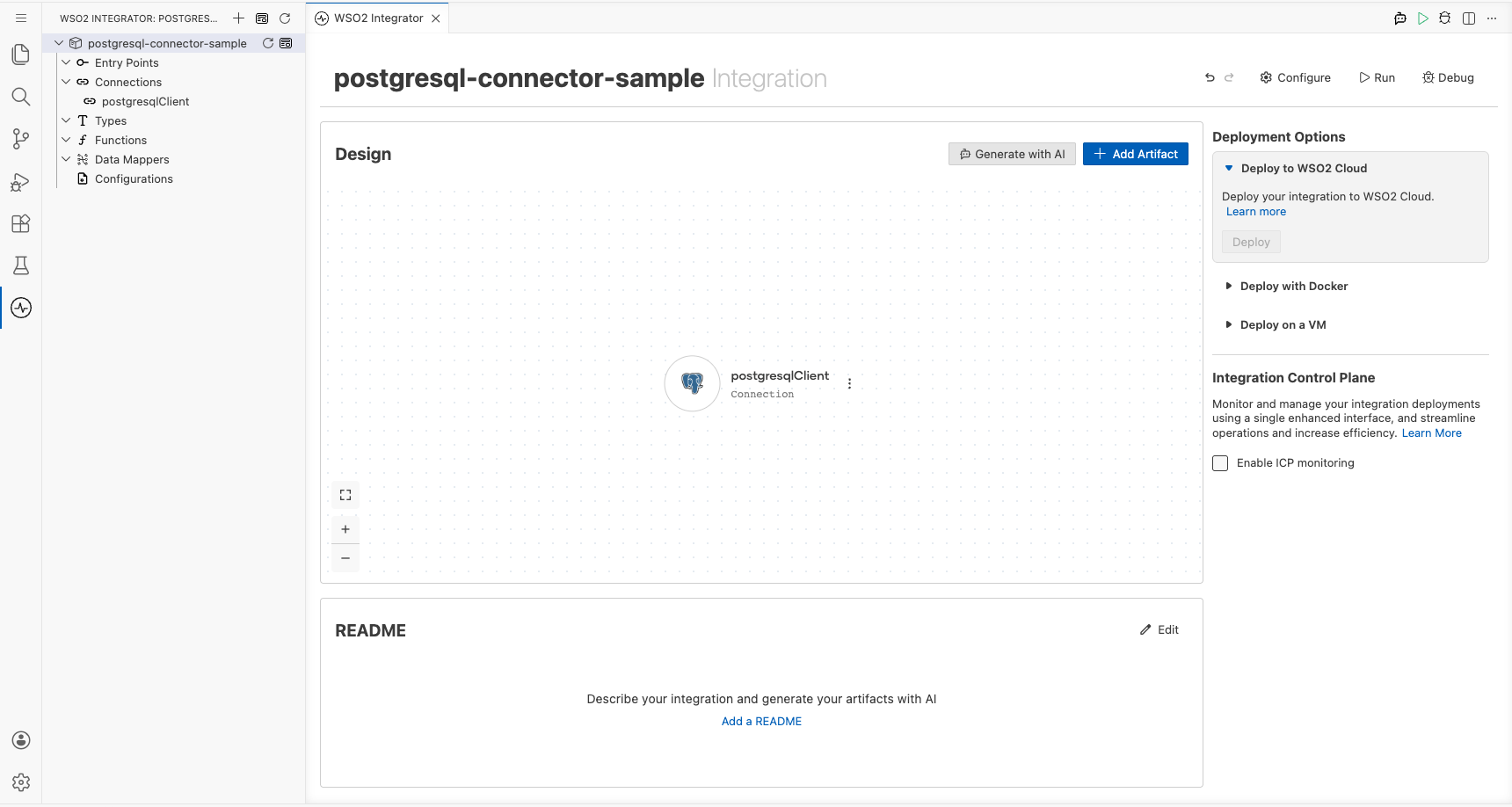
Set actual values for your configurables
- In the left panel, select Configurations.
- Set a value for each configurable listed below.
- postgresHost: Hostname or IP address of your PostgreSQL server (
string). - postgresUser: Database username (
string?). - postgresPassword: Database user password (
string?). - postgresDatabase: Name of the database to connect to (
string?). - postgresPort: Port number your PostgreSQL server listens on (
int).
Configure the PostgreSQL execute operation
Add an automation entry point
- Select + Add Artifact on the canvas toolbar.
- Under Automation, select the Automation tile.
- Select Create. No additional configuration is needed.
The automation flow canvas opens, showing a Start node and an Error Handler node with an empty step slot between them.
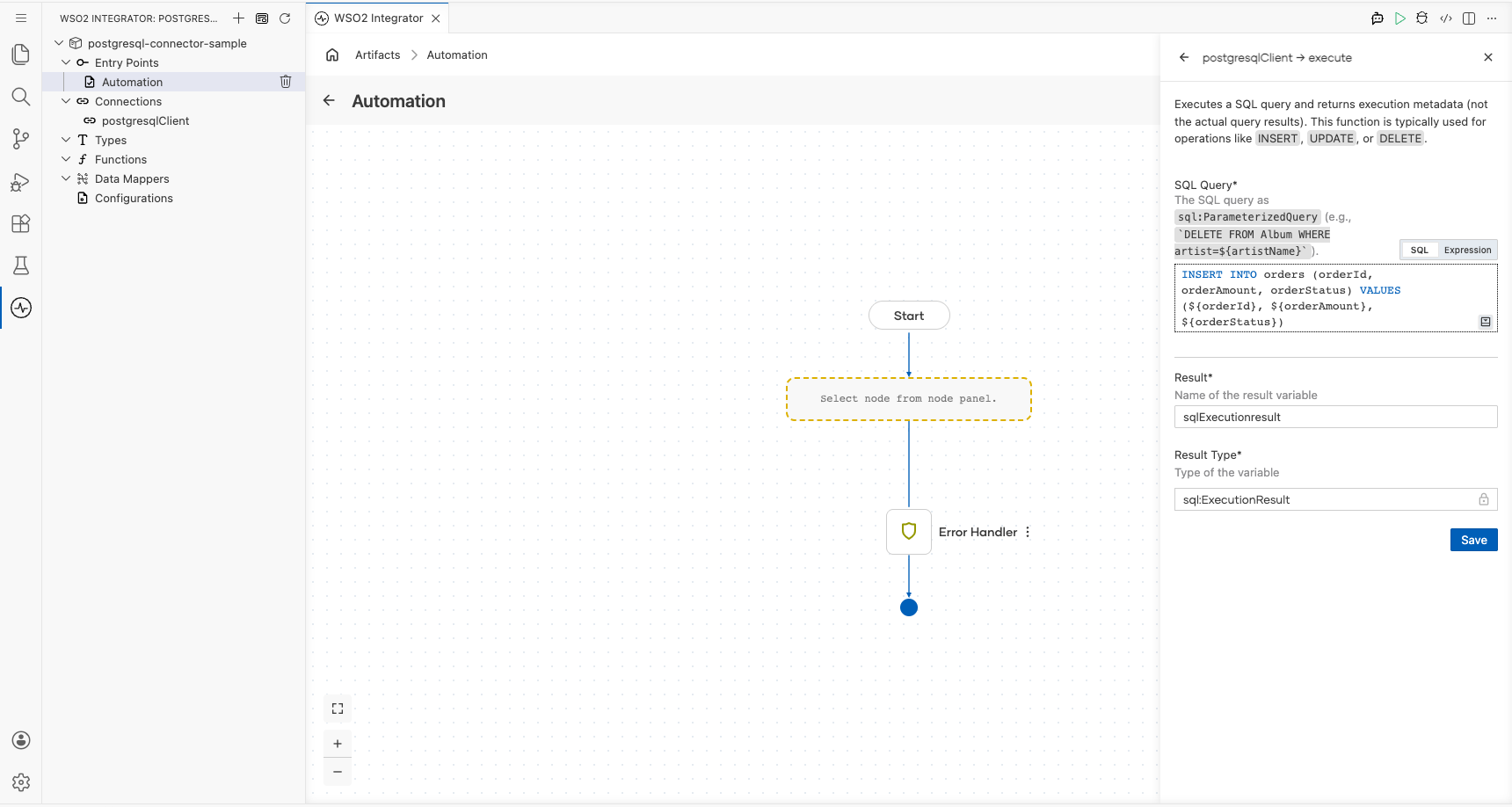
Select the empty step placeholder in the flow to open the step addition panel. In the right panel, locate the Connections section, select postgresqlClient to expand its available operations, and then select Execute.
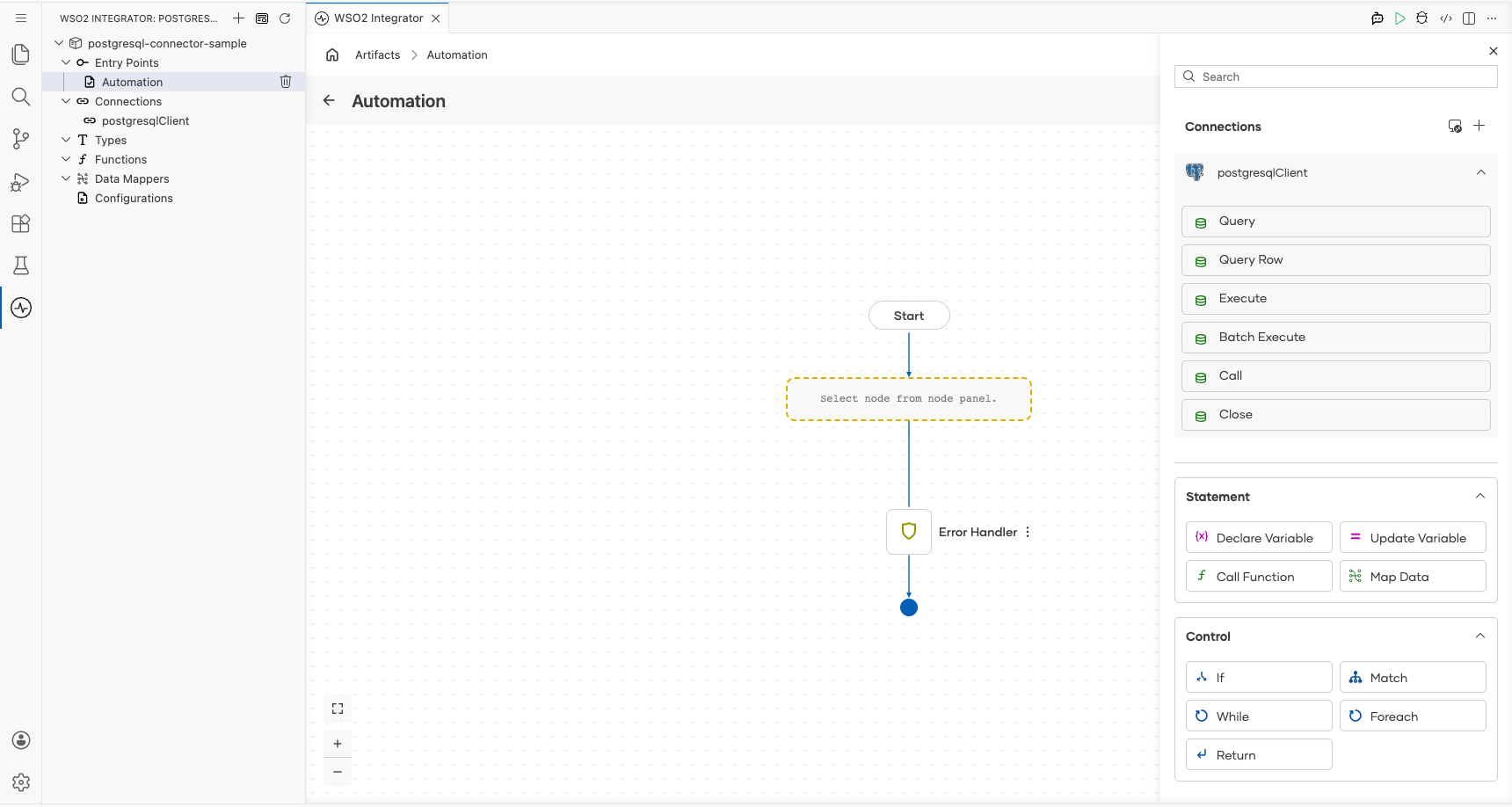
Configure the execute operation parameters and save
Fill in the operation fields, then select Save to add the step to the automation flow.
- sqlQuery: A parameterized SQL INSERT statement to execute. Use backtick-templated parameters so values are bound safely (no string concatenation). For example:
`INSERT INTO Customers (firstName, lastName, country) VALUES (${firstName}, ${lastName}, ${country})`, wherefirstName,lastName, andcountryare Ballerina variables. - result: Variable that holds the returned
sql:ExecutionResult. Pre-filled assqlExecutionresult.
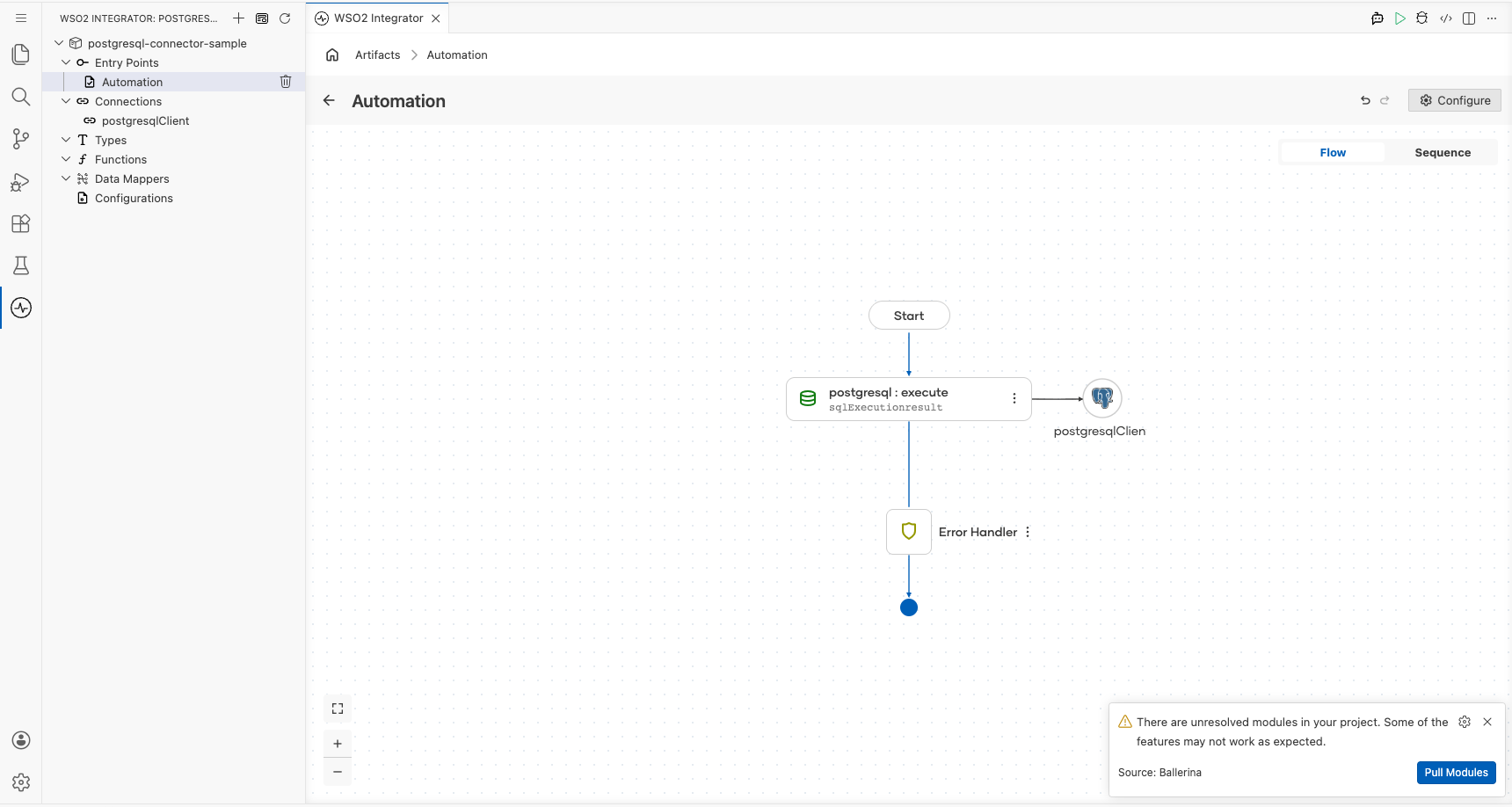
The automation flow now contains a single execute step between Start and Error Handler.
Try it yourself
Try this sample in WSO2 Integration Platform.

PostgreSQL CDC trigger example
This integration uses the PostgreSQL CDC trigger to listen for row-level insert events on a PostgreSQL table in real time. When a new row is inserted, the onCreate handler receives a typed PostgreSQLInsertEntry record containing the new row's data and logs it to the console. The overall flow runs from listener to handler to log:printInfo, giving you a foundation for event-driven pipelines such as data sync, audit logging, or downstream notifications.
Architecture
- A running PostgreSQL instance with logical replication enabled (
wal_level = logical). - A PostgreSQL user with the
REPLICATIONprivilege on the target database. - The target table already created in the database.
Set up the PostgreSQL CDC integration
Follow the Create a new integration guide to set up your integration first, then return here to add the trigger.
Add the PostgreSQL CDC trigger
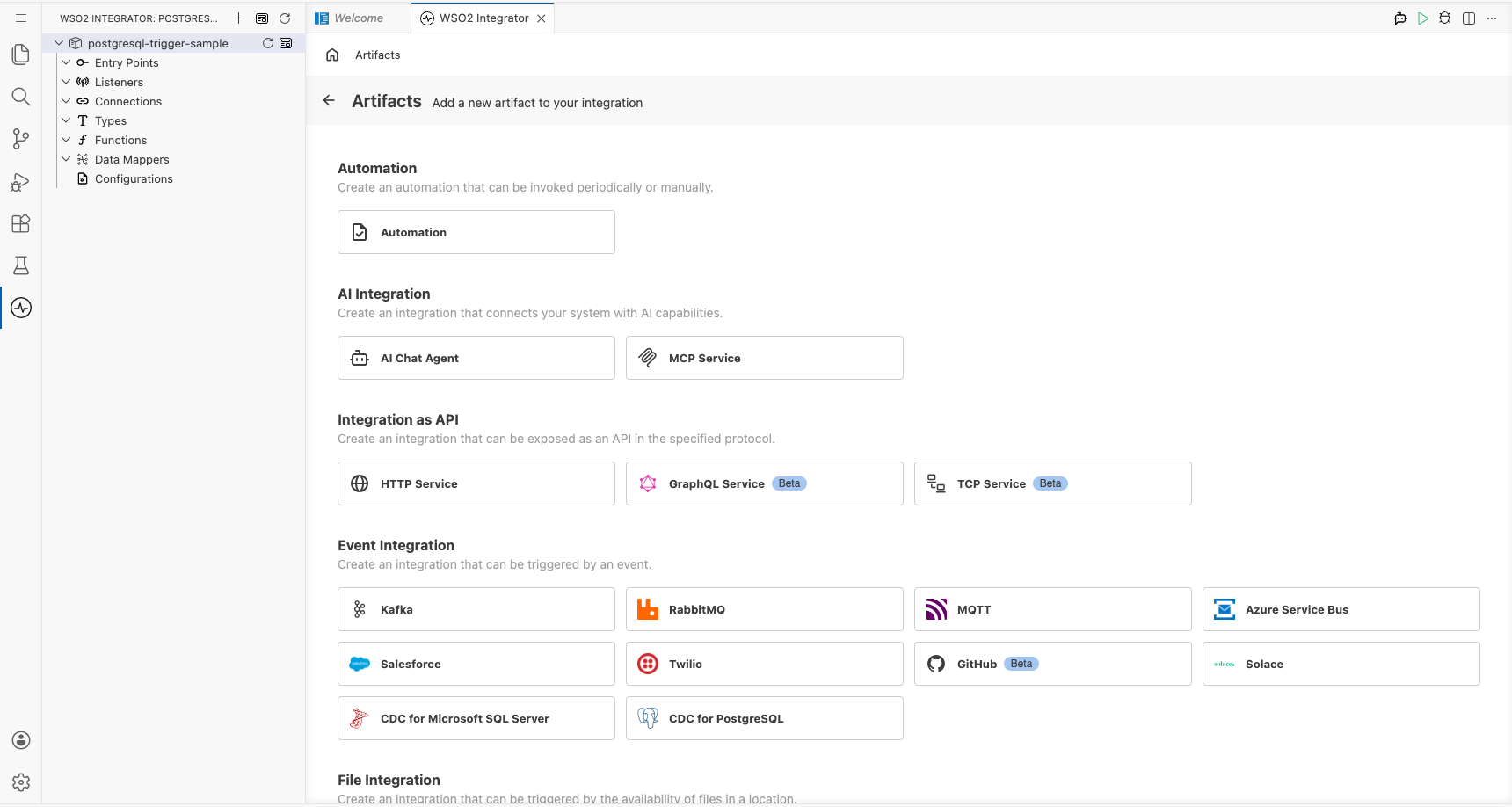
Open the artifacts palette
Select + Add Artifact in the WSO2 Integrator side panel to open the Artifacts palette. Locate the Event Integration category and select the CDC for PostgreSQL trigger card.
Configure the PostgreSQL CDC listener
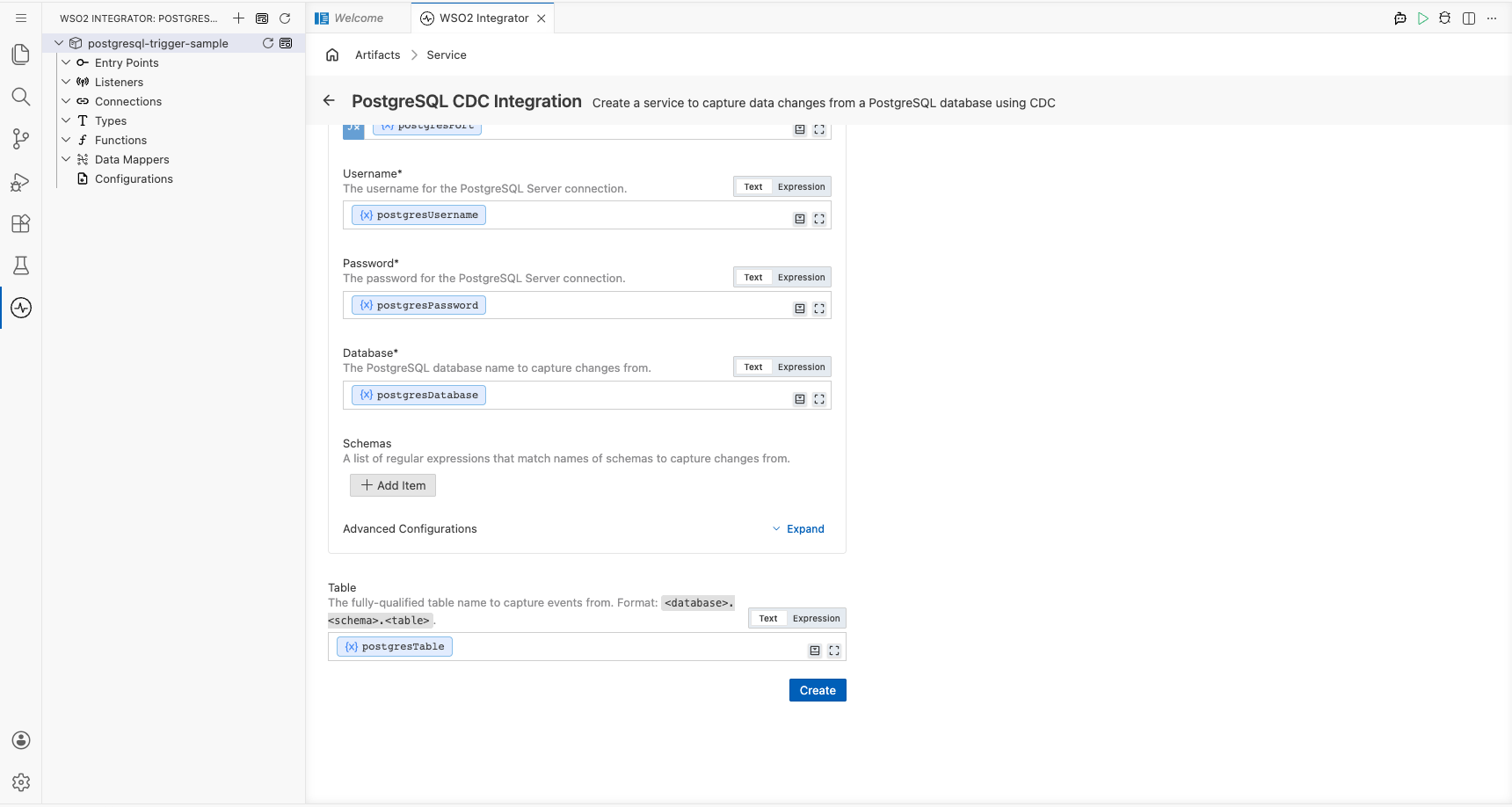
Bind listener parameters to configurable variables
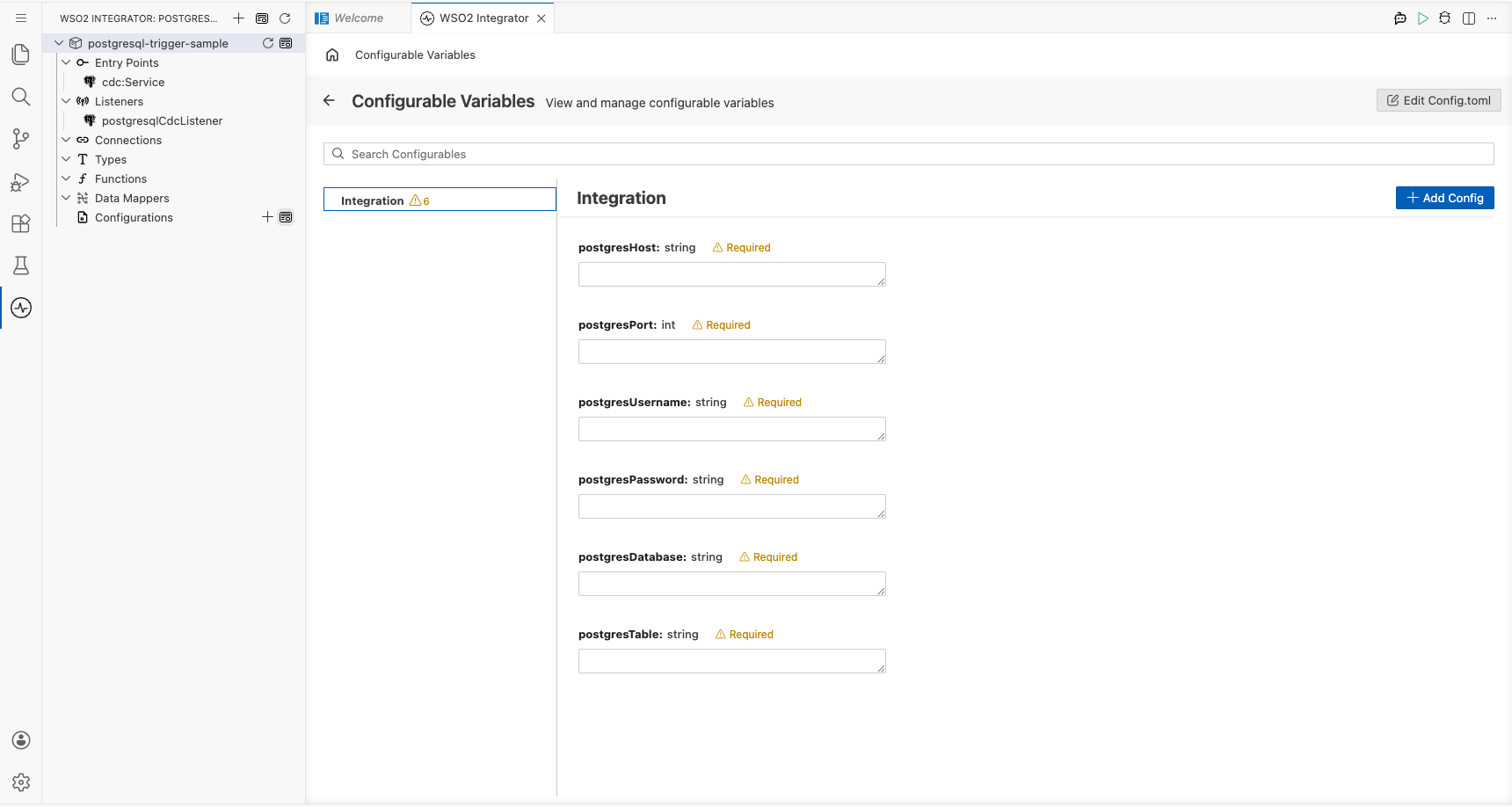
Fill in the trigger configuration form, binding every connection field to a configurable variable so that credentials are never hardcoded:
- Hostname: Hostname or IP address of the PostgreSQL server.
- Port: Port on which PostgreSQL is listening.
- Username: PostgreSQL user with replication privileges.
- Password: Password for the PostgreSQL user.
- Database Name: Name of the database that contains the monitored table.
- Table Name: Fully-qualified table name to watch for CDC events.
Set actual values for your configurations
Select Configurations in the left panel of WSO2 Integrator to verify that all six configurable variables were registered. Enter a value for each configuration:
- postgresHost (
string): Hostname or IP address of the PostgreSQL server. - postgresPort (
int): Port on which PostgreSQL is listening (default5432). - postgresUser (
string): PostgreSQL user with replication privileges. - postgresPassword (
string): Password for the PostgreSQL user. - postgresDatabase (
string): Name of the database that contains the monitored table. - postgresTable (
string): Fully-qualified table name to watch for CDC events (for example,public.orders).
Create the trigger
Select Create to submit the trigger configuration and generate the listener.
Handle PostgreSQL CDC events
Add the onCreate handler
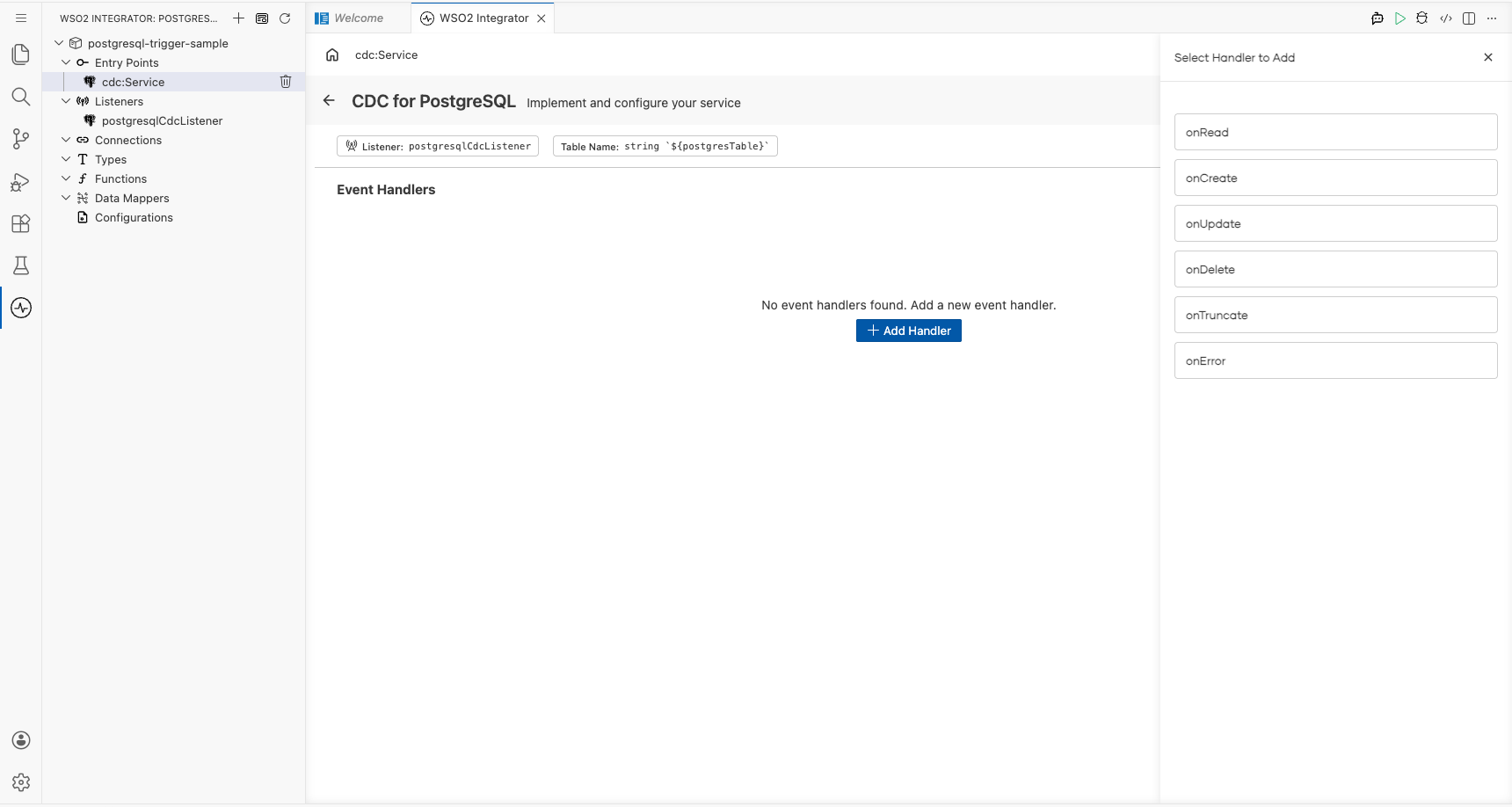
In the Service view, select + Add Handler to open the handler selection panel. Select onCreate to handle row-insert CDC events.
Define the entry type schema
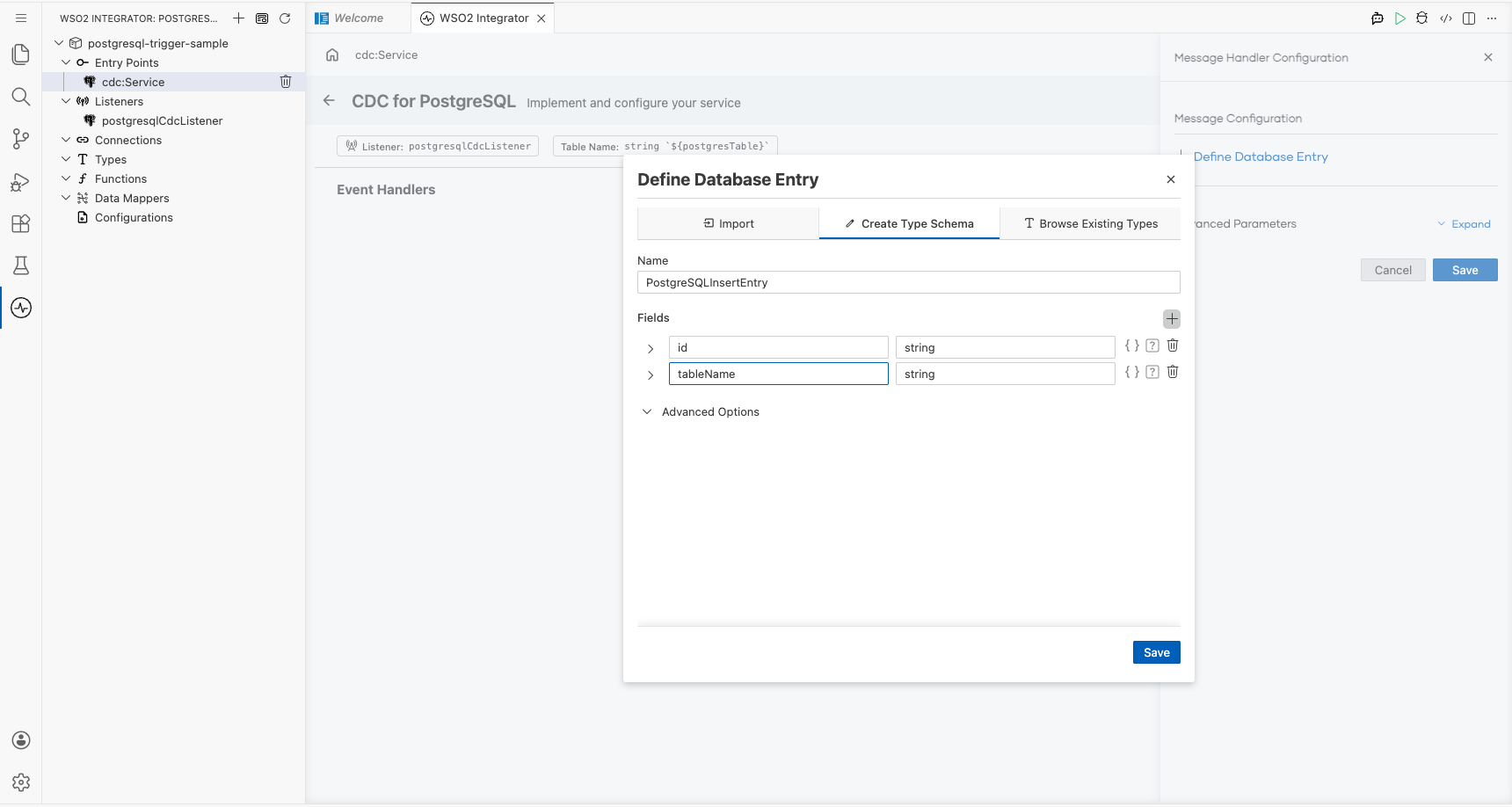
Select the onCreate handler, then open Message Configuration > Define Value on the afterEntry parameter. On the Create Type Schema tab, enter PostgreSQLInsertEntry as the Name. Select the + icon next to Fields to add each field: for example, id of type string and name of type string. The fields should mirror the columns in your target table. Select Save when done.
Add a log step to the handler body
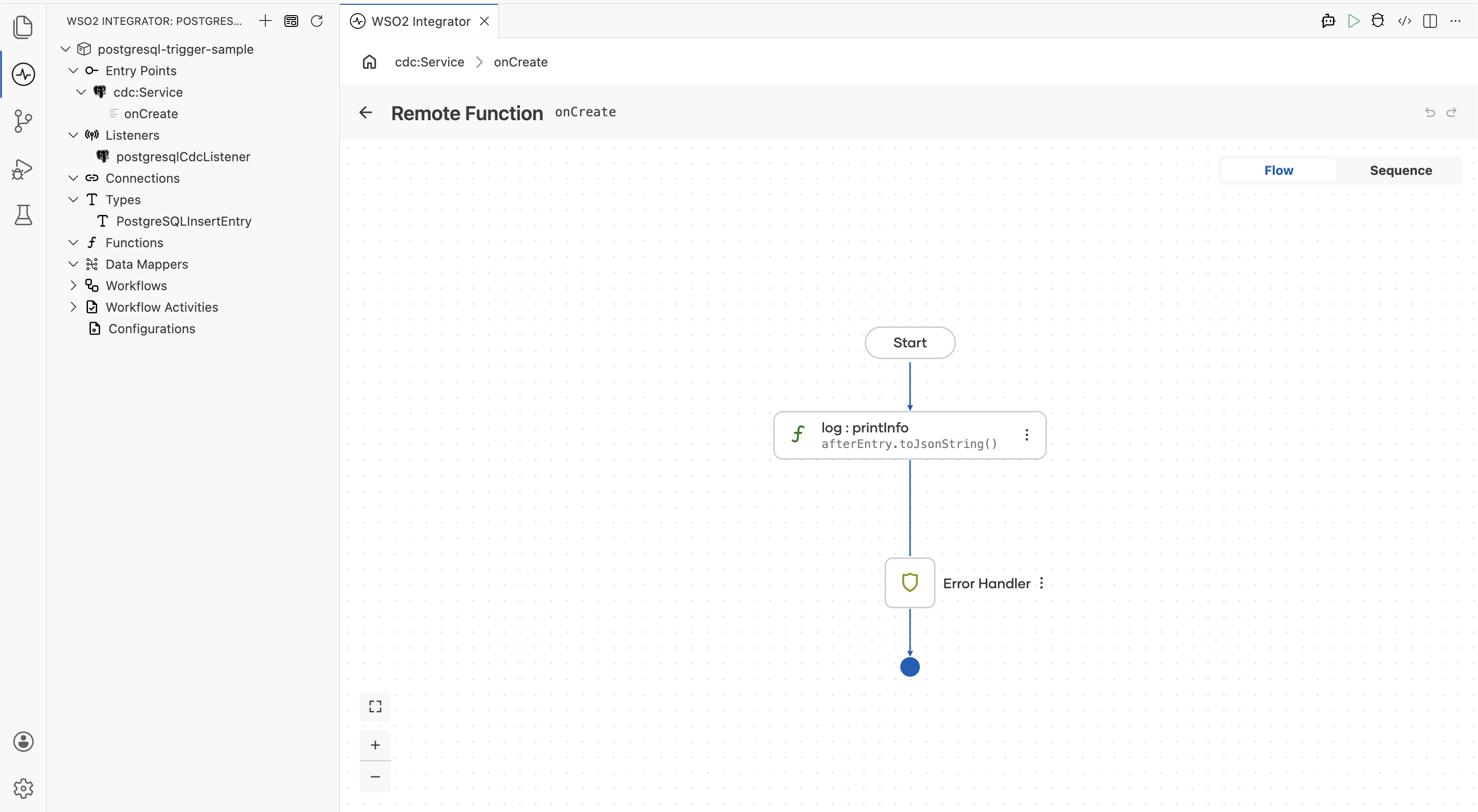
After saving, the onCreate handler body is generated with an Error Handler node. Select the + icon in the flow chart and choose Log Info from the Logging section in the side panel. Enter afterEntry.toJsonString() as the message to log every received CDC entry as JSON.
Confirm the registered handler
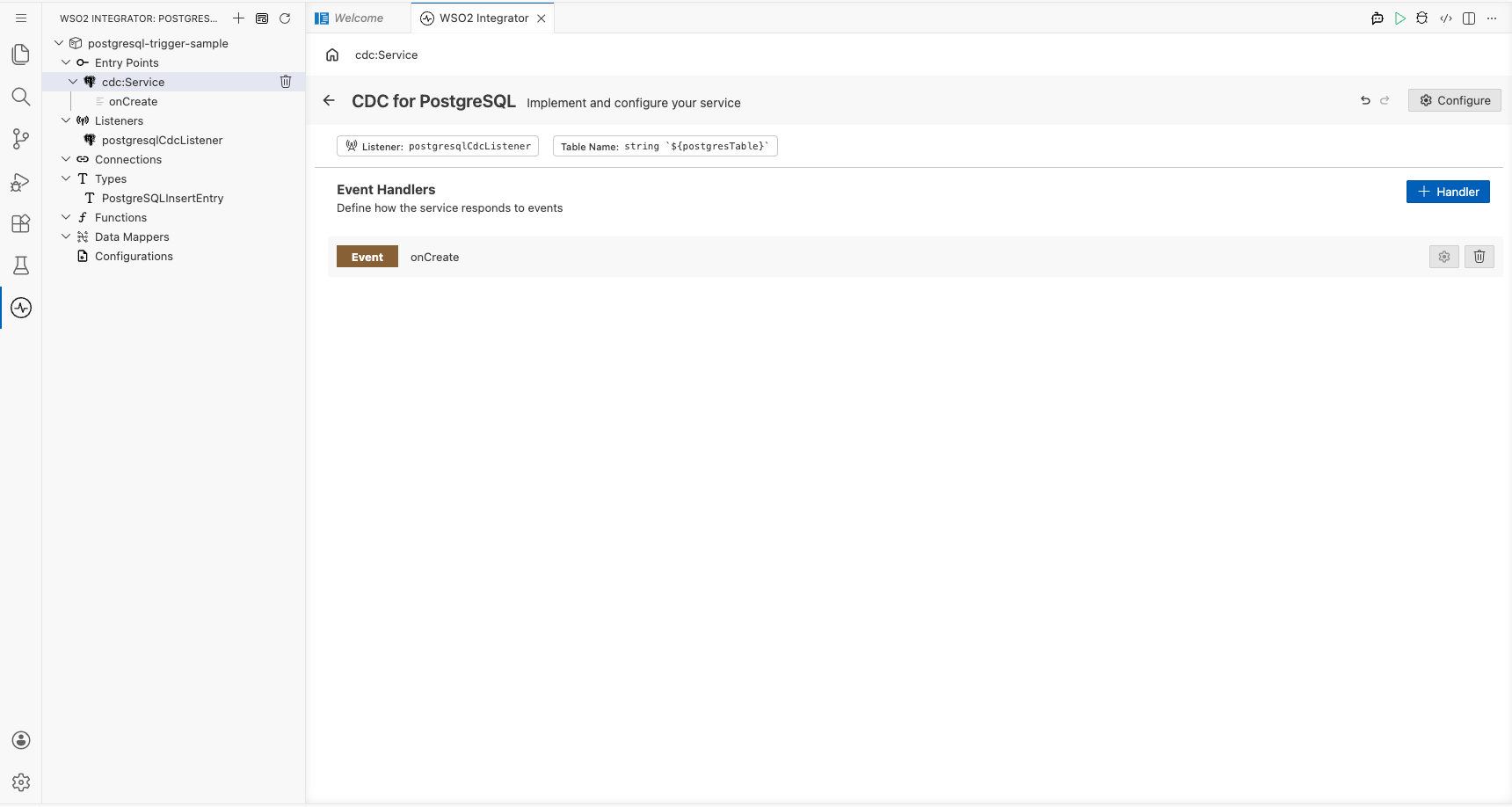
Navigate back to the CDC for PostgreSQL Service view. The Event Handlers section now lists the onCreate handler row, confirming the integration is fully wired and ready to receive insert events from the configured PostgreSQL table.
Run the integration
Select Run in WSO2 Integrator to start the integration. The PostgreSQL CDC listener connects to your database and begins monitoring the configured table for insert events.
To fire a test event, use one of the following approaches:
- WSO2 Integrator database client: If your project includes a database connection, use the built-in query runner to execute an
INSERTstatement against the monitored table directly from the IDE. - psql CLI: Connect to your PostgreSQL instance with
psqland run anINSERTstatement against the target table (for example,INSERT INTO public.orders (id, name) VALUES (1, 'test')). - PostgreSQL web console: Use pgAdmin or another GUI client to insert a row into the monitored table through the table data editor.
When an insert is detected, the onCreate handler fires and the serialized PostgreSQLInsertEntry record appears in the WSO2 Integrator console log, confirming end-to-end event capture.
Try it yourself
Try this sample in WSO2 Integration Platform.