Example
What you'll build
Build an automation that connects to an SAP S/4HANA system and retrieves all sales area entities using the OData-based Sales Area API. The integration stores the retrieved sales area data for further processing or verification.
Operations used:
- List Sales Areas : Retrieves all sales area entities from the SAP S/4HANA system
Architecture
Prerequisites
- SAP S/4HANA system credentials (username, password, and hostname)
Setting up the SAP S/4HANA sales area integration
New to WSO2 Integrator? Follow the Create a New Integration guide to set up your integration first, then return here to add the connector.
Adding the SAP S/4HANA sales area connector
Step 1: Open the connection palette
Select Add Connection in the Connections section of the sidebar to open the connector palette.
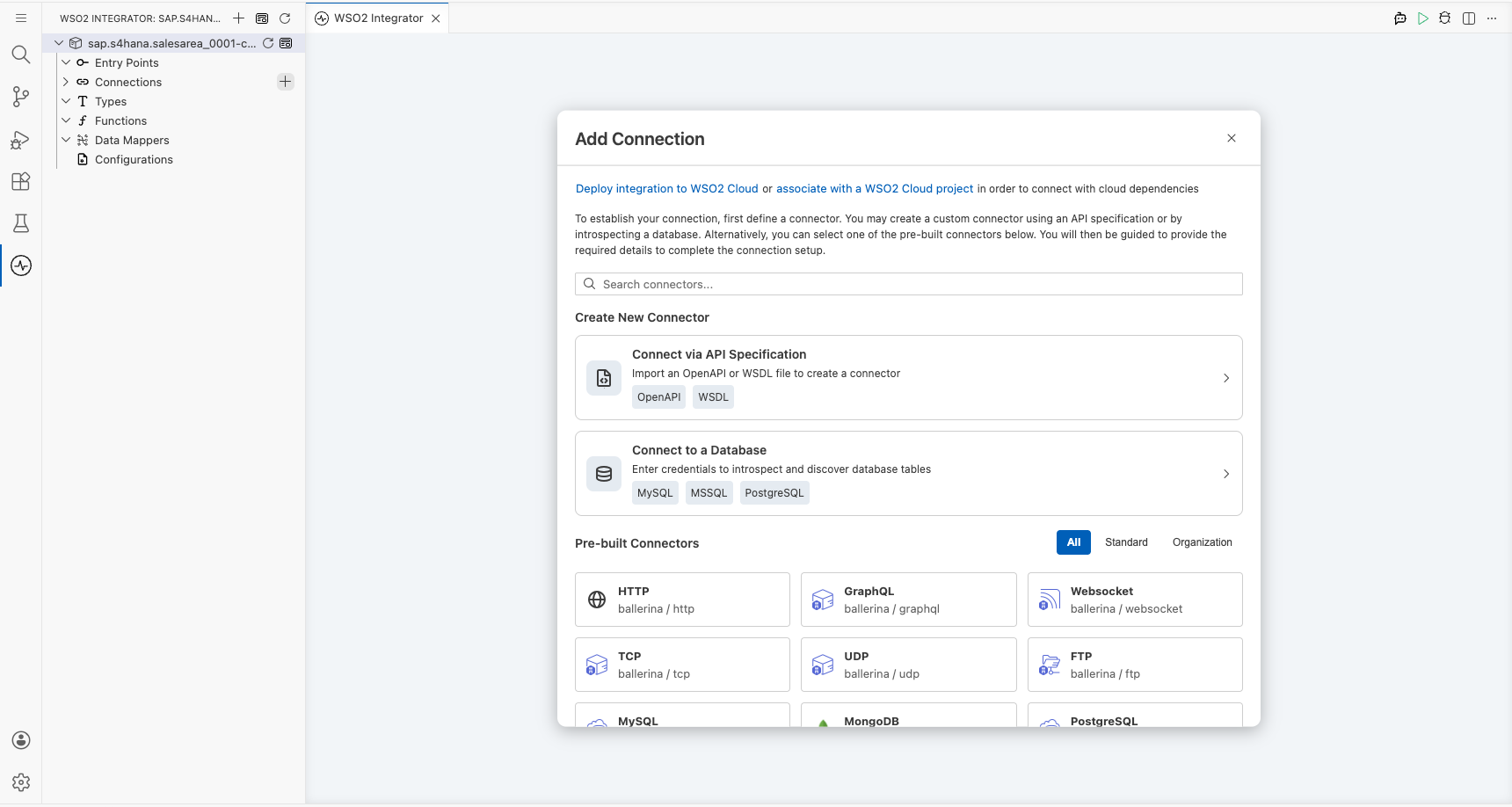
Step 2: Fill in the connection parameters
Search for sap.s4hana.salesarea and select the Salesarea_0001 connector card to open the connection configuration form. Bind each field to a configurable variable:
- config : Authentication credentials record containing
usernameandpasswordfields - hostname : SAP S/4HANA system hostname
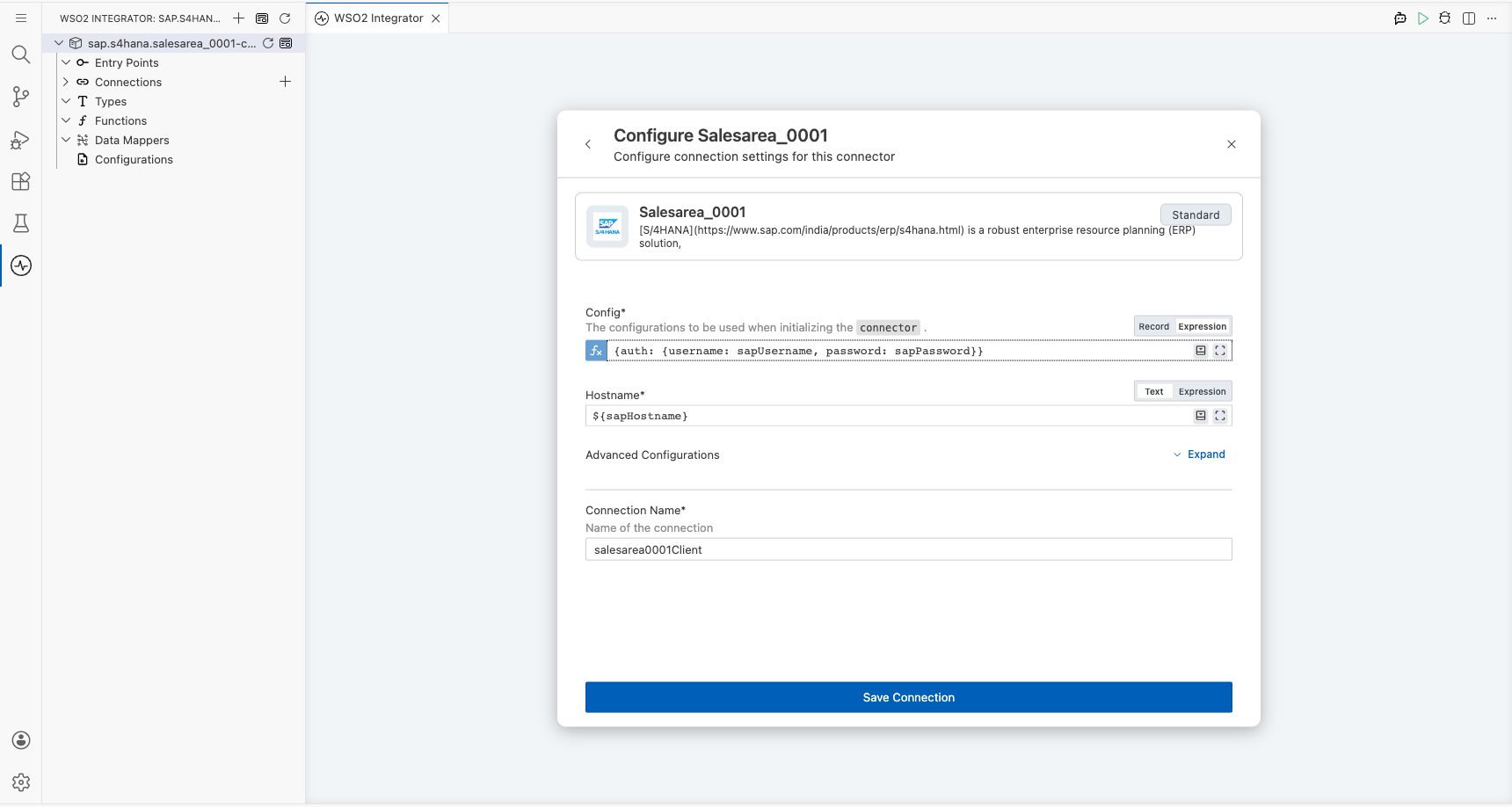
Step 3: Save the connection
Select Save Connection to persist the connection. The new connection (for example, salesarea0001Client) appears on the project canvas.
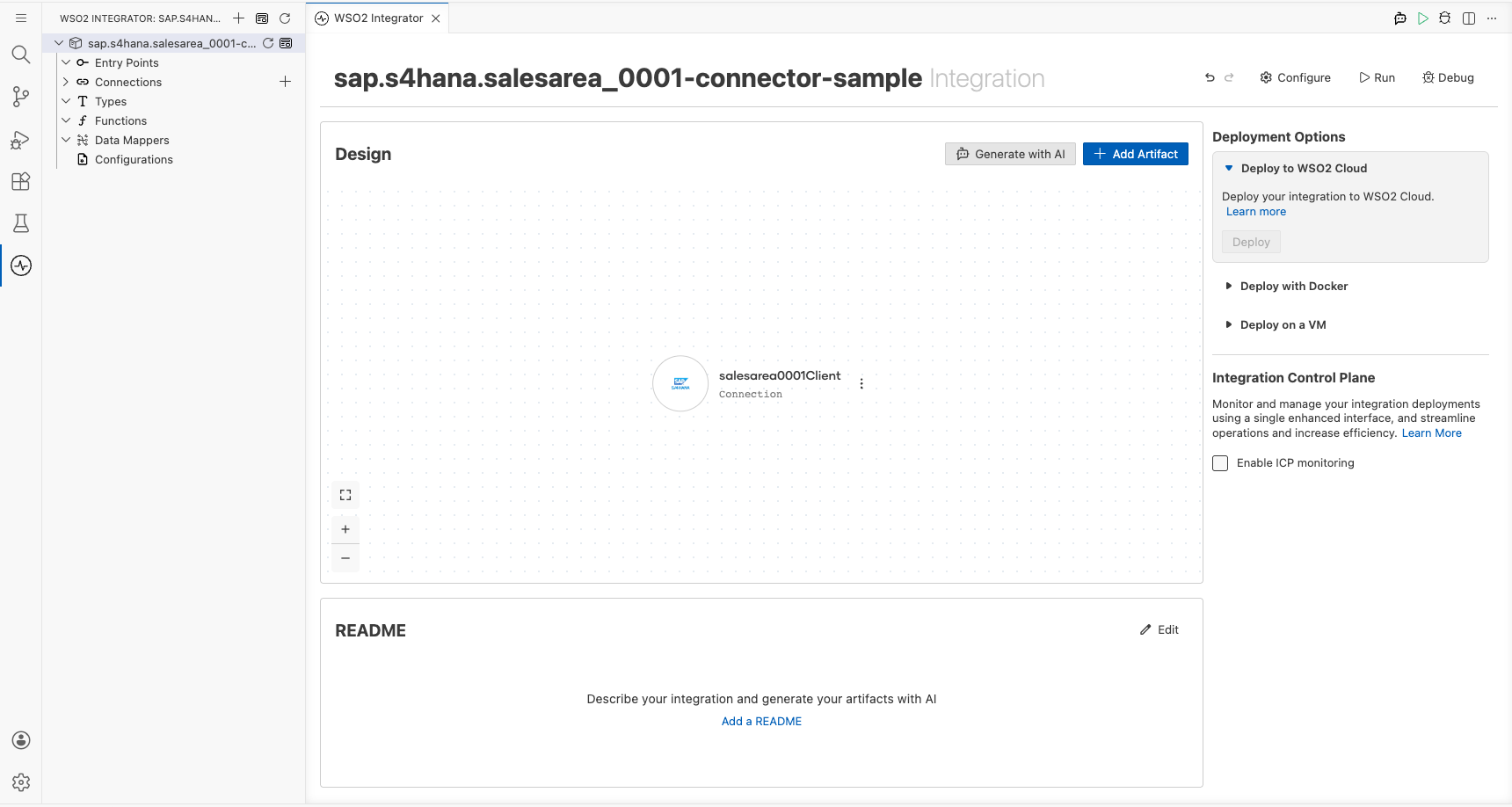
Configuring the SAP S/4HANA sales area connection
Step 4: Set actual values for your configurables
- In the left panel, select Configurations.
- Set a value for each configurable listed below.
- sapHostname (string) : The hostname of your SAP S/4HANA system
- sapUsername (string) : Your SAP authentication username
- sapPassword (string) : Your SAP authentication password
Configuring the SAP S/4HANA sales area list sales areas operation
Step 5: Add an automation entry point
- Select Add Artifact in the project overview.
- Select Automation from the artifact types.
- Select Create to add the automation entry point.
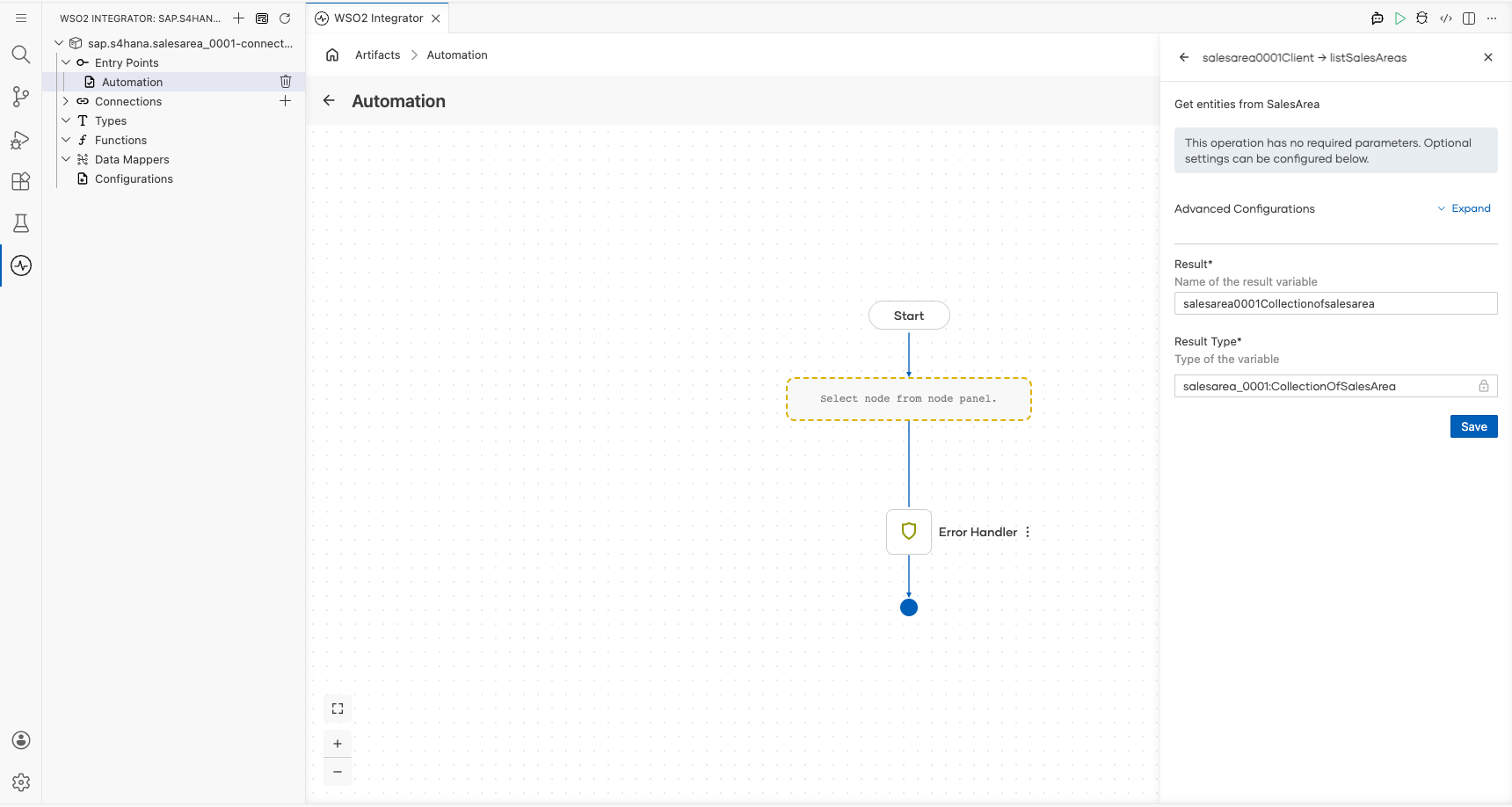
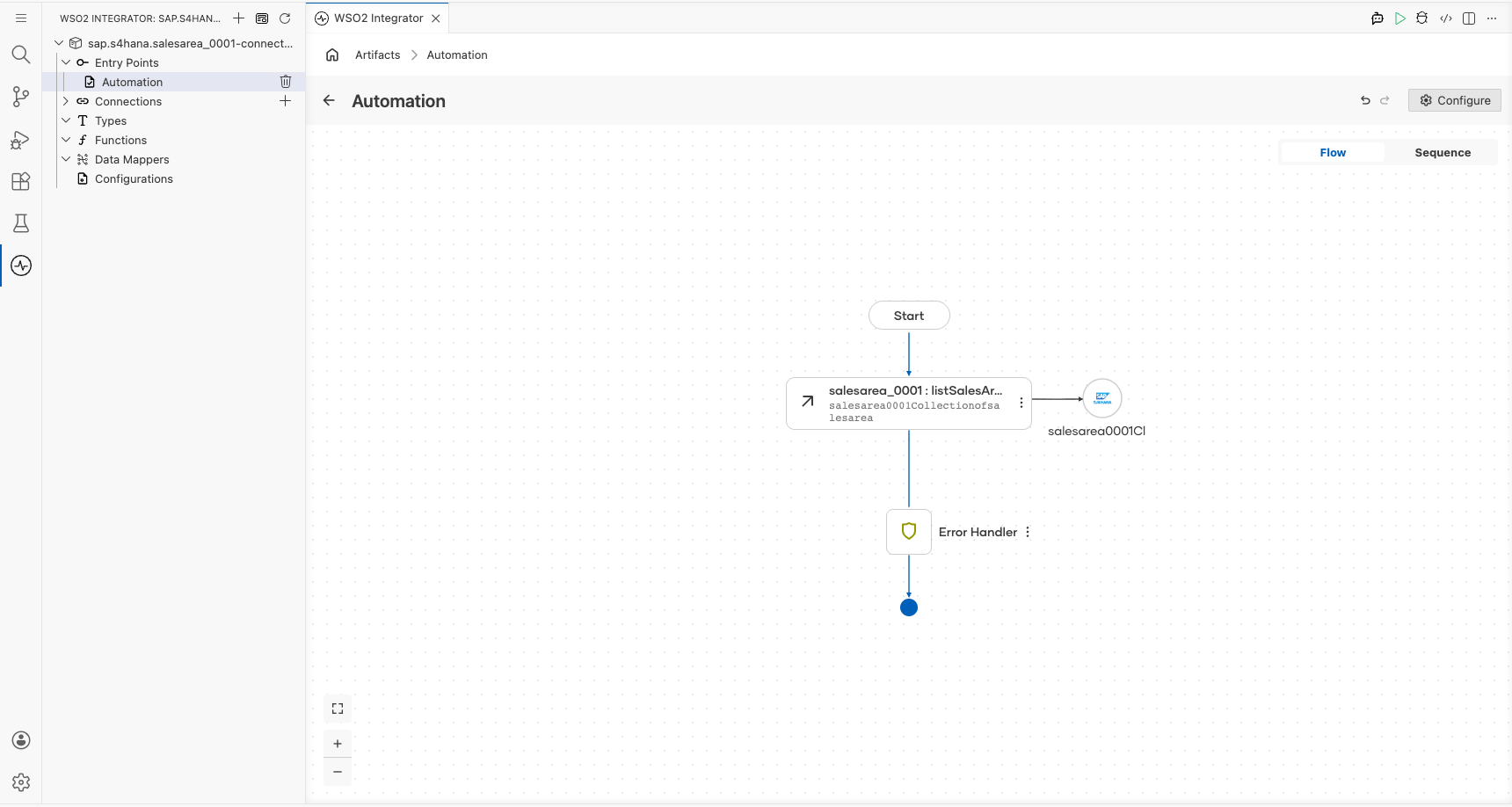
Step 6: Select and configure the list sales areas operation
- In the automation flow, select the + button after the Start node.
- Expand the salesarea0001Client connection to view available operations.
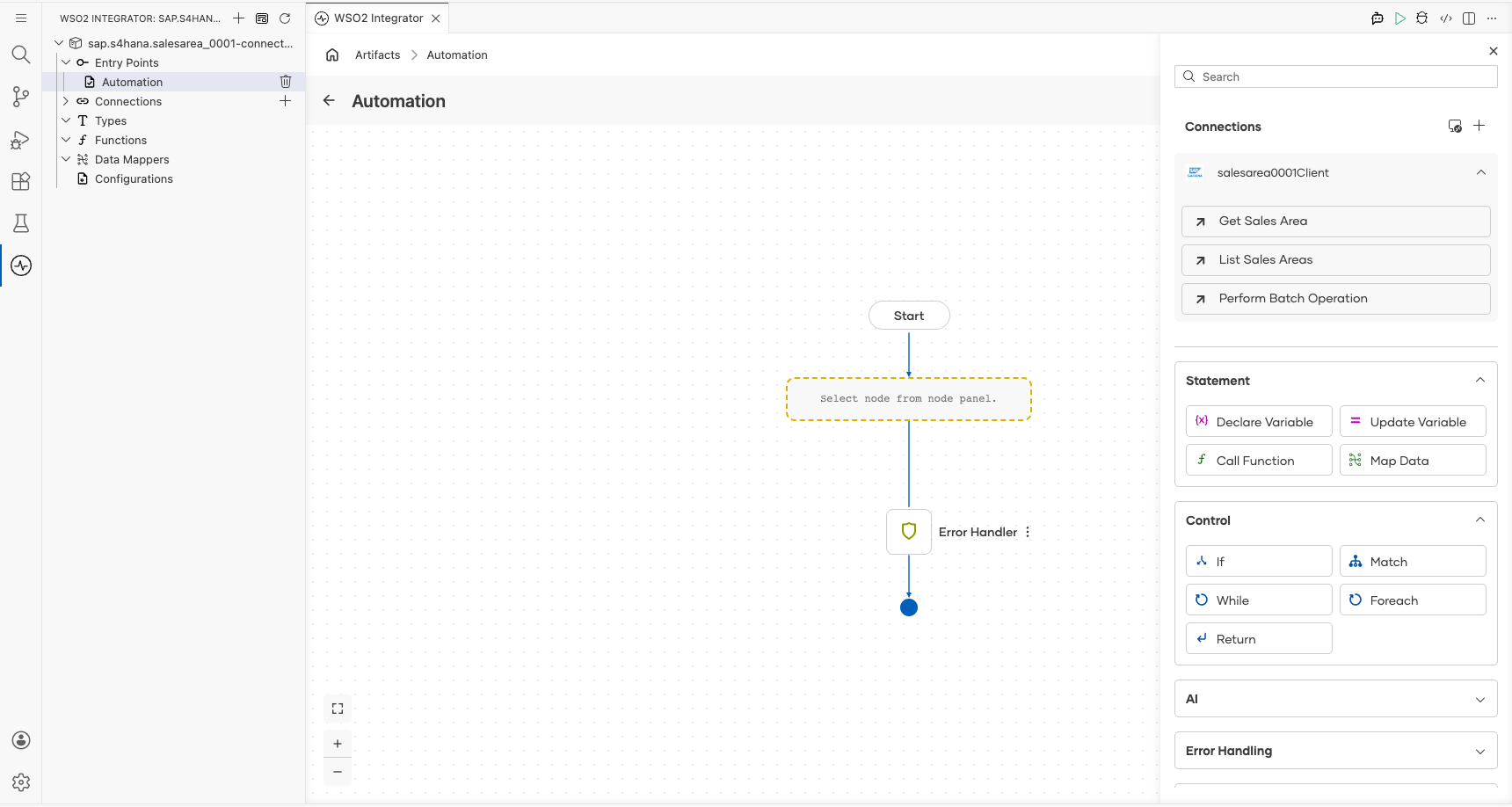
- Select List Sales Areas and configure its parameters:
- Result Variable : Name of the variable that stores the operation response
- Result Type : Auto-resolved as
salesarea_0001:CollectionOfSalesArea
Select Save to apply the configuration.
Try it yourself
Try this sample in WSO2 Integration Platform.

More code examples
The S/4 HANA Sales and Distribution Ballerina connectors provide practical examples illustrating usage in various scenarios. Explore these examples, covering use cases like accessing S/4HANA Sales Order (A2X) API.
-
Salesforce to S/4HANA Integration - Demonstrates leveraging the
sap.s4hana.api_sales_order_srv:Clientin Ballerina for S/4HANA API interactions. It specifically showcases how to respond to a Salesforce Opportunity Close Event by automatically generating a Sales Order in the S/4HANA SD module. -
Shopify to S/4HANA Integration - Details the integration process between Shopify, a leading e-commerce platform, and SAP S/4HANA, a comprehensive ERP system. The objective is to automate SAP sales order creation for new orders placed on Shopify, enhancing efficiency and accuracy in order management.