Example
What you'll build
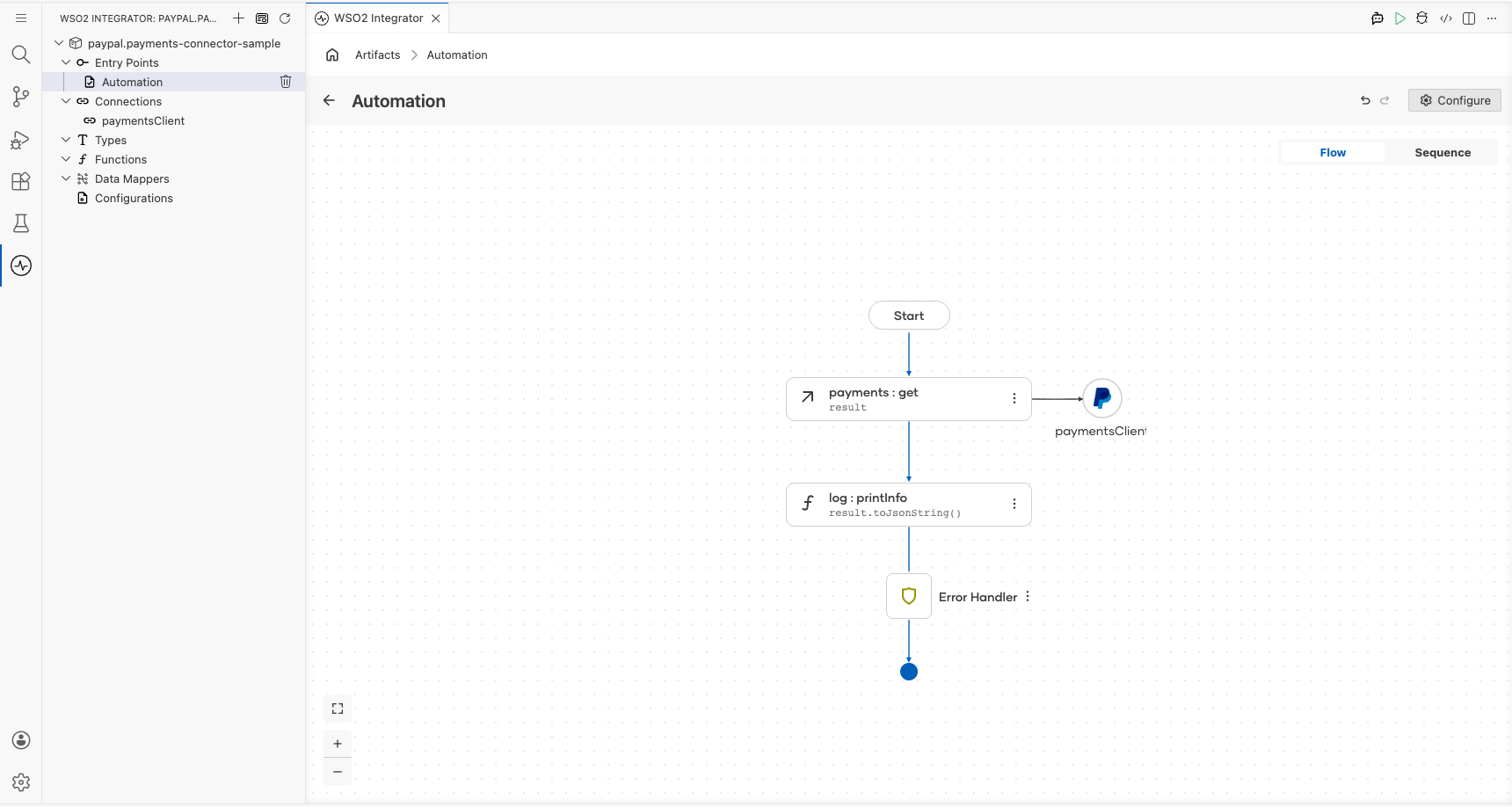
Build a WSO2 Integrator automation that connects to the PayPal Payments API and retrieves details for an authorized payment. The integration uses configurable variables to securely manage API credentials and logs the payment details as a JSON string.
Operations used:
- Show details for authorized payment : Retrieves details of a specific authorized payment by its authorization ID
Architecture
Prerequisites
- PayPal developer account with API credentials (Client ID and Client Secret)
- OAuth2 Client Credentials Grant configured in your PayPal developer dashboard
Setting up the PayPal payments integration
New to WSO2 Integrator? Follow the Create a New Integration guide to set up your integration first, then return here to add the connector.
Adding the PayPal payments connector
Step 1: Add the PayPal payments connection
- In the WSO2 Integrator sidebar, navigate to Connections.
- Select Add Connection to open the connection palette.
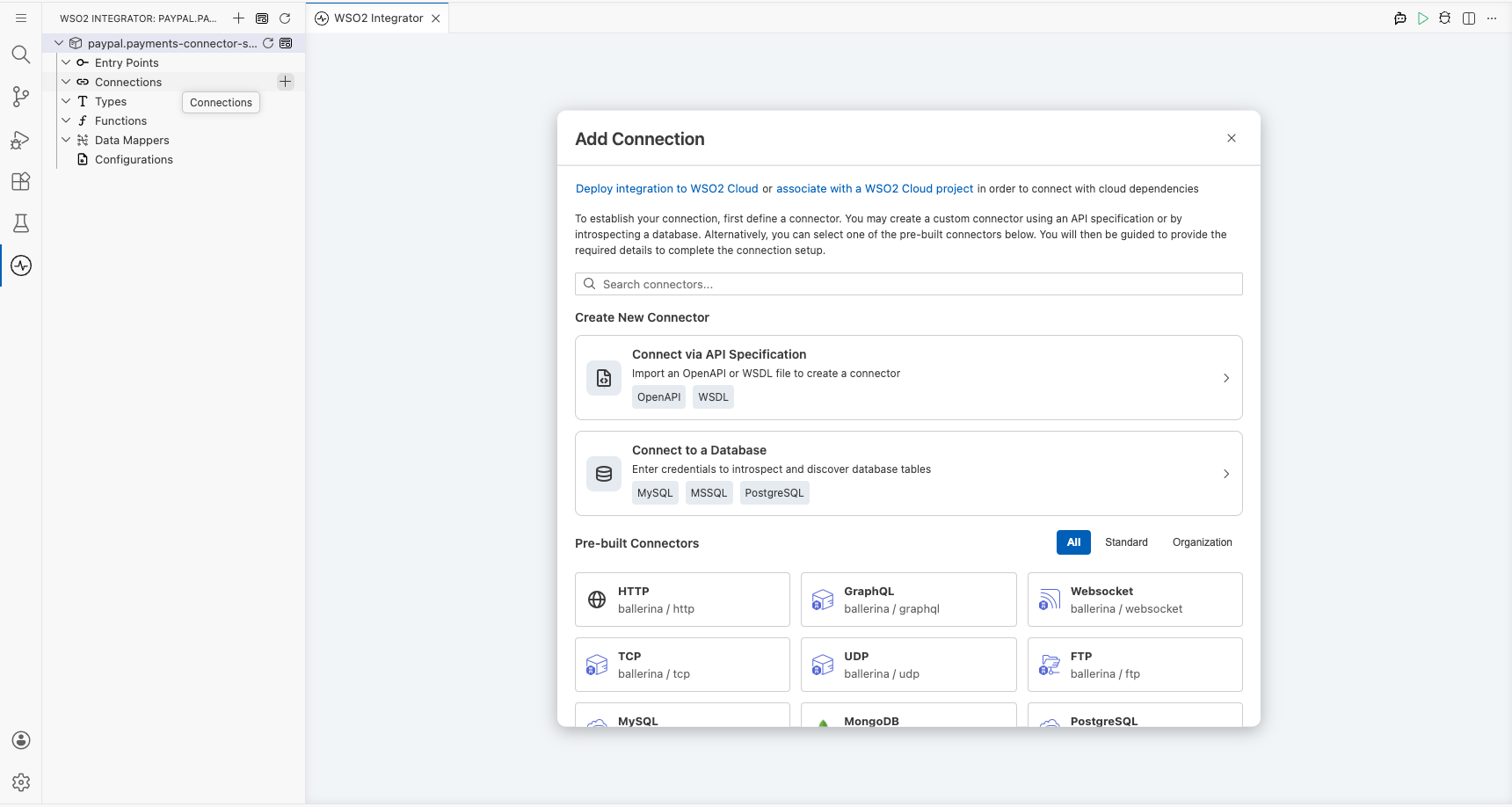
- Search for and select the Payments connector from the list of available connectors.
Configuring the PayPal payments connection
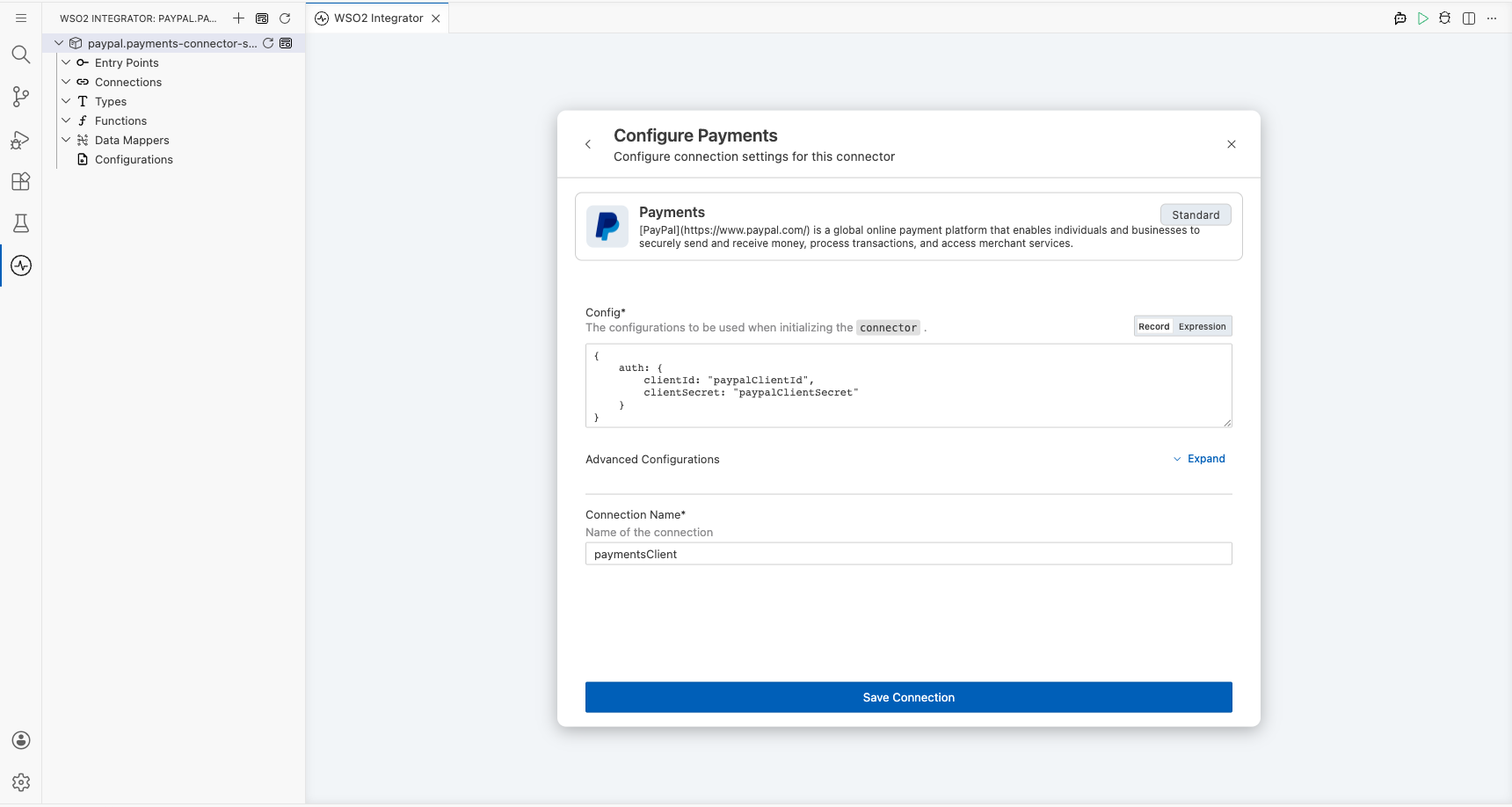
Step 2: Fill in the connection parameters
Bind each credential field to a configurable variable so that sensitive values aren't hardcoded.
- Config : The configurations for initializing the connector, including OAuth2 credentials
- Connection Name : Name of the connection instance
Step 3: Save the connection
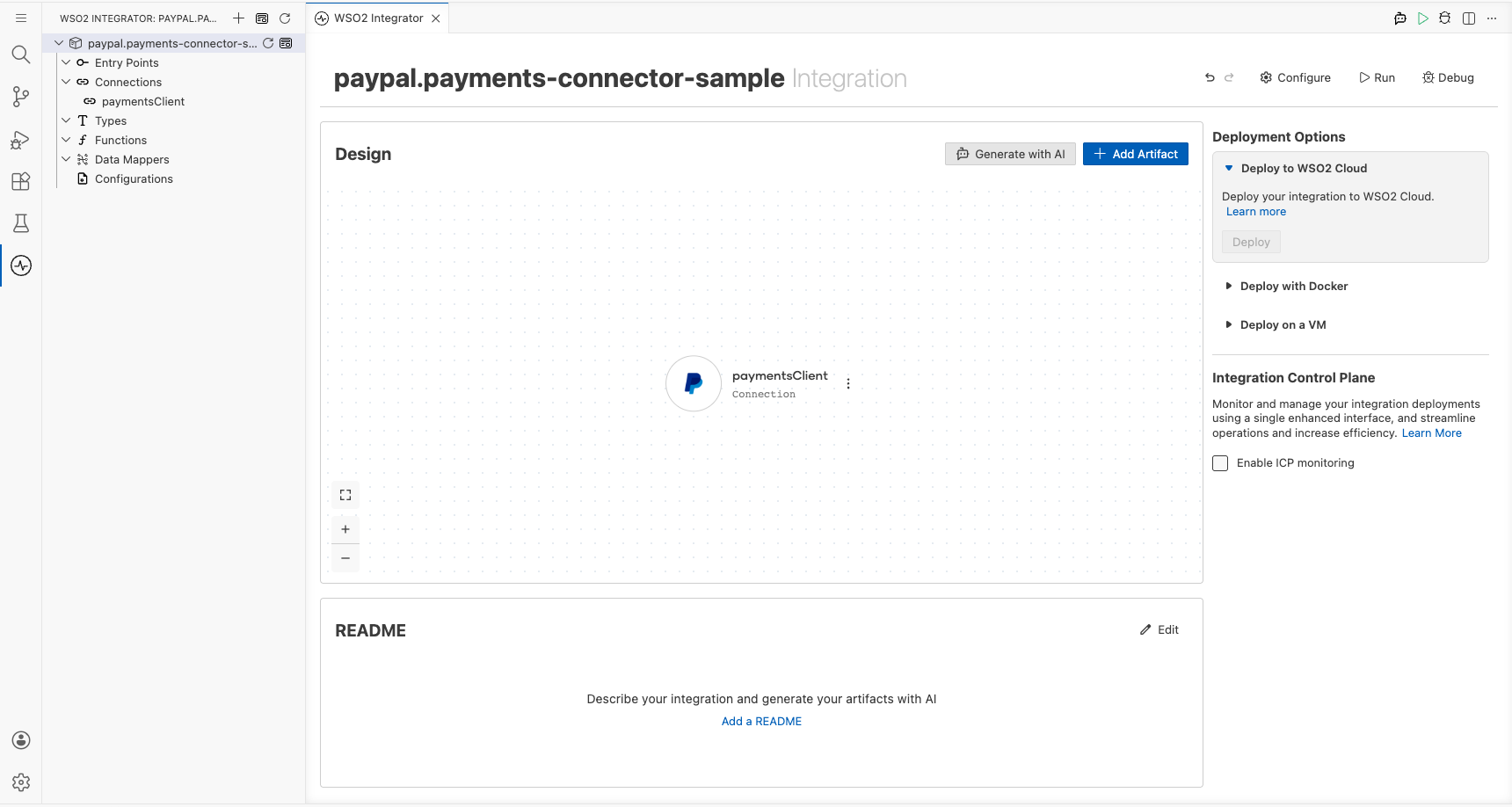
Select Save Connection to persist the connection. The paymentsClient connection now appears on the design canvas and in the sidebar under Connections.
Step 4: Set actual values for your configurables
In the left panel, select Configurations and set a value for each configurable listed below.
- paypalClientId (string) : Your PayPal developer Client ID
- paypalClientSecret (string) : Your PayPal developer Client Secret
Configuring the PayPal payments show details for authorized payment operation
Step 5: Add an automation entry point
- Select + Add Artifact on the design canvas.
- Select Automation from the artifact types.
- Select Create to add the automation entry point with default settings.
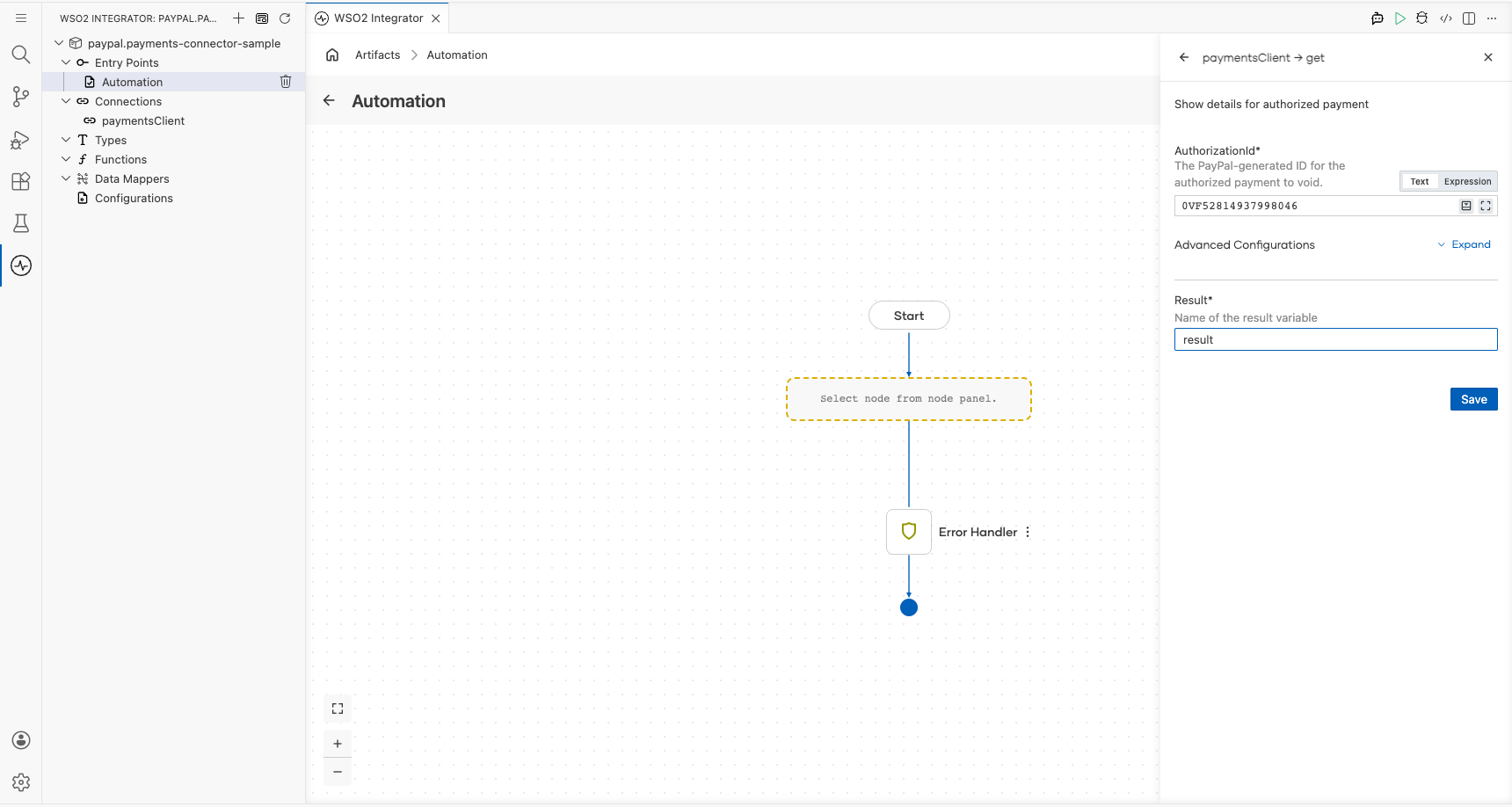
Step 6: Select and configure the operation
- Select the + button on the flow canvas to open the node panel.
- Under Connections, expand paymentsClient to see all available operations.
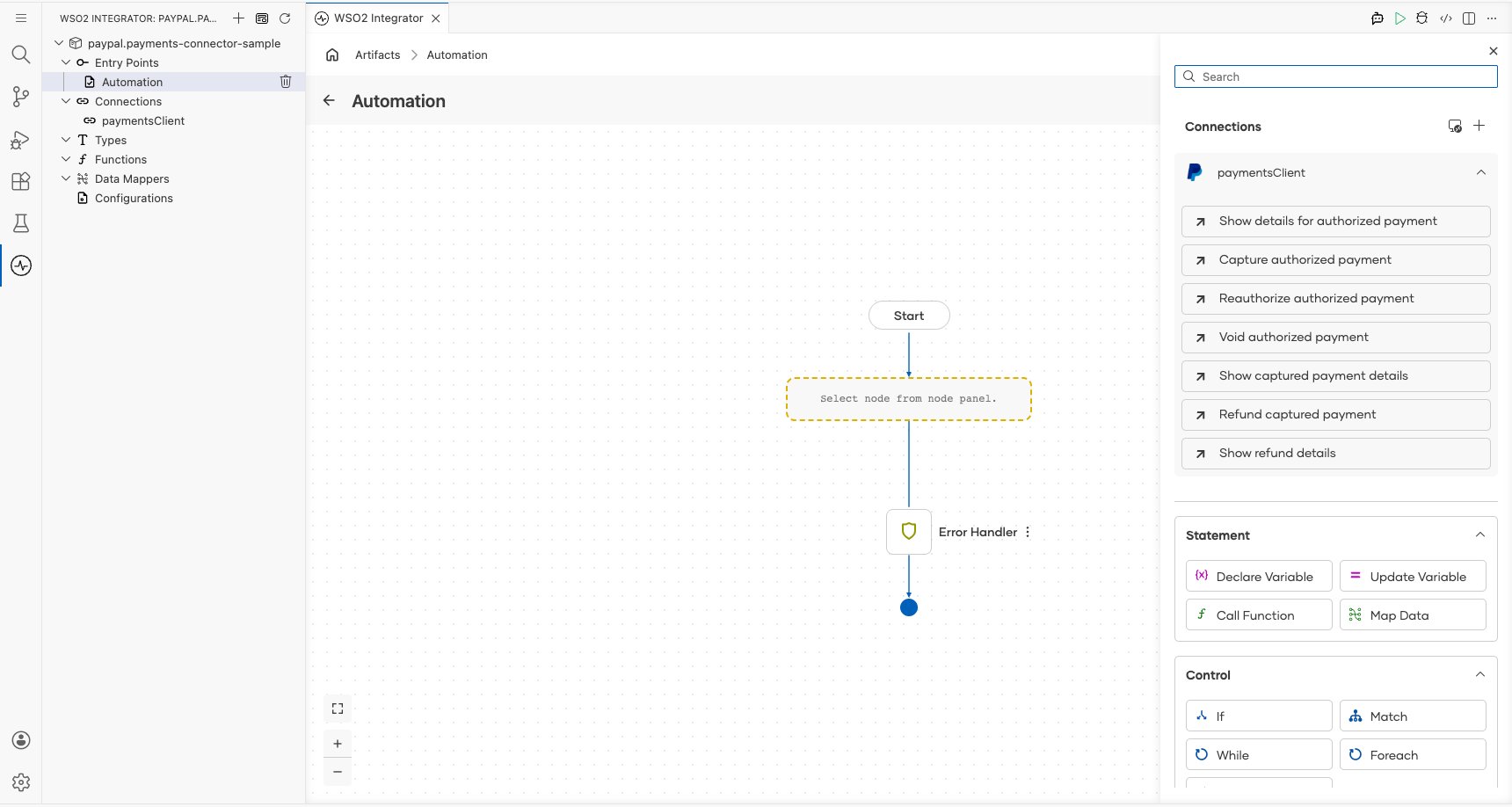
- Select Show details for authorized payment.
- Fill in the operation parameters:
- AuthorizationId : The PayPal-generated ID for the authorized payment
- Result : Name of the variable to store the operation result
- Select Save to add the operation to the flow.
Try it yourself
Try this sample in WSO2 Integration Platform.

More code examples
The PayPal Payments connector provides practical examples illustrating usage in various scenarios. Explore these examples, covering the following use cases:
-
Order creation: Process a complete product purchase from order creation through payment authorization, capture, and partial refunds.
-
Subscription management: Simulate a recurring billing flow with subscription-style orders, monthly payments, plan switching, and pro-rated refunds.