Example
What you'll build
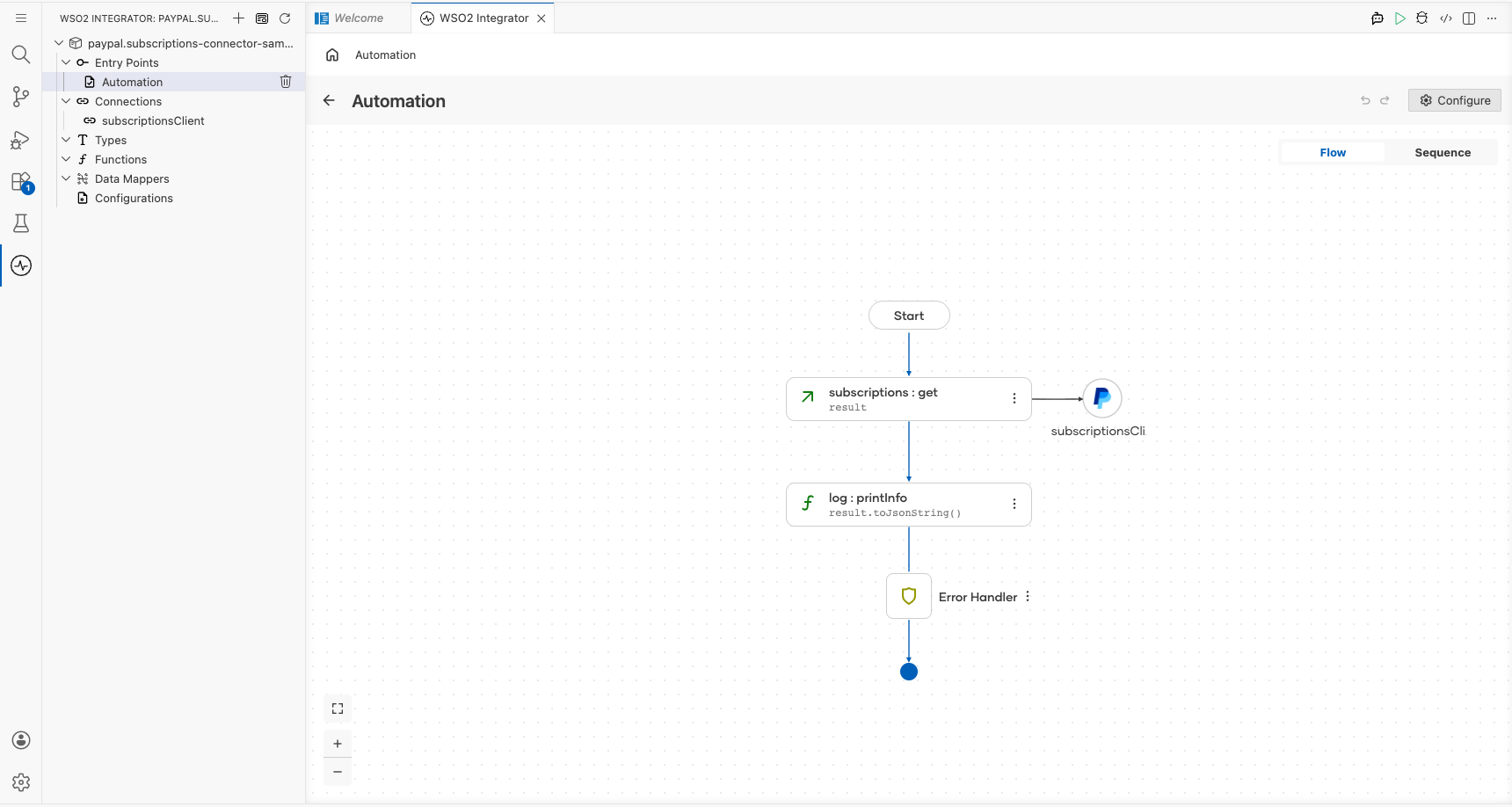
Build a WSO2 Integrator automation that uses the PayPal Subscriptions connector to retrieve all subscription plans and log the result. The integration uses an Automation entry point to invoke the listPlans operation and captures the response.
Operations used:
- listPlans : Retrieves all subscription plans from the PayPal Subscriptions API
Architecture
Prerequisites
- A PayPal developer account with OAuth2 client credentials (Client ID and Client Secret)
Setting up the PayPal subscriptions integration
New to WSO2 Integrator? Follow the Create a New Integration guide to set up your integration first, then return here to add the connector.
Adding the PayPal subscriptions connector
Step 1: Open the connector palette
- In the WSO2 Integrator sidebar, select Add Artifact.
- Select Connection from the artifact options.
- In the connector search palette, search for paypal.subscriptions.
- Select the
ballerinax/paypal.subscriptionsconnector card to open the connection form.
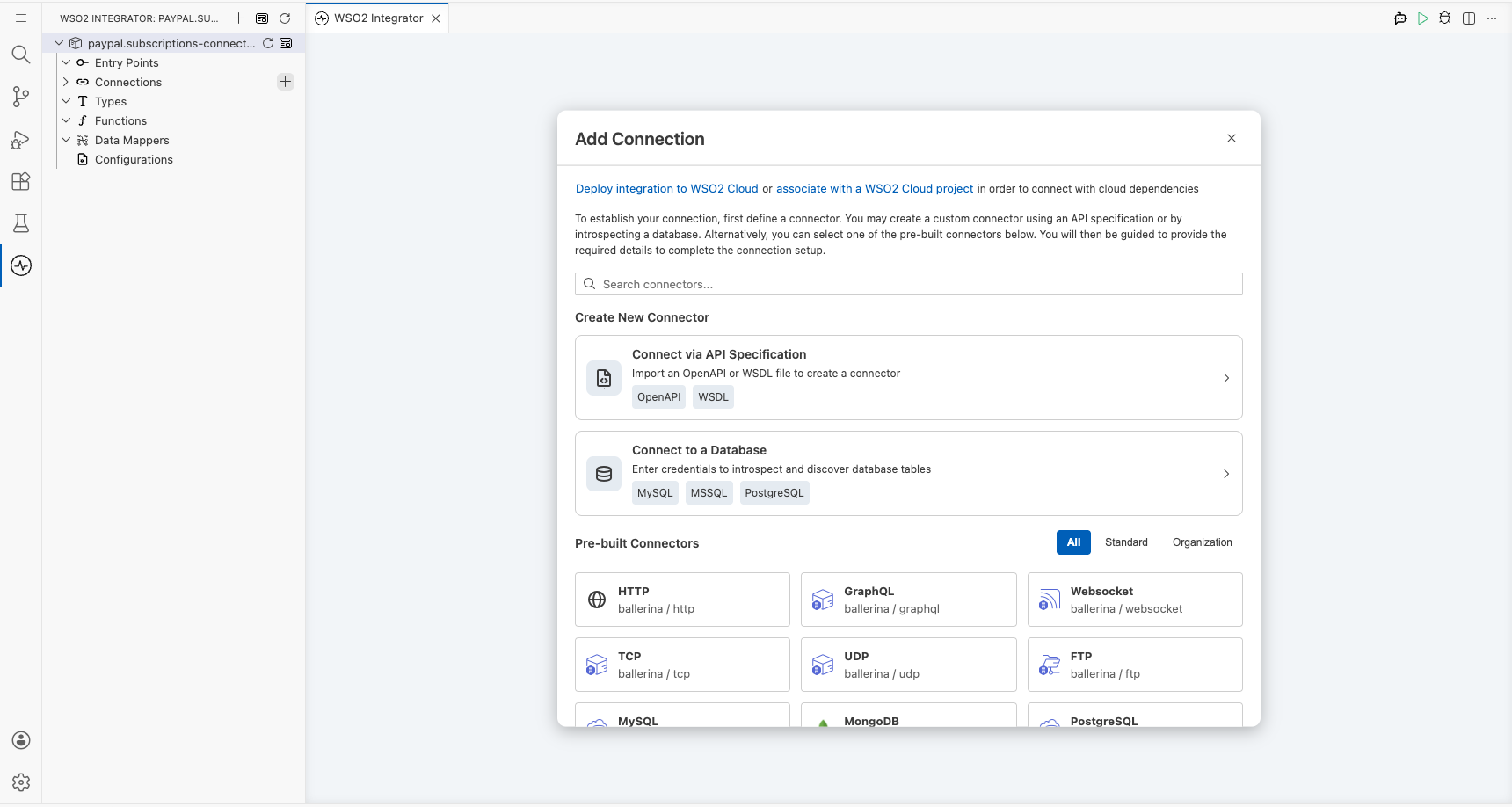
Configuring the PayPal subscriptions connection
Step 2: Fill in the connection parameters
Fill in the connection form by binding each field to a configurable variable:
- Connection Name : Enter
subscriptionsClient - clientId : Bind to the configurable variable
paypalClientId - clientSecret : Bind to the configurable variable
paypalClientSecret
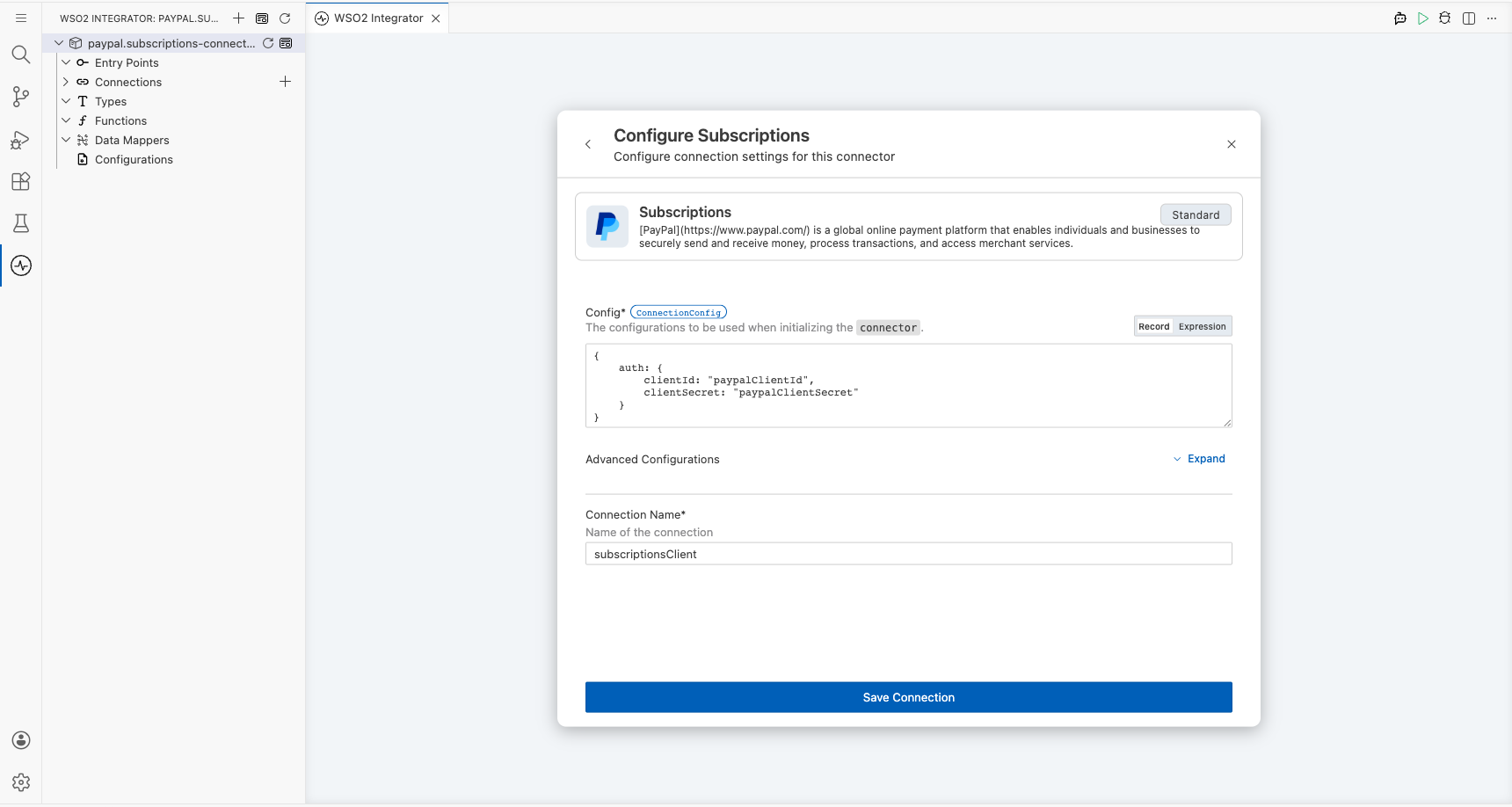
Step 3: Save the connection
Select Save to create the connection. The subscriptionsClient connection appears in the Connections section of the WSO2 Integrator sidebar and on the design canvas.
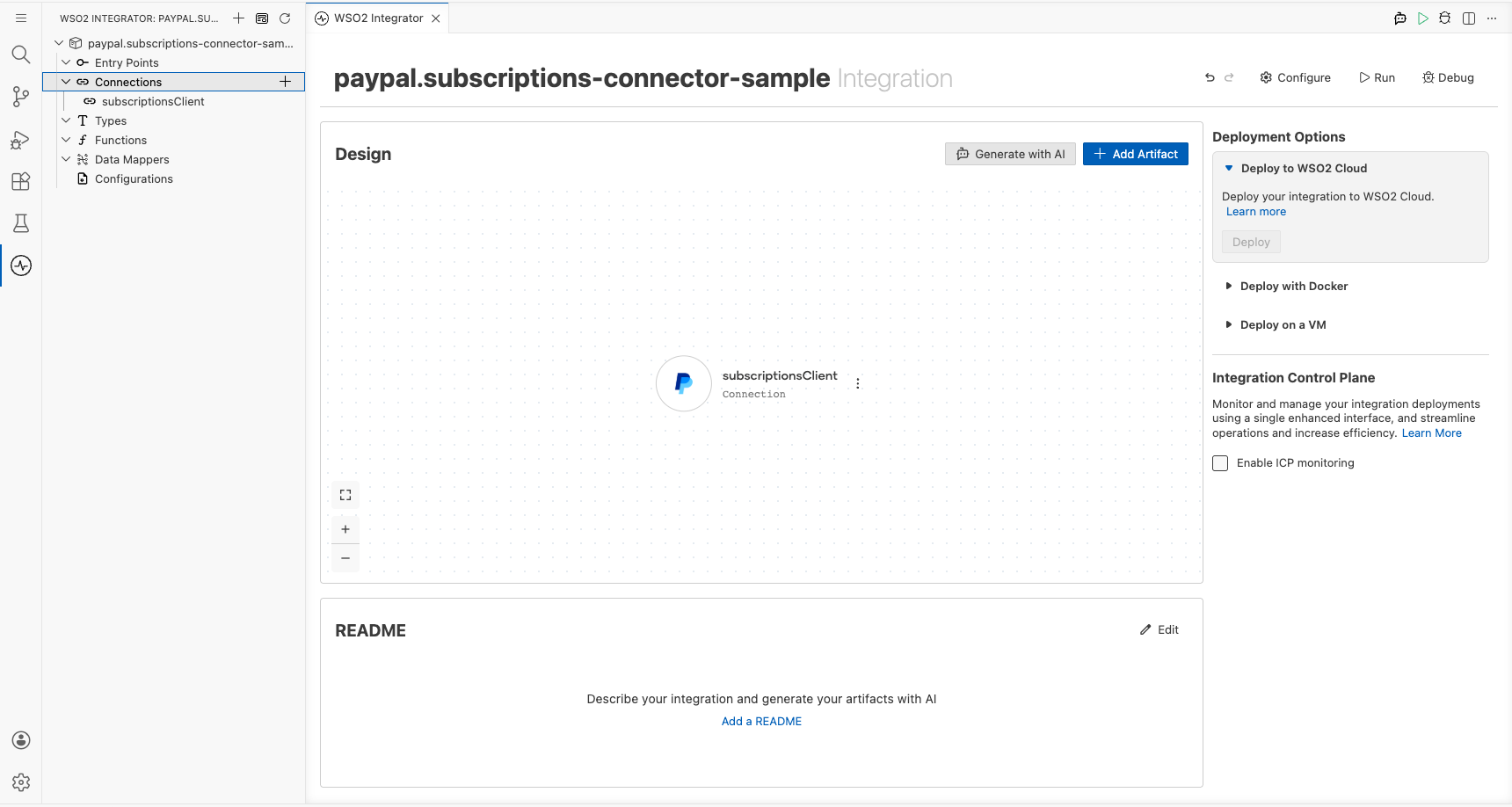
Step 4: Set actual values for your configurables
- In the left panel, select Configurations.
- Set a value for each configurable listed below.
- paypalClientId (string) : Your PayPal OAuth2 client ID from the PayPal developer dashboard
- paypalClientSecret (string) : Your PayPal OAuth2 client secret from the PayPal developer dashboard
Configuring the PayPal subscriptions listPlans operation
Step 5: Add an automation entry point
- Select Add Artifact in the WSO2 Integrator sidebar.
- Select Automation as the entry point type.
The Automation entry point main is created and appears under Entry Points in the sidebar.
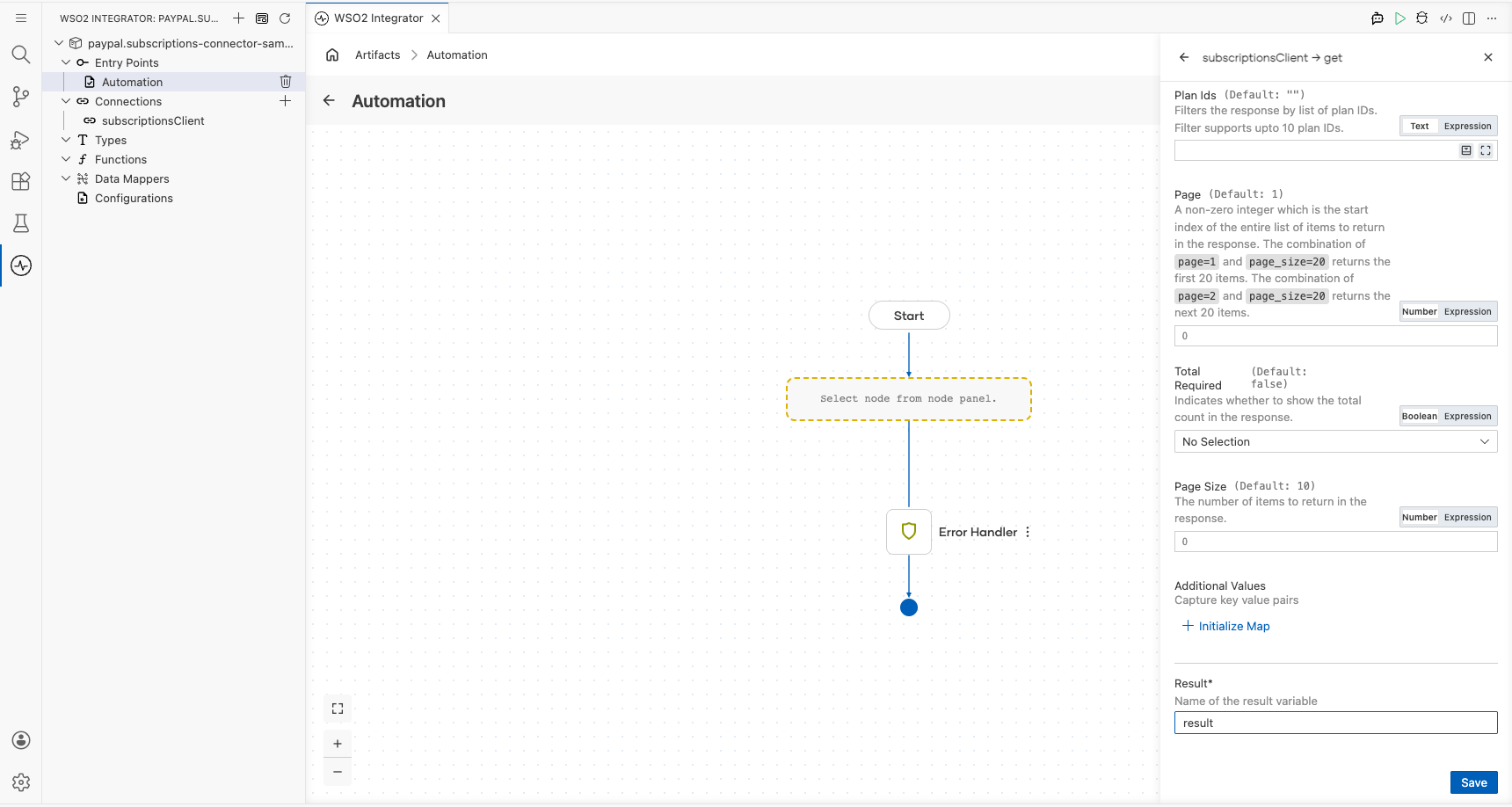
Step 6: Select and configure the listPlans operation
- Select the main Automation entry point to open its flow view.
- In the flow diagram, select the + button to add a new step.
- Select the subscriptionsClient connection to view its available operations.
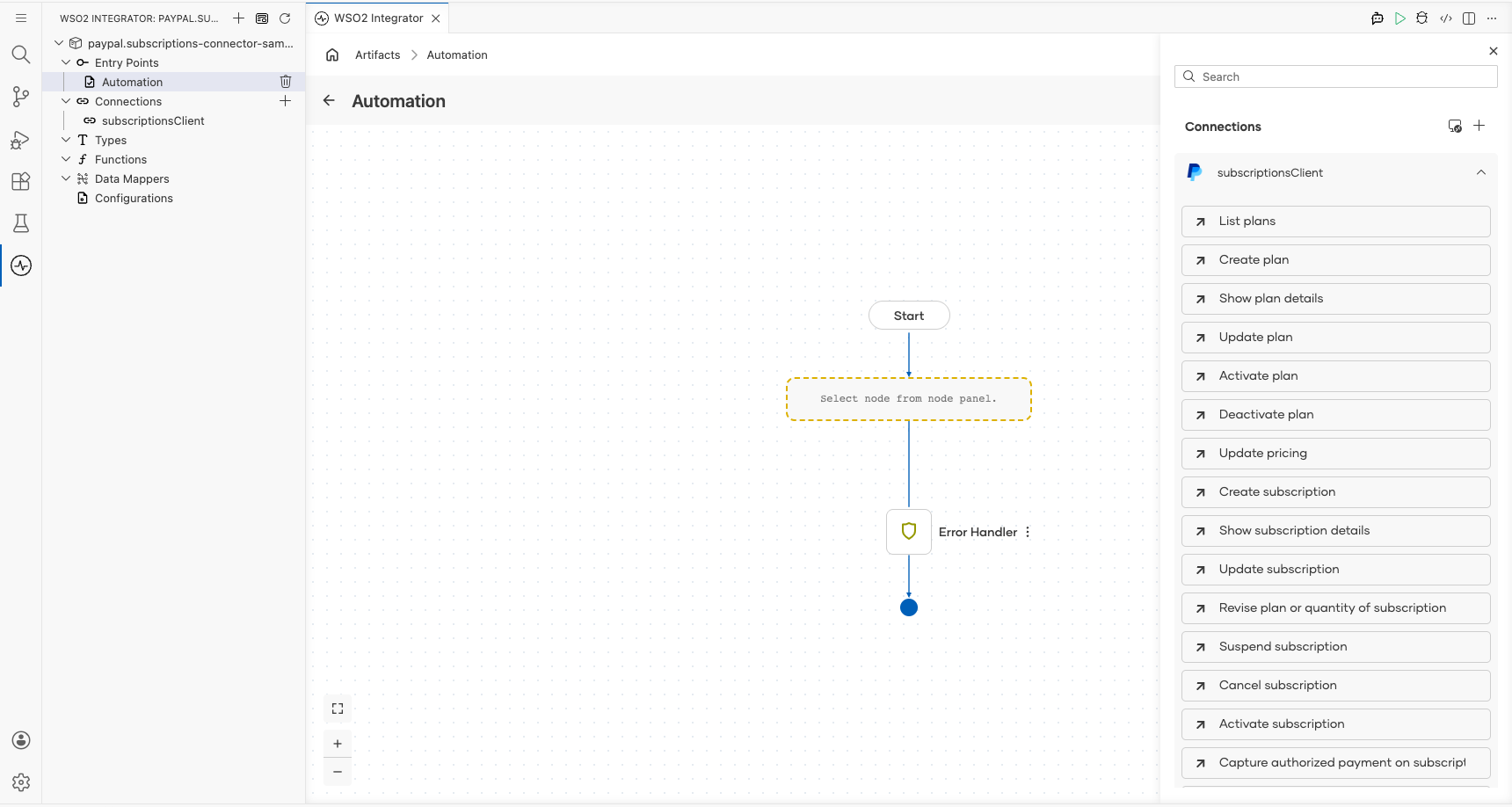
- Select the List plans operation (
listPlans). - Review the available parameters (all optional for this operation) and set the Result Variable name to
result. - Select Save to add the operation to the flow.
- Result Variable : Name of the variable that stores the returned
PlanCollectionresponse
Try it yourself
Try this sample in WSO2 Integration Platform.

More code examples
The PayPal Subscriptions connector provides practical examples illustrating usage in various scenarios. Explore these examples, covering the following use cases:
- Create and List Plans: Create a subscription plan and list all available plans.
- Monitor and Manage Subscription Status: Retrieve a subscription's status and suspend or reactivate it based on its state.
- Manage Premium Subscription: Create a subscription plan, enroll a customer, and retrieve subscription details for a premium membership.