Example
What you'll build
Build a WSO2 Integrator automation that connects to Stripe, retrieves a list of customers using the Stripe API, and logs the result. This integration uses configurable variables to securely manage API credentials at runtime.
Operations used:
- get : Retrieves a list of customers from your Stripe account, sorted by creation date with the most recent customers appearing first.
Architecture
Prerequisites
- A Stripe account with API access
- A Stripe API key (Bearer token)
Setting up the Stripe integration
New to WSO2 Integrator? Follow the Create a New Integration guide to set up your integration first, then return here to add the connector.
Adding the Stripe connector
Step 1: Open the add connection panel
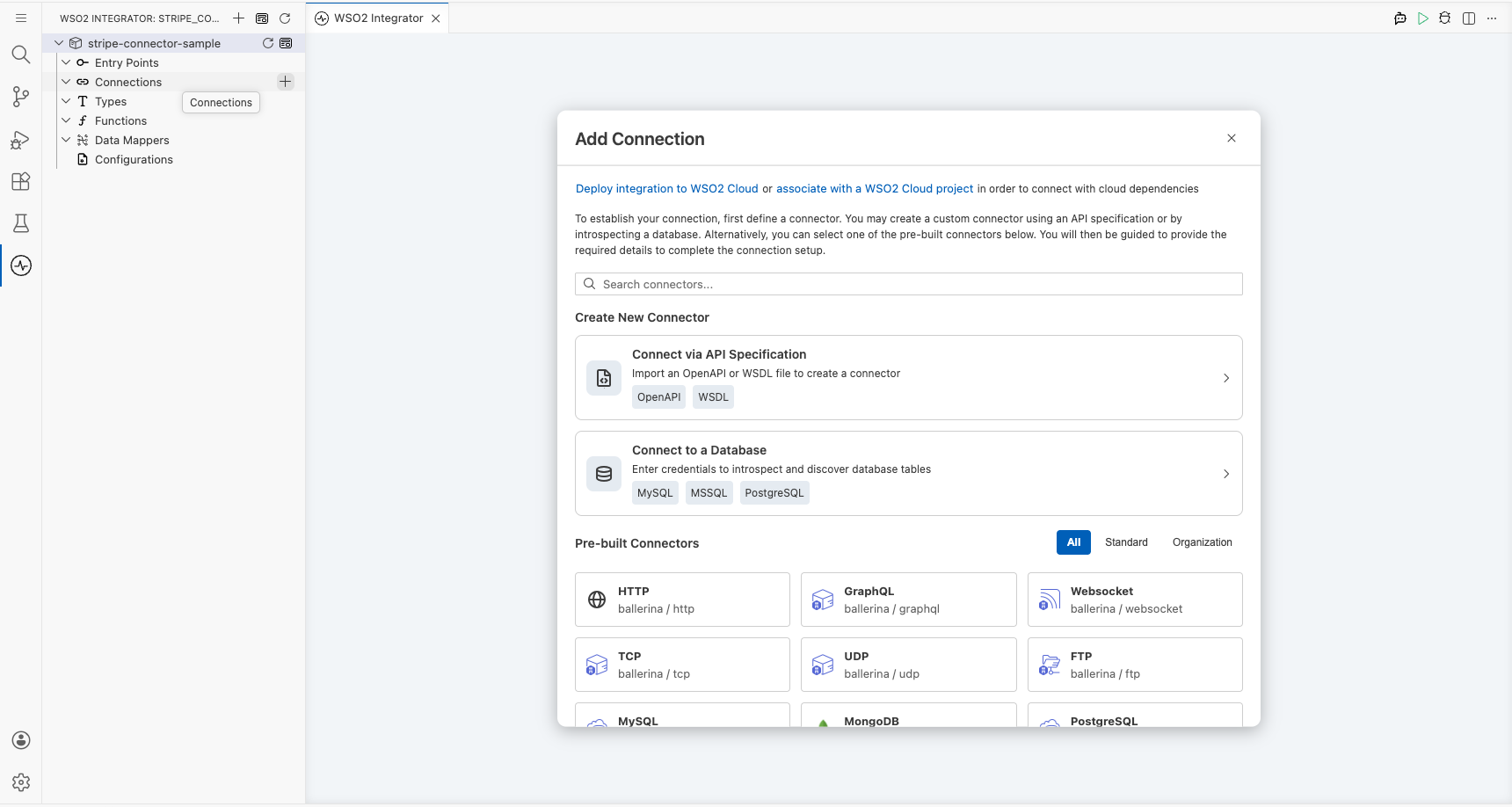
Open the WSO2 Integrator side panel and hover over the Connections tree item, then select the + button that appears to open the Add Connection palette.
Step 2: Add an automation entry point
- In the WSO2 Integrator side panel, select Add Artifact.
- Select Automation as the entry point type.
- Name the automation
main.
Configuring the Stripe connection
Step 3: Configure the connection form
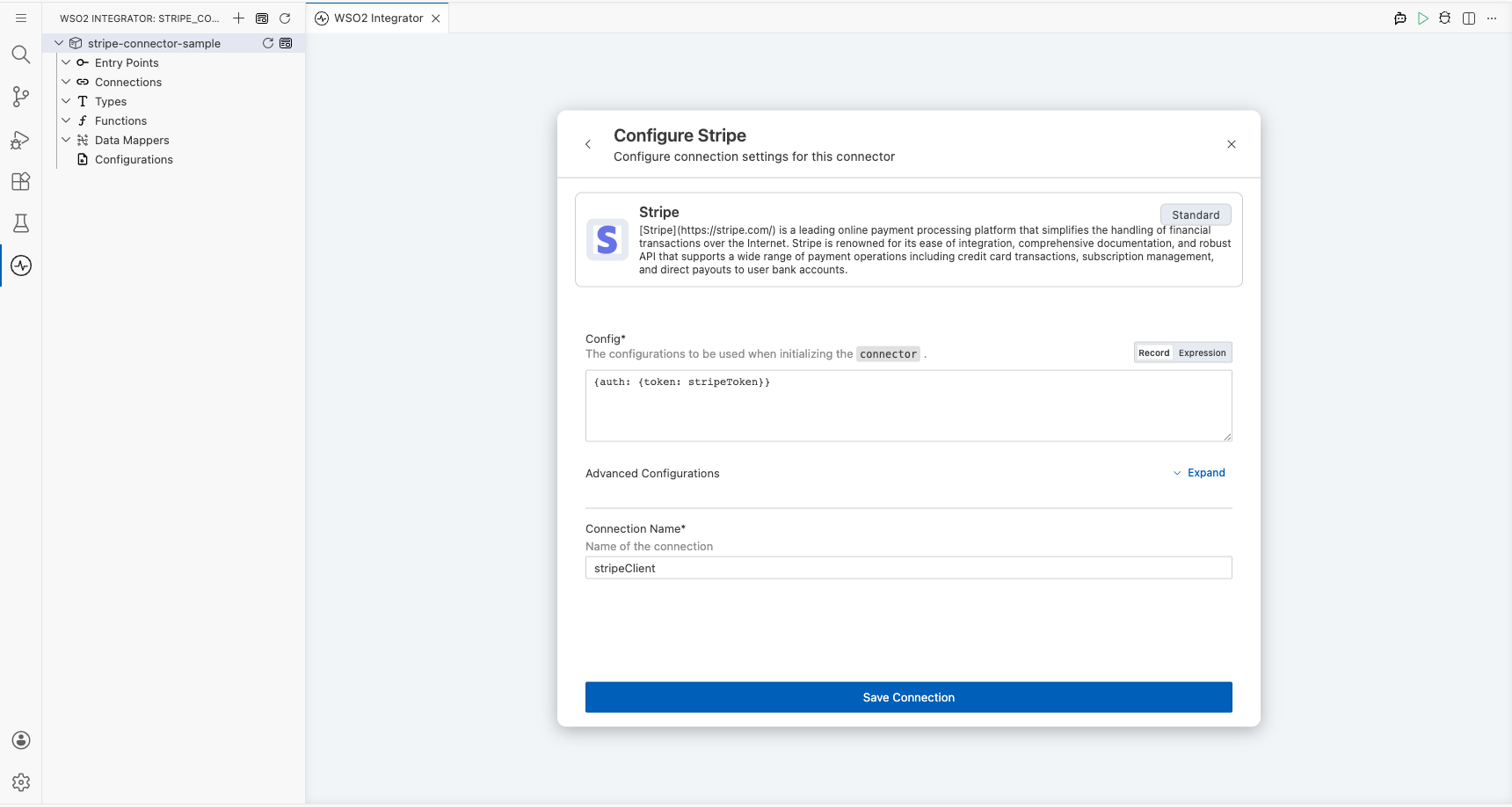
In the connection form, bind each field to a configurable variable:
- Connection Name : The display name for this connection instance
- token : The Stripe Bearer token, bound to the
stripeTokenconfigurable variable
Step 4: Save the connection
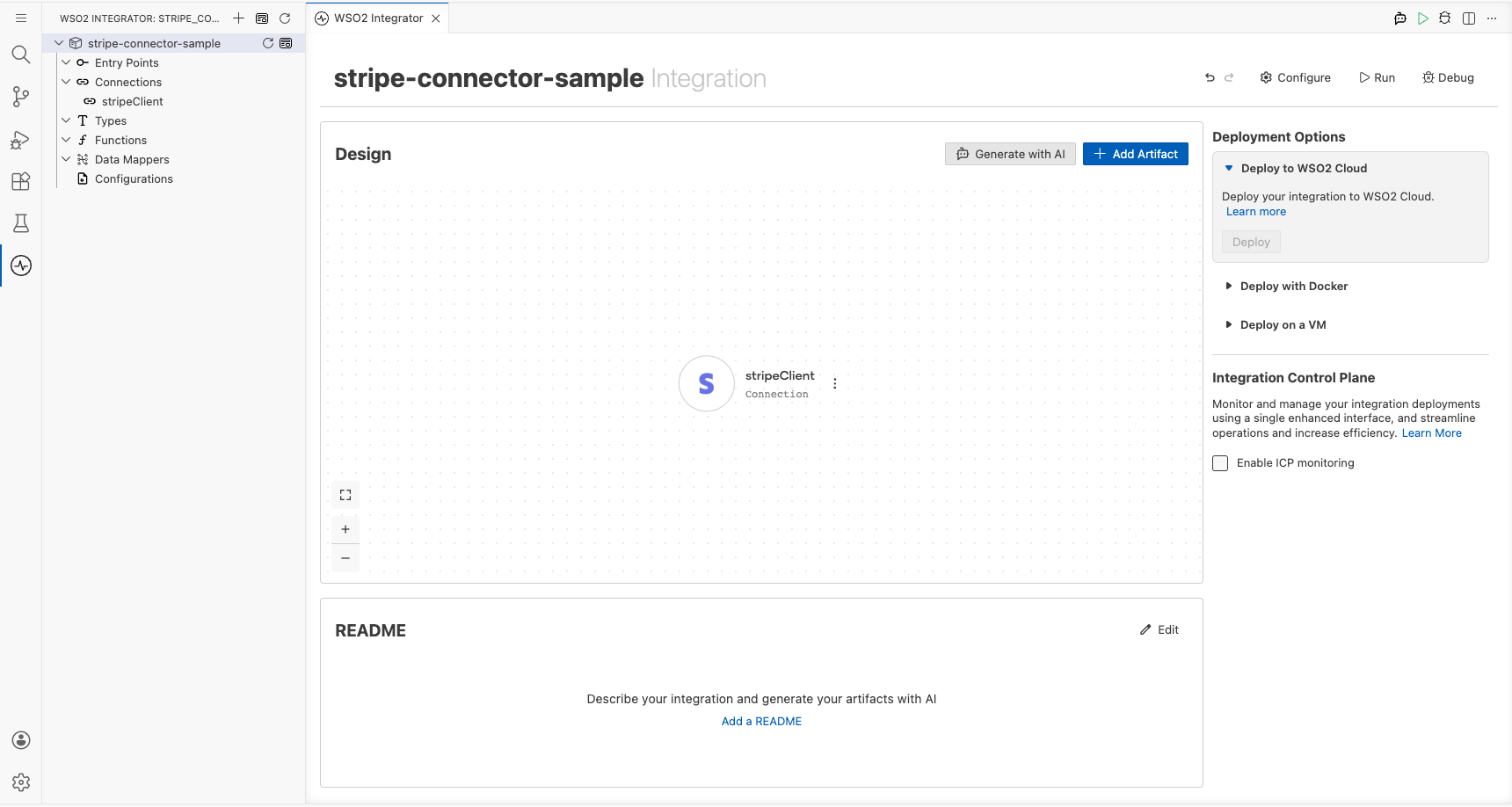
Select Save to create the connection. The connection appears in the Connections section of the WSO2 Integrator side panel.
Step 5: Set actual values for your configurables
- In the left panel, select Configurations.
- Set a value for each configurable listed below.
- stripeToken (string) : Your Stripe API key, obtainable from the Stripe Dashboard under Developers > API keys
Configuring the Stripe get operation
Step 6: Expand the connection and select the operation
- Select the + button on the edge between the Start node and the Error Handler node.
- In the step selection panel, locate the Connections section.
- Expand the stripeClient connection to reveal all available Stripe operations.
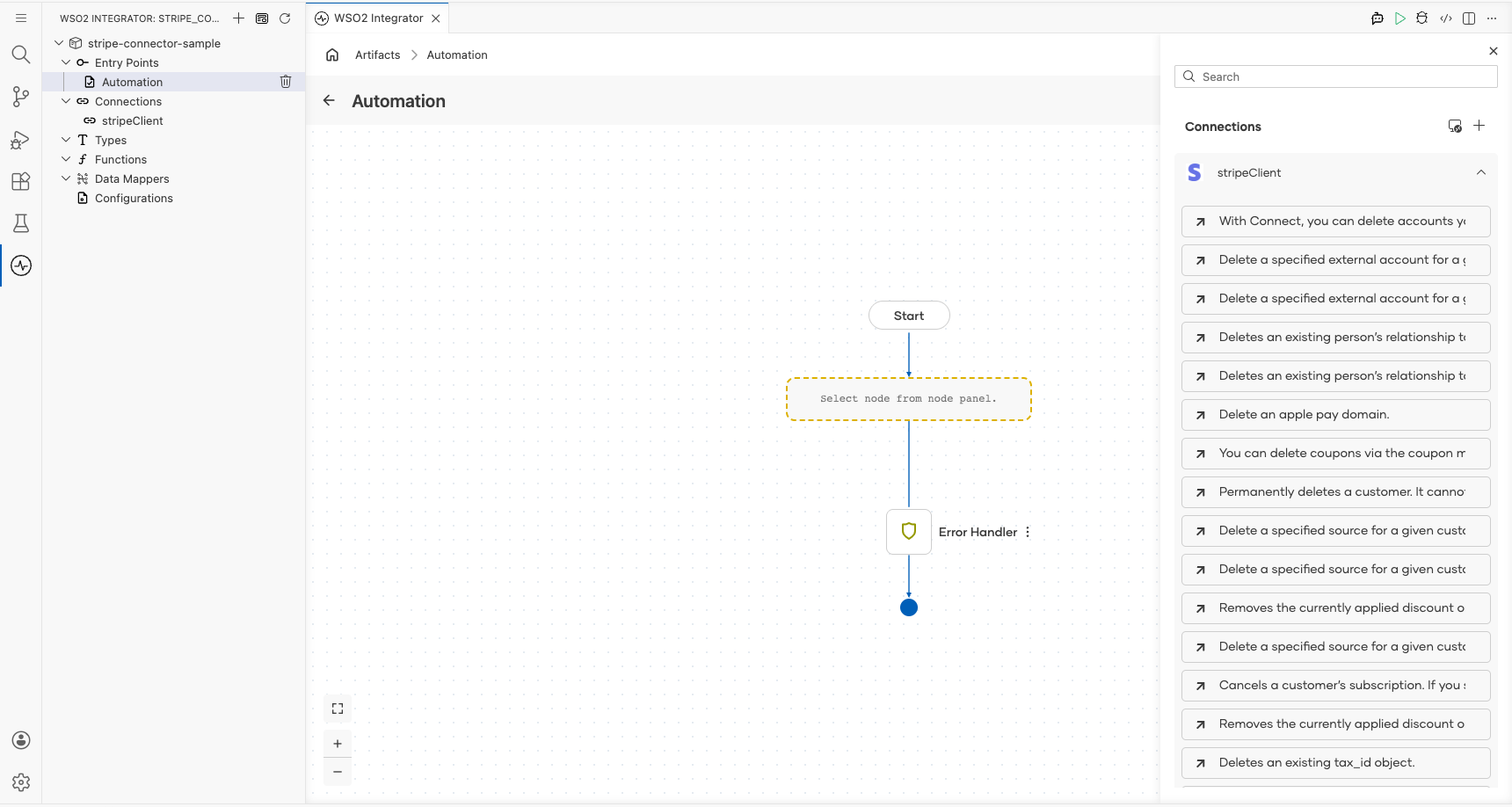
- Search for customers to filter the operations list.
- Select Returns a list of your customers (
getoperation) from the filtered results, then configure the following:
- Result : Name of the variable to store the response; set to
customerList
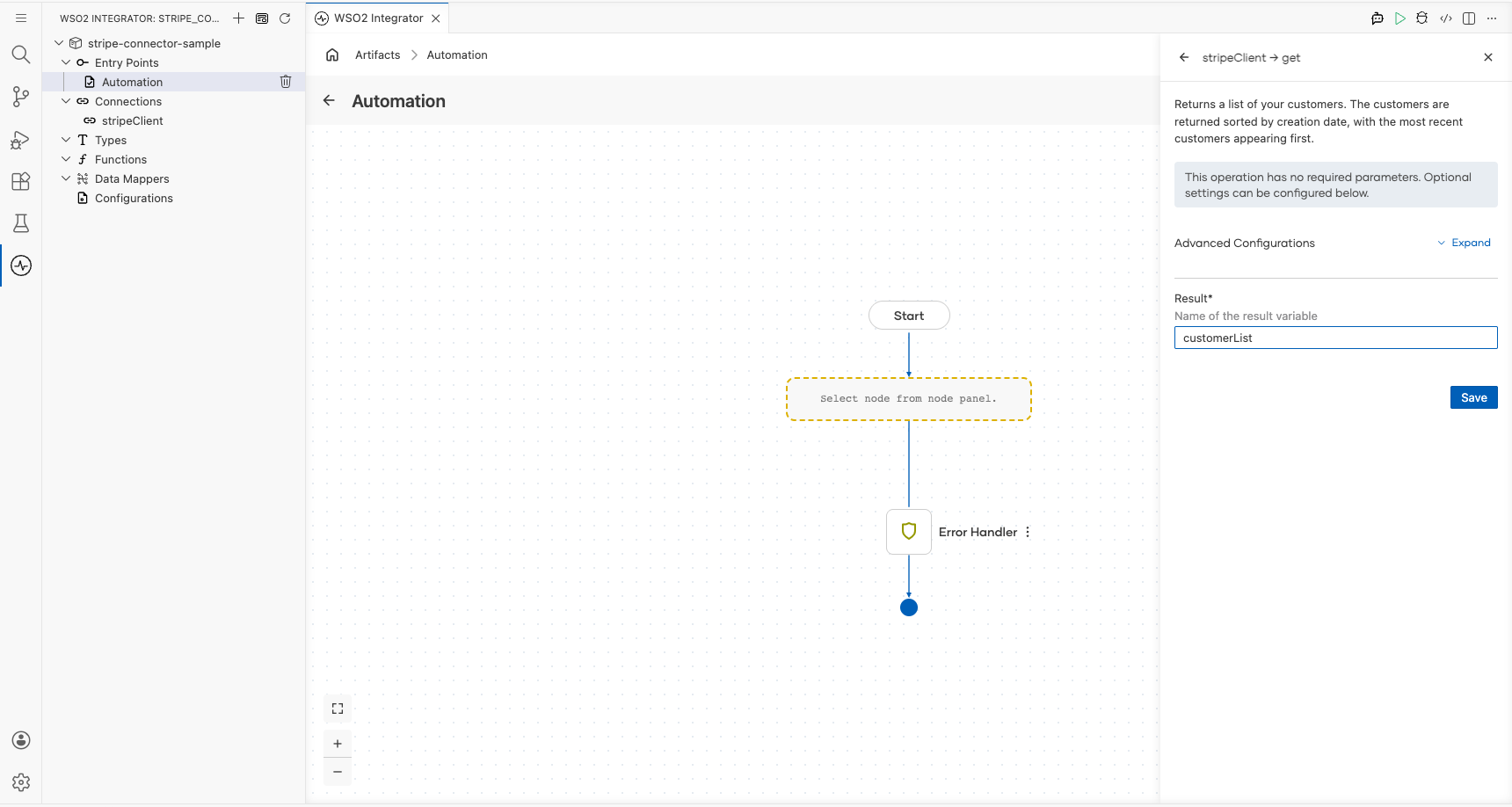
Select Save to add the operation to the flow.
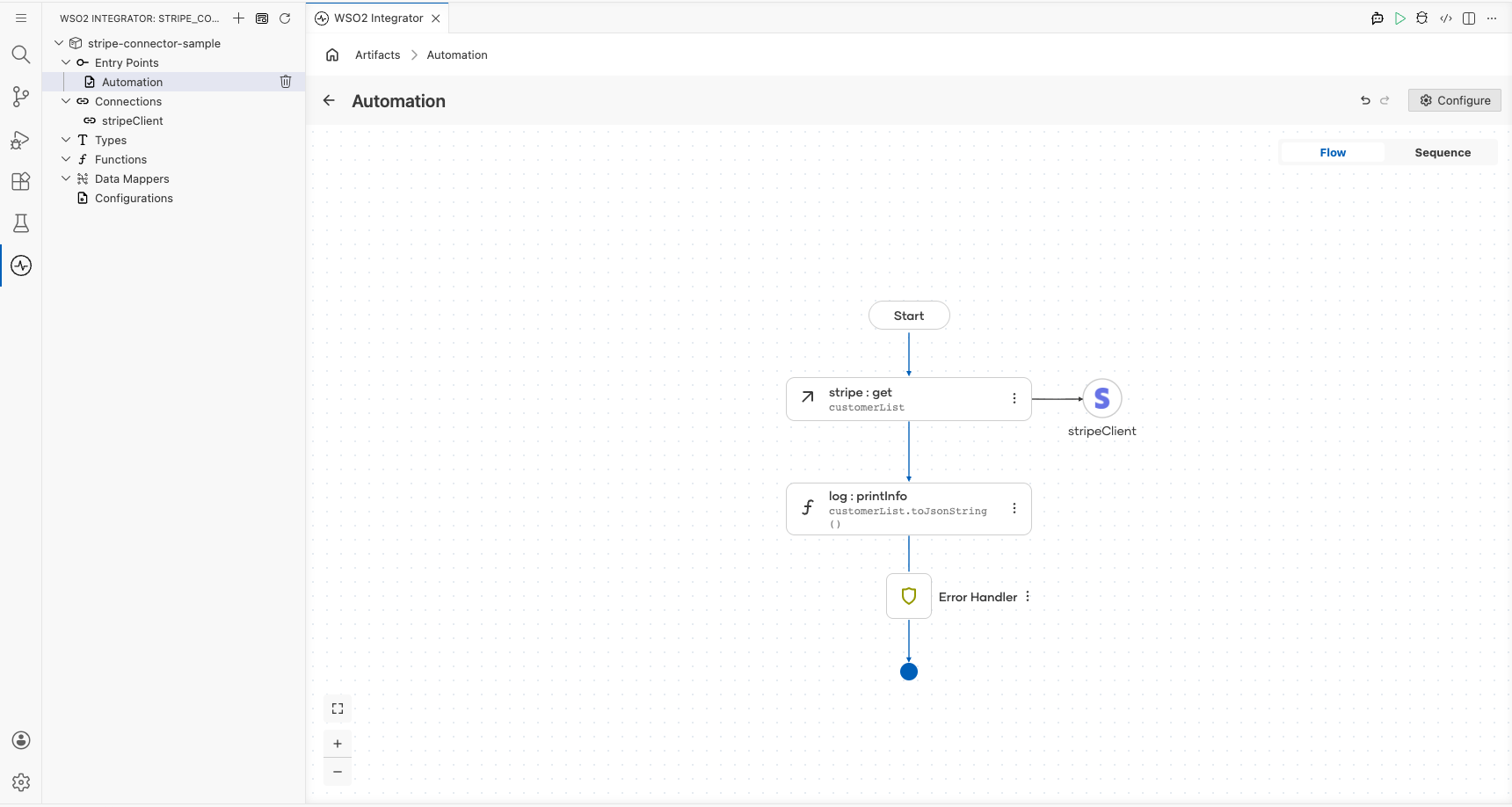
Try it yourself
Try this sample in WSO2 Integration Platform.

More code examples
The ballerinax/stripe connector provides practical examples illustrating usage in various scenarios. Explore these examples, covering various Stripe functionalities.
-
Manage Stripe payments: Manage business payments with Stripe.
-
Manage one-time charges: Manage one-time charges with Stripe.