Example
What you'll build
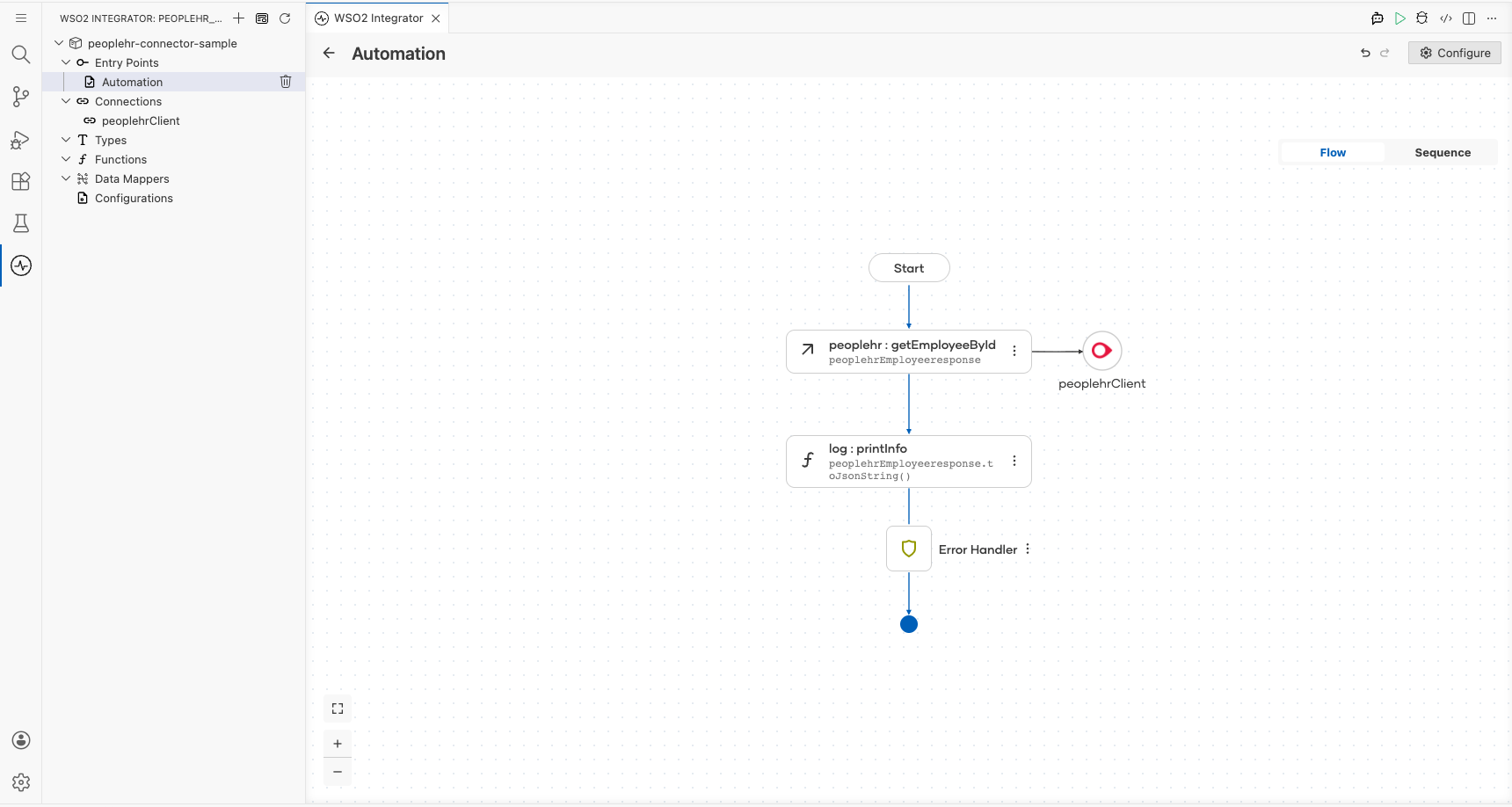
Build a WSO2 Integrator automation that retrieves employee information from the PeopleHR HR management platform using the PeopleHR connector. The integration configures a PeopleHR connection, calls the getEmployeeById operation, and logs the response.
Operations used:
- getEmployeeById : Retrieves a full employee record from PeopleHR by a unique employee identifier
Architecture
Prerequisites
- A PeopleHR account with an API key
Setting up the PeopleHR integration
New to WSO2 Integrator? Follow the Create a New Integration guide to set up your integration first, then return here to add the connector.
Adding the PeopleHR connector
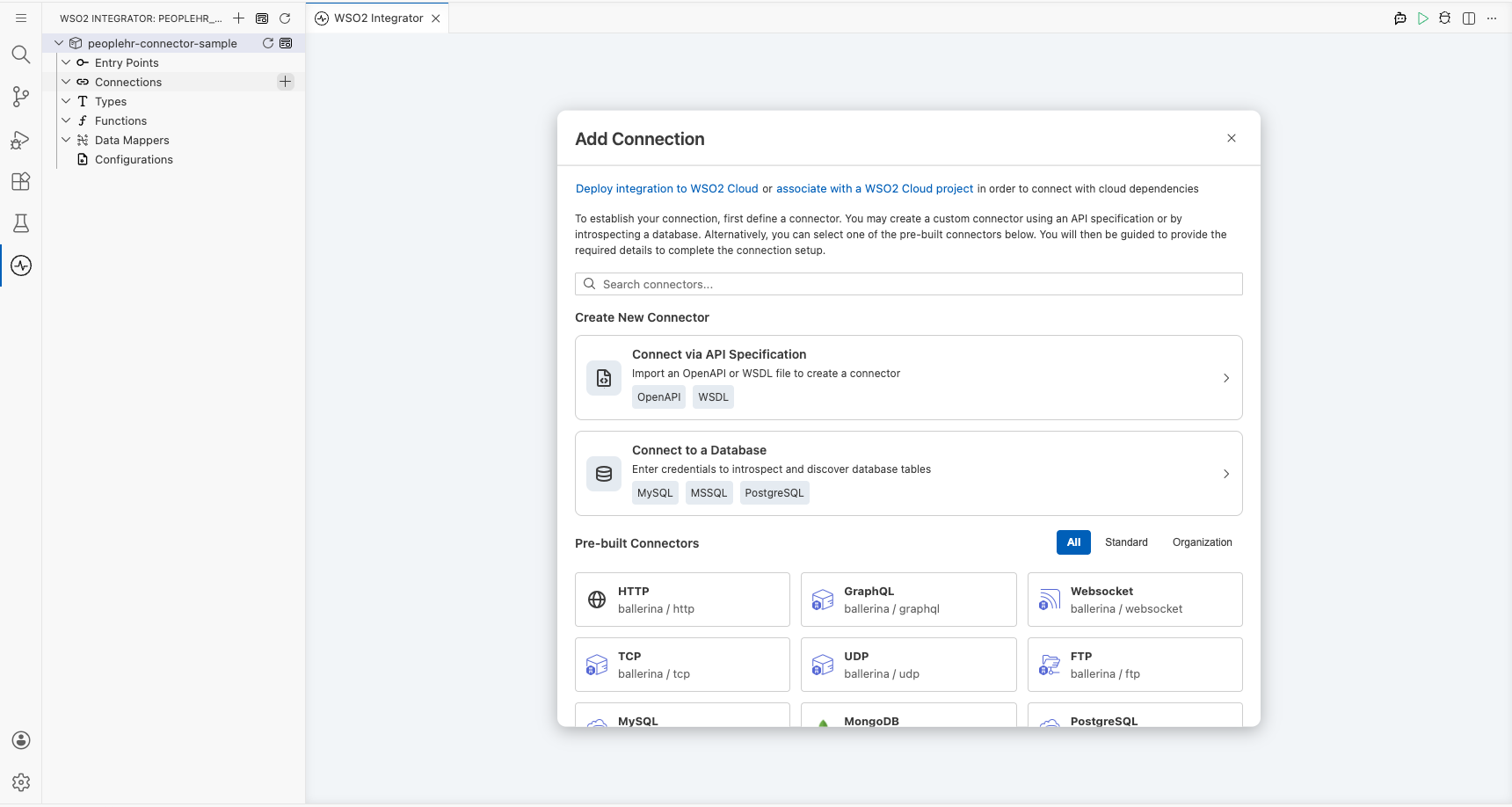
Select + in the Connections section of the left panel to open the connector search panel.
Step 1: Add an automation entry point
- Hover over the Entry Points section in the left panel.
- Select the Add Entry Point (+) button.
- Select Automation in the artifact type selection screen.
- In the Create New Automation dialog, select Create to accept the default settings.
Configuring the PeopleHR connection
Step 2: Configure the PeopleHR connection parameters
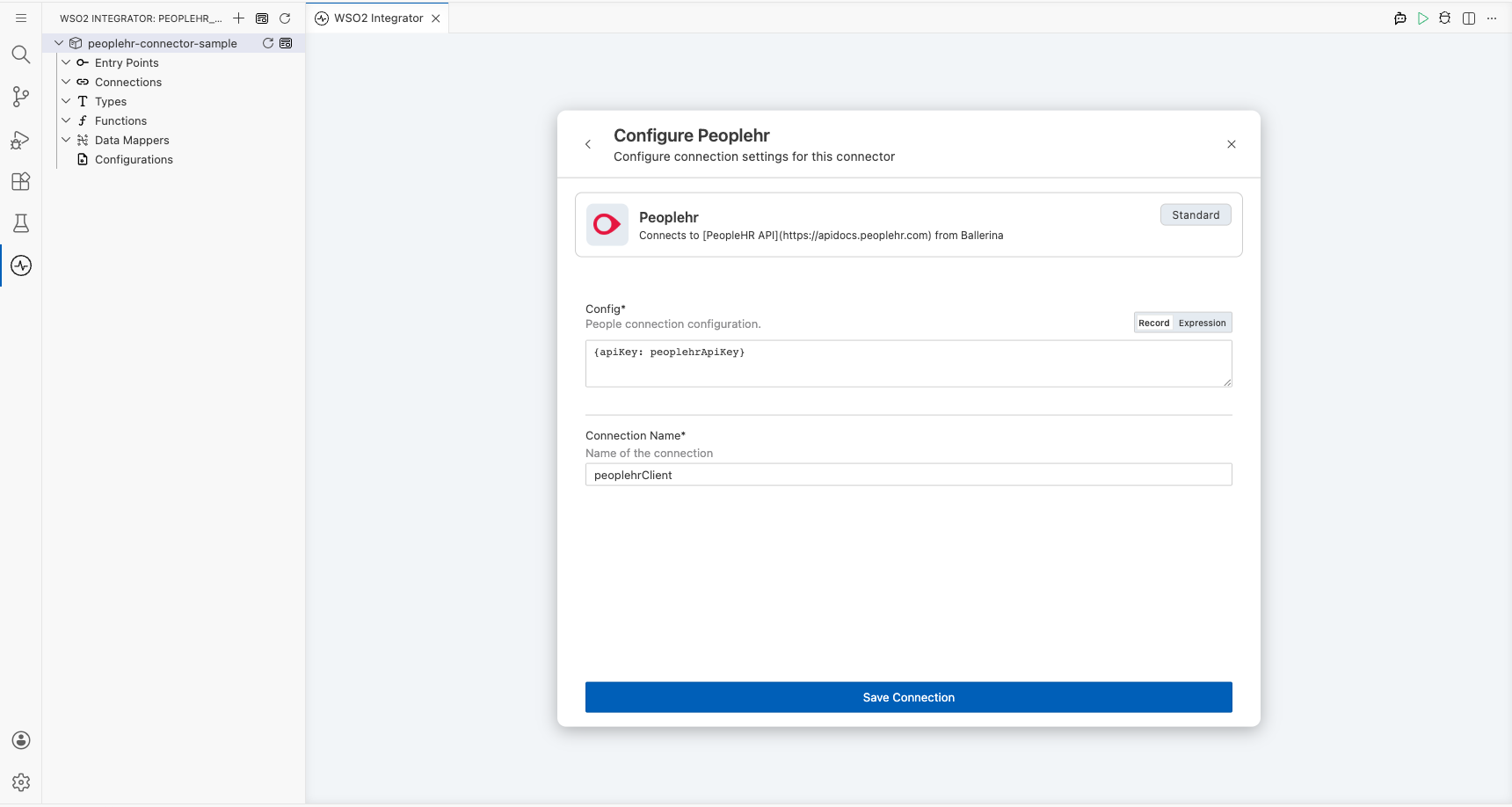
Open the Configure Peoplehr form and bind each field to a configurable variable:
- apiKey : Your PeopleHR API key, bound to a new configurable variable
- connectionName :
peoplehrClient
Step 3: Save the connection
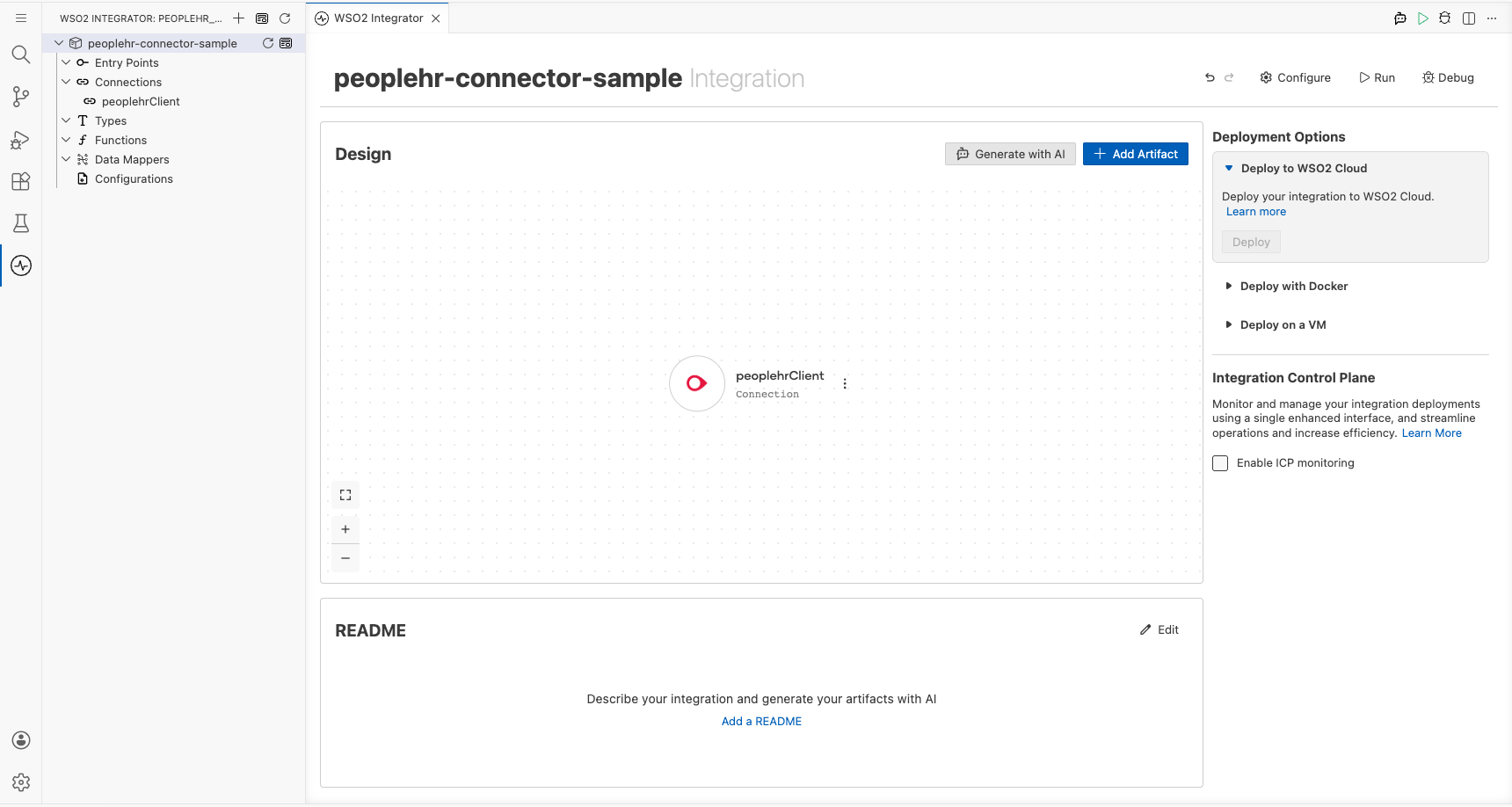
Select Save Connection to persist the connection. The peoplehrClient connection appears under Connections in the left panel and as a node on the integration canvas.
Step 4: Set actual values for your configurables
- In the left panel, select Configurations.
- Set a value for each configurable listed below.
- peoplehrApiKey (string) : Your PeopleHR API key from your account settings
Configuring the PeopleHR getEmployeeById operation
Step 5: Add the getEmployeeById operation to the flow
- On the automation flow canvas, select the + button between the Start node and the Error Handler node.
- Under Connections, select peoplehrClient to expand its operations.
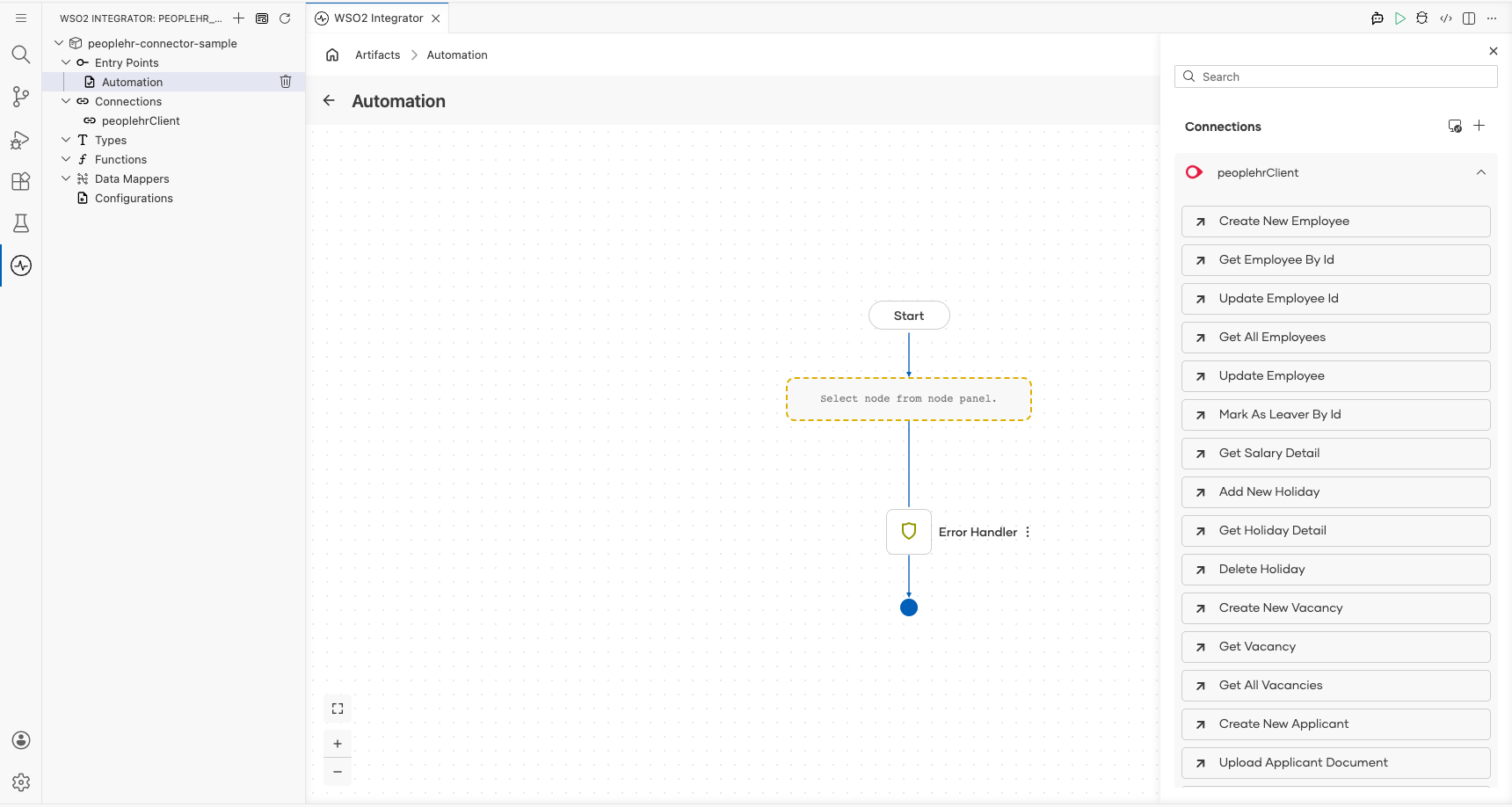
- Select Get Employee By Id from the list of operations.
- Fill in the operation fields:
- Employee Request Detail : Enter the employee request record, for example
{EmployeeId: "EMP001"} - Result : Auto-filled as
peoplehrEmployeeresponse
- Employee Request Detail : Enter the employee request record, for example
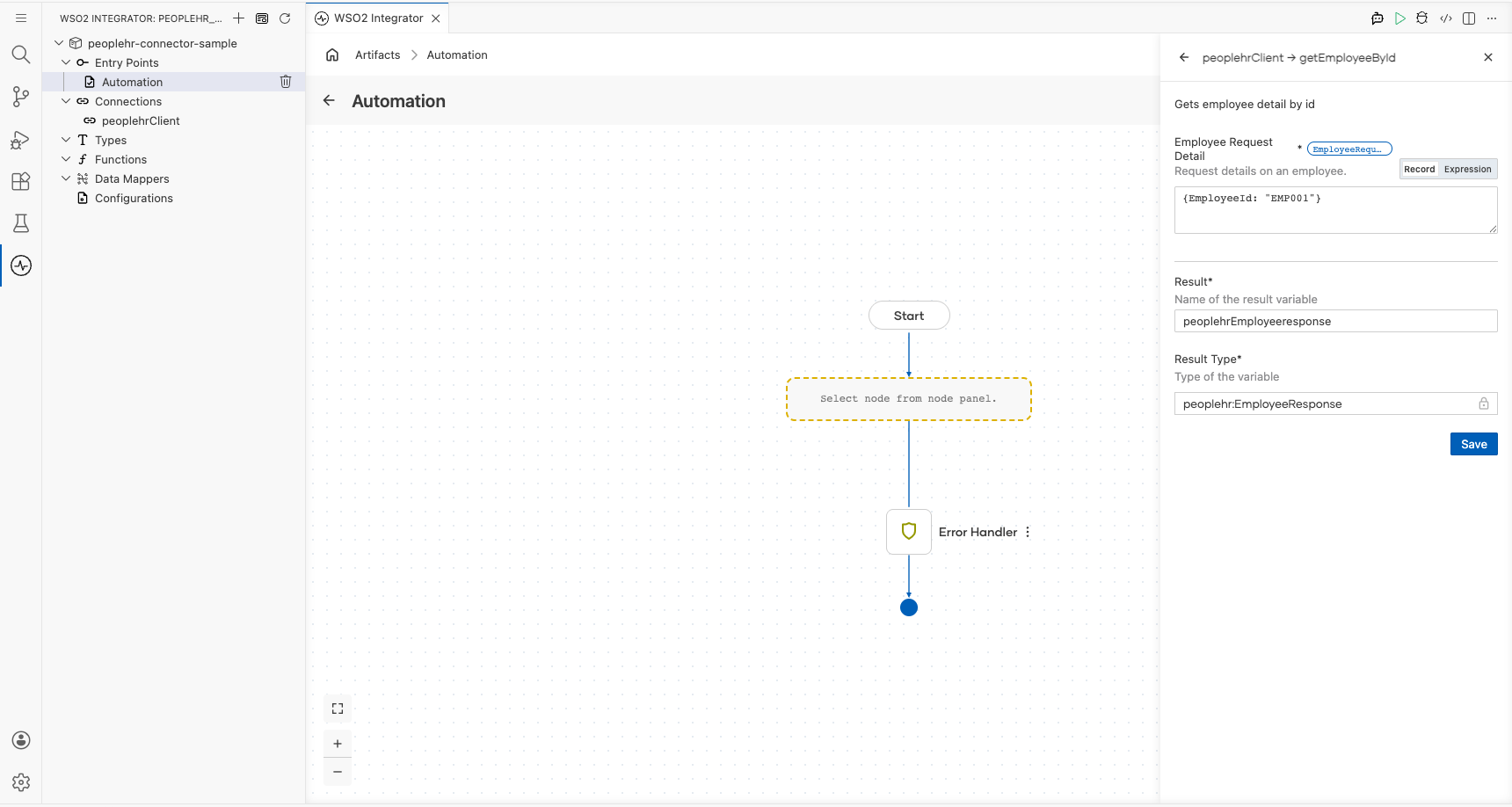
Select Save to add the operation to the flow.
Try it yourself
Try this sample in WSO2 Integration Platform.
