Example
What you'll build
Build a low-code integration that retrieves a list of HubSpot Marketing Forms using the ballerinax/hubspot.marketing.forms connector in WSO2 Integrator. The integration runs as an Automation entry point and stores the response in a result variable for further processing.
Operations used:
- getForms : Retrieves a list of all HubSpot Marketing Forms associated with your account
Architecture
Prerequisites
- A HubSpot account with a valid Bearer token (OAuth 2.0 access token or private app token)
Setting up the HubSpot marketing forms integration
New to WSO2 Integrator? Follow the Create a New Integration guide to set up your integration first, then return here to add the connector.
Adding the HubSpot marketing forms connector
Step 1: Open the add connection panel
Select Add Connection (or the + next to Connections in the side panel) to open the connector search palette.
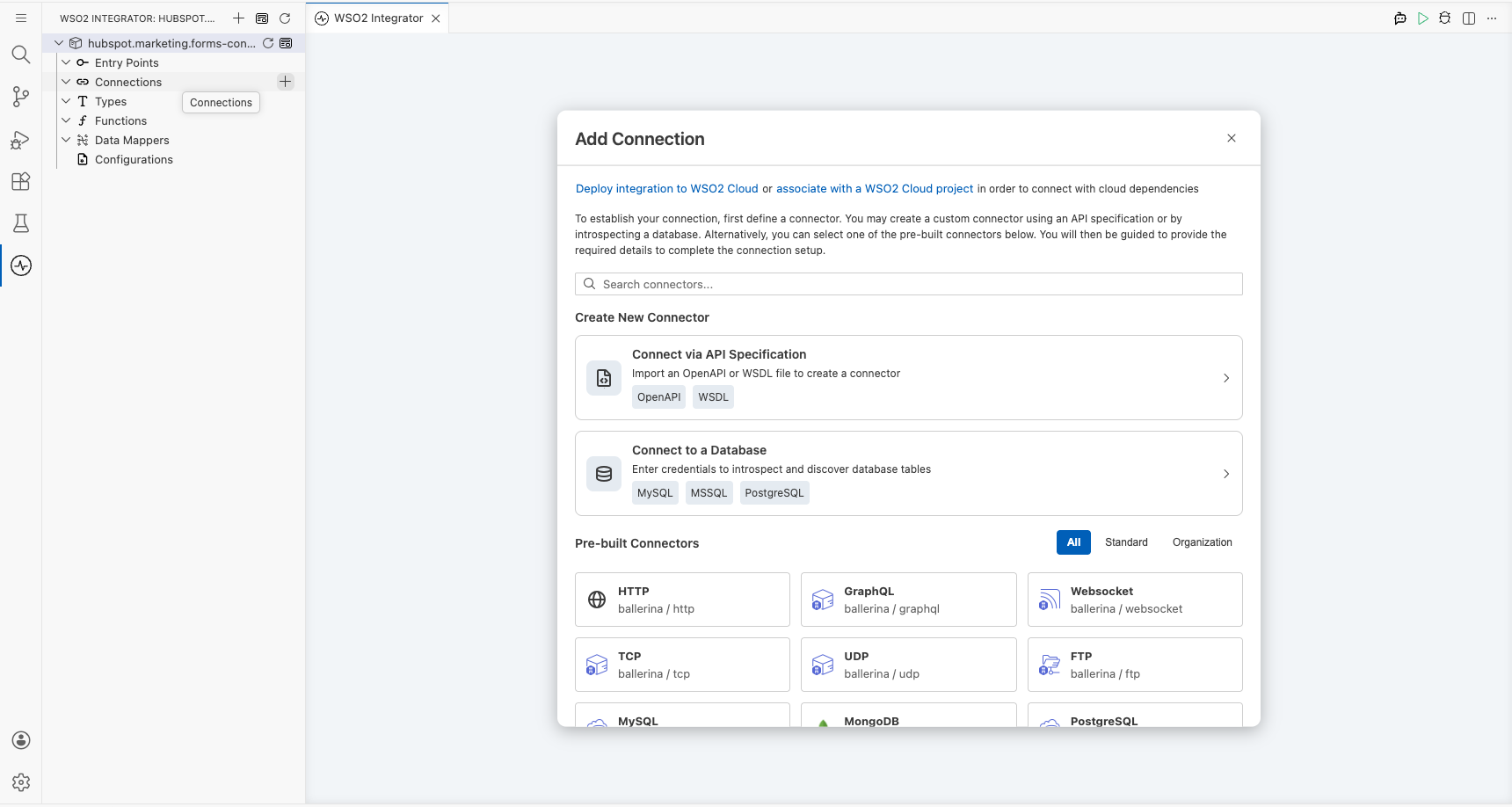
Step 2: Search for and select the HubSpot marketing forms connector
- In the search box, enter
hubspot.marketing.forms. - Select ballerinax/hubspot.marketing.forms from the results to open the Connection Configuration form.
Configuring the HubSpot marketing forms connection
Step 3: Fill in the connection parameters
Bind the connection parameters to configurable variables so credentials aren't hardcoded. In the Config field (of type ConnectionConfig), select the text box to open the Record Configuration modal, then set the token field inside auth → BearerTokenConfig to a new configurable variable named hubspotBearerToken. The Config field should read {auth: {token: hubspotBearerToken}} after binding.
- config : The connection configuration object containing Bearer Token authentication details
- connectionName : Enter
formsClientas the name for this connection
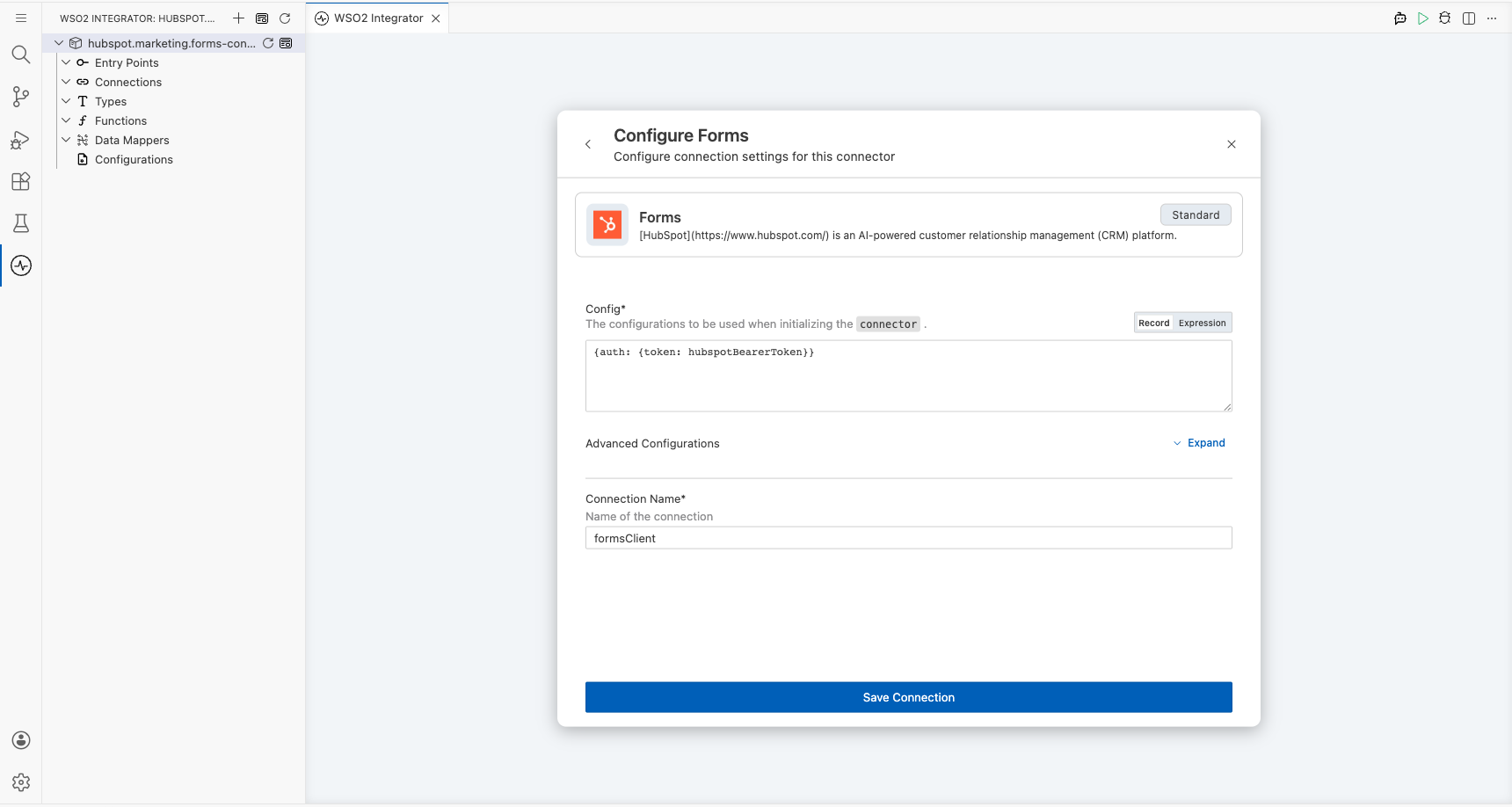
Step 4: Save the connection
Select Save to persist the connection. The formsClient connection node appears on the canvas.
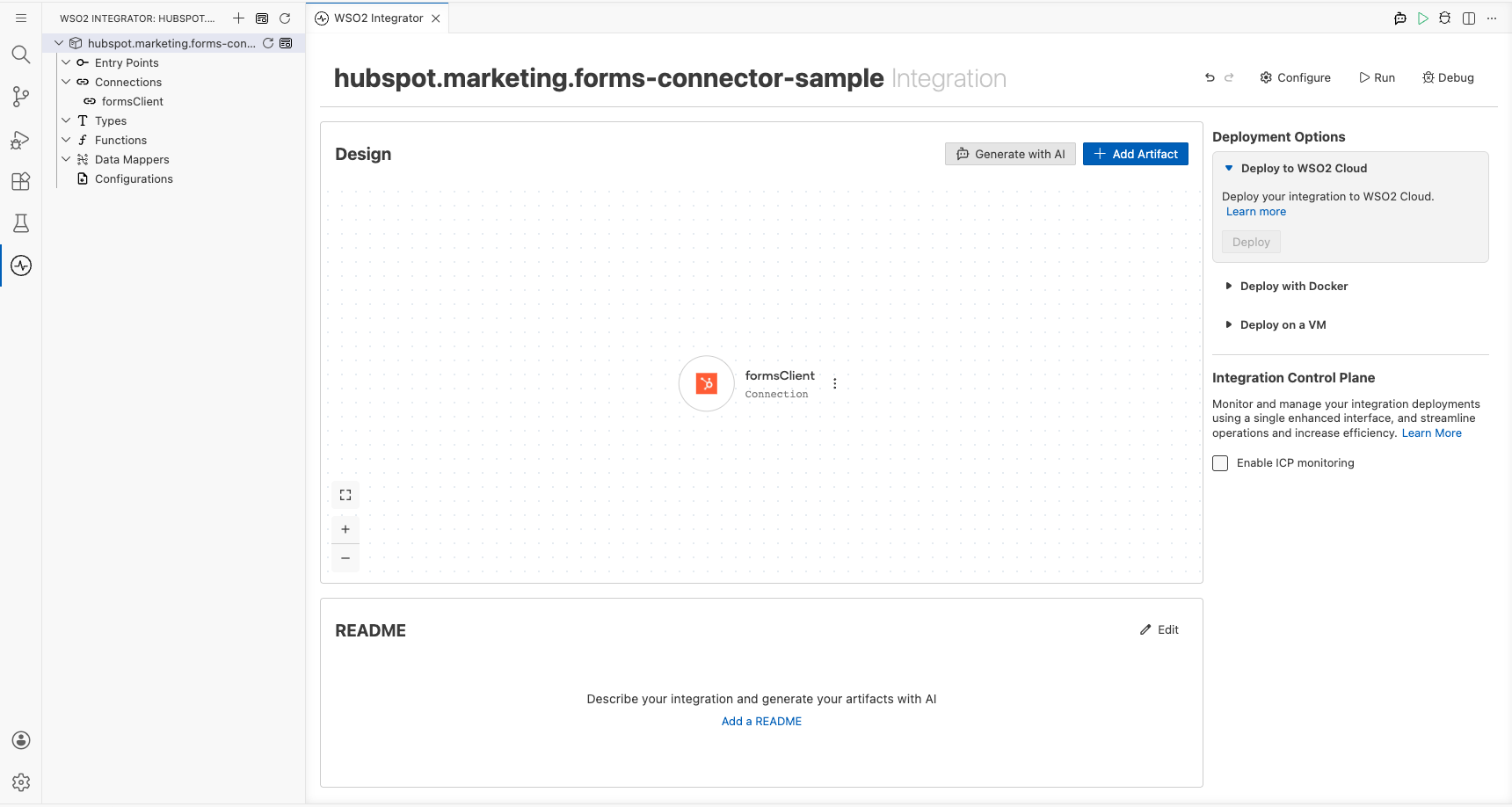
Step 5: Set actual values for your configurables
- In the left panel, select Configurations.
- Set a value for each configurable listed below.
- hubspotBearerToken (string) : Your HubSpot Bearer token (OAuth 2.0 access token or private app token)
Configuring the HubSpot marketing forms getForms operation
Step 6: Add an automation entry point
- On the canvas overview, select Add Artifact.
- Select Automation from the artifact type list.
- Accept the defaults and select Create.
The Automation canvas opens showing a Start node and an Error Handler block.
Step 7: Select the getForms operation and configure its parameters
- Select the + (Add Step) button between the Start node and the Error Handler block.
- Under Connections, select formsClient to expand its operations.
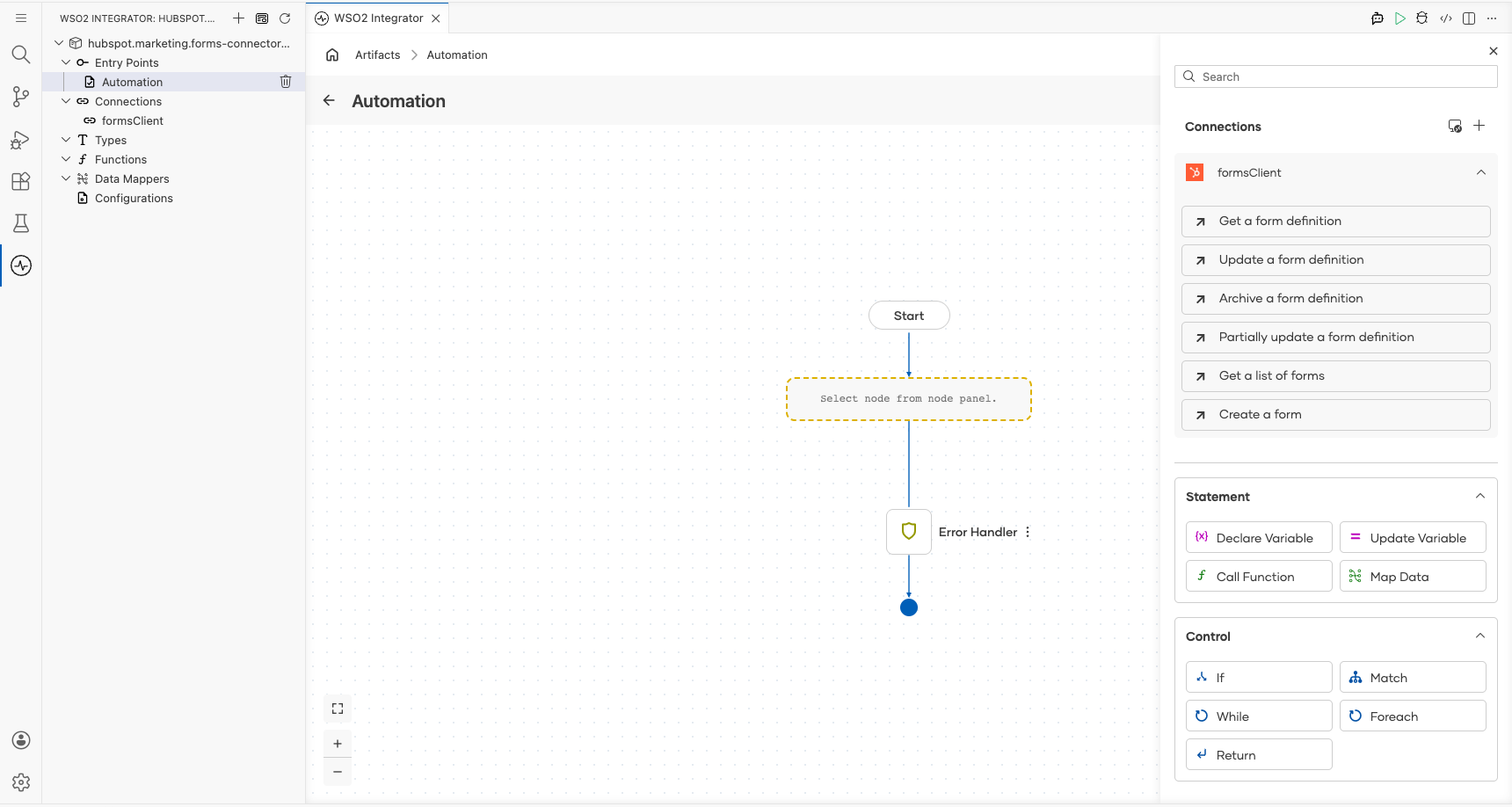
- Select Get a list of forms.
- In the Result field, enter
formsResult.
- result : Name of the result variable that stores the retrieved forms list
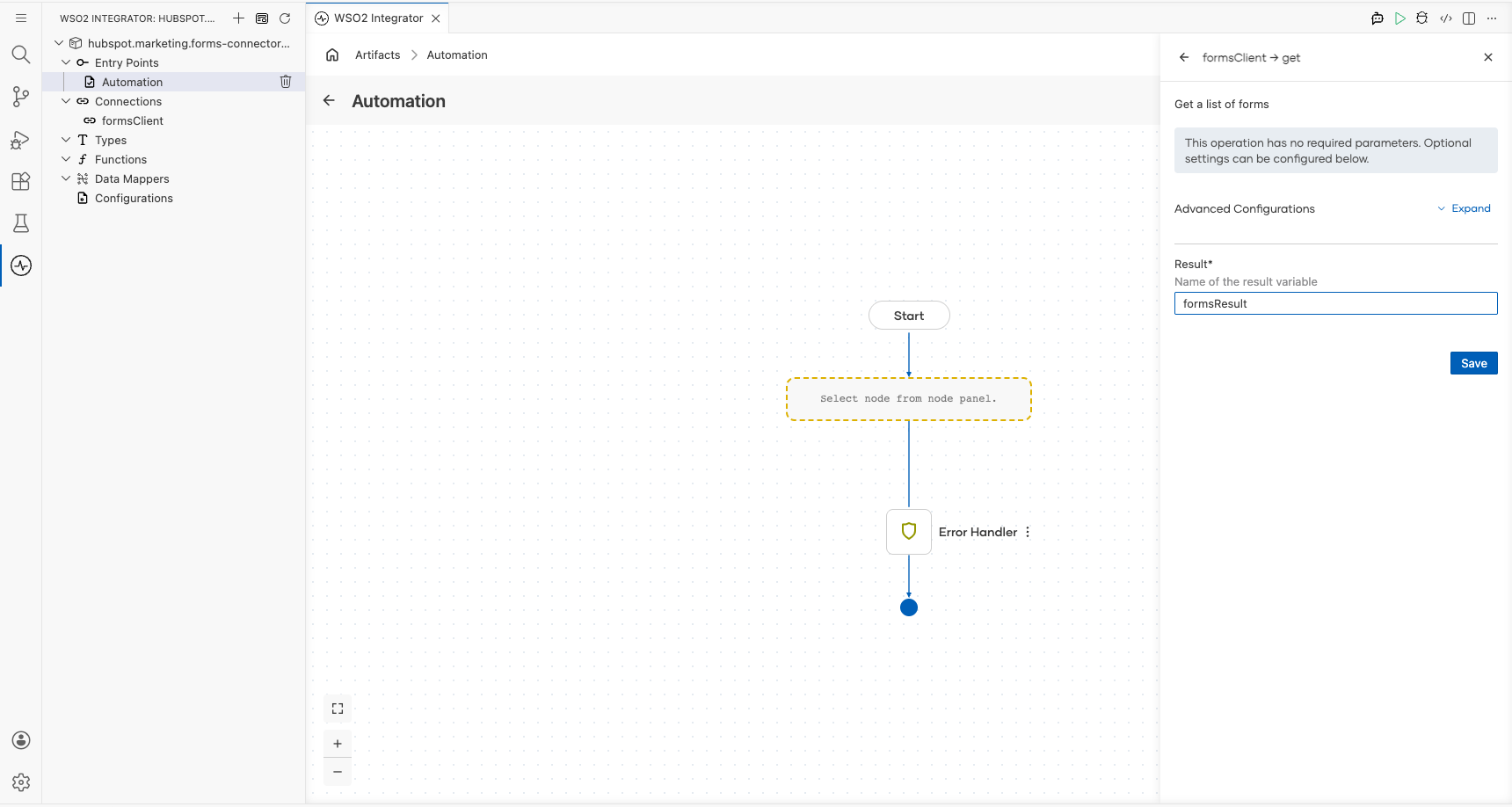
Select Save to add the step to the flow.
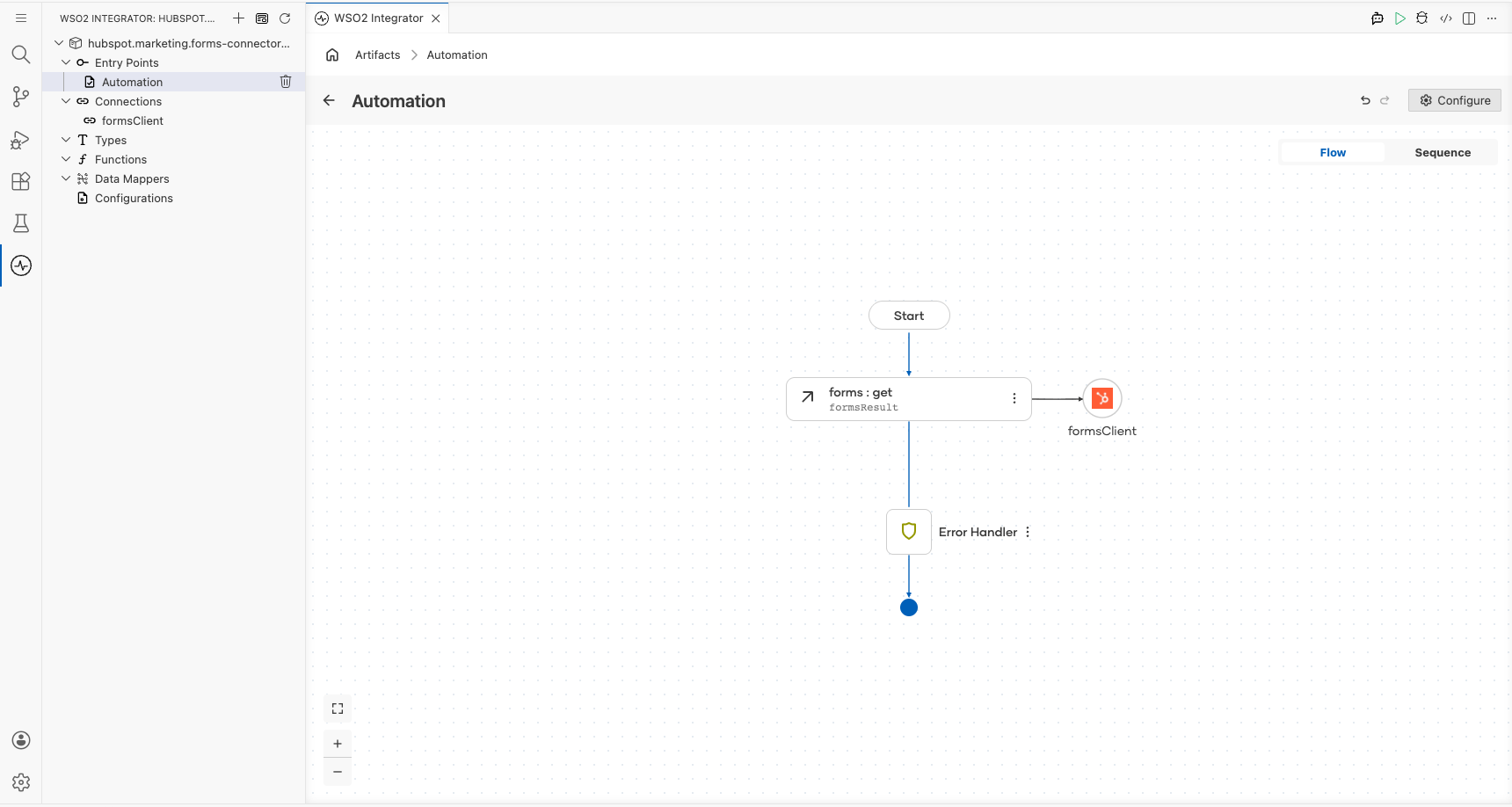
Try it yourself
Try this sample in WSO2 Integration Platform.

More code examples
The "HubSpot Marketing Forms" connector provides practical examples illustrating usage in various scenarios. Explore these examples, covering the following use cases:
-
Contact Us Form Integration - Build dynamic 'Contact Us' forms to handle customer inquiries efficiently, enabling seamless communication and accurate data collection.
-
Sign Up Form Integration - Create, update, and manage user registration forms with customizable fields such as name, email, and consent checkboxes to streamline user onboarding.