Example
What you'll build
Build an integration that fetches all HubSpot email subscription definitions and logs them as JSON. The integration uses an Automation entry point that calls the HubSpot Marketing Subscriptions connector to retrieve all subscription type definitions.
Operations used:
- getCommunicationPreferencesV4Definitions : Retrieves all HubSpot email subscription type definitions and returns them as a structured response.
Architecture
Prerequisites
- A HubSpot account with a valid private app access token (bearer token).
Setting up the HubSpot marketing subscriptions integration
New to WSO2 Integrator? Follow the Create a New Integration guide to set up your integration first, then return here to add the connector.
Adding the HubSpot marketing subscriptions connector
Step 1: Open the add connection panel
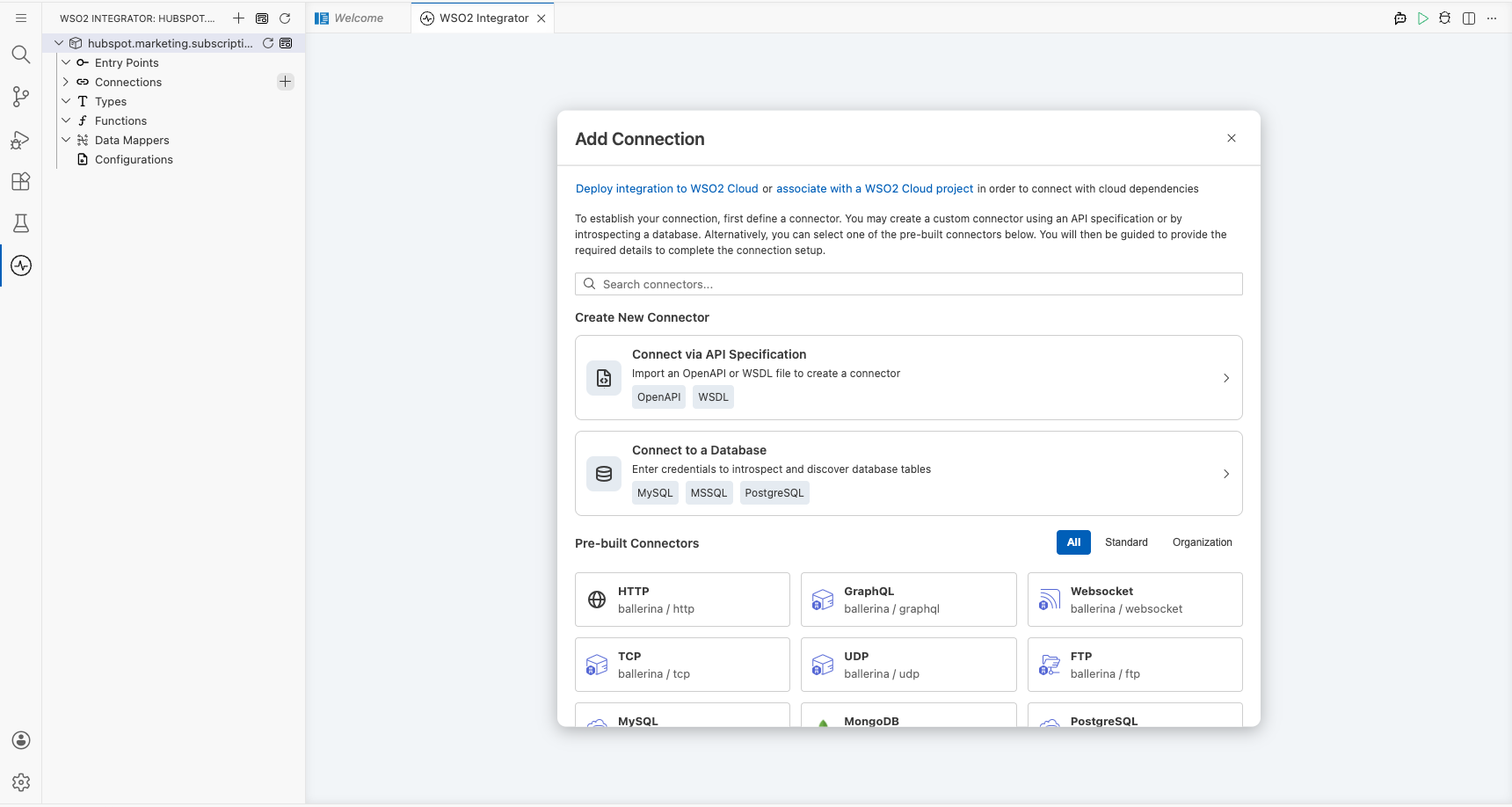
In the project overview, expand Connections in the left panel and select + Add Connection.
Step 2: Search for and select the connector
- Search for hubspot marketing subscriptions in the connector search panel.
- Select the HubSpot Marketing Subscriptions connector card (
ballerinax/hubspot.marketing.subscriptions) to open the configuration form.
Configuring the HubSpot marketing subscriptions connection
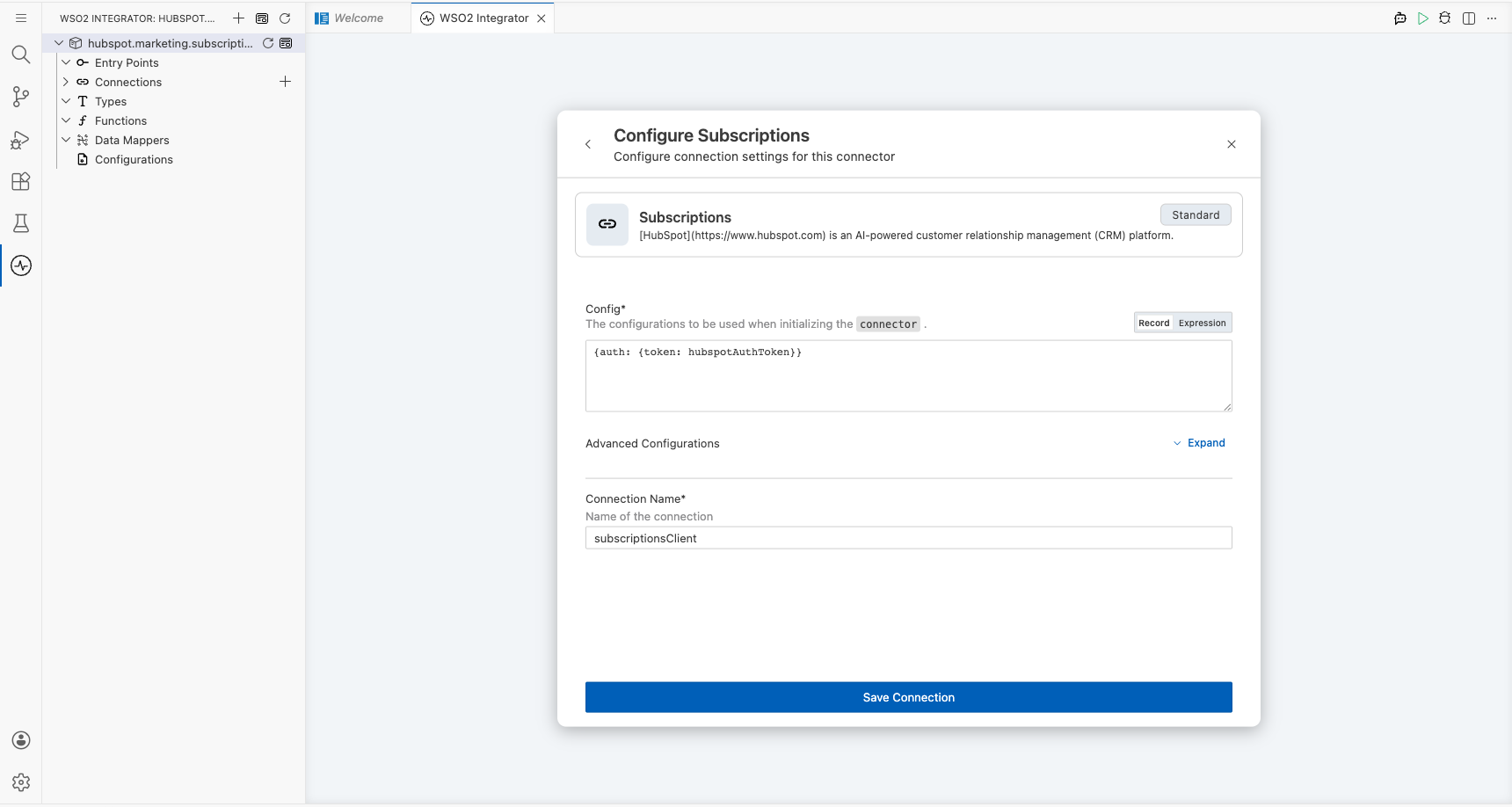
Step 3: Fill in the connection parameters
Enter the connection details and bind the auth token to a configurable variable:
- connectionName : Enter
subscriptionsClientas the connection name. - auth.token : Select + New Configurable to create a new configurable variable named
hubspotAuthTokenof typestring, then save the configurable dialog.
Step 4: Save the connection
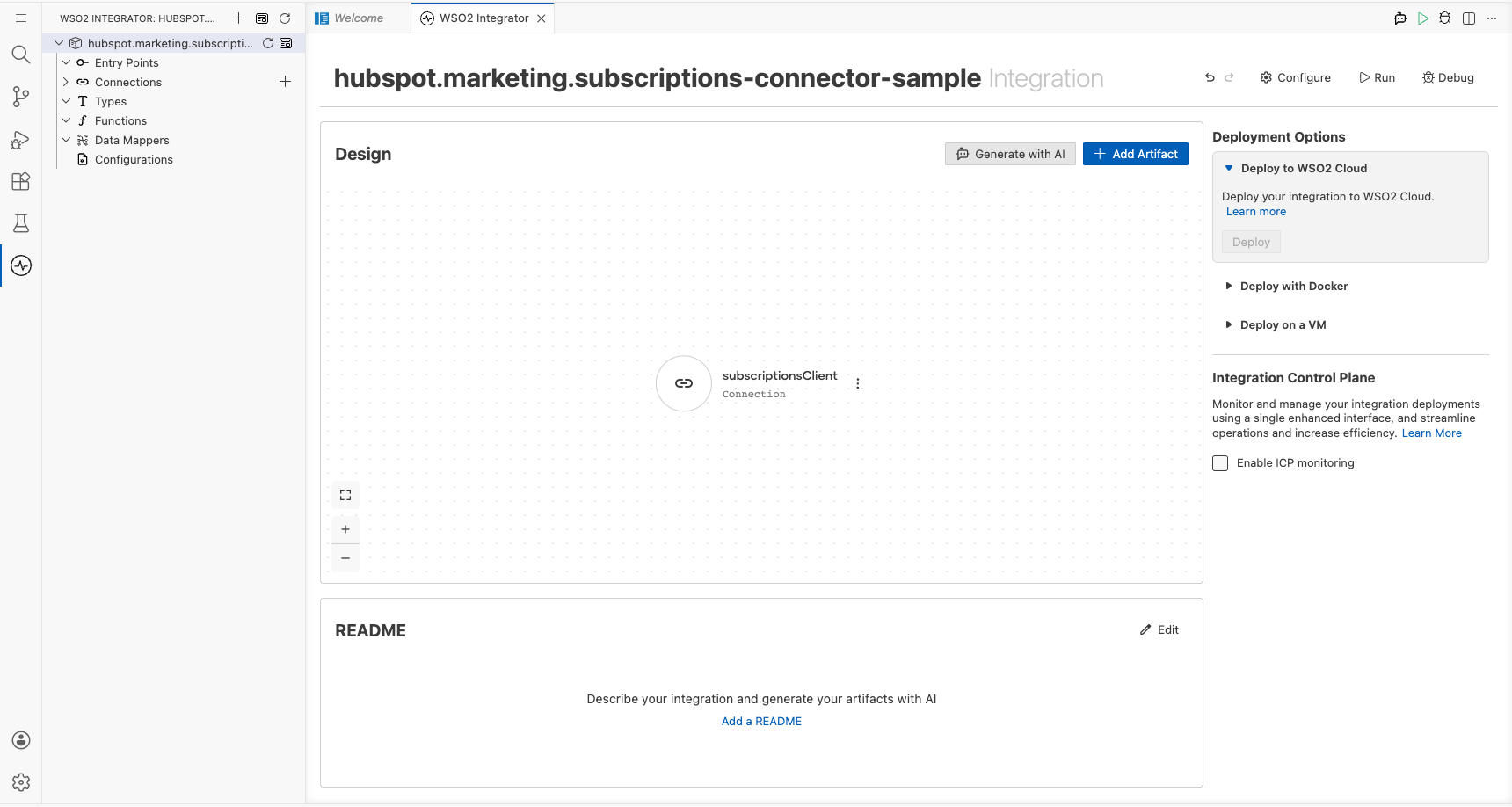
Select Save Connection to persist the connection. The canvas updates to show the subscriptionsClient connection node in the Connections section.
Step 5: Set actual values for your configurables
- In the left panel, select Configurations (at the bottom of the project tree, under Data Mappers).
- Set a value for each configurable listed below.
- hubspotAuthToken (string) : Your HubSpot private app bearer token.
Configuring the HubSpot marketing subscriptions getCommunicationPreferencesV4Definitions operation
Step 6: Add an automation entry point
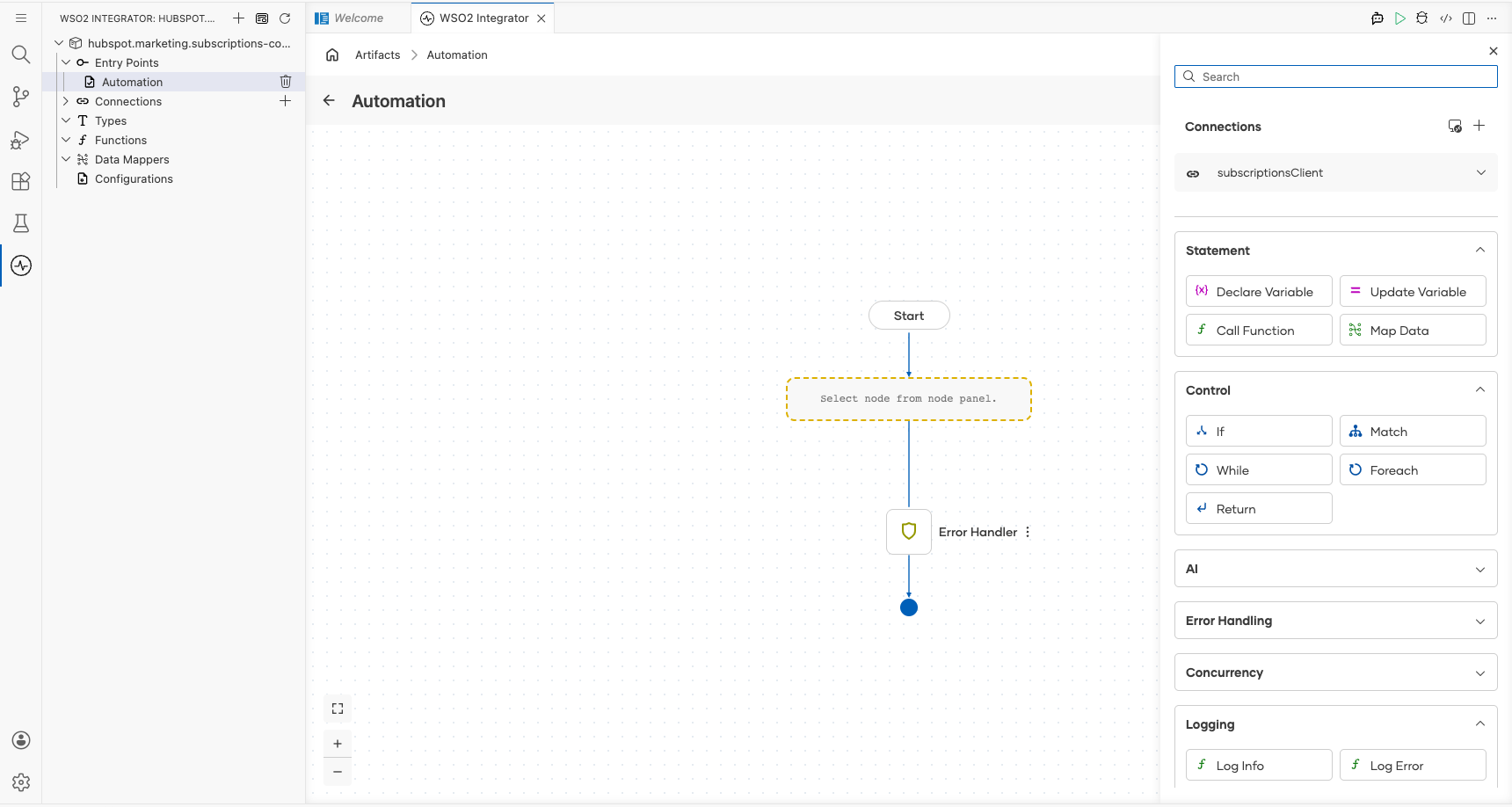
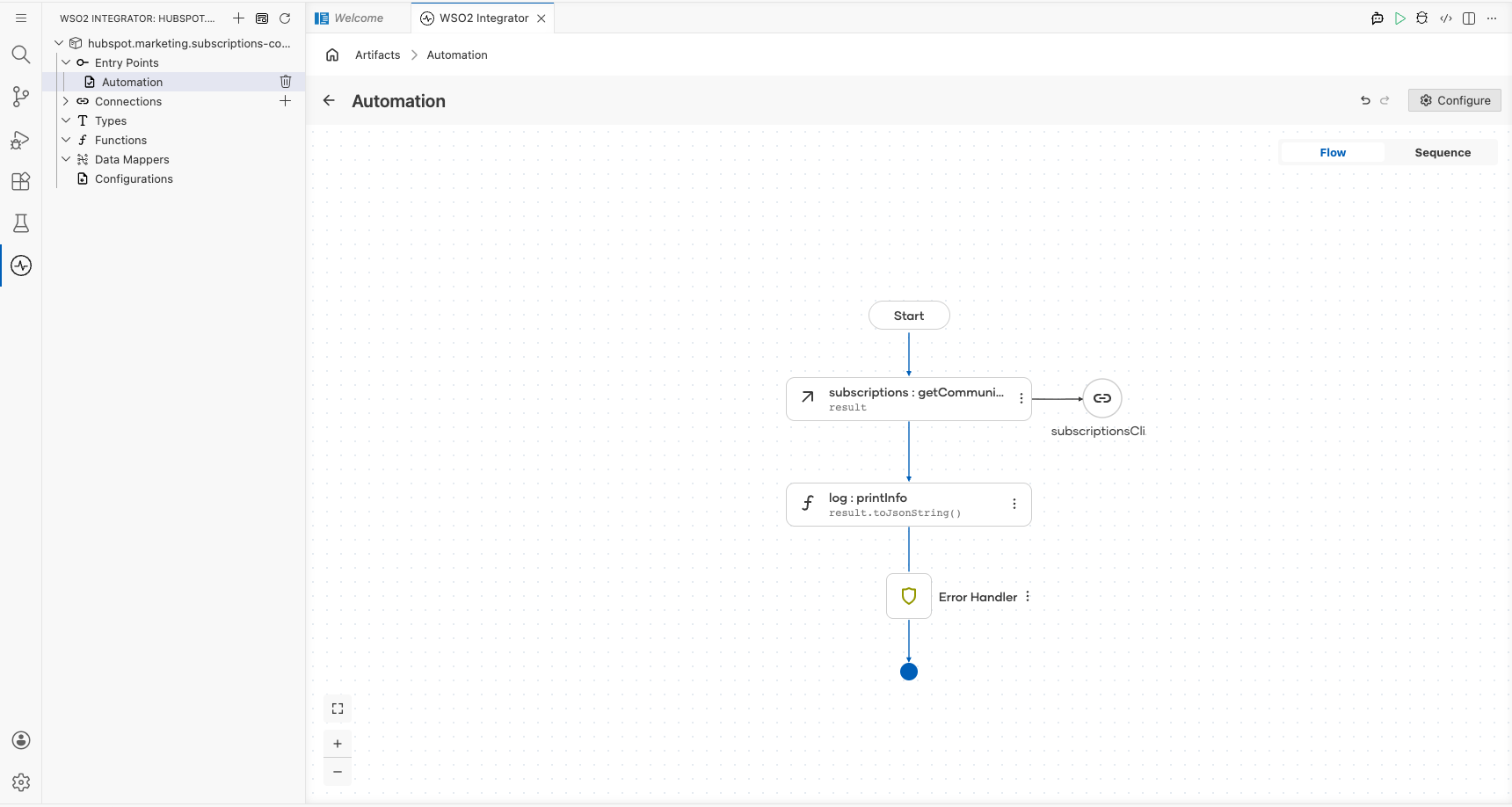
In the left sidebar under Entry Points, select + and choose Automation. Name the entry point main and confirm. The Automation flow canvas opens showing a minimal flow: Start → Error Handler → End.
Step 7: Select and configure the getCommunicationPreferencesV4Definitions operation
- Select the + connector button on the flow line inside the
doblock to open the step selection panel. - Navigate to Connections, select subscriptionsClient, then select getCommunicationPreferencesV4Definitions from the list of available operations.
- Configure the operation fields:
- resultVariable : Enter
resultas the variable name to store the operation output. - resultType : Set to
subscriptions:ActionResponseWithResultsSubscriptionDefinition.
After selecting the operation, the configuration panel opens. Enter the output variable details as shown below.
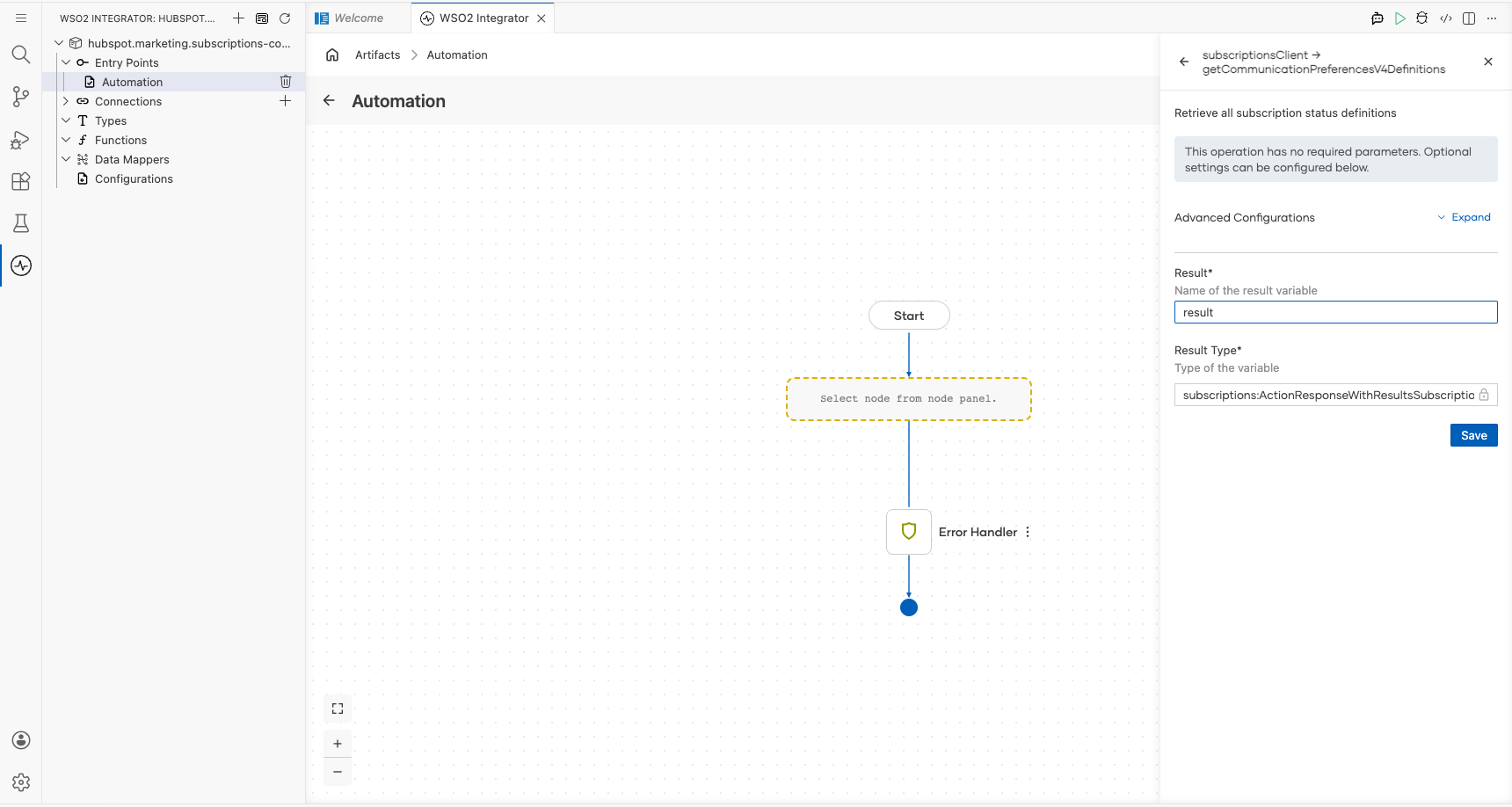
Select Save to apply the operation settings and return to the canvas.
You should now see the completed flow with the operation placed between Start and Error Handler.
Try it yourself
Try this sample in WSO2 Integration Platform.

More code examples
The HubSpot Marketing Subscriptions connector provides practical examples that illustrate its usage in various scenarios. Explore these examples, which cover the following use cases:
-
Event-Based Email Preference Update - Check and update email preferences for event attendees, ensuring that those who unsubscribed post-event are bulk resubscribed for future engagement.
-
Bulk Opt-Out of All Email Communication - Process a batch of opt-out requests to efficiently unsubscribe multiple customers from all email communications in bulk.