Example
What you'll build
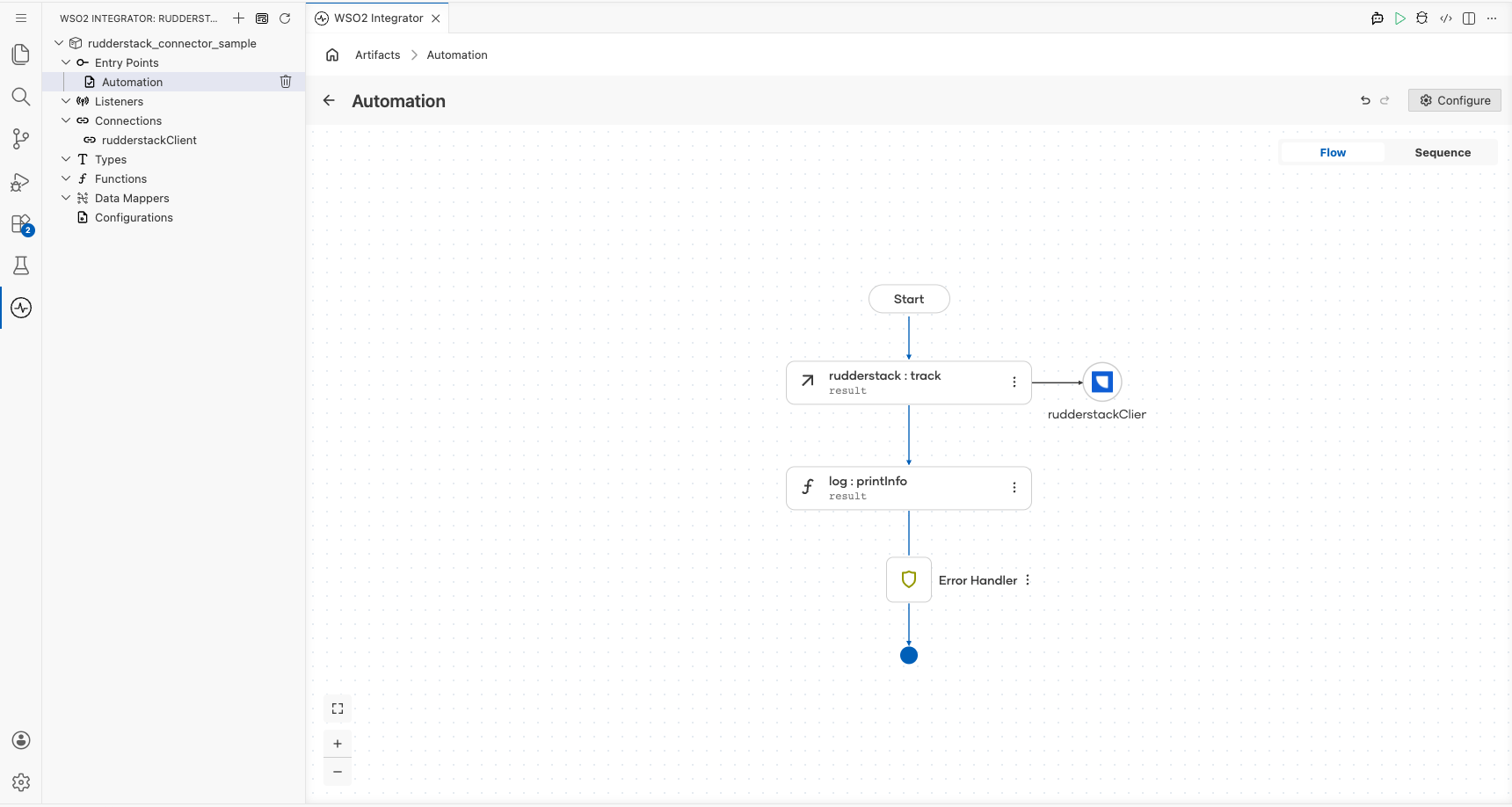
Build an integration workflow that connects to RudderStack and records a customer action. The workflow sends a track event to the RudderStack Event Stream API and logs the response.
Operations used:
- track : Records an
Order Completedevent for a user in RudderStack, which routes it to the destinations connected to the source
Architecture
Prerequisites
- A RudderStack HTTP source with its write key, and the data plane URL of your workspace (see the Setup Guide)
Setting up the RudderStack integration
New to WSO2 Integrator? Follow the Create a New Integration guide to set up your integration first, then return here to add the connector.
Adding the RudderStack connector
Step 1: Open the connector palette and search for the connector
Select Add Artifact, then select Connection to open the connector palette. Search for rudderstack and select the Rudderstack connector card.
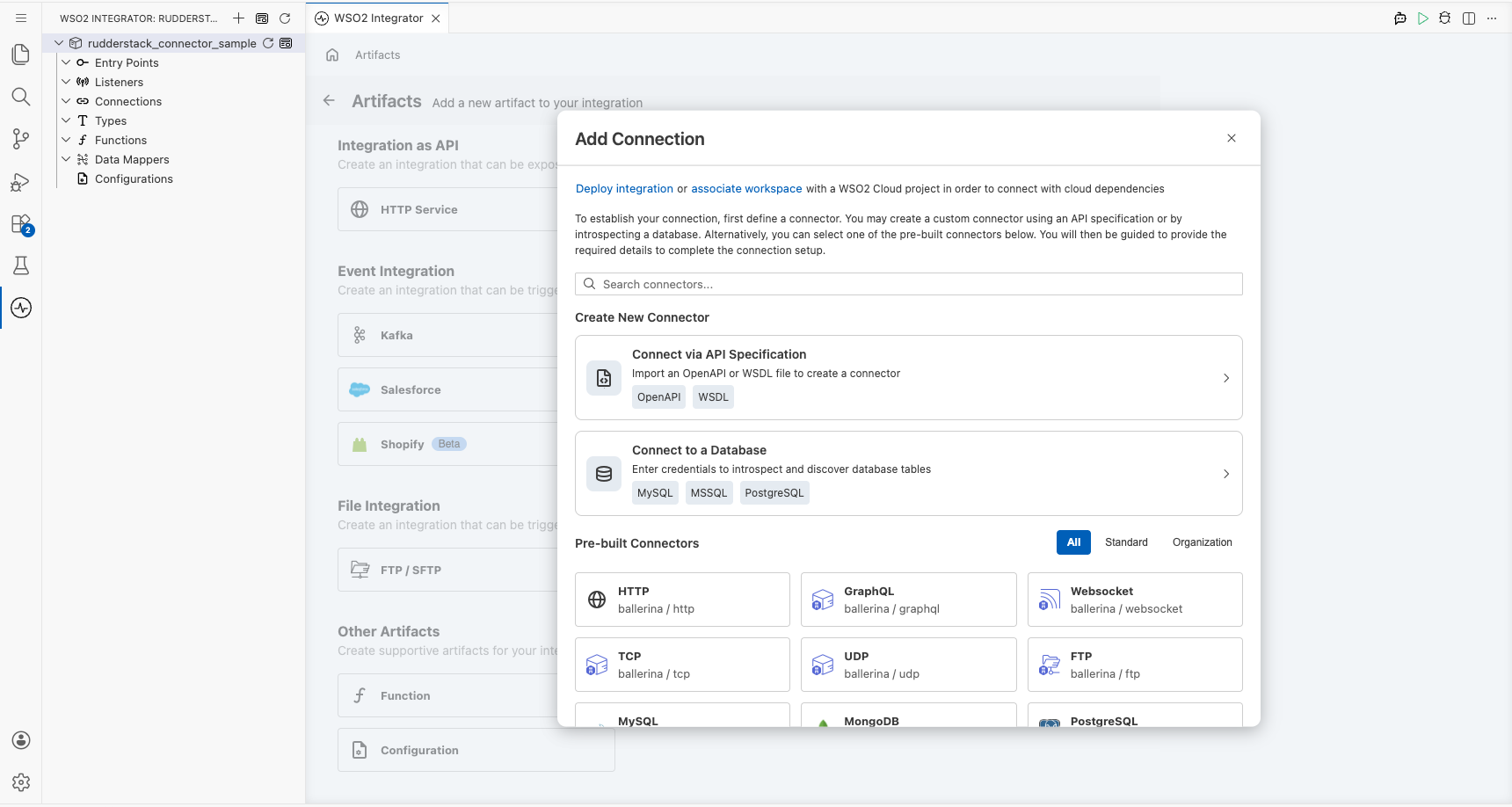
Configuring the RudderStack connection
Step 2: Fill in the connection parameters
Enter the connection parameters, binding each field to a configurable variable:
- Config :
ConnectionConfigrecord with the source write key; switch to Expression and enter{auth: {writeKey: rudderstackWriteKey}} - Service Url (under Advanced Configurations) : The data plane URL of your workspace; bind to the
rudderstackDataPlaneUrlconfigurable variable - Connection Name : Keep the default
rudderstackClient
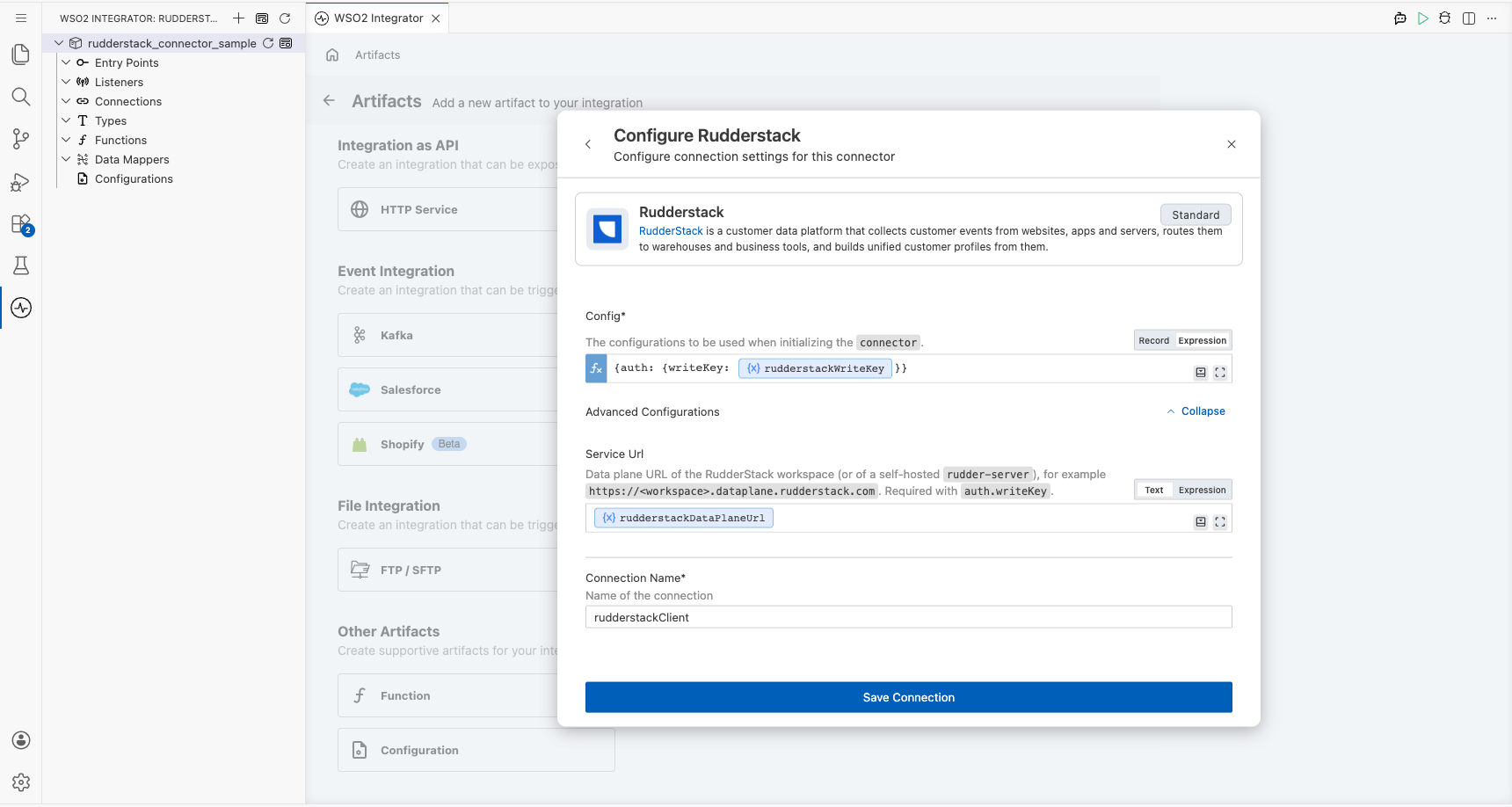
Step 3: Save the connection
Select Save Connection. The connection appears under Connections in the project tree and on the design canvas.
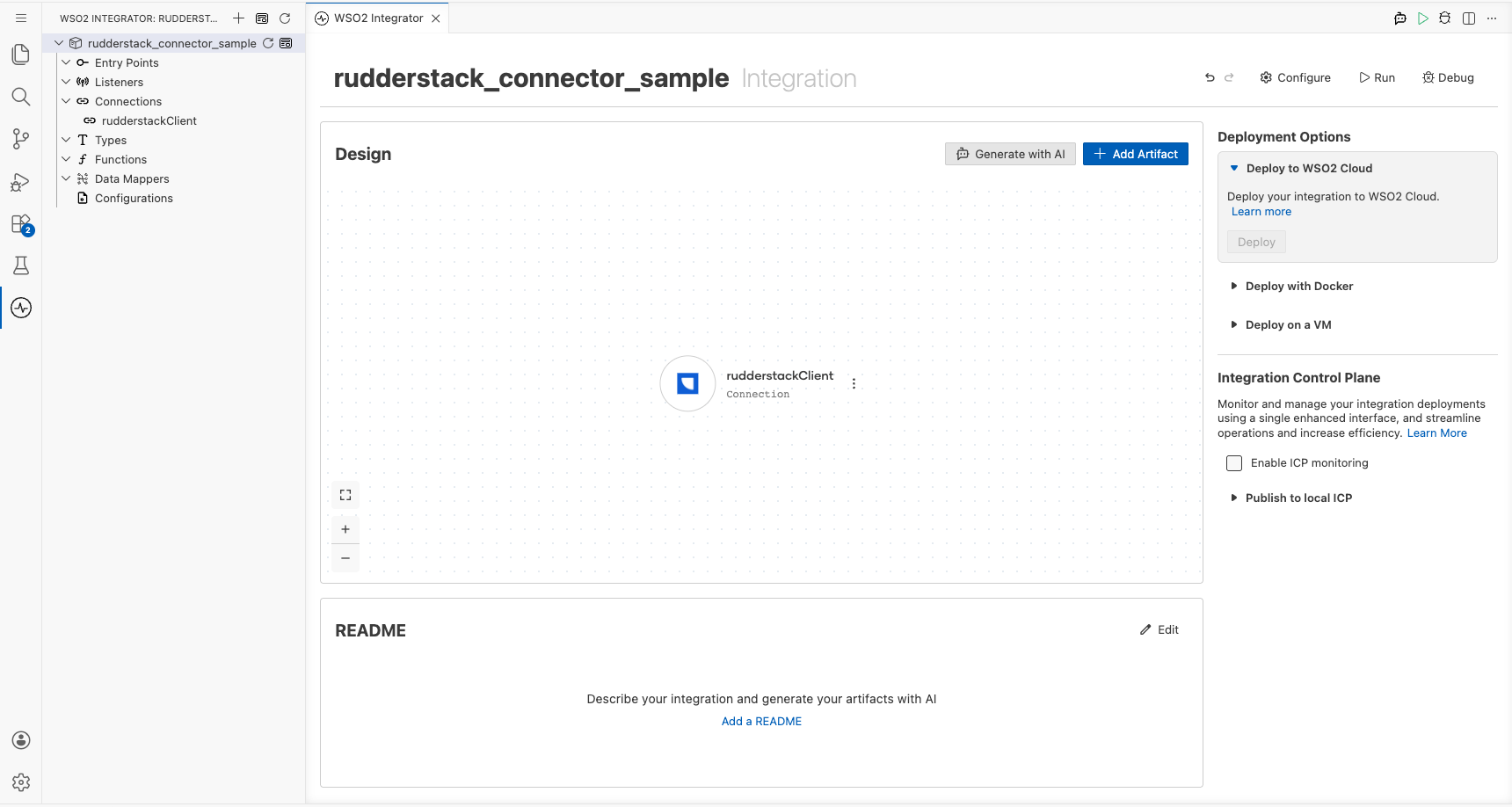
Step 4: Set actual values for your configurables
- In the left panel, select Configurations.
- Set a value for each configurable listed below:
- rudderstackWriteKey (string) : The write key of your RudderStack HTTP source
- rudderstackDataPlaneUrl (string) : The data plane URL of your workspace, for example,
https://<your-workspace>.dataplane.rudderstack.com
Configuring the RudderStack track operation
Step 5: Add an automation entry point
Select Add Artifact, then select Automation and select Create to add the automation entry point to the canvas.
Step 6: Select and configure the track operation
- On the automation canvas, select the + button to add a step.
- Expand the rudderstackClient connection under Connections.
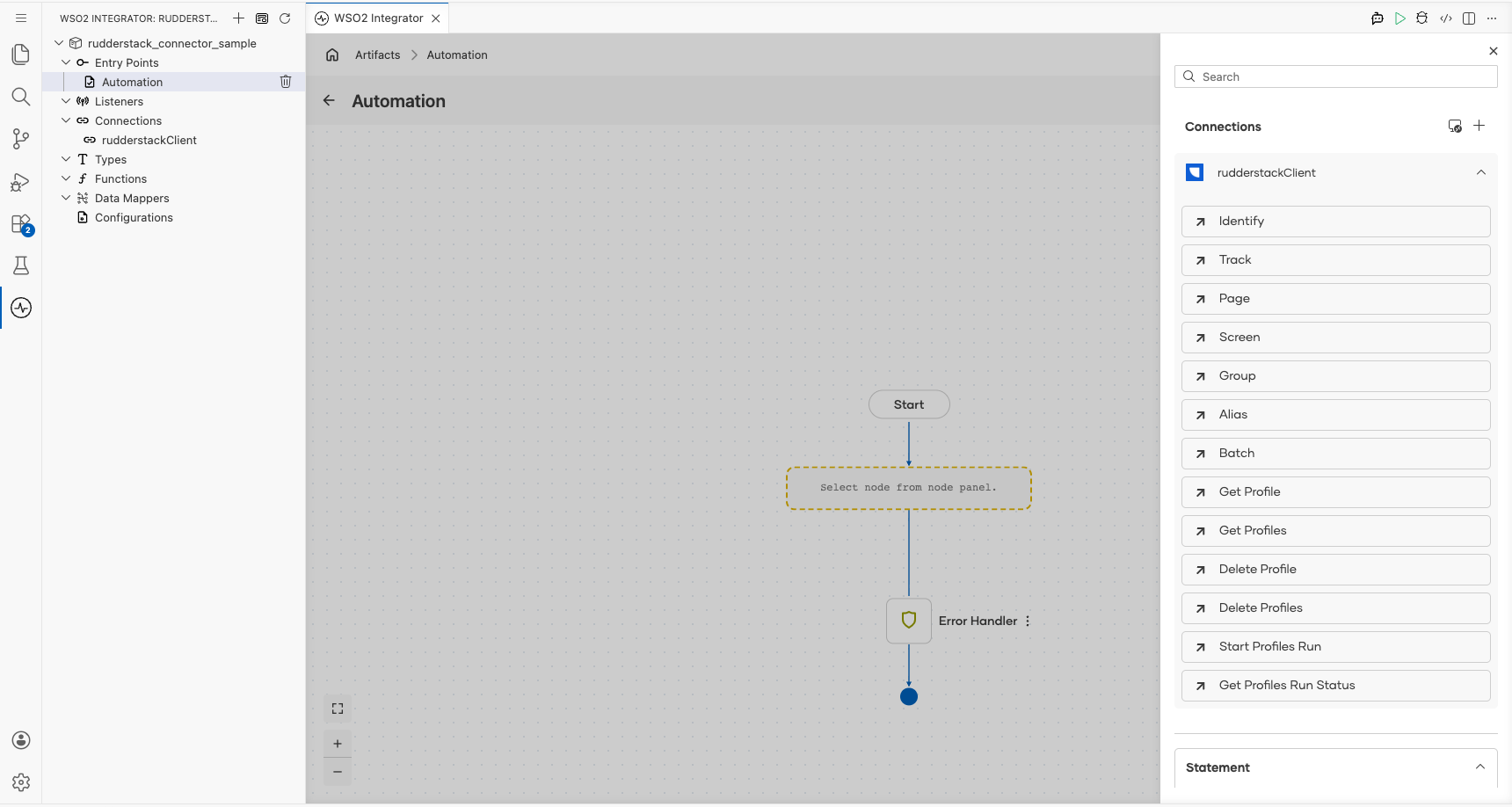
- Select Track (
track) and configure it:
- Payload : Switch to Expression and enter
{userId: "u-1001", event: "Order Completed", properties: {"orderId": "o-5001", "revenue": 89.99, "currency": "USD"}} - Result : Set the result variable name to
result
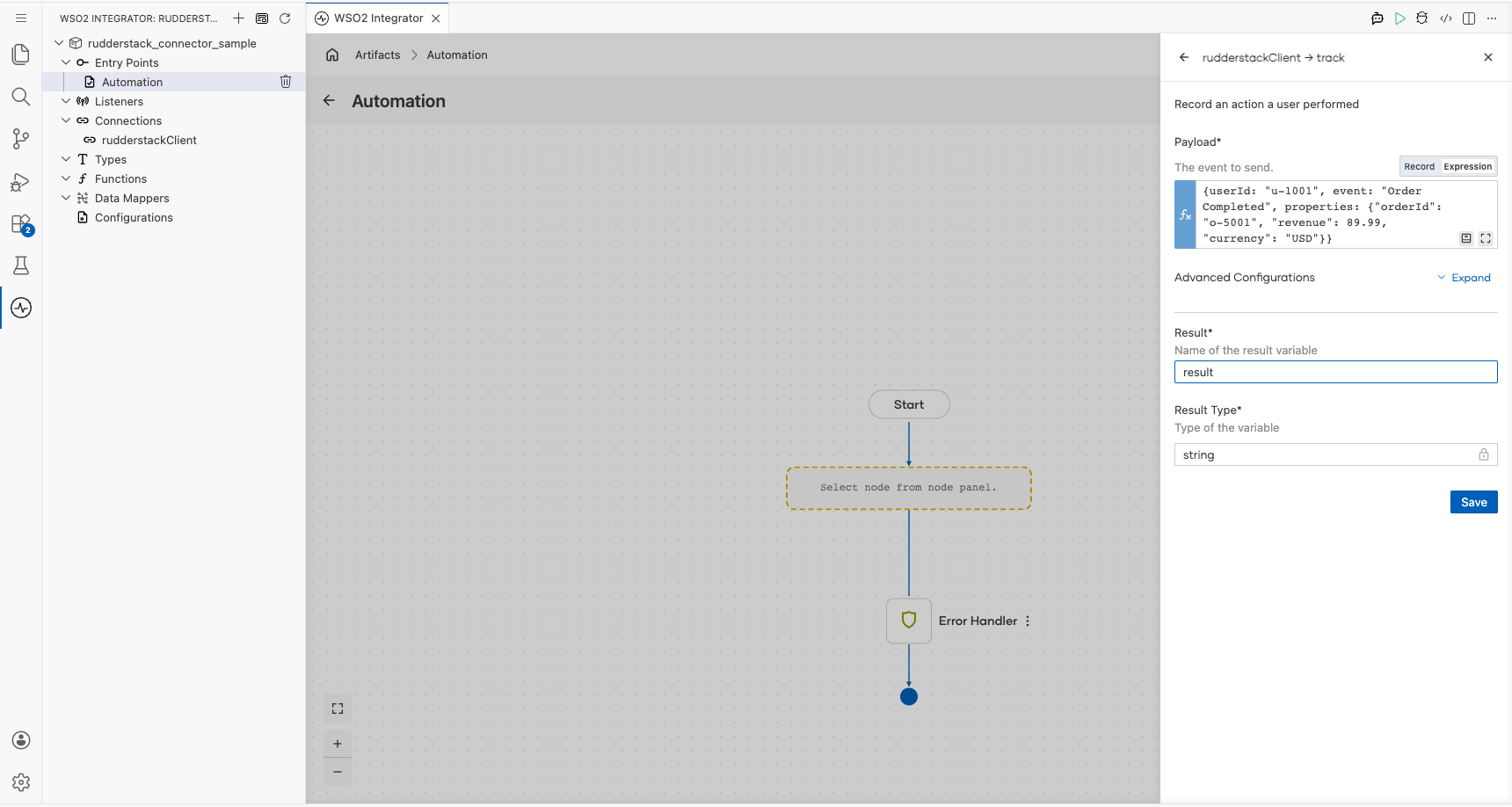
- Select Save to add the operation to the flow, then add a Log Info step after it, switch Msg to Expression and enter
result. RudderStack returnsokwhen it accepts the event.
Try it yourself
Try this sample in WSO2 Integration Platform.

More code examples
The RudderStack Ballerina connector provides practical examples illustrating usage in various scenarios. Explore these examples, covering use cases like customer journey tracking, signup attribution and profile activation.
-
Customer journey tracking - Identify a customer, record the product page they view, then send their add-to-cart and order events together in one batch.
-
B2B signup attribution - Record an anonymous visitor's landing page view with its campaign, link the visitor to the new user ID at signup, record the user's traits, and associate the user with their company.
-
Profile refresh and activation - Start a Profiles run, poll it until it finishes, then fetch the refreshed profiles of a few customers through the Activation API.