Setup Guide
This guide walks you through creating an AWS account and obtaining the credentials required to use the AWS SQS connector.
Step 1: Log in to the AWS Console
Access the AWS Management Console. New users can sign up for a free account.
Step 2: Create an IAM user
-
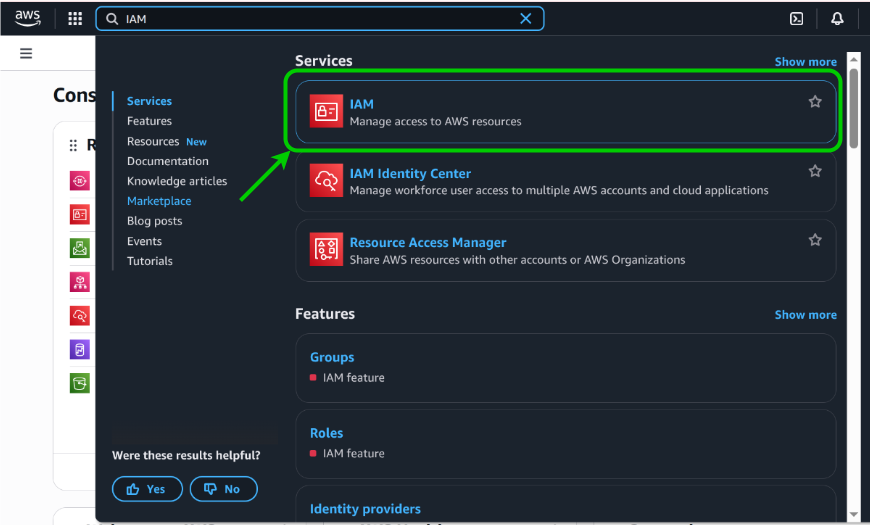
In the AWS Management Console, search for IAM in the services search bar and select it.
-
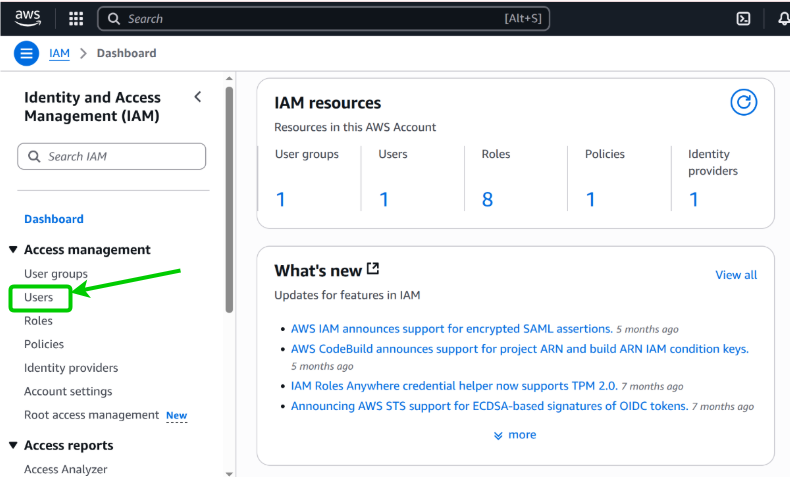
Select Users in the left navigation pane.
-
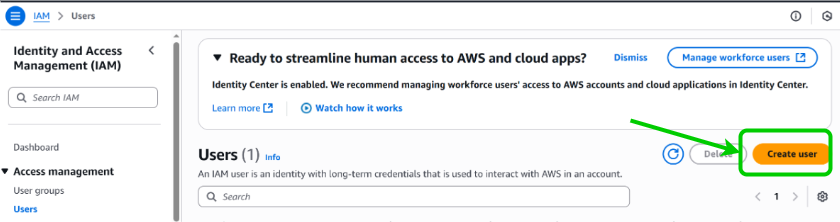
Select Create user.
-
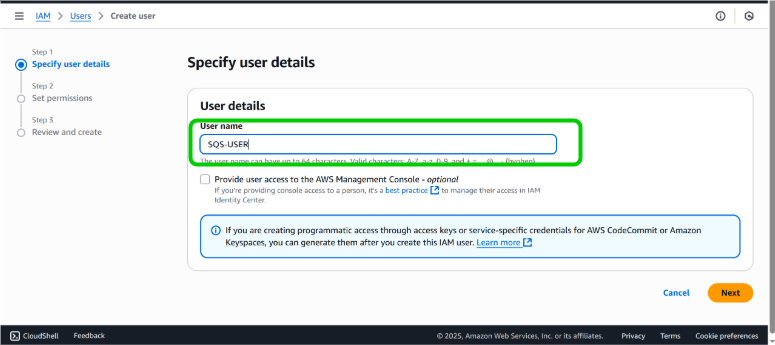
Enter a suitable User name and select Next.
-
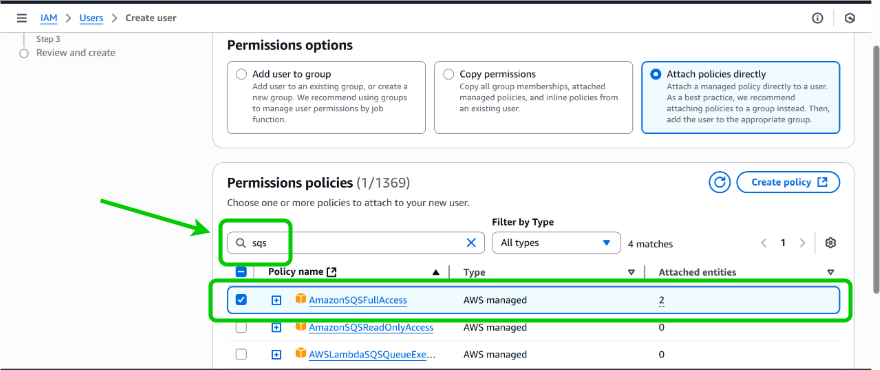
Set permissions by adding the user to a group, copying permissions, or attaching policies directly (for example, AmazonSQSFullAccess). Select Next.
-
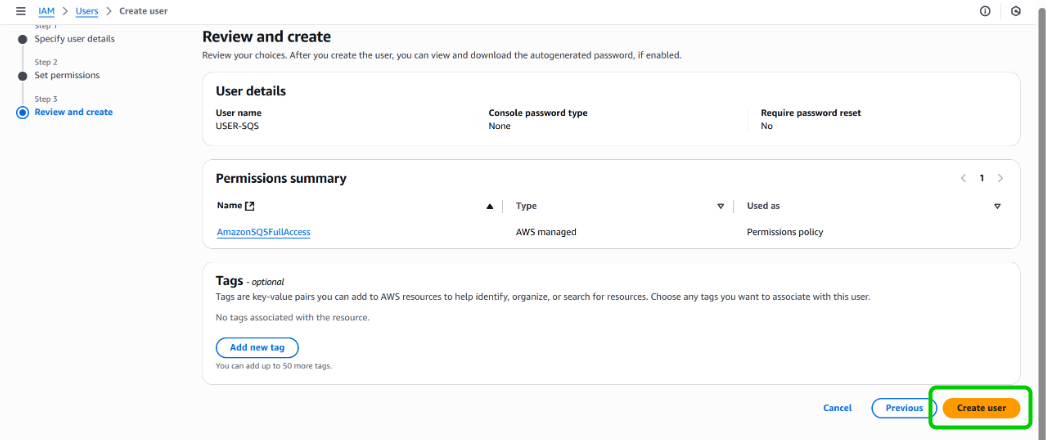
Review the details and select Create user.
Step 3: Get the access key ID and secret access key
-
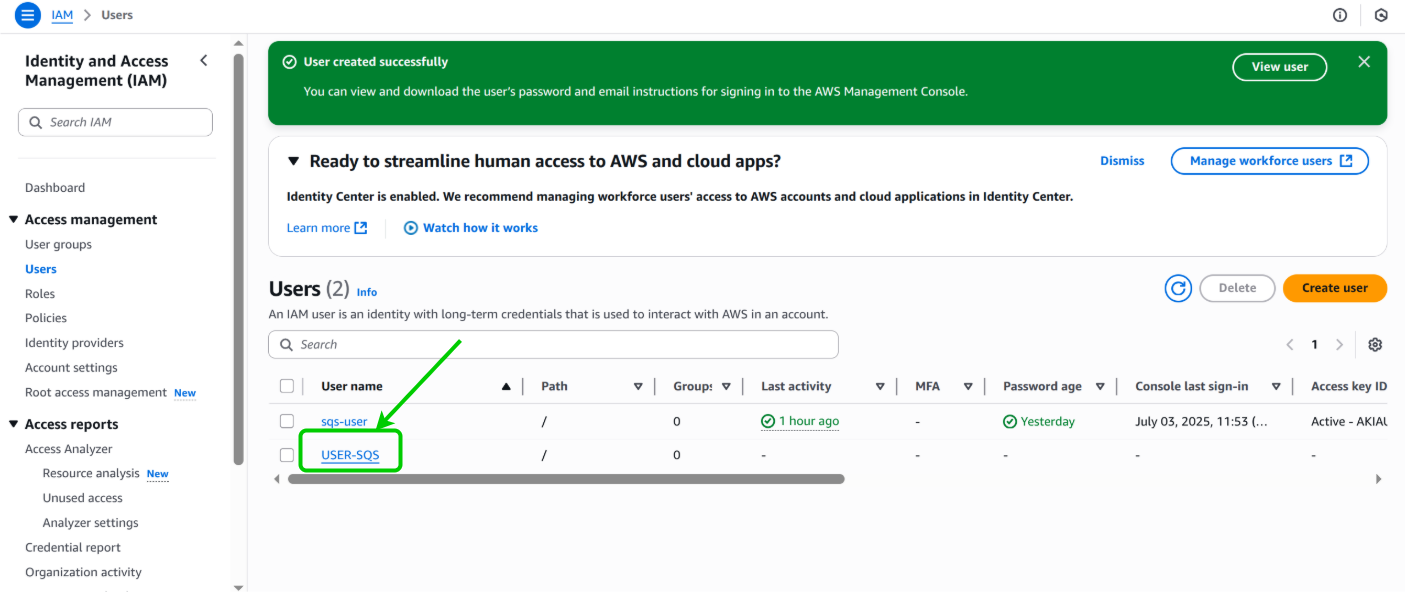
Select the user you just created from the Users list.
-
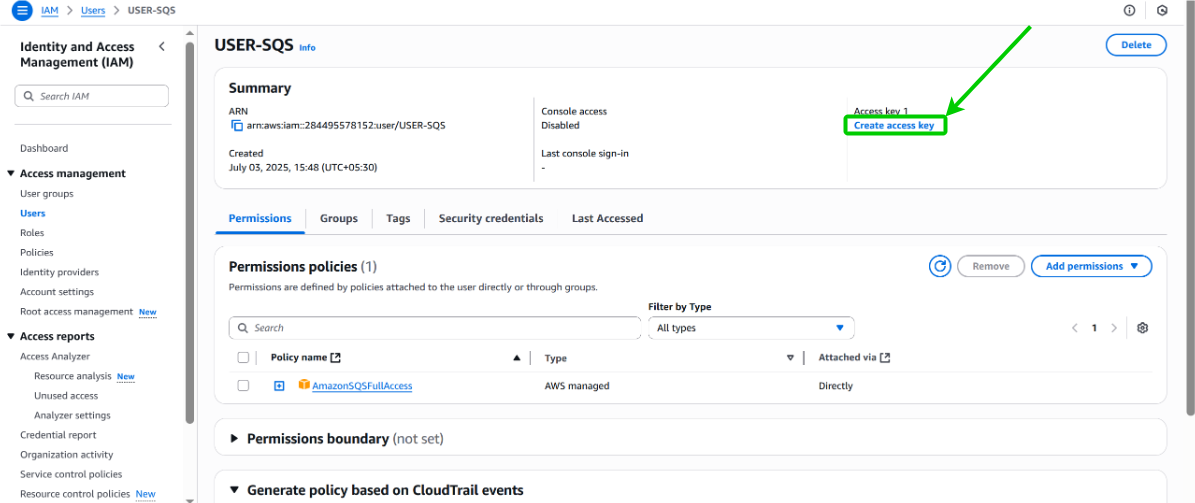
Go to the Security credentials tab and select Create access key.
-
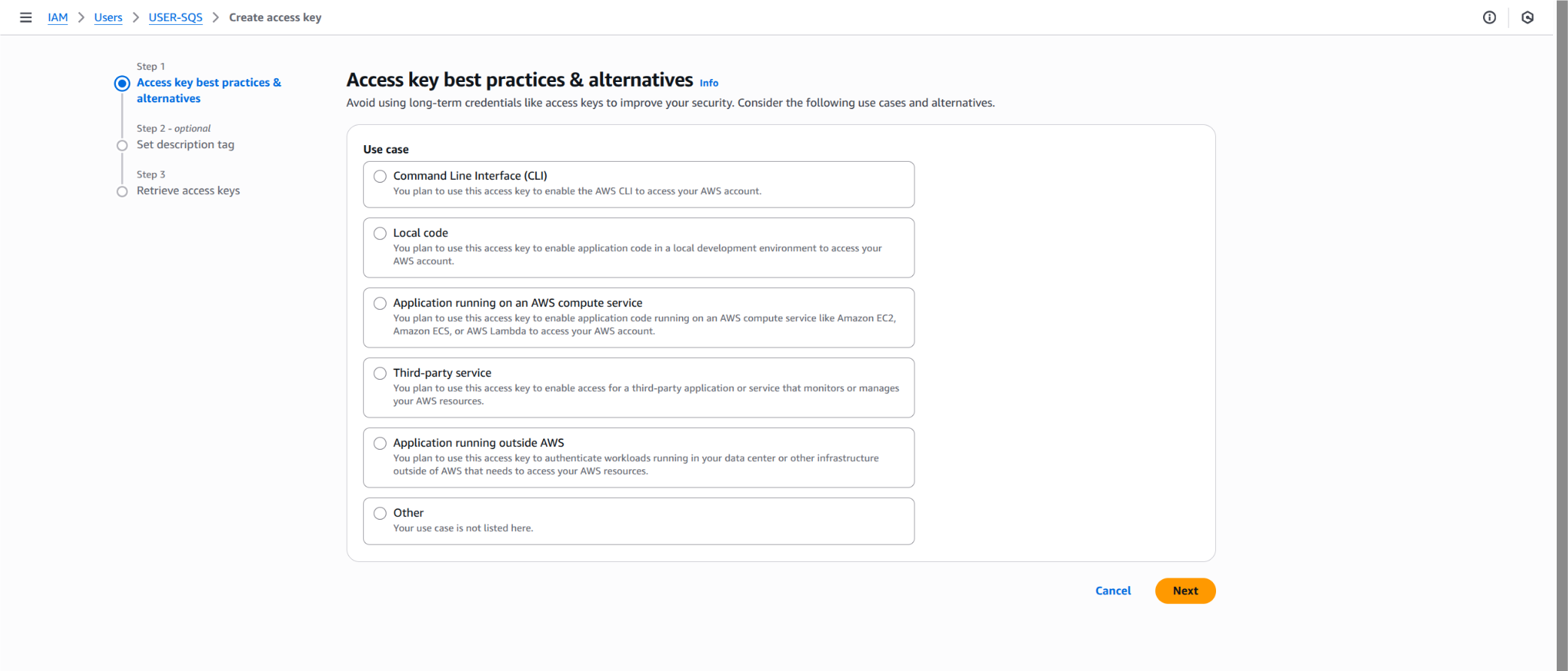
Select your use case and select Next.
-
Copy the Access key ID and Secret access key. Use these credentials to authenticate your integration with Amazon SQS.
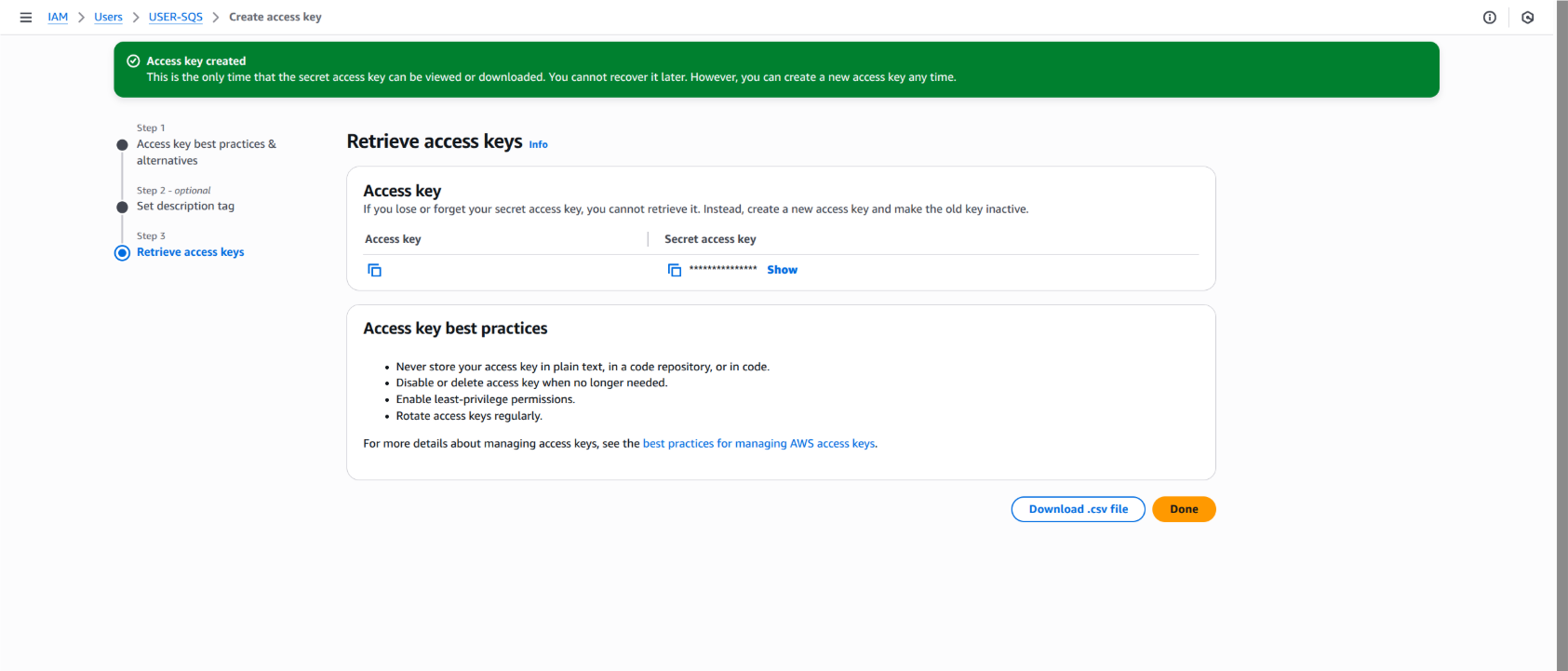
The secret access key is shown only once. Copy both values immediately or download the CSV file. If lost, you must create a new access key pair.