Example
What you'll build
Build an integration that sends a message to an Amazon SQS queue using the AWS SQS connector. The integration creates a connection to SQS using static AWS credentials and invokes the sendMessage operation from an automation entry point.
Operations used:
- sendMessage : Sends a message to the specified SQS queue URL
Architecture
Prerequisites
- An AWS account with SQS access and an existing SQS queue
- Your AWS Access Key ID and Secret Access Key
Setting up the AWS SQS integration
New to WSO2 Integrator? Follow the Create a New Integration guide to set up your integration first, then return here to add the connector.
Adding the AWS SQS connector
Step 1: Open the connector palette
Select + Add Connection on the integration canvas to open the connector palette.
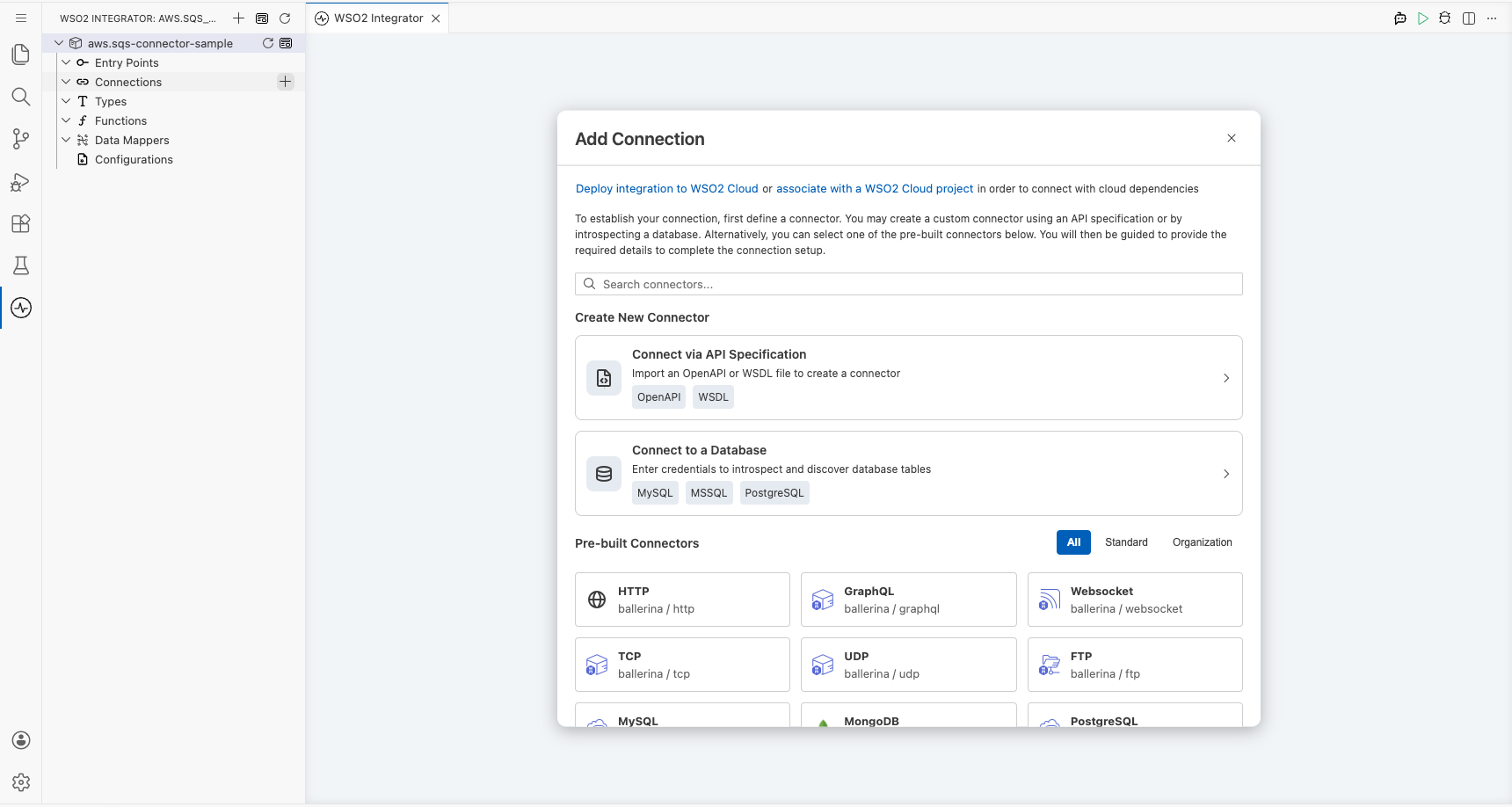
Configuring the AWS SQS connection
Step 2: Fill in the connection parameters
Search for sqs to locate the AWS SQS connector card, then select it to open the Configure SQS form. Bind each connection parameter to a configurable variable:
- region : The AWS region where your SQS queue resides
- accessKeyId : AWS Access Key ID, bound to a configurable variable
- secretAccessKey : AWS Secret Access Key, bound to a configurable variable
- connectionName : The name for this connection instance
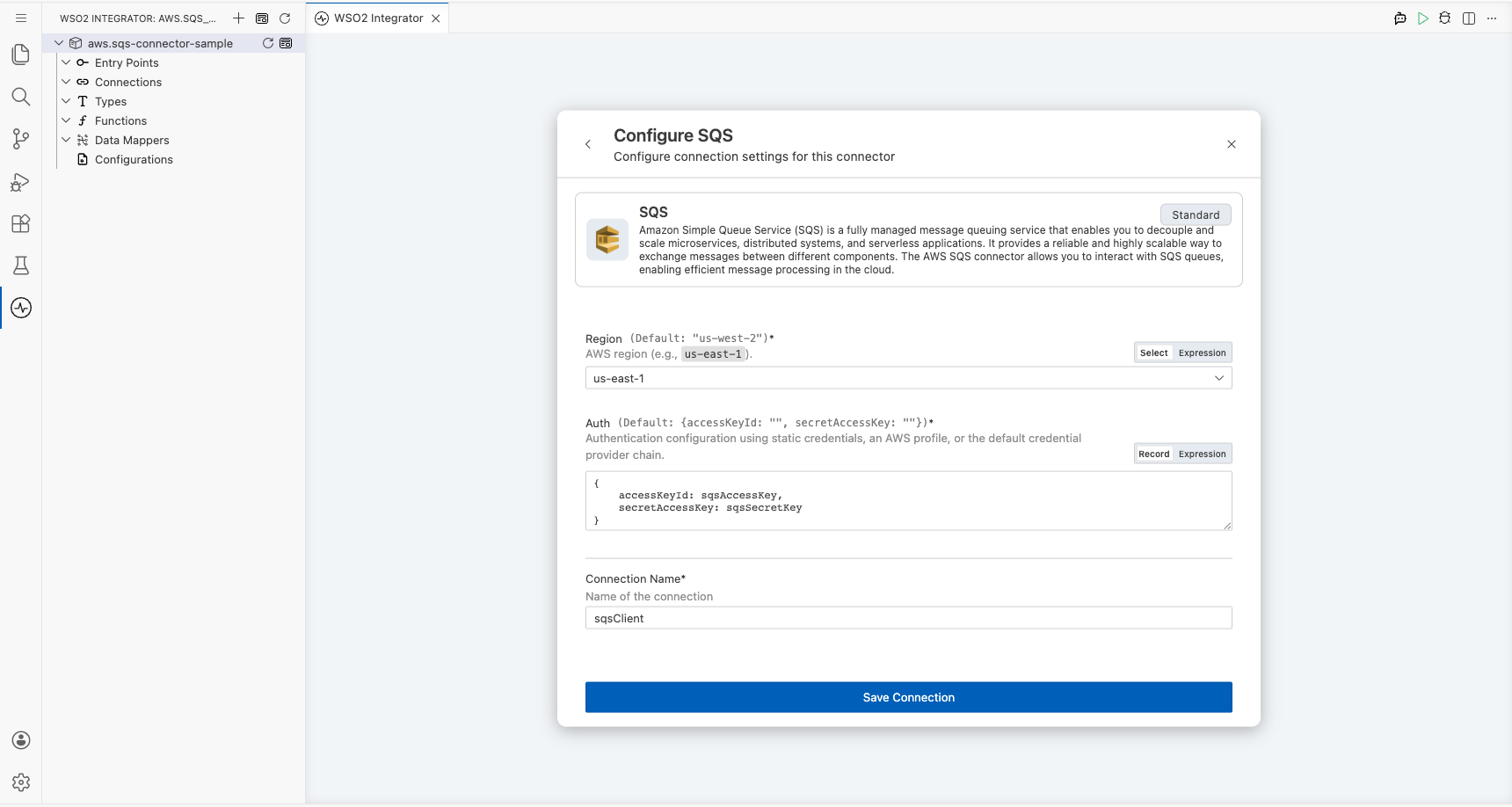
Step 3: Save the connection
Select Save Connection to persist the connection. The sqsClient connection appears as a node on the design canvas and under Connections in the sidebar.
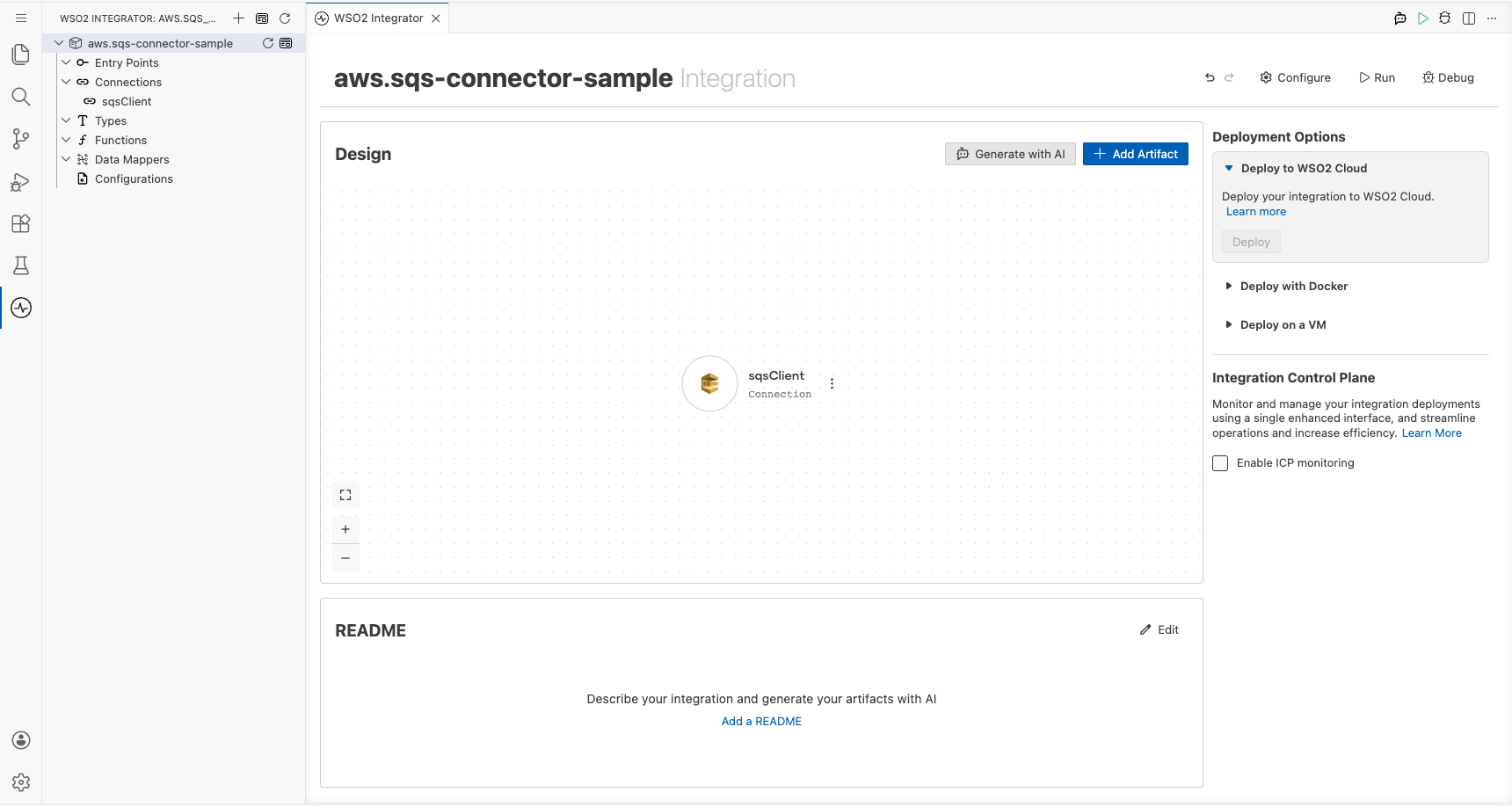
Step 4: Set actual values for your configurables
In the left panel, select Configurations. Set a value for each configurable listed below:
- sqsAccessKey (string) : Your AWS Access Key ID
- sqsSecretKey (string) : Your AWS Secret Access Key
Configuring the AWS SQS sendMessage operation
Step 5: Add an automation entry point
Select + Add Artifact on the canvas toolbar, then select Automation and select Create to generate a new automation entry point named main.
Step 6: Select and configure the sendMessage operation
Select the + (Add Step) button in the automation flow body, expand sqsClient under Connections, and select Send Message to open the sendMessage operation configuration form. Fill in the following fields:
- queueUrl : The full URL of the target SQS queue
- messageBody : The message content to send to the queue
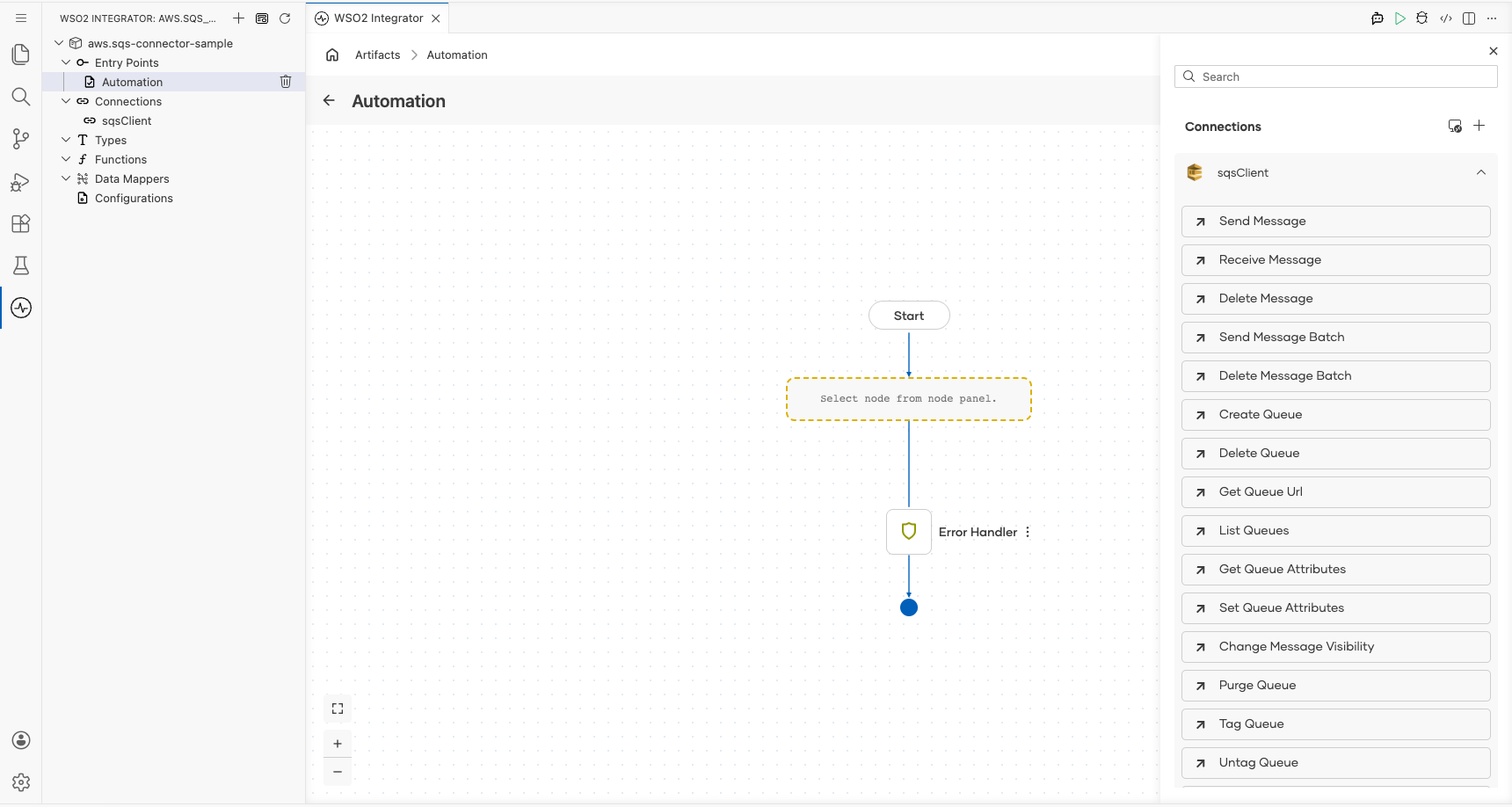
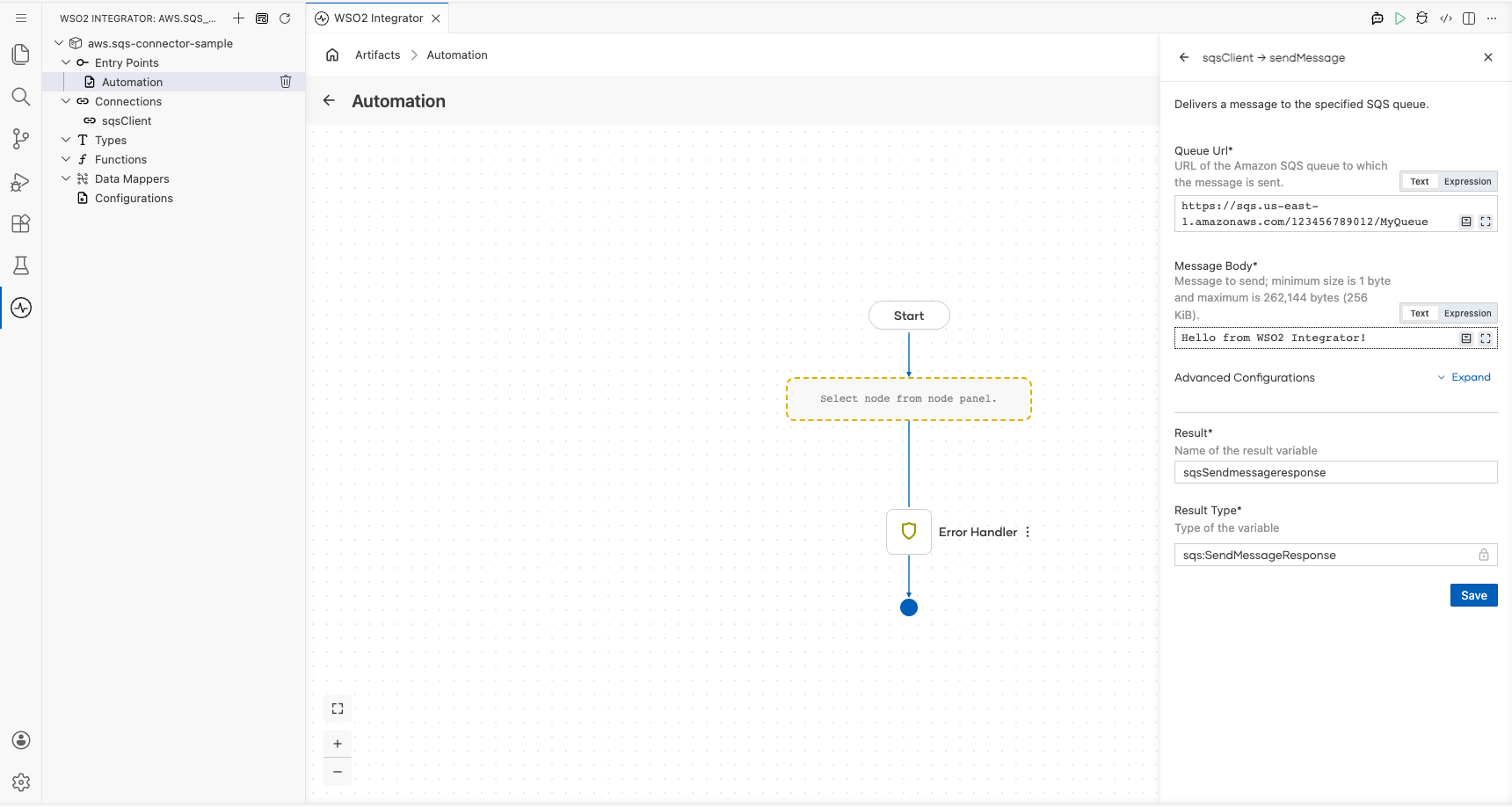
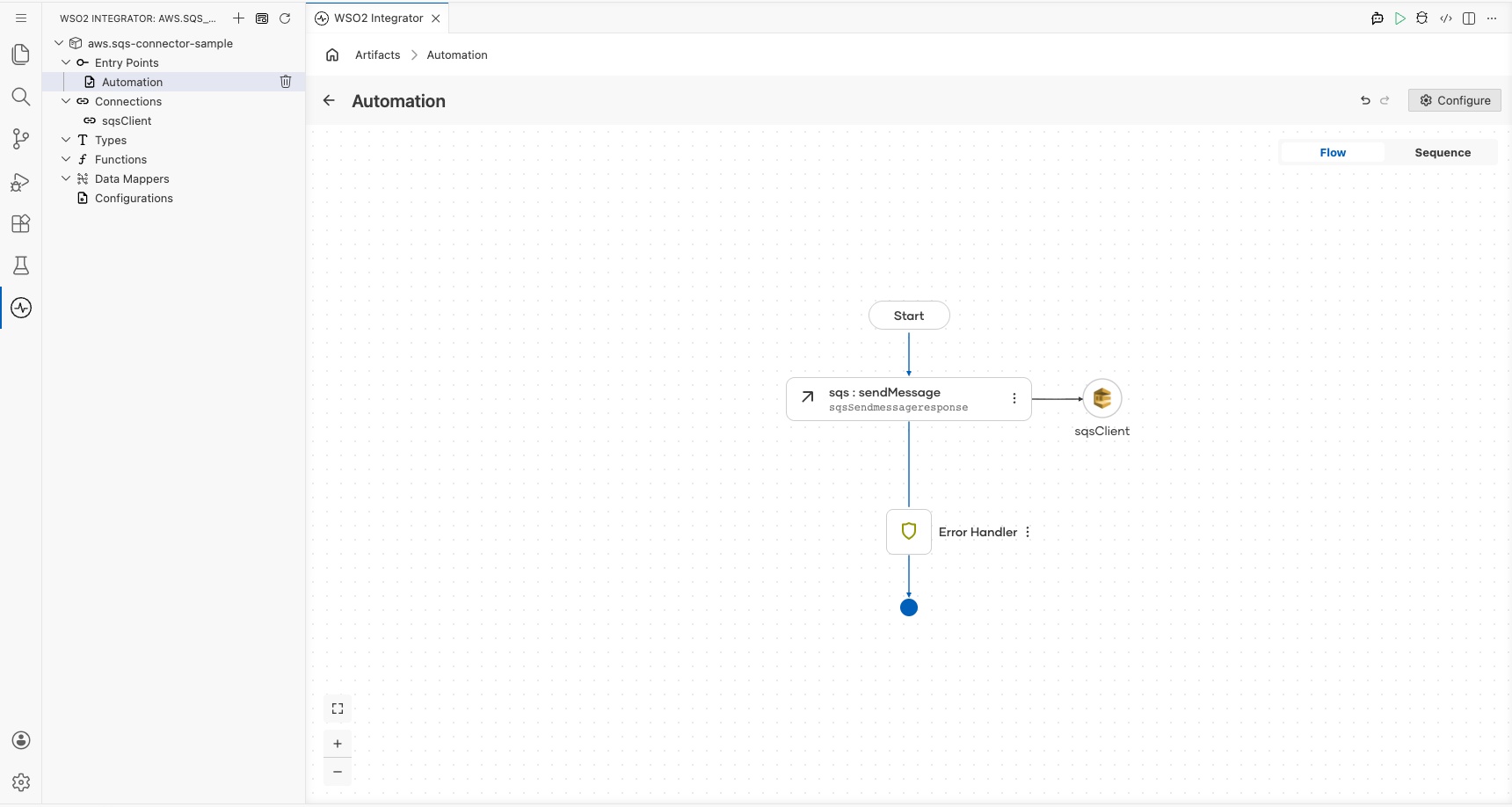
Select Save to add the operation to the flow.
Try it yourself
Try this sample in WSO2 Integration Platform.

More code examples
The ballerinax/aws.sqs connector provides practical examples illustrating usage in various scenarios. Explore these examples:
- Basic Queue Consumer – Demonstrates creating a standard SQS queue, sending messages, and consuming them using a Ballerina listener.
- Basic Queue Operations – Shows how to create a queue, send, receive, and delete messages, and delete the queue.
- Advanced Messaging Features – Demonstrates advanced messaging features such as message attributes, batch sending, and custom queue attributes.
- FIFO Queue – Shows how to work with FIFO queues, including sending messages with different
messageGroupIds and grouping received messages.