Example
What you'll build
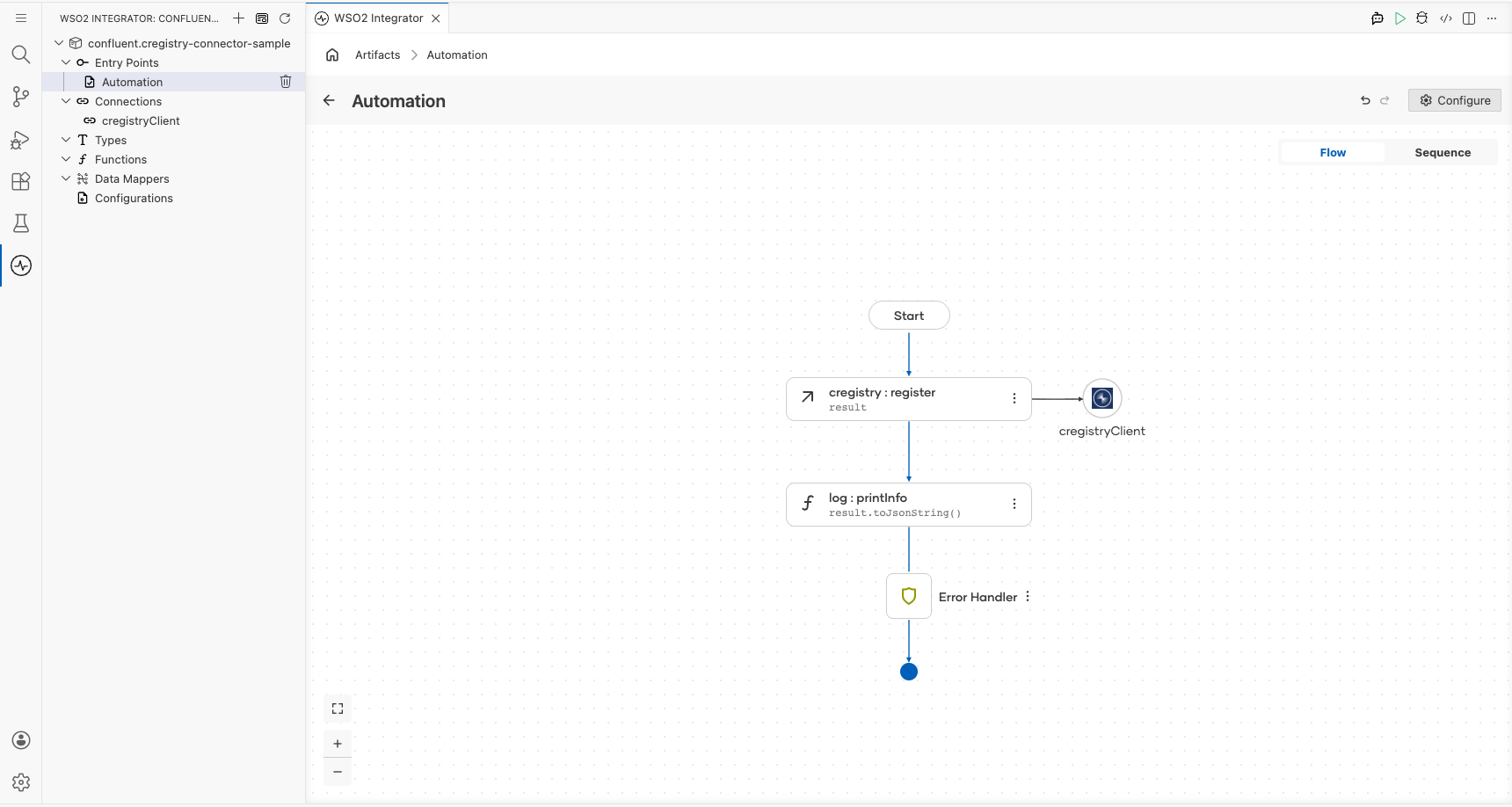
Build a WSO2 Integrator automation that uses the Confluent Schema Registry connector to register an Avro schema with a running Confluent Schema Registry instance. The integration captures the returned schema ID and logs it to standard output.
Operations used:
- Register : Registers a schema under a named subject and returns the assigned schema ID as an integer
Architecture
Prerequisites
- Access to a running Confluent Schema Registry instance
Setting up the Confluent Schema Registry integration
New to WSO2 Integrator? Follow the Create a New Integration guide to set up your integration first, then return here to add the connector.
Adding the Confluent Schema Registry connector
Step 1: Open the connector palette
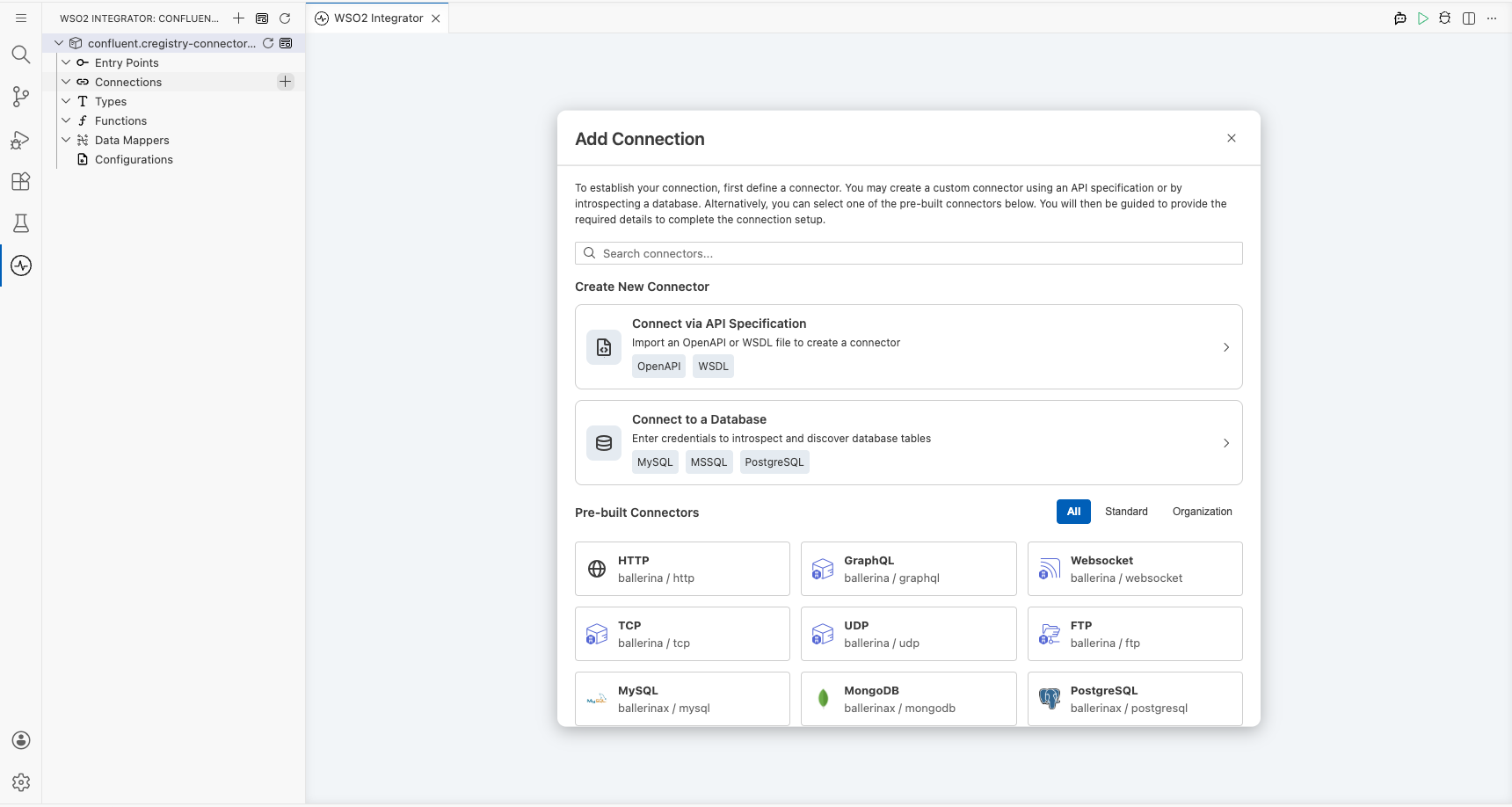
- In the WSO2 Integrator panel, select Add Artifact.
- Select Connection from the artifact list.
- Enter
confluent.cregistryin the search box. - Select the Cregistry connector tile to open the connection configuration form.
Configuring the Confluent Schema Registry connection
Step 2: Bind connection parameters to configurable variables
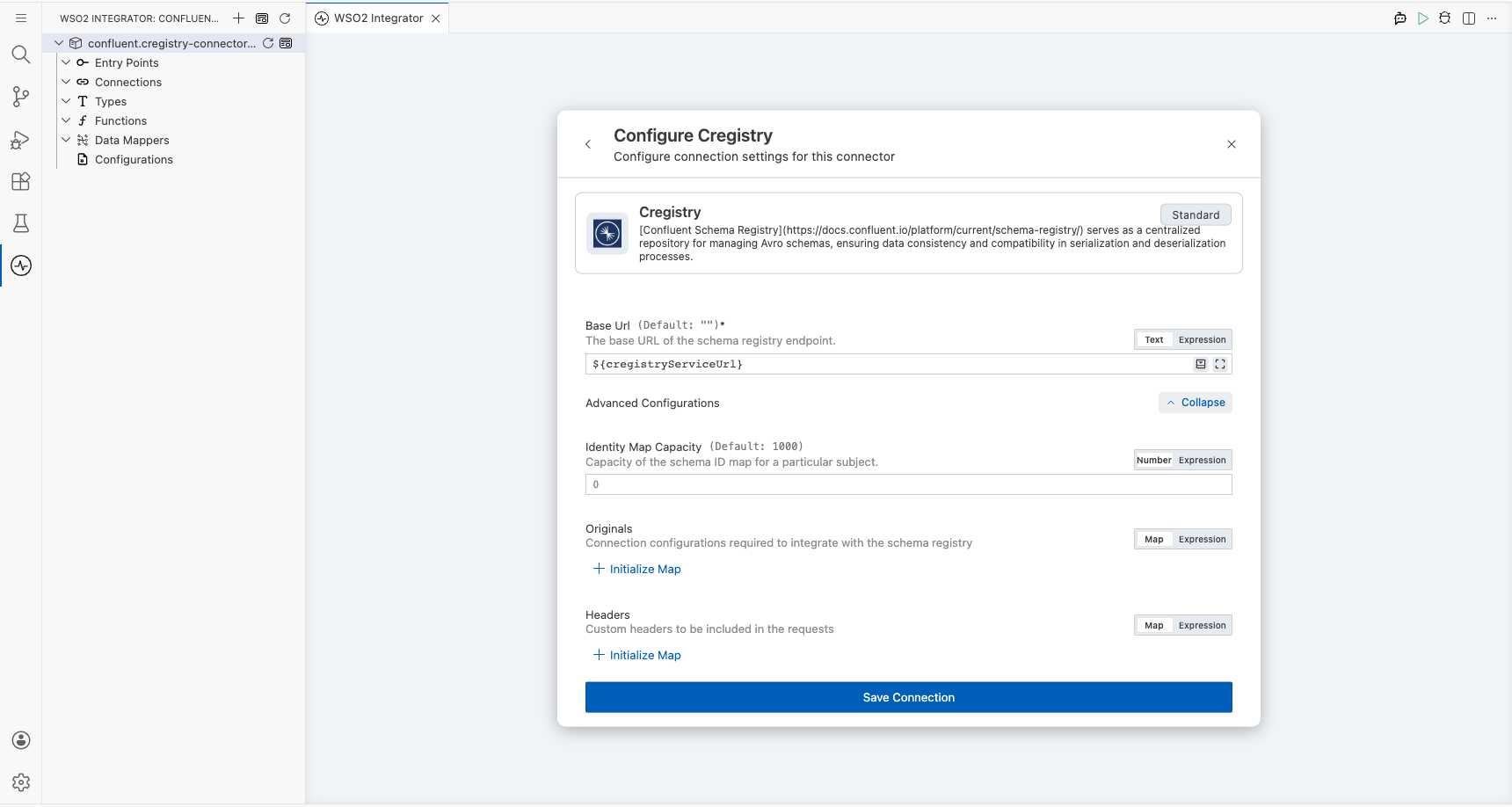
Enter the connection parameters, binding each field to a configurable variable:
- baseUrl : The URL of the Confluent Schema Registry service
Step 3: Save the connection
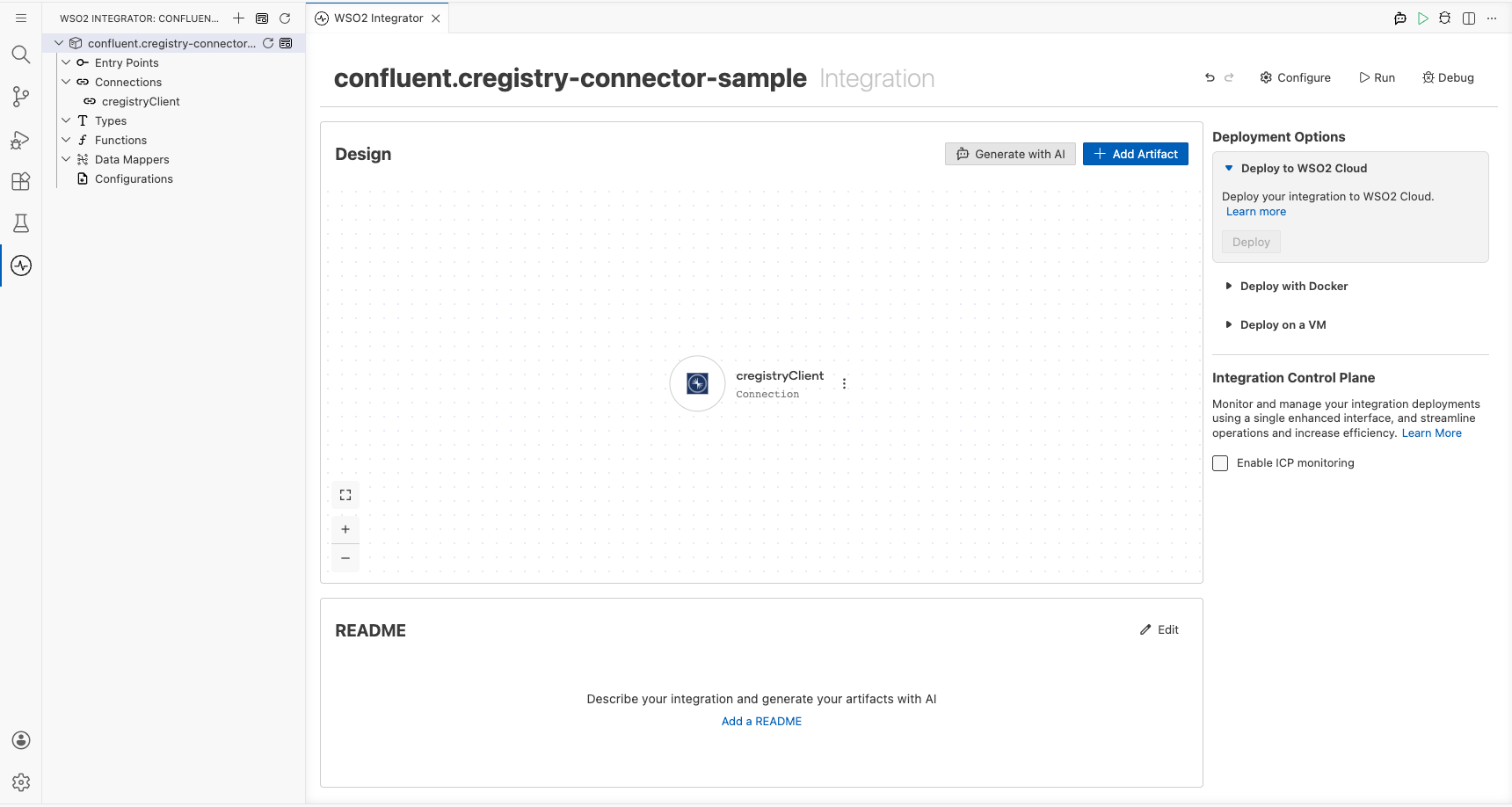
Select Save to create the connection. The cregistryClient connection node appears in the WSO2 Integrator project.
Step 4: Set actual values for your configurables
- In the left panel, select Configurations.
- Set a value for each configurable listed below.
- cregistryServiceUrl (string) : The base URL of your Confluent Schema Registry instance
Configuring the Confluent Schema Registry Register operation
Step 5: Add an Automation entry point
- In the WSO2 Integrator panel, select Add Artifact.
- Select Automation as the artifact type.
- Accept the default name
mainand select Create.
Step 6: Select and configure the Register operation
- In the Automation flow, select the + button between the Start and Error Handler nodes.
- Under Connections, expand cregistryClient.
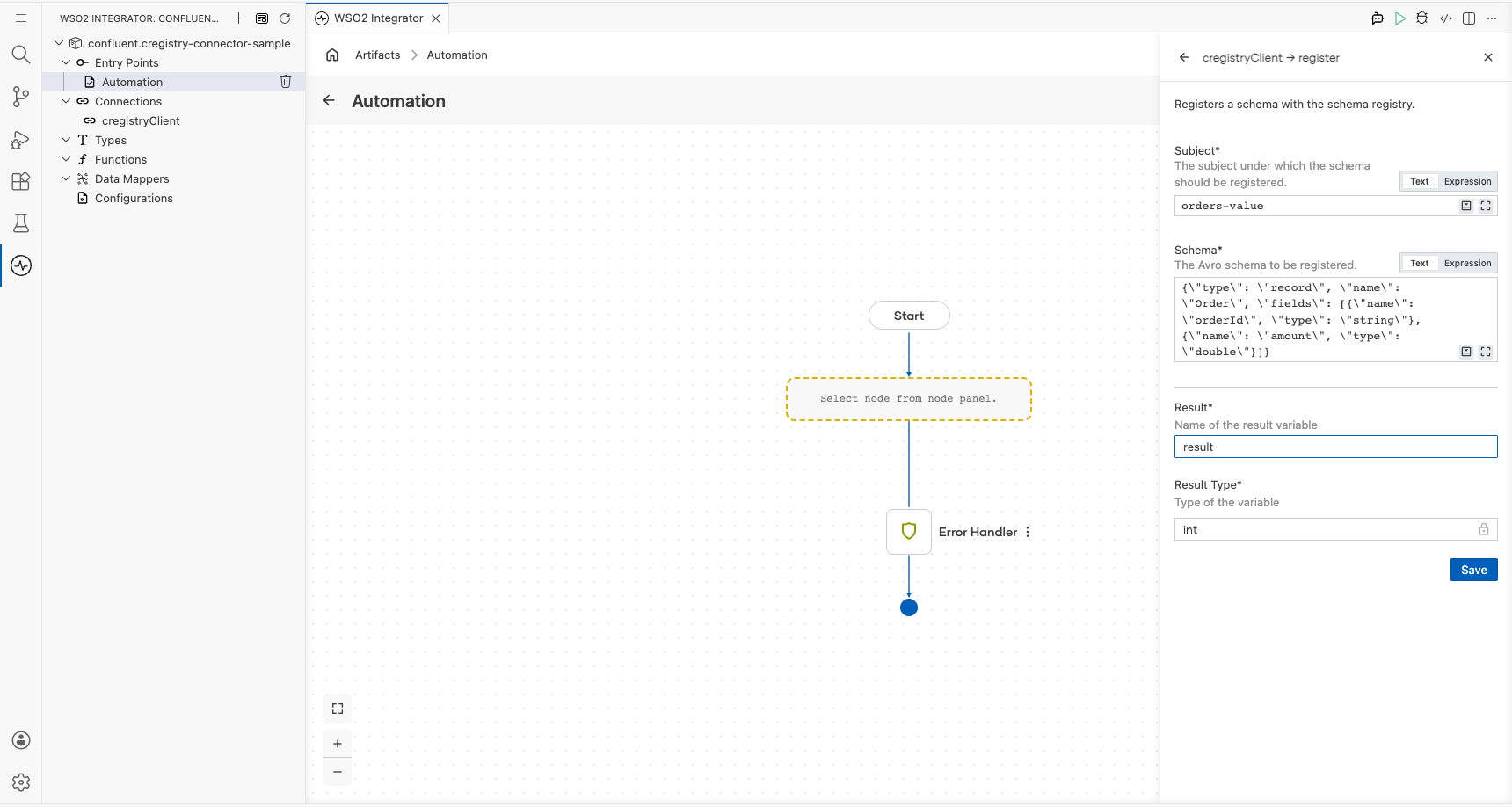
- Select Register to open the operation configuration form.

Configure the following fields:
- subject : The subject name under which the schema will be registered
- schema : The Avro schema definition as a JSON string
- result : Name of the variable to hold the returned schema ID
- resultType : Set to
int: the registry returns the schema ID as an integer
Select Save to add the operation to the flow.
Try it yourself
Try this sample in WSO2 Integration Platform.
