Example
What you'll build
Build a WSO2 Integrator automation that appends a row of data to a Google Spreadsheet using the googleapis.sheets connector. The workflow configures OAuth2 credentials via configurable variables and invokes the appendRowToSheet operation inside an Automation entry point.
Operations used:
- appendRowToSheet : Appends a new row to the bottom of the table range in the specified worksheet
Architecture
Prerequisites
- A Google Cloud project with the Sheets API enabled
- OAuth2 credentials: Client ID, Client Secret, Refresh Token, and Refresh URL (
https://oauth2.googleapis.com/token) - The target Google Spreadsheet ID (found in the spreadsheet's URL)
Setting up the Google sheets integration
New to WSO2 Integrator? Follow the Create a New Integration guide to set up your integration first, then return here to add the connector.
Adding the Google sheets connector
Step 1: Open the add connection panel
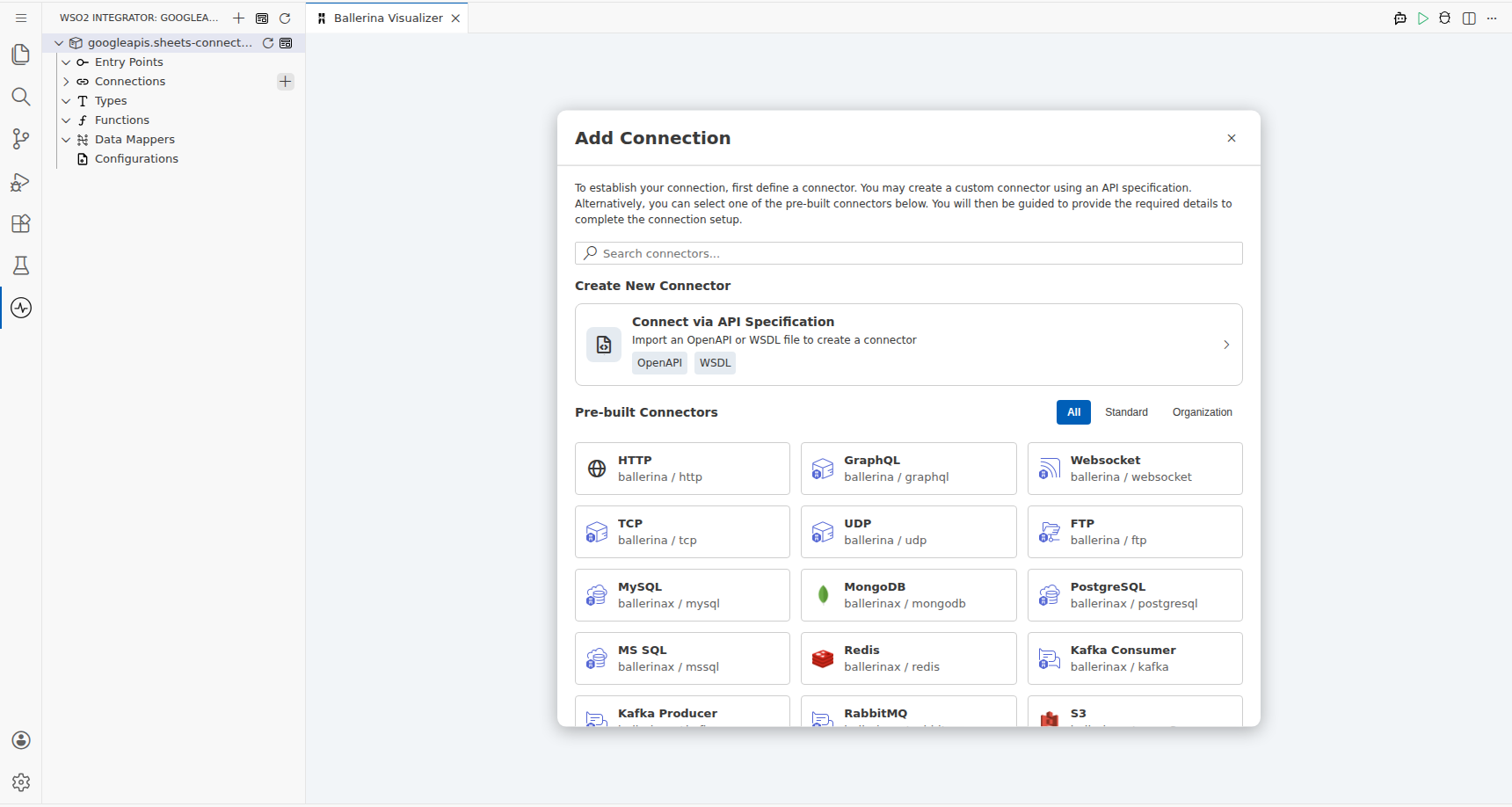
Select + next to Connections in the WSO2 Integrator sidebar to open the Add Connection palette.
Step 2: Select the Google sheets connector card
Search for sheets or locate Google Sheets in the grid, then select the Sheets connector card to open the Configure Sheets form.
Configuring the Google sheets connection
Step 3: Bind all OAuth2 connection parameters to configurable variables
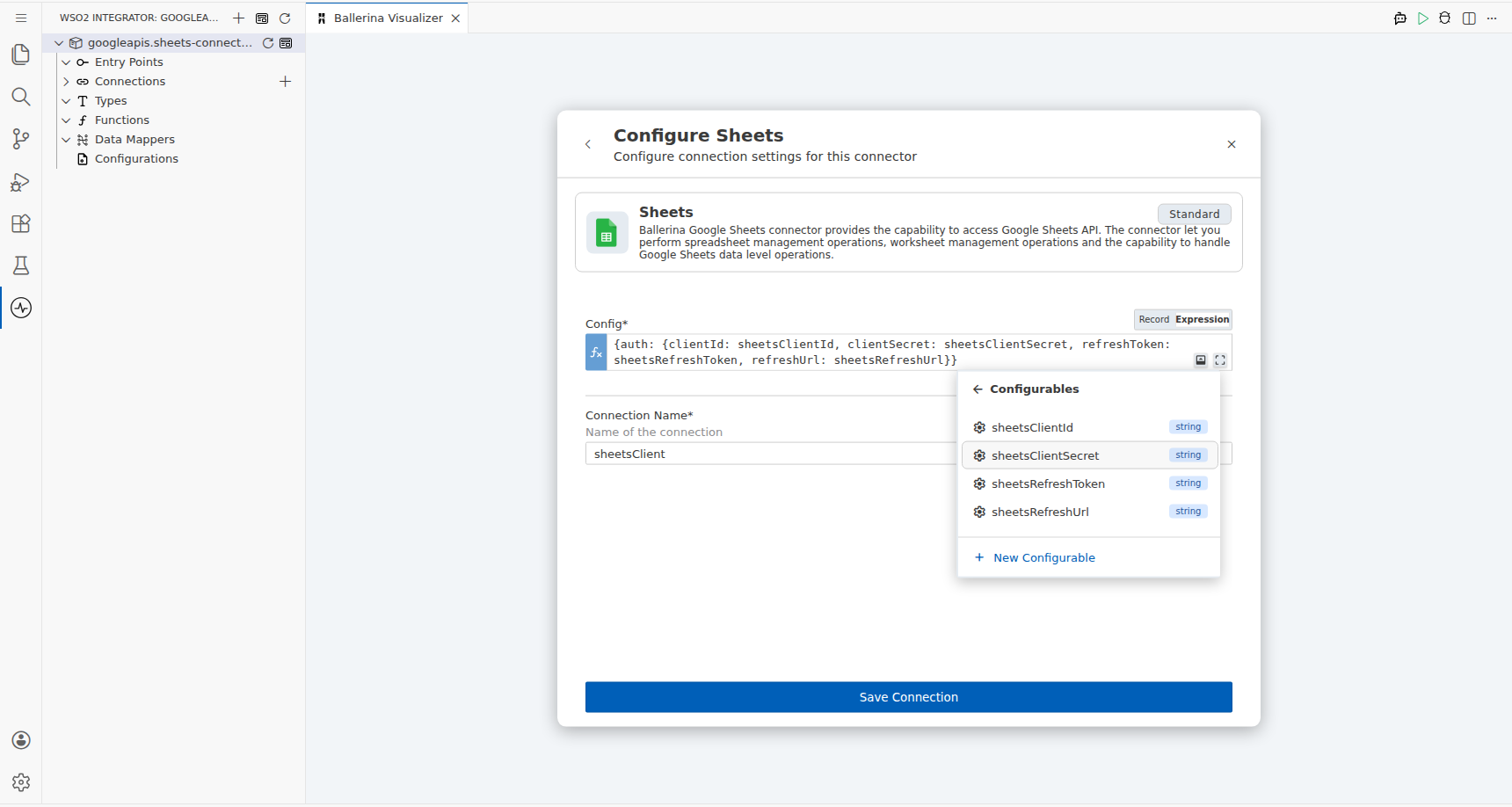
In the Config field, switch to expression mode and use the Configurations panel to create four configurable variables. Enter the composite expression binding all four OAuth2 fields:
- clientId : The Google OAuth2 Client ID, bound to a configurable variable
- clientSecret : The Google OAuth2 Client Secret, bound to a configurable variable
- refreshToken : The OAuth2 Refresh Token, bound to a configurable variable
- refreshUrl : The token endpoint URL, bound to a configurable variable
Step 4: Save the connection
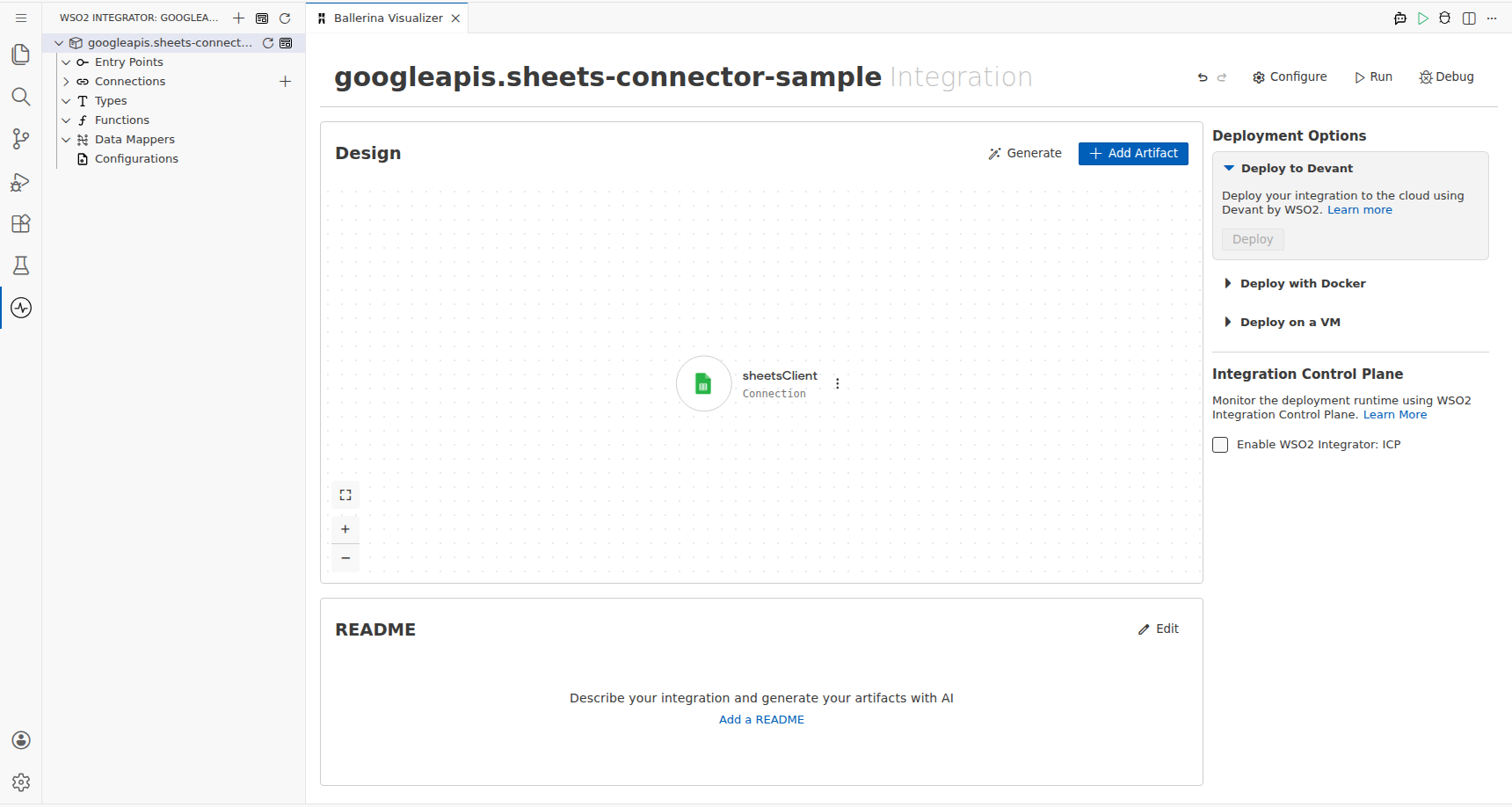
Enter sheetsClient in the Connection Name field, then select Save Connection to persist the connection.
Step 5: Set actual values for your configurables
In the left panel, select Configurations. Set a value for each configurable listed below:
- sheetsClientId (string) : Your Google OAuth2 Client ID
- sheetsClientSecret (string) : Your Google OAuth2 Client Secret
- sheetsRefreshToken (string) : Your OAuth2 Refresh Token
- sheetsRefreshUrl (string) : The token endpoint URL (
https://oauth2.googleapis.com/token)
Configuring the Google sheets appendRowToSheet operation
Step 6: Add an automation entry point
- Select + Add Artifact in the Design view.
- Under the Automation section, select the Automation card.
- Select Create on the Create New Automation form to open the automation flow.
Step 7: Select and configure the appendRowToSheet operation
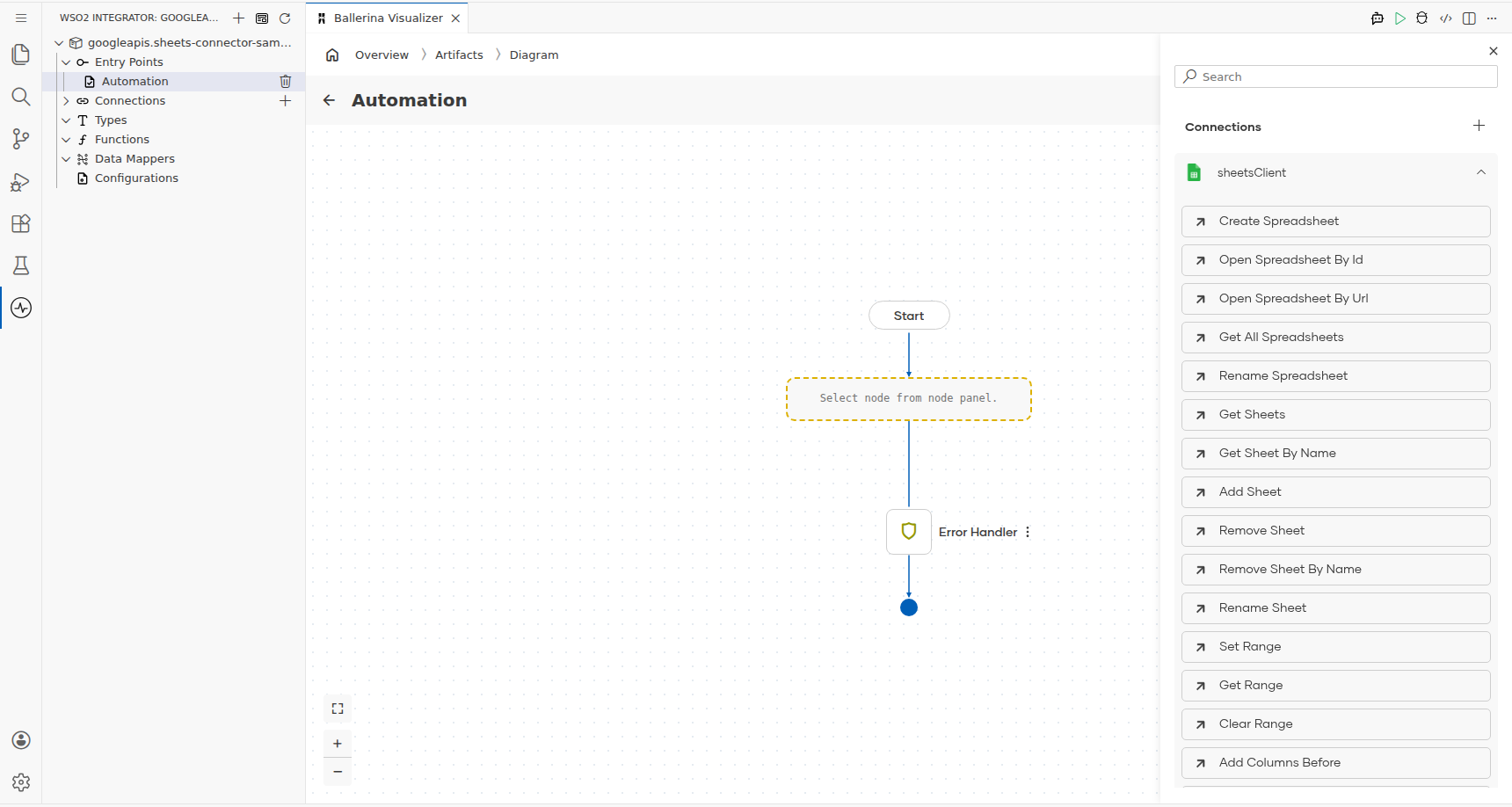
Select + in the flow between Start and Error Handler, then expand sheetsClient under Connections and select Append Row To Sheet. Fill in the operation parameters:
- Google Sheet ID : The spreadsheet ID, bound to a configurable variable
sheetsSpreadsheetIdcreated via the Configurations panel - Worksheet Name : The name of the worksheet tab to append to
- Row Values : An array of values representing the row to append
Note: Create
sheetsSpreadsheetIdas a fifth configurable variable using the same Configurations panel flow before saving.
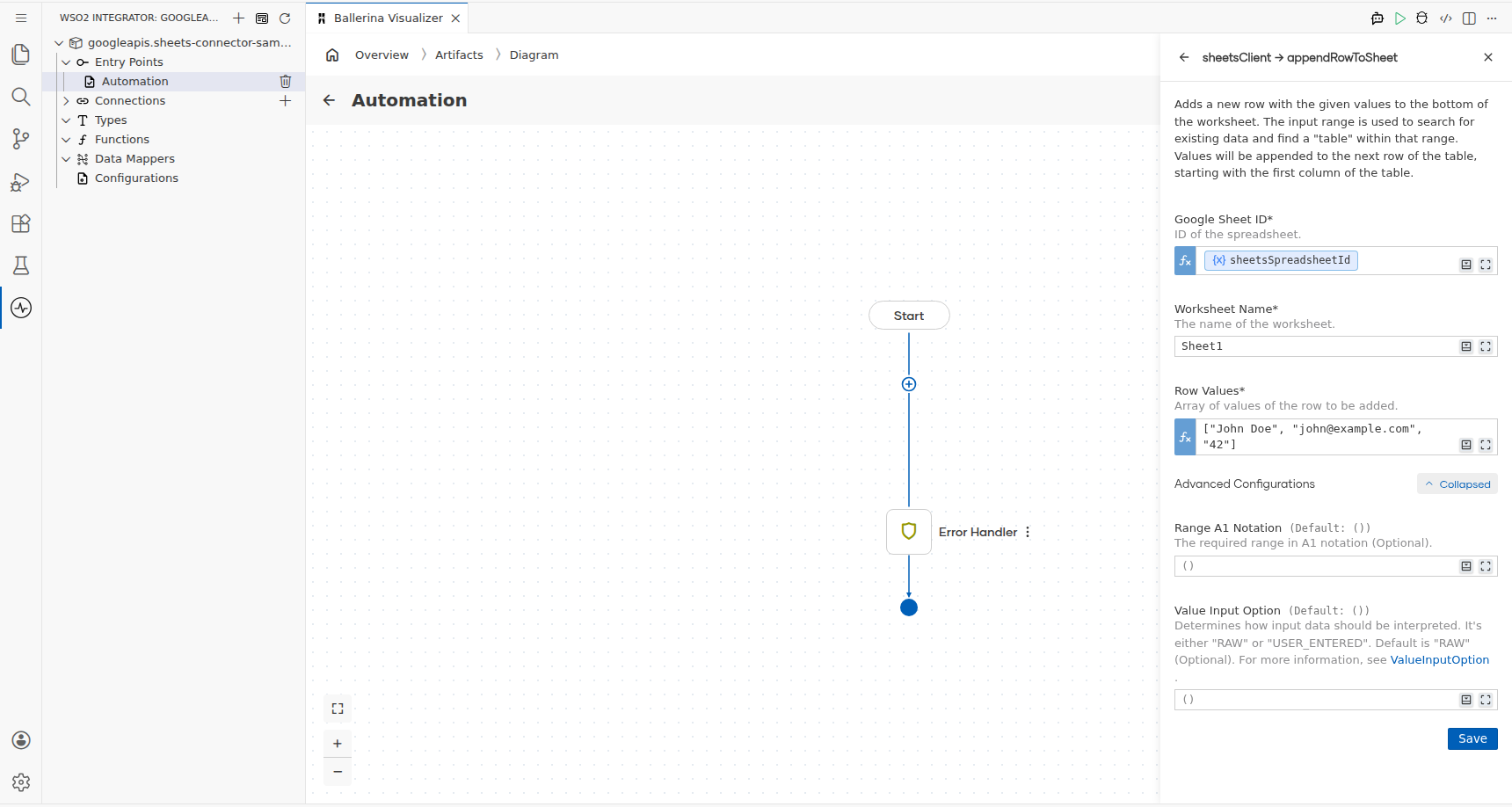
Select Save to add the step to the automation flow.
Try it yourself
Try this sample in WSO2 Integration Platform.
