Example
What you'll build
This guide walks through building a WSO2 Integrator workflow that connects to AWS Secrets Manager and retrieves a named secret using the getSecretValue operation. The integration uses the ballerinax/aws.secretmanager connector, wired to an Automation entry point that triggers the secret retrieval on a scheduled basis. The completed flow on the canvas shows an Automation trigger connected to a getSecretValue remote function node, which calls the AWS Secrets Manager API and returns the secret value for downstream use.
Operations used:
- getSecretValue : Retrieves the value of a named secret stored in AWS Secrets Manager, returning the secret string or binary data along with metadata such as the version ID and stage labels.
Architecture
Prerequisites
- An active AWS account with Secrets Manager enabled in the target region (e.g.,
us-east-1). - An IAM user or role with
secretsmanager:GetSecretValuepermission and programmatic access (Access Key ID and Secret Access Key). - At least one secret already created in AWS Secrets Manager that the integration can retrieve.
Setting up the aws.secretmanager integration
New to WSO2 Integrator? Follow the Create a New Integration guide to set up your integration first, then return here to add the connector.
Adding the aws.secretmanager connector
Step 1: Open the add connection palette
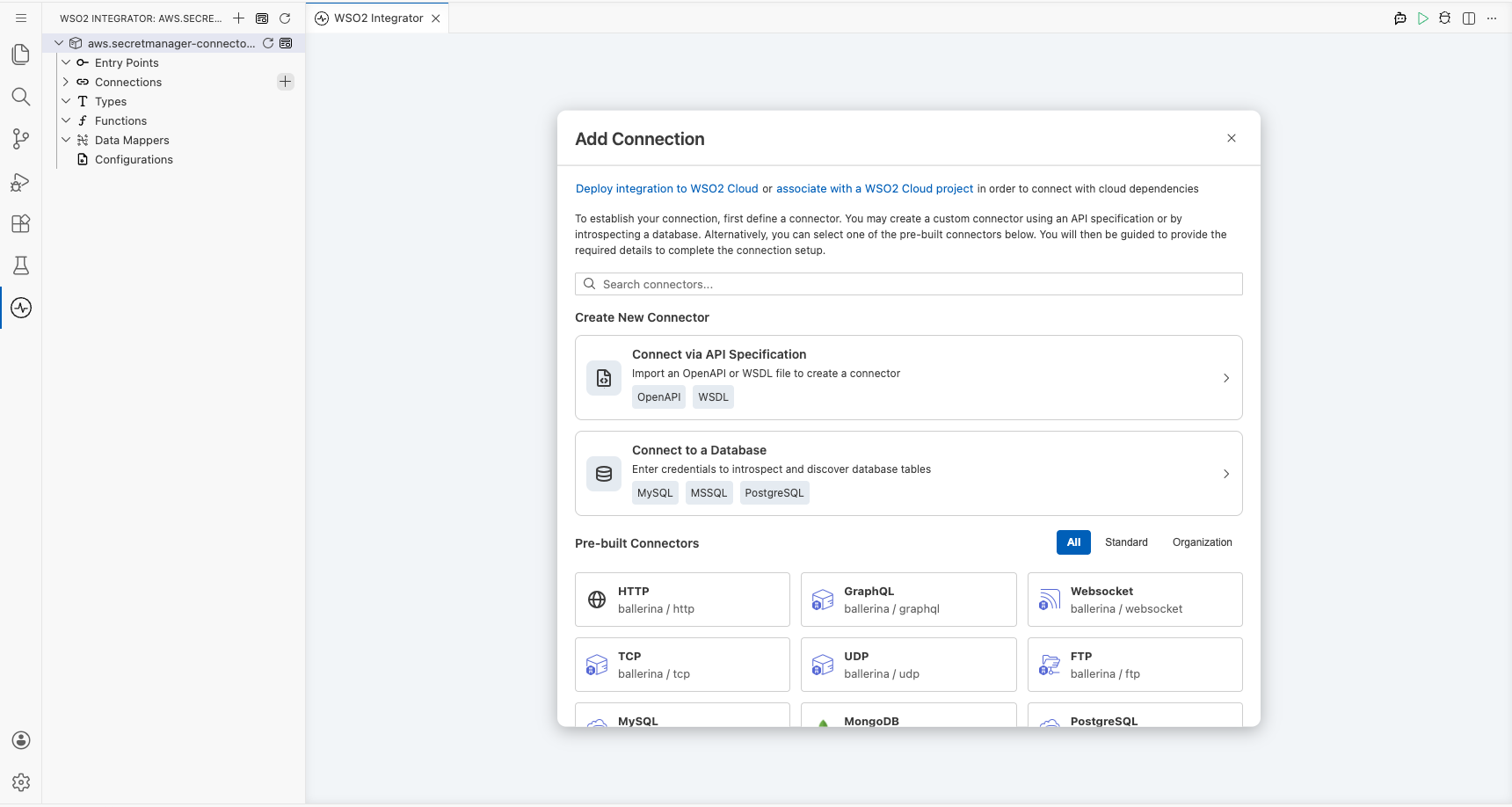
Select + Add Connection in the Connections section of the low-code canvas sidebar to open the connector search palette.
Step 2: Search for and select the aws.secretmanager connector
- In the palette search box, enter aws.secretmanager.
- Locate the ballerinax/aws.secretmanager connector card in the filtered results.
- Select the connector card to open the connection configuration form.
Configuring the aws.secretmanager connection
Step 3: Bind aws.secretmanager connection parameters to configurables
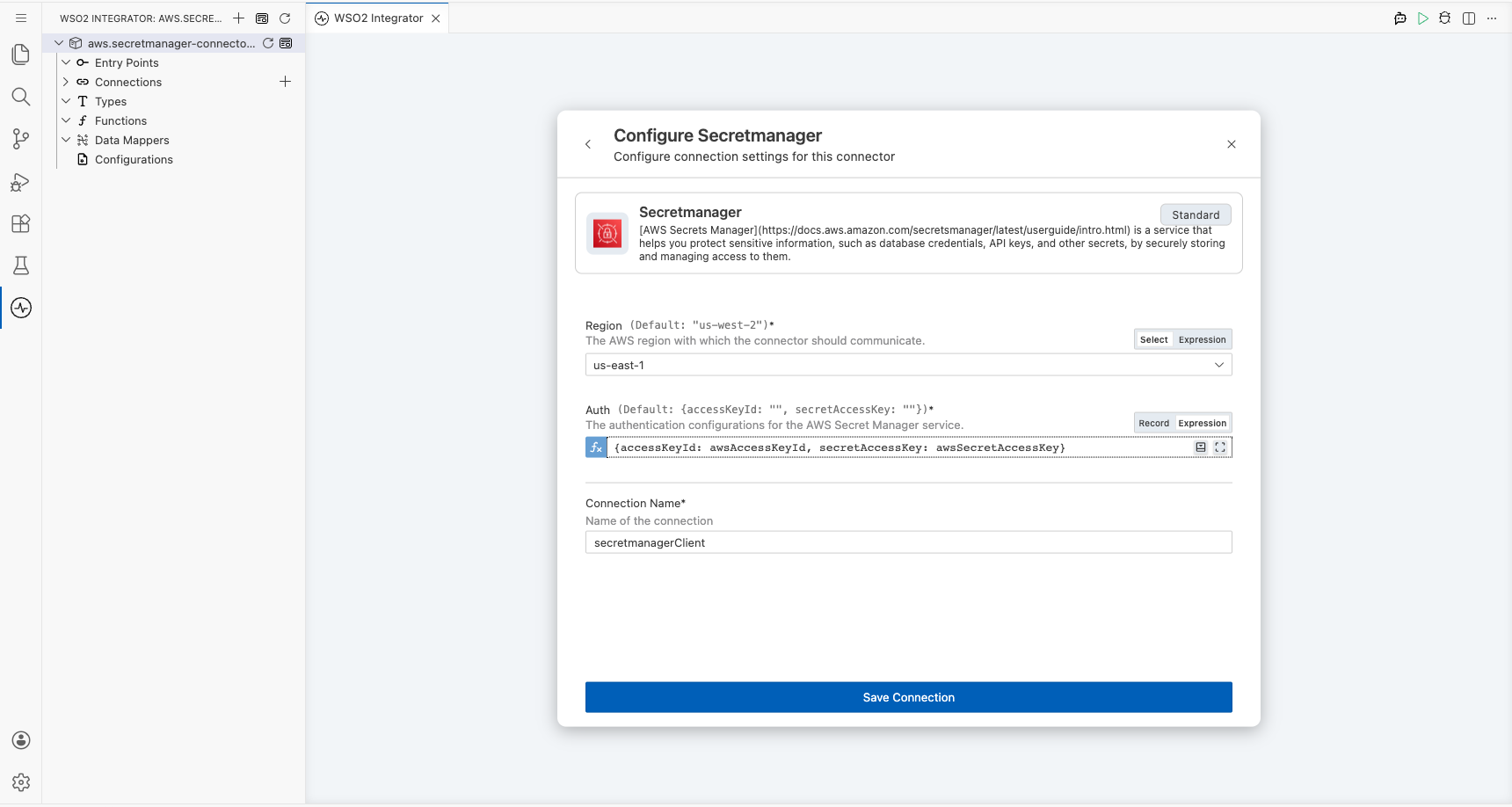
For each connection field, open the helper panel, navigate to the Configurables tab, select + New Configurable, enter the variable name and type, and select Save to auto-inject the reference into the field.
- Region : The AWS region the connector should communicate with (e.g.,
us-east-1). - Auth : The authentication configuration for AWS Secrets Manager, containing the Access Key ID and Secret Access Key bound to configurable variables.
- Connection Name : The identifier for this connection instance.
Step 4: Save the aws.secretmanager connection
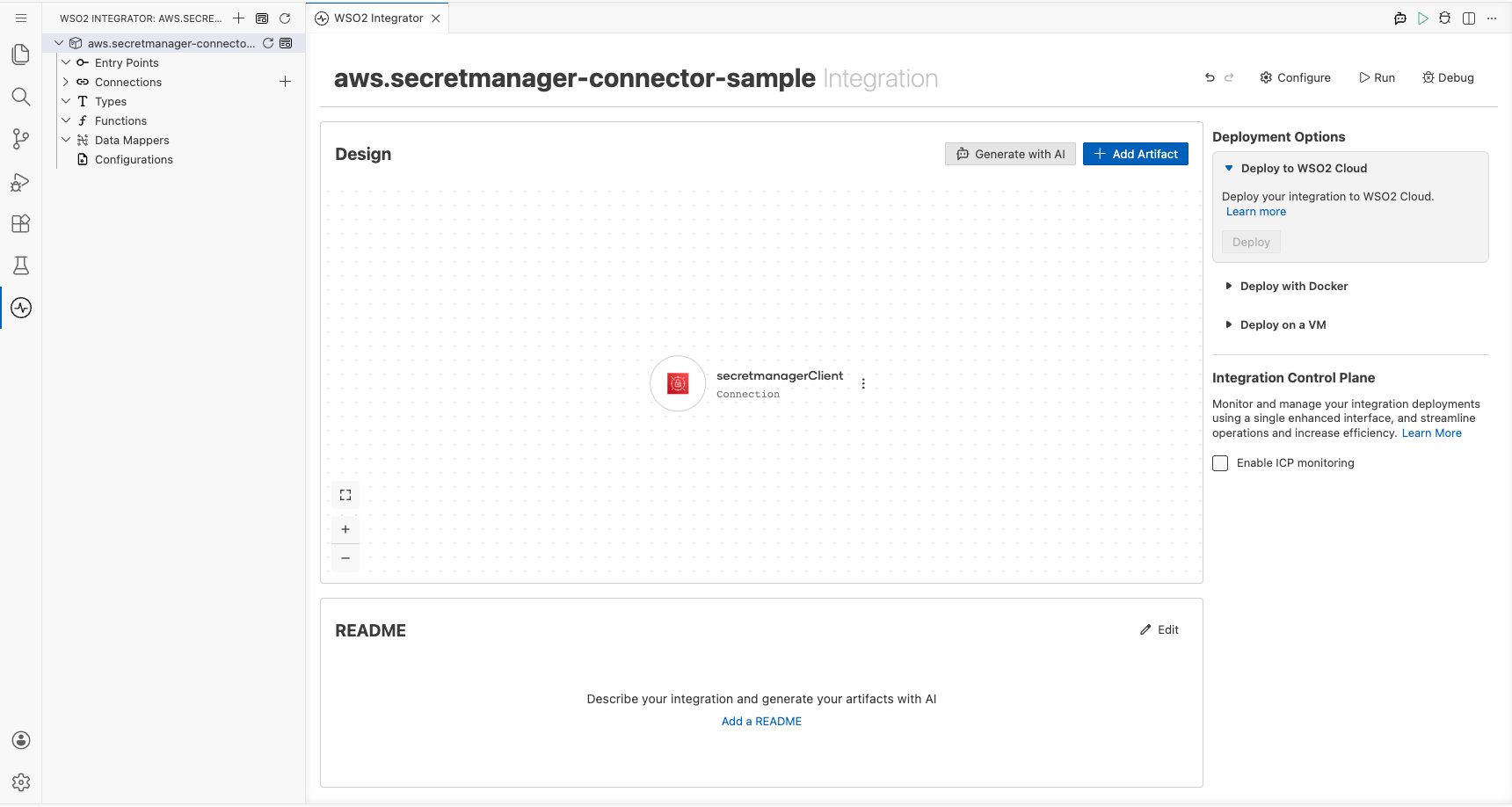
Select Save Connection to persist the connection configuration. The aws.secretmanager connector node appears on the low-code canvas.
Step 5: Set actual values for your configurables
In the left panel of WSO2 Integrator, select Configurations (listed at the bottom of the project tree, under Data Mappers) to open the Configurations panel, then set a value for each configurable:
- awsAccessKeyId (string) : Your AWS IAM access key ID.
- awsSecretAccessKey (string) : Your AWS IAM secret access key associated with the above key ID.
- awsSecretId (string) : The name or ARN of the secret you want to retrieve.
Configuring the aws.secretmanager getSecretValue operation
Step 6: Add an automation entry point
- On the low-code canvas, select + Add Artifact and select Automation to add a new Automation entry point.
- In the Create New Automation dialog, select Create to accept defaults.
- The Automation flow body appears on the canvas with a Start node, an empty body, and an End/Error Handler node.
Step 7: Expand the connection and select the getSecretValue operation
- Inside the Automation flow body, select the + (Add Step) button between the Start node and the End/Error Handler node to open the step-addition panel.
- Under Connections in the step panel, select the secretmanagerClient (aws.secretmanager) connection node to expand it and reveal all available operations.
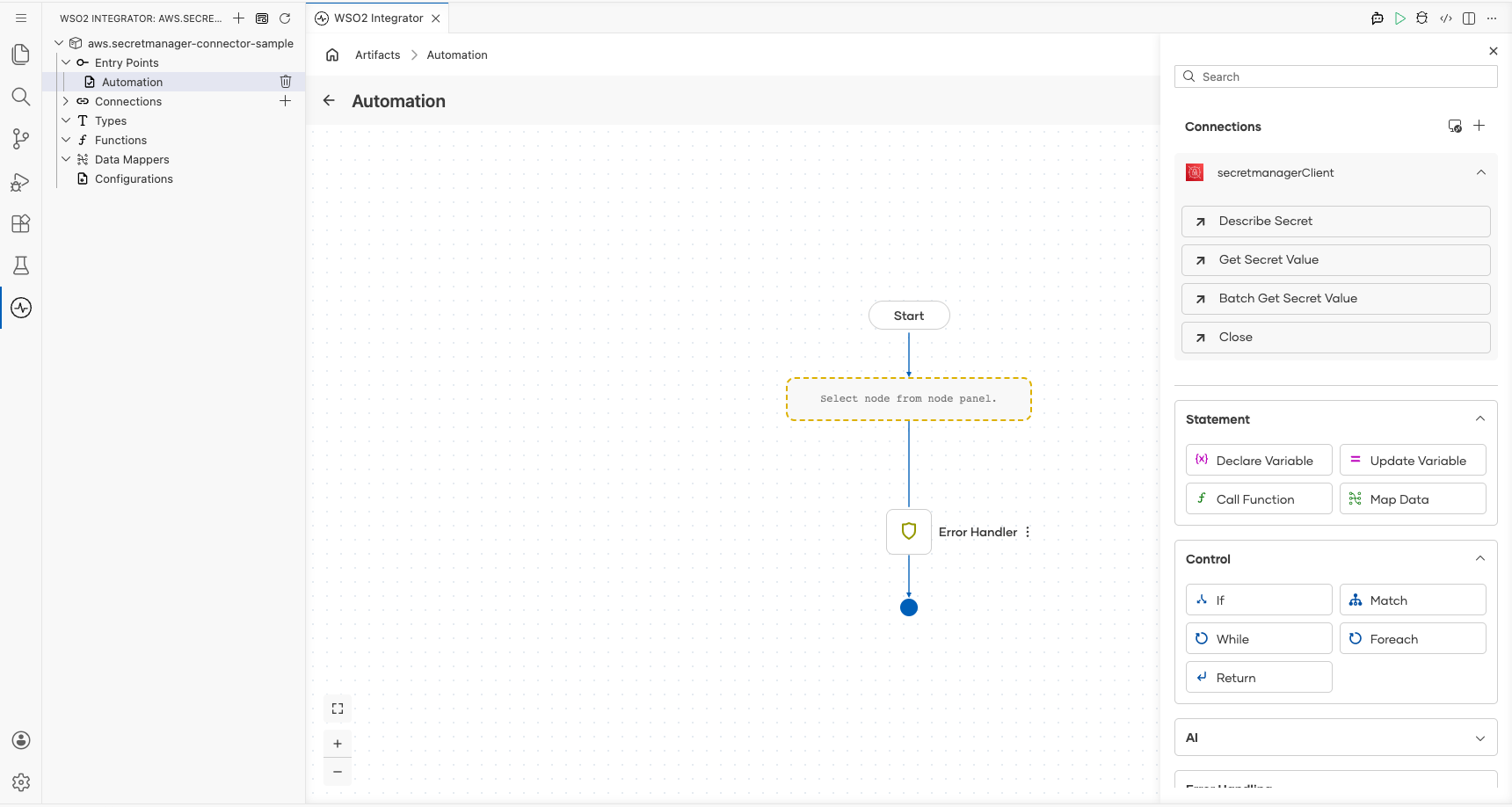
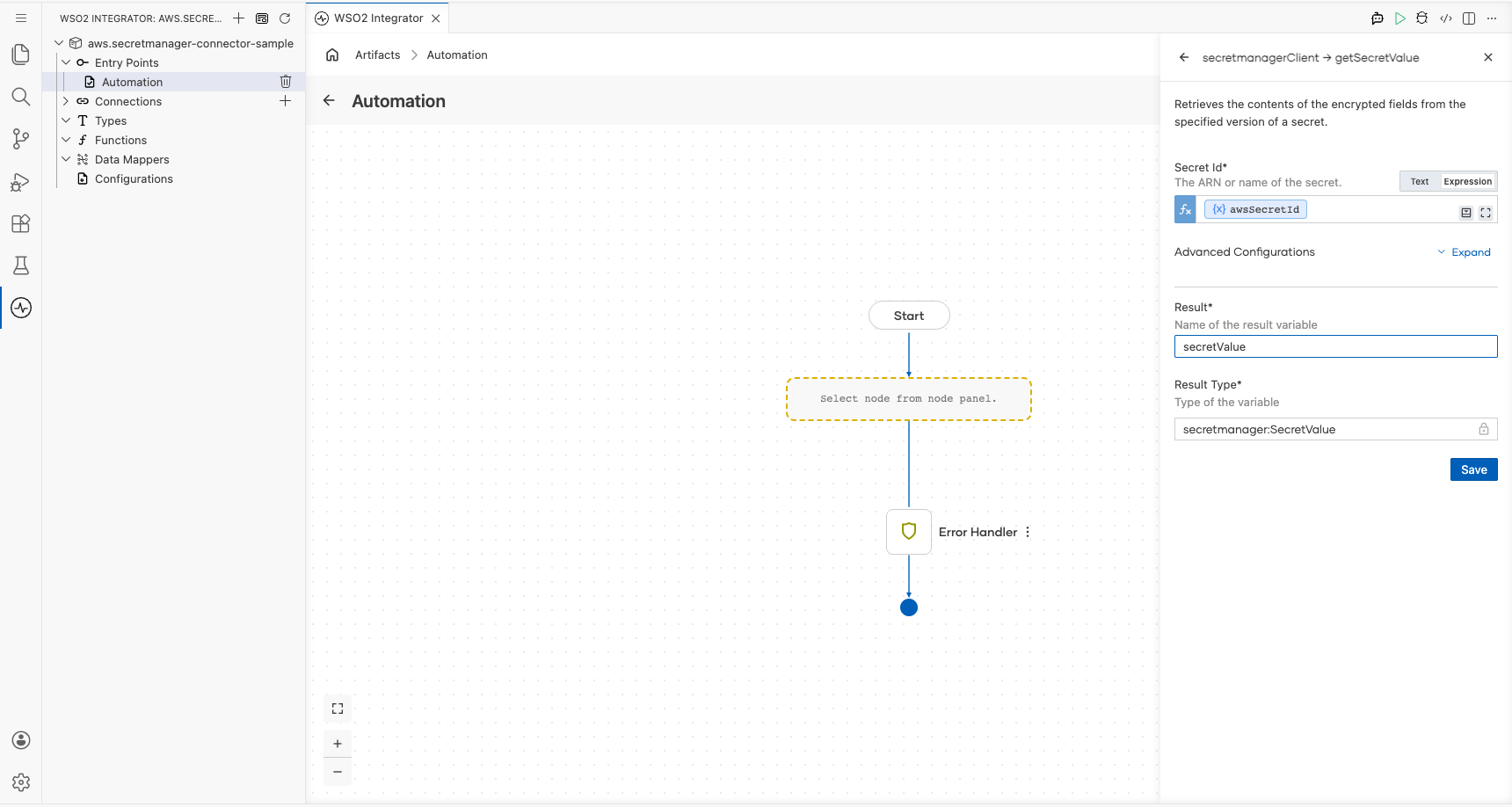
- Select Get Secret Value from the list of operations, then fill in the operation fields:
- Secret Id : The ARN or name of the secret to retrieve from AWS Secrets Manager, bound to the
awsSecretIdconfigurable. - Result : The name of the local variable that will hold the returned secret value.
- Result Type : The type of the result variable (
secretmanager:SecretValue).
- Secret Id : The ARN or name of the secret to retrieve from AWS Secrets Manager, bound to the
- Select Save to add the getSecretValue step to the automation flow.
Step 8: Verify the completed integration flow
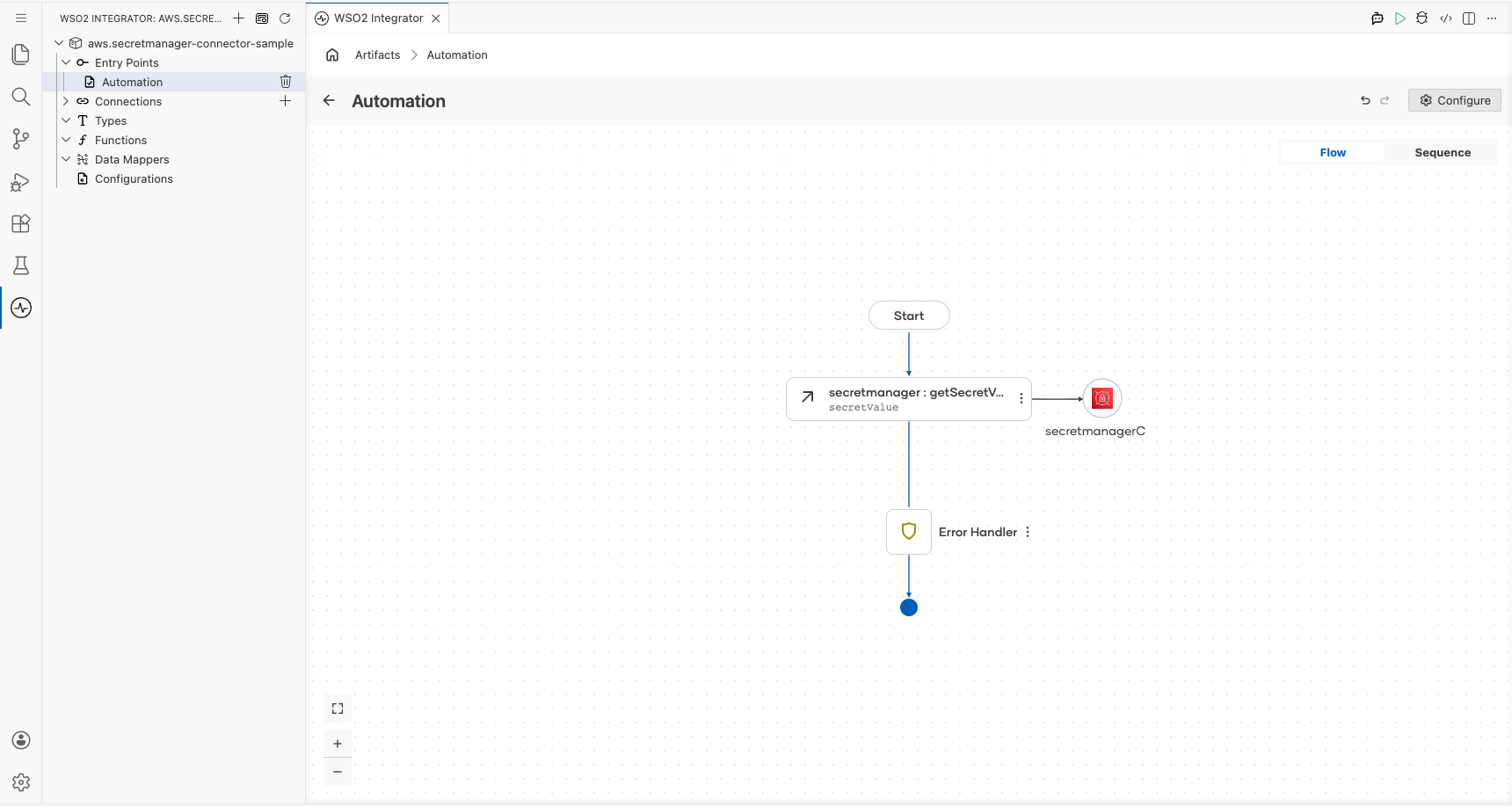
The canvas now shows the completed flow: Start → secretmanager : getSecretValue (secretValue) → Error Handler → End, with all nodes connected and no error indicators visible.
Try it yourself
Try this sample in WSO2 Integration Platform.
