Example
What you'll build
This integration demonstrates how to connect to Amazon Web Services Simple Storage Service (S3) using the ballerinax/aws.s3 connector in WSO2 Integrator. The workflow uses an Automation entry point to invoke the createBucket operation, which creates a new S3 bucket in the specified AWS region.
Operations used:
- createBucket : creates a new Amazon S3 bucket in the specified AWS region using the provided bucket name
Architecture
Prerequisites
- An active AWS account with programmatic access enabled (IAM user with S3 permissions).
- An AWS Access Key ID and Secret Access Key with at least
s3:CreateBucketpermission. - The target AWS region where the S3 bucket will be created (e.g.,
us-east-1).
Setting up the aws.s3 integration
New to WSO2 Integrator? Follow the Create a New Integration guide to set up your integration first, then return here to add the connector.
Adding the aws.s3 connector
Step 1: Open the connector palette and select the aws.s3 connector
- Select Add Connection (or the + icon next to the Connections heading in the sidebar) to open the connector palette.
- In the palette search box, enter aws.s3.
- Select the ballerinax/aws.s3 connector card to open the connection configuration form.
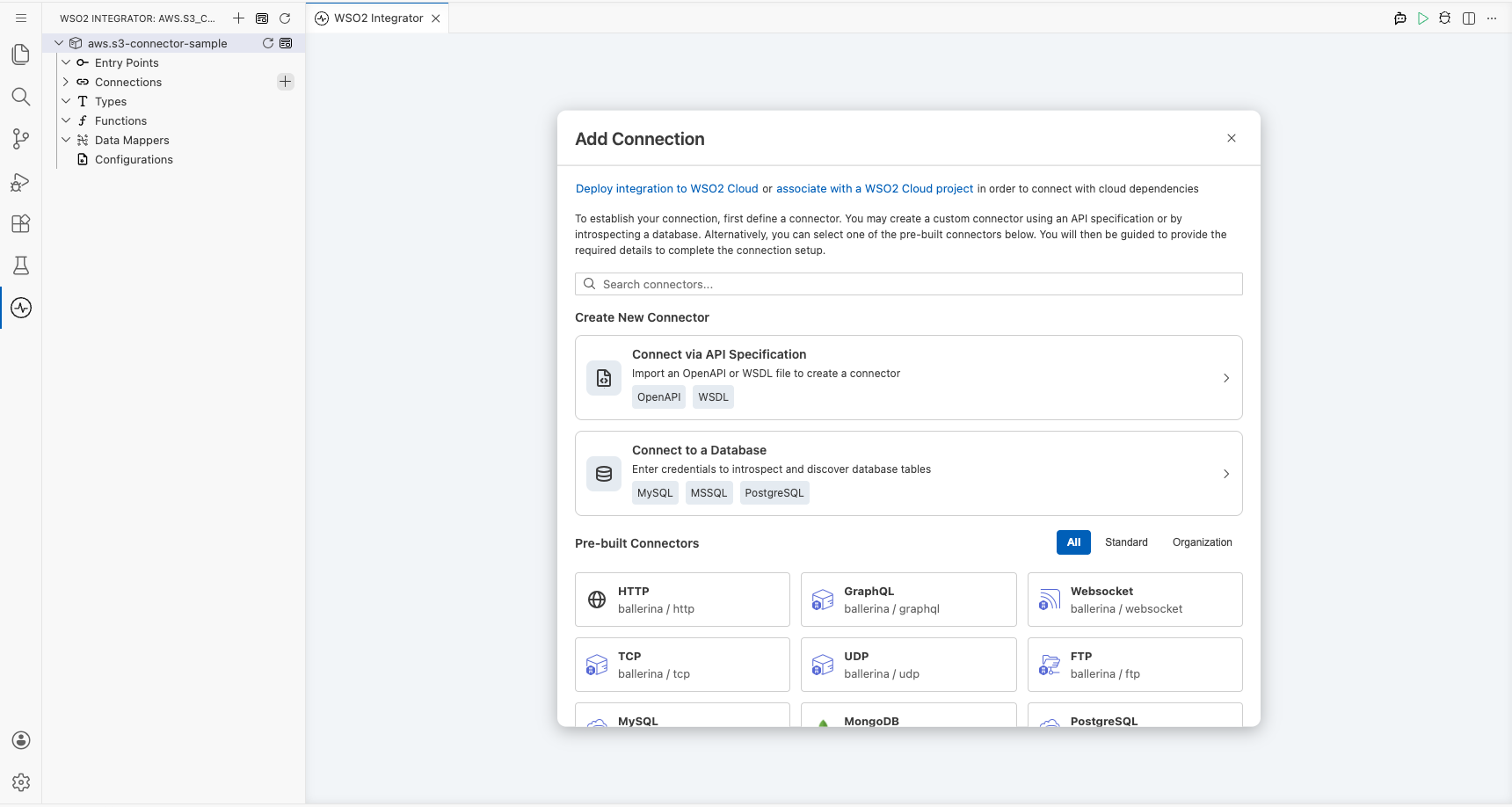
Configuring the aws.s3 connection
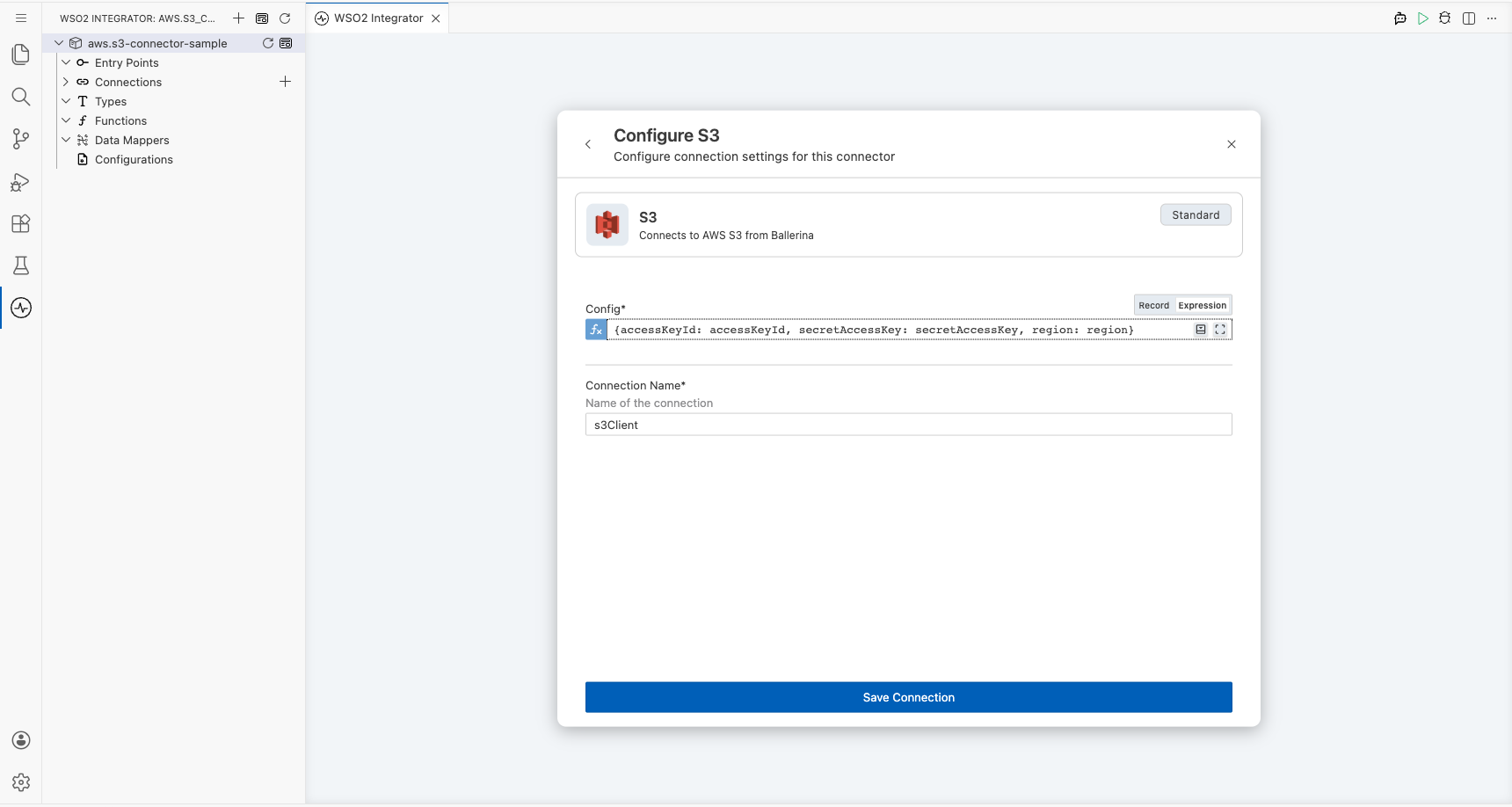
Step 2: Bind the aws.s3 connection parameters to configurable variables
Select the Config field, switch to Expression mode, then use the Configurables tab in the helper panel to create one variable for each connection field:
- Access Key Id (string) : the AWS IAM access key ID used to authenticate requests to Amazon S3
- Secret Access Key (string) : the AWS IAM secret access key paired with the access key ID for request signing
- Region (string) : the AWS region where S3 operations will be performed (e.g.,
us-east-1,eu-west-1). Optional: defaults tous-east-1if omitted.
After creating all three configurables, bind each connection field to its configurable variable and set Connection Name to s3Client.
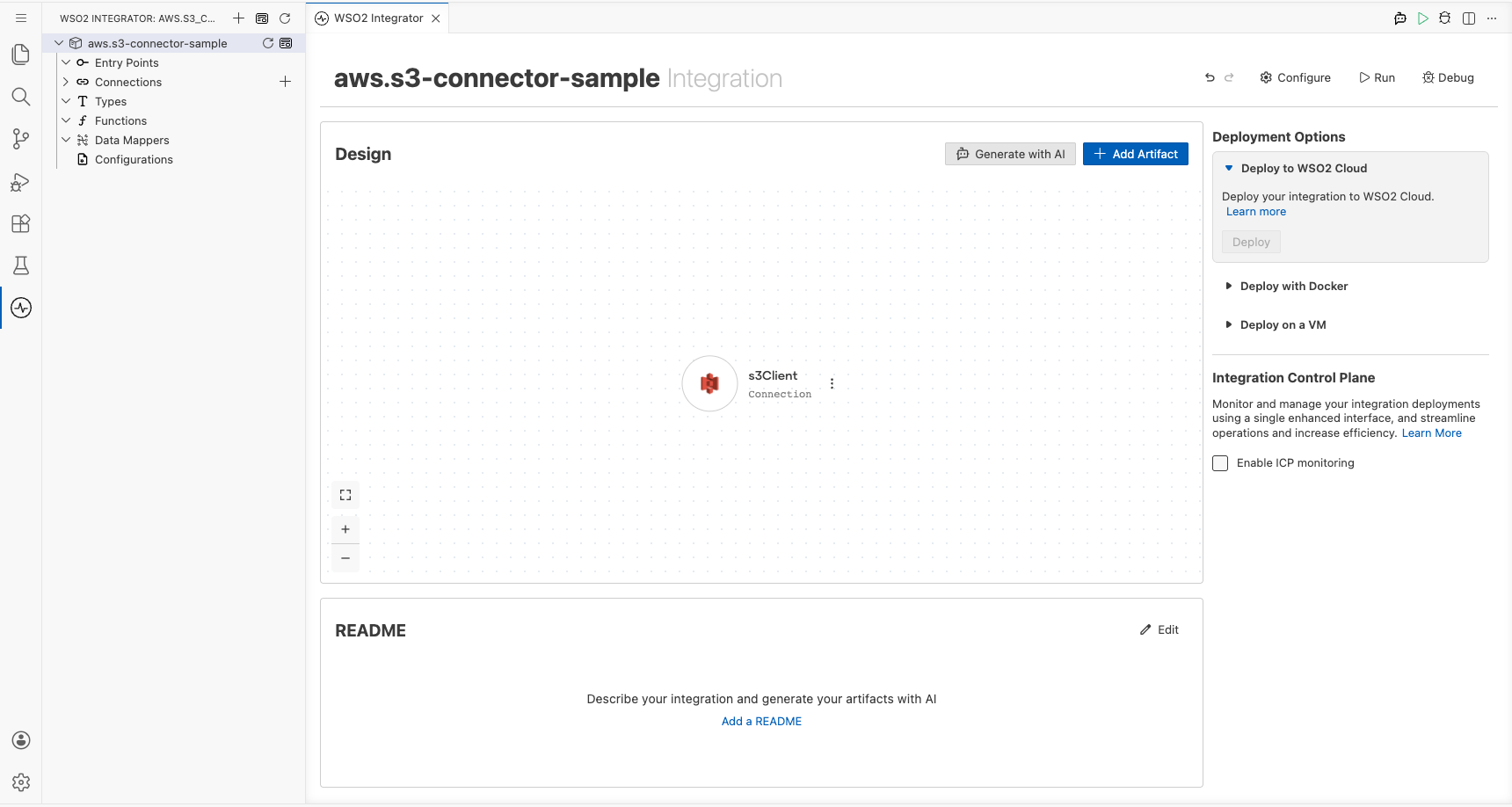
Step 3: Save the aws.s3 connection
Select Save Connection to persist the connection. The S3 connector entry (s3Client) appears on the canvas.
Step 4: Set actual values for your configurables
- In the left panel, select Configurations.
- Set a value for each configurable listed below.
- accessKeyId (string) : your AWS IAM access key ID
- secretAccessKey (string) : your AWS IAM secret access key
- region (string) : the target AWS region for S3 operations (e.g.,
us-east-1). Defaults tous-east-1if not set.
Configuring the aws.s3 createBucket operation
Step 5: Add an automation entry point
- Select + Add Artifact on the canvas toolbar.
- Under Automation, select the Automation tile.
- Select Create. No additional configuration is needed.
The automation entry point appears in the sidebar under Entry Points, and the canvas switches to the Automation flow editor showing a Start node.
Step 6: Select the createBucket operation and configure its parameters
- Inside the automation flow body, select the + (Add Step) button between the Start and End/Error Handler nodes to open the step-addition panel.
- In the step-addition panel, locate the Connections section and select the S3 connection entry (s3Client) to expand it and reveal all available operations.
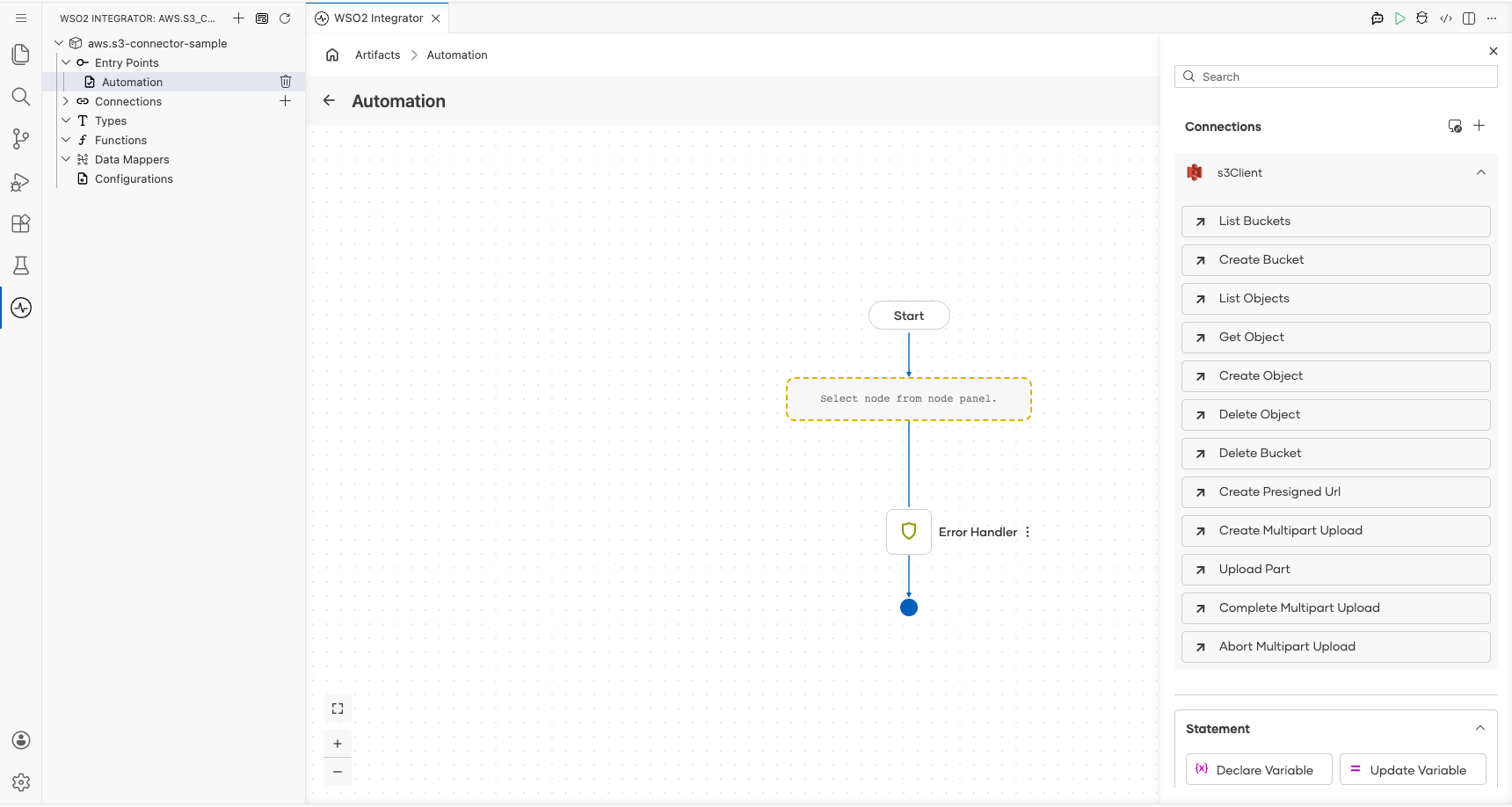
- Select Create Bucket from the list of operations to open its configuration form, then fill in the operation fields.
- Bucket Name : the name of the new Amazon S3 bucket to create
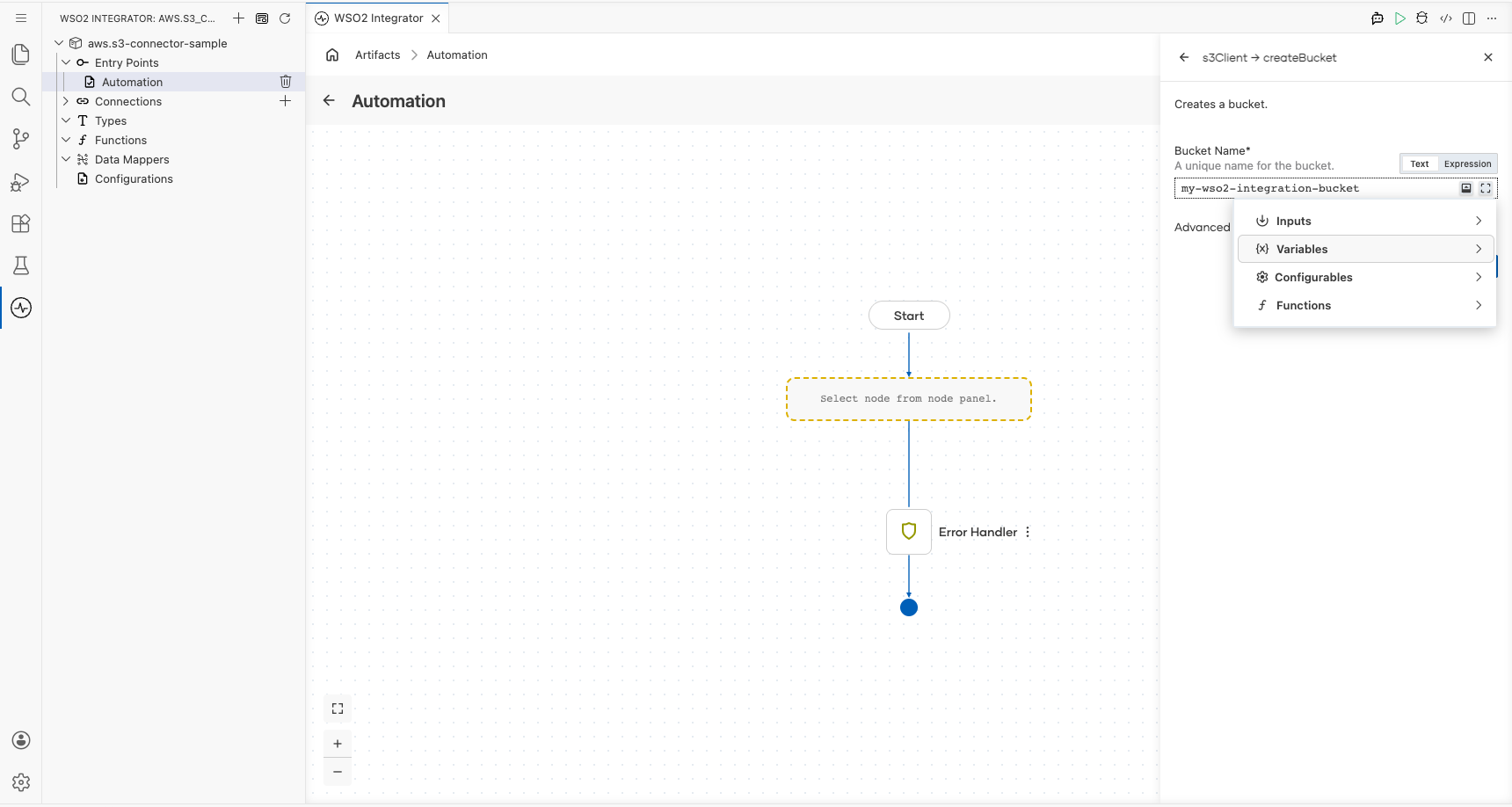
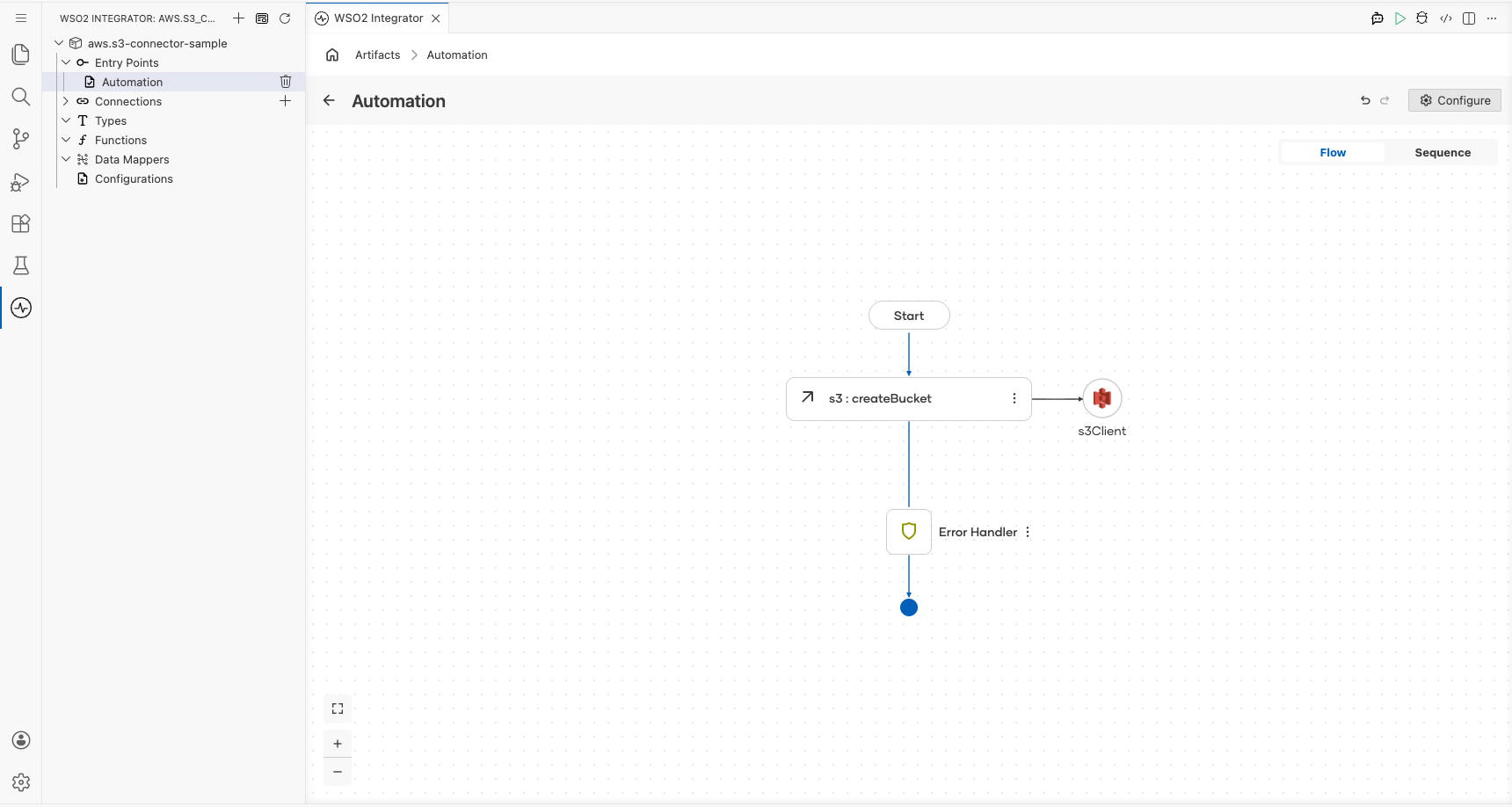
- Select Save to add the
createBucketstep to the automation flow.
Try it yourself
Try this sample in WSO2 Integration Platform.
