Setup Guide
This guide walks you through registering an application in Microsoft Entra ID and obtaining the OAuth 2.0 credentials required to use the Microsoft OneDrive connector.
Prerequisites
- A Microsoft account with OneDrive access. If you do not have one, sign up for a free Microsoft account.
- Access to the Microsoft Entra admin center.
Step 1: Register the application
-
Sign in to the Microsoft Entra admin center.
-
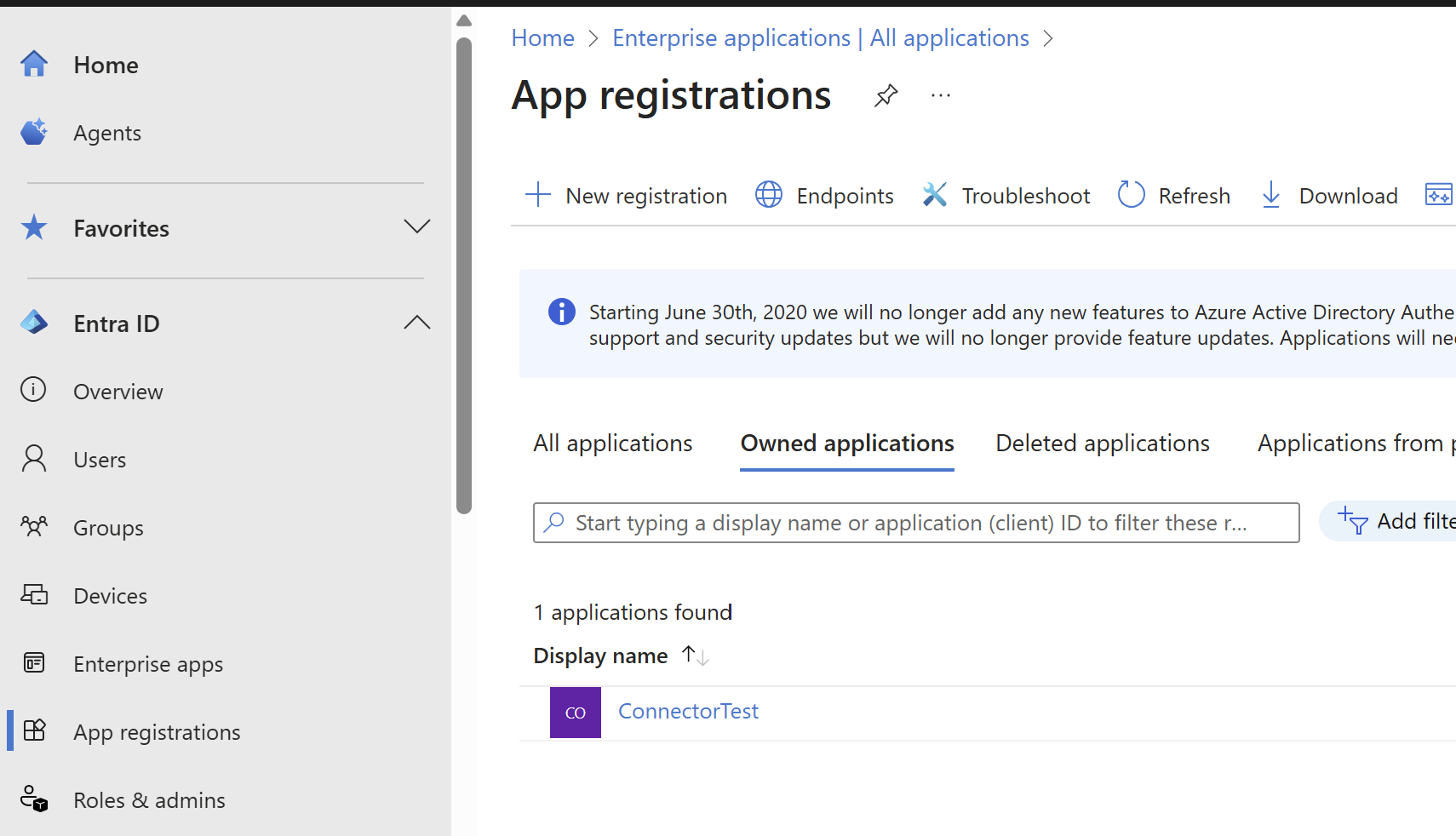
Navigate to App registrations and select New registration.
-
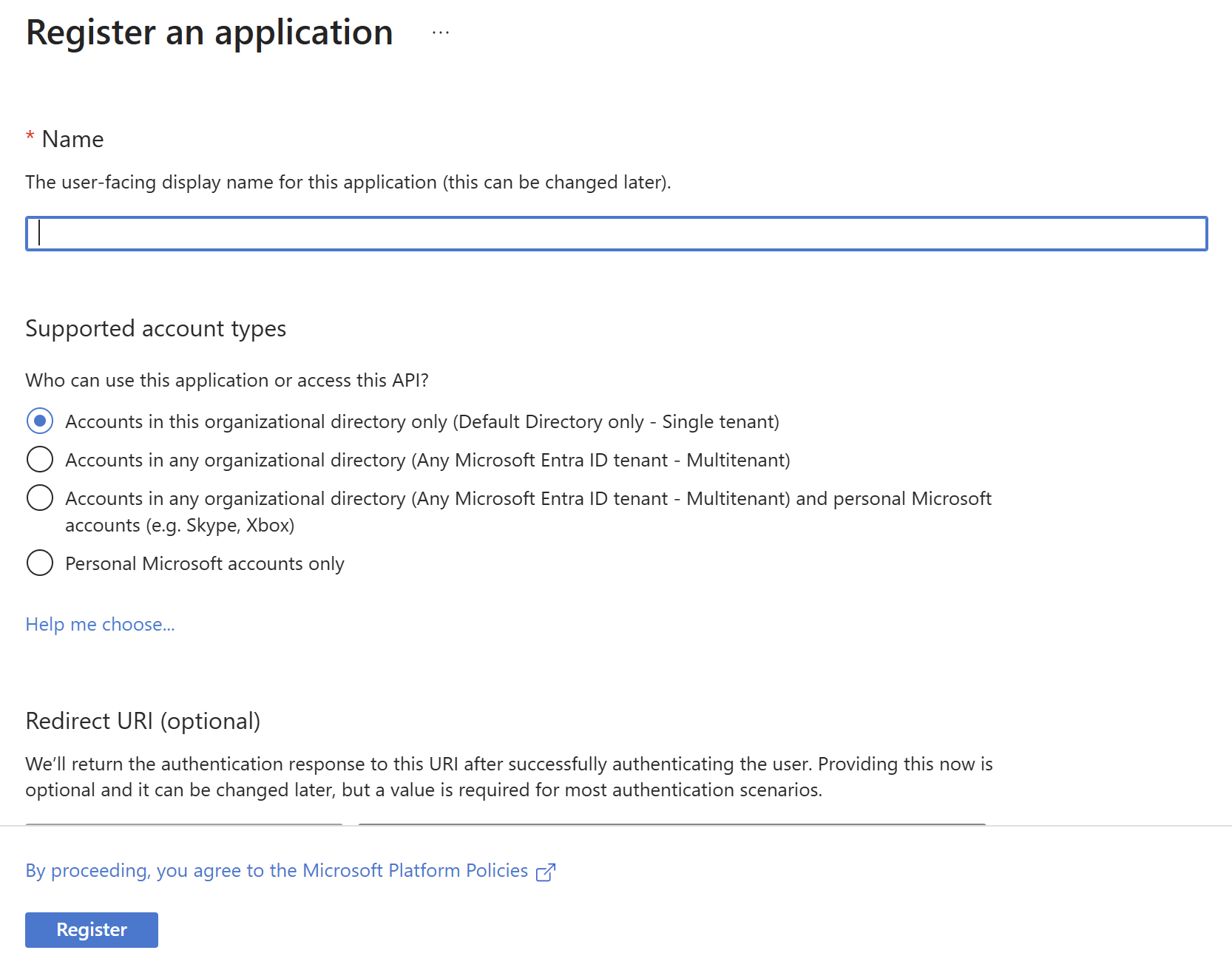
Enter a display name for your application.
-
Under Supported account types, select the appropriate option for your use case.
-
Leave Redirect URI blank for now.
-
Select Register.
-
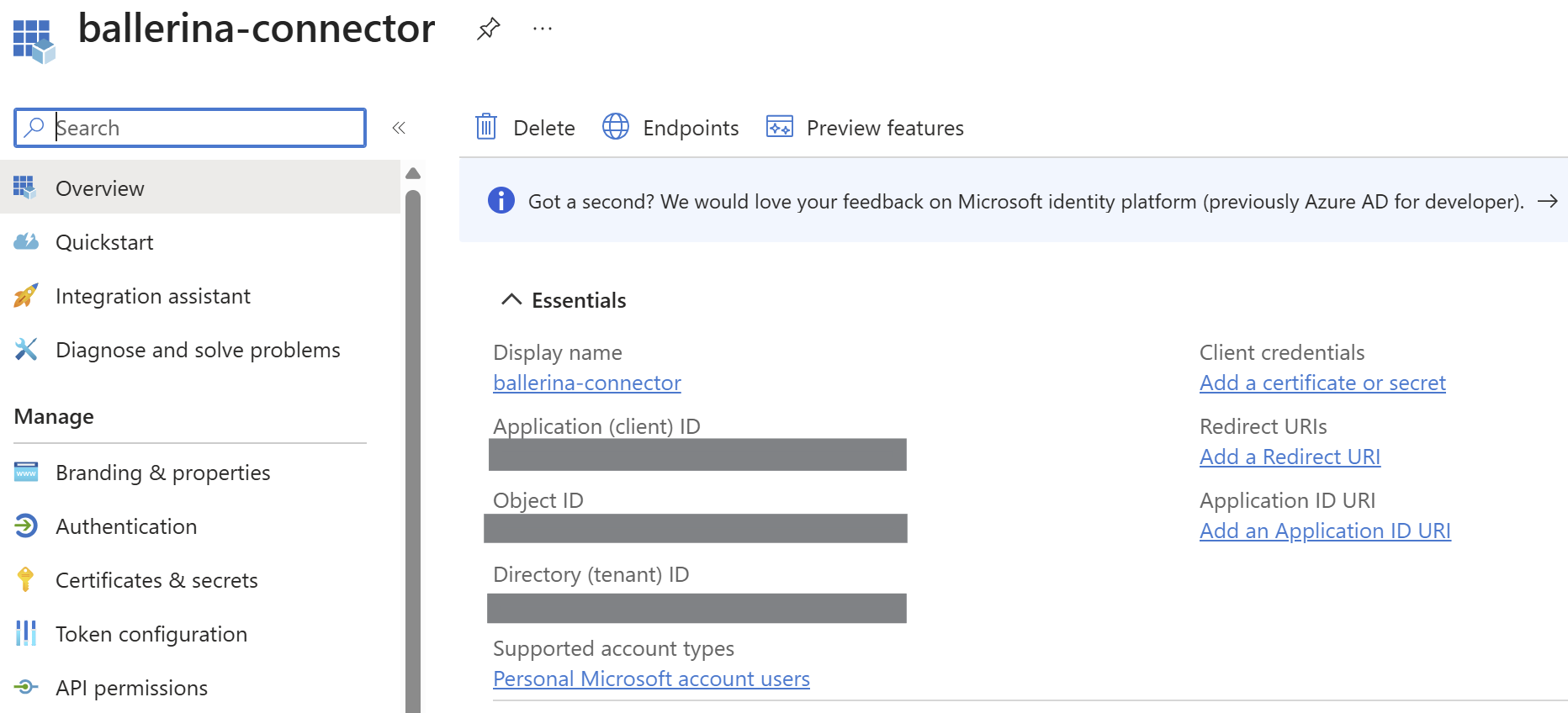
After registration, copy the Application (client) ID from the Overview pane.
Step 2: Configure platform settings
-
Under Manage, select Authentication.
-
Under Platform configurations, select Add a platform and select the Web tile.
-
Set the Redirect URI to
http://localhost.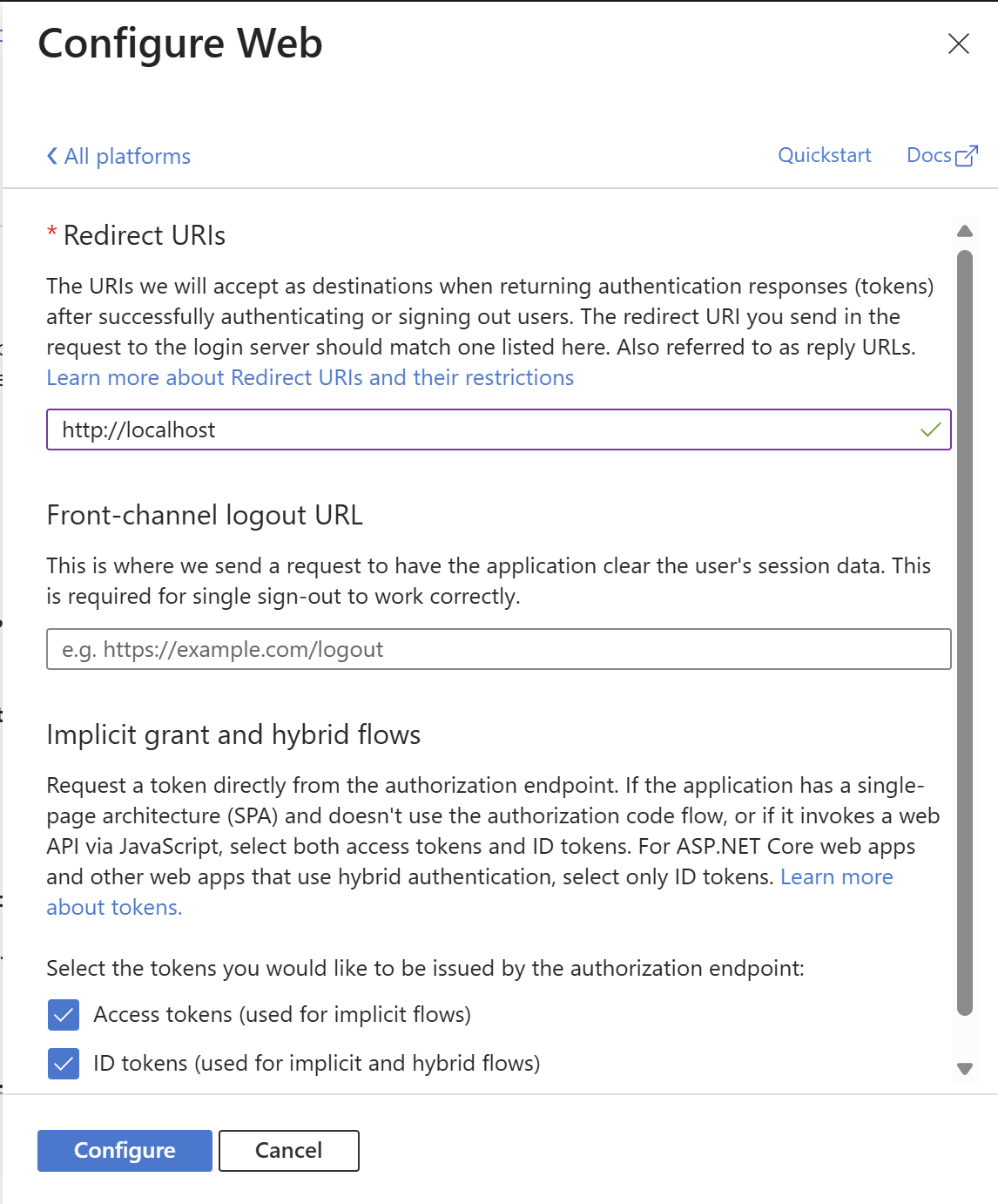
-
Select Configure to save.
Step 3: Add a client secret
-
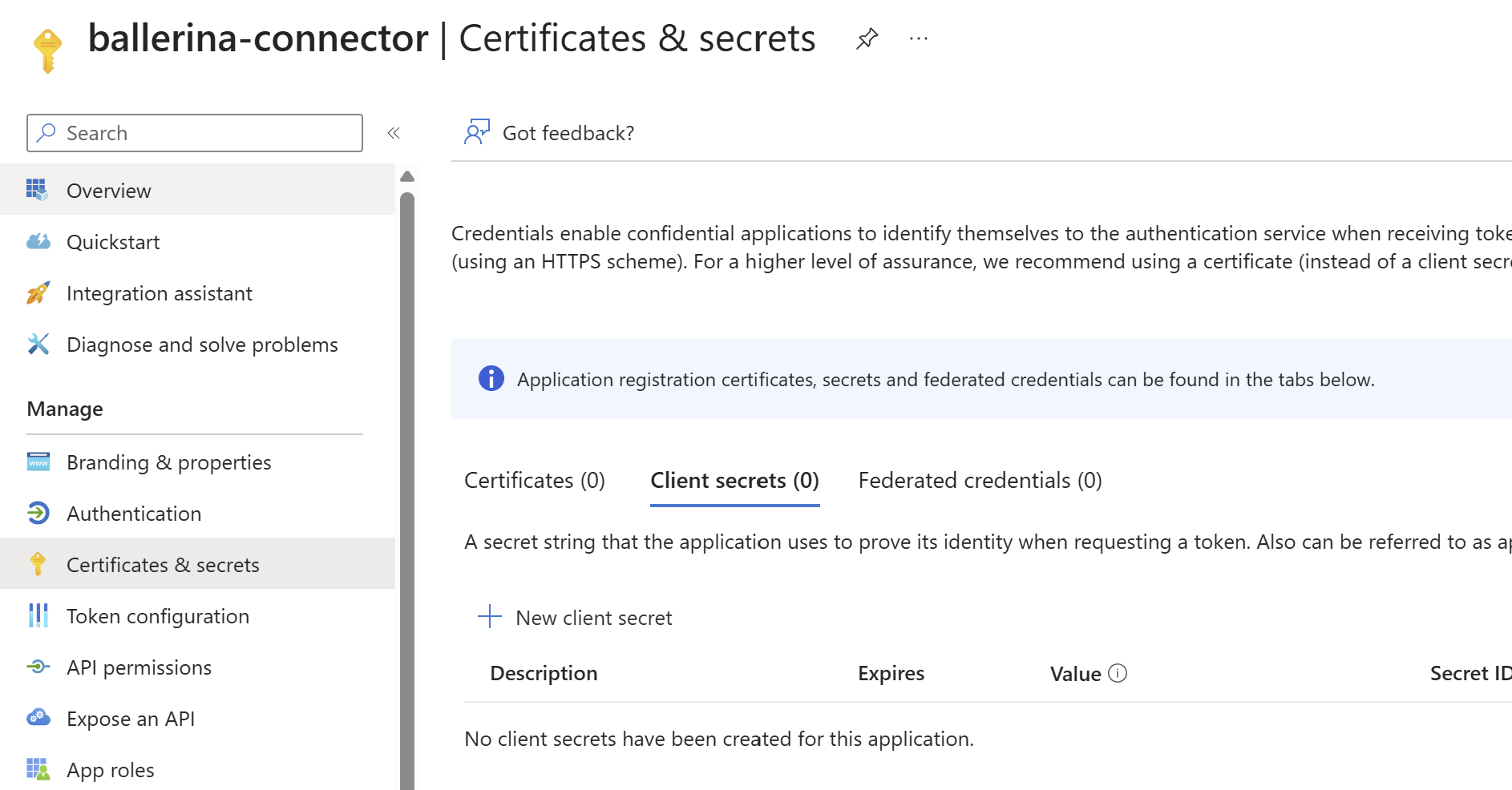
Navigate to Certificates & secrets > Client secrets and select New client secret.
-
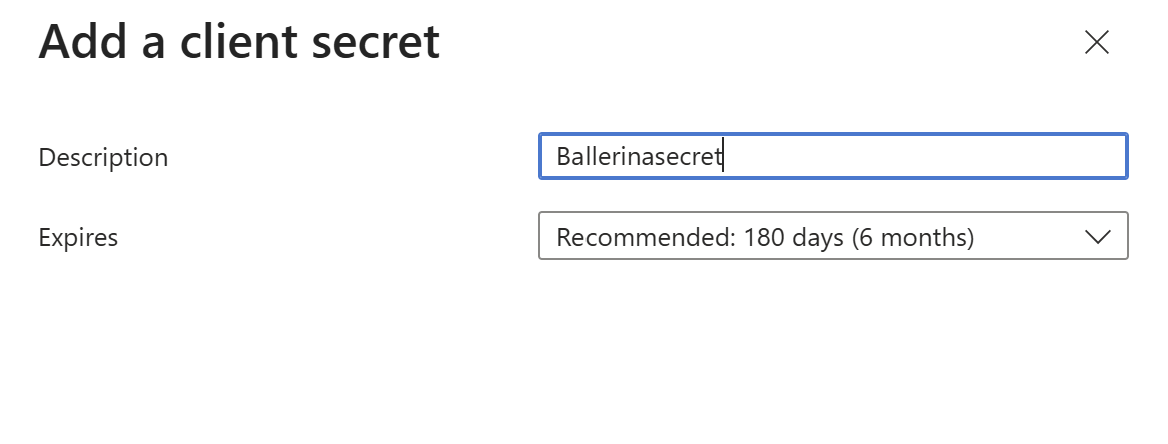
Add a description for your client secret.
-
Select an expiration period and select Add.
-
Copy and save the Value of the secret immediately — it will not be shown again.
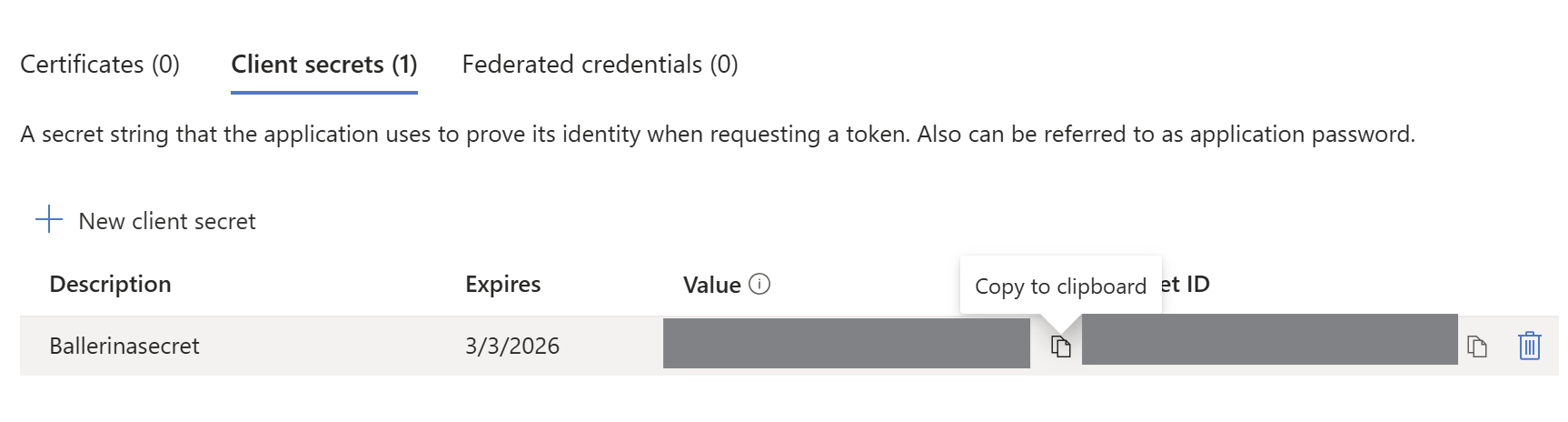
The client secret value is shown only once. Store it securely. Do not commit it to source control. Use Ballerina's configurable feature and a Config.toml file to supply it at runtime.
Step 4: Get the refresh token
-
Construct the authorization URL, replacing
<client-id>with your Application (client) ID:https://login.microsoftonline.com/common/oauth2/v2.0/authorize?client_id=<client-id>&scope=offline_access%20files.read%20files.read.all%20files.readwrite%20files.readwrite.all&response_type=code&redirect_uri=http://localhostParameter Description client_idYour Application (client) ID scopeoffline_access(refresh token),files.read,files.read.all,files.readwrite,files.readwrite.allresponse_typecoderedirect_uriMust match the URI configured in Step 2 -
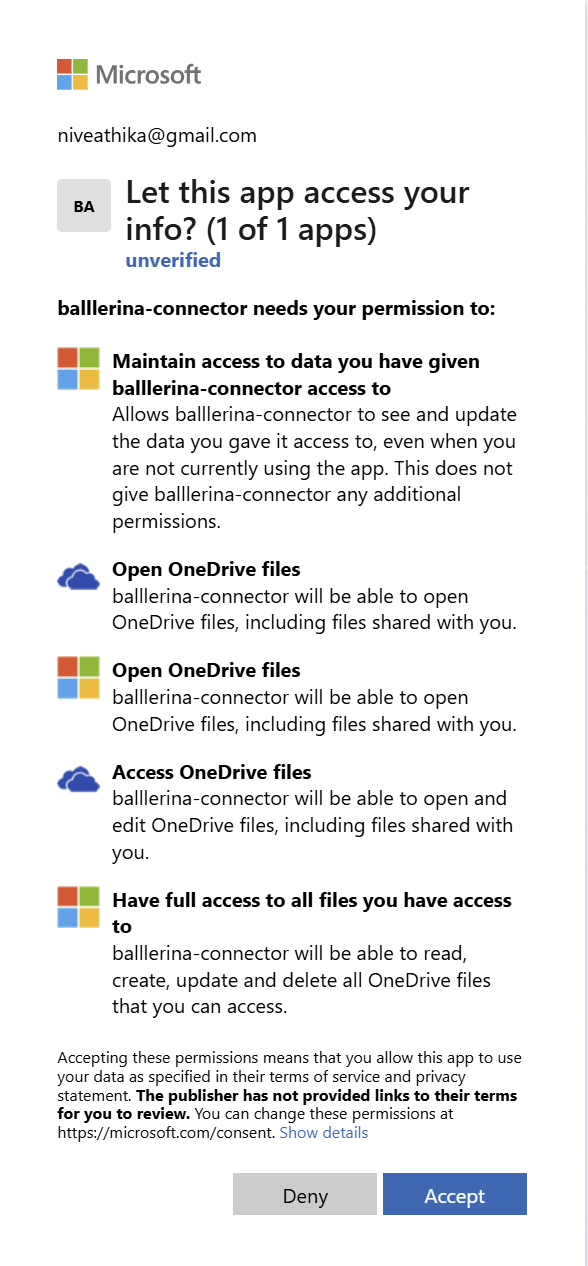
Open the URL in a browser, sign in, and select Accept to grant access.
-
After authorization, you are redirected to a URL like:
http://localhost/?code=<auth-code>Copy the
codevalue from the URL. -
Exchange the code for tokens:
curl -X POST https://login.microsoftonline.com/common/oauth2/v2.0/token \
  -H "Content-Type: application/x-www-form-urlencoded" \
-d "client_id=<client-id>&client_secret=<client-secret>&redirect_uri=http://localhost&code=<auth-code>&grant_type=authorization_code" -
Copy the
refresh_tokenfrom the response.
What's next
- Action reference: Available operations