IDE Troubleshooting
Use this page when something in the WSO2 Integrator editor isn't behaving the way you expect: a feature doesn't respond, a diagram doesn't load, or an action errors out. Before you file an issue, capture verbose editor output so the team can act on the report.
Capture verbose editor output
1. Enable verbose logging
-
Open Settings with
Cmd+,on macOS, orCtrl+,on Windows and Linux.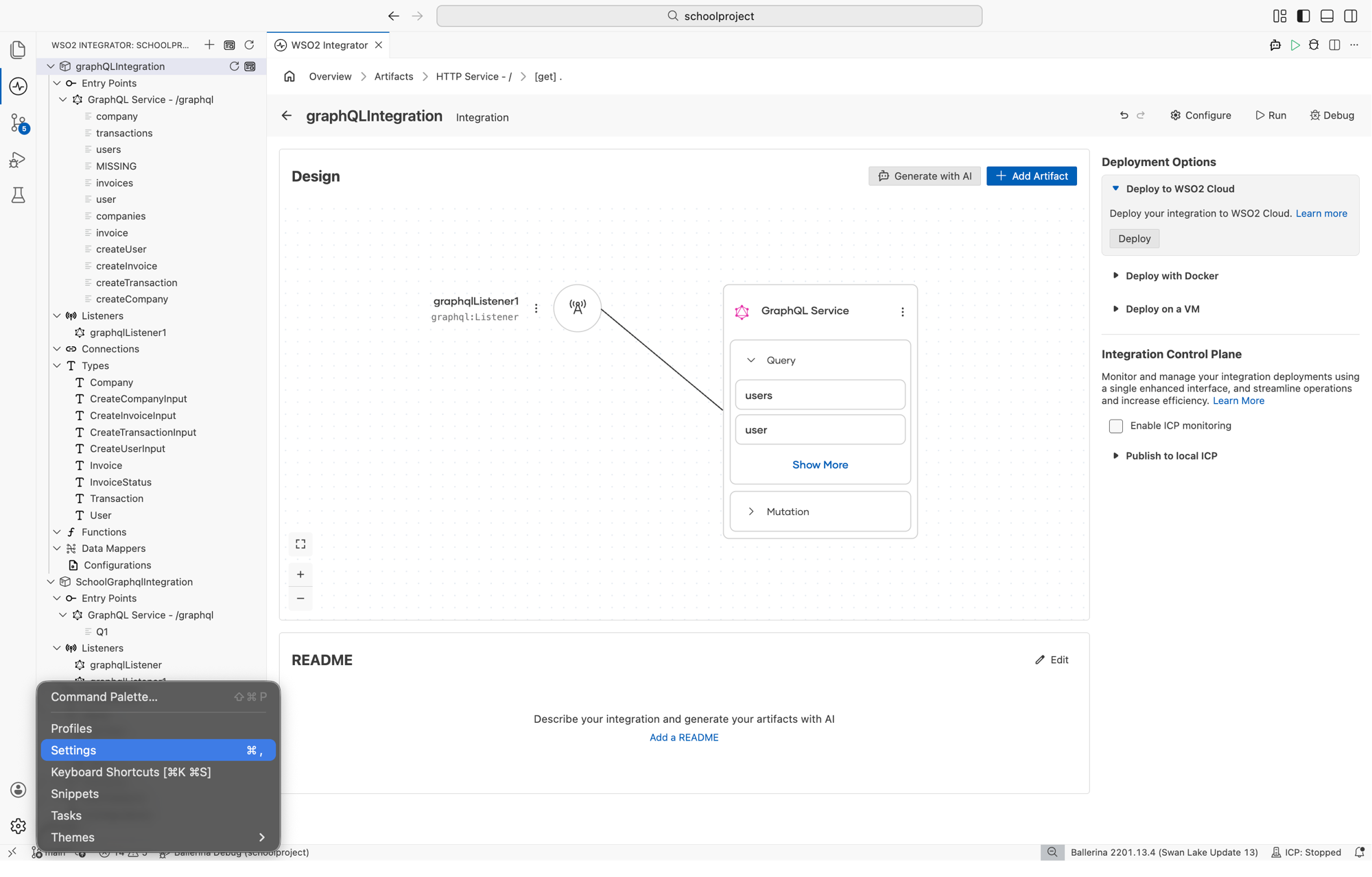
-
In the search box, type
ballerina.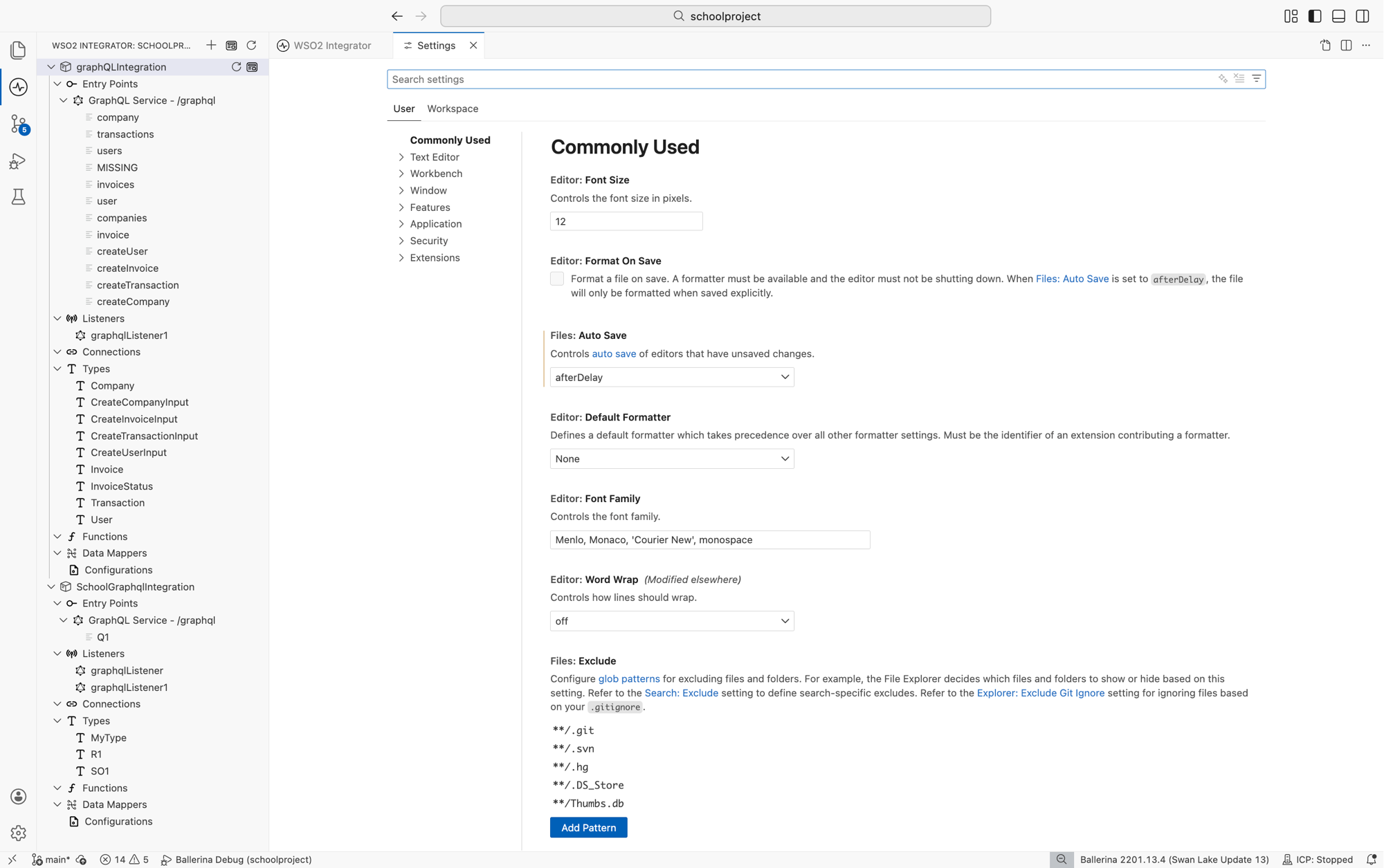
-
Set each of the following to the value shown:
ballerina.traceLog: enabled (true).ballerina.debugLog: enabled (true).ballerina-vscode.trace.server:verbose.
2. Open the output panel
-
Press
Cmd+Shift+Pon macOS, orCtrl+Shift+Pon Windows and Linux. -
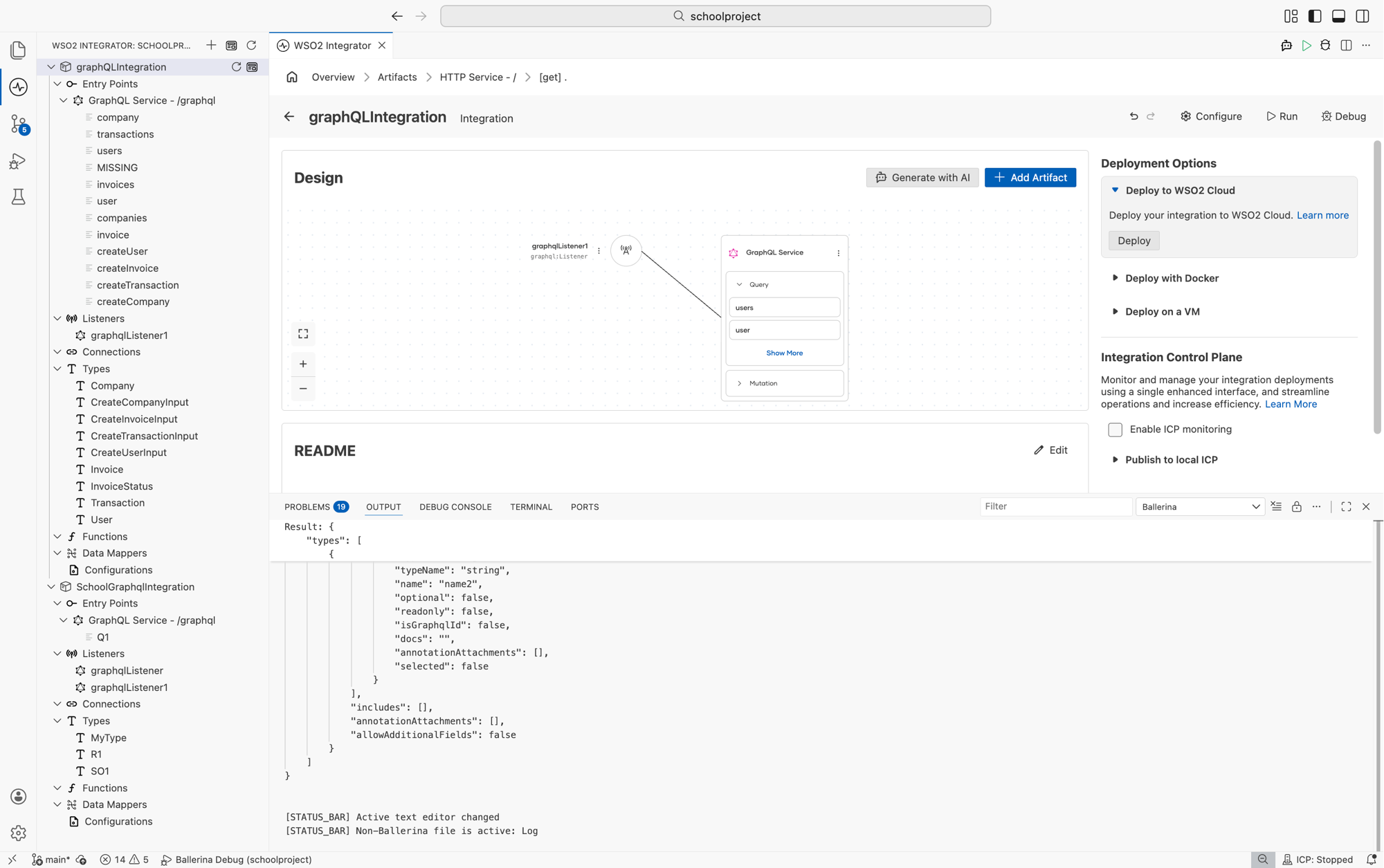
Run Output: Focus on Output View.
-
In the channel dropdown on the right of the Output panel, select Ballerina.
3. Reproduce the issue and read the output
- Repeat the steps that caused the unexpected behavior.
- Scroll through the Ballerina channel and look for errors or stack traces.
- Copy any error text you find.
Report the issue
Open a new issue in the wso2/product-integrator repository and include:
- A short title that describes the symptom.
- The exact steps you followed to reproduce the issue.
- The error text copied from the Ballerina output channel, in a fenced code block.
- A screen recording of the reproduction, if you can capture one.
If the Ballerina channel doesn't show any error, still file the issue. Include the reproduction steps and the screen recording so the team can dig deeper from there.
What's next
- Errors and stack traces - interpret the error text you captured from the Ballerina output channel.
- Logging - add log statements once the IDE is working again to trace what the integration does at runtime.
- Editor debugging - set breakpoints and step through the integration after the IDE issue is resolved.