Identity & Access Management
AI agents interact with MCP servers, APIs, databases, and enterprise systems to perform tasks autonomously. As agents access enterprise resources and external services, it is important to secure and govern these interactions using proper identity and access control mechanisms.
WSO2 Integrator provides built-in support for securing agents, tools, and service integrations using authentication and authorization standards such as OAuth 2.0. Agents are treated as first-class identities, allowing organizations to manage access in a secure, controlled, and traceable manner.
The platform separates authentication and authorization to provide fine-grained access control.
Agents are authenticated using:
- Agent ID
- Agent Secret
Tools and protected resources are authorized using:
- OAuth scopes
- OAuth client credentials
This approach allows agents to securely authenticate while enabling tools and services to enforce independent authorization policies and scope-based access control. As a result, only authenticated agents with the required permissions can access protected tools and resources.
Agents can securely authenticate to MCP servers, cloud resources, endpoints, and other agents using their own identity. Currently, acting on behalf of an end user is not supported.
Prerequisites
To configure agent identity, obtain the following details from your identity provider:
If you plan to use WSO2 Asgardeo, see the Register and manage agents guide to configure agents and obtain the above values.
| Field | Description |
|---|---|
| Agent ID | Unique identifier assigned to the agent for authentication and identification purposes. |
| Agent Secret | Secret credential associated with the agent, used to securely authenticate the agent. |
| Client ID | OAuth client identifier issued by the authorization server for the registered application or agent. |
| Callback URL | Redirect URL used by the authorization server to return authorization responses after authentication. |
| Base URL | Base endpoint URL of the authorization server or identity provider used for authentication and token operations. |
| Client Secret | Secret associated with the OAuth client application. This field is optional depending on the authorization flow and provider configuration. |
Add credentials to agents
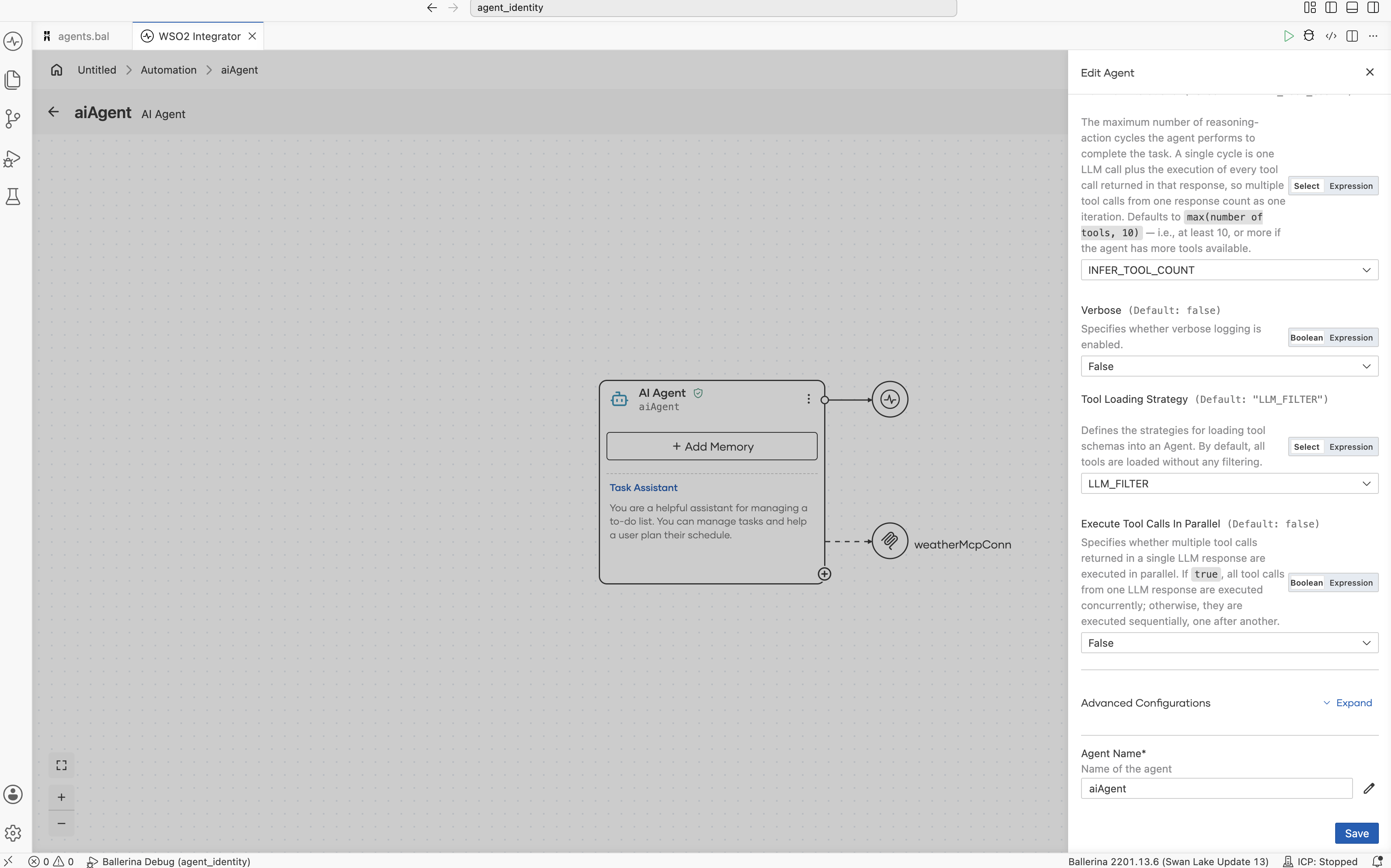
- In the visual designer, click the Agent node to open the configuration panel. Then, expand Advanced configuration.
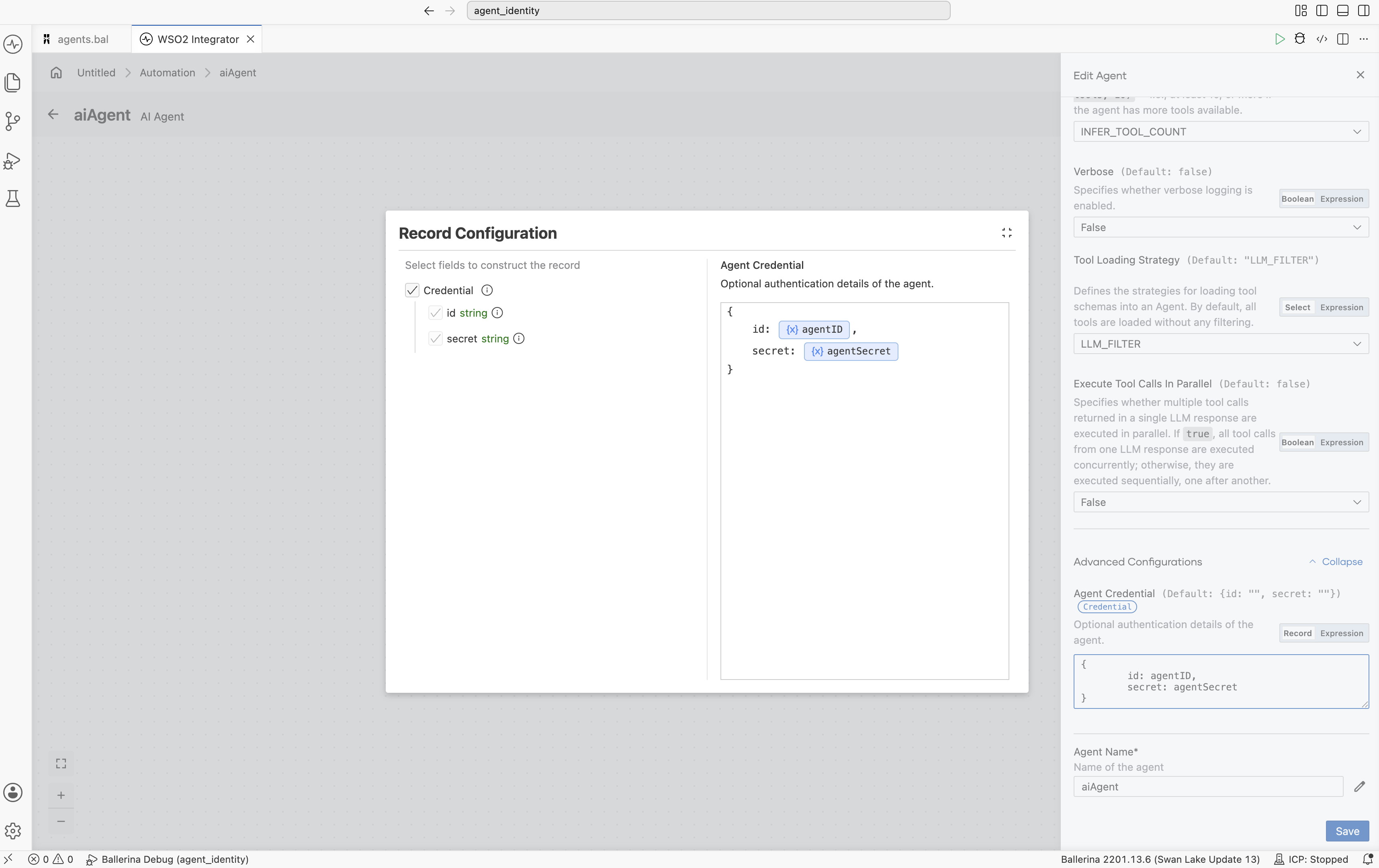
- Provide the Agent ID and Agent Secret obtained from the authorization server.
Configure tools
Configure auth for an MCP tool
-
Click on the attached MCP Toolkit in the agent to open the configuration form.
-
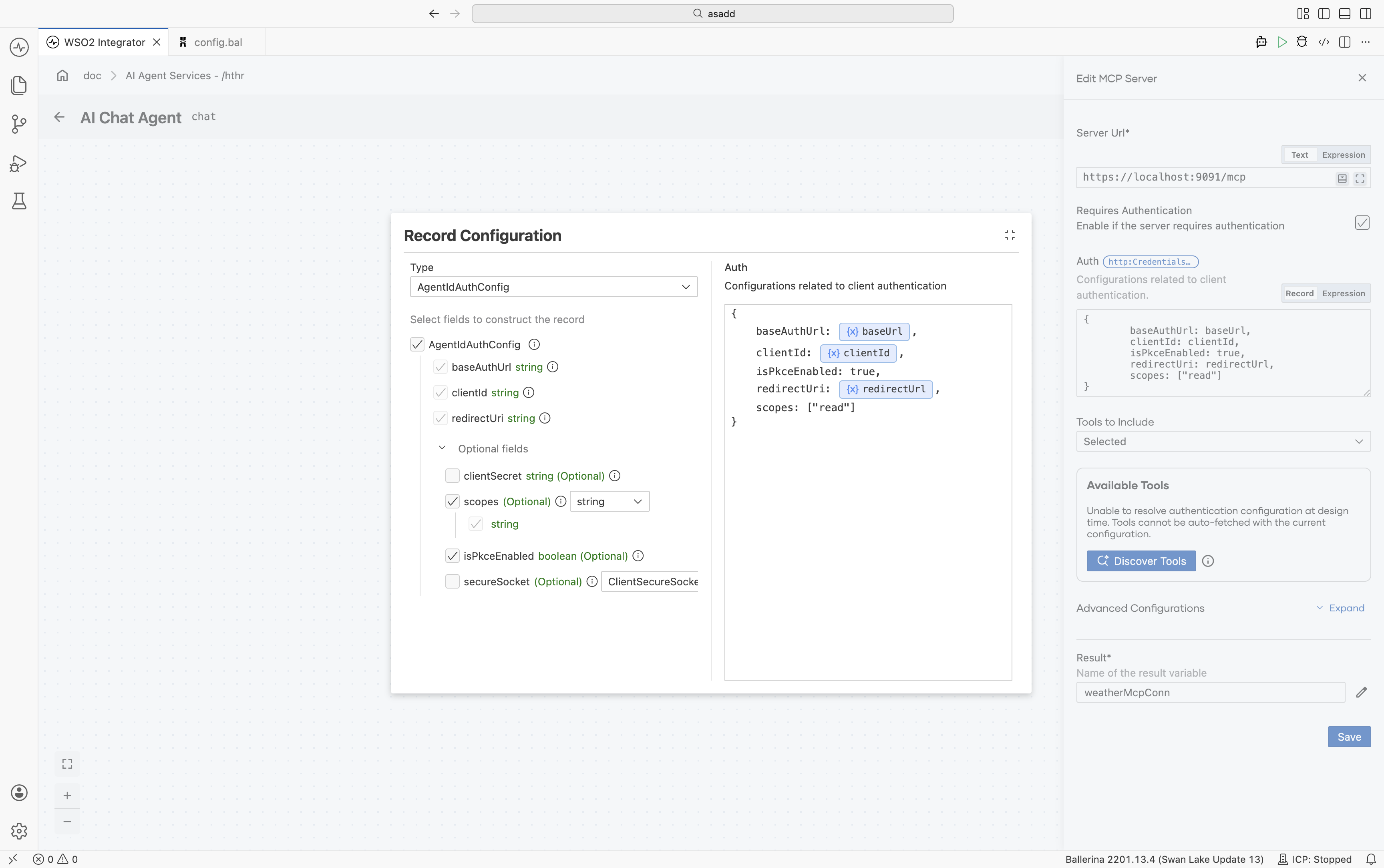
In the Auth Configuration Panel, select the authentication type as AgentIdAuthConfig and update the values obtained from the authorization server.
| Field | Required | Description |
|---|---|---|
| baseAuthUrl | Yes | The base URL of the authorization server. This is used to initiate OAuth 2.0 flows such as token generation and authorization. Example: https://api.asgardeo.io/t/{tenant}/oauth2 |
| clientId | Yes | The unique identifier of the application registered in the authorization server. This is used to identify the agent during authentication. |
| clientSecret | No | The secret associated with the client ID. It is used to authenticate the client when requesting tokens. Required only for confidential clients and not needed when PKCE is used with public clients. |
| redirectUri | Yes | The callback URL to which the authorization server redirects after successful authentication. This must match the URL configured in the application. |
| isPkceEnabled | Yes | Indicates whether PKCE (Proof Key for Code Exchange) is enabled. - true: Recommended for public clients and should be enabled if PKCE is configured in the Asgardeo application.- false: Used with confidential clients that use a client secret. |
| scopes | Yes | A list of permissions requested by the agent. These define the resources the agent can access. If the tool does not define specific scopes, these scopes are used when generating the access token. |
| secureSocket | No | Configuration for SSL/TLS settings when communicating with secure endpoints. |
-
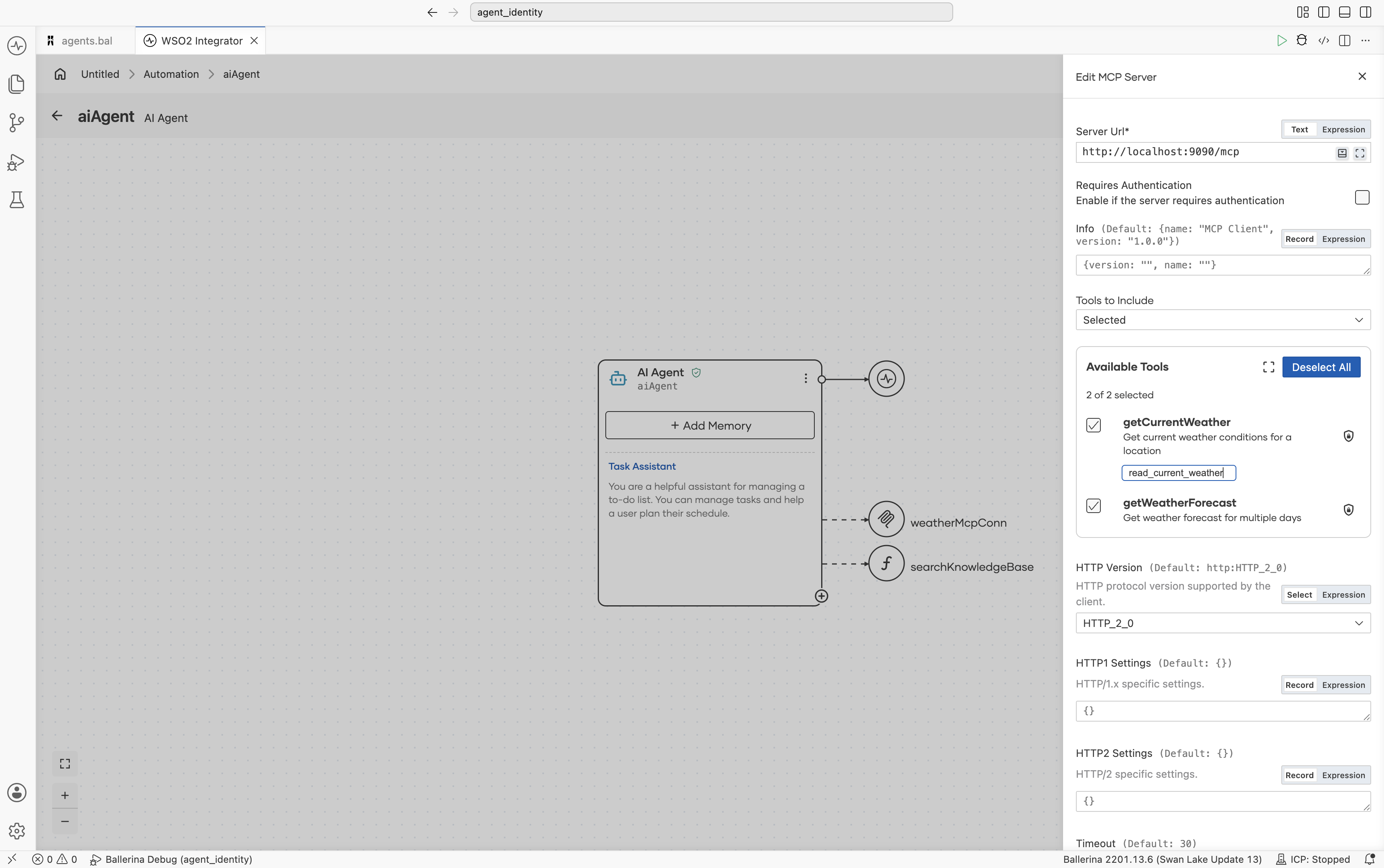
In the same form, go to Tools to Include and select Selected.
-
Navigate to Available Tools, select the required tools, and click on the Secure Access (Shield) icon of the specific tool and add the scopes.
Configure auth for Non-MCP tool
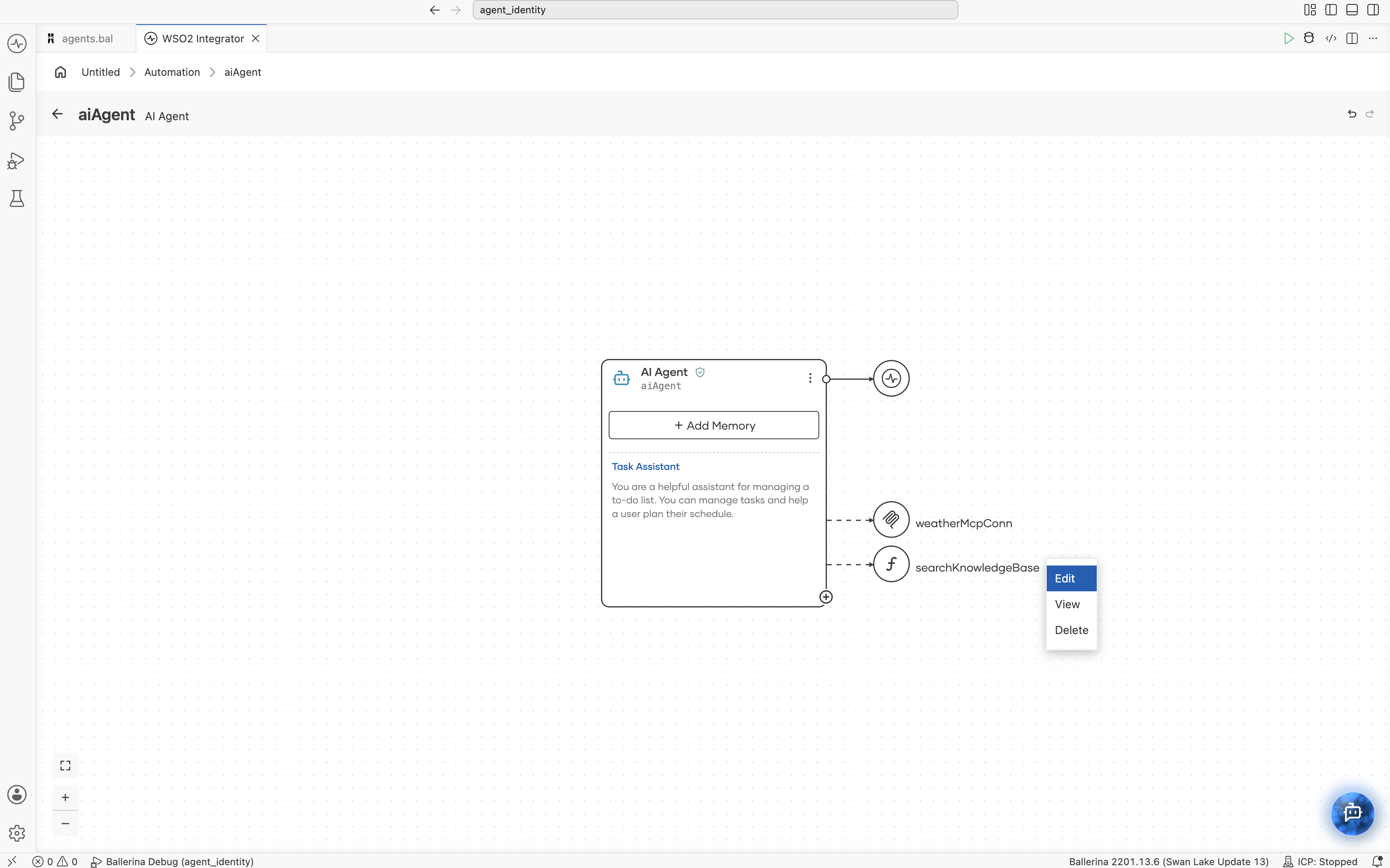
- Click on the 3-dot menu and then click Edit.
- Go to the Advanced Configuration, click Expand and fill the form with the values obtained from the authorization server.
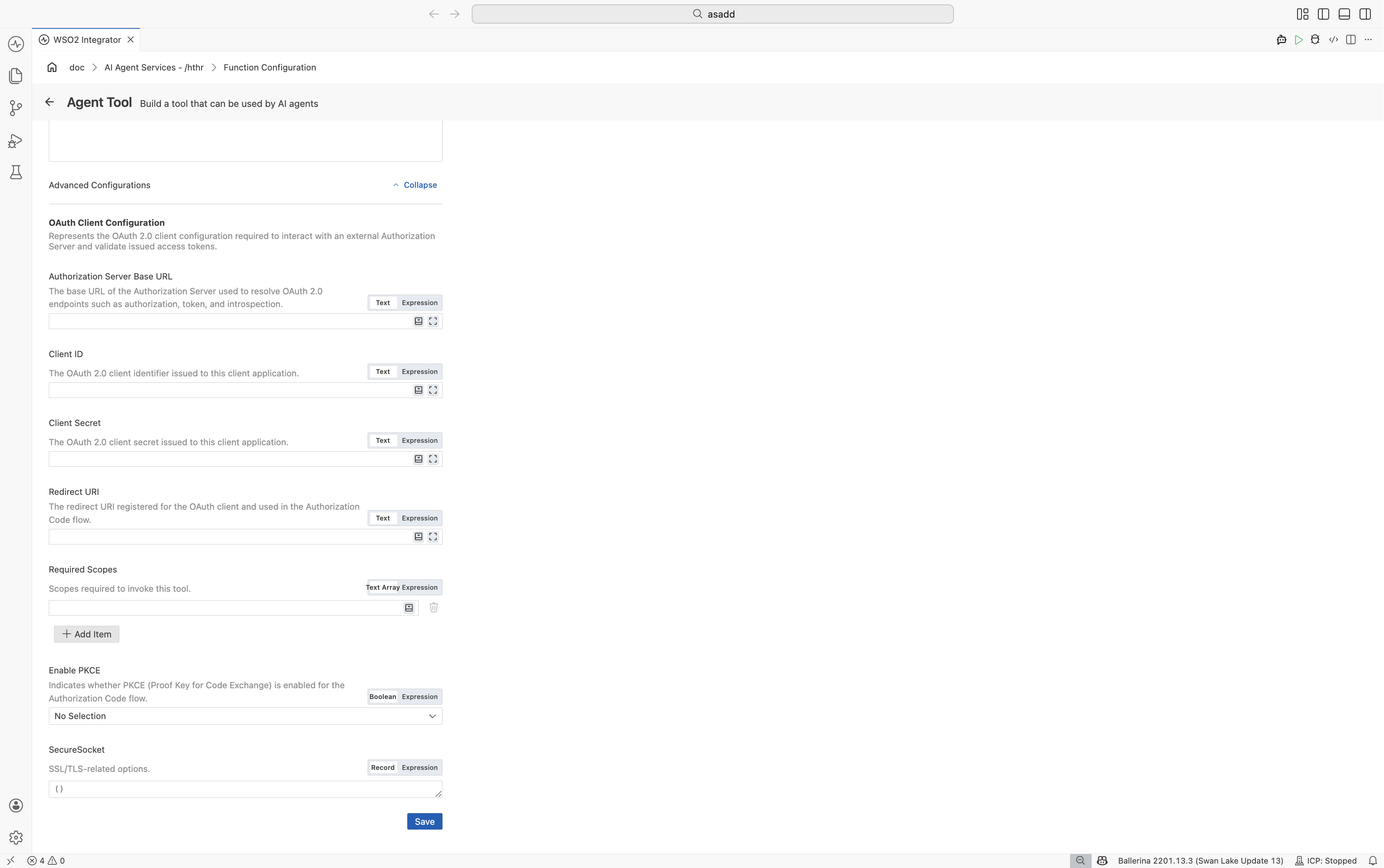
| Field | Required | Description |
|---|---|---|
| baseAuthUrl | Yes | The base URL of the authorization server. This is used to initiate OAuth 2.0 flows such as token generation and authorization. Example: https://api.asgardeo.io/t/{tenant}/oauth2 |
| clientId | Yes | The unique identifier of the application registered in the authorization server. This is used to identify the agent during authentication. |
| clientSecret | No | The secret associated with the client ID. It is used to authenticate the client when requesting tokens. Required only for confidential clients and not needed when PKCE is used with public clients. |
| redirectUri | Yes | The callback URL to which the authorization server redirects after successful authentication. This must match the URL configured in the application. |
| isPkceEnabled | Yes | Indicates whether PKCE (Proof Key for Code Exchange) is enabled. - true: Recommended for public clients and should be enabled if PKCE is configured in the Asgardeo application.- false: Used with confidential clients that use a client secret. |
| scopes | Yes | A list of permissions requested by the agent. These define the resources the agent can access. If the tool does not define specific scopes, these scopes are used when generating the access token. |
| secureSocket | No | Configuration for SSL/TLS settings when communicating with secure endpoints. |
- Click Save.
What's next
- Observability - Monitor traces, logs, and execution details.
- Evaluations - Test and evaluate agent behavior and response quality.