Manage Projects
Projects group related integrations under a shared context. Every integration belongs to exactly one project, and access control, logs, and metrics are all scoped to the project level. This page guides you through creating, editing, and navigating projects in the ICP console.
View projects
After signing in, the All Projects page is the default landing view. Projects display as cards in a grid layout. Use the icons at the top right to switch between grid and list views.
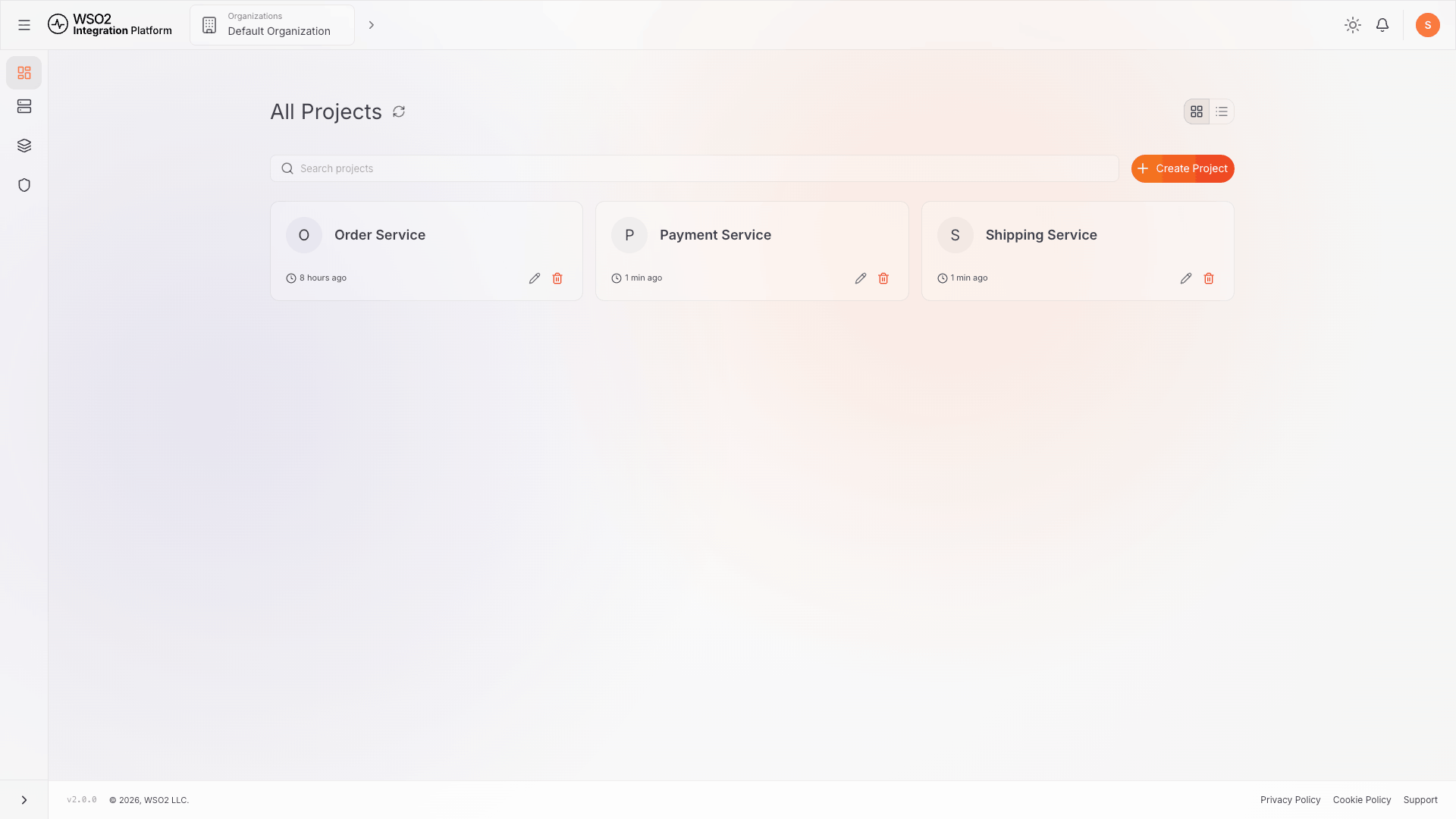
Each project card shows:
- Project initial and display name
- Last-updated timestamp
- Edit (pencil) and Delete (trash) icons
Use the search bar to filter projects by name.
Create a project
-
On the All Projects page, click + Create Project.
-
Fill in the Create a Project form:
Field Required Description Display Name Yes Human-readable name shown in the console (e.g. Order Service)Name Auto URL-safe slug derived from the display name. Click the edit icon to override. Description No Optional free-text description of the project -
Click Create.
ICP redirects to the new project's home page and updates the breadcrumb to Organizations > Default Organization > Projects > <project>.
Edit a project
- On the All Projects page, click the Edit icon on a project card.
- Update the Display Name or Description. The Name slug is read-only after creation.
- Click Save.
Delete a project
- On the All Projects page, click the Delete icon on a project card.
- Read the confirmation dialog and type the project's display name exactly to confirm.
- Click Delete Project.
Deleting a project removes all associated integrations and their data. This action cannot be undone.
Project home
Clicking a project card opens the project home. It shows all integrations belonging to the project.
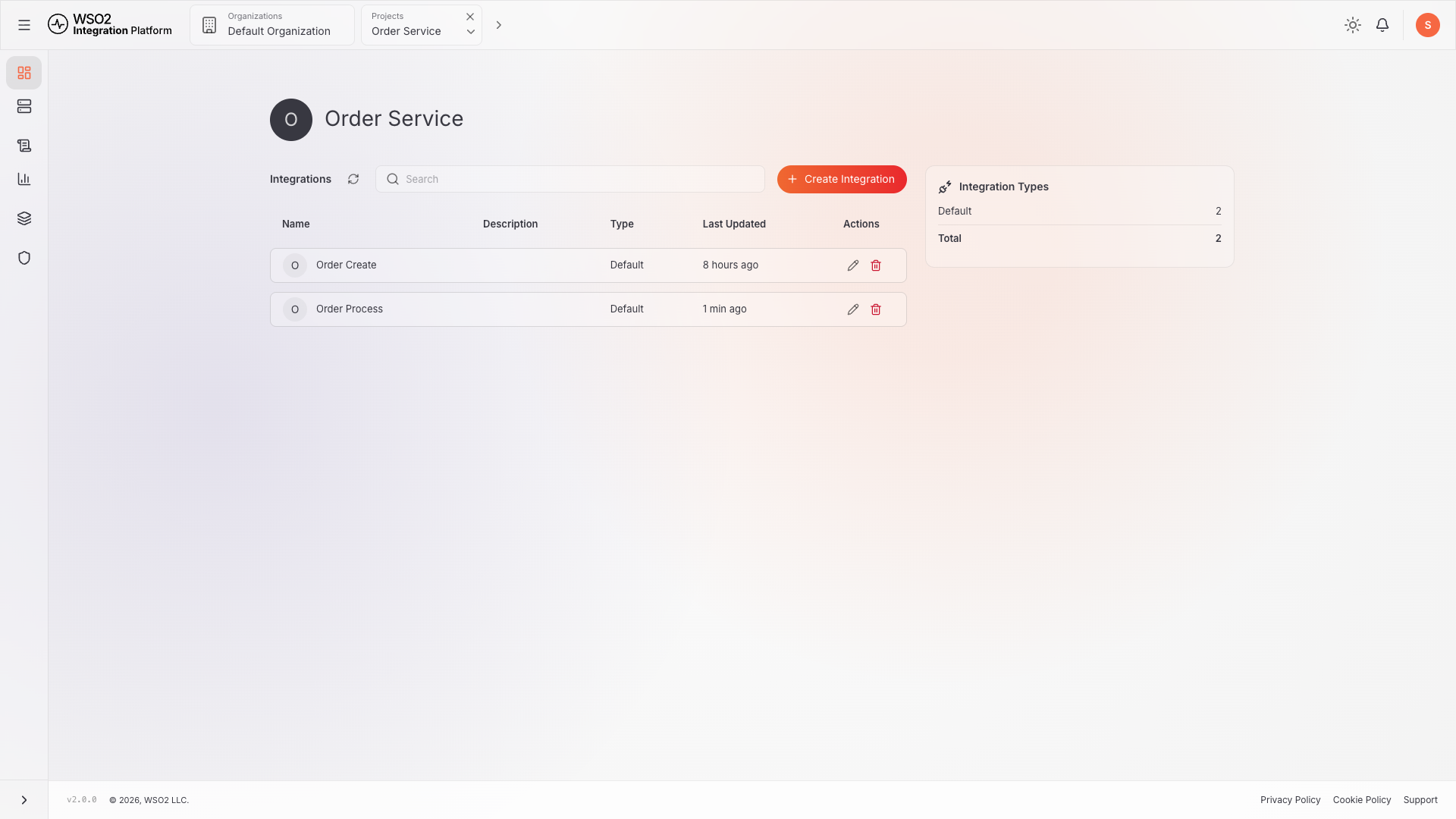
The page includes:
- Project avatar, display name, and description at the top.
- An Integrations table with Name, Description, Type, and Last Updated columns.
- A + Create Integration button to add a new integration to the project.
- An Integration Types summary card on the right showing the count by type (Default, MI, and Total).
If no integrations exist yet, the table shows a prompt to create the first integration.
Project sidebar
The sidebar changes to project scope when you navigate into a project:
| Item | Description |
|---|---|
| Overview | Integrations list and type breakdown |
| Runtimes | Runtimes across all integrations in the project |
| Logs | Aggregated logs for all runtimes in the project |
| Metrics | Project-level performance metrics |
| Environments | Environments available to the project (managed at organization level) |
| Access control | Role assignments scoped to this project |
What's next
- Manage integrations — view and manage integrations within a project
- Manage runtimes — monitor runtime status across the project
- Access control — assign roles and permissions at the project level