Conditional branching
Conditional branching lets a flow take different paths for different users. Add a Decision step to a flow, and WSO2 Identity Platform sends each user down the first branch whose rule matches.
Conditional branching is available in the Self registration, Password recovery and Invited user registration flows.
Add a decision step
-
On the WSO2 Identity Platform Console, go to Flows and open a flow.
-
From the Steps panel, drag and drop a Decision step onto the canvas, and connect the previous step to it.
-
Click the Decision step, select Branch 1, and set its conditions. For example, Application equals
Partner Portal.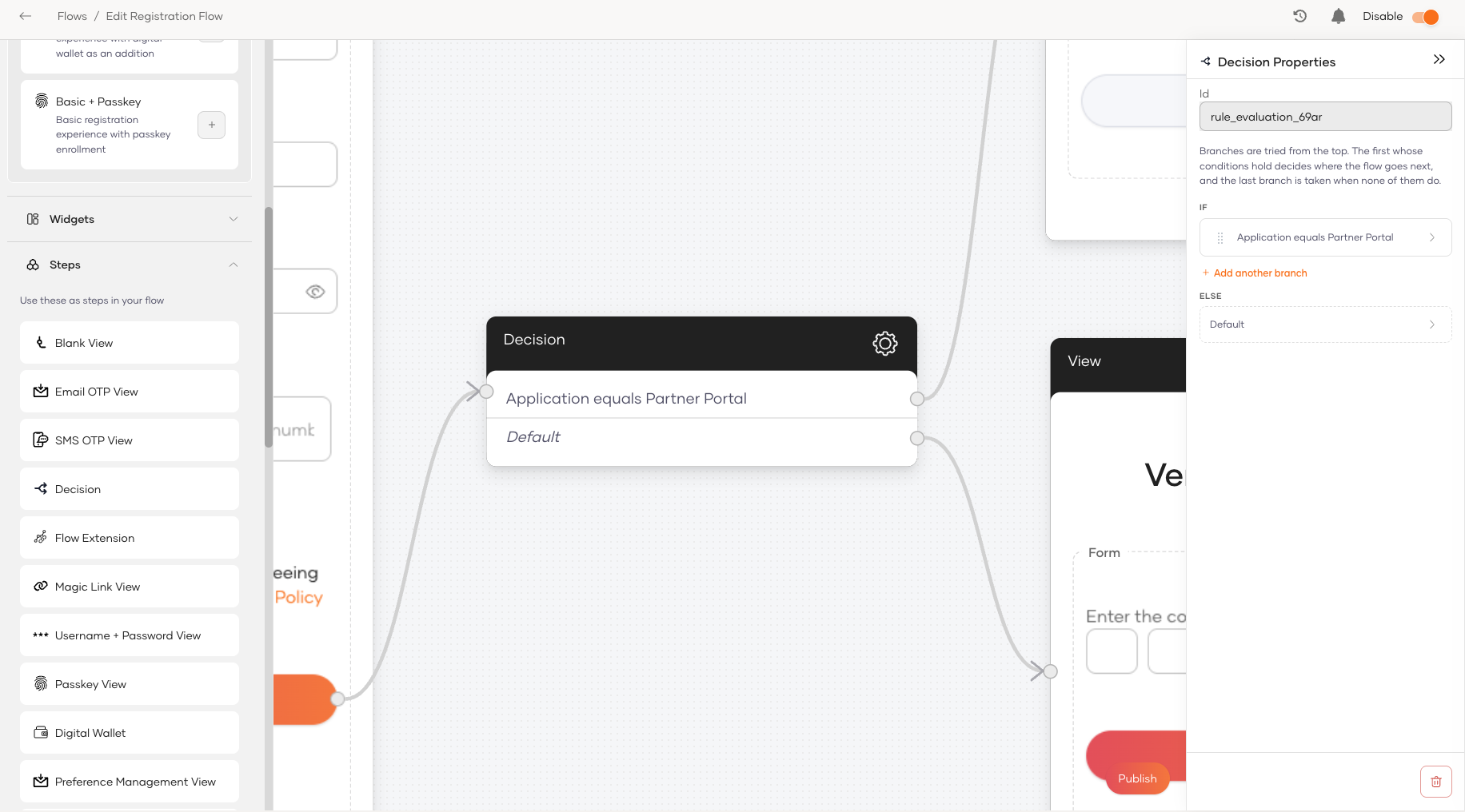
-
To add more branches, click Add another branch.
-
Connect each branch, including Default, to the step it leads to.
-
Click Save Draft and turn the toggle ON to publish the flow.
Branches are checked from top to bottom, and the flow continues with the first branch matches the rule. Users take the Default branch when no other branch matches. You can drag branches to change their order.
Use flow variables
Flow variables let a decision use values that don't come from the user. Define them by clicking Configure flow variables on the Start node.
- Runtime values – Values that start from an initial value you set, such as a
promotionActiveswitch. Select Allow app to set this value to let your application set the value when it starts the flow through the Flow Execution API. - Request headers – Headers that the flow reads from each request, such as
x-channel. Headers such asauthorizationandcookiecan't be used.
In a decision step, select Runtime values or Request headers as the field and select the variable name to define conditions.
Warning
Users can change values sent from their browser or device. Don't use app-set runtime values or request headers to skip security steps.
A/B testing
Every flow has a built-in runtime value, abTestingKey. It's a number from 0 to 99 that each browser gets at random and keeps, so a returning user sees the same version.
To show a new version of a flow to about 20% of users:
- Add the steps of the new version to the canvas.
- Connect the Start node to a Decision step.
- Set Branch 1 to Runtime values
abTestingKeyless than20, and connect it to the new version. - Connect the Default branch to the current version.
To test more versions, add a branch for each range, ordered from the lowest range to the highest. For example, less than 10 and less than 30 split users 10%, 20% and 70%.
Note
The key belongs to a browser, not a user. A user may see a different version on another device or after clearing browser data.
Reference
This section lists the fields and settings available for conditional branching.
Fields
| Field | Self registration | Password recovery | Invited user registration |
|---|---|---|---|
| Application | Yes | Yes | No |
| User attributes | No | Yes | Yes |
| Collected user attributes | Yes | Yes | Yes |
| User store domain | Yes | Yes | Yes |
| Groups, Roles | No | Yes | Yes |
| Runtime values | Yes | Yes | Yes |
| Request headers | Yes | Yes | Yes |
abTestingKey
abTestingKey can't be renamed or removed. You can change only its initial value, which the flow uses when a browser doesn't send a key. Set it to a key in the Default branch so these users see the current version.
Invalid values
If a runtime value or header value is invalid, WSO2 Identity Platform ignores it and the flow continues with the initial value. Search the diagnostic logs for the action ID flow-variables to find ignored values.