Organization onboarding
Organization onboarding allows new users to register an organization and create a user account through the Self Registration flow. In the Flow Builder, you can collect user and organization details, choose where to create the user, and configure roles to assign in the new organization.
The organization where the flow runs becomes the parent of the newly created organization. This can be the root organization or any existing organization in the hierarchy.
You can create the user using one of the following approaches:
- Create the user in the parent organization: The flow creates the user first, then creates the organization and shares the user with it. The user's account resides in the parent organization.
- Create the user in the new organization: The flow creates the organization first, then creates the user directly in that organization. The user's account resides in the new organization.
Note
Organization onboarding currently supports username and password registration. Federated sign-up and built-in KYB provider integrations are not currently supported. You can integrate a KYB service using a flow extension.
To send custom organization attributes to the service, place the flow extension after the organization details step and before the End node. In the extension's access configuration, grant Read access to each custom organization attribute the service needs. The values are sent in event.organization.attributes, using the attribute identifiers as keys. Attributes without Read access are not sent.
Sample use case
Imagine you run a B2B application where businesses can register themselves. Each business needs its own organization and a user account. In this example, the user is created in the parent organization and shared with the new organization.
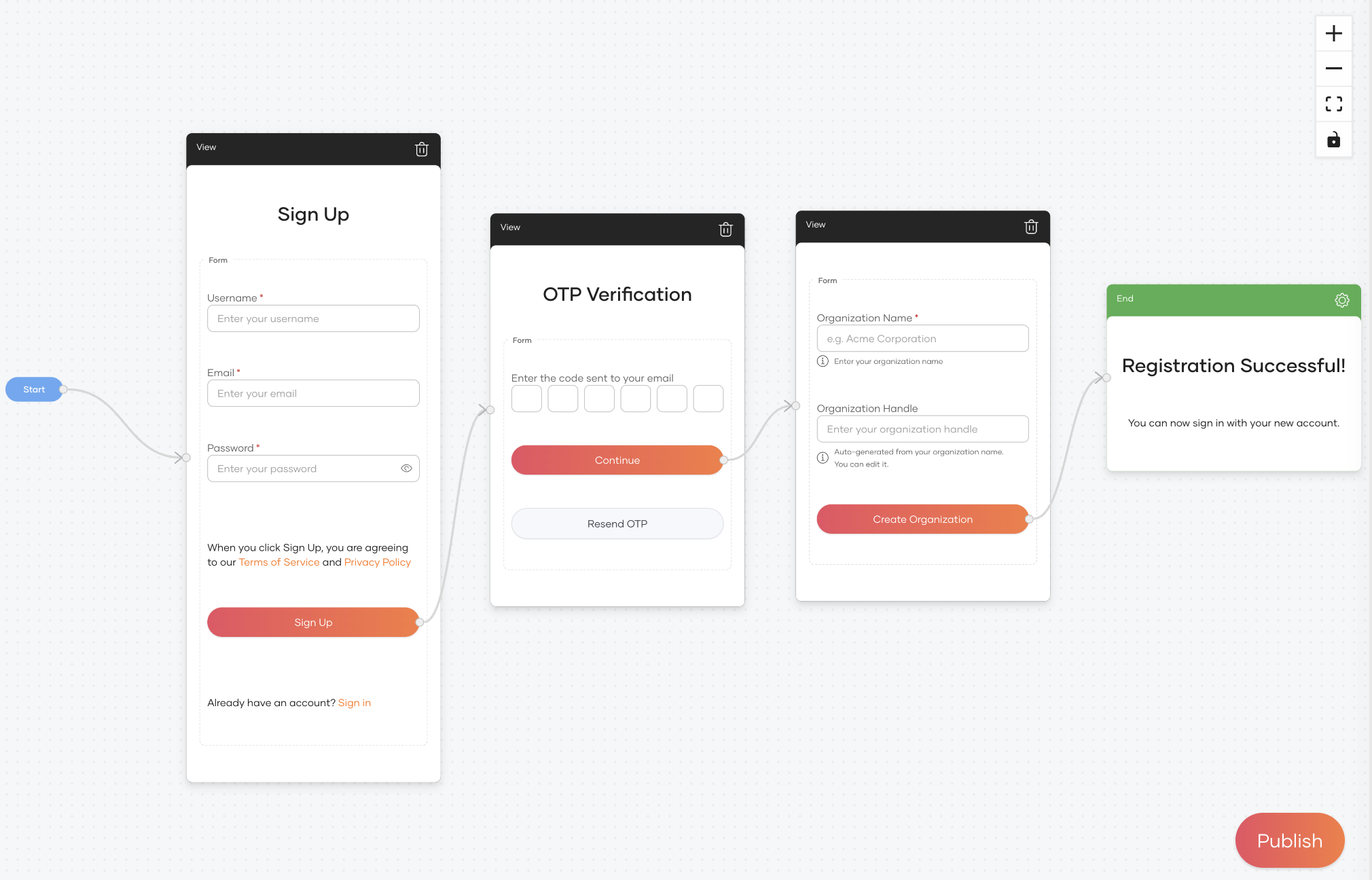
The flow works as follows:
- The user enters their username, email address, and password.
- WSO2 Identity Platform verifies the user's email address using an OTP.
- The user enters their organization name and handle.
- WSO2 Identity Platform creates the user in the parent organization.
- WSO2 Identity Platform creates the new organization under the parent organization and shares the user with it.
- If roles are configured, WSO2 Identity Platform assigns the selected shared roles to the user in the new organization.
Prerequisites and current limitations
Before you build the flow:
- Sign in to the organization that should become the parent of the new organizations.
- Configure an email provider to send the OTP used in this example.
- If you plan to assign roles, share the application and its roles with all existing and future organizations. Only roles shared this way are available for selection from the role picker. You also need permission to read roles to configure role assignments.
Include an Organization Name field in the flow. Collecting other organization attributes without an organization name does not create an organization.
Build the flow
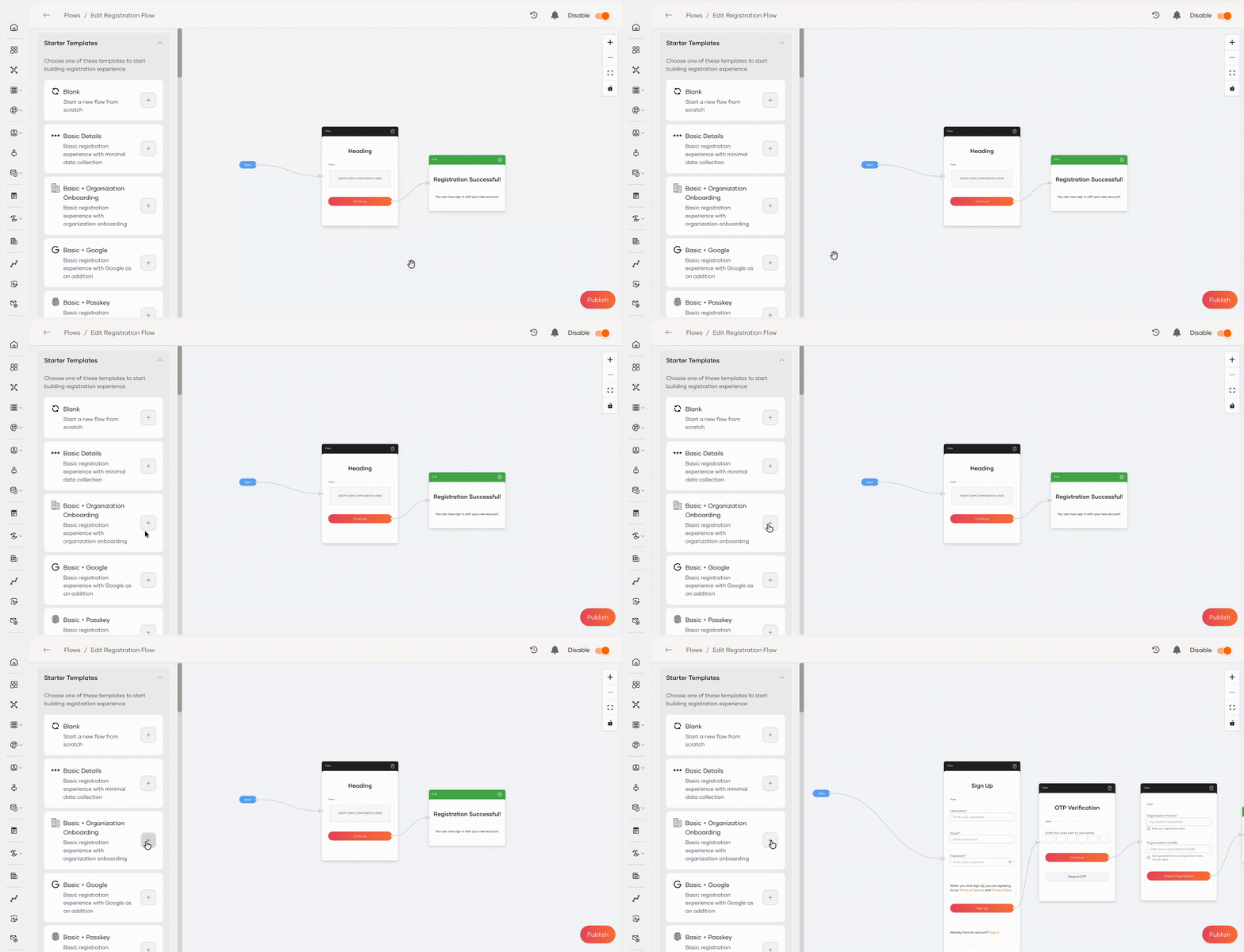
Use the Basic + Organization Onboarding template to collect user details, verify the user's email address, and collect organization details before registration completes.
Open Self Registration
To load the organization onboarding template:
- On the WSO2 Identity Platform Console, go to Flows.
- Open Self Registration.
- Under Starter Templates, click the
+button next to Basic + Organization Onboarding.
Collect user and organization details
The template includes a Sign Up view, an OTP Verification view, and a view that collects Organization Name and Organization Handle.
To customize the fields:
- Select a field on the canvas to open Input Properties.
- Under Attribute, choose User Attribute for user details, such as username and email, or Organization Attribute for organization details.
- Select the attribute to map to the field. The built-in organization attributes are Organization Name and Organization Description.
- Set the field's label, hint, and required status as needed. Keep Organization Name required.
The Organization Handle is generated from the organization name and can be edited by the user. The template includes a dedicated field for this value.
Configure custom organization attributes
You can collect additional business details by defining custom organization attributes. For example, add a field for the organization's website.
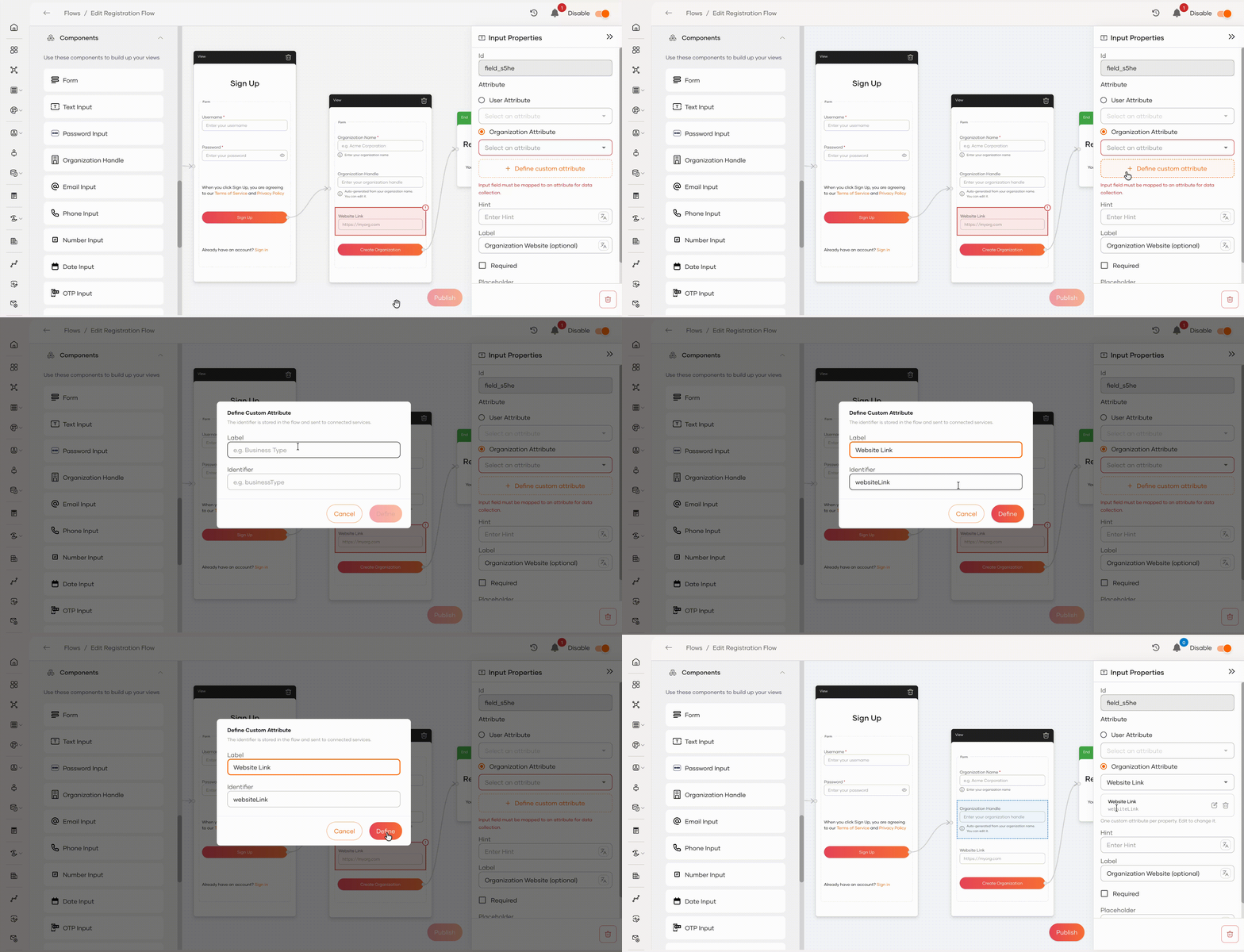
- Add a Text Input to the organization details form and select it.
- In Input Properties, select Organization Attribute.
- Click Define custom attribute.
- Enter a Label, such as
Website Link. The Identifier is generated from the label, for example,websiteLink. You can edit the identifier before defining the attribute. - Click Define and confirm that the new attribute is selected for the field.
- Set the label shown on the form, such as
Organization Website (optional).
The identifier must start with a letter and contain only letters, numbers, or underscores. It cannot use the identifier of a built-in organization attribute.
Choose the user-provisioning mode
The Organization section of the End node settings controls where the user is created.
- Click the gear icon on the green End node to open Flow completion properties.
-
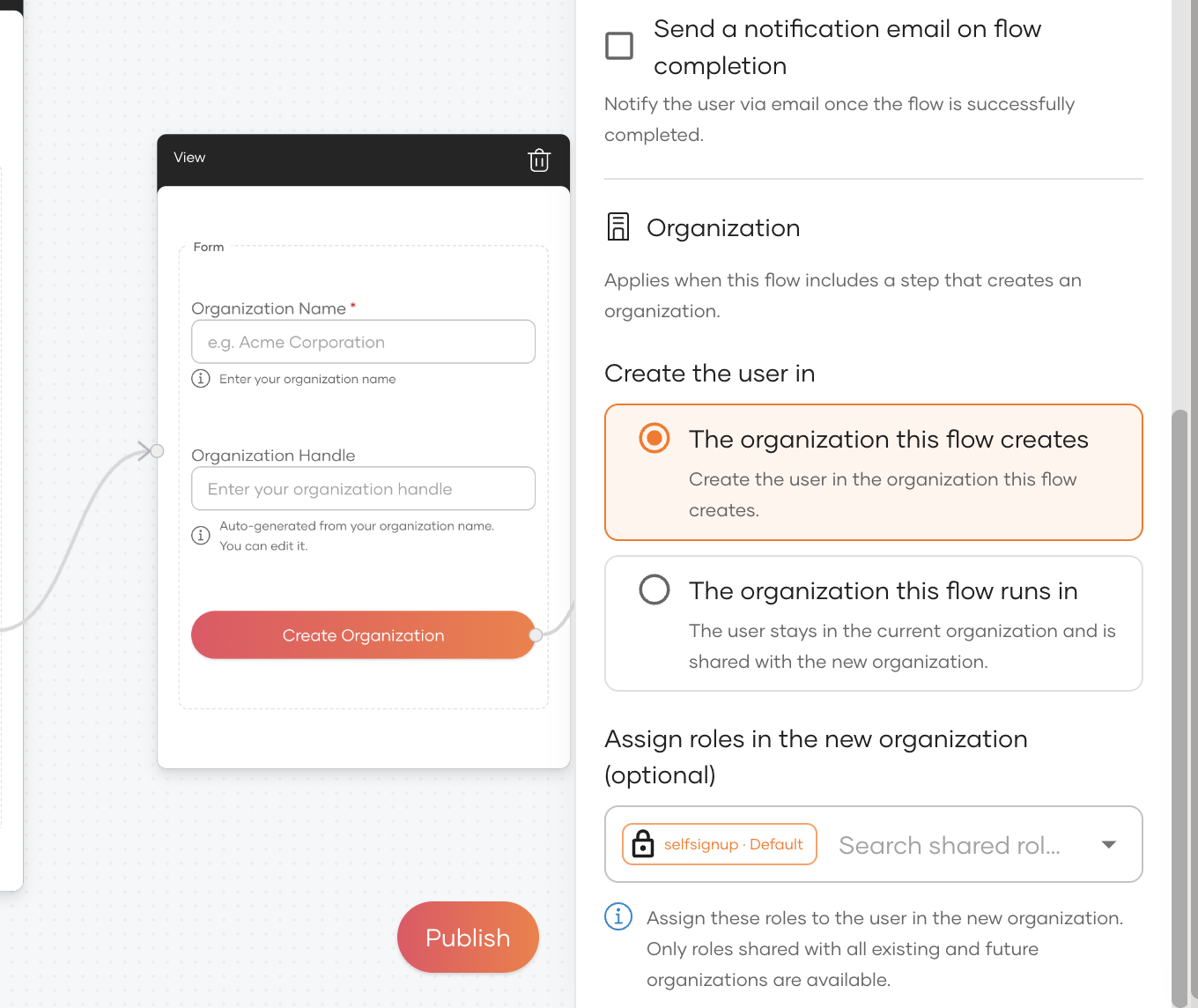
Under Organization > Create the user in, choose one of the following:
- The organization this flow creates: Create the organization first, then create the user directly in it.
- The organization this flow runs in: Create the user in the current organization, then create the new organization and share the user with it. Select this option for the sample use case.
The following image shows the option to create the user directly in the new organization.
If provisioning fails
The flow attempts to undo completed provisioning steps if user or organization creation fails:
- If the user is created in the parent organization first and organization creation fails, the flow attempts to delete the user it created.
- If the organization is created first and user creation fails, the flow attempts to delete the new organization.
Cleanup failures are logged. A user or organization may remain if cleanup fails, so check the server logs when troubleshooting an incomplete registration. Role assignment failures do not roll back successful provisioning.
Configure roles
You can assign roles to the user in the new organization with either provisioning mode.
Warning
Users who complete self-registration receive the roles selected here. Select only roles that grant the permissions intended for newly registered users. Assign privileged application or Console roles only if all users allowed to register through this flow should receive those permissions.
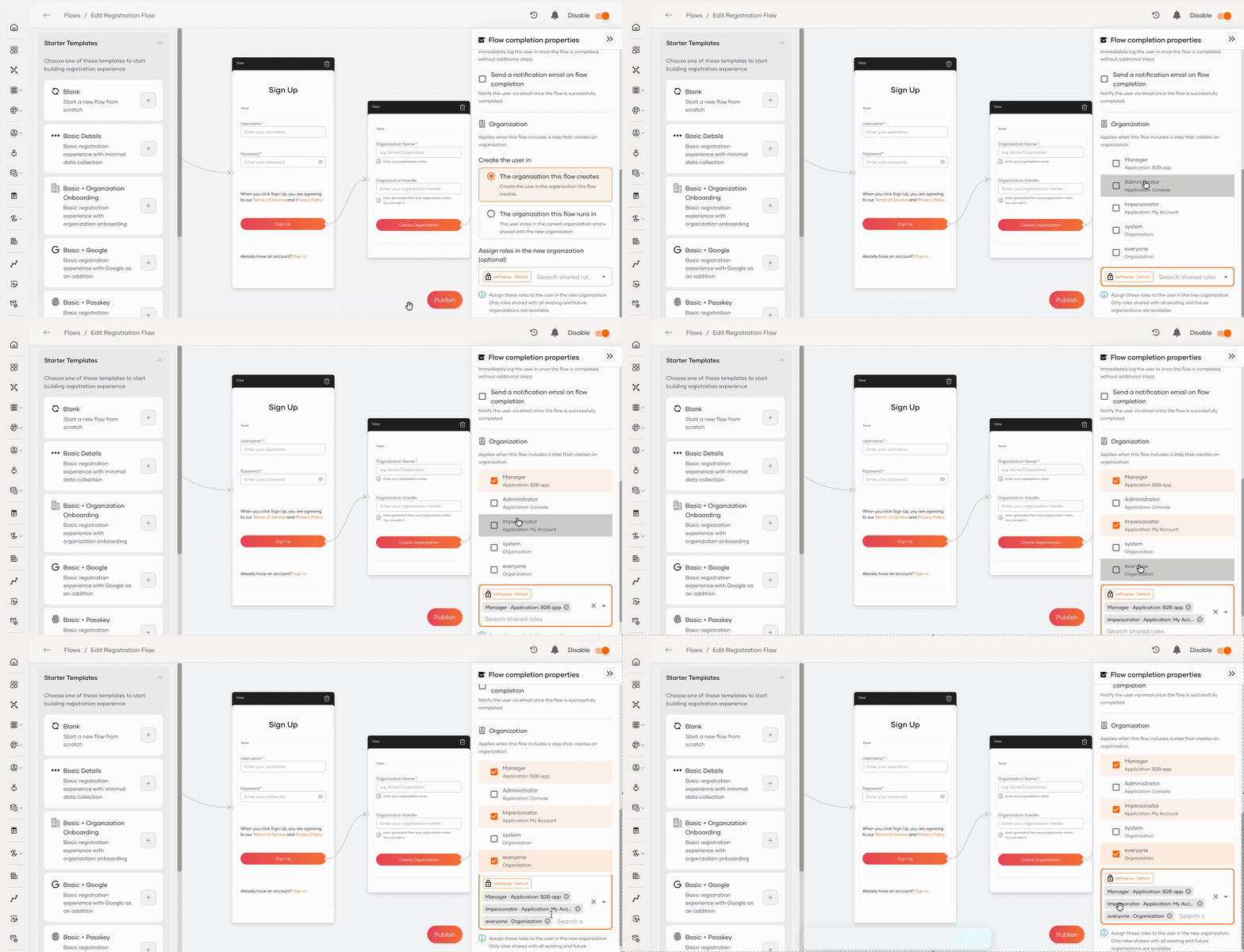
- In the Organization section, open Assign roles in the new organization.
- Search for and select the shared roles the user needs. You can select more than one role.
Only roles shared with all existing and future organizations are available for selection. Sharing roles with selected existing organizations does not make them available to the organization this flow creates. To make a role available, update the application's sharing settings.
The locked selfsignup · Default entry is fixed in the picker. Use the picker to select additional roles.
Note
If a previously selected role is no longer shared with new organizations, the picker displays a warning. Remove the role from the flow or update its sharing settings. Unavailable roles and failed assignments are skipped and logged without interrupting registration.
Save and enable the flow
Once the flow is ready:
- Resolve any validation errors shown in the Flow Builder.
- If the flow is disabled, click Save Draft to save the configuration, then turn on the toggle at the top right to enable the flow.
- If the flow is already enabled, click Publish to apply your changes.
Try the flow
After you publish and enable the flow, complete a registration to check the result:
- Open your application's sign-in page in a private browser window and start self-registration.
- Enter a new username, your email address, and a password, then click Sign Up.
- Enter the OTP sent to your email address and click Continue.
- Enter the organization name, review the generated organization handle, and provide any additional organization details configured in the flow.
- Click Create Organization to complete registration.
The new organization is created under the organization where the flow runs. The user's account location depends on the Create the user in setting:
| Selected option | Expected result |
|---|---|
| The organization this flow creates | The user is created directly in the new organization. |
| The organization this flow runs in | The user is created in the current organization and shared with the new organization. |
If you selected additional shared roles, they are assigned to the user in the new organization, subject to the sharing settings described above.
To try the other provisioning mode, change the selection in the End node settings, publish the flow, and repeat registration with a different username and organization name.
Reference: flow completion properties
The End node's Organization section applies when the flow creates an organization.
| Property | Description |
|---|---|
| Create the user in | Choose whether the user resides in the organization the flow creates or in the organization where the flow runs. In the latter case, the user is shared with the new organization. |
| Assign roles in the new organization | Select additional roles to assign to the user in the new organization. The roles must be shared with all existing and future organizations. This applies to both provisioning modes. |
For the other End node settings, see Self Registration flow completion properties.