Example
What you'll build
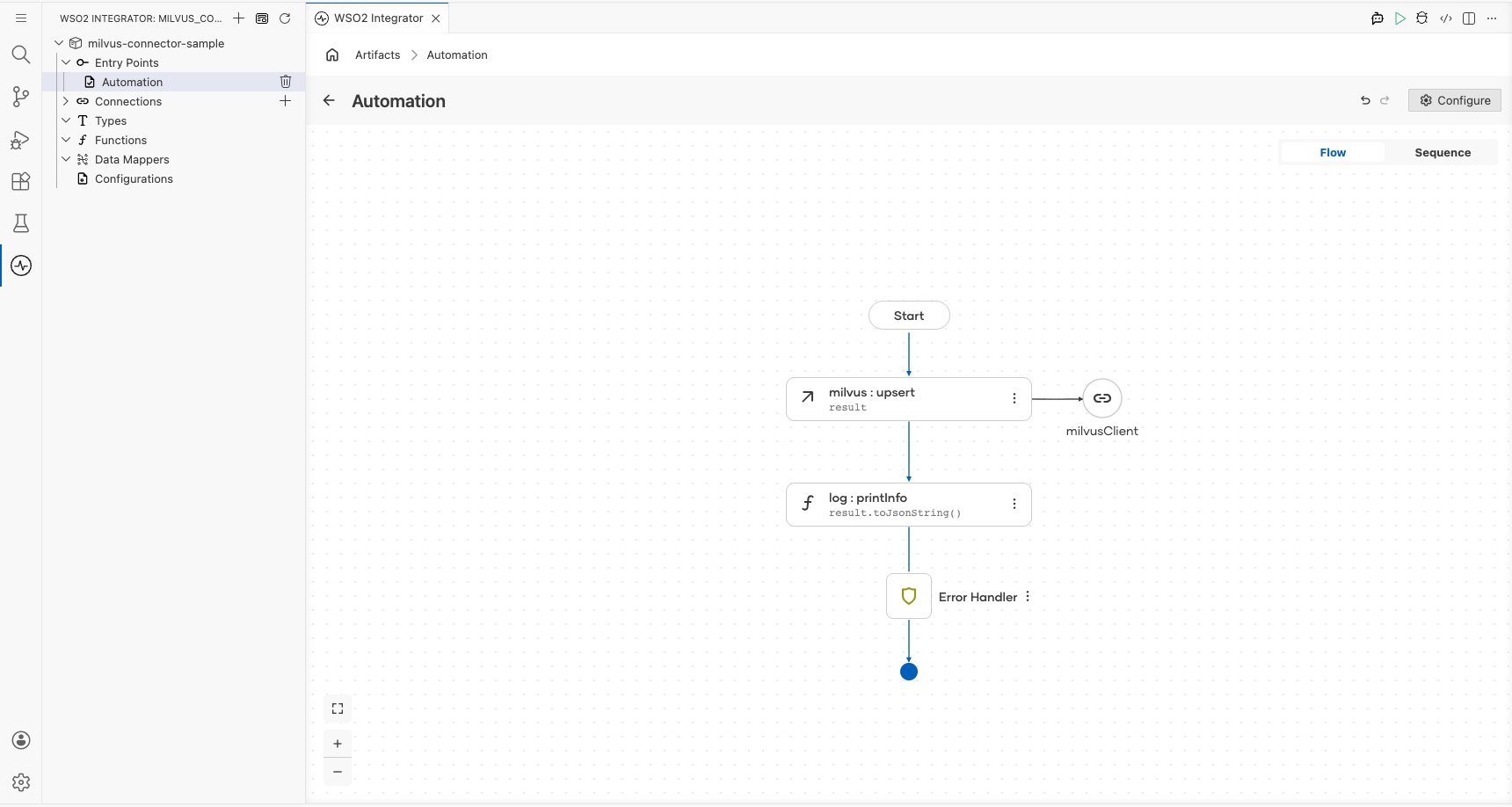
Build a WSO2 Integrator automation that connects to a Milvus vector database and upserts vector data into a collection. The integration logs the response returned by the Milvus server.
Operations used:
- Upsert : Inserts or updates vector data in a specified Milvus collection
Architecture
Prerequisites
- A running Milvus instance (local or cloud)
- A Milvus authentication token
Setting up the Milvus integration
New to WSO2 Integrator? Follow the Create a New Integration guide to set up your integration first, then return here to add the connector.
Adding the Milvus connector
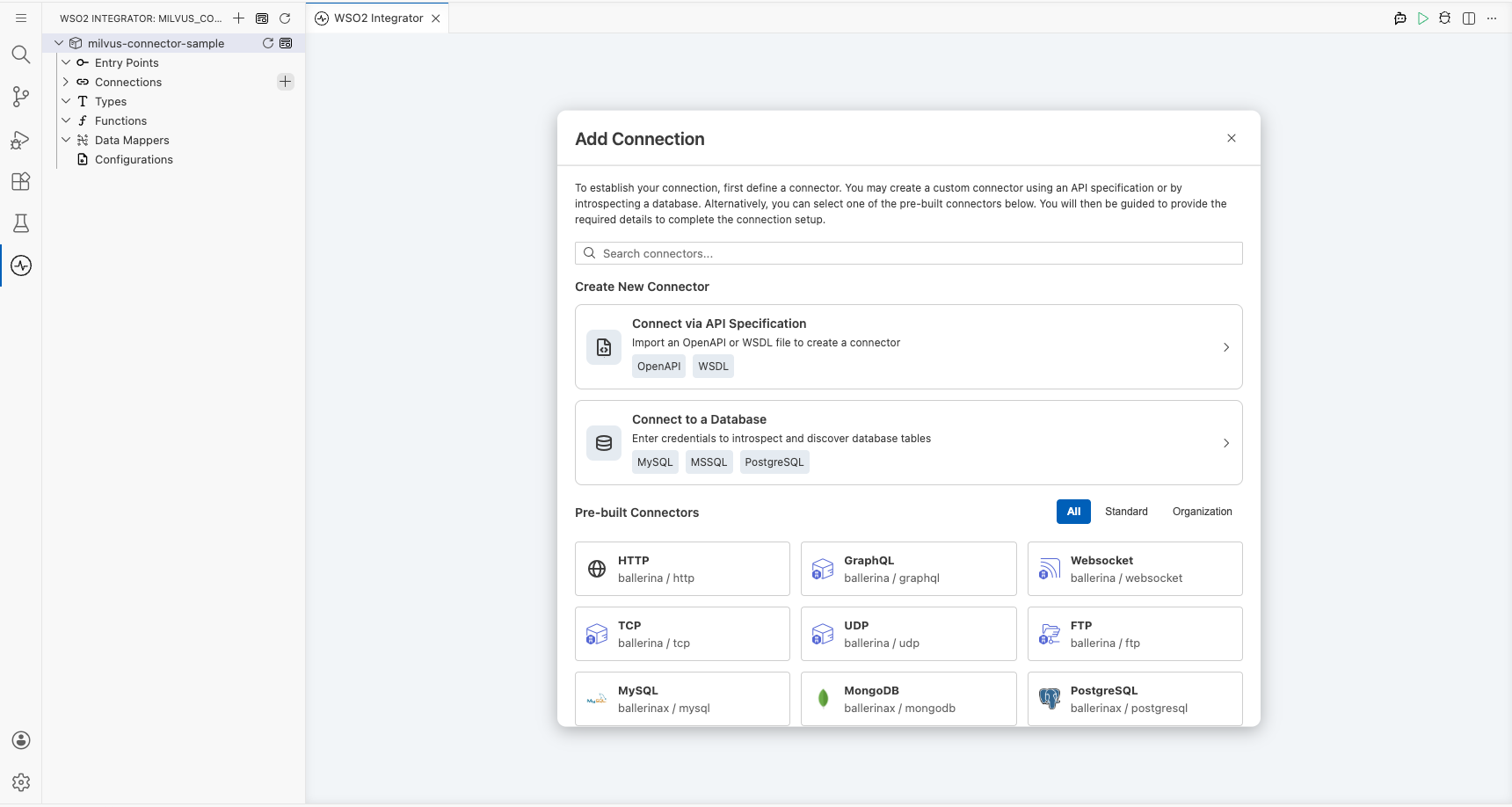
Select the + (Add Connection) button next to Connections in the sidebar to open the connector palette.
- Select + (Add Connection) next to Connections to open the connector palette.
- Search for "milvus" in the search field.
- Select the Milvus connector card.
Configuring the Milvus connection
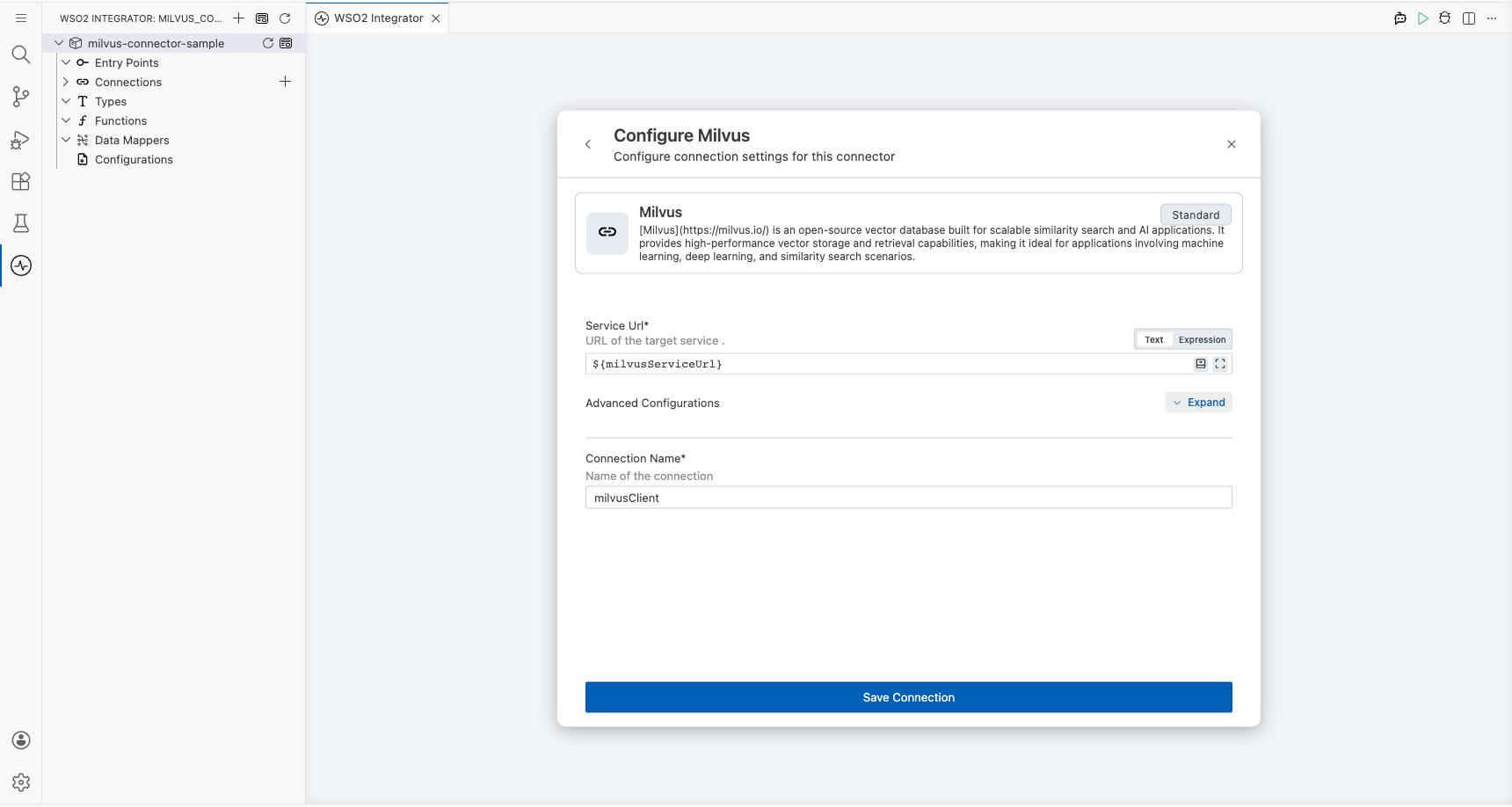
Configure the connection parameters by binding each field to a configurable variable.
Step 1: Fill in the connection parameters
Enter the connection details, binding each field to a configurable variable:
- serviceUrl : The URL of your Milvus server, bound to a configurable variable
- authConfig : Authentication token for Milvus, bound to a configurable variable
- connectionName : The name used to identify this connection on the canvas
Step 2: Save the connection
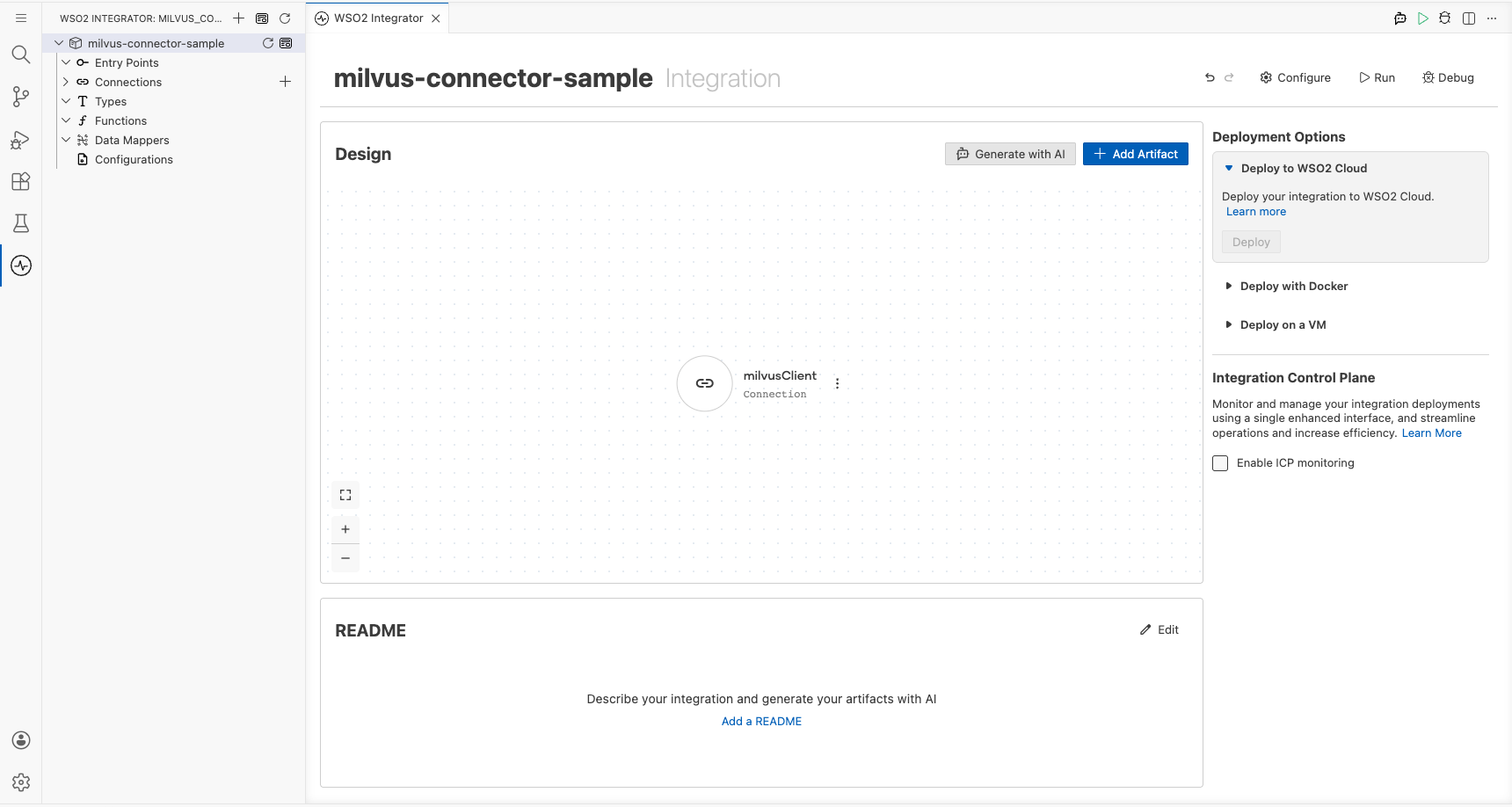
Select Save Connection to persist the connection. The milvusClient connection appears on the project design canvas.
Step 3: Set actual values for your configurables
- In the left panel, select Configurations.
- Set a value for each configurable listed below.
- milvusServiceUrl (string) : The full URL of your Milvus server (for example, the address where your Milvus instance is accessible)
- milvusToken (string) : The authentication token used to connect to your Milvus instance
Configuring the Milvus upsert operation
Step 4: Add an Automation entry point
- Select + Add Artifact in the Design section header.
- Select Automation from the artifacts panel.
- Leave all defaults and select Create.
The canvas switches to the Automation flow view, showing a Start node connected to an Error Handler.
Step 5: Select and configure the upsert operation
- Select the + (add step) button between Start and the Error Handler node.
- Under Connections, expand milvusClient to reveal available operations.
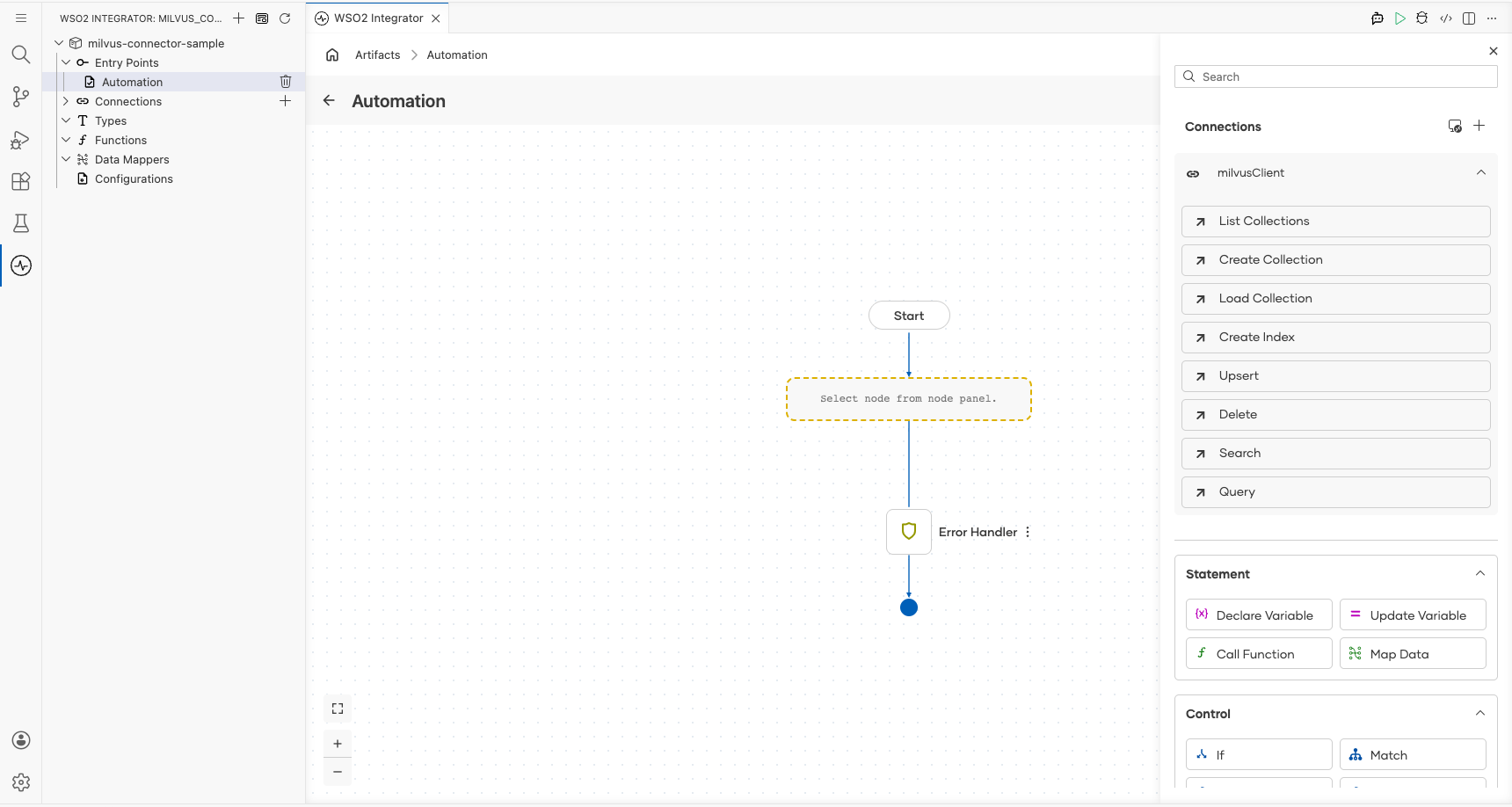
- Select Upsert from the operations list.
- In the milvusClient → upsert form, select the Expression tab for the Request field and enter your upsert payload, specifying the collection name and vector data.
- request : An
milvus:UpsertRequestvalue containing the target collection name and the vector data to upsert
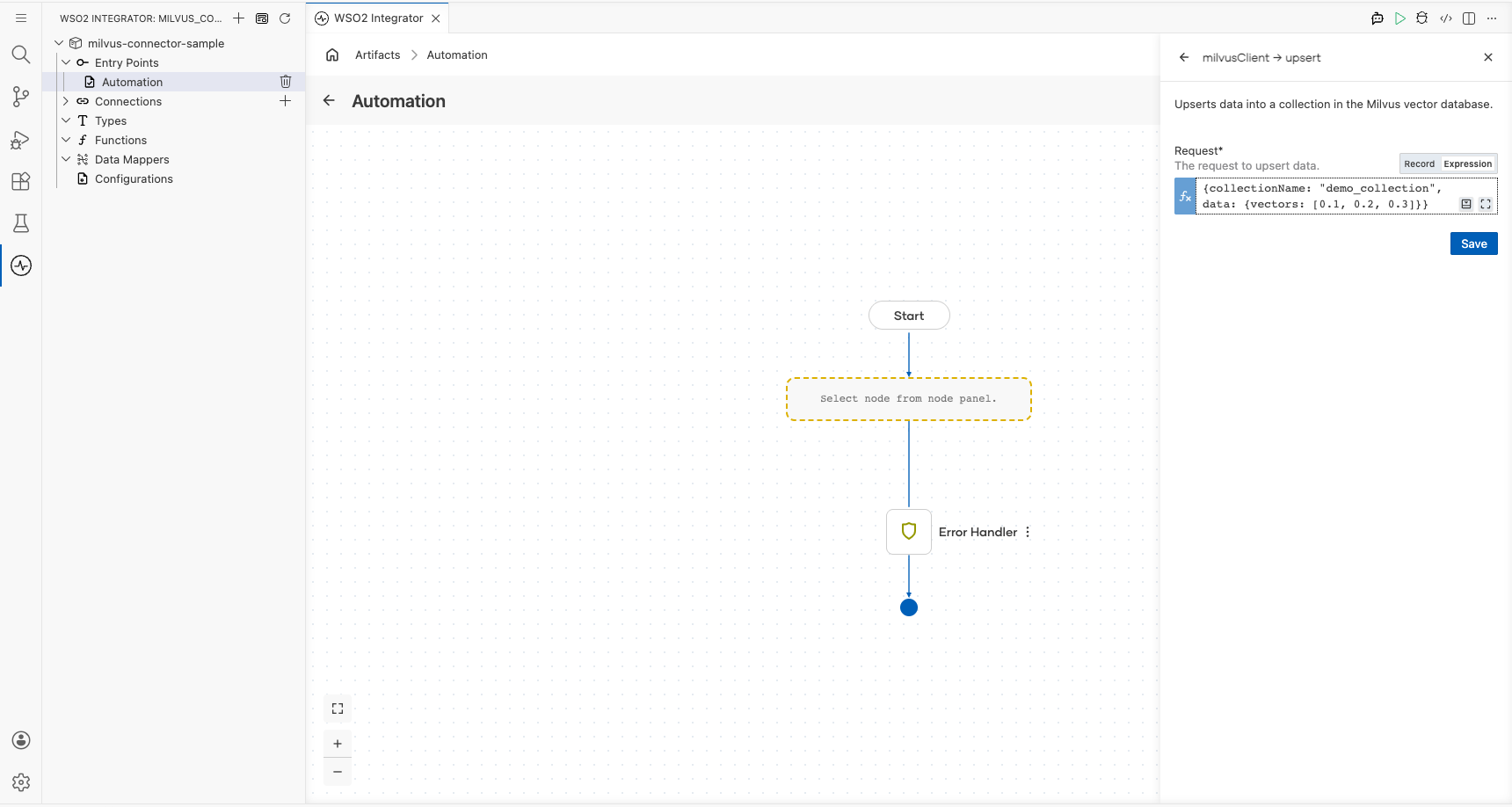
- Select Save.
Try it yourself
Try this sample in WSO2 Integration Platform.
