Example
What you'll build
Build a WSO2 Integrator automation that posts a message to a Slack channel using the Slack connector. The integration connects to your Slack workspace using a Bot OAuth token and sends a text message to a specified channel.
Operations used:
- post : Sends a message to a Slack channel with a specified payload.
Architecture
Prerequisites
- A Slack Bot OAuth token (starts with
xoxb-) - A Slack workspace with a channel to post messages to
Setting up the Slack integration
New to WSO2 Integrator? Follow the Create a New Integration guide to set up your integration first, then return here to add the connector.
Adding the Slack connector
Step 1: Open the connector palette
In the WSO2 Integrator sidebar, hover over Connections to reveal the Add Connection button. Select it to open the connector palette.
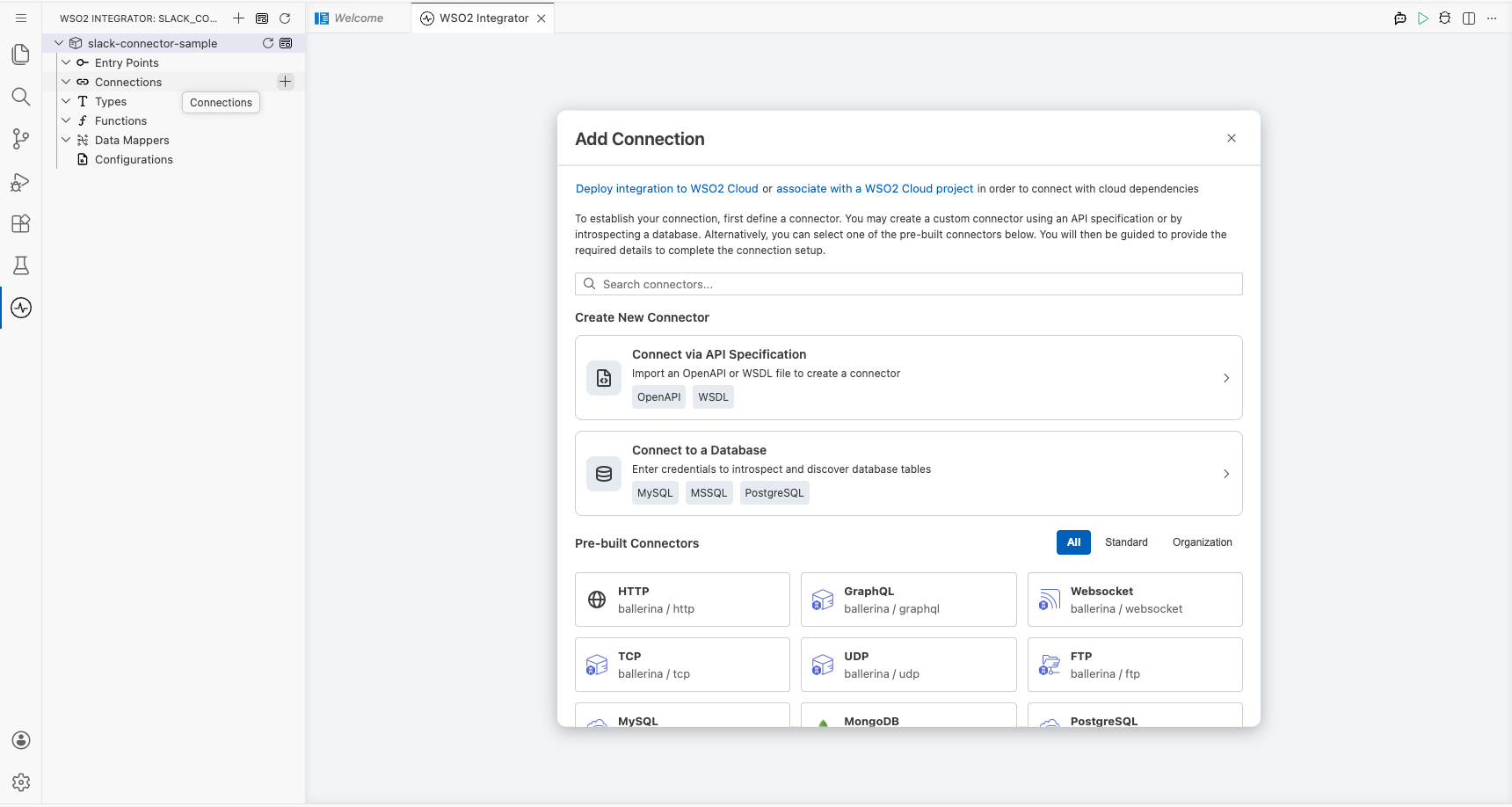
In the search box, enter slack to filter connectors, then select ballerinax/slack from the results to open the Add Connection form.
Configuring the Slack connection
Step 2: Fill in the connection parameters
In the connection configuration form, bind each field to a configurable variable:
- connectionName : Enter
slackClientas the connection name - auth.token : Set to the
slackAuthTokenconfigurable variable of typestring
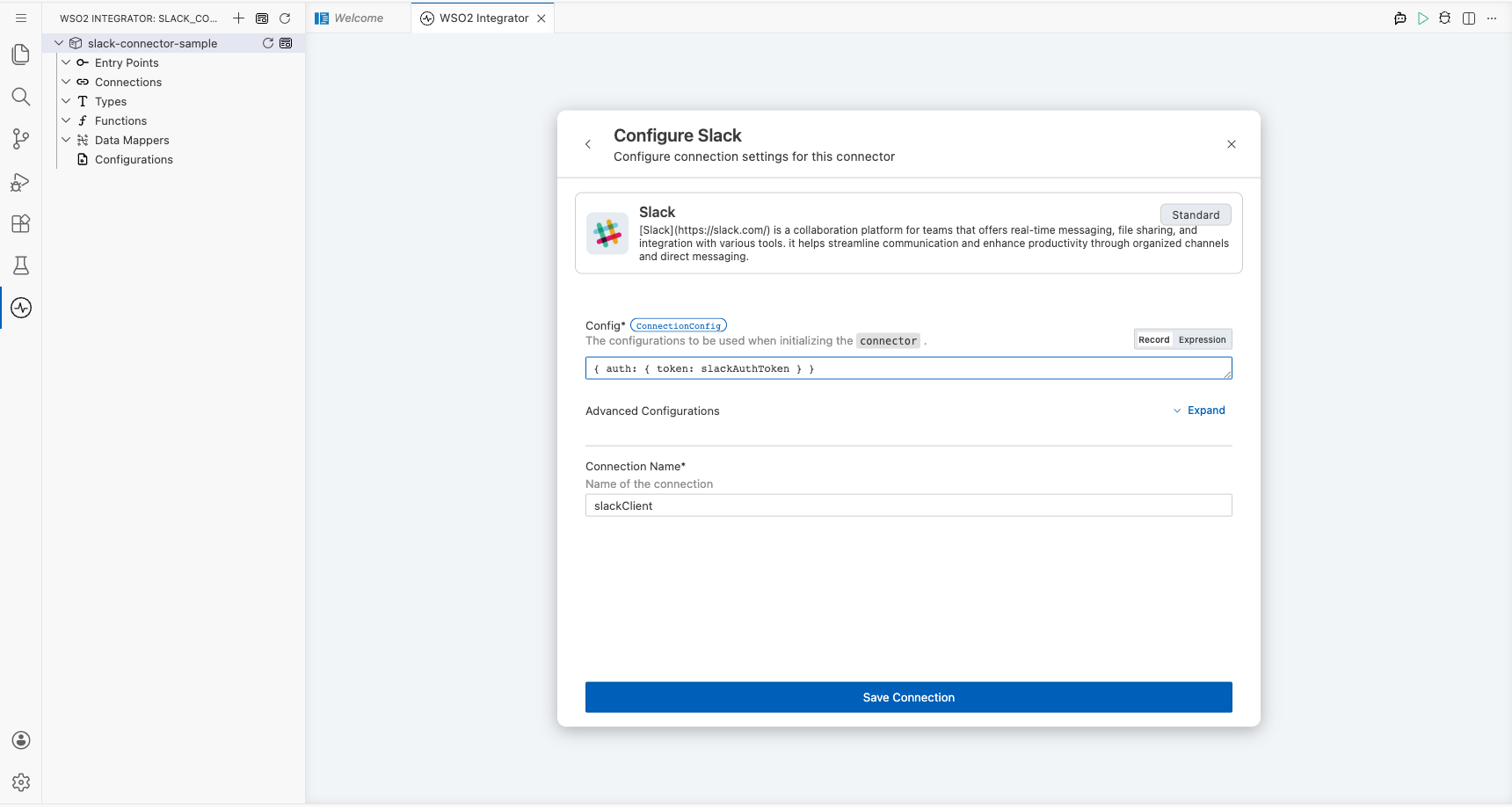
Step 3: Save the connection
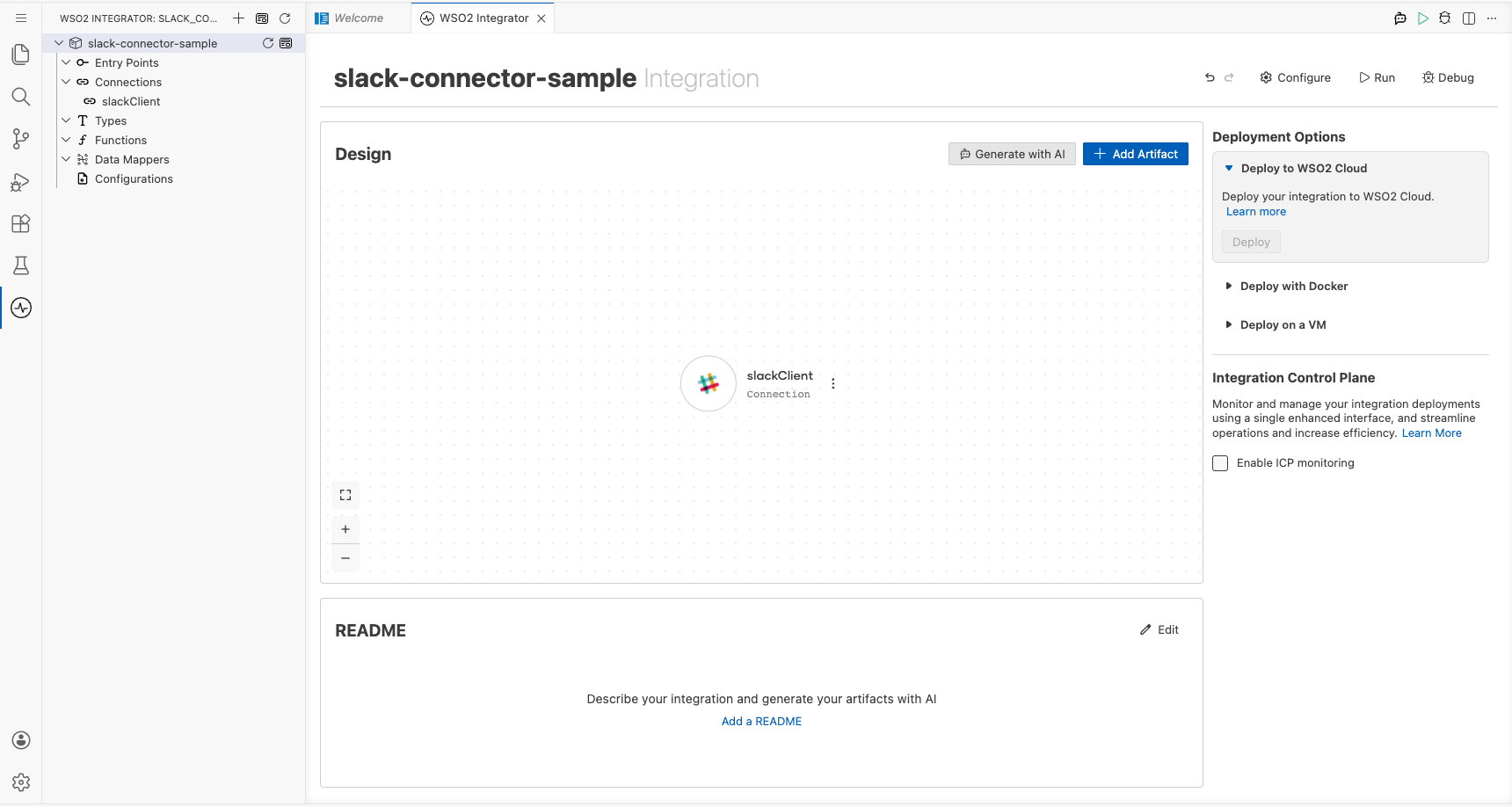
Select Save to create the connection. The slackClient connection node appears on the canvas and under Connections in the sidebar.
Step 4: Set actual values for your configurables
In the left panel, select Configurations. Set a value for each configurable listed below:
- slackAuthToken (string) : Your Slack Bot OAuth token (starts with
xoxb-)
Configuring the Slack post operation
Step 5: Add an automation entry point
In the WSO2 Integrator sidebar, hover over Entry Points to reveal the Add Entry Point button. Select it to open the artifact type selector, then select Automation. Accept the default settings and select Create.
The automation flow opens in the canvas, showing Start, a placeholder node, and Error Handler.
Step 6: Select and configure the post operation
Select the + button between the Start and Error Handler nodes to open the node selection panel. Under Connections, select slackClient to expand its available operations.
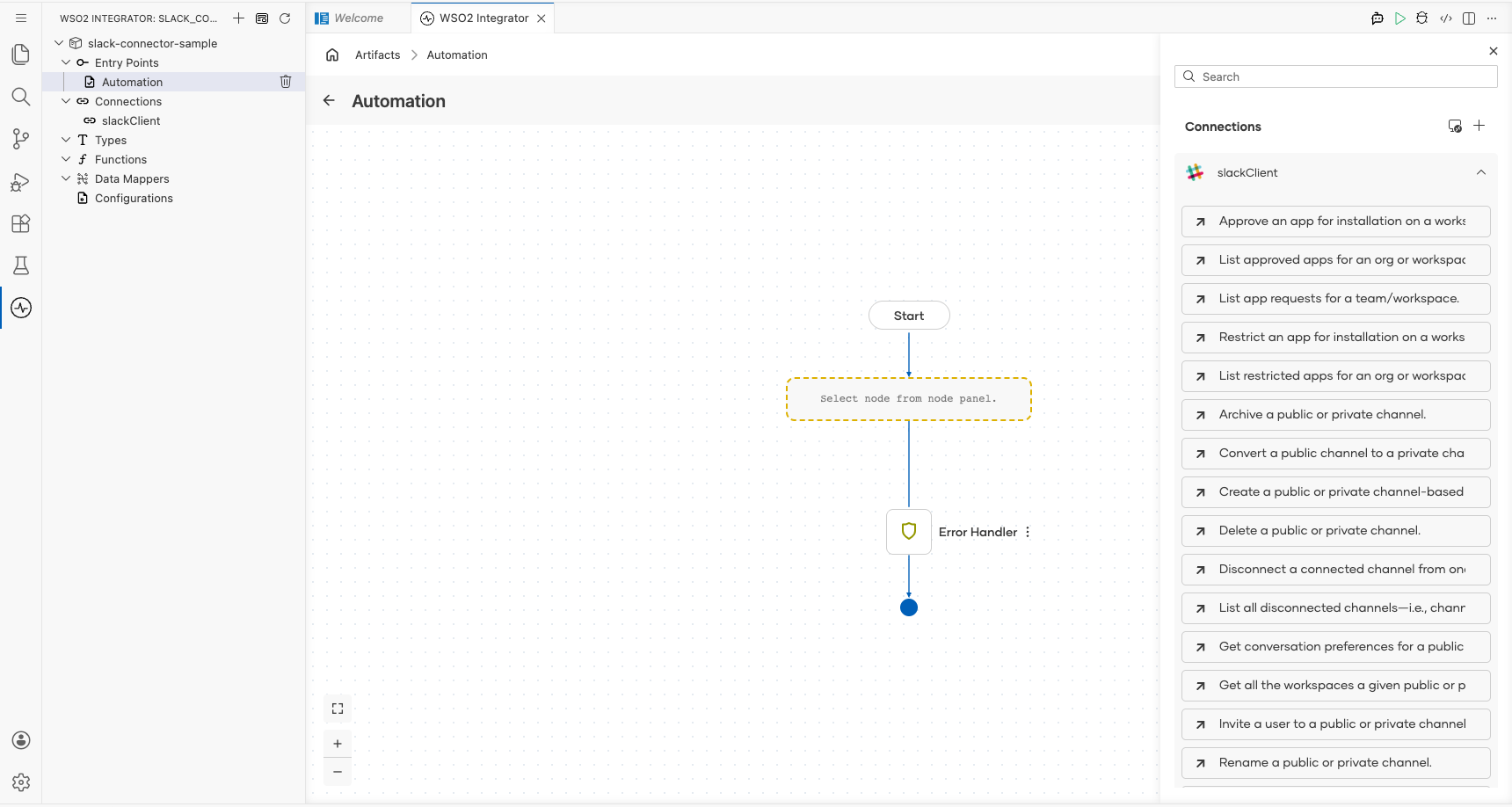
Select post from the list to open the operation configuration form, then fill in the fields:
- channel : The Slack channel to post the message to (for example,
general) - text : The message text to send
- result : The variable name to store the response (default
slackChatpostmessageresponse)
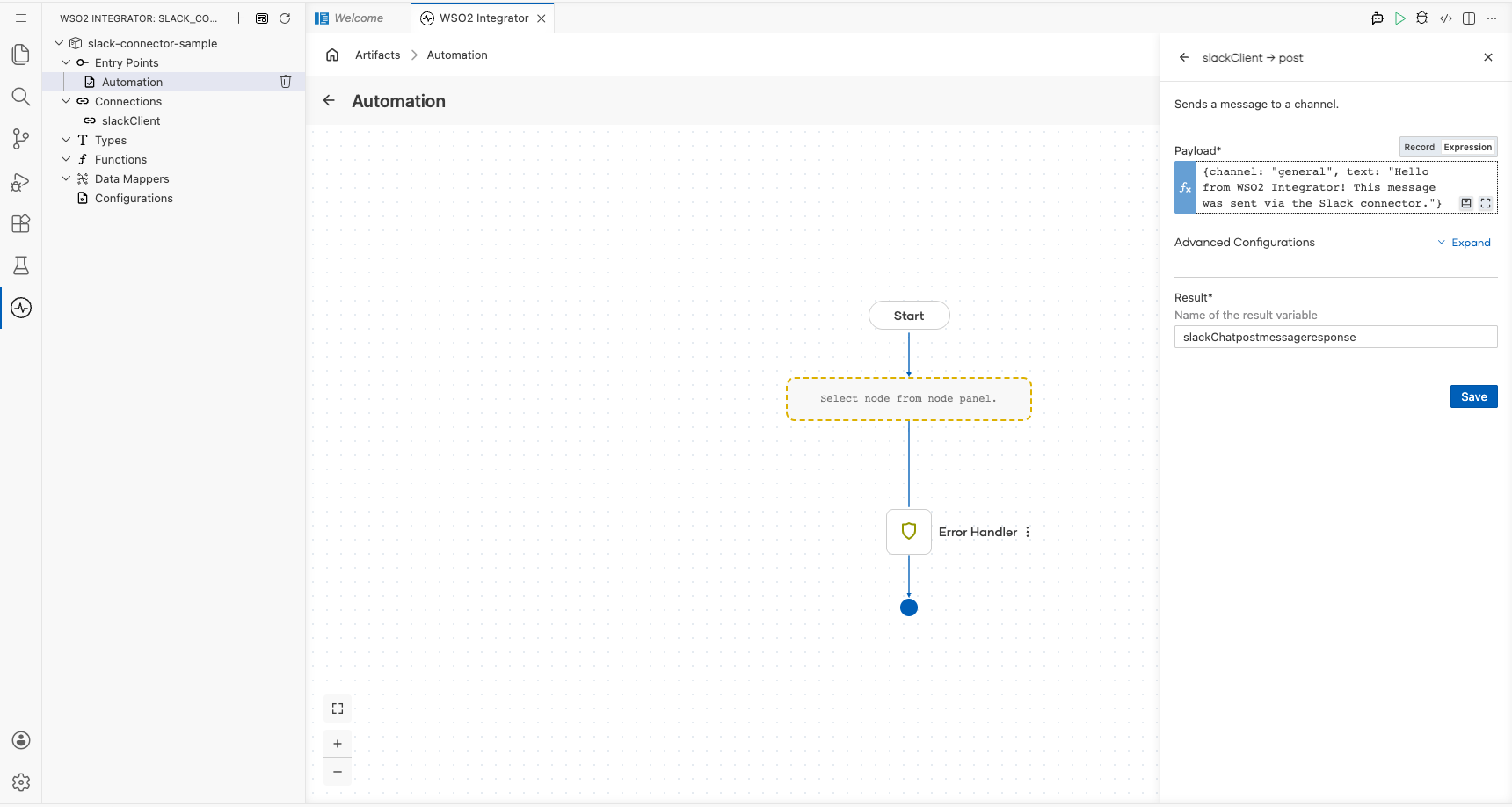
Select Save to add the step to the flow.
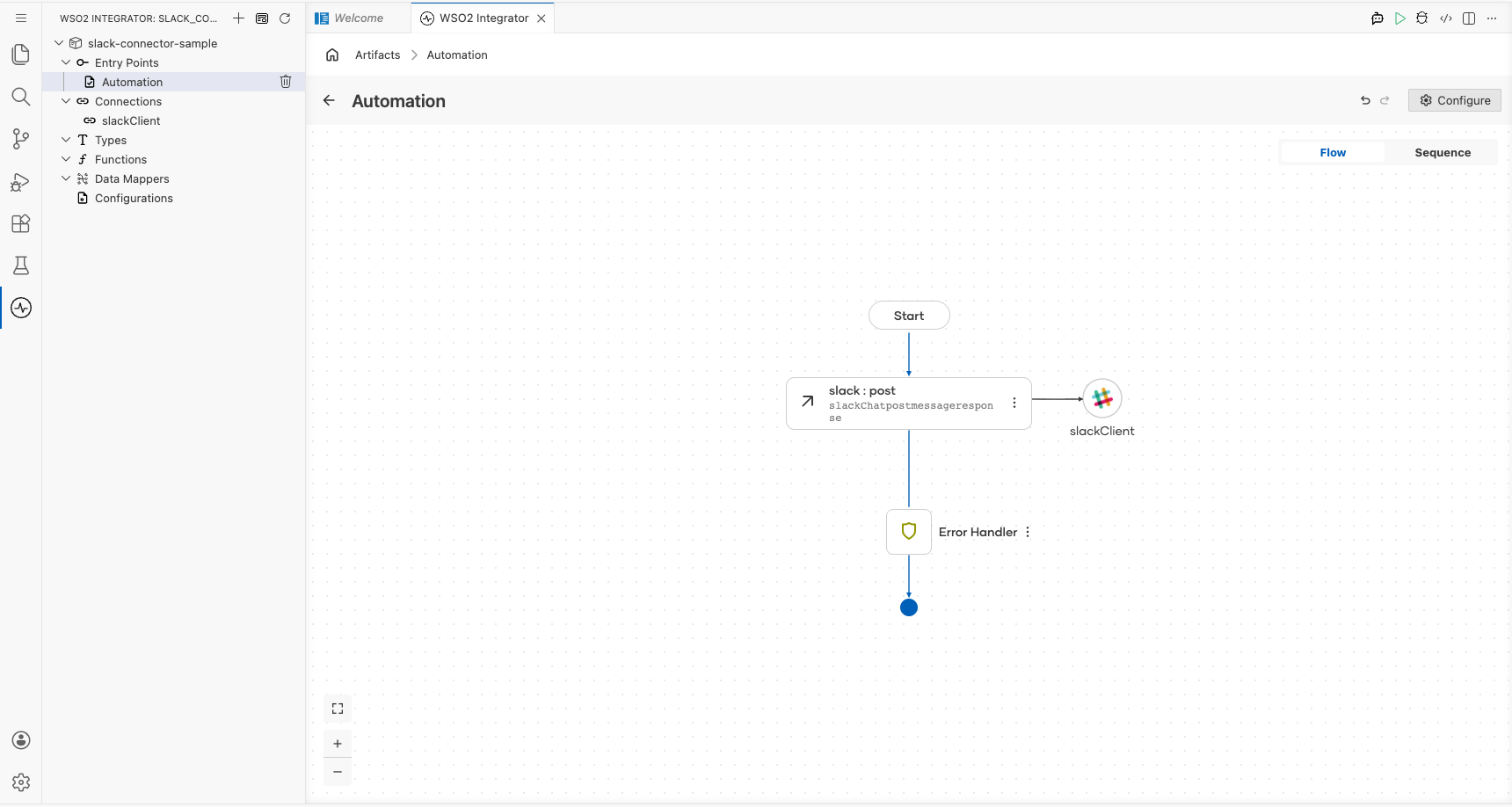
Try it yourself
Try this sample in WSO2 Integration Platform.

More code examples
The Slack connector provides practical examples illustrating usage in various scenarios. Explore these examples, covering the following use cases:
-
Automated Summary Report - This use case demonstrates how the Slack API can be utilized to generate a summarized report of daily stand-up chats in the general channel.
-
Survey Feedback Analysis - This use case demonstrates how the Slack API can be utilized to perform a company-wide survey by creating a dedicated channel to receive and track feedback replies.