Example
What you'll build
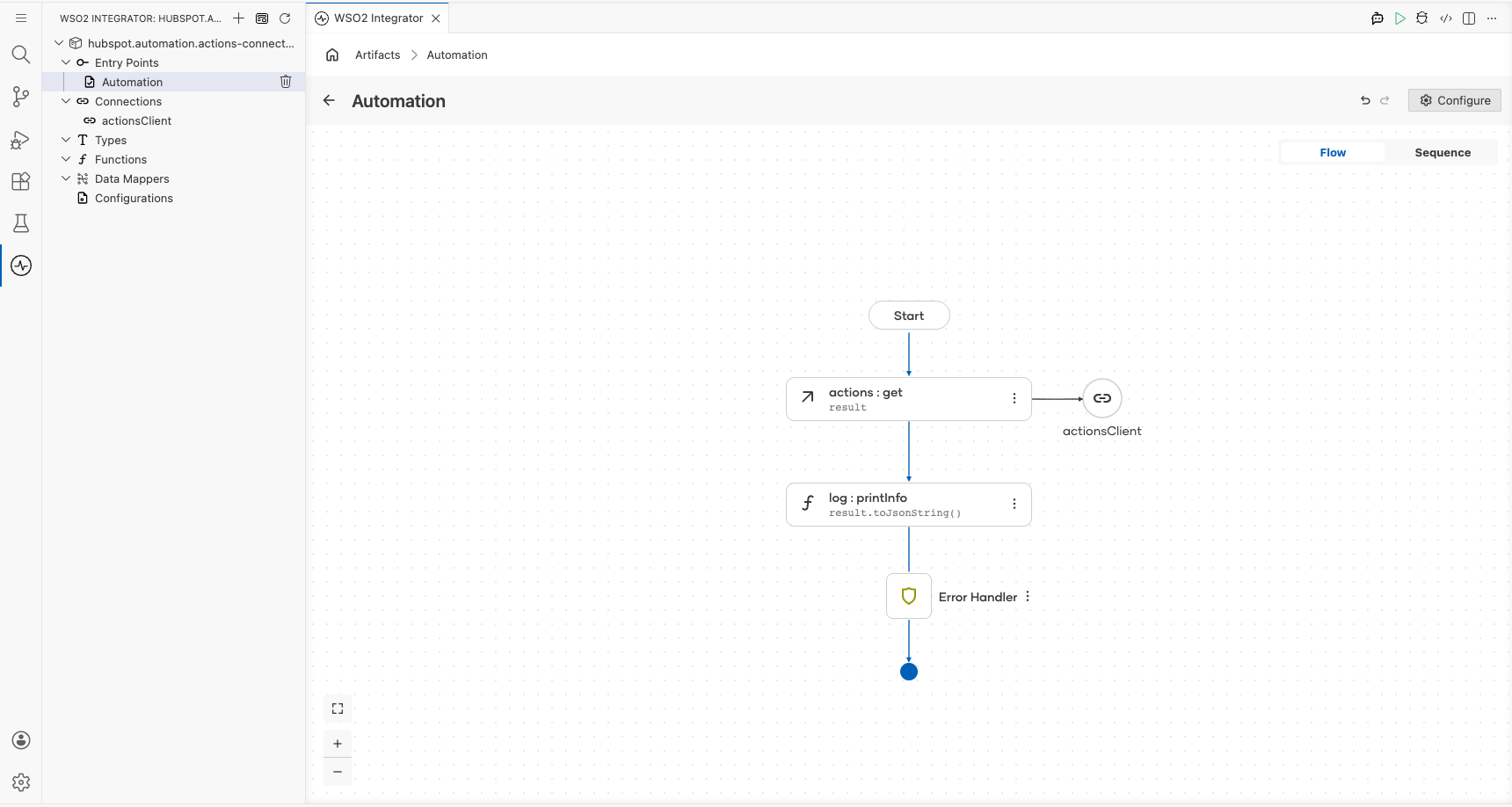
Build an integration that retrieves paged extension definitions from the HubSpot Automation Actions API and logs the result as a JSON string. The integration uses token-based authentication via a configurable variable to connect securely to HubSpot.
Operations used:
- Get paged extension definitions : Retrieves a paged list of automation action extension definitions from HubSpot
Architecture
Prerequisites
- A valid HubSpot account with API access
- A HubSpot private app token with the required scopes for Automation Actions
Setting up the HubSpot Automation Actions integration
New to WSO2 Integrator? Follow the Create a New Integration guide to set up your integration first, then return here to add the connector.
Adding the HubSpot Automation Actions connector
Step 1: Add the HubSpot Automation Actions connector from the palette
In the design canvas, open the connector palette and search for the HubSpot Automation Actions connector.
- In the design canvas, navigate to the Connections section.
- Select the Add Connection button to open the connector palette.
- In the search field, enter
hubspot.automation.actionsto filter the list. - Locate Actions under
ballerinax / hubspot.automation.actionsand select the connector card.
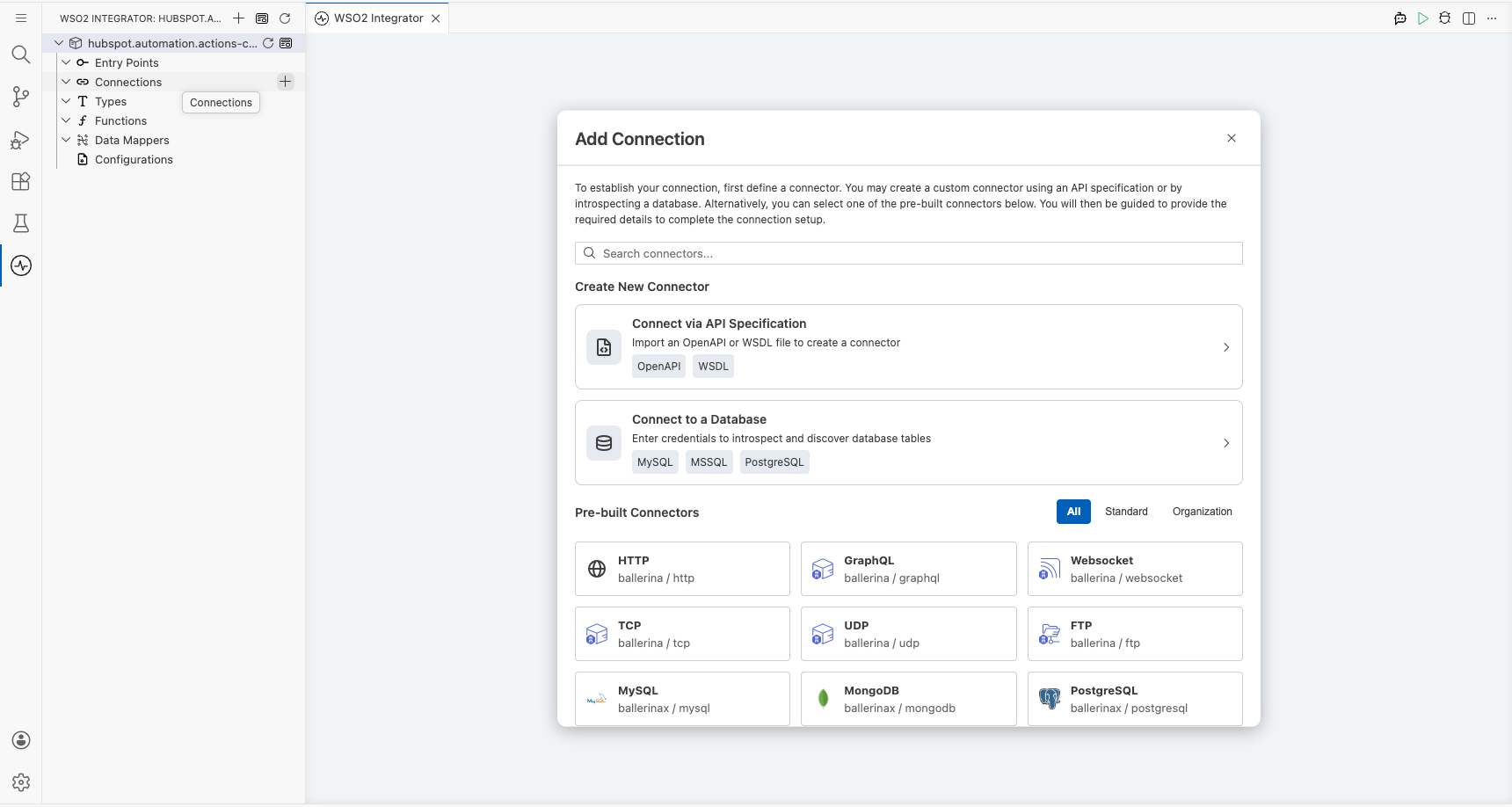
Configuring the HubSpot Automation Actions connection
Step 2: Fill in the connection parameters
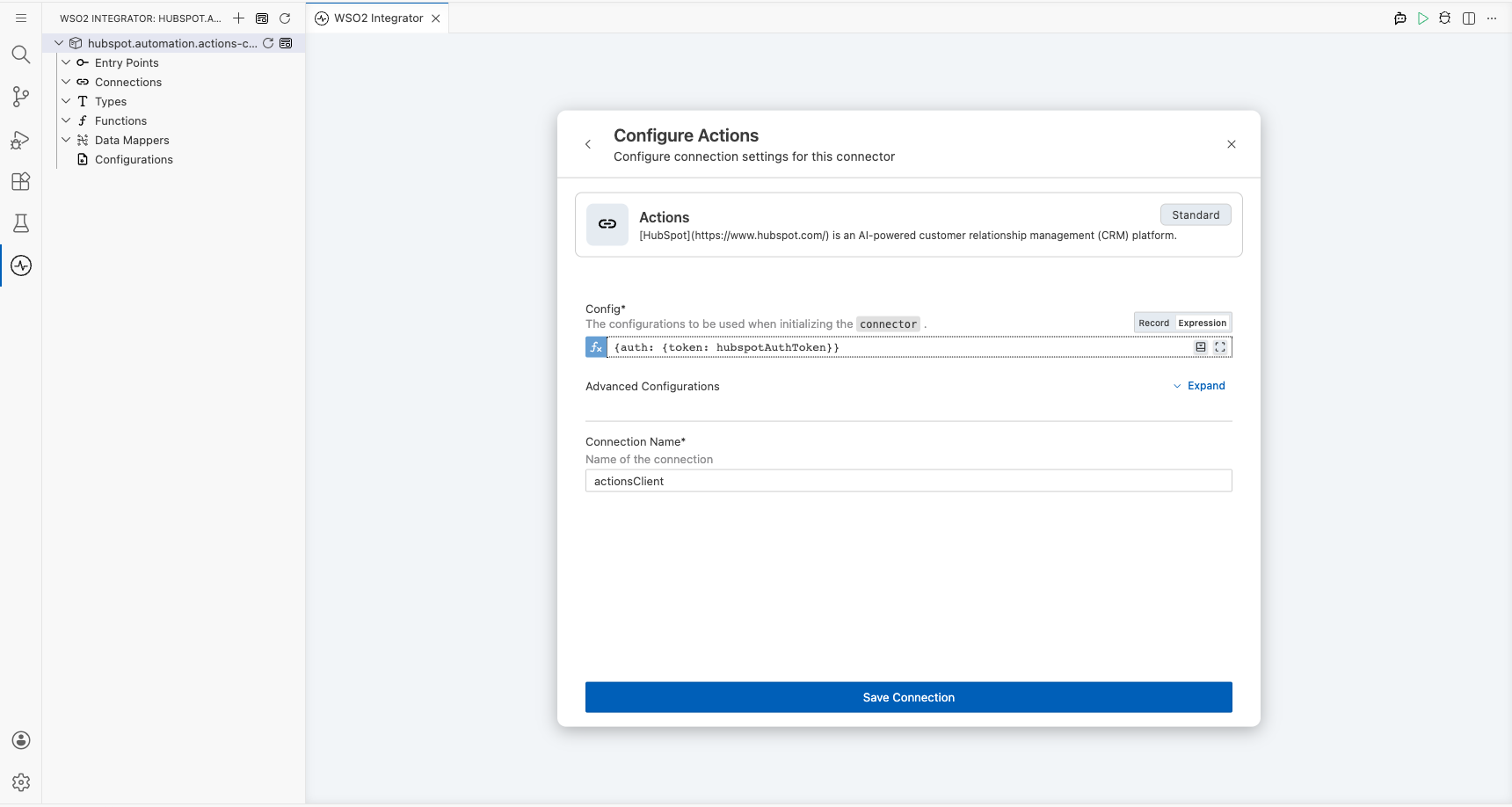
Configure the connection by binding the authentication token to a configurable variable.
- Set the Connection Name to
actionsClient. - For the Config field, switch to Expression mode and enter
{auth: {token: hubspotAuthToken}}to reference the configurable token variable.
Step 3: Save the connection
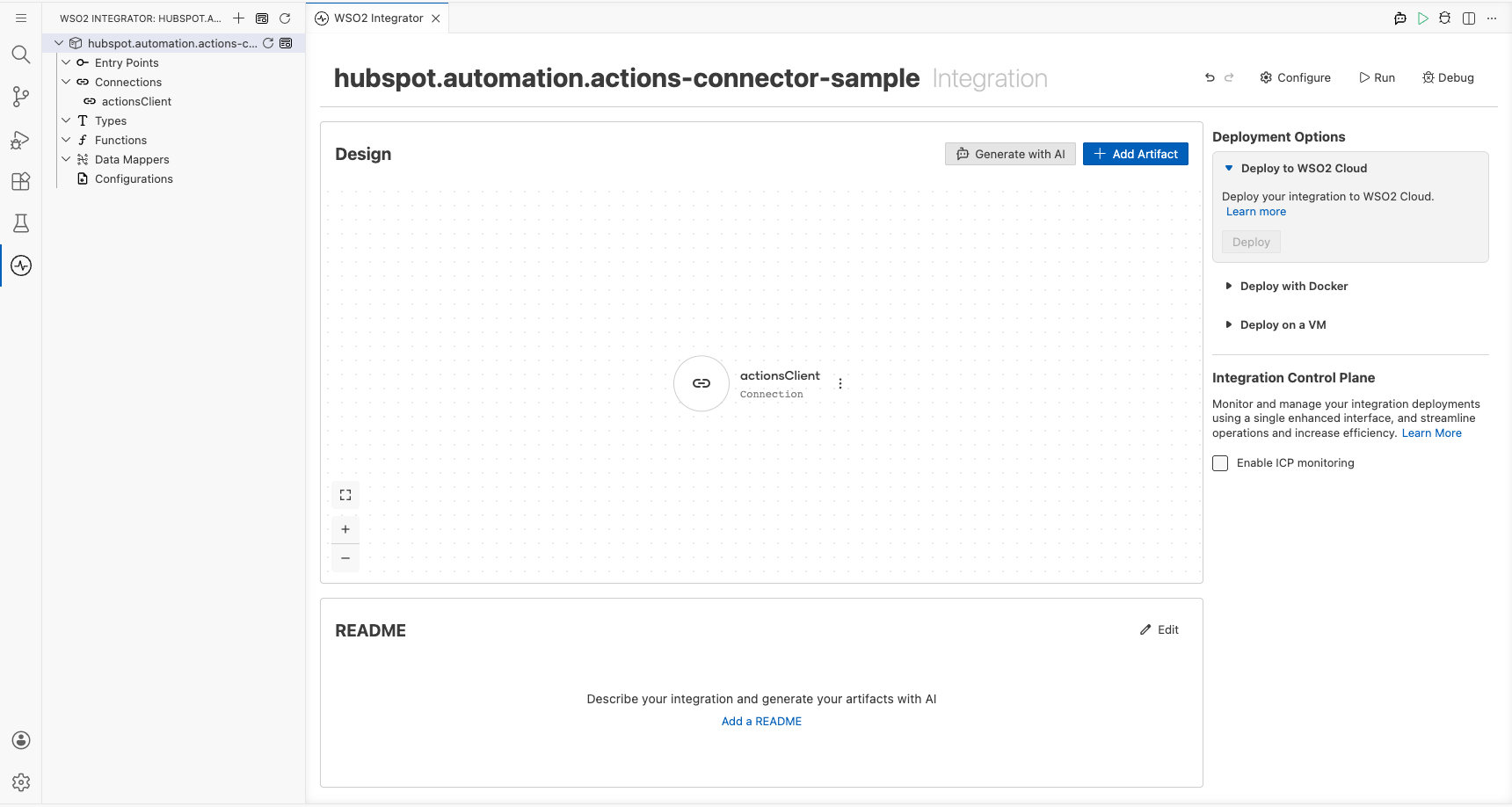
Select Save to persist the connection. The actionsClient connection now appears in the Connections panel on the canvas.
Step 4: Set actual values for your configurables
In the left panel, select Configurations and set a value for each configurable listed below.
- hubspotAuthToken (string) : Your HubSpot private app token for authenticating API requests
Configuring the HubSpot Automation Actions Get paged extension definitions operation
Step 5: Add an automation entry point
Select Add Artifact in the WSO2 Integrator sidebar and select Automation from the artifact selection panel. An Automation entry point named main is created and the flow canvas opens, showing Start and Error Handler nodes.
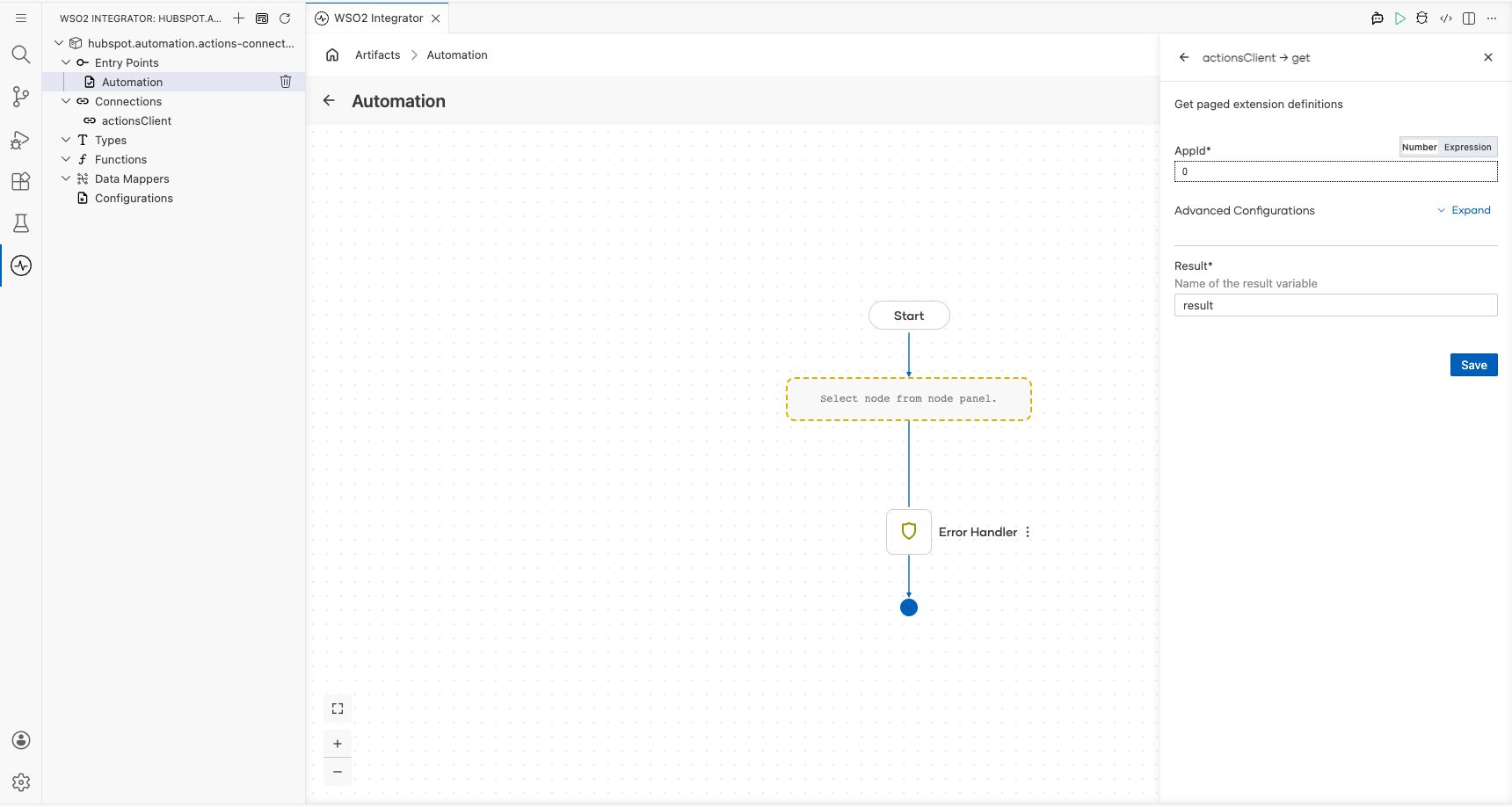
Step 6: Select and configure the Get paged extension definitions operation
Select the + button on the flow line between Start and Error Handler to open the node panel. Under Connections, expand actionsClient to view available operations, then select Get paged extension definitions.
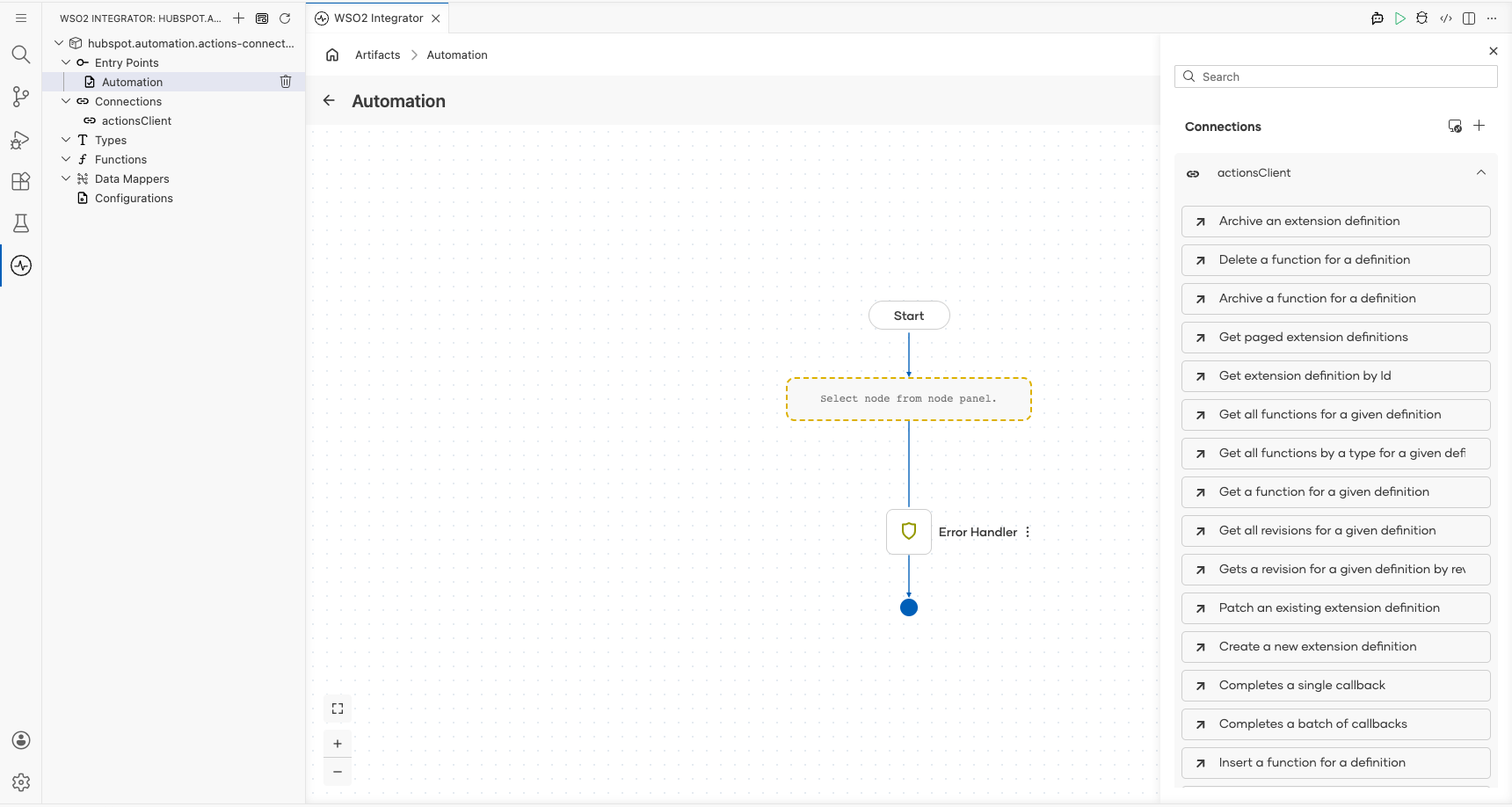
Configure the operation parameters:
- AppId : Your HubSpot application ID (enter
0if not using a specific app) - Result : Variable name to store the operation result, set to
result
Select Save to add the operation to the flow.
Try it yourself
Try this sample in WSO2 Integration Platform.

More code examples
The HubSpot Automation API connector provides practical examples illustrating usage in various scenarios. Explore these examples, covering the following use cases:
- Extension CRUD - Perform CRUD operations on extensions.
- Call complete callback APIs - Complete callbacks using the HubSpot API.