Example
What you'll build
Build an integration that retrieves associations between CRM objects (contacts and companies) using the HubSpot CRM Associations connector. The integration queries the HubSpot CRM Associations API and logs the results.
Operations used:
- List Associations of an Object by Type : Retrieves all associations for a given source object and target object type
Architecture
Prerequisites
- A HubSpot developer account with a valid API bearer token
Setting up the HubSpot CRM Associations integration
New to WSO2 Integrator? Follow the Create a New Integration guide to set up your integration first, then return here to add the connector.
Adding the HubSpot CRM Associations connector
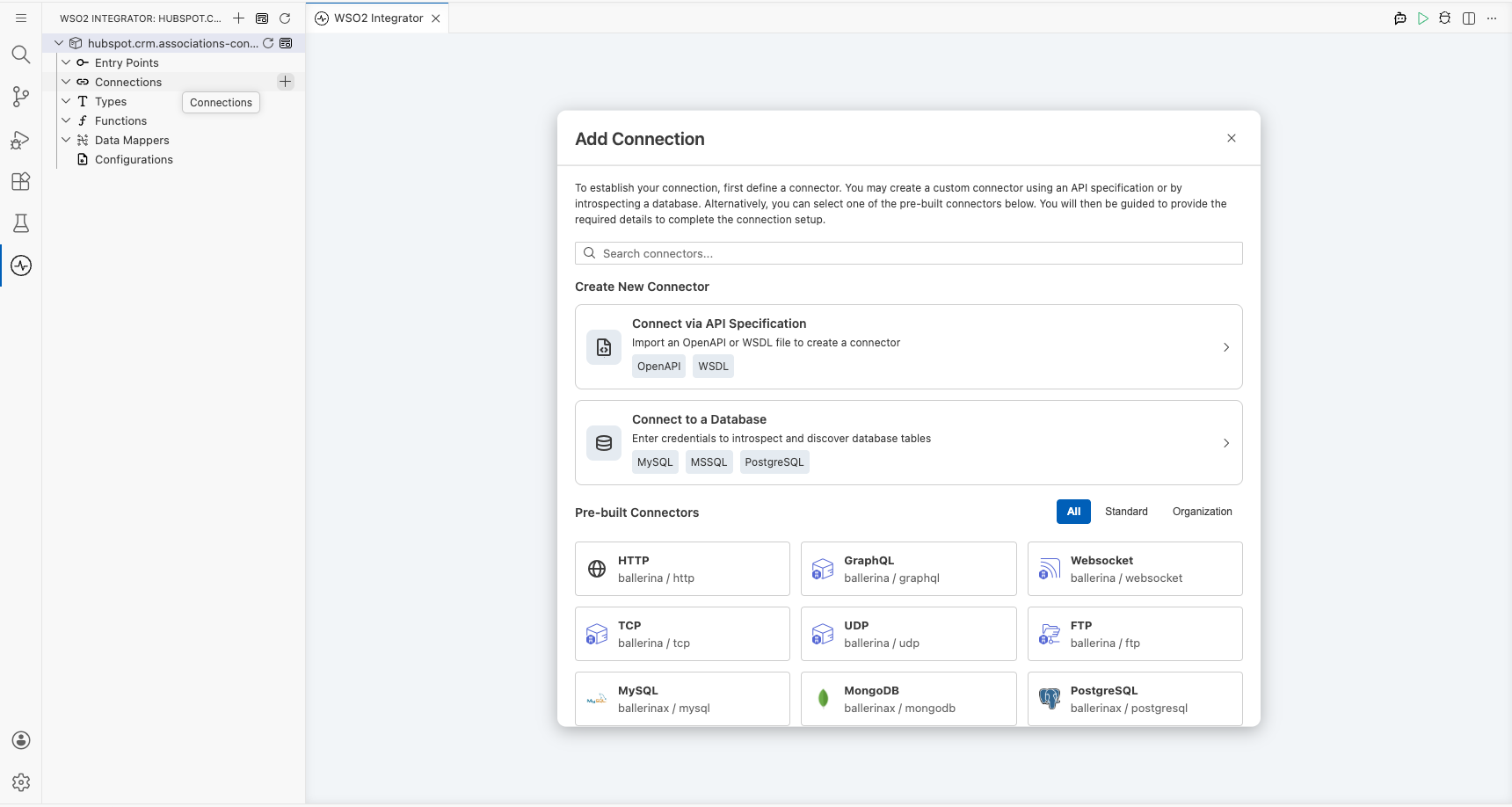
Step 1: Open the Add Connection panel
Select the + button next to Connections to open the Add Connection palette.
Configuring the HubSpot CRM Associations connection
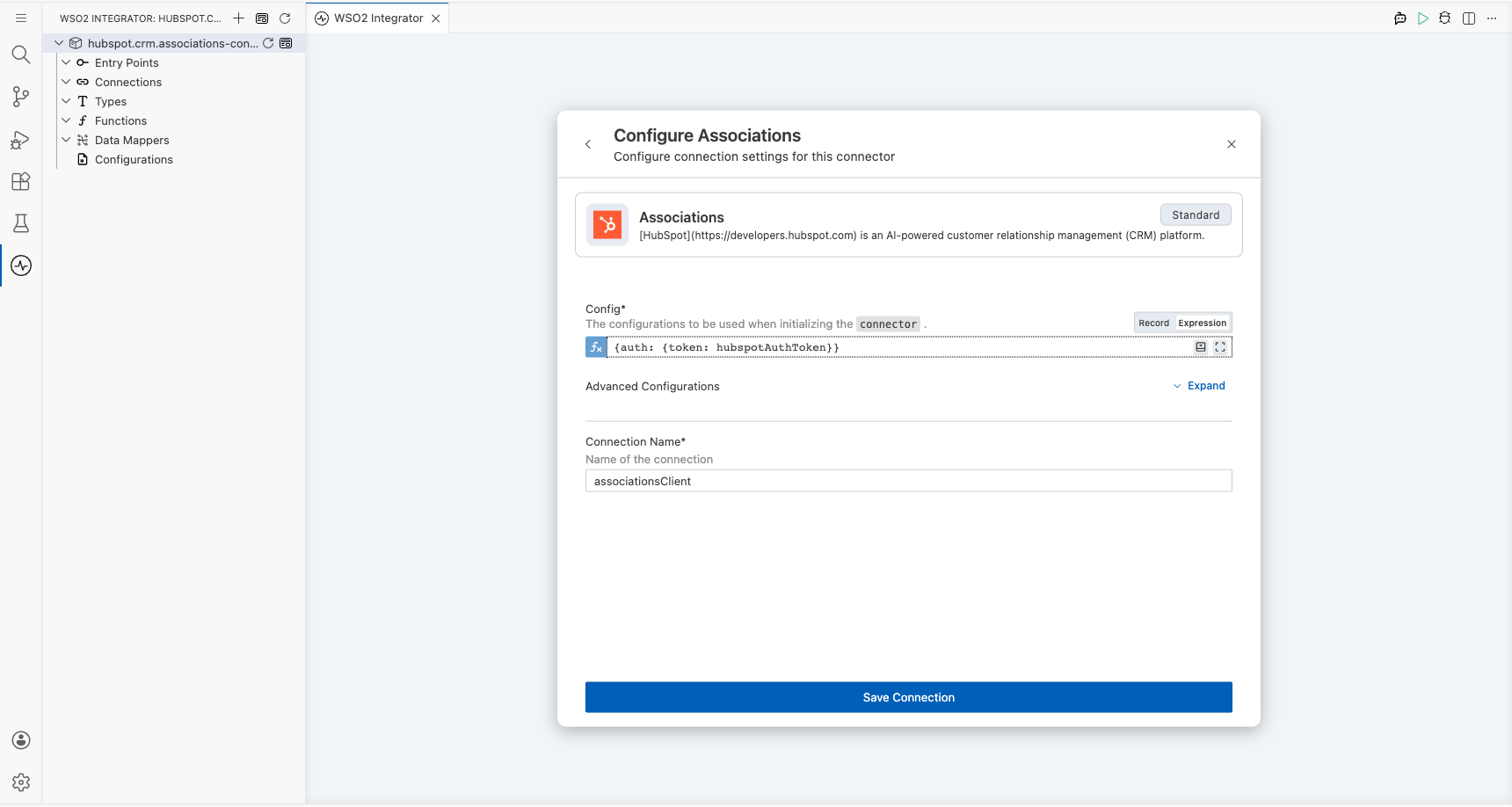
Step 2: Fill in the connection parameters
Enter the connection parameters, binding each field to a configurable variable:
- connectionName : Enter
associationsClientas the connection name - config : Switch to Expression mode and enter
{auth: {token: hubspotAuthToken}}to bind the auth token to a configurable variable
Step 3: Save the connection
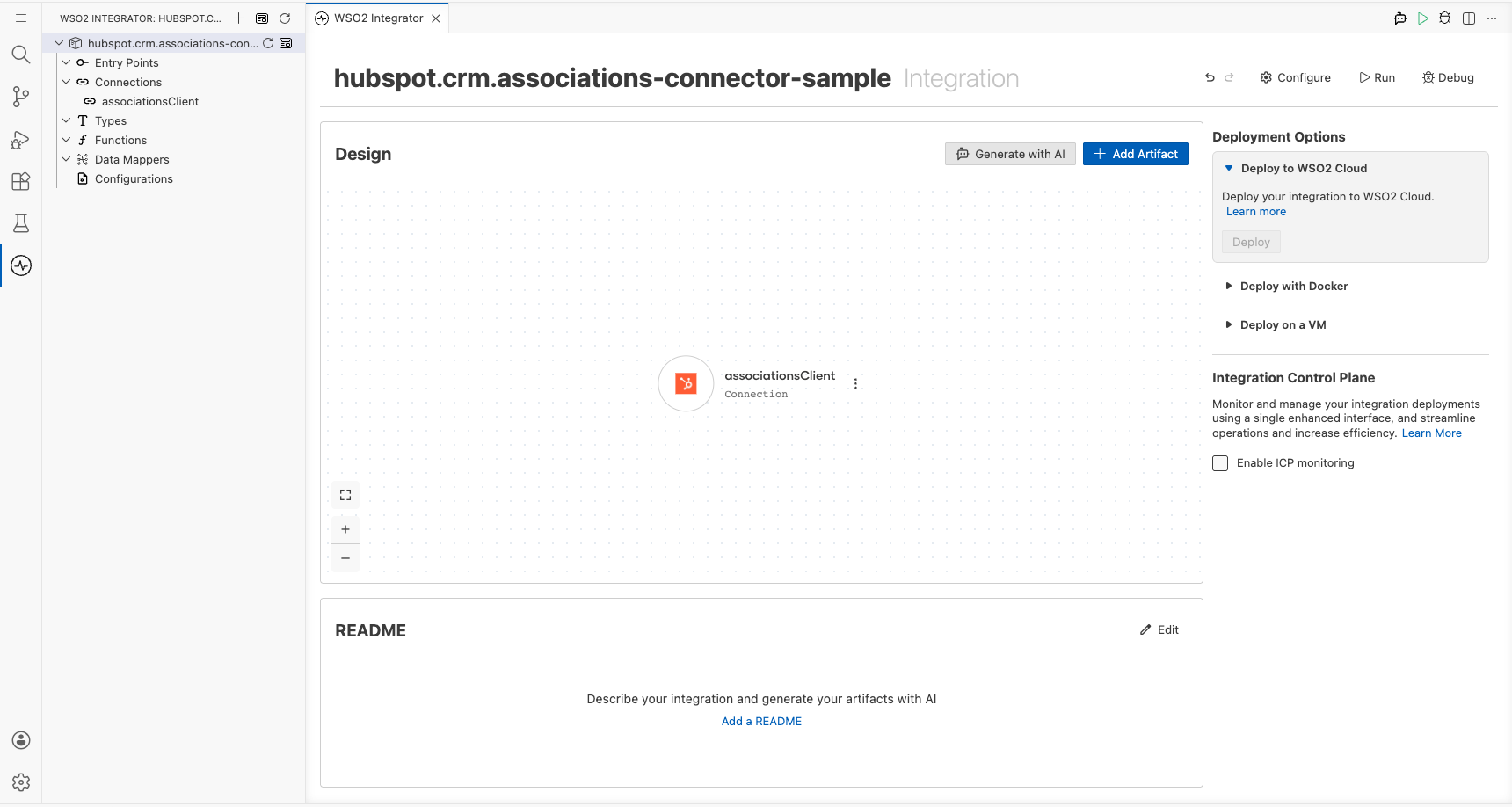
Select Save to create the connection. The associationsClient connection appears in the project tree under Connections and on the design canvas.
Step 4: Set actual values for your configurables
- In the left panel, select Configurations.
- Set a value for each configurable listed below.
- hubspotAuthToken (string) : Your HubSpot API bearer token
Configuring the HubSpot CRM Associations List Associations of an Object by Type operation
Step 5: Add an Automation entry point
Select Add Artifact in the WSO2 Integrator panel, then select Automation as the entry point type. Name it main and select Create. The Automation flow appears on the canvas with Start and Error Handler nodes.
Step 6: Select the operation and configure its parameters
- Select the + (Add Step) button on the flow between the Start node and the Error Handler.
- Under Connections, expand the
associationsClientconnection to reveal available operations.
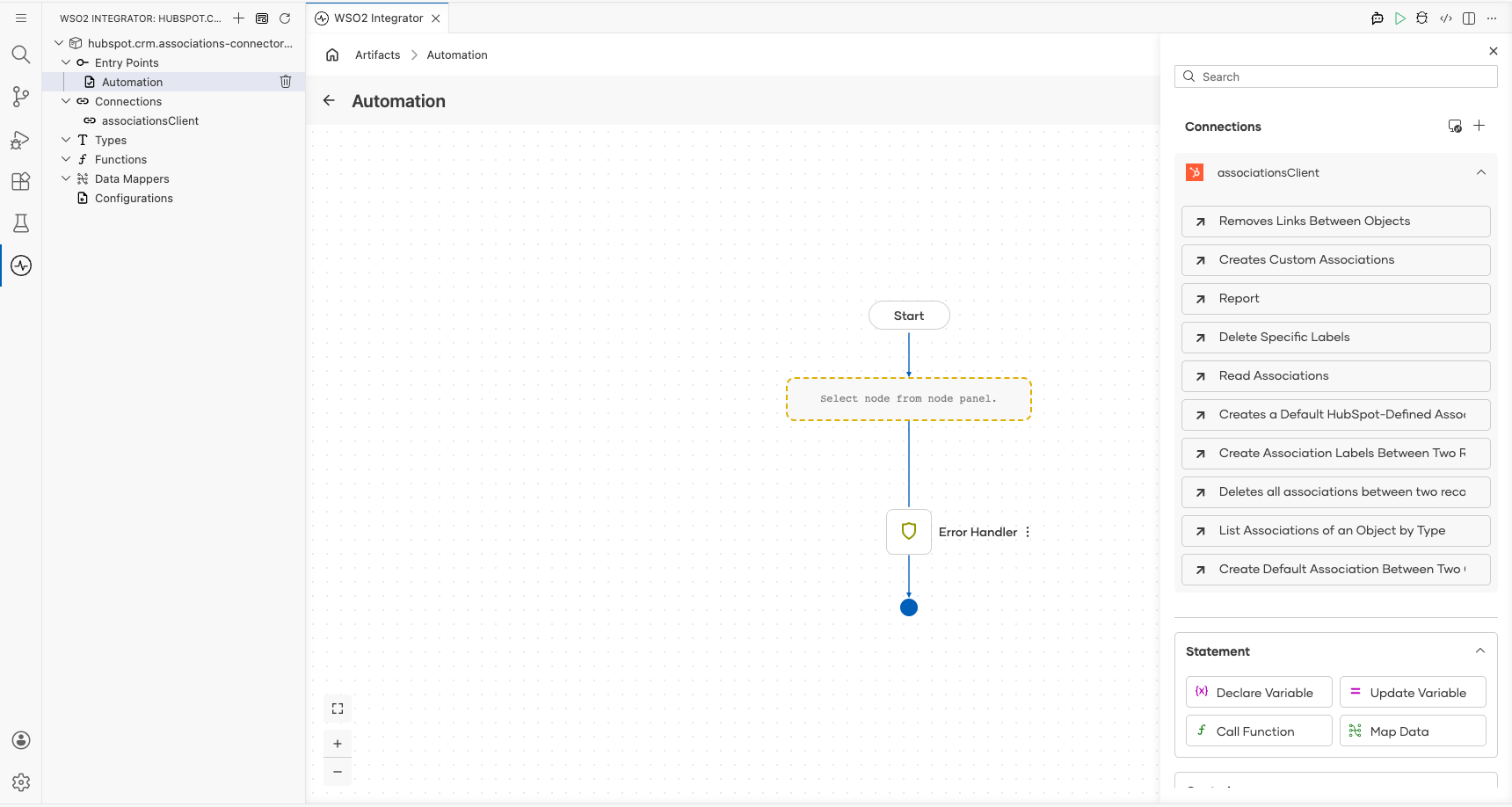
- Select List Associations of an Object by Type and fill in the required fields:
- objectType : The source object type (for example,
contacts) - objectId : The ID of the source object
- toObjectType : The target association object type (for example,
companies) - result : The variable name for the response
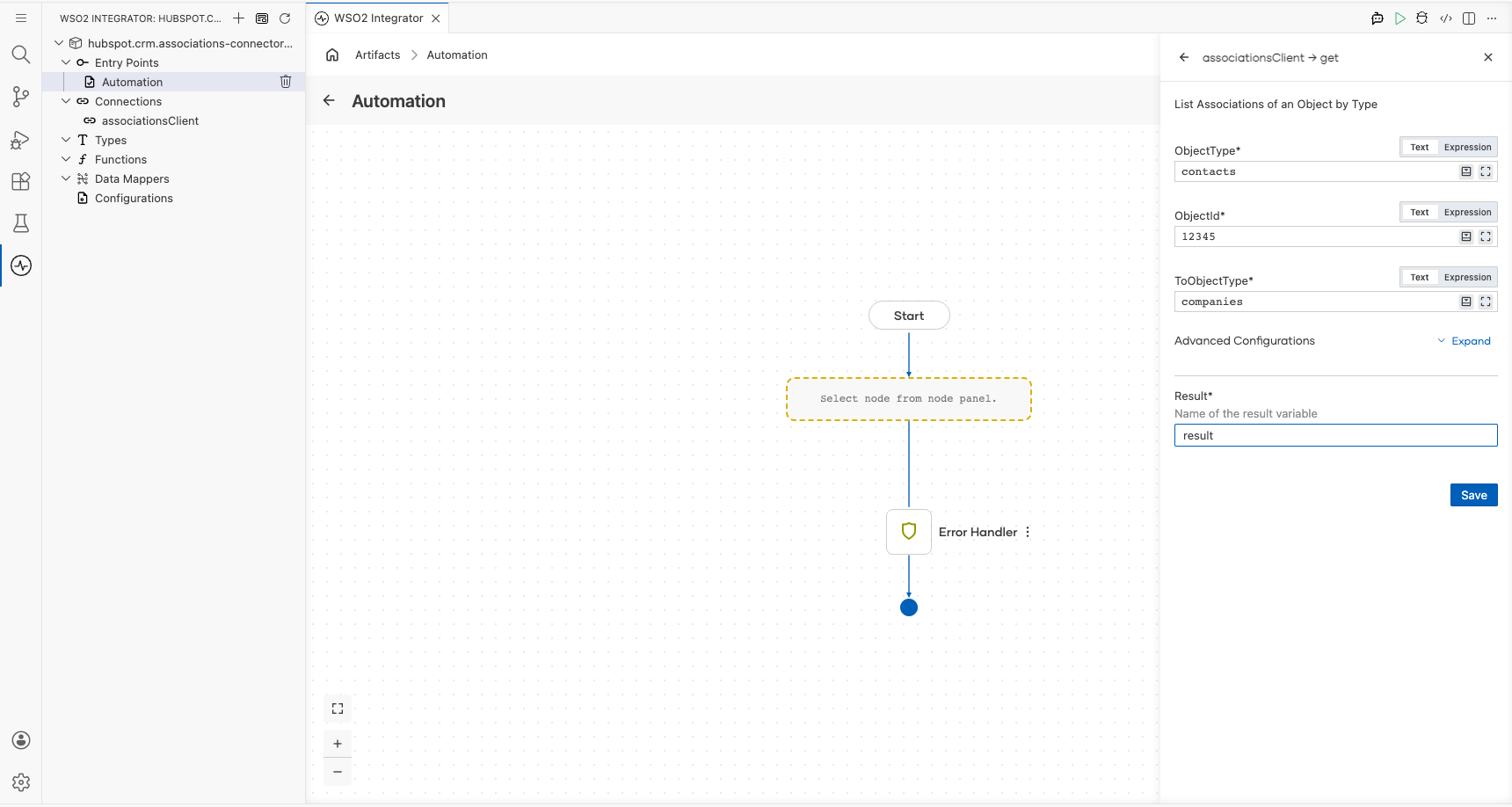
Select Save to add the operation to the flow.
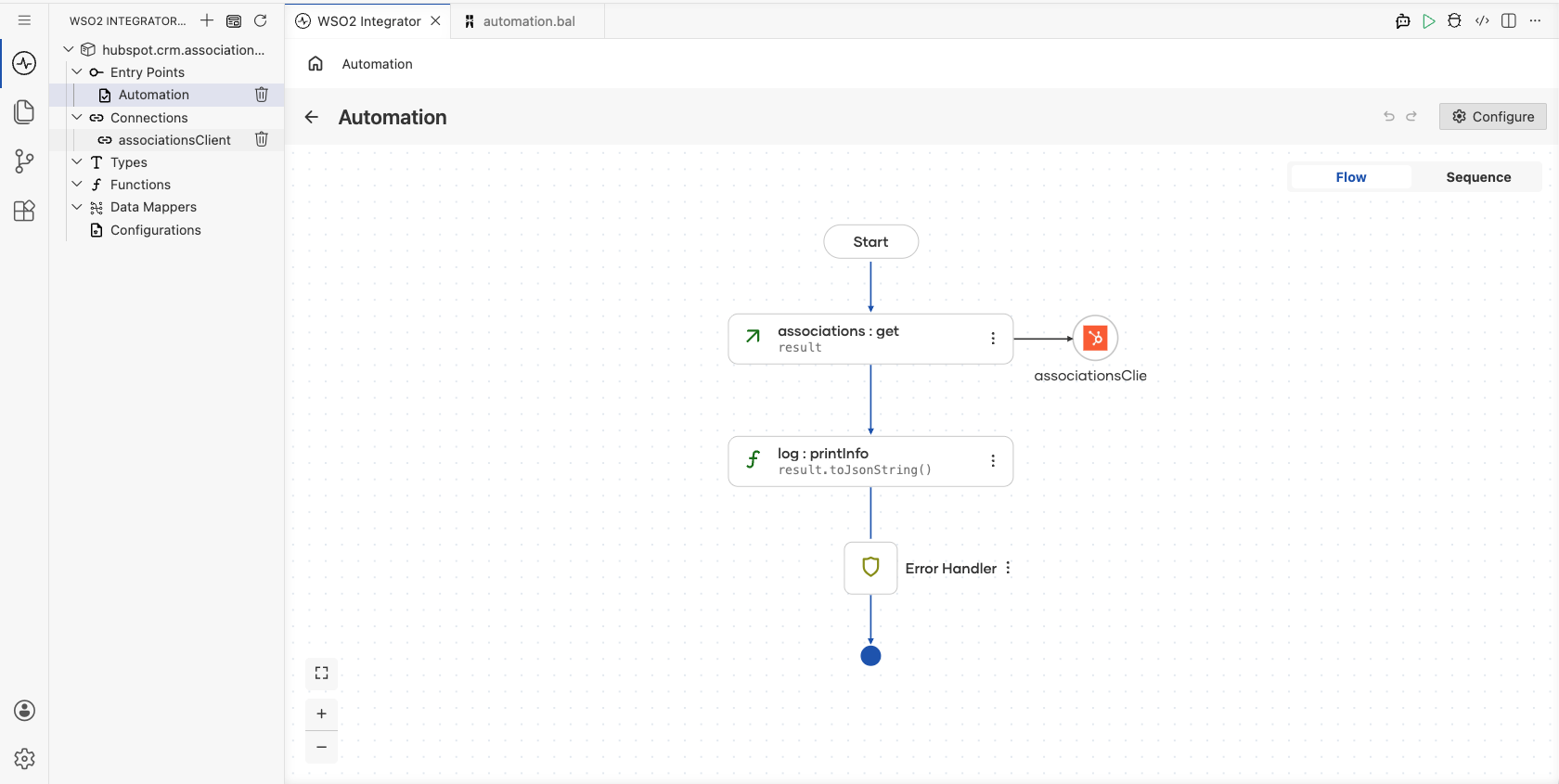
Try it yourself
Try this sample in WSO2 Integration Platform.

More code examples
The HubSpot CRM Associations connector provides practical examples illustrating usage in various scenarios. Explore these examples, covering the following use cases:
- Create and read associations – This example demonstrates how to use the HubSpot CRM Associations connector to batch-create default and custom-labeled associations between deals and companies, as well as retrieve existing associations for a given deal.
- Create and delete associations - This example demonstrates how to use the HubSpot CRM Associations connector to create individual default associations with and without labels between deals and companies. It then shows how to delete a specific association label between them, followed by deleting all associations between the two objects.